Drivers.com

follow us:

facebook twitter
  • Home
  • Download Drivers
  • Drivers Help
  • PC/Mac Resources
  • Software Drivers
  • Mac Fixes and Tips
  • PC Fix Tips
  • Security/ Backup
  • Tablets & Smartphones
  • Tech News
  • Software Drivers
  • Mac Fixes and Tips
  • PC Fix Tips
  • Security/ Backup
  • Tablets & Smartphones
  • Tech News

Windows Could Not Complete the Installation error for Windows 10

By Susan C on July 31, 2018

Windows Could Not Complete the Installation error for Windows 10
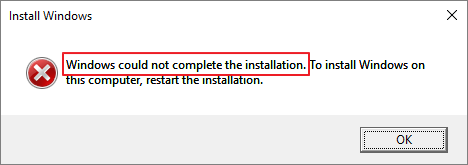
win-installation-error

Are your getting an error “Windows could not complete the installation” while installing Windows 10?

This is a common error. Many windows have reported getting it or a similar error while installing Windows.

This post offers four easy solutions to fix the problem and complete Windows installation.

You don’t need to try all the solutions given in this post. Start with the first one and move to the next one and so on, till the issue is resolved.

Solution One – Continue installation with the Automatic Repair option

Like previous Windows versions, Windows 10 also features Windows Recovery Environment that can help you resolve issues with unbootable Windows operating system.

Windows RE is pre-loaded with all Windows 10 editions. Users can start the recovery environment manually from the Windows RE CD/DVD.

Here are the steps to invoke Automatic Repair option in Windows 10.

  • Switch on your PC and when Windows enters booting phase, switch it off. Repeat this 2-3 times and you will see Automatic Repair option initiated. You will see a screen like the one below that shows preparing automatic repair
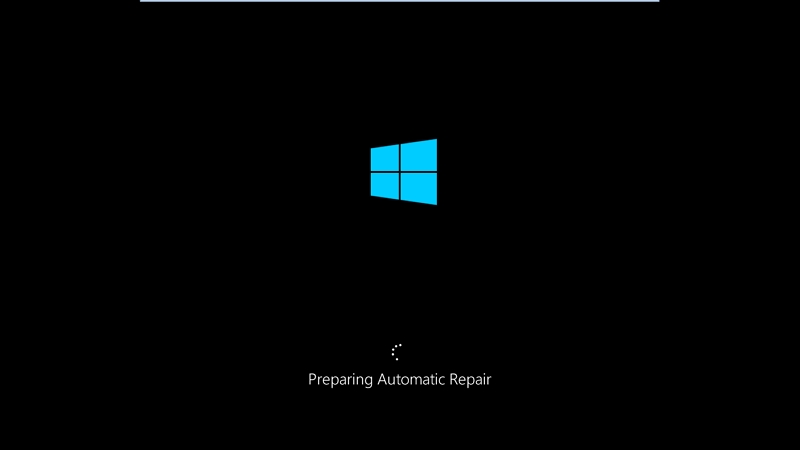
prepare-auto-repair
  • In the Automatic Repair screen, click Advanced Options
  • In the next screen, select Troubleshoot
  • In the Troubleshoot screen, click Reset this PC
  • In the next screen, select Keep my Files
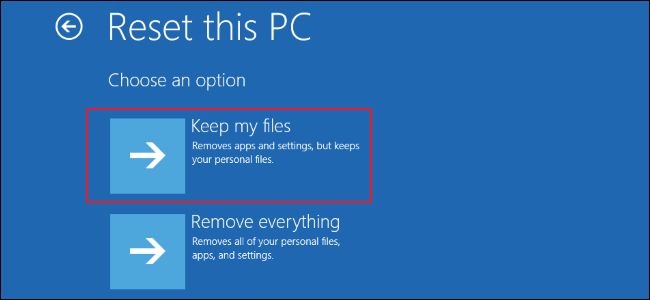
keep-my-files
  • In the Reset this PC screen, click Cancel
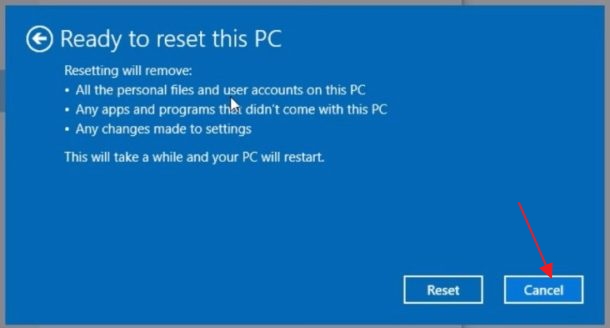
reset-this-pc
  • In the next screen, click Continue

If these troubleshooting methods succeed, you can see Windows installation progressing normally without any errors. After Windows 10 installation is complete, don’t forget to update all drivers by the following method given below.

Next Step – Update Drivers

Automatic driver update tools offer many benefits, the most important ones being:

  • You can update device drivers automatically
  • The software scans and updates all outdated or missing drivers at one go
  • The tool picks the right drivers for your device and operating system, so you won’t have to worry about installing an incorrect driver by mistake
  • Automatic driver updates are 100% safe

Driver Updater is one of the best driver update tools out there. Outbyte Driver Updater will give you access to a database of over 1 million drivers. It will regularly scan your PC, suggesting new driver versions to install. Driver Updater contains drivers for a variety of Windows devices. With just one click, you can update drivers in your system.

Step 1
Click here to Install and launch the app

Step 2
Scan all devices

Step 3
Install or update drivers automatically


Start Download


Solution Two – Use Windows Account Creation Wizard

Windows 10 installation also fails to complete because the setup is not able to create a user account normally. In such a scenario, using Windows account creation wizard is one of the options available to you.

Once the user account is created, the Windows installation would progress normally. Here are the steps to follow.

  • With error still on the screen, hold down Shift and F10 key at the same time to bring up command
  • In the command prompt window, type cd C:\windows\system32\oobe\ and hit Enter on your keyboard.
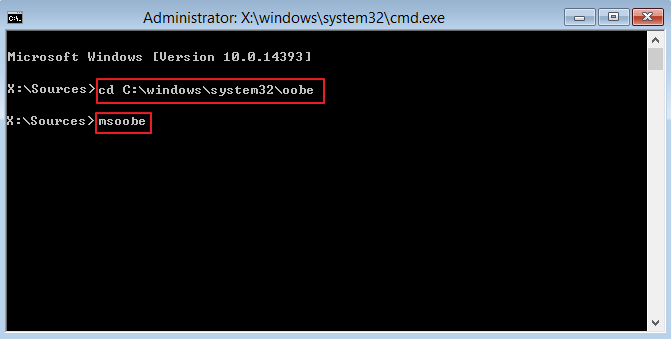
msoobe
  • Next, type msoobe and hit Enter on your keyboard
  • When the user account creation wizard appears, create a generic username and password

Restart your computer and see if the Windows 10 installation progresses without error. if you are still getting the Windows could not complete the installation error, move to the next solution.

Solution Three – Don’t activate Windows while installing

Many users make the mistake of trying to activate Windows 10 while installing. It is possible that Windows activation process could take an unusually long time to complete and in turn cause the Windows could not complete the installation error.

To avoid such issues, activate Windows after the installation is complete.

When the Windows 10 is successfully installed, you can activate Windows 10 by entering the product key. Here are the steps to follow

When you get the following screen, click I don’t have a product key. The Windows installation would progress normally even after you make this choice.
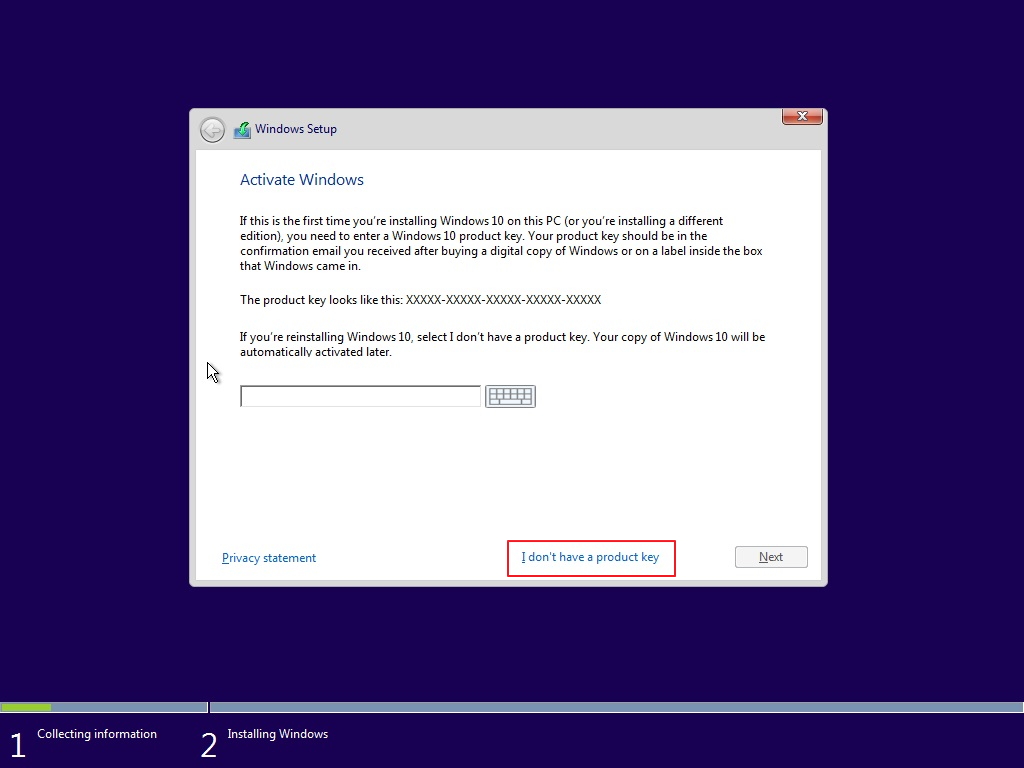
activate-win

Once Windows 10 is installed, follow the steps given below

  • Click Start and then click Settings
  • In the Settings window, click Update & Security
  • In the Update & Security window, click Activation in the left pane
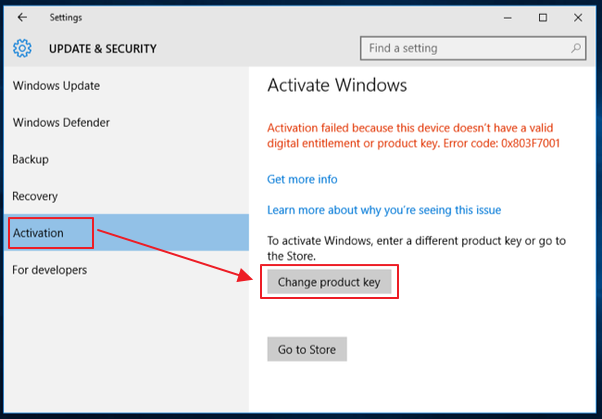
chng-prodct-key
  • In the right pane, click Change Product key and type your product key
  • Click Close

Solution Four – Try another installation media

One of the reasons behind Windows could not complete the installation error is corrupt installation media. A simple solution to this problem is using another installation media. You can download any Windows 10 version from the Internet and create an installation disc or USB installation media for Windows 10.

You will need a working computer to download Windows 10 and create installation media. Here are the steps to follow

  • Go to Microsoft Windows 10 download site
  • click Download tool now
  • Click Save
  • click on MediaCreationtool.exe file that you just downloaded
  • In the user account control window, click Yes
  • When you see the license terms window, click Accept
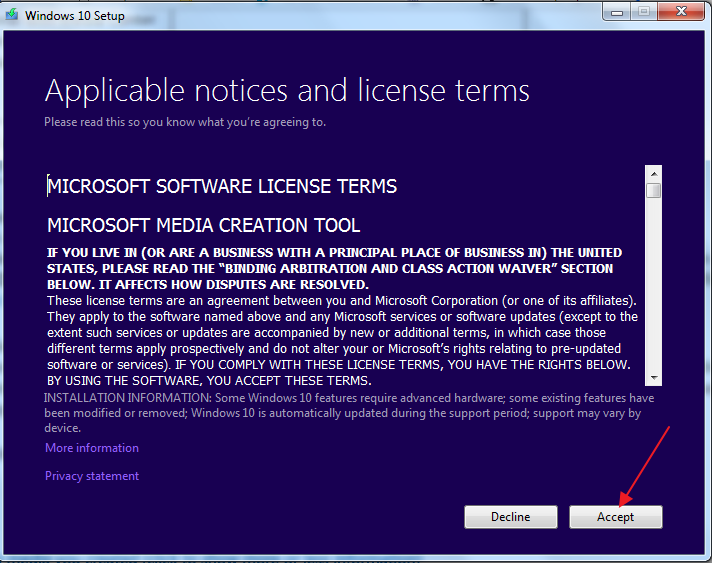
license-terms
  • In the next window, click create installation media(USB flash drive, DVD, or ISO file) for another PC and click Next
  • In the next window, select desired language, edition, and architecture and click Next

(Note- You need to select Windows edition  and architecture for which you have the product key)

  • Select desired option( USB Flash Drive or ISO) and click Next
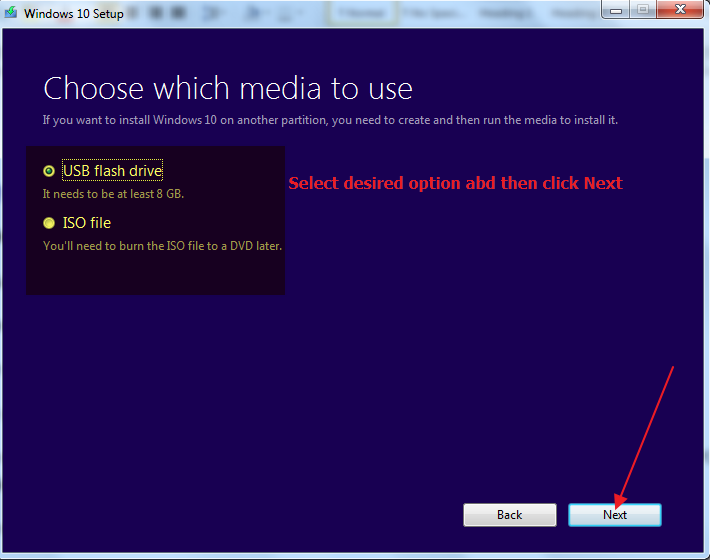
media-to-use
  • If you have selected USB Flash Drive option, plug-in USB and follow on-screen instructions to continue
  • If you selected ISO option, select the drive where you want to save the file and type in some name for the ISO file. Follow on-screen instructions to continue.
Filed Under: PC Fix Tips Tagged With: Windows Installation error

Keyboard not typing issue in Windows 7, 8 & 10

By Susan C on July 28, 2018

Keyboard not typing issue in Windows 7, 8 & 10

Are you experiencing “keyboard not typing issue in Windows 7 or 8 or 10″?

There are many reasons why this issue occurs. However, irrespective of the cause, it can be resolved fairly easily and quickly.

In this post we share 9 solutions to this post. But, hey, you don’t need to try them all. Start with the first one in the list and work your way down till you are able to get rid of this pestering error.

Keyboard not working issue

Solution One- Check the keyboard connection (PS/2, USB and wireless keyboard)

For Wired keyboards

The first thing you need to check is whether the keyboard is connected correctly to the port on the computer. Ensure the keyboard connection is not loose. Try unplugging the keyboard and plugging it again. Now see if the keyboard is typing. If the issue persists, move to next solution.

For Wireless keyboards

If you are using a wireless keyboard, switch off the keyboard and then switch it on again after some time. Wait for the keyboard and computer to establish a connection. Now see if the keyboard is typing. If you are still facing a problem with the keyboard, try the next solution. Click here for a post specifically dealing with wireless keyboard connection issues.

Solution Two- Try the keyboard with another computer

There is a possibility the fault lies in the keyboard.  This can happen if the keyboard is broken or something inside is damaged. To rule out this possibility, try the keyboard on another computer.

If the keyboard is not typing even when it is attached to another computer, you can conclude the keyboard has gone bad and it’s time to get a new keyboard. However, if the keyboard works fine with the other computer, you need to try the next solution.

Solution Three – Connect the keyboard to other USB port (For USB keyboards)

You cannot rule out the possibility of a dead USB port or some problem with the USB port, which in turn might cause the keyboard not typing issue. Your Windows computer is more likely to have more than one USB port, so try connecting the keyboard to another port and see if it is working.
If you are still facing problem with the keyboard after connecting to another USB port, try next solution.

Solution Four – Check batteries (for wireless keyboards)

If you are using a wireless keyboard, ensure the batteries are not weak. If the wireless keyboard battery is weak, it will give you connectivity problems like frequent disconnection or simply not registering your keystrokes. To rule out weak batteries problem, try installing new batteries and see if the problem is resolved.

The next important thing you should remember is the distance between the wireless keyboard and the receiver.  Make sure the keyboard is not far than 1 foot from the receiver and there is nothing between the wireless keyboard and the receiver. If you are still facing a problem with the keyboard, try the next solution.

Note –There are not many differences in Start Menu and other options in Windows 8 and Windows 10. Hence, Windows 8 users can use troubleshooting steps given for Windows 10 for references.

Solution Five – Run Troubleshooter

Windows operating system comes with a Troubleshooting tool that can fix the problem with hardware and devices and components of the Windows operating system. Here are the steps to run the Troubleshooter tool.

For Windows 7 users:

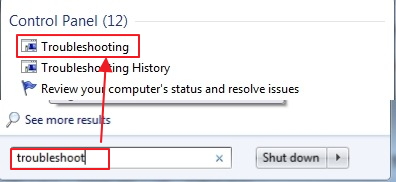
  • Click Start and type troubleshoot in the search box
troubleshoot
  • Select Troubleshooting from the list of results
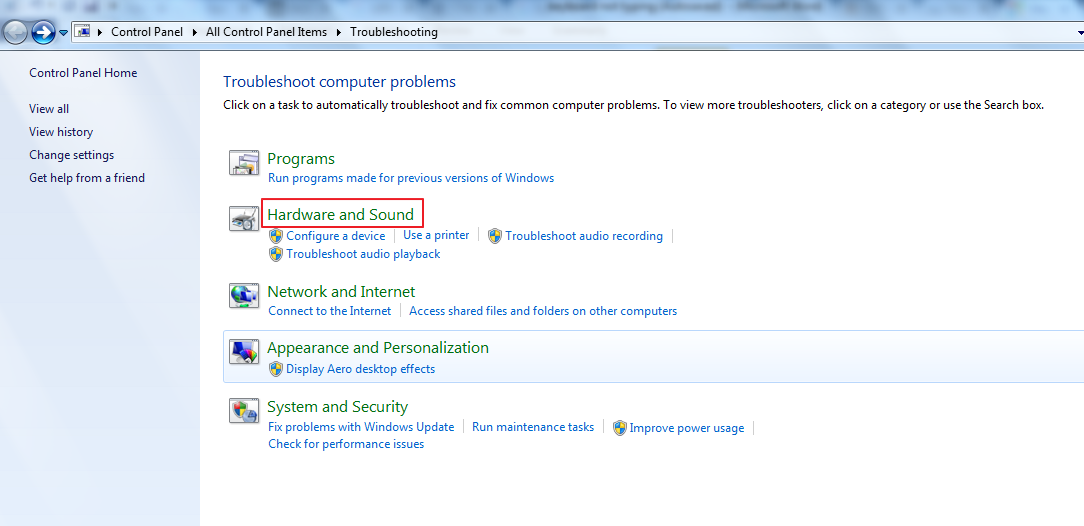
  • In the Troubleshooting window, click Hardware and Sound
hardware and sound
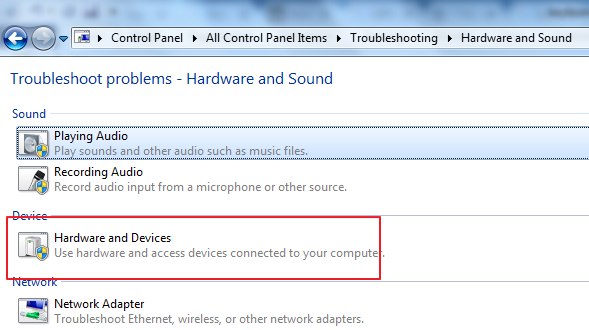
  • In the Hardware and Sound window, click Hardware and Devices
hardware and devices
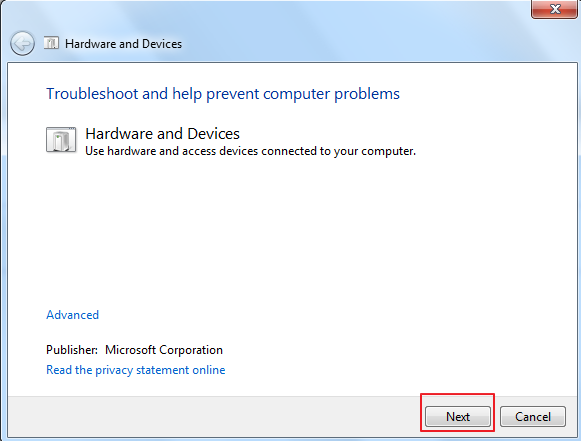
  • You can see Hardware and Devices Troubleshooter dialog pop-up, click Next
troubleshoot next
  • Wait for the Troubleshooter to complete its operation and fix problems.

Check whether the keyboard is typing. If the issue persists, try next solution.

For Windows 10 users

  • Click Start and type troubleshooting in Cortana search box
  • In the Troubleshoot window, click Hardware and Devices
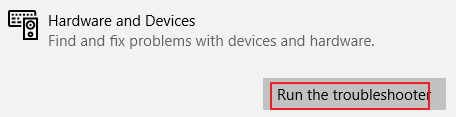
  • Now you can see the Hardware and Devices option expand and you get Run the troubleshooter option, click on it
run the troubleshooter
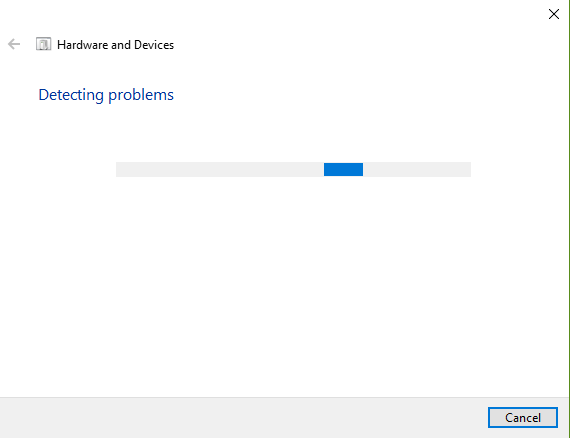
  • You can see the troubleshooter running. Wait until the Troubleshooter operation completes
troubleshooter running

Now check whether the keyboard is working. If the issue persists, try next solution.

Solution Six – Turn off Filter keys

Filter Keys is an accessibility function in Windows that tells keyboard to ignore repetitive or brief keystrokes to make typing easier and accurate for users.  The Filter Keys feature has a setting which defines the amount of time the key needs to be pressed for the operating system to recognize the keystroke.
You cannot ignore the possibility of the filter keys feature of being the reason behind the keyboard not typing issue. To ensure the Filter keys are not a problem, you can turn off the Filter keys feature and see if the change in the settings gets the keyboard working again. Here are the steps to follow.
  • Click Start
  • Click Control Panel
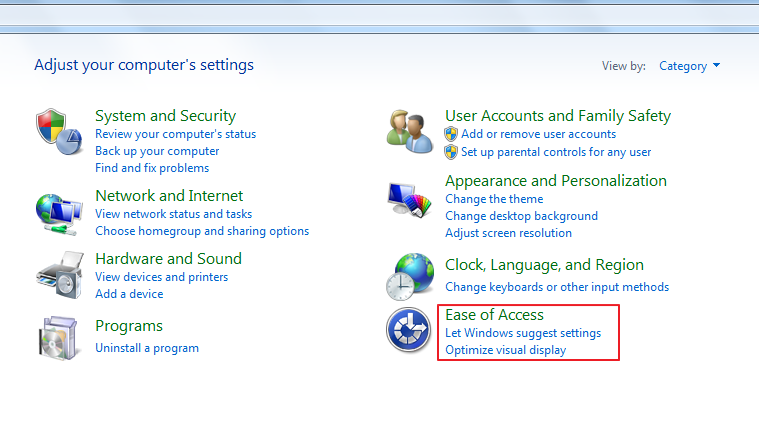
  • In the Control Panel window, set the View by to Category
  • Click Ease of Access
ease of access
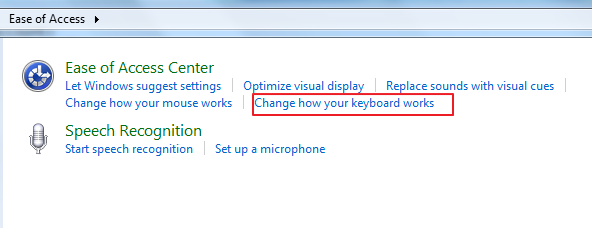
  • In the Ease of Access window, click Change how your keyboard works
clck keyboard works
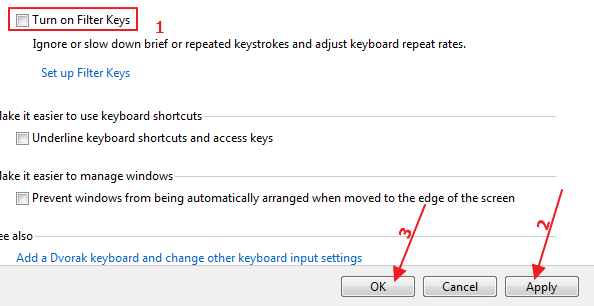
  • Under “Make it Easier type” see whether the Turn On Filter Keys option is checked. If Yes, remove the check from the box to Turn On Filter keys
uncheck filterkeys
  • Click Apply button and then click OK
  • Close all windows

Try typing on the keyboard to see if the issue is resolved.  If the issue still persists, try next solution.

Solution Seven – Create a new user account to login into Windows

Many users find that the keyboard not typing issue only occurs with a specific user account. Nobody knows the reasons behind this. In such case, creating a new user account with administrative privileges has helped many users  to resolve the keyboard issue.

If the keyboard works fine after logging into Windows with a new user account, you can conclude the problem was with old user account. Here are the steps to create a new user account with administrative privileges.

(Note – Since the keyboard is not working, you can use on-screen keyboard wherever you need to type something in troubleshooting steps below)

Steps to access on-screen keyboard

Window 7 users – Click Start -> All Programs -> Accessories -> Ease of Access – > On-screen keyboard

Windows 10 users – > Click Start -> Settings -> Ease of Access – > On-screen keyboard

Steps to create a new user with administrative privileges in Windows 7:

  • Click Start -> Control Panel
  • In the Control Panel window, set the View by – Category
  • Click User Accounts
  • In the User Accounts window, click Manage another account
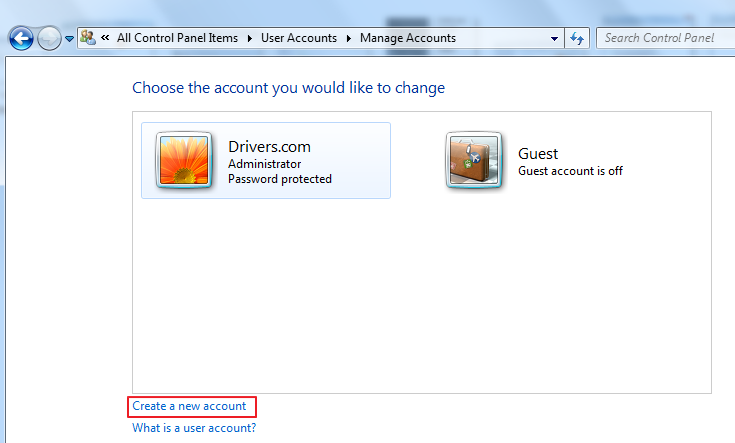
  • In the Manage Account window, click create a new account
create account
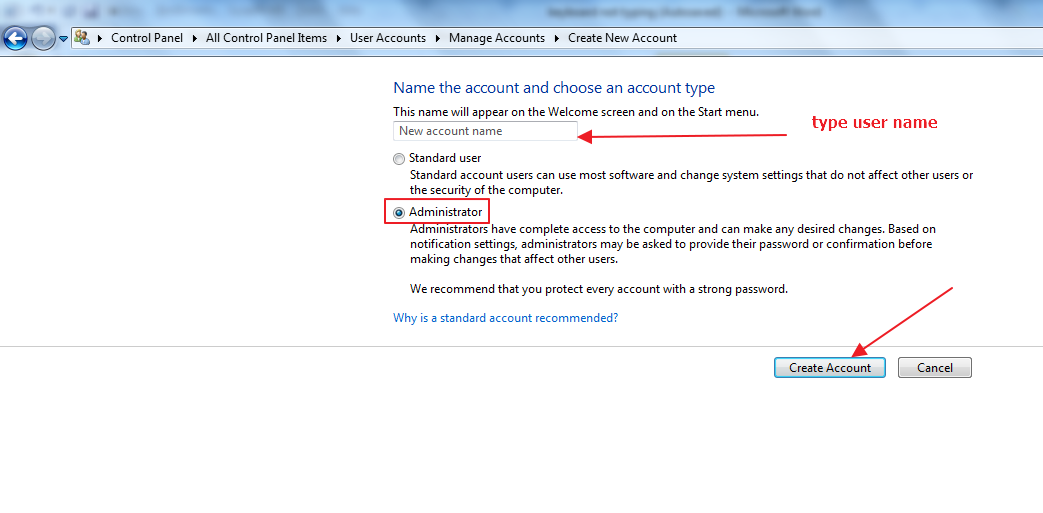
  • Type in account name in the box, select Administrator as account type and then click Create Account
new account
  • You can see the new user account with Administrator account is created
  • Click Start and then click the arrow beside Shutdown and then click Logoff

Log into Windows with a new user account and see if the “keyboard not typing issue” is resolved. if the keyboard issue still persists, try next solution.

Steps to create a new user with administrative privileges in Windows 10:

  • Click Start and then click Settings(gear icon)
  • In the Settings window, click Accounts
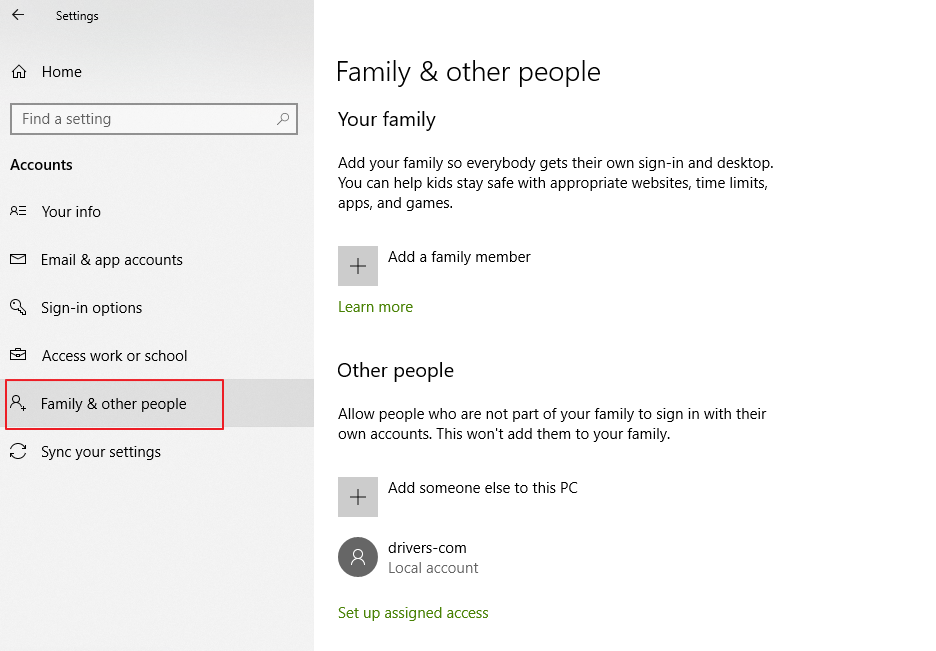
  • In the left pane, click Family and other people
family & other
  • In the right pane, click Add someone else to this PC
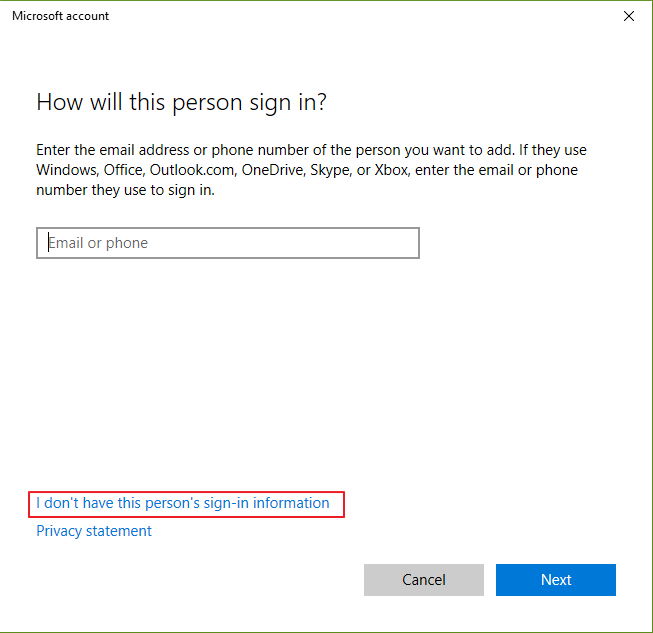
  • In the Microsoft Account window, click  I don’t have this person’s sign-in information
dont have sign-in
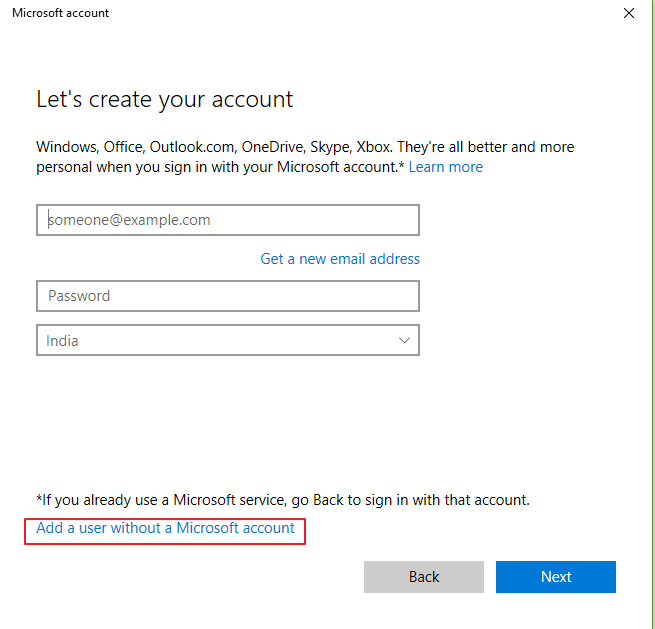
  • In the next window, click Add a user without a Microsoft account
without microsoft
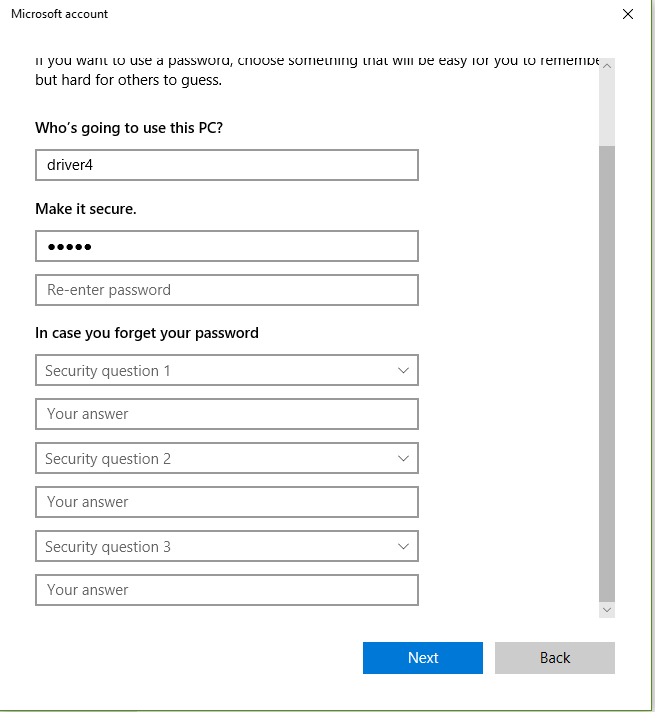
  • In the Create an account for this PC window, type username, and then type the password twice
  • Also, select Security Question 1 and Security Question 2 and type answers for these questions in their respective answer boxes
usrname & pwd
  • Click Next
  • Wait for the account creation and then go back to the Settings window
  • Click the newly created account and then click Change account type
  • In the Change account type pop-up, under Account type, select Administrator from the drop-down list
  • Click OK
  • Click Start again and click the arrow beside Shutdown and then click Logoff
  • Now you can see newly created user account available for login. Click on it and enter a password to log in

Now, see if the keyboard is typing. If the issue still persists, try next solution.

Solution Eight – Check Device Manager for keyboard issues

There is a possibility the keyboard issue is related to the driver. You can check whether there is any problem with keyboard driver through Device Manager. Here are the steps to follow

  • Press Windows logo key and R simultaneously on the keyboard to invoke Run command
  • In the Run command prompt window, type devmgmt.msc and click OK
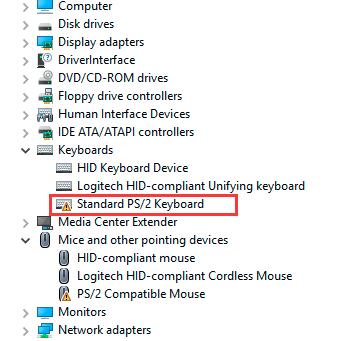
  • In the Device Manager window, expand keyboard category and look for a yellow exclamation mark which is an indicator of a driver Skip next step and follow troubleshooting steps thereafter.
kyboard yllw excl
  • If you don’t see any problem with keyboard driver, skip the steps below and proceed to Solution Nine
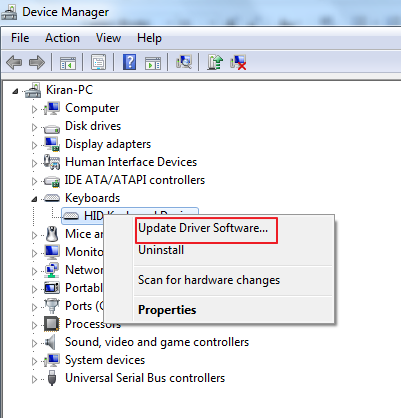
  • Right-click on Keyboard device entry and select Update Driver software
update driver
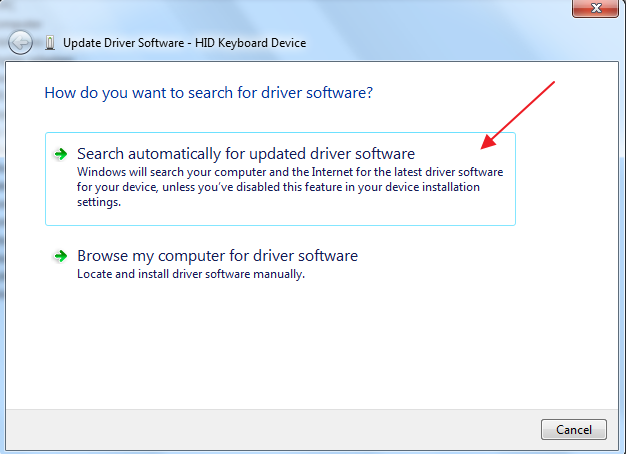
  • In the next window, click Search automatically for updated driver software
search automatically
  • Wait until Windows searches for best keyboard driver on the Internet.
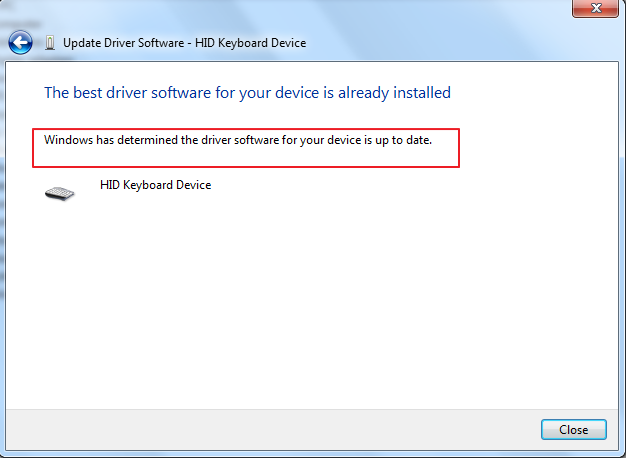
  • If the Driver Search tool returns a message “best driver software for the device is already installed”, move to next solution.
best driver installed

Solution Nine – Update Drivers

You can get the “keyboard not typing” issue if your drivers are outdated or corrupt or missing. Thankfully, you can easily fix this issue. Use an advanced and fast driver update tool software to update your device drivers.

Automatic driver update tools offer many benefits, the most important ones being:

  • You can update device drivers automatically
  • The software scans and updates all outdated or missing drivers at one go
  • The tool picks the right drivers for your device and operating system, so you won’t have to worry about installing an incorrect driver by mistake
  • Automatic driver updates are 100% safe

Driver Updater is one of the best driver update tools out there. Outbyte Driver Updater will give you access to a database of over 1 million drivers. It will regularly scan your PC, suggesting new driver versions to install. Driver Updater contains drivers for a variety of Windows devices. With just one click, you can update drivers in your system.

Step 1
Click here to Install and launch the app

Step 2
Scan all devices

Step 3
Install or update drivers automatically


Start Download


Filed Under: PC Fix Tips Tagged With: keyboard issue

Windows Update Error 80244019

By Susan C on July 26, 2018

Windows Update Error 80244019

Are you facing problems while updating Windows?

Many users have complained of receiving an error code 80244019 when they update Windows, so you are not alone.

If you are facing a similar problem, don’t worry as we have provided six solutions that could fix the issue.

What is Windows Update Error 80244019?

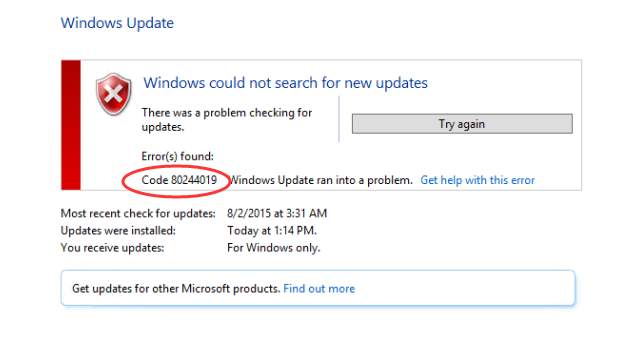
error image

If you get Windows update error code 80244019, it means your computer is unable to connect to Windows update server due to some reason. When such thing happens, the Windows update functionality will return the error code 80244019.

Solution One- Run the Windows Update Troubleshooter

For Windows 10 users

Microsoft provides a Windows Update Troubleshooter tool that is designed to fix any issues with Windows steps. All you need to do is download the Windows Update Troubleshooter, run it and follow on-screen instructions to fix the issue.

  • Go to the Microsoft Support Website
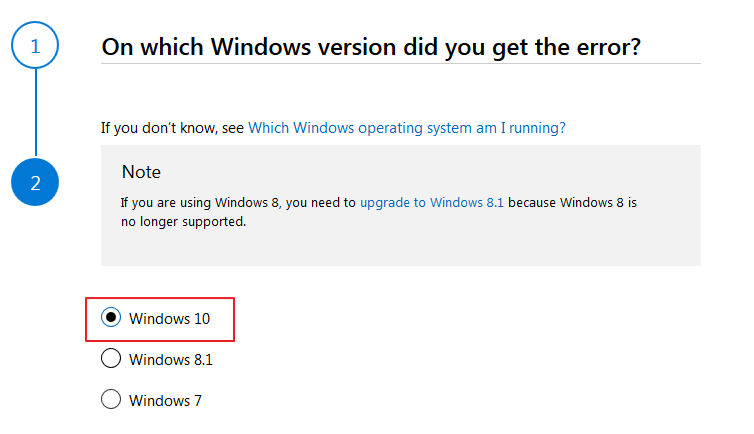
  • Scroll down the webpage and select Windows 10
windows version
  • Scroll down the page and click the Windows Update Troubleshooter to download the tool
update troubleshooter
  • Click Save
  • Once the Windows update troubleshooter is downloaded double-click to Run it.
  • Follow on-screen instructions and wait until the process is finished

Now try updating Windows and see if the issue has been resolved. If the error exists, try the next solution

For Windows 7 and 8.1 users

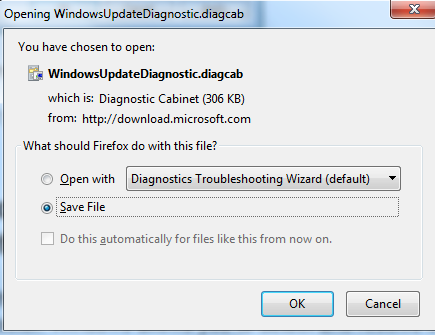
  • Click here to download Windows Update troubleshooter
update diagnostic
  • Click Save File
  • Double-click on the downloaded file to run the Windows Update Troubleshooter
  • Click Next
  • Wait for the Windows Update Troubleshooter to complete its operation
  • After the troubleshooting is completed, you can see whether the windows update error 80244019 is fixed or not.
troubleshooting completed
  • Click Close
  • If the Windows Update Troubleshooter shows the error code 80244019 is not fixed, try next solution.

 Solution Two – Stop and Restart Windows Update Service

There is a possibility that there is some problem with the Windows update service. Stopping and then restarting the Windows update service might fix the problems that are causing Windows update error.

Here are the steps to follow.

  • On your keyboard, press Windows logo key and R simultaneously to bring up Run command box
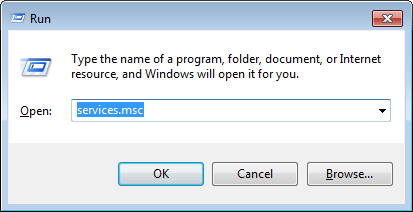
  • In the Run command box, type services.msc and click OK
services.msc
  • In the Services window, scroll down to locate Windows Update service.
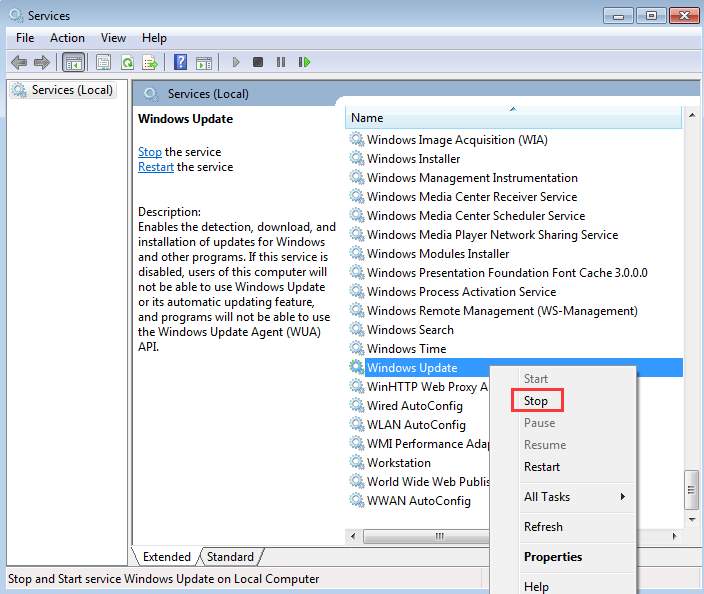
  • Right-click on the Windows update service and select Stop
windows update stop
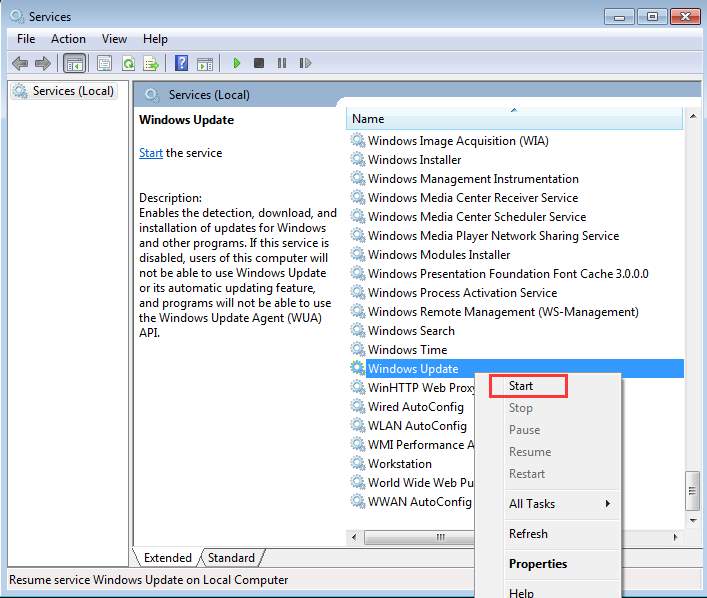
  • Again right-click windows update service, this time select Start
windows update start
  • Close all windows and try updating windows

If you still get Windows update error – 80244019, try next solution

Solution Three – Turn On Data Execution Prevention

Data Execution Prevention (DEP) is an advanced technology in Windows that comes in two flavors- hardware-based DEP and software-based DEP. When Data Execution Prevention is active, it prevents applications from executing code in certain regions of memory which is not authorized.

Data Execution Prevention prevents programs from running freely and exploiting memory and system resources which might be causing problems in Windows update. By turning on the DEP protection, you can help the Windows update process in gaining access to much-needed resources and also restrict other programs from interrupting the Windows update process.

Here are the steps to turn on the Data Execution Prevention feature in Windows.

  • Click Start and then click Control Panel
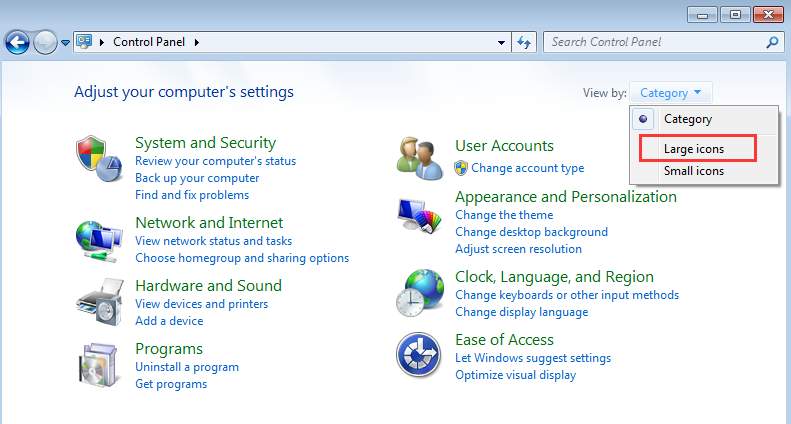
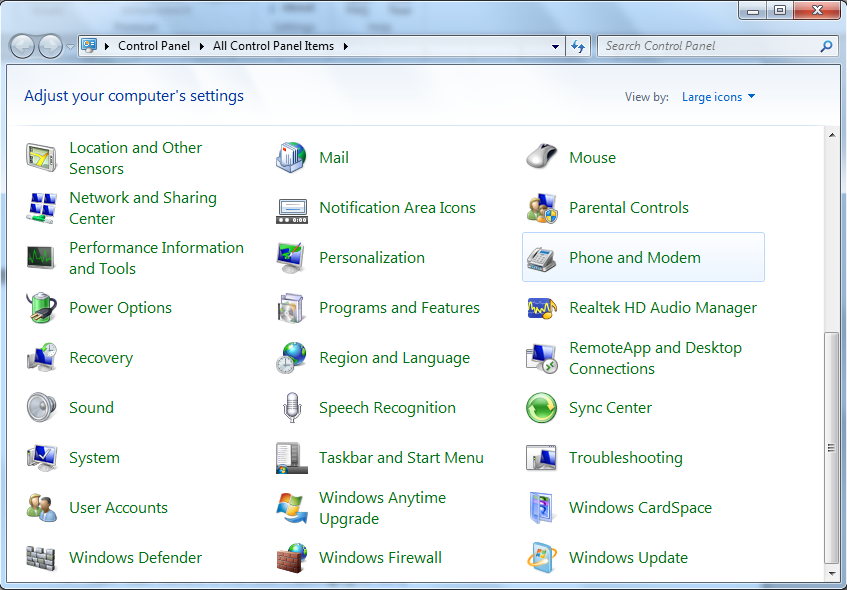
  • In the Control Panel window, set the View by to Large icons
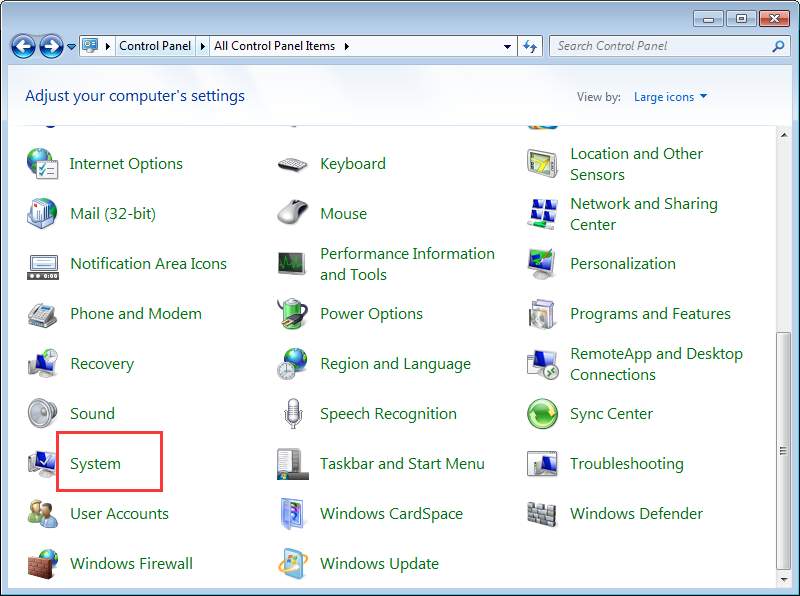
  • Click System
system
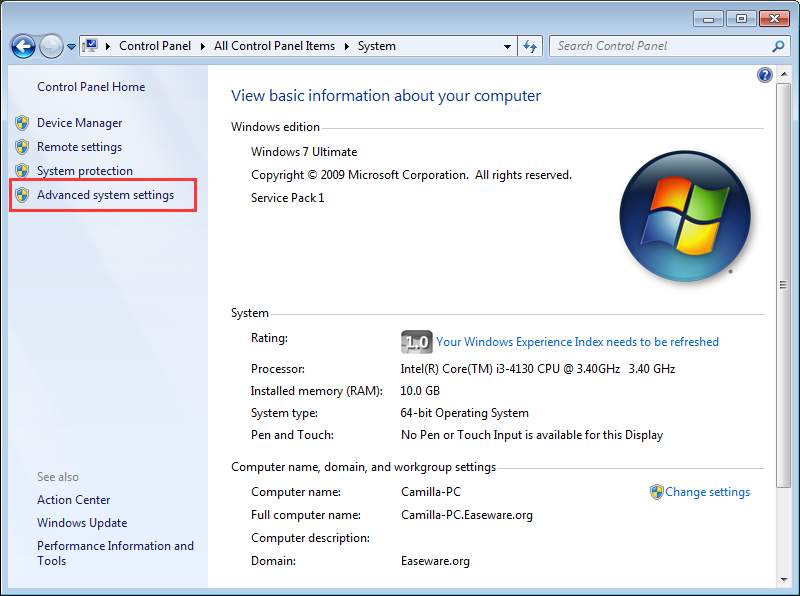
  • In the System window, click Advanced system settings in the left pane
adv system settings
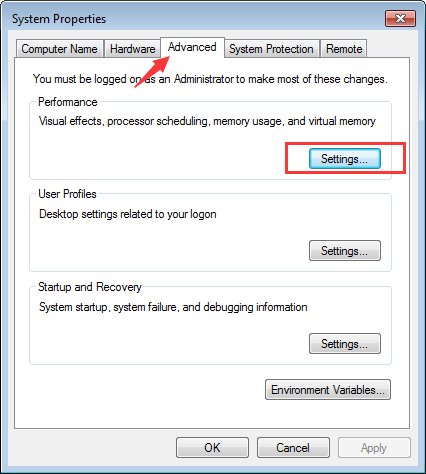
  • go to the Advanced tab
advanced tab-settings
  • Under Performance section, click Settings
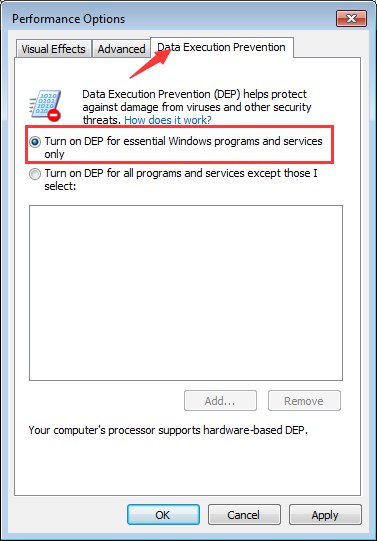
  • In the Performance option window, go to Data Execution Prevention tab
  • Click the radio button next to “Turn on DEP for essential Windows programs and services only”
turn on DEP
  • Click Apply and then click OK two times to close the window
  • Restart your PC and try updating Windows

If you still get the Windows update error code 80244019, try next solution

Solution Four – Limit Windows updates

If your Windows system is set to update automatically, it would be set to download updates for other Microsoft products, too. There is a possibility Windows is facing problems when downloading updates for Microsoft products which might be stalling installation of important Windows updates

There is a possibility Windows update server might reject some update requests if your computer is requesting updates in the wrong manner. You can resolve this issue by temporarily disabling updates for other Microsoft products. Here are the steps to follow.

For Windows 7 users

  • Click Start and then click Control Panel
  • In the Control Panel window, set the View by to Large icons
large icons
  • Scroll down and select Windows update
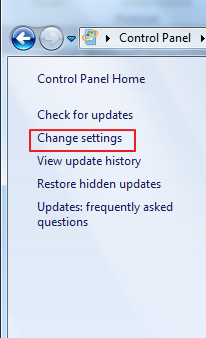
  • In the left pane, click Change settings link
change settings
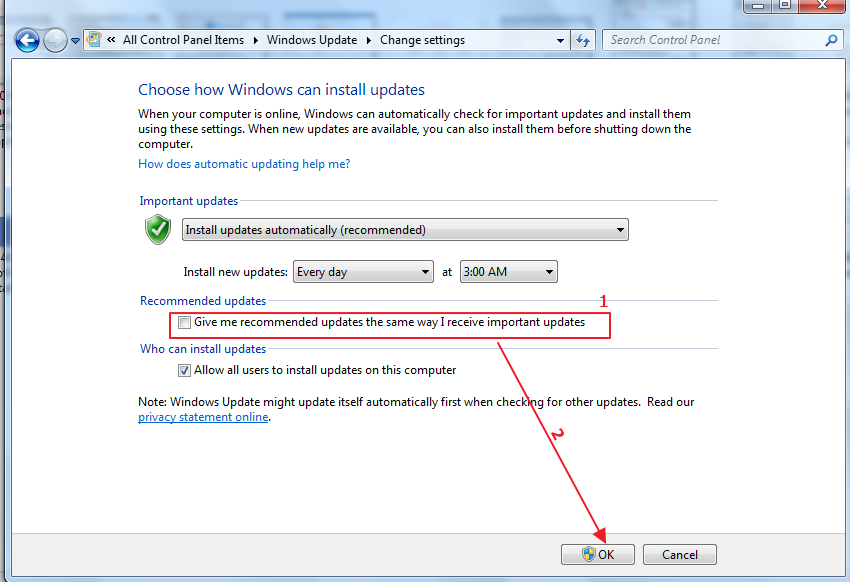
  • uncheck option Give me recommended updates the same way I receive important updates
recommended updates
  • Click OK

For Windows 10 users

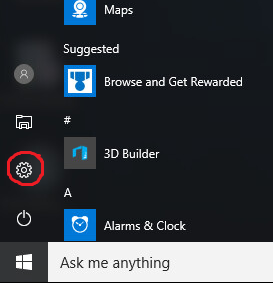
  • Click Start and then click Settings(gear icon)
start menu settings
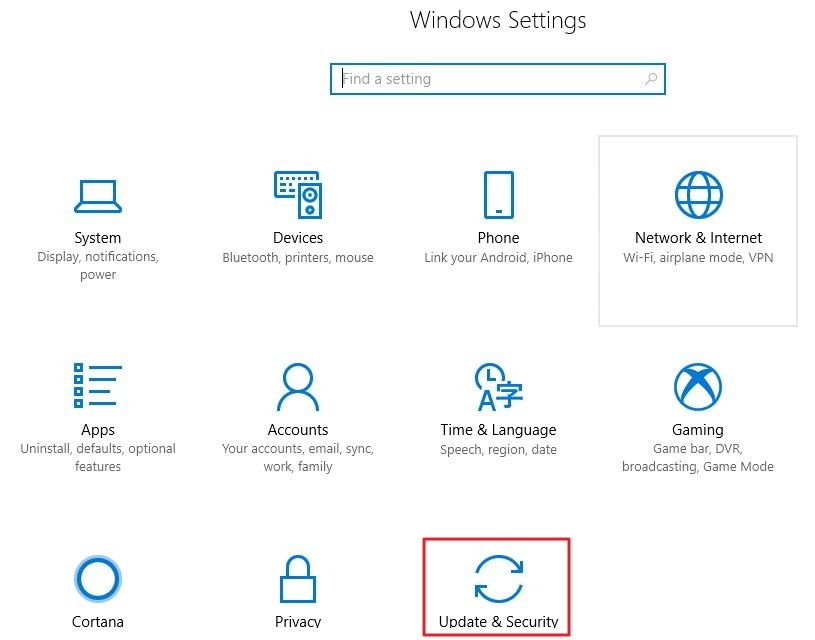
  • In the System window, click Update and Security
update and security
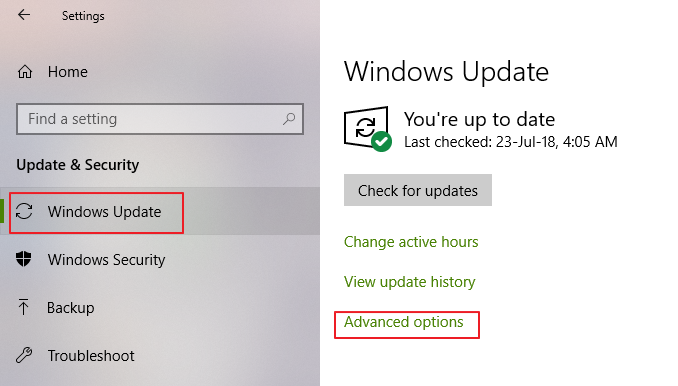
  • In the Settings window, click Windows update and then click Advanced options
advanced options
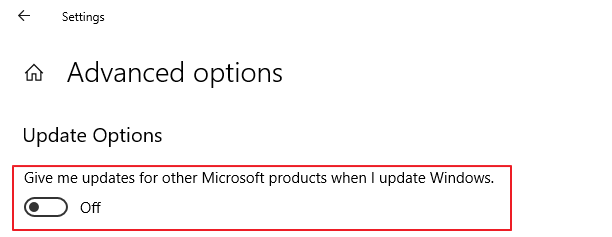
  • In the Advanced options window, under Update option, click the toggle switch – Give me updates for other Microsoft products when I update Windows to Off positiongive me updates
  • Close window

Restart your system and try updating windows. If you still get the Windows update error code 80244019, moved on to the next solution

Solution Five- Install failed Windows updates manually

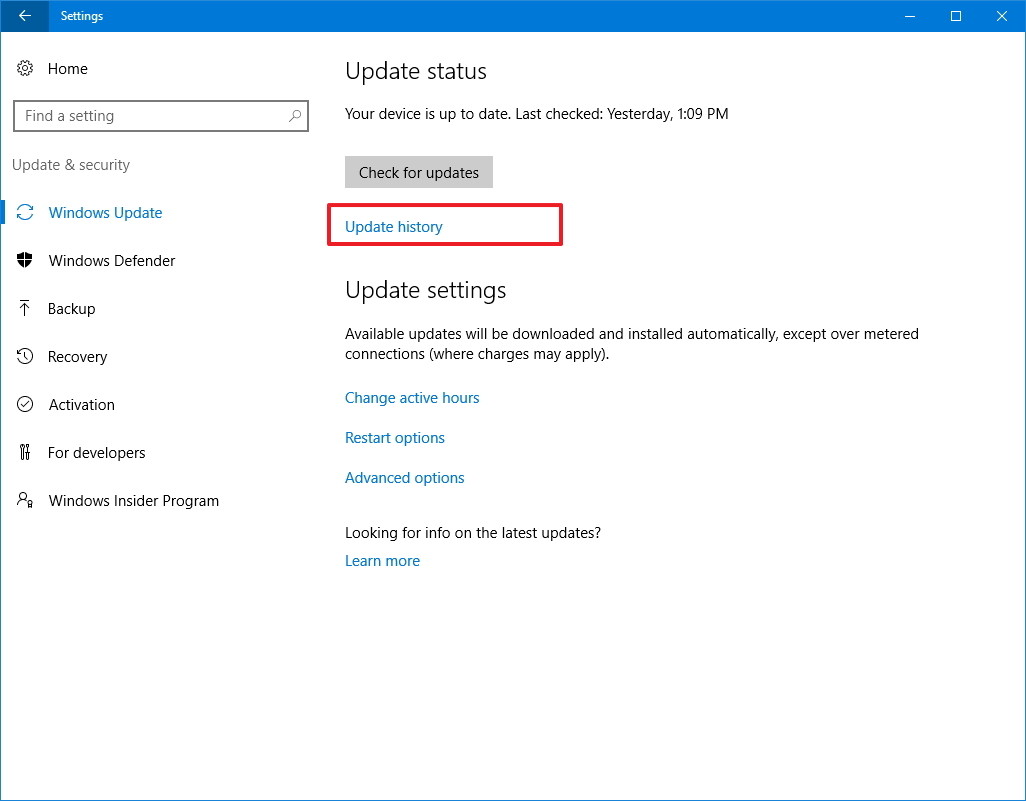
If the Windows update error 80244019 is not resolved by the above solutions, you can try installing failed updates manually. To do that you need to first check the update history and note down the number of Windows updates that have failed.

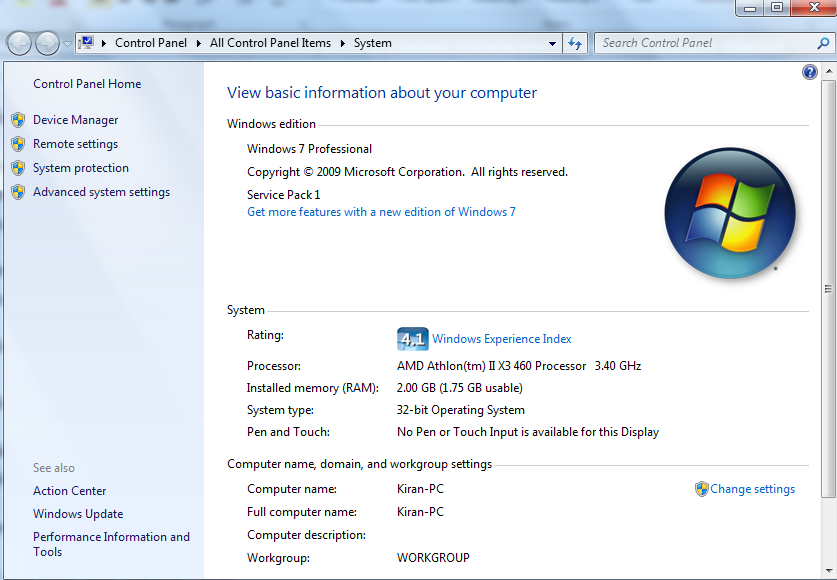
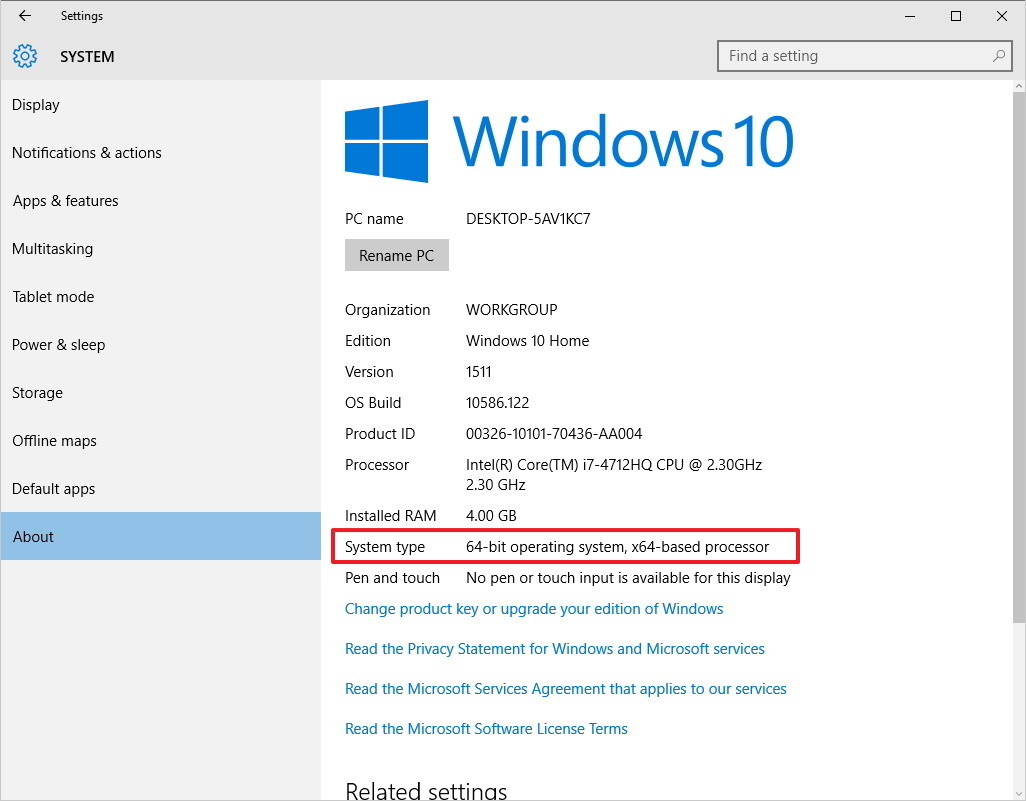
You will be required to know the system bit architecture of the Windows version to download right updates from Microsoft website. Here are the steps to know Windows bit-architecture

  • Windows 7 users – Click Start- >Right-click Computer-> Properties
Win 7 bit archt
  • Windows 10 users – go to Desktop-> right-click This PC -> Properties
windows bit architecture

After you know the Windows bit-architecture, you can proceed to get information about failed Windows updates. Here are the steps to follow.

For Windows 7 users

  • Click Start and then click Control Panel
  • Scroll down and click Windows update
  • windows update
  • In the left pane, click view update history
windows update history
  • Note down the failed updates number which starts with KB

For Windows 10 users

  • Open Start menu and then click k Settings(gear icon)
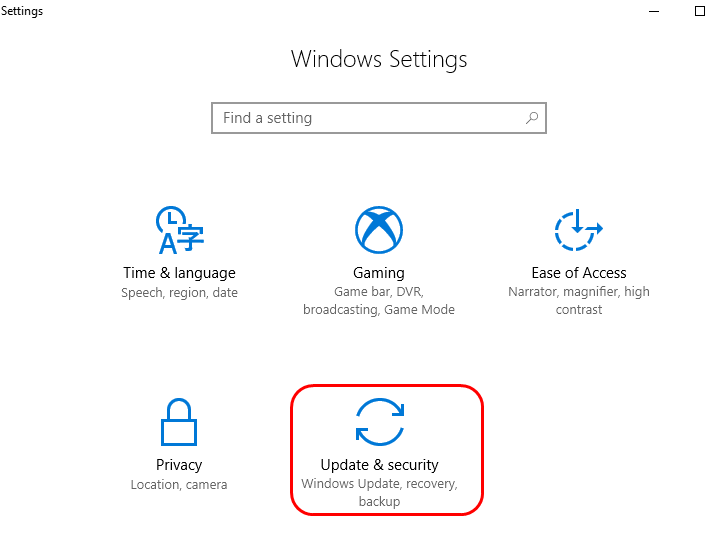
  • In the Settings window, select Update & Security
update & security
  • In the next window, click Windows Update
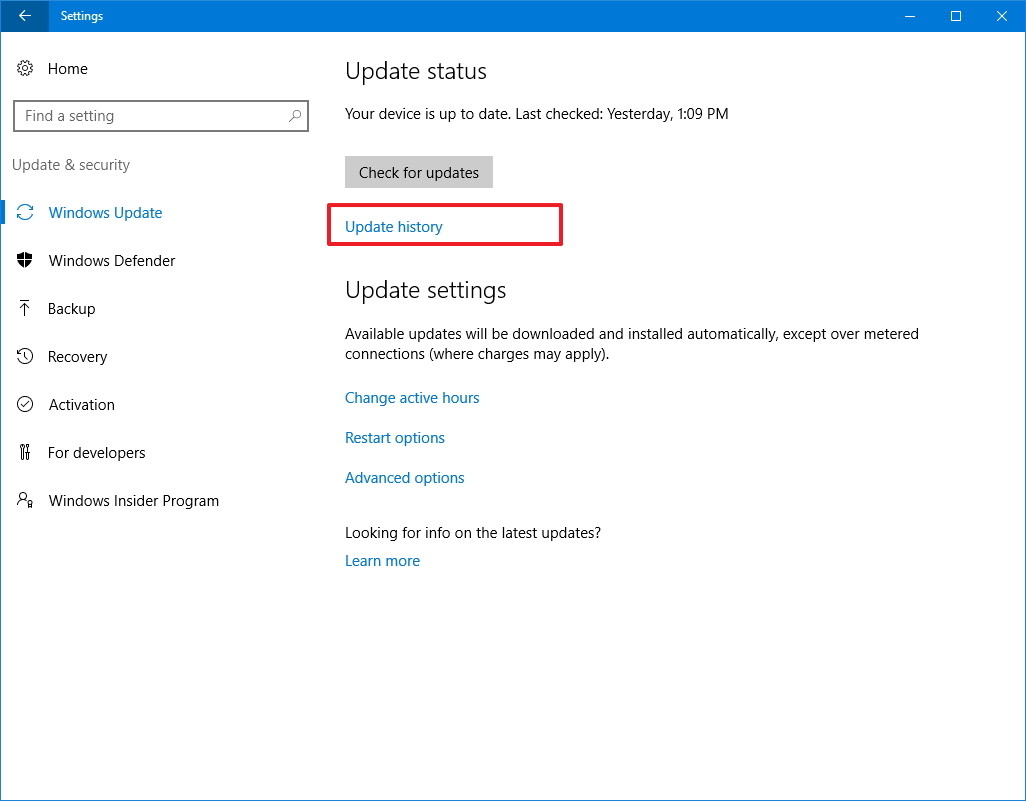
  • On the right side, you will see a blue link Update history, click on it
windows update history
  • Write down the failed updates number which starts with KB

Steps to manually download Windows updates

  • Do a Google search to get a download link for windows updates
  • Alternatively, you can also visit Microsoft Update Catalog site
update catalogue
  • Type the update code in the search box and click Search
  • Select the right Windows update( 32-bit/64bit) and then click Download
  • Once the update file is downloaded, double-click on it to install the update
  • Follow this procedure to install all failed windows update
  • Restart your computer after installing all failed updates

Try updating Window and see if the issue persists. If you are still receiving Windows update error 80244019, move on to the next solution.

Solution Six – Update Drivers

You can get this error when your device drivers are missing, corrupt or outdated. Therefore, you should try updating device drivers. This solution has helped may Windows users to fix the issue and it might help you, too.

Automatic driver update tools offer many benefits, the most important ones being:

  • You can update device drivers automatically
  • The software scans and updates all outdated or missing drivers at one go
  • The tool picks the right drivers for your device and operating system, so you won’t have to worry about installing an incorrect driver by mistake
  • Automatic driver updates are 100% safe

Driver Updater is one of the best driver update tools out there. Outbyte Driver Updater will give you access to a database of over 1 million drivers. It will regularly scan your PC, suggesting new driver versions to install. Driver Updater contains drivers for a variety of Windows devices. With just one click, you can update drivers in your system.

Step 1
Click here to Install and launch the app

Step 2
Scan all devices

Step 3
Install or update drivers automatically


Start Download


Filed Under: PC Fix Tips Tagged With: 80244019 error

  • « Previous Page
  • 1
  • …
  • 155
  • 156
  • 157
  • 158
  • 159
  • …
  • 189
  • Next Page »


  • Recent Posts
  • Popular Posts
        

Read More Posts


Read More Posts

Drivers.com Sites

  • Software Drivers
  • Drivers Ed

About Us

  • Advertise
  • About Drivers
  • Drivers Support
  • Drivers.com Privacy Policy
  • Disclaimer
  • Software Drivers
  • Mac Fixes and Tips
  • PC Fix Tips
  • Security/ Backup
  • Tablets & Smartphones
  • Tech News

© Copyright 2026 PDE Publications Ltd. End User License Agreement (EULA)