Drivers.com

follow us:

facebook twitter
  • Home
  • Download Drivers
  • Drivers Help
  • PC/Mac Resources
  • Software Drivers
  • Mac Fixes and Tips
  • PC Fix Tips
  • Security/ Backup
  • Tablets & Smartphones
  • Tech News
  • Software Drivers
  • Mac Fixes and Tips
  • PC Fix Tips
  • Security/ Backup
  • Tablets & Smartphones
  • Tech News

YouTube Black Screen Issue

By Susan C on August 10, 2018

YouTube Black Screen Issue

YouTube is a popular video sharing website used by millions of users all over the word. You can upload audio or video files and watch those that have been uploaded by others.

Even though YouTube is immensely popular with millions of daily users, sometimes it can throw an error or two.

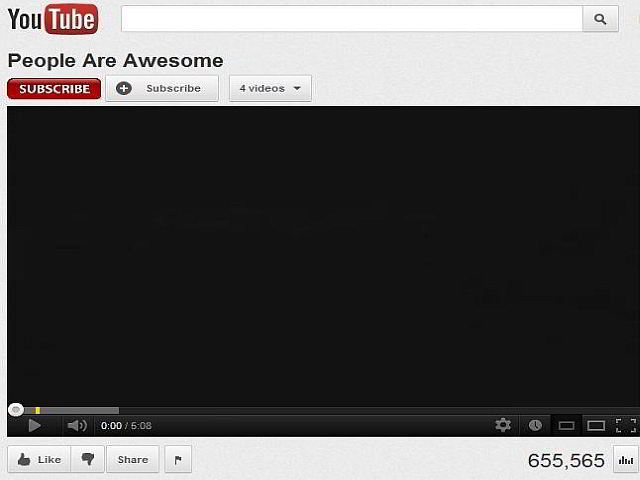
One common error is the YouTube black screen problem. It usually occurs out of the blue and prevents users from watching videos. Here’s what this error looks like.
YouTube-Black-Screen

Resolving this issue is not very difficult. If you are facing a similar problem, this post is for you.

Here we have shared 8 solutions that could fix the issue. You are not required to try all solutions given here. We suggest you start with the first solution. If that doesn’t solve the YouTube black screen issue, move to the next solution and so on. And, of course, we would like to hear from you about which solution worked for you.

So, let’s begin.

What is YouTube Black Screen problem and what are the causes?

YouTube black screen issue refers to a playback error where YouTube shows a black screen instead of playing video. There are different variations of this error.

Sometimes the player window stays black for some time while sometimes the player window stays black for the entire length of the video. Sometimes you are able to hear the audio while sometimes you don’t.

It is difficult to point to exact reasons that might be causing the issue. For some users the YouTube black screen is temporary and they are able to play videos normally on YouTube after some time. Some of the reasons behind this problem could be browser issues, plug-in problems, network issues or other reasons.

Here are some solutions that have worked for many users and you might be able to benefit from them, too.

Solution One – Sign out of your YouTube account

Many users were able to resolve this issue by following the instructions given in this solution. The YouTube black screen issue is primarily experienced by users who have logged in their YouTube account while watching videos.

They were able to watch the videos normally after signing out of their user account. Many users have also seen the YouTube black screen issue does not appear in Chrome browser’s Incognito mode. To resolve this error, just sign out of your YouTube user account by clicking on user account icon located on the top-right corner of the window and then clicking sign out.

Now try watching the same video in which you experienced the black screen. If the issue is not resolved, move to next solution.

Solution Two- Restart your browser or Refresh the page

There is a possibility the YouTube black screen issue is due to some minor problem in the browser. In that case, refreshing the page would reload the YouTube tab again that could resolve the issue.

All you need to do is press F5 on the keyboard to reload the YouTube tab. Now check if you can view the video normally. If you are still facing the black screen issue in YouTube player, restart the browser.

Now check if you can see the video normally. If the issue persists, move to next solution.

Solution Three – Check for network problems

Network problems could be the reason behind YouTube black screen issue. Check whether the internet connection is working normally. You can do this by opening any website of your choice and see if the pages are loaded normally when you navigate the website.

Also, a video streaming service like YouTube consumes a large amount of bandwidth. If the Internet connection is slow or not stable, you can get YouTube black screen issue.

YouTube offers wide range of video resolutions like 144p, 240p, 360p, 480p, 720p, and 1080p. In general, a 480p resolution plays 30 frames per second content and could consume 264MB per hour.

The basic rule is higher the video resolution, the more Internet bandwidth and data it’ll consume. You need a good internet connection speed to watch YouTube videos without any problem.

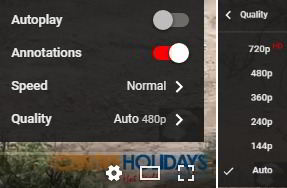
If the network status is bad, it might take forever to load the YouTube video in the player and you might only see a black screen for a long time. You can try playing the video at lower resolution by clicking on Settings (gear icon) and then selecting the desired (lower) resolution from the list.

youtube settings

There is also a possibility of other applications running on your computer hogging large amount of Internet bandwidth, leaving very little for YouTube for video streaming. In that case, you need to close applications that are using network resources and try reloading the YouTube tab again. If the YouTube black screen issue persists, try next solution

Solution Four – Delete Browsing Data

The browsing data and Internet cache stored by the Internet browser can be the cause of YouTube black screen issue. A simple solution to this problem is deleting browsing history and cache that could resolve the issue.

Here we have provided steps to clear browsing data for both popular browsers – Google Chrome and Mozilla FireFox.

(Note- these steps will clear all browsing data including cookies, web files, passwords, and forms data. You would be required to re-adjust your preferences to websites you visit all over again.)

For Google Chrome

  • Click the Menu three horizontal lines) that appear in the top-right corner of the browser
  • Go to Settings
  • In the top-left corner of the browser, click Settings(three horizontal lines)

chrome settings
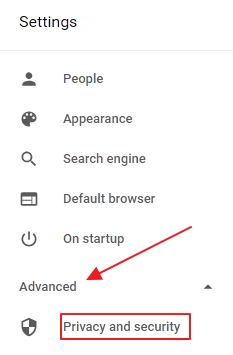
  • In the left pane, click Advanced
  • Click Privacy and Settings in the left pane
chrome privacy
  • Scroll down the screen to locate Clear browsing data option and click on it

clear browsing data
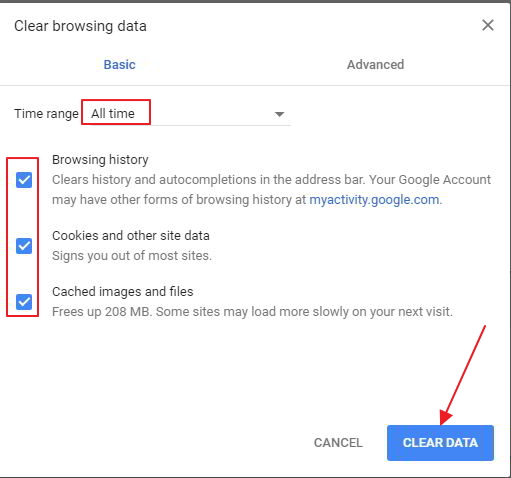
  • In the Clear Browsing data window, click the Basic tab and select All time in the time range
  • Now, click Clear Data
clear data
  • Close the Settings tab

For Firefox

  • Open Firefox and press Ctrl+Shift+Delete keys simultaneously on the keyboard
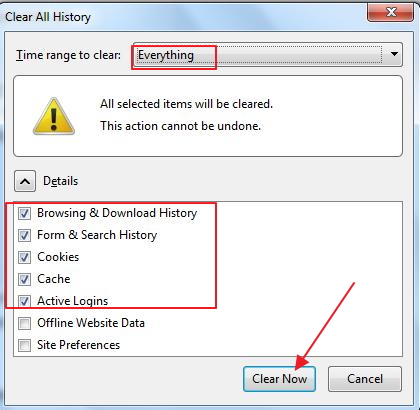
  • You will see a window pop-up with the title – Clear Recent history
clear history
  • In the Time range to the clear field- select Everything from the drop-down list
  • Click Clear Now button
  • Close the Clear Recent history window

Now try to load the YouTube video in which you get a black screen. If the issue persists, move to next solution.

Solution Five – Disable browser extensions

You see many ads when watching YouTube videos. According to experts, if you have installed any ad block plugins in your browser, you are more likely to face the YouTube black screen issue. Other plugins might also interfere with videos streaming and cause the YouTube black screen issue.

A simple solution to this problem is disabling the Adblock plugin and then check whether the issue is resolved. If the issue persists, disable plugins one by one and check if the issue is resolved. Here are the steps to follow.

For Google Chrome

  • Go to Settings in Chrome browser( you can refer to the steps given above)
  • In the left pane, click Extensions
  • In the Extensions tab, you can see all browser extensions installed
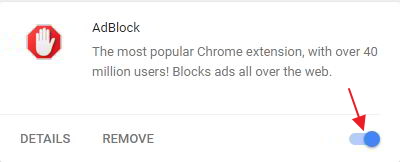
  • Go to Adblock plugin and click the blue slider button to disable the plugin. The toggle switch color changes to grey which indicates the extension is disabled.
ad block
  • Now try playing the YouTube video and see if the error is repeated.
  • If the issue persists, you need to disable one plugin at a time and check if the error is resolved
  • Repeat these steps to disable all plugins until the YouTube black screen issue is resolved

For FireFox

  • Open FireFox
  • click Tools and then click Add-ons
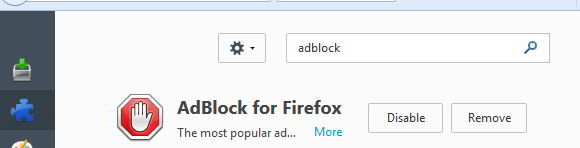
  • In the right pane, look for Adblock plugin and click Disable
adblock disable
  • Now try playing the video in YouTube where you see a black screen only. if the error is repeated
  • disable one plugin at a time and see if the error is resolved

If the YouTube black screen issue persists even after disabling all plugins, you can conclude the plugins is not the cause behind YouTube black screen issue.  If you want, you can go ahead and enable all plugins and then move to the next solution.

Solution Six – Disable hardware acceleration

Modern browsers like Google Chrome and Mozilla Firefox have a hardware acceleration feature which reduces dependence on CPUs alone for rendering webpage. The hardware acceleration feature takes off some load off the CPU and GPU and enables faster loading of videos and playing of high-quality videos through the use of software (in form of the feature)

Unfortunately, the hardware acceleration feature does not always work the way it should and it could be causing problems like YouTube black screen issue. A simple solution to such a problem is disabling the hardware acceleration feature in the browser. Here are the steps to follow.

For Google Chrome

  • Open Google Chrome
  • Click Menu (three vertical lines) located in the top-right corner of the browser
  • Click Settings(three horizontal lines) located in the top-left corner of the browser
  • Scroll down the Settings menu, click Advanced -> Privacy and Security
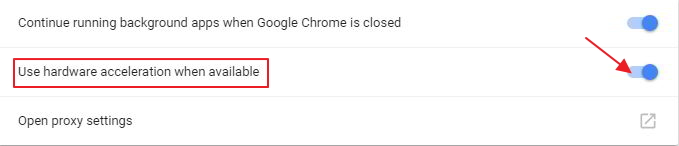
  • In the right pane, scroll down to System section and click the blue toggle switch beside option Use hardware acceleration when available. The toggle switch will turn grey which indicates the feature is disabled.
hardware acceleration
  • Close Settings tab

For FireFox

  • Open FireFox browser
  • click Tools -> Options
  • In the Options window, click Advanced in the left pane
  • Go to General tab and uncheck the box Use hardware acceleration when available
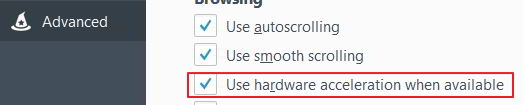
hardware acceleration
  • Close Settings tab

Now try playing YouTube video in which you faced the black screen issue. If the issue persists, move to next solution.

Solution Seven – Update your browser

Google recommends users to update their browsers to the latest version for enjoying latest features in YouTube and experience error-free playback. There is a possibility the browser you are using is outdated and not supported by YouTube and hence you are getting the black screen issue when playing videos.

YouTube has long stopped supporting Adobe flash player and the video streaming service has switched to the HTML5 player. Older browser versions still use the Flash player to play YouTube videos that might be the reason behind black screen issue.

A simple solution to this problem is updating the browser to the latest version and check if the issue is resolved. The best way to update browser is to uninstall the browser from your computer then go to official website, download the latest version and then install it on your computer. Here are the steps to follow

  • Click Start-> Control Panel
  • In Control Panel window, click Programs and Features
  • In the Programs and Features window, locate the browser in the program list and right-click on it
  • Click Uninstall
  • Click on the link
  • click on the browser you want to install and download the latest version
  • Install the latest version of the browser(Chrome/FireFox)

Try playing the YouTube video in which you get the black screen issue. If the error persists, move to next solution.

Solution Eight- Use another browser

There is a possibility there is some problem with your browser which is causing the YouTube black screen issue. If you are facing this issue in Google Chrome, try Firefox and see if the issue is repeated. YouTube currently supports following browsers.

  • Google Chrome
  • Mozilla FireFox
  • Safari
  • Opera
  • MS Edge

Kindly note YouTube does not support Internet Explorer. If you are using Windows 7 or older version, you are more likely to have Internet Explorer installed. You need to install any browser from the supported browser list to watch YouTube videos.

Like many users the YouTube black screen issue should be resolved after trying solutions given in this post.
Filed Under: PC Fix Tips Tagged With: YouTube Black Screen

KMODE_EXCEPTION_NOT_HANDLED BSOD error in Windows 10

By Susan C on August 8, 2018

KMODE_EXCEPTION_NOT_HANDLED  BSOD error in Windows 10

The last thing a Windows user wants to see is Blue Screen of Death error on the screen.

BSOD are not only dreadful but they lead to crashing of the system that may result in loss of unsaved work.  Many Windows 10 users have complained about receiving a BSOD with a message “KMODE exception not handled”.

The error message is hard to decode and this complicate things further. If you are encountering a similar error on your Windows 10 PC, keep your worries aside as we have listed five easy solutions that might fix the issue.

Let’s learn more about this error before proceeding to solutions.

What is KMODE_EXCEPTION_NOT_HANDLED error?

The KMODE in the error message refers to the Kernel mode in Windows. As we all know Windows Kernel is started during booting of Windows and it creates Paging and virtual memory. Majority of the programs in Windows are launched in Kernel mode.

When applications overwrite in each other memory allocation, it results in crashing of the application and sometimes Windows operating system also crashes.

Such scenarios can result in BSOD with the message KMODE_EXCEPTION_NOT_HANDLED.

There can be several causes of such error such as faulty RAM, driver issues, corrupt application installation, and hardware compatible issues.  Here we have listed five solutions to fix the issue.  You are not required to try all of them. The best way to start is to try troubleshooting steps in Solution One. If that doesn’t work for you, try the next solution and so on.

Solution One – Disable Fast Startup

The fast startup sounds like a useful feature to save time but it does not work well in all scenarios. In many cases, fast startup is detrimental to computer’s speed and its way of working may lead to BSOD’s as well.

When you have fast startup enabled, the Windows 10 does not perform a complete shutdown. Instead, it saves the state of the operating system on the hard disk and locks it. When you restart the computer, it only refreshes the RAM with the hibernated image of earlier session.

In Fast Startup mode, Windows does not load Kernel and drivers like it does in normal boot mode. Many times the hibernated image of Windows gets corrupted due to some reason that leads to BSOD errors like KMODE_EXCEPTION_NOT_HANDLED.

A simple solution to this problem is disabling the Fast Startup option. When you disable fast startup option, Windows operating system is forced to load Windows Kernel and drivers afresh and this might resolve the issue.

Here are the steps to follow.

  • Click Start and type control panel in the search box
  • Click Control Panel from the list of search results
  • In the Control Panel window, Set the view by to Large Icons
  • Click Power Options
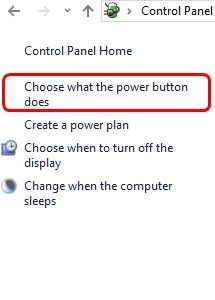
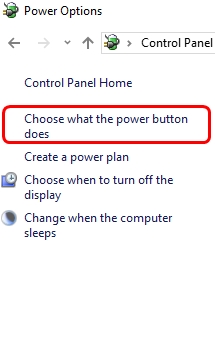
  • In the Power Options window, click Choose what the power button does
choose power button
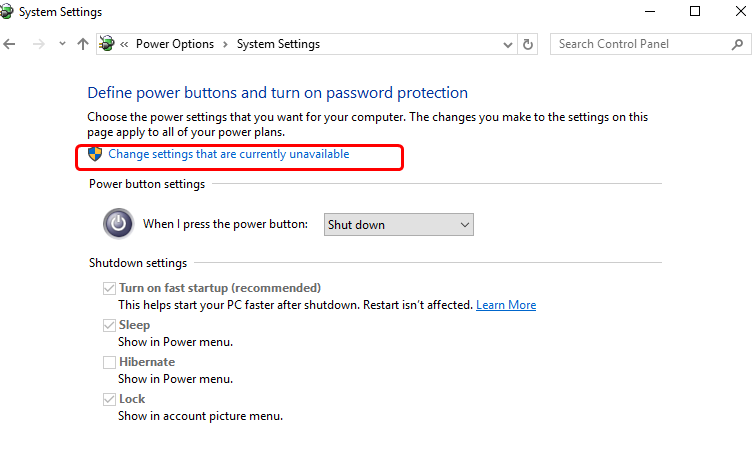
  • Click Change settings that are currently unavailable
change settings
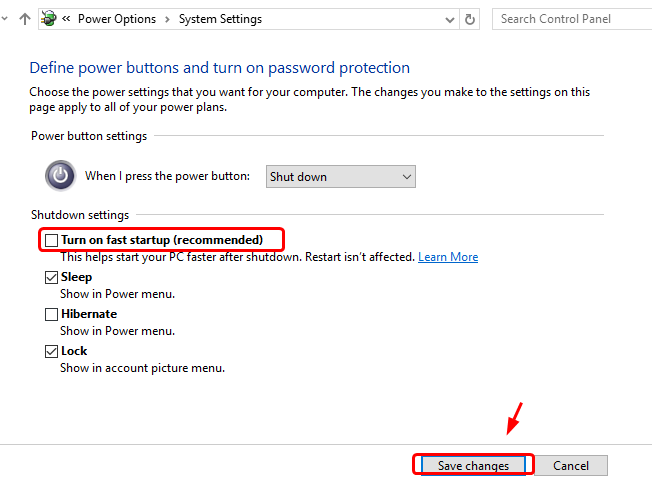
  • Un-check the box corresponding to Turn on fast startup (recommended)
uncheck fast startup
  • Click Save changes to save and exit.

Restart  your computer and see if the error is resolved. If it still persists, move to next solution

Solution Two –Update problematic drivers

Problematic drivers can also cause KMODE_EXCEPTION_NOT_HANDLED BSOD error.

The best way to fix the issue is such a case is by updating your device drivers. How can you do that?

Updating Drivers Automatically

Automatic driver update tools offer many benefits, the most important ones being:

  • You can update device drivers automatically
  • The software scans and updates all outdated or missing drivers at one go
  • The tool picks the right drivers for your device and operating system, so you won’t have to worry about installing an incorrect driver by mistake
  • Automatic driver updates are 100% safe

Driver Updater is one of the best driver update tools out there. Outbyte Driver Updater will give you access to a database of over 1 million drivers. It will regularly scan your PC, suggesting new driver versions to install. Driver Updater contains drivers for a variety of Windows devices. With just one click, you can update drivers in your system.

Step 1
Click here to Install and launch the app

Step 2
Scan all devices

Step 3
Install or update drivers automatically


Start Download


Solution Three-Check RAM for faults

If you are encountering KMODE_EXCEPTION_NOT_HANDLED BSOD error, you cannot rule out possibility of some problem with physical RAM installed in your computer.

You can clear your doubt by running the Windows memory diagnostic tool that checks physical RAM for any faults. Here are the steps to follow.

  • Press Windows key + R simultaneously on the keyboard to bring up the Run command console
  • In the Run command window, type mdsched.exe and click OK
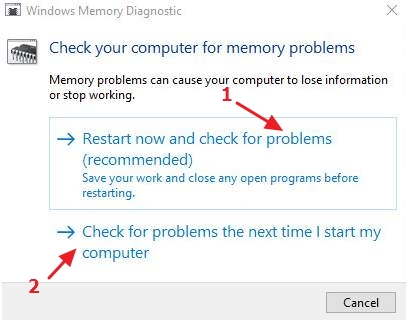
  • You see two options – Restart now and check for problems (recommended)or Check for problems the next time I start my computer
memory check options
  • To run Windows memory diagnostic tool immediately, select Restart now and check for problems (recommended)
  • To run Windows memory diagnostic tool at next restart, select Check for problems the next time I start my computer
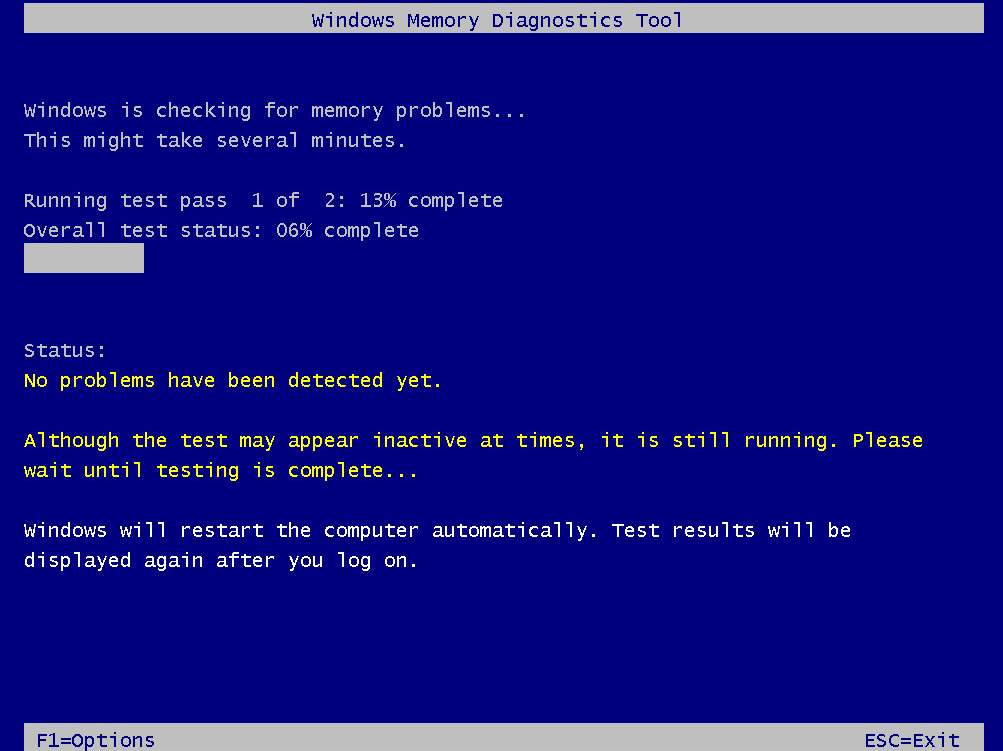
  • When the Windows runs Windows memory diagnostic tool, you can see the progress and the errors encountered by the Windows memory diagnostic tool on the screen.
memory tool running
  • The computer will reboot after completion of Windows memory diagnostic test. When you log on, you can see the test result.

If the Windows memory diagnostic test result is clear, you can conclude the physical RAM is not the cause of KMODE_EXCEPTION_NOT_HANDLED BSOD error. In that case, move to next solution to resolve the issue.

Solution Four – Uninstall problematic application/hardware

Step 1 – Uninstall problematic application

If you are encountering this error after installing an application, there is a possibility the application is not compatible with Windows 10 or the installation files are corrupt.

In that case, you need to remove the program from your computer and see if it fixes the issue. Here are the steps to follow.

  • To open Run command window, press Windows logo key and R simultaneously on the keyboard
  • In the Run command box, type cpl and click OK
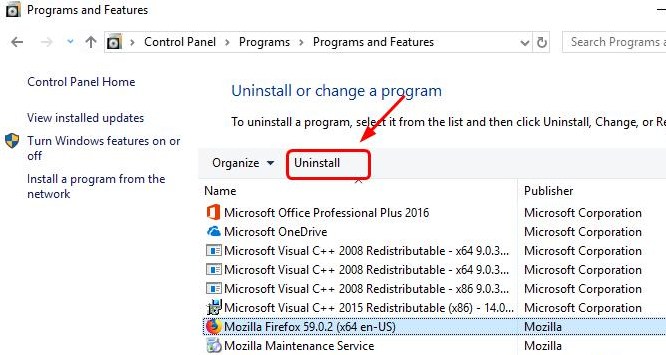
  • Click problematic program and then click Uninstall
uninstall program
  • You need to restart the computer after problematic program from your computer.

Do you still get the KMODE_EXCEPTION_NOT_HANDLED BSOD error? If the error persists, go to next step.

Step 2 – Uninstall problematic hardware

Try to recall if you have installed any hardware recently after which the KMODE_EXCEPTION_NOT_HANDLED error started appearing.

You need to uninstall such hardware through Device Manager. Here are the steps to follow.

  • Press Windows logo key and R simultaneously to bring up Run command
  • In Run command box, type msc and click OK
  • In the Device Manager, expand categories and look for device with red cross or yellow exclamation mark
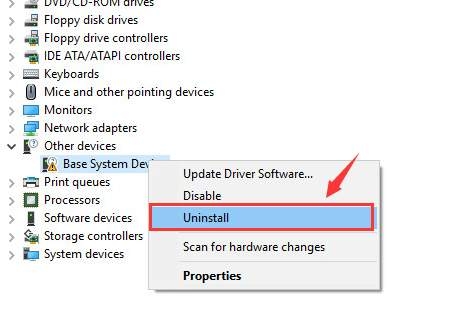
  • When you find problematic device, right-click on it and select Uninstall
uninstall device
  • Follow any on-screen instructions if any to remove the device from your computer

Restart your computer and see if you still encounter KMODE_EXCEPTION_NOT_HANDLED error. If the issue persists, move to next solution.

Solution Five – Check hardware compatibility of your Windows PC

If the KMODE_EXCEPTION_NOT_HANDLED error is not resolved after trying all four solutions in this post, there is a possibility your PC does not meet the minimum hardware requirements to run Windows 10.

You can check the hardware compatibility information for Windows 10 by going to Windows 10 Specifications & Systems Requirements page.

The error should be resolved by now. Do let us know which of these solutions worked for you by leaving us a comment. Thanks!

Filed Under: PC Fix Tips

Side by Side Configuration Is Incorrect Error in Windows 10

By Susan C on August 7, 2018

Side by Side Configuration Is Incorrect Error in Windows 10

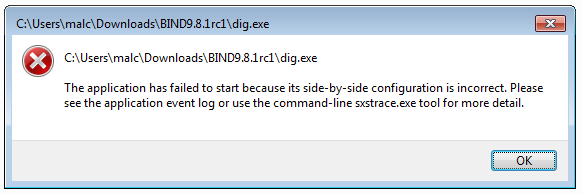
Windows 10 might be an advanced operating system but you still see some older problems surfacing while using it. One of the problems many Windows users have encountered “side by side configuration is incorrect” error which exists since Windows XP.

error image

The error occurs in different scenarios like when you’re installing a program or launching a program.

The above error message is just an example and you might see an error message that is quite different from the one shown in the above picture.

If you are getting this error, there is nothing to worry about as we have provided several solutions to resolve the error in different scenarios.

What is “side by side configuration is incorrect” error and why it is occurring on your computer?

Windows Side by Side also known as Winsxs is a native assembly cache. The Winsxs folder stores multiple copies (different versions) of dll files that are used by different applications. The error mainly occurs when registry entry pointing towards the Winsxs folder is deleted or become invalid. Though, you cannot rule out the possibility of other reasons too.

Below are five different solutions that might resolve the “side by side configuration is incorrect” error. You need to try every solution given in this post. Select a solution that matches your scenario. If that doesn’t work for you try the next solution in the list.

Solution One – Use another installer (error during installation)

If you are getting “side by side configuration is incorrect” error during installation of the program, the installer might be corrupt. A simple solution to this problem is to download a new installer of the program from the official website and then try installing the program again.

In most cases, the program installation should go smoothly unless there is some problem with the Winsxs folder and its related components on your computer. In such a scenario, you should move to Solution Three to resolve the Winsxs issue.

Solution Two – uninstall and reinstall affected program (error during the launch of the program)

If the “side by side configuration is incorrect” error is appearing during the launch of the program, there is a possibility the program files are corrupt. Reinstalling the program is the simplest solution to resolve the Winsxs issue. Here reinstalling means first uninstalling the program through the control panel and then installing the program again.

Follow the steps given below to uninstall the problematic application.

  • Click Start and then click Settings(gear icon)
  • In the Settings window, click Apps
  • In the right pane, click the problematic program and click Uninstall
uninstall app
  • After the program is uninstalled, download the latest version of the program from its official website
  • Double-click the executable file to install the program

Launch the program now and see if you get “side by side configuration is incorrect” error. If the error persists, move to the next solution.

Solution Three – Repair Microsoft Visual C++ Redistributable packages

In many cases, the Microsoft Visual C++ Redistributable packages which contain runtime libraries are installed in Winsxs folder. If there is a problem in accessing DLL files in Winsxs folder or the VC++ runtime libraries are corrupt, it might lead to “side by side configuration is incorrect” error.

In such a scenario, reinstalling Microsoft Visual C++ Redistributable packages can set things right. Here are the steps to follow.

  • Click Start and then click Settings(gear icon)
  • In the Settings window, click Apps
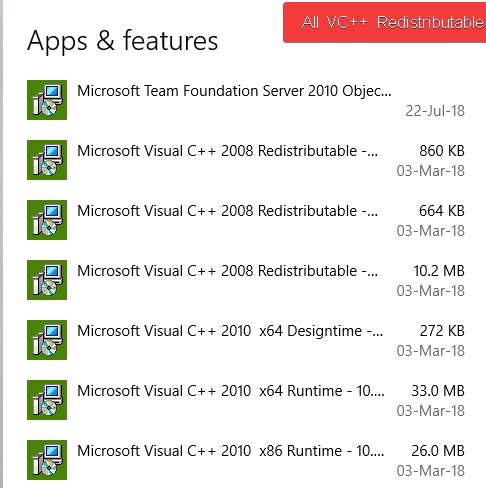
  • In the right pane, click the Microsoft Visual C++ XXXX Redistributable package(XXXX denotes a version of the VC++ Redistributable package
visual c++

(Note: Before uninstalling Visual C++ Redistributable packages, note down version number of each package as you will need to download the Visual C++ Redistributable packages from the Internet)

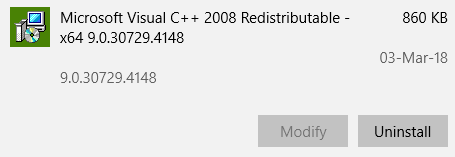
  • Click Uninstall
visual c++ uninstall
  • You need to uninstall all Microsoft Visual C++ XXXX Redistributable package by repeating two steps above.
  • After you have uninstalled Microsoft Visual C++ Redistributable packages, go to Microsoft Visual C++ Redistributable packages download website
  • Download the Visual C++ Redistributable packages you have uninstalled
  • Reinstall all Visual C++ Redistributable packages again

Start the program that gave out “side by side configuration is incorrect” error and sees if the error is resolved. If the error persists, move to the next solution.

Solution Four-Run SFC scan and DISM command

There is a possibility that some system files are corrupt or missing that might be the cause of the “side by side configuration is incorrect” error. In such case, replacing corrupt files is the way to resolve the issue.

Windows has a System File Checker tool (SFC) that can fix the problem with system files. It replaces the corrupt and missing files with good cached versions that could resolve the Winsxs issue. You need to run SFC commands from an elevated command prompt. Here are the steps you need to follow.

  • Click Start menu and type cmd in Cortana search box
  • Right-click command prompt from the list of results and select Run as administrator
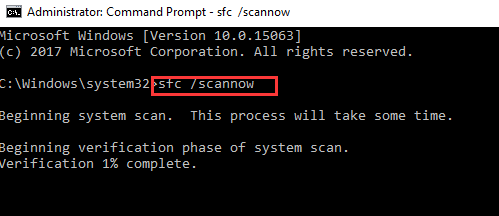
  • In the command prompt window, type sfc /scannow and hit Enter on the keyboard
cmd sfc

Wait for the SFC scan to complete and then try running the program that is affected. If the error persists, you need to run DISM command.

Steps to run DISM command

DISM stands for Deployment Image Servicing and Management. it is a command-line utility that is used to prepare and repair Windows images including Windows Setup, Windows Recovery environment, and Windows PE. The DISM tool is useful particularly if the SFC utility is not able to fix any problem. Here are the steps to follow.

  • Open command prompt with administrator rights (use the steps given above for reference)
  • In the command prompt window, type exe /Online /Cleanup-image /Restorehealth and hit Enter on the keyboard.
DISM restorehealth
  • Wait for the command operation to complete. It can take around 15-20 minutes up to one hour for the DISM command to complete this operation. The time is taken by DISM mainly depends on the level of corruption of the Windows

Close the command prompt window and run the affected program and see if you encounter the “side by side configuration is incorrect” error. if the error persists, the last resort is Reset Windows

Last Resort – Reset Windows

Since none of the above solutions has resolved the “side by side configuration is incorrect” error, there might be some severe problem with Windows system. In such a case, resetting Windows is the best option for you. Here are the steps to follow.

Note: Resetting Windows will remove all files and programs from your computer. So we advise you to backup important files before proceeding to the steps given below.

  • Click Start and then click Settings(gear icon)
  • In the Settings window, click Update & Security
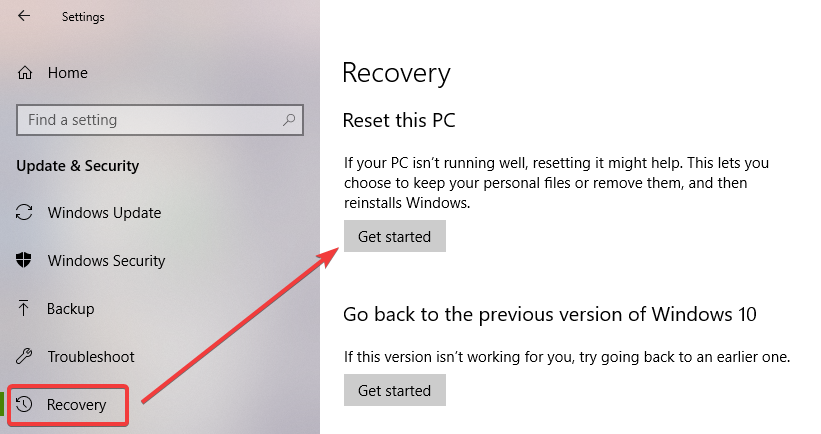
  • In the Update & Security window, click Recovery in the left pane
recovery
  • In the right pane, under Reset this PC, click Get Started
  • In the next pop-up, you get two options – Keep my files and Remove everything. Read what each action means and select the desired option
  • If you have selected Keep my files in an earlier step, in the next window, you will see the list of apps that will be removed. Click Next to proceed
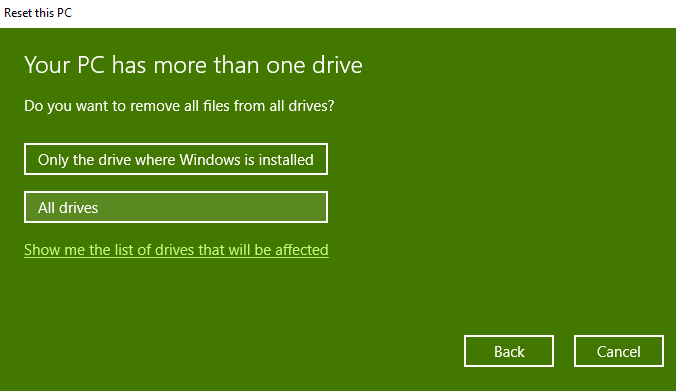
  • If you have selected Remove everything in an earlier step, you will see two options– Only the drive where Windows is installed and All drives. Select desired option to proceed.
remove everything
  • In the next window, you get a warning message which says you cannot do the upgrade and go to the previous version of Windows, click Next
  • In the final step, you will see a window that says Ready to reset this PC, click Reset
  • Windows will restart and the reset process begins.
  • Wait for the reset process to complete. You might have to wait for several minutes until you see the next window
  • Click Continue when prompted
continue
  • Your PC is now reset and you have to go through all steps to set the Windows options and install applications.

Install the program that gave “side by side configuration is incorrect” error and see if the error is resolved. Many users experienced the error was resolved after resetting Windows 10.

Filed Under: PC Fix Tips Tagged With: configuration error

  • « Previous Page
  • 1
  • …
  • 153
  • 154
  • 155
  • 156
  • 157
  • …
  • 189
  • Next Page »


  • Recent Posts
  • Popular Posts
        

Read More Posts


Read More Posts

Drivers.com Sites

  • Software Drivers
  • Drivers Ed

About Us

  • Advertise
  • About Drivers
  • Drivers Support
  • Drivers.com Privacy Policy
  • Disclaimer
  • Software Drivers
  • Mac Fixes and Tips
  • PC Fix Tips
  • Security/ Backup
  • Tablets & Smartphones
  • Tech News

© Copyright 2026 PDE Publications Ltd. End User License Agreement (EULA)