Drivers.com

follow us:

facebook twitter
  • Home
  • Download Drivers
  • Drivers Help
  • PC/Mac Resources
  • Software Drivers
  • Mac Fixes and Tips
  • PC Fix Tips
  • Security/ Backup
  • Tablets & Smartphones
  • Tech News
  • Software Drivers
  • Mac Fixes and Tips
  • PC Fix Tips
  • Security/ Backup
  • Tablets & Smartphones
  • Tech News

Resources by Tag

dns error

DNS_PROBE_FINISHED_NXDOMAIN error in Chrome

DNS_PROBE_FINISHED_NXDOMAIN error in Chrome

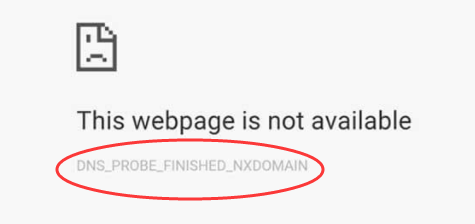
error image

If you are getting a DNS_PROBE_FINISHED_NXDOMAIN error, you won’t be able to access the Internet.

The error indicates a non-existing domain. The error is annoying, right? But don’t worry, we have provided 5 easy solutions that could fix the issue.

Before we look at the solutions, let’s first understand what DNS is and how it is related to Internet access.

What is DNS and what is its role in your Internet access?

DNS is short for Domain Name System. DNS is responsible for relating IP address to the domain name (URL or website address). Domain Name Servers are like Internet Phonebook containing information about website names and their corresponding servers (where they are hosted)

When you type a URL in Chrome address bar, your browser sends the website URL to the Domain Name Server which returns the IP address of the website you want to access. If the DNS is successful in finding the IP address for the domain name, the browser starts loading the website.

If the Domain Name Server is not able to find the IP address related to the URL, it returns an error like DNS_PROBE_FINISHED_NXDOMAIN. While this error usually occur when there’s some problem with the website or Domain Name Server, you cannot ignore the possibility of something amiss at your end, like wrong settings, corrupt cache or anything else.

Now let’s look at the solution. Here we have provided 5 solutions but you don’t need to try all of them. You can start with the first solution. and if it does not work, move to next and so on.

Solution One- Stop/Start DNS Client Service

The DNS client service in Windows works to cache and resolve Domain Name System names. The DNS client service is enabled by default in Windows 10. Many users were able to resolve the issue by restarting DNS Client Service. Here are the steps to follow.

  • Press Windows logo key and R simultaneously on the keyboard to bring up Run Command Console
  • In the Run command console, type services.msc and hit Enter on the keyboard
  • In the Services window, find DNS client service in the list and right-click on DNS client service item
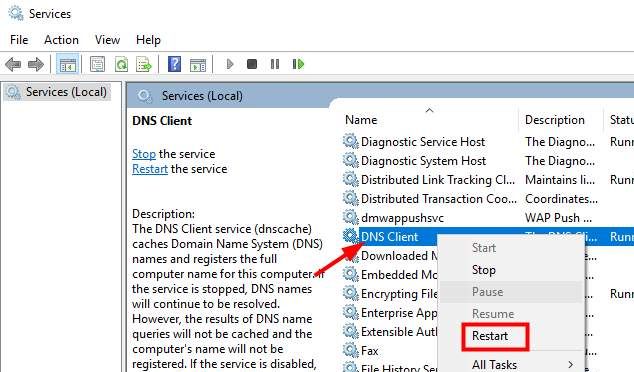
dns client service

  • Select Restart from the menu
  • Close all windows
  • Open a browser and try accessing any website.

If the error is not resolved, move to next solution.

Solution Two- Clear browser cookies and cache

Browsers store information of the websites you visit. This information is stored in form of Internet cookies and cached files. Whenever you visit any site again, the browser uses the cookies and cache to access and load the website faster.

Over time, a large volume of cookies and cached files gets stored in your computer and there is a possibility some cookies have expired that could lead to errors like DNS_PROBE_FINISHED_NXDOMAIN. A simple solution to this problem is deleting cookies and cache which will force the browser to start anew when loading any site. Here are the steps to follow.

  • Open Chrome browser
  • Copy the following in Chrome address bar – chrome://settings/clearBrowserData
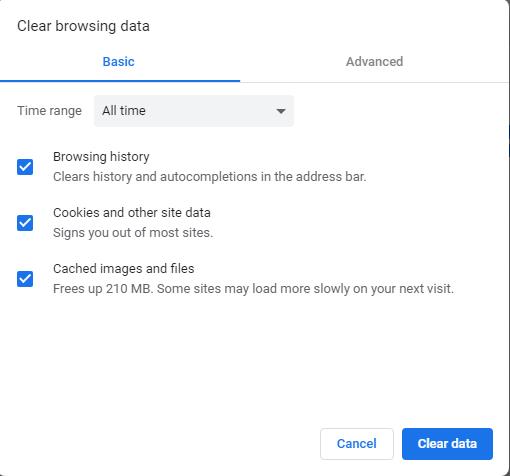
  • You will see a Settings tab open and you will see a pop-up like the one below
  • Go to Basic tab

clear chrome data

  • Put a check mark for following options – Browsing history, cookies, and other site data, and cached images and files
  • Above these options, you will see Time range. Click down arrow to reveal the drop-down list
  • Select All time from the drop-down list
  • Click Clear data
  • Restart Chrome browser and see if you are able to access the Internet.

If you are still getting a DNS_PROBE_FINISHED_NXDOMAIN error, move to next solution

Solution Three – Try Google DNS servers

The DNS servers for your internet connection are selected by your ISP providers. There is a possibility the DNS server of your ISP is having some problems that could lead to an error like DNS_PROBE_FINISHED_NXDOMAIN. In such situation, you can change the DNS settings that will force the browser to use recommended DNS servers. Here are the settings to follow.

  • Press Windows logo key and R simultaneously on the keyboard to bring up Run Command Console
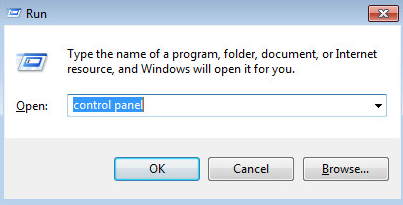
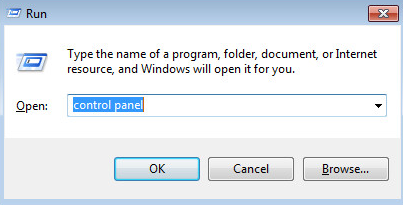
  • In the Run command console, type control panel and hit Enter on the keyboard
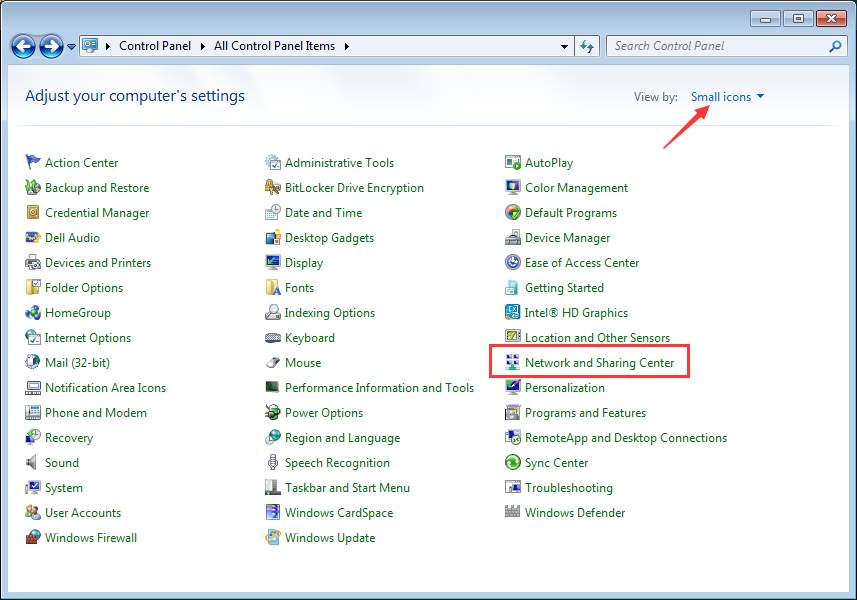
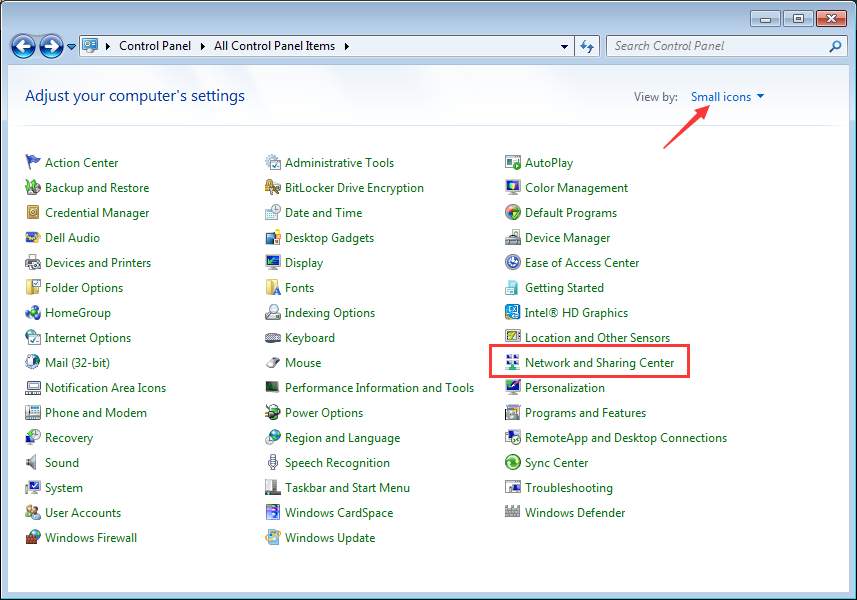
  • In the Control Panel window, set the view by to small icons
  • Click Network and Sharing center
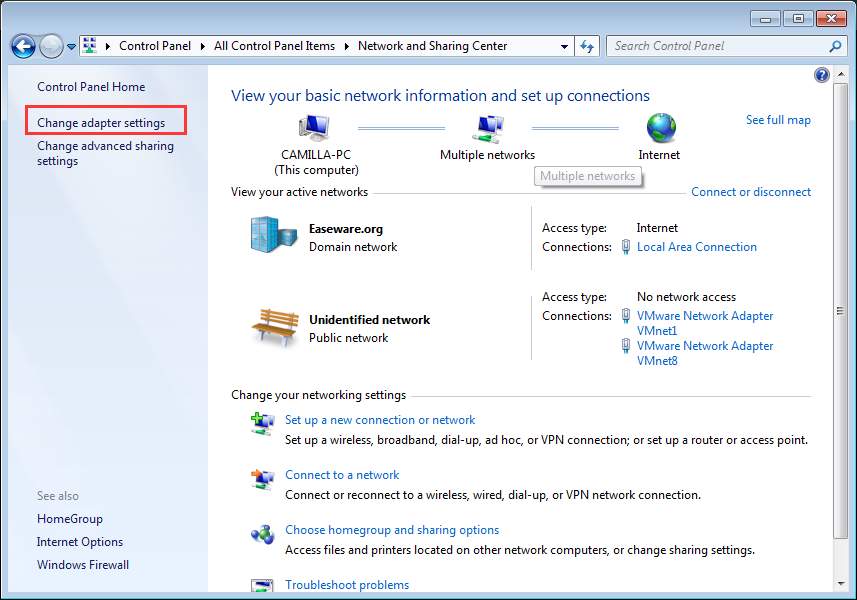
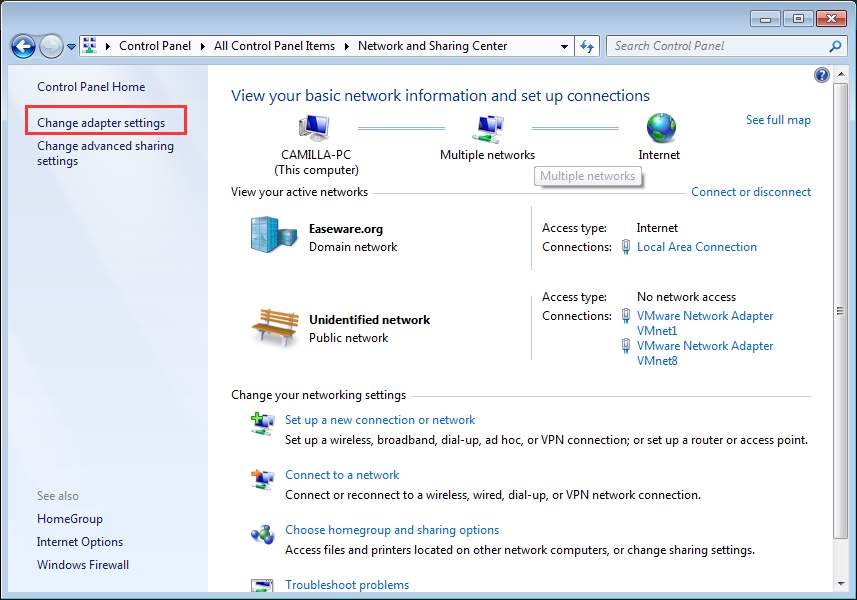
  • In the Network and Sharing center window, click Change adapter settings
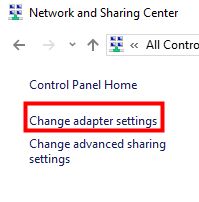
change adapter settings

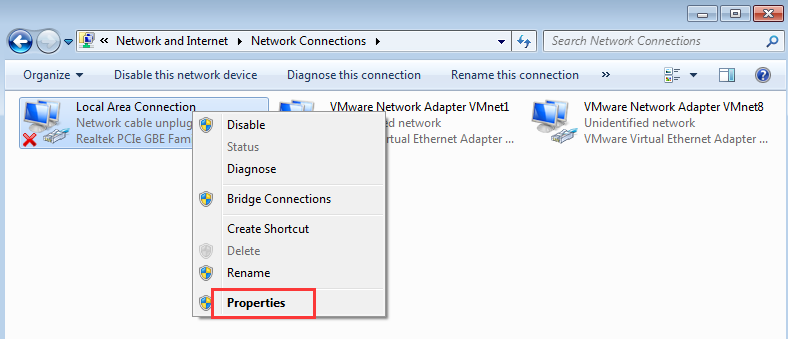
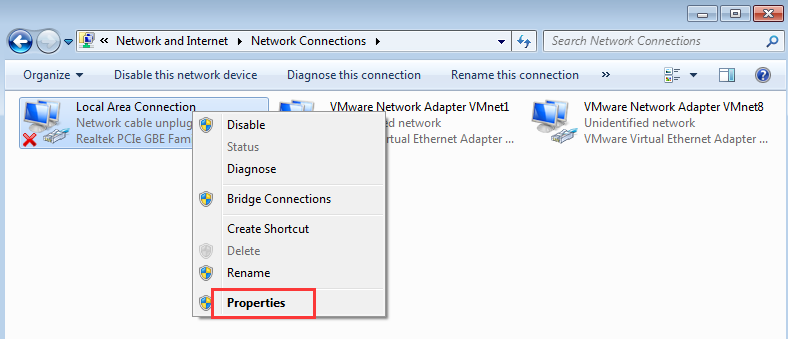
  • In the Network connections window, right-click on the network you use
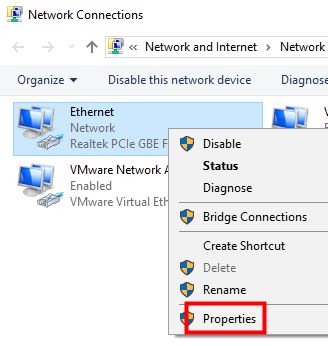
ethernet properties

  • Select Properties from the menu
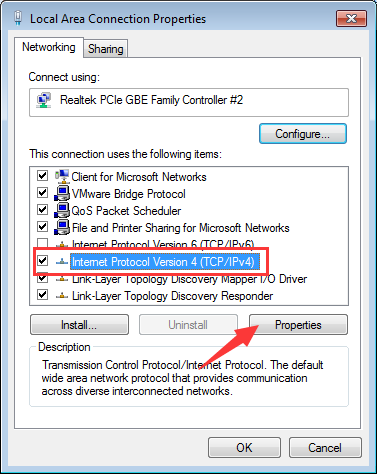
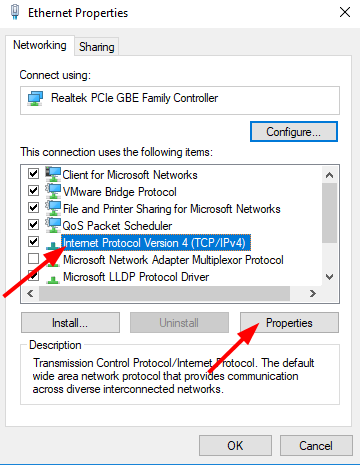
  • In the Ethernet properties window, click Internet Protocol Version 4 (TCP/IPv4)
ipv4

  • Click Properties
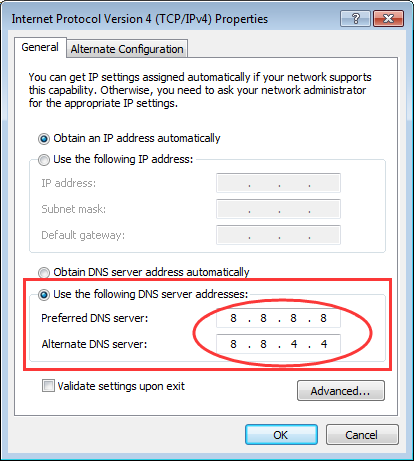
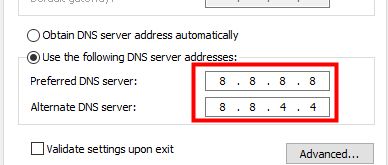
  • In the Internet Protocol Version 4 (TCP/IPv4) properties window, click the option Use the following DNS server addresses
server addresses

  • In the Preferred DNS Server, type the following value – 8.8.8.8
  • In the Alternate DNS server, type the following value – 8.8.4.4
  • Click OK
  • Close all windows
  • Open a browser and try accessing any website

If the error is not resolved, move to next solution

Solution Four- Use Command prompt to execute commands

Whenever you visit any website, the IP address of the website is stored in DNS cache. There is a possibility the IP address of the website has changed and your computer is still using IP address stored in DNS cache. To resolve this problem, you need to clear DNS cache by executing commands from a command prompt. Here are the steps you need to follow.

  • Click Start and type command prompt in the Search box
  • Right-click command prompt from the list and select Run as administrator
  • In the command prompt window, type the following commands and press Enter after each command
  • Before typing next command in the list, wait for the earlier command operation to complete. Do not type any text within brackets
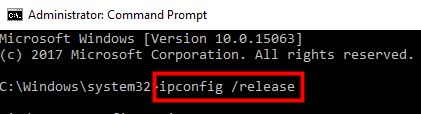
  • ipconfig /release  (This will release IP address)
ipcofig-release

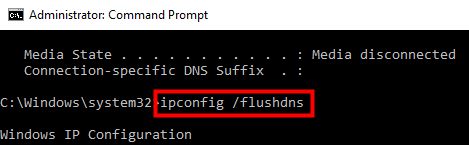
  • ipconfig /flushdns  (This will clear the DNS cache)
flushdns

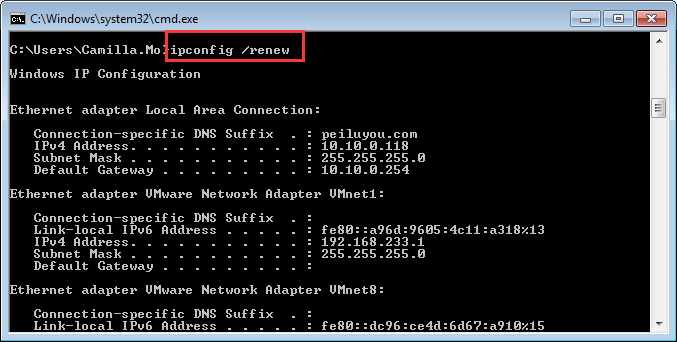
  • ipconfig /renew  (This will renew IP address)
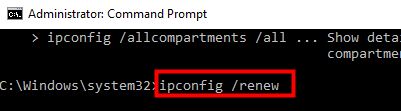
renew

  • netsh int ip set dns (This will rest IP settings)
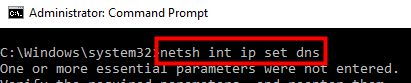
set dns

  • netsh winsock reset  (This will reset Winsock catalog)
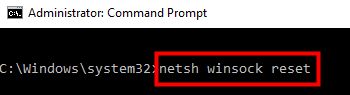
winsock reset

  • After you have executed all commands, close command prompt window

Open a browser and check whether the problem is resolved. In most cases, the DNS_PROBE_FINISHED_NXDOMAIN error should be resolved

Solution Five- Disable any VPN services you use

If you are using any VPN service, try disabling it and see if it resolves the issue.   If none of the solution has worked for you, try disabling anti-virus temporarily.  The steps to disable antivirus temporarily differs with each anti-virus. You need to refer official documentation of the anti-virus to know the exact steps to disable anti-virus temporarily.
 

Filed Under: PC Fix Tips Tagged With: dns error

DNS_PROBE_FINISHED_BAD_CONFIG error in Windows

DNS_PROBE_FINISHED_BAD_CONFIG error in Windows

DNS_PROBE_FINISHED_BAD_CONFIG is a common error that you may come across when surfing the Internet. The error is related to the IP address of the website(s) which may crop unexpectedly and prevent you from accessing a specific site or stop you from using the Internet altogether.

The error could occur if the DNS server is not responding properly or there is some problem with the Internet connection. The error is not dreadful as it might seem to many users and sometimes the problem is temporary.

Before you perform any troubleshooting steps given below, restart your router and see if the problem is resolved. If you are still getting a DNS_PROBE_FINISHED_BAD_CONFIG error, start with the first solution and if it does not work, try the next solution.

Solution One – Release and Renew IP address

Windows operating system stores the IP addresses of the websites you visit. The information is stored in DNS cache. In case, the IP address of the website changes the Window refers old IP address to access the website which leads to errors like DNS_PROBE_FINISHED_BAD_CONFIG.

To resolve such problem, you need to flush the DNS cache by releasing stored IP address. Windows will then store new IP address of the website(s) that would resolve the DNS_PROBE_FINISHED_BAD_CONFIG error. Here are the steps to follow.

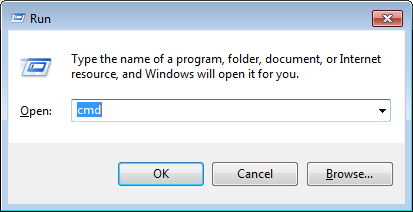
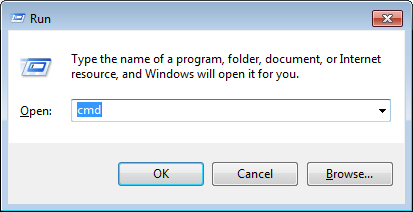
  • Press Windows logo key and R simultaneously on the keyboard to invoke Run command console
  • Type cmd in Run command box and click OK

cmd

  • In the command prompt window, type following commands and press Enter on the keyboard after each command. Before typing the next command, allow the previous command operation to complete
  • ipconfig /release
  • ipconfig /flushdns
  • ipconfig /renew
  • Close command prompt window

Launch any browser and try accessing the website which encountered DNS_PROBE_FINISHED_BAD_CONFIG error. If the error still persists, try next solution.

Solution Two – Change DNS settings

There is a possibility the DNS server of your Internet Service Provider is down or not functioning properly. A simple solution to this problem is using Public DNS server addresses that would help you access the problematic sites. Here are the steps to follow.

  • Press Windows logo key and R simultaneously on the keyboard to bring up the Run command console
  • Type control panel in Run command box and press Enter on the keyboard

control panel

  • In the next window, set the View by –Small icons
  • Click Network and Sharing center

network and sharing

  • In the Network and Sharing Center, click Change adapter settings

change adapter settings

  • Right-click problem network generally indicated with a yellow exclamation mark or red mark icon and select Properties.
  • Note – In some cases, you may not find any problem with Internet connection but the steps remain same.

properties

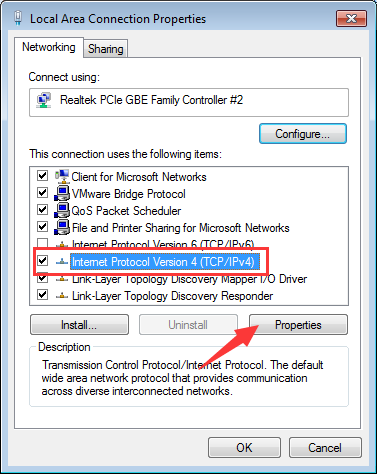
  • In the Properties windows, go to Networking tab and select item Internet Protocol Version 4 (TCP/IPv4) and then click the Properties button.

TCP-IPv4

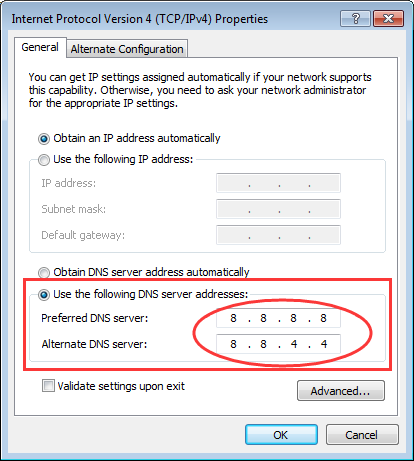
  • Click the option “Use the following DNS server addresses”, and enter the following values

DNS addresses 1

  • For Preferred DNS server type 8.8.8
  • For Alternate DNS Server, type 8.4.4
  • Click OK

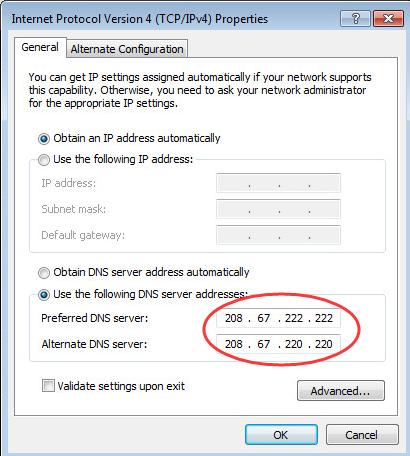
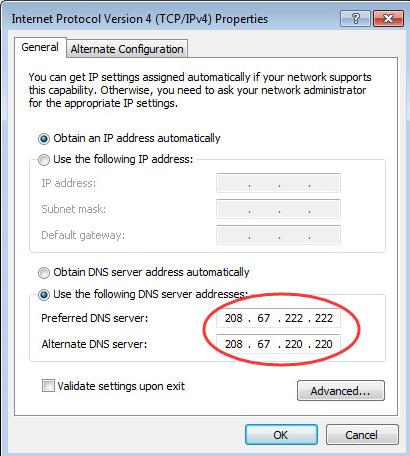
Check if the problem is resolved. If the problem still persists, try the following DNS server addresses and see if it works.

DNS addresses 2

  • For Preferred DNS server type 67.222.222
  • For Alternate DNS Server, type 67.220.220
  • Click OK

Try accessing the website to see if the problem is resolved. In most cases, the DNS_PROBE_FINISHED_BAD_CONFIG error should be resolved by now.


Filed Under: PC Fix Tips Tagged With: dns error

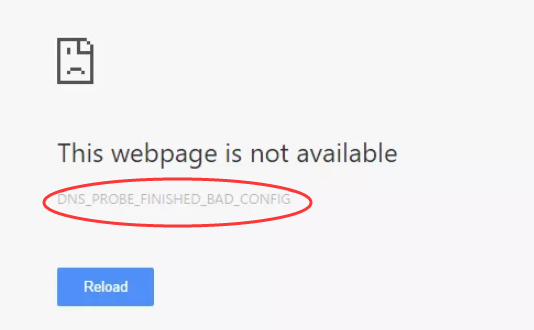
DNS Probe finished bad config error

DNS Probe finished bad config error
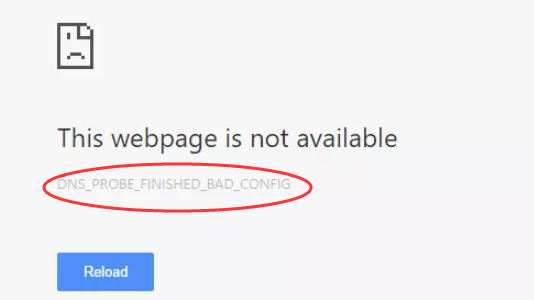
error image

The DNS Probe finished bad config error is a common Internet-related error in Google Chrome. The error occurs when there is a problem with the default DNS server that is being used by your computer.

As you might know, the DNS server plays the important role of converting human-readable hostnames into machine-readable IP addresses. If the DNS server is not functioning properly, you cannot surf the Internet.

If you are getting DNS Probe finished bad config error, there is nothing to worry about as it can be easily fixed. We have provided some simple solutions which have helped many users resolve the DNS related error successfully. Let’s get started.

Solution One – Release & Renew IP Address

Windows stores the IP addresses of web servers that contain pages you recently viewed.  If the IP address of the web server changes before Windows updates its DNS cache, you can no longer view the webpage or may not be able to access website too.

This can be one of the reasons behind DNS Probe finished bad config error. The simple solution to this problem is flush the DNS cache that will force the Windows operating system to rebuild its DNS cache. Here are the steps to follow.

  • Press Windows logo key and R simultaneously on the keyboard to invoke run command console
  • Type cmd in the run command box and click OK
cmd
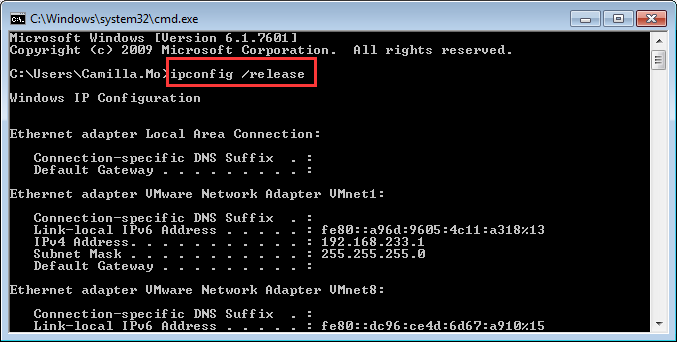
  • In the command prompt window, type ipconfig /release and hit Enter on the keyboard
ipconfig release
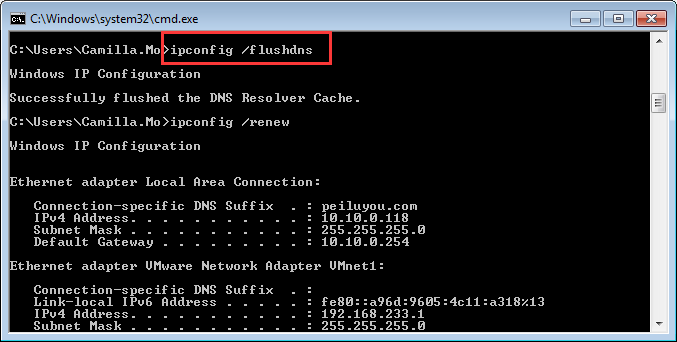
  • Next type ipconfig /flushdns and press Enter on the keyboard
flushdns
  • Then type ipconfig /renew and press Enter on the keyboard
ipconfig renew
  • After you have completed the above actions, close the command prompt window. Open Chrome browser and try accessing any website.

If you are still getting DNS Probe finished bad config error, try next solution

Solution Two – Change DNS Server Settings

When you connect to the Internet, your ISP provider assigns a DNS server to your computer. There is a possibility the DNS server of the ISP is experiencing some problems which is resulting in DNS Probe finished bad config error on your end.  The simple solution to this problem is changing DNS server settings. Here are the steps to follow.

  • Press Windows logo key and R simultaneously on the keyboard to bring up the Run command console
  • Type control panel in the run command box and click OK
control panel
  • In the Control Panel window, set the view – By small icons and click Network and Sharing Center
network and sharing
  • In the next window, click Change adapter settings in the left pane
adapter settings
  • Right-click on problem network( with Red X mark or yellow ! mark) and click Properties
properties
  • In the Local Area connection properties window, go to Networking tab
  • Highlight the Internet Protocol Version 4 (TCP/IPv4) and then click Properties
dpfb - IPv4 properties
  • In the next window, click Use the following DNS server addresses option and enter following DNS server addresses.
use dns addresses
  • Preferred DNS server: 8.8.8
  • Alternate DNS Server: 8.4.4

(Note- these are Google public DNS server addresses)

  • After you have entered the DNS server addresses, click OK
  • Open chrome browser and try accessing any website. If you are still not able to access the Internet, you need to change the DNS server addresses again by following steps given above
  • This time try the DNS server addresses given below
use dns addresses
  • Preferred DNS. server: 67.222.222
  • Alternate DNS Server: 67.220.220

In most cases, the DNS Probe finished bad config error should be resolved. Don’t forget to mention which solution worked for you in the comments.

Filed Under: PC Fix Tips Tagged With: dns error


  • Recent Posts
  • Popular Posts
        

Read More Posts


Read More Posts

Drivers.com Sites

  • Software Drivers
  • Drivers Ed

About Us

  • Advertise
  • About Drivers
  • Drivers Support
  • Drivers.com Privacy Policy
  • Disclaimer
  • Software Drivers
  • Mac Fixes and Tips
  • PC Fix Tips
  • Security/ Backup
  • Tablets & Smartphones
  • Tech News

© Copyright 2026 PDE Publications Ltd. End User License Agreement (EULA)