


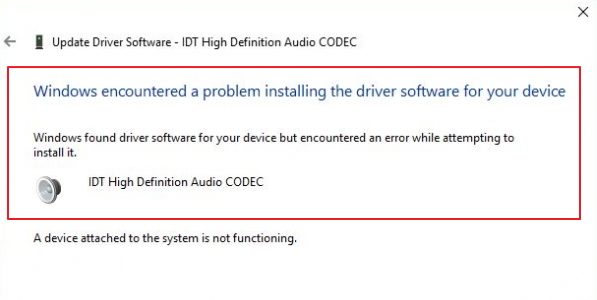
Windows 10 update does not always work as intended. Many users have found the Windows update fails to install this CODEC and the result is you get an error which look something similar to one below.
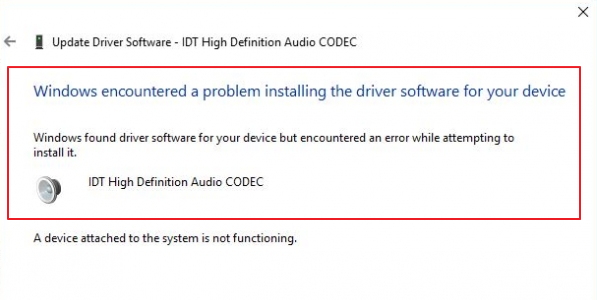
If you encounter this error while installing this codec, we have two solutions for you. The first solution requires you to install/update the IDT High definition Audio codec manually and other solution includes using a driver update tool.
Solution One- Manually installing driver
- Click Start and type Device Manager in search box
- Select Device Manager from the list of results
- In the Device Manager window, go to Sound, video and game controllers category and expand it
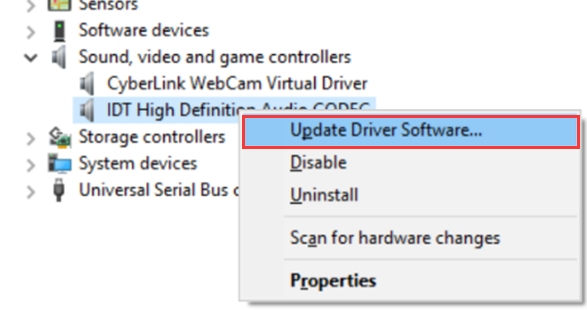
- Look for this CODEC in the list and right-click on it
- From the menu, select the first option which is Update Driver
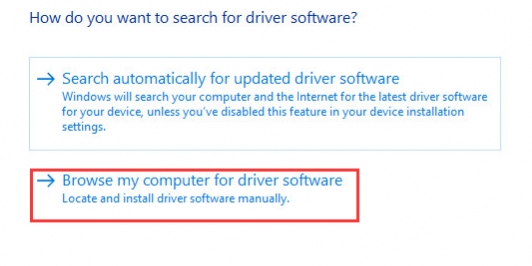
- In the next window, select the second option in the list to locate and install driver manually
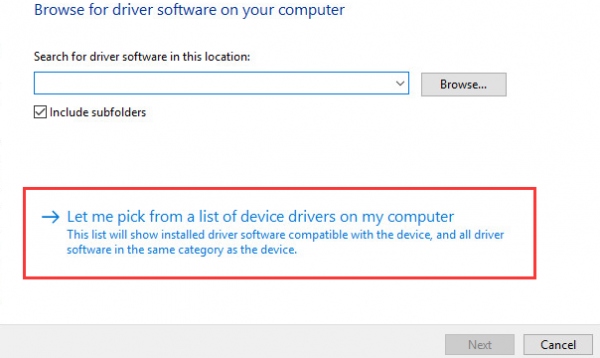
- In the next window, you can either browse to the location of the driver or choose to pick the driver from the list of all installed drivers. Click the second option – Let me…
- In the next window, choose High Definition Audio Device
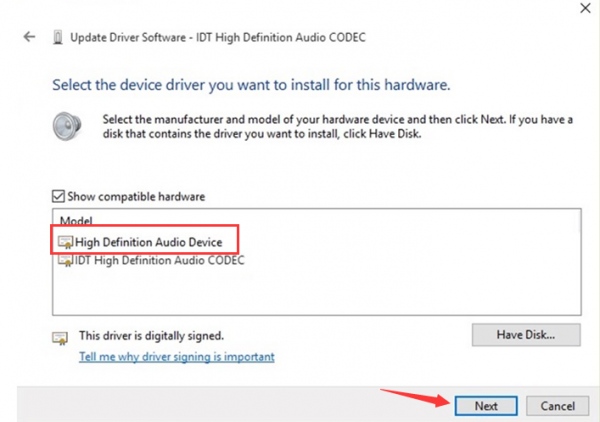
- After selecting the right option, click Next
- You might see a warning message pop-up on the screen, select Yes for an answer. This will start the installation of the IDT driver. Wait for the process to complete.
The solution should fix this issue for you. If you get some error during installation, move to next solution.
Solution Two – Update Driver using Driver Update Tool
You can get this error if your audio drivers are outdated or corrupt. The simplest way to then resolve the issue is by updating your drivers.
There are two ways to update drivers—manually or automatically. Many people prefer the second method because it saves them a lot of time.
Automatic driver update tools offer many benefits, the most important ones being:
- You can update device drivers automatically
- The software scans and updates all outdated or missing drivers at one go
- The tool picks the right drivers for your device and operating system, so you won’t have to worry about installing an incorrect driver by mistake
- Automatic driver updates are 100% safe
Driver Updater is one of the best driver update tools out there. Outbyte Driver Updater will give you access to a database of over 1 million drivers. It will regularly scan your PC, suggesting new driver versions to install. Driver Updater contains drivers for a variety of Windows devices. With just one click, you can update drivers in your system.
Step 1
Click here to Install and launch the app
Step 2
Scan all devices
Step 3
Install or update drivers automatically
Leave a Reply