Drivers.com

follow us:

facebook twitter
  • Home
  • Download Drivers
  • Drivers Help
  • PC/Mac Resources
  • Software Drivers
  • Mac Fixes and Tips
  • PC Fix Tips
  • Security/ Backup
  • Tablets & Smartphones
  • Tech News
  • Software Drivers
  • Mac Fixes and Tips
  • PC Fix Tips
  • Security/ Backup
  • Tablets & Smartphones
  • Tech News

“NVIDIA Display settings are not available” issue in Windows

By Susan C on September 10, 2018

“NVIDIA Display settings are not available” issue in Windows
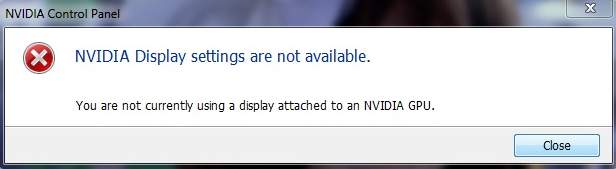
nvidia-settings-not-available-error

Are you getting an error message “NVIDIA Display settings are not available” when you open NVIDIA control panel?

The error means your display is not connected to NVIDIA GPU. Let’s look at the problem in detail and the solutions to fix the issue.

What does “NVIDIA Display settings are not available” error mean to you?

If you are an avid gamer, the above message means you will not be able to play games at higher FPS settings. In most cases, the games would run below 15 fps while you might want 70 to 100fps. This is possible only when you are able to access NVIDIA display settings.  Now let’s look at the solutions to resolve the issue.

Here we have presented 4 solutions to fix the issue. You don’t need to try all the solutions. You can start with the first solution, and if it does not work for you, move to the next solution and so on.

Solution One – Check the display connection

Connecting the display to wrong port is one of the reasons behind “NVIDIA Display settings are not available” error.  If you are a desktop user, you would have two display ports to connect the display cable. You can connect the display to integrated display port of the motherboard or the display port of your NVIDIA graphics card.
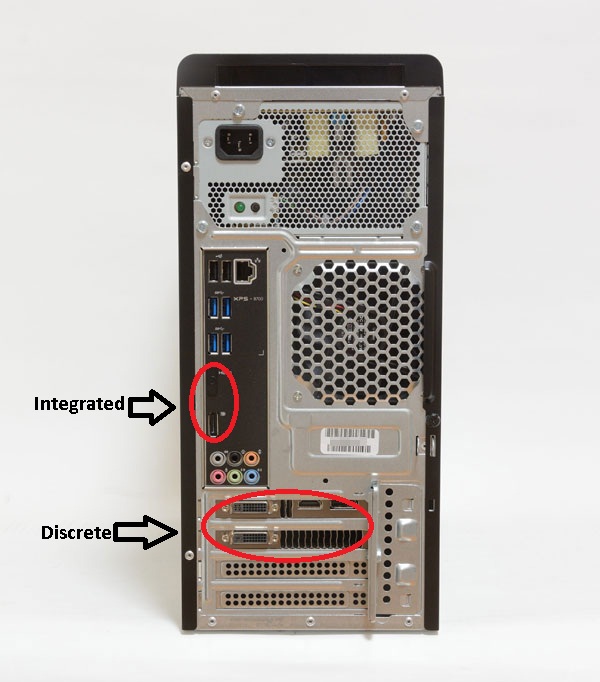
NVIDIA display port

The right port in your case is display port of your NVIDIA graphics hardware.  Connect the display to the discrete port of your NVIDIA graphics card to fix the issue. If you are still getting the error after connecting to the right port, move to the next solution.

Solution Two- Check NVIDIA Display Driver Service

The NVIDIA display driver service is a software component that communicates with your NVIDIA graphics hardware. If the NVIDIA display driver service is not running on your computer, you can get “NVIDIA Display settings are not available” error.

By default, the NVIDIA display driver service is set to start automatically every time you start the computer. If the service is not running, your computer will not detect NVIDIA graphics hardware.

Here are the steps to fix the problem.

  • Press Windows logo key and R simultaneously on your computer to bring up the Run command console
  • In Run command box, type services.msc and press Enter on the keyboard
  • In the Services window, locate NVIDIA Display Driver Service and right-click on it
  • <insert-nvidia settings not avlbl-nvidia display driver service>
  • Select Properties from the menu
  • In the Properties window, go to the General tab
  • In Startup type, check the option (it should be Automatic). If any other option is selected, click the downward arrow and select Automatic from the list
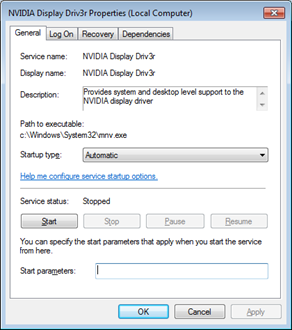
display service automatic
  • If the Service Status is Stopped, click Start
  • Click Apply and then Click OK
  • Close all windows

Check whether the issue is resolved. If the problem persists, you need to move to the next solution,

Solution Three- Uninstall and Reinstall NVIDIA graphic drivers

There is a possibility NVIDIA graphic drivers are corrupt. Uninstalling and reinstalling graphic card drivers are a simple solution to this problem.  Here are the steps you need to follow. To perform these steps you need to boot into Safe Mode.

  • Boot your computer into Safe Mode
  • Click Start -> Control Panel
  • Click Programs and Features
  • Right-click VIDIA Windows Display Drivers from the list of programs
  • Click Uninstall
  • Confirm with Windows that you wish to continue with the install
  • A prompt appears that asks whether you want to keep or delete saved nView profiles. Select Yes to keep profiles and No to delete profiles
  • Wait for the uninstallation operation to complete
  • When NVIDIA drivers are uninstalled, Windows will prompt you to restart the computer
  • After rebooting the PC, open browser and go to nvidia.com to download the latest graphics driver for the graphics card.
  • Double-click on the driver setup file you downloaded and follow-on screen instructions to install NVIDIA graphics drivers.
  • Now try to open NVIDIA control panel and access graphic settings.

If you still get “NVIDIA Display settings are not available” error, move to next solution.

Solution four – Update drivers

Automatic driver update tools offer many benefits, the most important ones being:

  • You can update device drivers automatically
  • The software scans and updates all outdated or missing drivers at one go
  • The tool picks the right drivers for your device and operating system, so you won’t have to worry about installing an incorrect driver by mistake
  • Automatic driver updates are 100% safe

Driver Updater is one of the best driver update tools out there. Outbyte Driver Updater will give you access to a database of over 1 million drivers. It will regularly scan your PC, suggesting new driver versions to install. Driver Updater contains drivers for a variety of Windows devices. With just one click, you can update drivers in your system.

Step 1
Click here to Install and launch the app

Step 2
Scan all devices

Step 3
Install or update drivers automatically
 

Start Download


Filed Under: PC Fix Tips Tagged With: NVIDIA display settings

High CPU and Disk usage by Ntoskrnl.exe in Windows 10

By Susan C on September 8, 2018

High CPU and Disk usage by Ntoskrnl.exe in Windows 10

Is your computer running slow? If yes, it’s time to investigate the issue. Open Task Manager and find out the process that is hogging computer resources.

If you find ntoskrnl.exe is utilizing extensive CPU resources and high disk usage, you need to fix the problem at the earliest; otherwise, the issue can lead to a BSOD error and memory dumps.

Many users have complained about the ntoskrnl.exe process and its high CPU and disk usage. In this post, we have provided solutions that could fix the issue. Let’s learn about this problem in detail.

100% Disk Usage Windows 10

What is NTOSkrnl.exe?

Ntoskrnl stands for NT Operating System Kernel. The extension .exe indicates it is an executable file but there is a possibility that some malware is disguising itself as an NTOSkrnl.exe process.

A genuine NTOSkrnl.exe is a kernel image file which is an important software component of the Windows operating system.

The NTOSkrnl.exe is responsible for many system processes including hardware virtualization, process and memory management, and several others.

Since the NTOSkrnl.exe in Windows 10 has an additional responsibility of compressing old page of memory to free memory, you can see the NTOSkrnl.exe using a large amount of memory sometimes.

In normal operation, NTOSkrnl.exe should not be using a large amount of CPU resources (not more than 30%). If you see high CPU usage by ntoskrnl system process, then you need to perform troubleshooting steps given in the solutions below and resolve the issue.

Solution One- Scan your computer for malware or virus

The ntoskrnl.exe is a trustworthy file from Microsoft which is digitally signed. Ntoskrnl.exe is located in the C:\Windows\System32 folder. Many malware residing in other system folders disguise their processes as ntoskrnl.exe to avoid visual detection.

If the ntoskrnl.exe process in Task Manager is not related to C:\Windows\System32 folder, then there is a possibility a malware has disguised itself as this file and residing on your computer. In that case, you need to update your anti-virus software and scan your system thoroughly to get rid of malware/virus.

If you see the ntoskrnl.exe is not a threat and it still uses extensive CPU resources and heavy disk usage, move to next solution.

Solution Two- Stop Windows Search Service

Ntoskrnl.exe is responsible for several system services. Windows search service provides property caching, content indexing and search results for files, emails and other types of content.

There is a possibility Windows search service is responsible for extensive usage CPU resources and high disk usage. In that case, disabling Windows search service is an ideal solution to resolve this issue.

Here are the steps to follow.

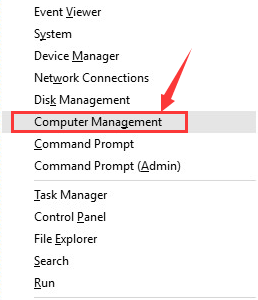
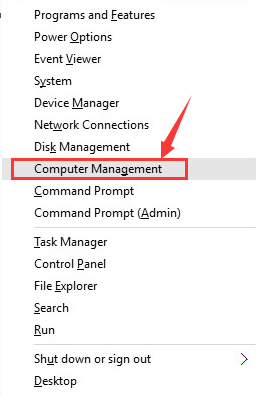
  • Press Windows logo key + X simultaneously on the keyboard to bring up the context menu on the screen
  • Select Computer Management from the list
computer-management
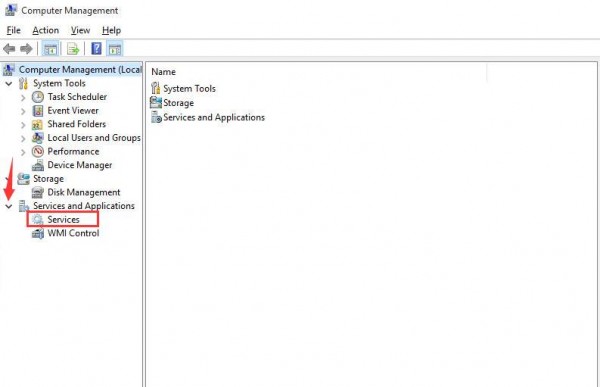
  • In the Computer Management window, double-click Services and Applications in the left pane to expand the category
services-and-applications
  • Select Services
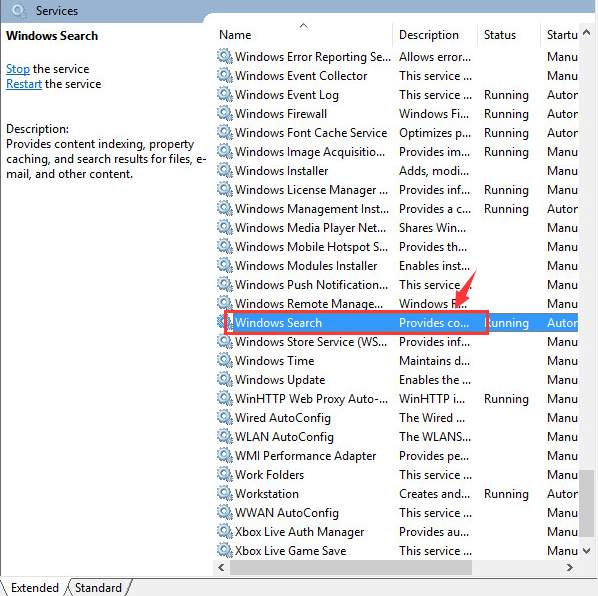
  • In the right-hand pane, locate Windows search and double-click on it
windows-search
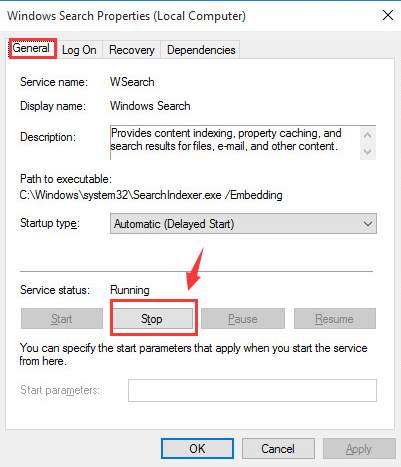
  • In the Windows Search properties window, go to the General tab
  • Click Stop
stop-button
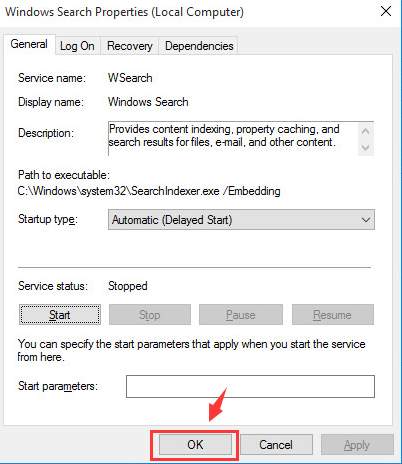
  • When you see the service status changes to stop, click OK
ok-to-save-the-change

Now check the Task Manager and see if the ntoskrnl.exe process CPU and disk usage has reduced and returned to normal. If you see the CPU and Disk usage is high, move to next solution.

Solution Three – Remove incompatible applications

Incompatible applications can hog CPU resources and increase disk usage. Pay attention when you start the system.

Does the CPU and disk usage increase when you launch a specific application? Analyze your actions and their effects on CPU and disk usage. If you find any program causing high CPU and disk usage, uninstall it or get its latest version.

Solution Four – Run DISM command

DISM stands for Deployment Image Servicing and Management. It is a command-line tool that is used to service Windows setup, Windows images, and the Windows Recovery environment.

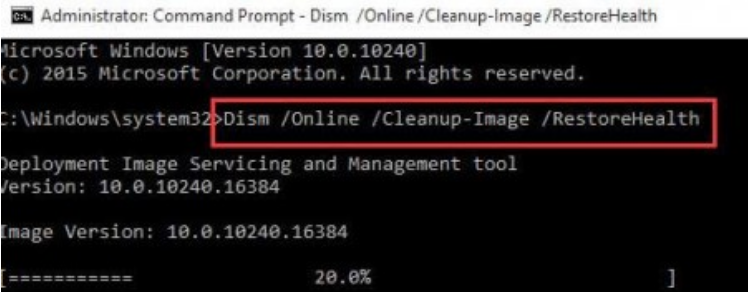
There is a possibility that some system files are corrupted. In that case, you need to use the /RestoreHealth command to scan the windows image for corruption and perform repairs automatically. Here are the steps you need to follow.

  • Press Windows logo key + R simultaneously on the keyboard to bring up the Run command console
  • In the Run command box, type cmd and click OK
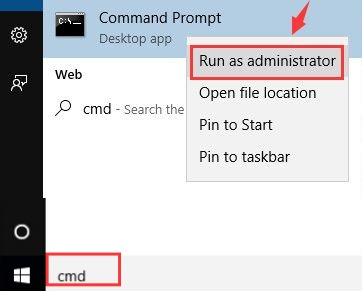
cmd prompt admin
  • In the list of results, right-click cmd and select Run as administrator
  • In the command prompt window, type the following command hit enter on the keyboard
  • Dism /Online /Cleanup-Image /RestoreHealth
restorehealth
  • Wait for the command operation to complete and then close command prompt window

Now check the Task Manager to see if the CPU and Disk usage has returned to normal. If the problem persists, move to next solution.

Solution Five- Use Windows Performance toolkit to find out the root cause of the issue

Since none of the solutions have worked for you, it’s time to use the Windows Performance toolkit to find out the root cause of the issue. Here are the steps to follow.

  • Open command prompt window with admin rights. You can use the first three steps in Solution Four as reference
  • In the command prompt window, type the following command and hit enter on keyboard
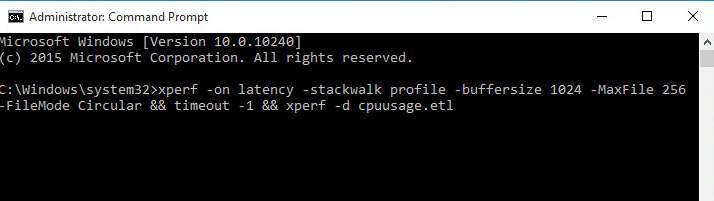
  • xperf -on latency -stackwalk profile -buffersize 1024 -MaxFile 256 -FileMode Circular && timeout -1 && xperf -d cpuusage.etl
ntoskrnl-xperf

(Note- you can also copy paste the command)

You need to run this command for at least 60 seconds to allow the tool to trace high CPU usage. When the operation of the command completes, you will see a warning on the screen and the command prompt reverts to C:\

  • the findings(log file) of the trace are stored in a file named cpuusage.etl in the C:\Windows\system32 directory
  • After reading the log you should know which programs are causing high CPU and disk usage.

Solution Six – Update Drivers

Bad and outdated drivers could also cause high CPU and disk usage. A simple solution to this problem is updating drivers. The most efficient to update your device drivers is by using a fast and accurate driver update tool.

Automatic driver update tools offer many benefits, the most important ones being:

  • You can update device drivers automatically
  • The software scans and updates all outdated or missing drivers at one go
  • The tool picks the right drivers for your device and operating system, so you won’t have to worry about installing an incorrect driver by mistake
  • Automatic driver updates are 100% safe

Driver Updater is one of the best driver update tools out there. Outbyte Driver Updater will give you access to a database of over 1 million drivers. It will regularly scan your PC, suggesting new driver versions to install. Driver Updater contains drivers for a variety of Windows devices. With just one click, you can update drivers in your system.

Step 1
Click here to Install and launch the app

Step 2
Scan all devices

Step 3
Install or update drivers automatically
 

Start Download


Filed Under: PC Fix Tips Tagged With: Ntoskrnl.exe CPU usage

Critical Structure Corruption BSOD in Windows 10

By Susan C on September 8, 2018

Critical Structure Corruption BSOD in Windows 10
csc-error image

A blue screen of death error is one of the most irritating errors as it completely stalls your work. However, these errors are quite common and almost every Windows user has come across one.

That said, not all BSOD errors are difficult to resolve. A case in point is Critical Structure corruption, which is also known as STOP 0×00000109. While it is always irritating to receive an error while working on your desktop or laptop, this blue screen of death error can be resolved quite easily.

Let’s know more about this error in detail

What is Critical Structure Corruption BSOD?

The Critical Structure Corruption blue screen of death error appears randomly and the system freezes and you’ll have to reboot your computer. If you are working on something important when this BSOD appears, you are more likely to lose unsaved work.

Windows gives out “Critical Structure Corruption” error when it finds one of the file that it owns has been modified or the data in one of the file in the memory has been modified. There can be several causes of this error, such as corruption of system file, problems with hardware especially RAM, one of third party application or even malware infection.

Now that we know the causes, we can move ahead to the solution. Whenever Windows shows a Blue Screen of death on the screen, it creates a log file that has more information of the error. If you are tech-savvy, you can check the log file to get details of the causes of the BSOD and then pick the right solution.

If you are not tech-savvy, you can start with first solution and see if it helps. If it does not resolve issue, you need to move to next solution and so on.

How to check the log file to know more about “Critical Structure corruption” error?

The System Log in Event Viewer can give you additional information about the “Critical Structure corruption” error.

Here are the steps to follow:

  • Press Windows logo key and R simultaneously on the keyboard to launch Run command console
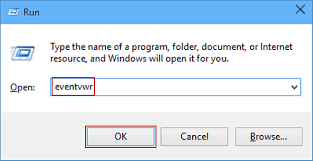
  • In the Run command box, type eventvwr and hit Enter on the keyboard
csc-eventvwr
  • Click Event Viewer
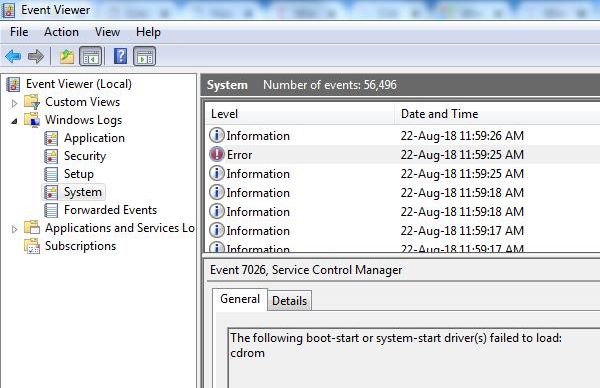
  • Navigate to Windows Logs-> System
csc-system log
  • In the right hand pane under System and in the column Level, look for error entries. (you can check the date and time of the error to determine the exact error entry for Critical Structure corruption BSOD)
  • Click on the error to get more details
  • Based on your findings, you can select the right solution given in this post
  • If you don’t find anything in System log, start with Solution One.

Solution One – Perform a clean boot

A “clean boot” starts your computer with a minimal set of drivers and startup programs. It’s a good way to know whether other programs are causing Critical Structure corruption BSOD. Here are the steps to follow.

  • Press Windows logo key and R simultaneously on the keyboard to bring up Run command console.
  • In the Run command box, type msconfig and hit Enter on the keyboard
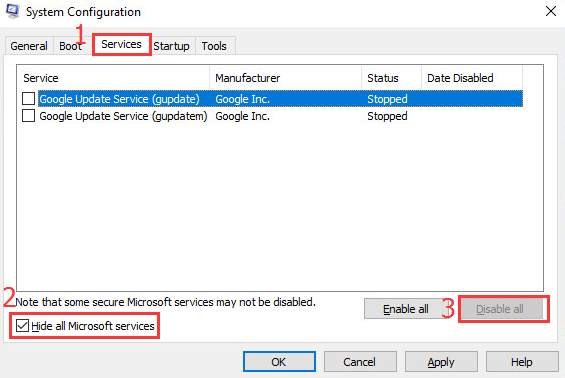
  • In the System Configuration window, click Services tab
  • tick the box Hide all Microsoft services
csc-disable services
  • Click Disable all
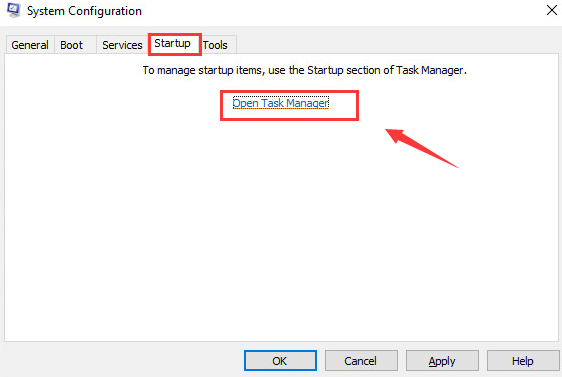
  • Now go to Startup tab and click Open Task Manager
startup-task manager
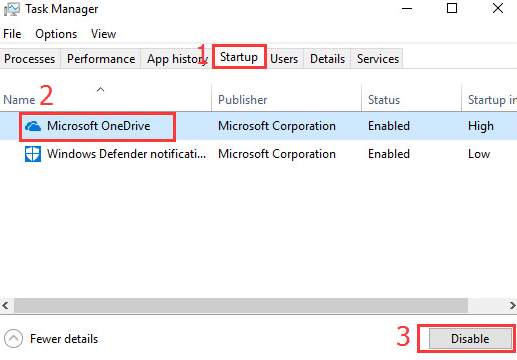
  • In the Task Manager window, go to Startup tab
task manager -startup
  • Select the programs/services you see and disable them one by one
  • Close Task Manager window
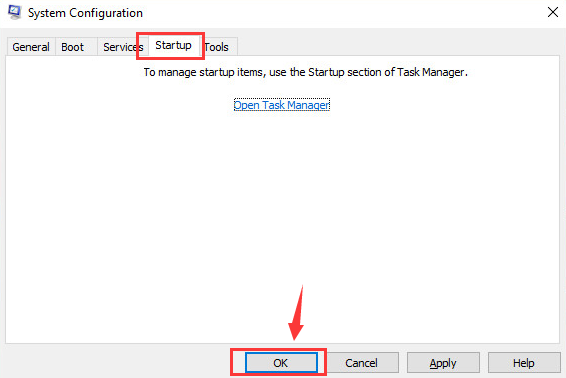
  • Return to System configuration window and click OK
system configuration - OK
  • Restart your computer

Now check whether you are getting Critical Structure corruption BSOD. If the error persists, move to next solution.

Solution Two – Uninstall problematic programs

Programs like Daemon Tools, Alcohol 120%, Intel HAXM (Hardware Accelerated Execution Manager), and MacDriver are known to cause BSOD errors like Critical Structure corruption. If you have any of these programs installed, we suggest you to either uninstall them or upgrade them to latest version.

After you have followed instructions above, check whether you still get Critical Structure corruption BSOD. if the problem persists, move to next solution.

Solution Three – Run SFC scan

One of the causes of Critical Structure corruption BSOD could be corruption of system files. A simple solution to resolve this issue is run SFC scan. Windows offers a System file checker tool that check the integrity of the system files and finds corrupted files. It also detects any missing files and replaces them with good cached versions. The SFC is a command line tool (No GUI) and you need to run it through command prompt with admin rights. Here are the steps to follow.

  • Click Start
  • Type cmd in the search box. Windows 10 users can type cmd in Cortana search box
  • Right-click cmd from the list of search results and click Run as administrator
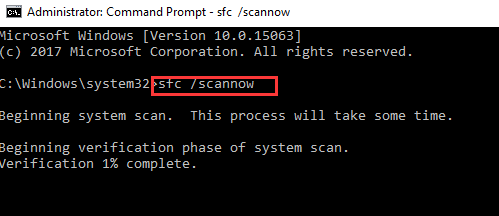
  • In the command prompt window, type sfc /scannow and press Enter on keyword
cmd sfc
  • The SFC scan process may take some time to complete. Wait for the command operation to complete and then close command prompt window

Try to use computer for some time and see if the Critical Structure corruption BSOD is generated. If the issue is not resolved, move to next solution.

Solution Four-Run DISM tool

In some cases, SFC is not able to replace corrupt files and the issues do not get resolved. In such scenarios, you need to use the DISM tool. DISM stands for Deployment Image Servicing and Management. DISM is command line utility that is used to repair Windows Recovery environment.

In this solution, we run DISM commands that use Windows update to provide files that are needed to fix file corruptions. Here are the steps you need to follow

  • Open command prompt window with admin rights. You can refer to the steps given in Solution Three – Run SFC command to open an command prompt with admin rights
  • In the command prompt window, type the following commands and hit Enter on the keyboard after each command.
  • exe /Online /Cleanup-image /Scanhealth
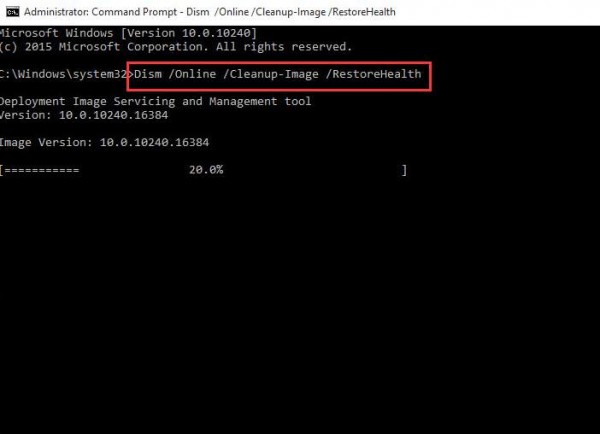
  • exe /Online /Cleanup-image /Restorehealth
dism-restorehealth
  • Wait for some time as it may take several minutes for the command operation to complete
  • When the command operation is completed, close command prompt window
  • Reboot Windows

Solution Five- Check computer memory for any faults

A faulty RAM module can be one of the reasons behind Critical Structure corruption BSOD. If the memory module is faulty, it prevents Windows from accessing files stored in the memory that could lead to errors like Critical Structure corruption.

Windows features an in-built memory diagnostic tool that can check computer memory for any faults. Here are the steps you need to follow.

  • Press Windows key and R button simultaneously on the keyboard to access Run command console
  • In the Run command window, type exe
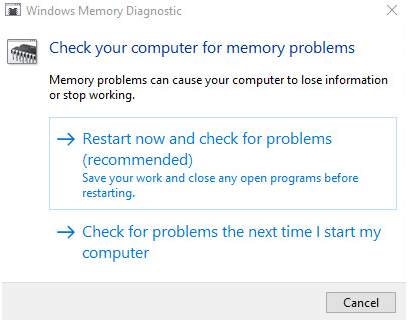
  • You will get two options- 1) Restart now and check for problems (recommended) and 2) Check for problems the next time I start my computer.
check memory options
  • If you want to immediately check memory, select Restart now and check for problems else select Check for problems the next time….
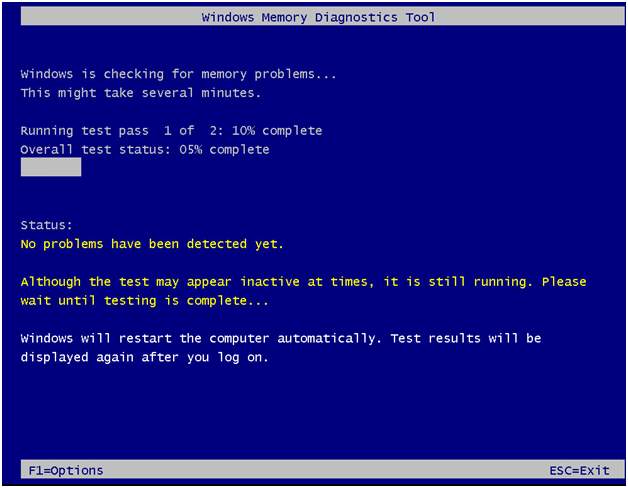
  • If you have selected Restart now….., the computer will restart and you will see Windows Memory Diagnostic tool in action checking computer memory for any faults
memory test running
  • If you select Check for problems the next time…… the Windows Memory Diagnostic tool would run when the computer reboots next time.
  • If Windows Memory Diagnostic tool finds any problem with computer memory, it will report an error. In that case, you need to replace faulty RAM module.
  • If the Windows Memory Diagnostic tool completes the process without reporting any error, you can draw a conclusion the computer memory is good and not the cause of Critical Structure corruption BSOD.

Start the PC and see if the issue is resolved. If the issue still persists, try next solution.

Solution Six – Update Drivers

Sometimes BSOD errors can occur because of outdated or corrupt drivers. To fix the issue, you would need to update your drivers. You can do the same using a reliable and easy-to-use driver software tool.

Automatic driver update tools offer many benefits, the most important ones being:

  • You can update device drivers automatically
  • The software scans and updates all outdated or missing drivers at one go
  • The tool picks the right drivers for your device and operating system, so you won’t have to worry about installing an incorrect driver by mistake
  • Automatic driver updates are 100% safe

Driver Updater is one of the best driver update tools out there. Outbyte Driver Updater will give you access to a database of over 1 million drivers. It will regularly scan your PC, suggesting new driver versions to install. Driver Updater contains drivers for a variety of Windows devices. With just one click, you can update drivers in your system.

Step 1
Click here to Install and launch the app

Step 2
Scan all devices

Step 3
Install or update drivers automatically
 

Start Download


Last Resort

If none of the above solutions have worked for you, the last solution to resolve the Critical Structure corruption BSOD is reinstalling Windows.

Filed Under: PC Fix Tips

  • « Previous Page
  • 1
  • …
  • 148
  • 149
  • 150
  • 151
  • 152
  • …
  • 189
  • Next Page »


  • Recent Posts
  • Popular Posts
        

Read More Posts


Read More Posts

Drivers.com Sites

  • Software Drivers
  • Drivers Ed

About Us

  • Advertise
  • About Drivers
  • Drivers Support
  • Drivers.com Privacy Policy
  • Disclaimer
  • Software Drivers
  • Mac Fixes and Tips
  • PC Fix Tips
  • Security/ Backup
  • Tablets & Smartphones
  • Tech News

© Copyright 2026 PDE Publications Ltd. End User License Agreement (EULA)