Is YouTube running unusually slowly for you?
Slow YouTube buffering is a common issue which can occur for many reasons. For instance, you can encounter the problem when there’s an issue with your network connection.
Similarly an overloaded server can lead to this problem. A clogged up browser cache is another reason why this issue can arise. In addition to these, there are other potential causes behind this problem.
However, this is something that you can fix fairly quickly so read on for some tips and fixes.
Start with ensuring the issue is not being caused by something on your network. If you are trying to watch YouTube videos in a business organization, keep in mind that you can face this issue if the data allocation for this is limited. Ensure the internet connection is all good and there’s nothing wrong with your connection.
Once you’ve run all the listed checks and find that YouTube buffering speed is as bad as before, we recommend you to try these solutions.
Solution 1 – Change the Video URL
Try replacing www in the URL of the video you wish to watch by ca. You can also use some other URL.
For instance, if you want to open a video with URL https://www.youtube.com/, you can use instead this URL: https://ca.youtube.com/
Solution 2 – Clear Browsing Cache
Browsing cache allows your computer to open websites that you’ve visited before more quickly. While a useful feature, it can at times cause issues, especially when a lot of temporary data accumulates. This can clog and slow down the computer. Clear browsing cache and check whether that helps improve the streaming.
Here are the steps to follow on Chrome.
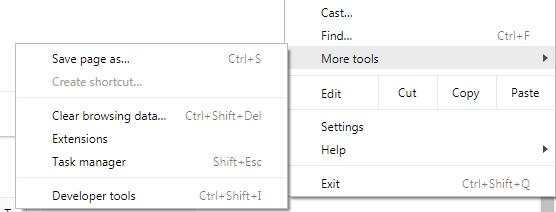
- Press Ctrl + Shift + Del. This will open the Clear Browsing Data window
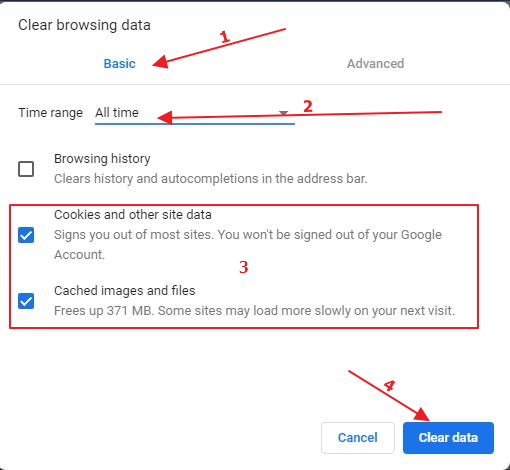
- You will see two tabs at the top: Basic and Advanced. Click the latter
- Now select all checkboxes that you see. Finally click on Clear browsing data
Important: If you want, you can exclude the stored passwords, along with browsing data, here. That said, it is best that you clear the cache completely at least once. Now check whether things improve or not.
- End every running application by opening Task Manager (press Ctrl + Alt + Del) and then restart the browser. Check whether YouTube video streaming has improved
Solution 3 – Opt for Lower Quality Settings
The load on the site servers tends to increase at certain hours, known as peak hours. YouTube is no exception. How much traffic a site receives is obviously beyond your control. However, what’s in your control is the video quality settings.
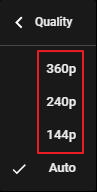
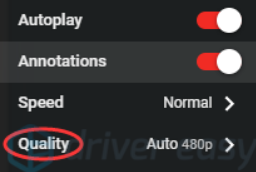
When you change the setting to “Automatically”, the video quality is automatically adjusted as per the internet connection. However, you can change this setting manually if you want. Lowering quality settings have helped some users to fix this issue. We recommend you try it, too.
Here are the steps to follow.
- Open the YouTube video you want to watch
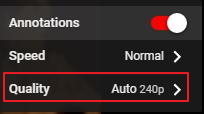
- Click on Gear button (You’ll find it on bottom right hand side)
- Click Quality. Now lower the quality setting
Solution 4 – Check Flash Software
Most web browsers have Adobe Flash Player preinstalled. It is frequently used for embedding videos on a lot of sites. Some users have reported that they were able to fix the YouTube Slow issue by uninstalling Flash Player and then installing the newest version of it from the official Flash site. You can try this solution.
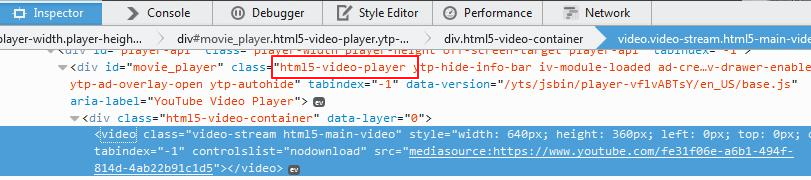
Now by default YouTube switches Firefox users to HTML5 player from Flash Player. If you’re not sure whether your Firefox browser uses HTML5, you check for the same on official YouTube page. That said, several available add-ons on other browsers force Flash when HTML is not working properly.
Check whether the browser you’re using aptly supports HTML5. You should also ensure there are absolutely zero conflicts with installed Adobe software programs. Many users have complained that they cause several issues. Additionally, ensure you’re using the latest Flash version.
Solution 5 – Block 2 IP Address Ranges
When you view a video, typically you watch using Content Delivery Network, or CDN for short. What CDN does is that it helps you view content more easily and quickly by virtually lessening the distance. This, as you may guess, helps improve the performance of a site. It also boosts site rendering.
At times the ISP provider may increase speed between your pc and CDN. This in turn can delay YouTube buffering. This situation may be alleviated if you block 2 IP address ranges. In case the solution doesn’t work, you can use the command listed here to revert the new changes.
Here are the steps to follow to block 2 IP address rangers.
- Click the Windows icon in the taskbar and then type command prompt in the Start Search box. In the result list, right-click command prompt and then click Run as administrator to open Elevated command prompt
- Now type this command and then press Enter – netsh advfirewall firewall add rule name=”AppualsTweak” dir=in action=block remoteip=173.194.55.0/24,206.111.0.0/16 enable=yes
- Exit command prompt window. Check whether YouTube video is streaming better or not
- In case, the buffering speed is not better than before, undo the changes made by running this command in the elevated command prompt – netsh advfirewall firewall delete rule name=”AppualsTweak”
Solution 6 – Update Graphic Drivers
Outdated drivers can slow down HD streaming. This is exactly what some users have reported. During video streaming, a computer uses the installed Graphic hardware. If the drivers are old, it may not be able to handle the newest optimizations used in YouTube.
You can install drivers via the built-in Device Manager utility or using a fast driver update tool. We will discuss both methods here.
Update Drivers through Device Manager
First you need to boot Windows in the Safe Mode and then delete installed video card drivers. When you reboot Windows, the default drivers will be installed automatically.
You can boot Windows 10 in Safe Mode using the System Configuration tool. You may know it from its filename: msconfig.exe.
Here are the steps to follow to boot Windows in Safe Mode through System Configuration tool.
- Open the search field in taskbar, type system configuration and click system configuration shortcut
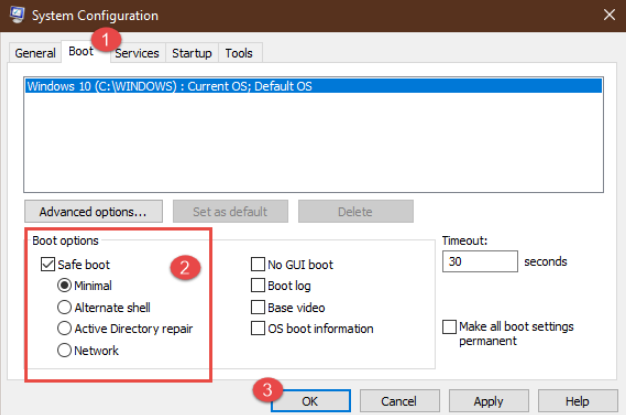
- Click the Boot tab in System Configuration window
- Select Safe Boot option in Boot options section
- Click OK
- You will get a pop-up window stating you will have to restart the computer for the changes to take effect. Click the Restart button
- Now Windows will start in Safe Mode directly
Once you’re in Safe Mode, follow these steps to display drivers.
- Press Win + R. This will open the Run dialog box. Type msc and press Enter
- In the device manager window, expand Display adapters. Then right-click the display hardware, and then click Uninstall device
- A pop-up window will appear asking you to confirm the action. Click the OK button
- Now restart Windows in the normal mode
- Go to Device Manager window, select the display hardware and click Update driver
- Now click Search automatically for updated driver software
Windows will automatically conduct a search for newest drivers available. It will then install them.
In case the problem is not solved through updating the device drivers, we recommend you download and install drivers manually by visiting the manufacturer’s site. Once you’ve downloaded the latest driver, follow these steps.
- Open device manager utility
- Expand Display adapters, right-click the hardware device, and click Update driver
- Click Browse my computer for driver software
- Now go to the folder where you stored the downloaded driver file. Select it and let Windows install the driver.
- Reboot Windows and check if the issue is fixed
Update Drivers Automatically
As you can see, updating drivers through Device Manager, besides being technical, is also cumbersome and time-consuming.
Automatic driver update tools offer many benefits, the most important ones being:
- You can update device drivers automatically
- The software scans and updates all outdated or missing drivers at one go
- The tool picks the right drivers for your device and operating system, so you won’t have to worry about installing an incorrect driver by mistake
- Automatic driver updates are 100% safe
Driver Updater is one of the best driver update tools out there. Outbyte Driver Updater will give you access to a database of over 1 million drivers. It will regularly scan your PC, suggesting new driver versions to install. Driver Updater contains drivers for a variety of Windows devices. With just one click, you can update drivers in your system.
Step 1
Click here to Install and launch the app
Step 2
Scan all devices
Step 3
Install or update drivers automatically
Solution 7 – Use a VPN
This is the last step in the list. Try if nothing else has worked till now to resolve YouTube Slow Issue.
Because a VPN bypasses CDN servers, it can help you play YouTube videos more quickly. This solution can work if your CDN servers are overloaded. This can delay video streaming considerably. By skipping the CDN server, a VPN may help load YouTube videos faster.
You can find many paid as well as free VPN services. In case you’ve never used a VPN before, it may be best if you start with a free one. If you found it useful in improving video streaming speed, you can jump to a paid one if needed.