Drivers.com

follow us:

facebook twitter
  • Home
  • Download Drivers
  • Drivers Help
  • PC/Mac Resources
  • Software Drivers
  • Mac Fixes and Tips
  • PC Fix Tips
  • Security/ Backup
  • Tablets & Smartphones
  • Tech News
  • Software Drivers
  • Mac Fixes and Tips
  • PC Fix Tips
  • Security/ Backup
  • Tablets & Smartphones
  • Tech News

This Device Cannot Start Code 10

By Susan C on October 19, 2018

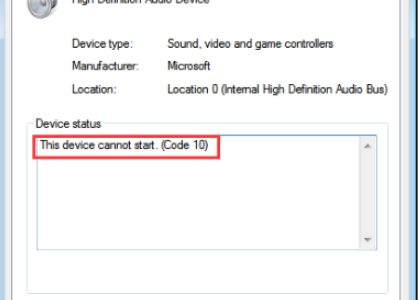
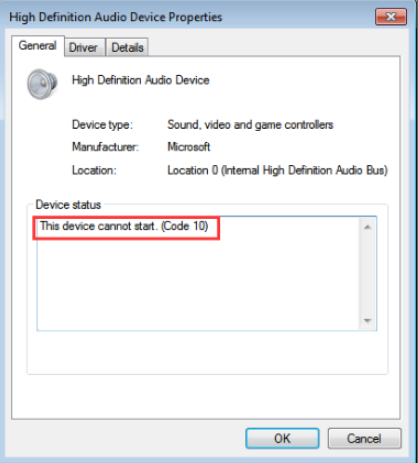
This Device Cannot Start Code 10
error-code-10

The Code 10 error is one of the most common device errors in Windows. The error code 10 is generated when the Device Manager is unable to start any device due to corrupt or outdated drivers. The Code error 10 might also get generated if the device driver generates an error which the system cannot decode.

In other words, the device cannot start code 10 error is related to some kind of hardware devices and their drivers. If you are receiving this error, stop worrying as we have provided six easy ways to fix the issue.

You don’t need to try all solutions given in this post. The best approach is start with Solution One. If it does not work, move to next solution and so on.

Solution One – Restart your computer

Sometimes drivers do not get properly loaded during boot and the result is the device cannot access the driver it needs for its functioning. The result is you see “the device cannot start code 10” error on the screen. A simple solution to this problem is to reboot your PC. This will force the system to load all device drivers again and the error might vanish.

If the “the device cannot start code 10” reappears after restart, you can conclude there is some problem with the device driver. In that case, you need to move to next solution.

Solution Two- Run Troubleshooter

Microsoft provides a hardware troubleshooter that could resolve the Code 10 error. Here are the steps to follow

  • Click the link to download Troubleshooter
  • click on the downloaded file to run it
  • When the troubleshooter is launched, click Next
  • Wait for the Troubleshooter to complete diagnostic and repairs
  • Restart your computer

Check whether the Code 10 error is resolved. If the Code 10 error continues to appear, move to next solution

Solution Three – Undo any recent changes

Many times new installation of hardware or software causes such problems. Try to recall events after which the Code 10 error started appearing. Did you install any software or hardware recently? If you can believe that the Code 10 error started appearing after installing particular software or hardware, you might have actually found out the real cause of the Code 10 error.

A simple solution to this problem is undoing recent changes – uninstalling the problem creating software or removing problematic hardware from your computer. After you have undone recently made changes, restart your PC and check whether the issue persists. If the error is not resolved, move to next solution.

Solution Four – Install all important Windows updates

Installing important Windows updates is critical part of computer maintenance. Many times users do not install important Windows updates that lead to problems like Code 10 error. A simple solution to this problem is installing important Windows updates and patches that could resolve the Code 10 error. Here are the steps to follow.

  • Click Start -> Control Panel
  • Click Windows Update
  • Click Check for updates
  • Click any link of the updates you want to install
  • After installing all important updates, restart your computer

Check whether issue persists. If the error remains unresolved, move to next solution

Solution Five- Uninstall and reinstall driver for the device

There is a possibility the device driver is corrupt that is causing the Code10 error. In that case, you need to uninstall and reinstall driver for the problematic device. The problematic device can be generally identified in a Device Manager. It will have a yellow exclamation mark besides it.

Here are the steps to follow.

  • Click Start
  • Type Run in search box
  • In the Run box, type devmgmt.msc and hit Enter on keyboard
  • In the Device Manager window, look for problematic device and right-click on it
  • Select Uninstall device from the menu
  • You will see a confirmation prompt, check the option Delete software for this device and click OK

Restart your PC and check if the Code 10 error is resolved. If the Code 10 error is not resolved, move to next solution

Solution Six- Update Drivers via Driver Update Tool

Automatic driver update tools offer many benefits, the most important ones being:

  • You can update device drivers automatically
  • The software scans and updates all outdated or missing drivers at one go
  • The tool picks the right drivers for your device and operating system, so you won’t have to worry about installing an incorrect driver by mistake
  • Automatic driver updates are 100% safe

Driver Updater is one of the best driver update tools out there. Outbyte Driver Updater will give you access to a database of over 1 million drivers. It will regularly scan your PC, suggesting new driver versions to install. Driver Updater contains drivers for a variety of Windows devices. With just one click, you can update drivers in your system.

Step 1
Click here to Install and launch the app

Step 2
Scan all devices

Step 3
Install or update drivers automatically
 

Start Download


Filed Under: PC Fix Tips Tagged With: error code 10

“Getting Windows ready” stuck screen error

By Susan C on October 17, 2018

“Getting Windows ready” stuck screen error
Getting-Windows-Ready-Error

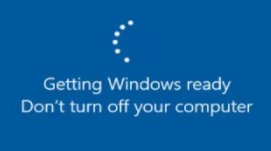
Many Windows 8 and 10 users have complained about a getting the” Getting Windows ready” error.

This error generally appears on the screen during reboot or when starting Windows. The “Getting Windows ready” message stays on the screen and there are no signs of Windows booting to desktop.

While this may appear normal to many, it can be annoying especially when you feel “Getting Windows ready” would be staying infinitely on the screen.

If you are facing a similar problem, don’t worry as we have provided four easy solutions that could fix the issue. Let’s look at the solutions.

Why Windows 10 update is taking so long?

Solution One – Wait for some time

There is a possibility that Windows is performing some important upgrades in the background and hence you are seeing this message on the screen. If there is no problem with your system, the screen should go after some time and Windows will successfully boot to desktop.

There is no certain way to tell how much time Windows might take to complete upgrades or background tasks. According to experts, if the screen stays for more than 15-20 minutes, you can draw a conclusion there is some problem with the Windows operating system that needs your attention. In that scenario, you need to move to the next solution.

Solution Two- Power Reset PC

A power reset is an ideal and safe way clear memory of your PC without erasing your data. The power cycling method is useful to clear any corruption that might be the cause of “Getting Windows ready” stuck screen. Here are the steps to follow.

  • Switch off your PC
  • Remove all connected USB and other peripherals like headphone, USB driver, portable drive and any such device.
  • Remove the power chord from your PC
  • If you have a laptop, switch off the laptop and remove the battery. (this step is only applicable to laptops with removable batteries)
  • Press the Power switch on your computer and continue to hold it for thirty to forty seconds (minimum).
  • Plug back the power chord in your PC. Laptop users need to insert power cell into the battery compartment
  • Switch on your PC and see if the error has gone. if you still see the computer gets stuck at Getting Window ready” screen, move to the next solution

Solution Three- Run SFC scan

You cannot rule out the possibility of system file getting corrupted, which in turn might be causing your Windows to get stuck at “Getting Windows ready” screen. In that case, the in-built tool known as System File Checker can help resolve the issue.

The SFC is a command line tool that checks the integrity of the system files and repairs or replaces any corrupt system files. After the corrupt system files are reinstated, your computer could move past the “Getting Windows ready” screen. Here are the steps to follow.

Note- since you cannot log into Windows, you will need Windows installation media to run SFC scan tool.

  • Switch on your Windows PC and insert windows installation media
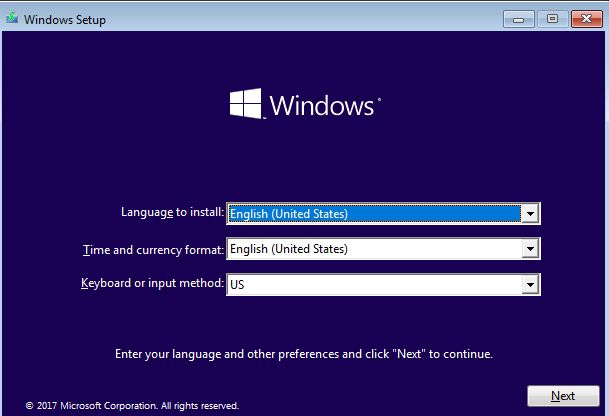
  • Your computer needs to boot from the installation media and you should see a screen like the one below.
Windows setup
  • click Next
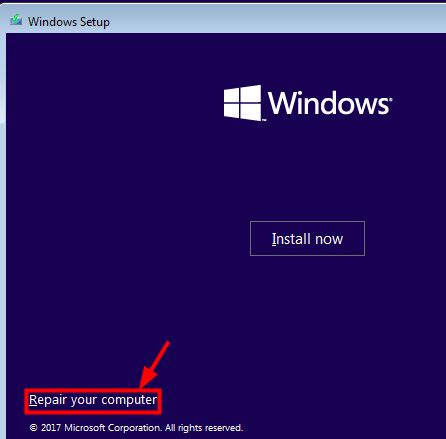
  • In the next screen, select Repair your computer
Repair computer
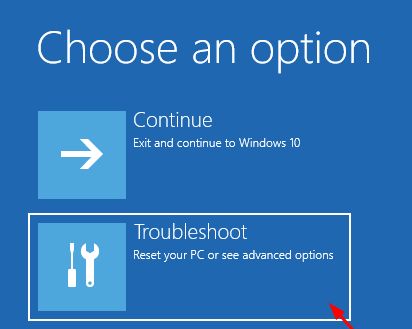
  • Click Troubleshoot
click troubleshoot
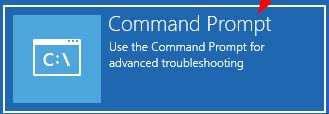
  • Click Command Prompt
command prompt
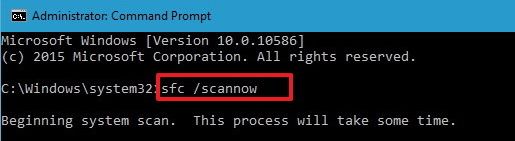
  • In the command prompt window, type the following command and hit Enter on the keyboard
  • sfc-scannow
  • sfc /scannow
  • Wait for the command operation to complete
  • Close the Command Prompt window
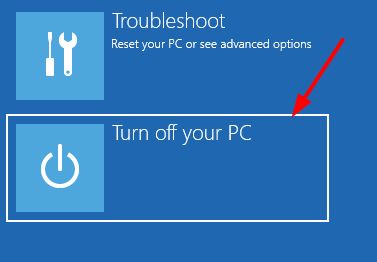
  • Click Turn off your PC
turn off PC
  • Remove installation media and let the computer boot normally

If the issue persists, move to next solution

Solution Four – Reinstall Windows

Since the above solutions have not worked for you, you are only left with one option that is reinstalling Windows. To reinstall Windows, you need to insert Windows installation disc/USB in your PC and force the computer to boot from Windows installation media

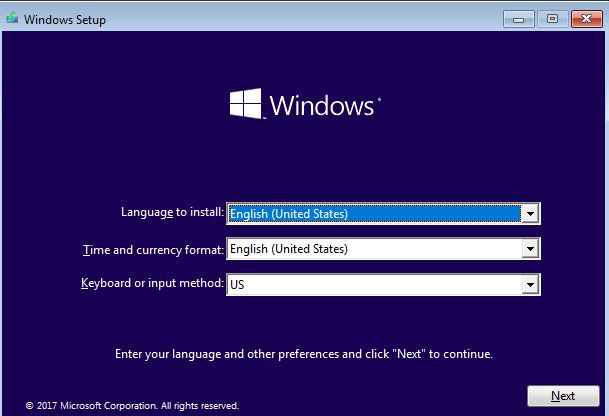
  • The first Windows Setup screen looks like the image given below. Just click Next in the first screen
Windows setup screen
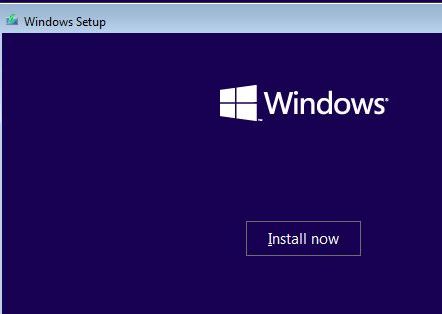
  • In the next screen, you will see the Install now button. click on it to start the reinstallation of Windows
install now
  • Follow on-screen instructions to reinstall Windows.

Update system drivers after reinstalling Windows

To update system drivers, you can use a fast and reliable driver update tool.

Automatic driver update tools offer many benefits, the most important ones being:

  • You can update device drivers automatically
  • The software scans and updates all outdated or missing drivers at one go
  • The tool picks the right drivers for your device and operating system, so you won’t have to worry about installing an incorrect driver by mistake
  • Automatic driver updates are 100% safe

Driver Updater is one of the best driver update tools out there. Outbyte Driver Updater will give you access to a database of over 1 million drivers. It will regularly scan your PC, suggesting new driver versions to install. Driver Updater contains drivers for a variety of Windows devices. With just one click, you can update drivers in your system.

Step 1
Click here to Install and launch the app

Step 2
Scan all devices

Step 3
Install or update drivers automatically
 

Start Download


Filed Under: PC Fix Tips Tagged With: Getting Windows Ready Error

LAN is having invalid IP configuration error in Windows

By Susan C on October 16, 2018

LAN is having invalid IP configuration error in Windows

One of the most common windows internet access errors is “The Local Area Connection is having an invalid IP (Internet Protocol) configuration” .

As the message suggests, this is a networking issue. This happens when the Windows is having some problem in gaining valid IP(Internet Protocol) configuration.

The reasons for this error can be many, including wrong network settings, the problem with the network adapter, or other reasons. If you are getting this error, don’t worry as we have listed three solutions that could resolve the problem and get your computer access to the Internet. Let’s look at the solutions.

Solution One- Change your network connection values

As mentioned earlier, wrong network connection values can be one of the reasons behind this error. A simple solution to resolve this issue is to make changes to networking values by following steps given below.

  • go to the system tray and right-click the Network icon
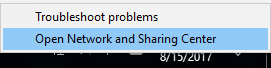
  • Choose Open Networking & Sharing Center
network and sharing center
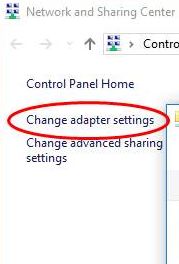
  • Select Change Adapter settings
change adapter settings
  • from the list of network adapters, choose the network adapter you are currently using
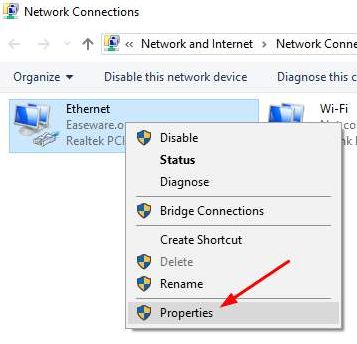
  • right-click the network adapter and select Properties
network properties
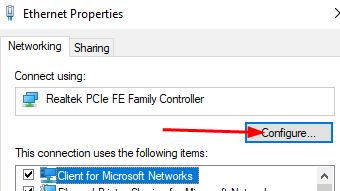
  • In the Ethernet Properties window, select Configure
configure
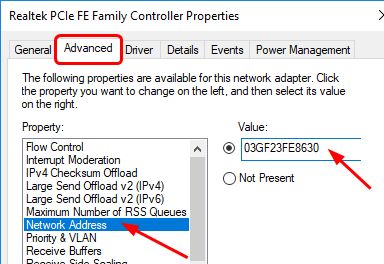
  • In the next window, go to the Advanced tab
  • In the Property box, select Network address
network address
  • Change the value to any twelve alphanumeric characters of your choice
  • Select OK

Close all windows and see if your computer can access websites. If you are still getting the error, move to next solution.

Solution Two- Uninstall and Reinstall Network adapter software

One of the reasons behind is “Local Area Connection doesn’t have a valid IP configuration” error can be outdated network adapter software. In that case, a simple way to resolve this issue is to uninstall the network adapter software completely and install the latest network adapter software.

Here are the steps to follow.

  • Press Windows logo button and R simultaneously on the keyboard to launch Run program
  • In the Run window, type the word msc and press Enter on keyboard
  • When the device manager window opens, go to Network adapter’s category and expand it
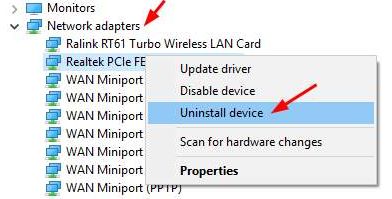
  • Right-click the network adapter your computer is using and click Uninstall device
uninstall device
  • Wait for the operation to complete and close the device manager window

Note- you need to perform the steps given below on a computer with a working internet connection. You need to download drivers on another computer and copy the driver files to install them.

  • Now launch the browser and go to network adapter manufacturer’s website and download the latest driver

If you find this method of finding drivers complicated, you can use Driver Update software to download and install the latest network adapter drivers.

Steps to update network drivers using Driver Update Tool

Automatic driver update tools offer many benefits, the most important ones being:

  • You can update device drivers automatically
  • The software scans and updates all outdated or missing drivers at one go
  • The tool picks the right drivers for your device and operating system, so you won’t have to worry about installing an incorrect driver by mistake
  • Automatic driver updates are 100% safe

Driver Updater is one of the best driver update tools out there. Outbyte Driver Updater will give you access to a database of over 1 million drivers. It will regularly scan your PC, suggesting new driver versions to install. Driver Updater contains drivers for a variety of Windows devices. With just one click, you can update drivers in your system.

Step 1
Click here to Install and launch the app

Step 2
Scan all devices

Step 3
Install or update drivers automatically
 

Start Download


Solution three- Modify network adapter settings

Wrong network adapter settings could also result in “Local Area Connection doesn’t have a valid IP configuration” error. A simple solution to this problem is changing the network adapter settings.

  • go to the system tray and right-click the Network icon
  • Choose Open Networking and Sharing Center
  • Select Change Adapter settings
  • from the list of network adapters, highlight the network adapter you are currently using
  • right-click the network adapter and choose Properties
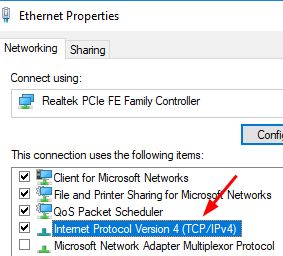
  • In the Ethernet Properties window, double-click on (TCP/IPv4) Internet Protocol Version 4
Internet Protocol version 4
  • In the Internet Protocol Version 4 properties window, click General tab
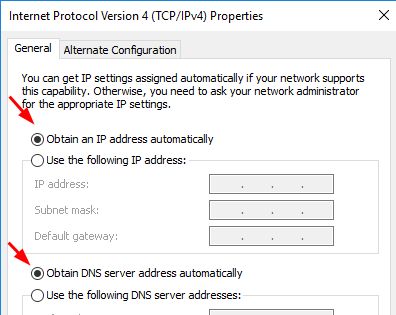
  • Make sure options like Obtain DNS server address automatically and Obtain an IP address automatically are selected
ip address auto

Open a browser and see if your computer is able to connect to the Internet. if the error is not resolved, follow the steps given below

  • Go to Internet Protocol Version 4 properties window and click the General tab
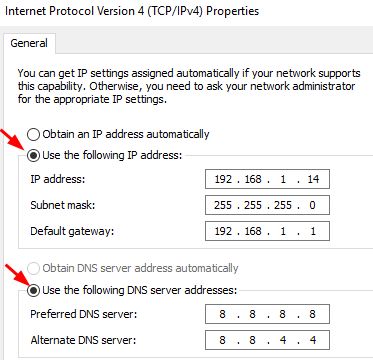
  • Now check the option Use the following IP address and enter these values
use IP address
  • IP address – 192.168.1.14
  • Subnet Mask – 255.255.255.0
  • Default Gateway- 192.168.1.1
  • Now check the option Use the following DNS server addresses and enter these values
  • Preferred DNS Server- 8.8.8.8
  • Alternate DNS Server – 8.8.4.4
  • Click Ok to close the window

Open a browser and see if you are able to access the Internet. In most cases, the “Local Area Connection doesn’t have a valid IP configuration” error should be resolved after this step.

Filed Under: PC Fix Tips Tagged With: LAN error

  • « Previous Page
  • 1
  • …
  • 143
  • 144
  • 145
  • 146
  • 147
  • …
  • 189
  • Next Page »


  • Recent Posts
  • Popular Posts
        

Read More Posts


Read More Posts

Drivers.com Sites

  • Software Drivers
  • Drivers Ed

About Us

  • Advertise
  • About Drivers
  • Drivers Support
  • Drivers.com Privacy Policy
  • Disclaimer
  • Software Drivers
  • Mac Fixes and Tips
  • PC Fix Tips
  • Security/ Backup
  • Tablets & Smartphones
  • Tech News

© Copyright 2026 PDE Publications Ltd. End User License Agreement (EULA)