Drivers.com

follow us:

facebook twitter
  • Home
  • Download Drivers
  • Drivers Help
  • PC/Mac Resources
  • Software Drivers
  • Mac Fixes and Tips
  • PC Fix Tips
  • Security/ Backup
  • Tablets & Smartphones
  • Tech News
  • Software Drivers
  • Mac Fixes and Tips
  • PC Fix Tips
  • Security/ Backup
  • Tablets & Smartphones
  • Tech News

ERR_CACHE_MISS error in Google Chrome

By Susan C on October 29, 2018

ERR_CACHE_MISS error in Google Chrome

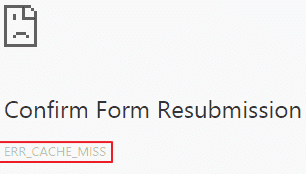
Sometimes you can encounter a problem while surfing the net using Google Chrome. A common Google Chrome error is ERR_CACHE_MISS error message. This error occurs when you browse a website.

err-cache-error

The ERR_CACH_MISS error is a fairly common error and many users have complained of receiving it.

If you are receiving an ERR_CACHE_MISS error message, you have come to the right place. Here we have provided six easy solutions that can help you fix the issue.

Solution One- Delete browsing data

When you visit any website, the browser collects and stores information about that website. The stored information is known as browser cache and cookies. Whenever you revisit any website, the browser uses the stored information of the website to speed up access and load webpages faster.

If you are not habitual of deleting browsing data, the volume of browsing data can grow to enormous size. There is a possibility some of the cookies and browsing data has expired and no longer of use. Your browser is more likely to use this old data which could lead to errors like ERR_CACHE_MISS.

The solution to this problem is deleting browsing data that will force the browser to start anew even if you are revisiting any website. Here are the steps to follow.

  • Open browser
  • Copy the following text in Chrome address bar – chrome://settings/clearBrowserData
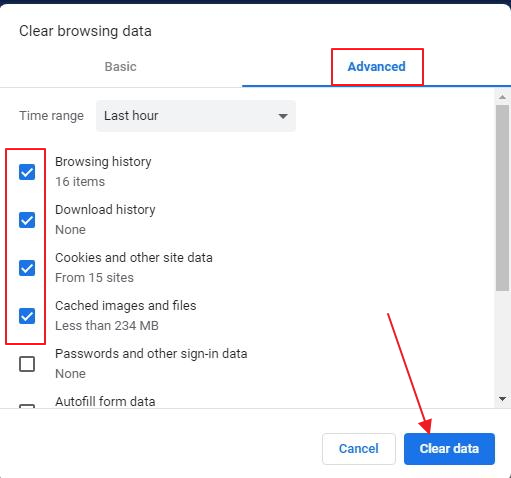
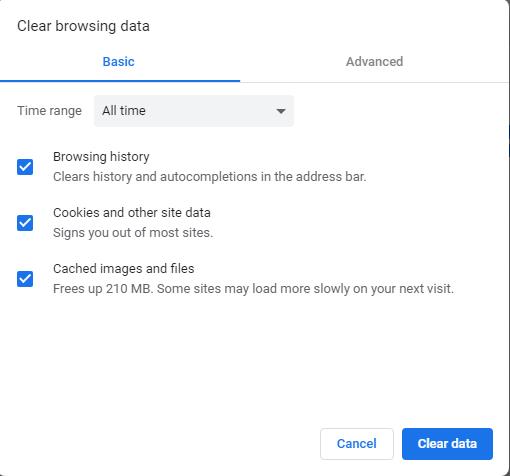
  • You will see a Settings tab open and you will see a pop-up like the one below
  • Click Advanced tab

clear chrome data

  • Select the following options by ticking the boxes – Browsing history, cookies, and other site data, and cached images and files
  • Above these options, you will see Time range. Click down arrow to see all options in the drop-down list
  • Select All time
  • Click Clear data
  • Restart Chrome browser and see if the error is resolved

If you are still receiving an ERR_CACHE_MISS error, move to next solution.

Solution Two- Disable or remove problematic browser extensions

Browser extensions add functionalities to the browser but due to incompatibility issues, they could be the reason behind ERR_CACHE_MISS error. In such a scenario, you need to disable browser extension that is causing a problem. Here are the steps to follow.

  • Click three vertical dots(menu) that appear on the top-right corner of the browser
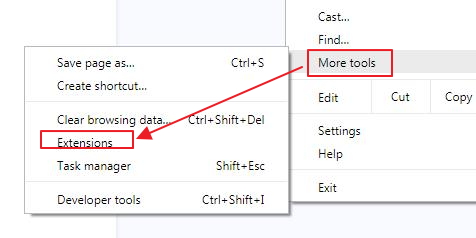
  • Click More tools

more tools extensions

  • Click Extensions

A new tab opens that lists all active and disabled Extensions. The toggle switch of the active extensions is blue colored while the toggle switch of the disabled extensions is grey in color. You need to click on the toggle switch to enable or disable the extension.

You need to disable one extension at a time and see if resolves the issue. If you get the ERR_CACHE_MISS error even after disabling all extension, you can conclude, extensions are not the cause behind ERR_CACHE_MISS error. Here are the steps to follow

  • Click on toggle switch of any extension to disable it( the colour of the toggle switch turns grey which indicates the extension is disabled)
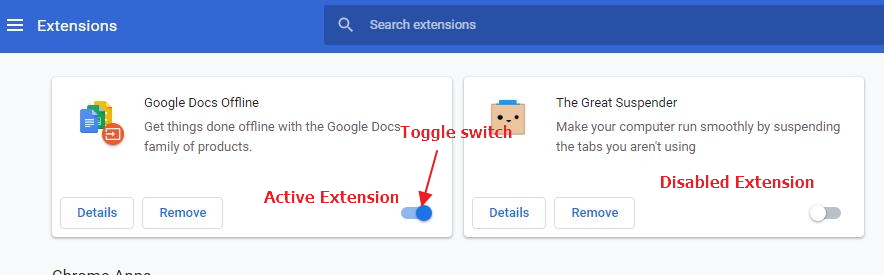
cache-extensions

If the error is not resolved, move to next solution. You can enable extensions before moving to the next solution.

Solution Three – Reset browser

There is a possibility some wrong browser setting is the cause of the ERR_CACHE_MISS error. In many cases, wrong browser setting or configuration causes Internet access problems. Since it is hard to know the exact browser setting which is the reason behind ERR_CACHE_MISS error, a simple solution is to reset browser that will load all default settings. Here are the steps to follow.

  • Click three vertical dots(menu) that appear on the top-right corner of the browser
  • Scroll down the menu and Click Settings
  • Scroll down in the Settings tab and click Advanced
  • In the advanced settings, scroll down and locate Reset and Clean up section
  • Click the right arrow besides Restore settings to their original defaults
  • In the Reset Settings pop-up, click Reset Settings
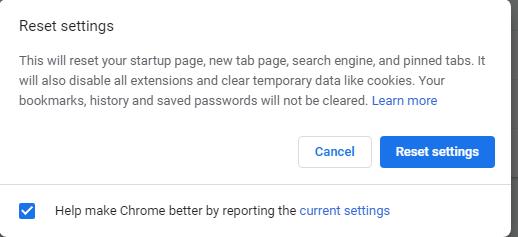
cache reset settings

  • Wait for the operation to complete
  • when the browser is re-launched, check whether the error is resolved

If you are still getting an ERR_CACHE_MISS error, move to next solution.

Solution Four – Install the latest version of the browser

Many times the user does not update their browser for a long time and this could cause errors like ERR_CACHE_MISS. A simple solution to this problem is installing the latest version of Chrome. Here are the steps to follow.

  • Click Start-> Control Panel
  • In Control Panel window, click Programs and Features
  • In the Programs and Features window, locate the browser in the program list and right-click on it
  • Click Uninstall
  • Click on the link to visit download the page of Chrome browser
  • Click Download Chrome
  • In the download pop-up, click Accept and Install
  • Wait for the download to complete
  • Once the setup file is downloaded, double-click on the file to install a browser

After the browser is installed, check whether the issue is resolved. If the error persists, move to next solution

Solution Five- Disable Cache system

Though you have cleared browser cache, in Solution One, the browser continues to store website data and cookies in its Cache system. Many users were able to resolve the ERR_CACHE_MISS error after completely disabling Cache system. Here are steps to follow.

  • Click three vertical dots(menu) that appear on the top-right corner of the browser
  • Click More tools
  • Click Developer tools

A developer tools window opens in the same tab on the right side.

  • In the Developer tools window, click Network tab
  • Put a check mark in the box adjoining Disable cache(while DevTools is open)
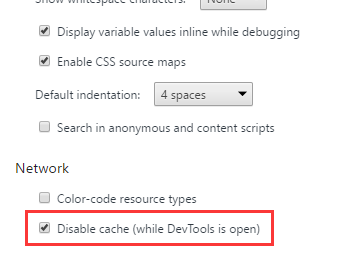
disable cache

  • Try accessing the Internet from the current tab. Check whether the issue is resolved

If you are still getting an ERR_CACHE_MISS error, move to next solution.

Solution Six- Reset Network settings

Many time wrong network configurations and settings could be the cause of the ERR_CACHE_MISS error. A simple solution to this problem is resetting all network settings. You will need an elevated command prompt window (with admin rights) to execute following commands. Here are the steps to follow

  • Click Start and type command prompt in the search box
  • Right-click command prompt from the list of results
  • Select Run as administrator

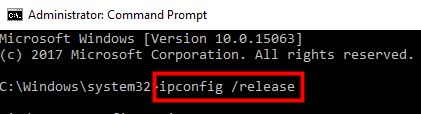
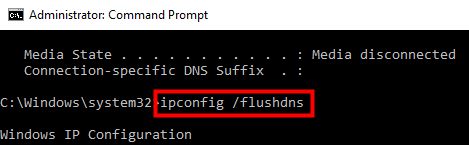
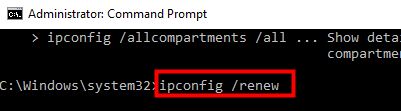
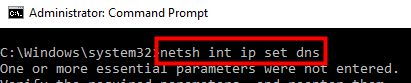
In the command prompt window, type the following commands in the following the order. After typing the command, hit Enter on the keyboard. Wait for the command operation to complete before typing next command in the list. Execute all commands in the list one after another.

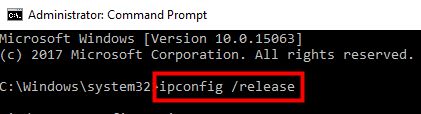
  • ipconfig /release

ipcofig-release

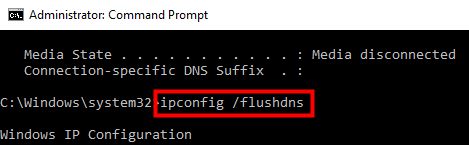
  • ipconfig /flushdns

flushdns

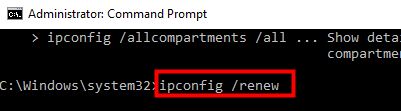
  • ipconfig /renew

cache-renew

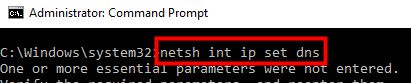
  • netsh int ip set dns

set dns

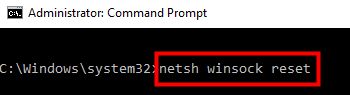
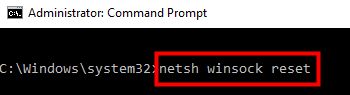
  • netsh winsock reset

winsock reset

After you have executed all commands in the list, close command prompt window.

Open a browser and check whether the error is resolved. In most cases, the ERR_CACHE_MISS error should be resolved by now.
Filed Under: PC Fix Tips Tagged With: Cache Miss Error

DNS_PROBE_FINISHED_NXDOMAIN error in Chrome

By Susan C on October 29, 2018

DNS_PROBE_FINISHED_NXDOMAIN error in Chrome

error image

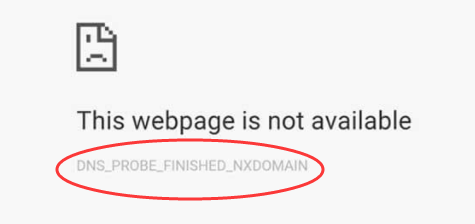
If you are getting a DNS_PROBE_FINISHED_NXDOMAIN error, you won’t be able to access the Internet.

The error indicates a non-existing domain. The error is annoying, right? But don’t worry, we have provided 5 easy solutions that could fix the issue.

Before we look at the solutions, let’s first understand what DNS is and how it is related to Internet access.

What is DNS and what is its role in your Internet access?

DNS is short for Domain Name System. DNS is responsible for relating IP address to the domain name (URL or website address). Domain Name Servers are like Internet Phonebook containing information about website names and their corresponding servers (where they are hosted)

When you type a URL in Chrome address bar, your browser sends the website URL to the Domain Name Server which returns the IP address of the website you want to access. If the DNS is successful in finding the IP address for the domain name, the browser starts loading the website.

If the Domain Name Server is not able to find the IP address related to the URL, it returns an error like DNS_PROBE_FINISHED_NXDOMAIN. While this error usually occur when there’s some problem with the website or Domain Name Server, you cannot ignore the possibility of something amiss at your end, like wrong settings, corrupt cache or anything else.

Now let’s look at the solution. Here we have provided 5 solutions but you don’t need to try all of them. You can start with the first solution. and if it does not work, move to next and so on.

Solution One- Stop/Start DNS Client Service

The DNS client service in Windows works to cache and resolve Domain Name System names. The DNS client service is enabled by default in Windows 10. Many users were able to resolve the issue by restarting DNS Client Service. Here are the steps to follow.

  • Press Windows logo key and R simultaneously on the keyboard to bring up Run Command Console
  • In the Run command console, type services.msc and hit Enter on the keyboard
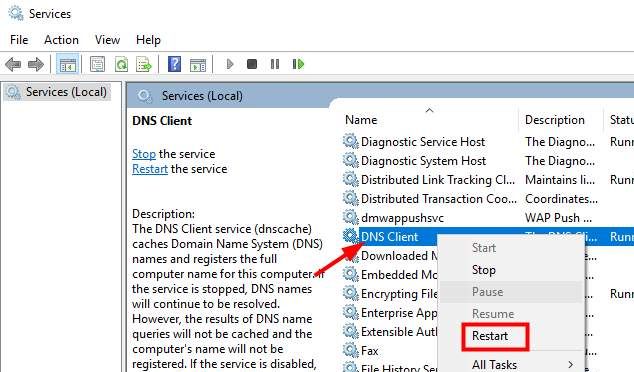
  • In the Services window, find DNS client service in the list and right-click on DNS client service item

dns client service

  • Select Restart from the menu
  • Close all windows
  • Open a browser and try accessing any website.

If the error is not resolved, move to next solution.

Solution Two- Clear browser cookies and cache

Browsers store information of the websites you visit. This information is stored in form of Internet cookies and cached files. Whenever you visit any site again, the browser uses the cookies and cache to access and load the website faster.

Over time, a large volume of cookies and cached files gets stored in your computer and there is a possibility some cookies have expired that could lead to errors like DNS_PROBE_FINISHED_NXDOMAIN. A simple solution to this problem is deleting cookies and cache which will force the browser to start anew when loading any site. Here are the steps to follow.

  • Open Chrome browser
  • Copy the following in Chrome address bar – chrome://settings/clearBrowserData
  • You will see a Settings tab open and you will see a pop-up like the one below
  • Go to Basic tab

clear chrome data

  • Put a check mark for following options – Browsing history, cookies, and other site data, and cached images and files
  • Above these options, you will see Time range. Click down arrow to reveal the drop-down list
  • Select All time from the drop-down list
  • Click Clear data
  • Restart Chrome browser and see if you are able to access the Internet.

If you are still getting a DNS_PROBE_FINISHED_NXDOMAIN error, move to next solution

Solution Three – Try Google DNS servers

The DNS servers for your internet connection are selected by your ISP providers. There is a possibility the DNS server of your ISP is having some problems that could lead to an error like DNS_PROBE_FINISHED_NXDOMAIN. In such situation, you can change the DNS settings that will force the browser to use recommended DNS servers. Here are the settings to follow.

  • Press Windows logo key and R simultaneously on the keyboard to bring up Run Command Console
  • In the Run command console, type control panel and hit Enter on the keyboard
  • In the Control Panel window, set the view by to small icons
  • Click Network and Sharing center
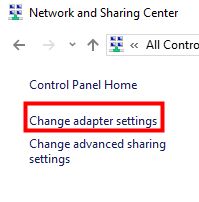
  • In the Network and Sharing center window, click Change adapter settings

change adapter settings

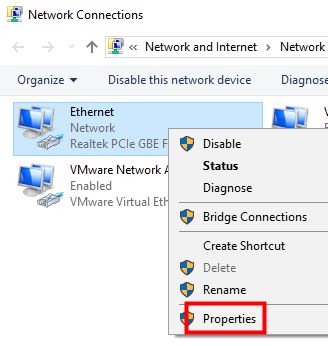
  • In the Network connections window, right-click on the network you use

ethernet properties

  • Select Properties from the menu
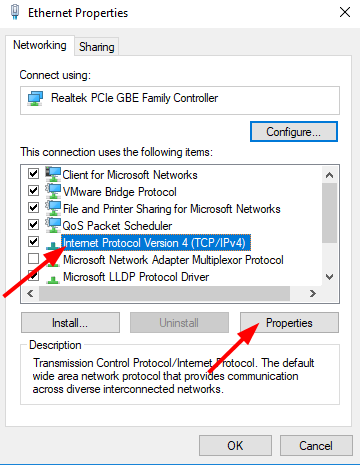
  • In the Ethernet properties window, click Internet Protocol Version 4 (TCP/IPv4)

ipv4

  • Click Properties
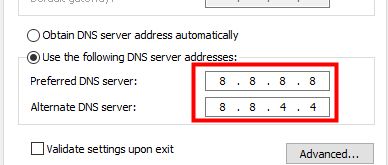
  • In the Internet Protocol Version 4 (TCP/IPv4) properties window, click the option Use the following DNS server addresses

server addresses

  • In the Preferred DNS Server, type the following value – 8.8.8.8
  • In the Alternate DNS server, type the following value – 8.8.4.4
  • Click OK
  • Close all windows
  • Open a browser and try accessing any website

If the error is not resolved, move to next solution

Solution Four- Use Command prompt to execute commands

Whenever you visit any website, the IP address of the website is stored in DNS cache. There is a possibility the IP address of the website has changed and your computer is still using IP address stored in DNS cache. To resolve this problem, you need to clear DNS cache by executing commands from a command prompt. Here are the steps you need to follow.

  • Click Start and type command prompt in the Search box
  • Right-click command prompt from the list and select Run as administrator
  • In the command prompt window, type the following commands and press Enter after each command
  • Before typing next command in the list, wait for the earlier command operation to complete. Do not type any text within brackets
  • ipconfig /release  (This will release IP address)

ipcofig-release

  • ipconfig /flushdns  (This will clear the DNS cache)

flushdns

  • ipconfig /renew  (This will renew IP address)

renew

  • netsh int ip set dns (This will rest IP settings)

set dns

  • netsh winsock reset  (This will reset Winsock catalog)

winsock reset

  • After you have executed all commands, close command prompt window

Open a browser and check whether the problem is resolved. In most cases, the DNS_PROBE_FINISHED_NXDOMAIN error should be resolved

Solution Five- Disable any VPN services you use

If you are using any VPN service, try disabling it and see if it resolves the issue.   If none of the solution has worked for you, try disabling anti-virus temporarily.  The steps to disable antivirus temporarily differs with each anti-virus. You need to refer official documentation of the anti-virus to know the exact steps to disable anti-virus temporarily.


Filed Under: PC Fix Tips Tagged With: dns error

Svchost.exe (netsvcs) process high Internet usage problem

By Susan C on October 27, 2018

Svchost.exe (netsvcs) process high Internet usage problem

Many Windows users have complained of svchost.exe (netsvcs) using all of their Internet bandwidth. If you are facing a similar problem, this post is for you. Before looking at solutions, lets learn more about svchost.exe (netsvcs)

What is svchost.exe (netsvcs)?

Svchost.exe is a generic host process in Windows that runs dynamic link libraries. If you check the Task Manager, you will find many instances of svchost.exe. Svchost.exe is an essential process and killing it can make Windows unstable or your computer might crash without warning

Windows functionality depends a lot on different Windows services.  In Windows, DLL files cannot be launched directly and an executable file is needed to run DLL. Svchost.exe serves this purpose.  svchost.exe (netsvcs) is also an essential service that is required for a stable and safe Windows operation. In simple words, svchost.exe (netsvcs) is required for Windows to work properly.

Should you disable or remove svchost.exe (netsvcs) process?

No, you should not stop, disable or kill svchost.exe (netsvcs) process from Task Manager. It will make Windows unstable leading to a system crash. In this post, we have discussed solutions to resolve high network usage by svchost.exe (netsvcs).

You can use the solution given below. Many Windows users who were facing svchost.exe (netsvcs) process high Internet usage problems were able to resolve the problem using the solution given below.

What is the solution to resolve svchost.exe (netsvcs) process high Internet usage problem then?

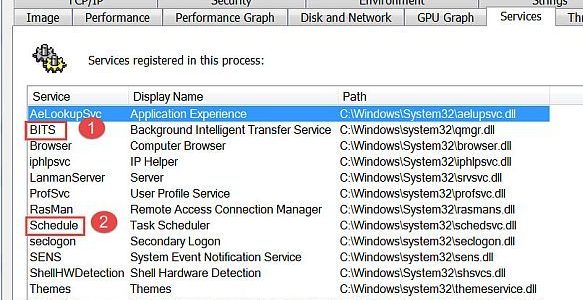
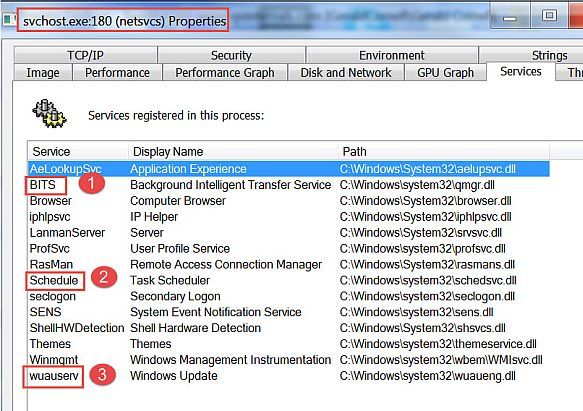
If you look closely in the Task Manager at the svchost.exe (netsvcs) properties, you will see services registered to use this process. Out of these processes, the services numbered 1, 2, and 3 are most likely causing high Internet usage.

svchost.exe properties

Many Windows users were able to resolve the problem by disabling the BITS service. BITS stand for Background Intelligent Transfer Service. According to Windows experts, BITS is known to use all unused Internet bandwidth to transfer update files to the user.

BITS service is related to finding and installing Windows updated.  Disabling this service does not affect the stability and performance of the Windows operating system. Hence, you can disable the BITS service and see if it helps.

Solution – Disable Background Intelligent Transfer Service

  • To open Run box, press Windows key and R simultaneously on the keyboard
  • In the Run command box, type the following – services.msc
  • Hit Enter on the keyboard
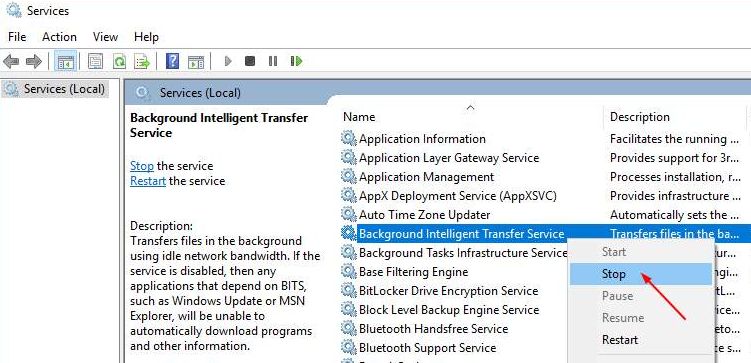
  • In the Service window, look for Background Intelligent Transfer Service and right-click on it
  • Select Stop from the menu
BITS stop
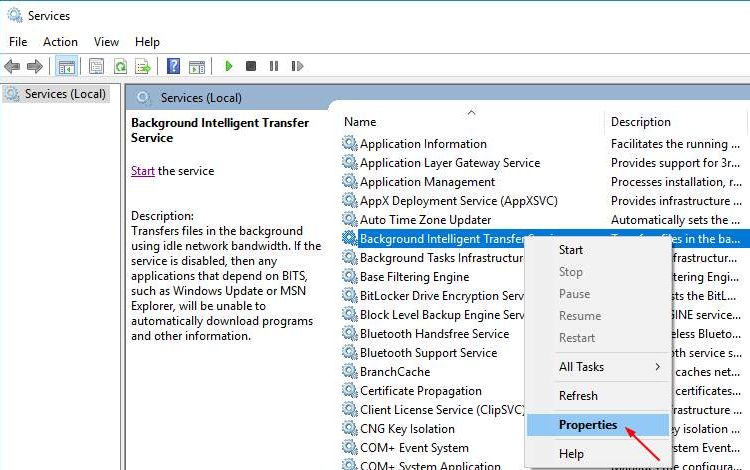
  • Now right-click Background Intelligent Transfer Service again and this time select Properties
BITS properties
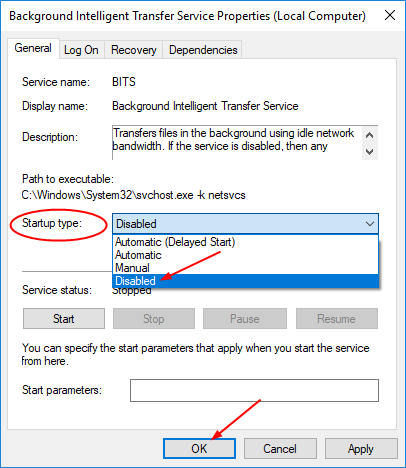
  • In the Background Intelligent Transfer Service properties window, go to the General tab
  • Go to the Startup type section and click the down arrow to see all options in the drop-down list
  • In the drop-down list, select Disabled
BITS startup disabled
  • Click Apply -> OK
  • Close any open windows and restart your PC
  • After the computer reboots, open Task Manager and check whether the problem is resolved.

If the svchost.exe (netsvcs) process continues to hog Internet bandwidth, you need to update drivers and see if it helps.

Pro-tip – Update drivers

As you may know, you can update drivers manually through Device Manager. But did you know that this method is often time-consuming. If you want to update drivers quickly and automatically, using a driver update tool would be the best option.

Automatic driver update tools offer many benefits, the most important ones being:

  • You can update device drivers automatically
  • The software scans and updates all outdated or missing drivers at one go
  • The tool picks the right drivers for your device and operating system, so you won’t have to worry about installing an incorrect driver by mistake
  • Automatic driver updates are 100% safe

Driver Updater is one of the best driver update tools out there. Outbyte Driver Updater will give you access to a database of over 1 million drivers. It will regularly scan your PC, suggesting new driver versions to install. Driver Updater contains drivers for a variety of Windows devices. With just one click, you can update drivers in your system.

Step 1
Click here to Install and launch the app

Step 2
Scan all devices

Step 3
Install or update drivers automatically


Start Download


Filed Under: PC Fix Tips Tagged With: Svchost.exe high usage

  • « Previous Page
  • 1
  • …
  • 141
  • 142
  • 143
  • 144
  • 145
  • …
  • 189
  • Next Page »


  • Recent Posts
  • Popular Posts
        

Read More Posts


Read More Posts

Drivers.com Sites

  • Software Drivers
  • Drivers Ed

About Us

  • Advertise
  • About Drivers
  • Drivers Support
  • Drivers.com Privacy Policy
  • Disclaimer
  • Software Drivers
  • Mac Fixes and Tips
  • PC Fix Tips
  • Security/ Backup
  • Tablets & Smartphones
  • Tech News

© Copyright 2026 PDE Publications Ltd. End User License Agreement (EULA)