Drivers.com

follow us:

facebook twitter
  • Home
  • Download Drivers
  • Drivers Help
  • PC/Mac Resources
  • Software Drivers
  • Mac Fixes and Tips
  • PC Fix Tips
  • Security/ Backup
  • Tablets & Smartphones
  • Tech News
  • Software Drivers
  • Mac Fixes and Tips
  • PC Fix Tips
  • Security/ Backup
  • Tablets & Smartphones
  • Tech News

Install Windows 10 Anniversary Update

By Susan C on November 15, 2018

Install Windows 10 Anniversary Update

Every Windows update serves some purpose or the other. However, Windows 10 anniversary update is particularly important because it brings exciting improvements and features to Windows 10. Additionally, this update also improves Windows 10 stability.

In case you have chosen the Windows Update installed automatically option, you don’t need to do anything to get this update, since it will be automatically downloaded and installed on your system.

On the other hand, if you have not set this option, you will have to download it manually and then install it. This is an easy procedure and anybody, even those with limited technical knowledge, can do this without any hassle. And in this post we will show you how to manually download as well as install Windows 10 anniversary update.

Manual Installation of Windows 10 Anniversary Update

You’ll have to perform the following steps to manually download as well install this all-important update.

  • In the Start Search box that you see on the left bottom corner of your screen, type settings
  • A menu will appear with search results. Click the Settings option in this menu
  • Next select Update & Security
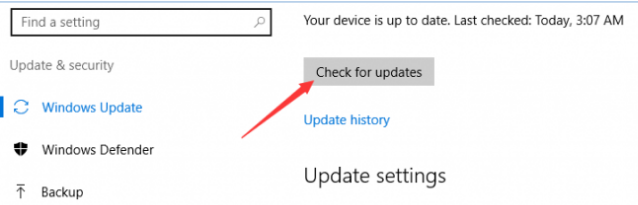
  • Then select Check for updates
Check for updates
  • Once you click this, the system will download all the latest updates, including Windows 10 Anniversary Update. The version of this update is 1607
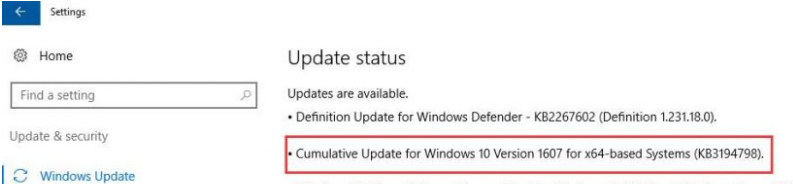
Win 10 Anniv Update
  • You’ll need to reboot your computer after the update is complete. Therefore you need click the Restart Now option that appears on your screen

Note: You can use Windows Update feature to download the Anniversary Update only if you have had Windows 10 for a minimum of 30 days. In case 30 days have not passed since you’ve updated to Windows 10, you can go to the Microsoft website to download the update.

Getting Windows 10 Anniversary Update From Microsoft Website

This update is also available on the Microsoft Site. Here are the steps you need to follow to get the update.

  • Go to the Microsoft download page
  • Here you need to click Get the Anniversary Update now
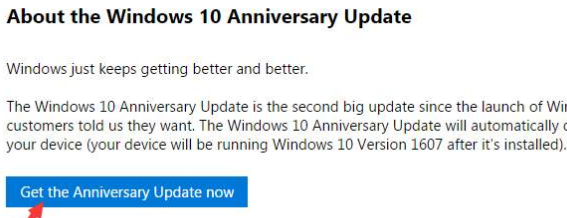
Win 10 Anniv Update
  • Once you click it, the download process will start automatically

Next you need to browse to the location where the downloaded file has been saved (this file will have the .exe extension). Double-click the file to install the update. Once the update has been installed, you’ll be prompted to restart your computer. Do that so that the new changes can take effect.
Filed Under: Software Drivers

How to setup Miracast on Windows 10?

By Susan C on November 12, 2018

How to setup Miracast on Windows 10?
miracast-image

Do you want to mirror your Windows 10 screen on other device display? The good news is that now you can do it. Windows 10 features Miracast technology that enables you to mirror your computer screen to Projector or Television wirelessly. Here is some information about how to set up Miracast on Windows.

What is Miracast?

Miracast can be described as “HDMI over Wi-Fi” that gives you freedom from wired connections between your computer and external displays. It is a wireless display standard designed for mirroring PC’s screen, tablet, smartphone, and similar devices to a television or any standalone wireless display without the need for HDMI connecting cables.

Microsoft added support for Miracast since Windows 8.1 and you have this feature in Windows 10 as well. With Miracast, you can connect wireless connection with projectors, television or any display supporting Miracast technology.

Miracast allows sending of 1080p HD video and 5.1 surround sound to external displays that is more than enough for average Windows users.

How to know your Windows version supports Miracast?

  • Press Windows logo key and R simultaneously on the keyboard to bring up Run command box
  • In the Run command box, type dxdiag and hit Enter on the keyboard
  • You will see a Dxdiag diagnostic tool window running that gets detailed information of the system and all components and drivers installed on your system.
  • Click Save all information button that appears at the bottom of the Dxdiag window
  • Save the text file as Dxdiag to any desired location
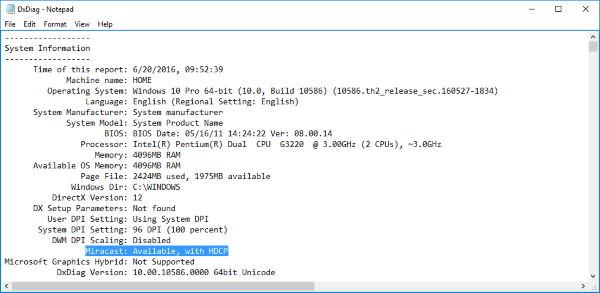
  • Open the Dxdiag text file and look for Miracast entry
dxdiag txt file
  • Once you have located a Miracast entry in text file, check the availability status that is mentioned just next to it.
  • If the Miracast status is “available”, you are good to go.

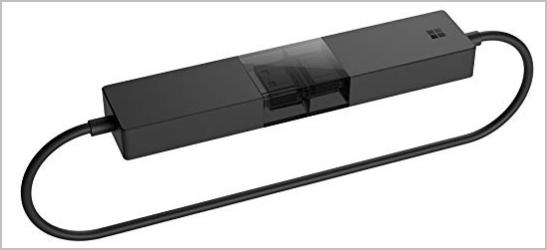
If your external  display device  lacks Miracast support, you can use the Miracast adapter to connect your display to Windows PC wirelessly. You can use Microsoft Wireless Display adapter to your display device and the follow the steps to setup Miracast on Windows 10.

miracast adapter

How to setup and use Miracast on Windows 10?

  • Switch on the display device (TV, projector) that you want to connect wirelessly. If the display device doesn’t support Miracast, plug in the Microsoft Wireless Display adapter in its HDMI port.
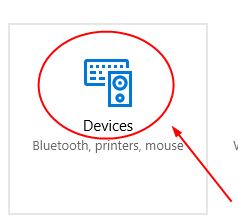
  • On Windows 10 computer , navigate in following order- Start -> Settings -> Devices -> Bluetooth & other devices
miracast-devices
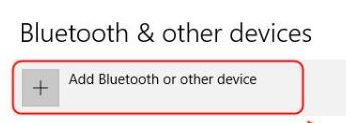
  • Click on option – Add Bluetooth or another device
add bluetooth device
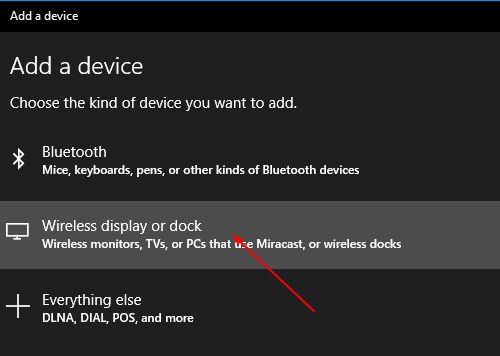
  • Select Wireless display or dock
display or dock
  • Windows 10 operating system should detect the display device that you switched on earlier and list the device
  • Click on the display device to connect

You can configure both displays by pressing Windows logo key and P simultaneously on the keyboard and then selecting relevant option.

If you are getting any error while setting up Miracast, move to solutions given below.

Solutions for Miracast not working

If you are facing any problems with Miracast, don’t worry. Follow the solutions to get Miracast working on your Windows computer.

Have you upgraded to Windows 10 from Windows 7 or earlier version?

If the answer is yes, your Windows 10 would not have in-built support Miracast. In that case, you need to use a Miracast adapter like Microsoft Wireless Display adapter and connect it to your Windows computer and then try again.

Do you have a clean installed Windows 10 version?

If the answer is yes, your Windows has in-built support for Miracast and it should work for you. If it is not working, the Wi-Fi or display drivers are to blame. Outdated or corrupt drivers could prevent Miracast from working properly. A simple solution to this problem is updating display and Wi-Fi drivers in Windows.

Pro-tip – Use Driver Update Tool to update system drivers

Automatic driver update tools offer many benefits, the most important ones being:

  • You can update device drivers automatically
  • The software scans and updates all outdated or missing drivers at one go
  • The tool picks the right drivers for your device and operating system, so you won’t have to worry about installing an incorrect driver by mistake
  • Automatic driver updates are 100% safe

Driver Updater is one of the best driver update tools out there. Outbyte Driver Updater will give you access to a database of over 1 million drivers. It will regularly scan your PC, suggesting new driver versions to install. Driver Updater contains drivers for a variety of Windows devices. With just one click, you can update drivers in your system.

Step 1
Click here to Install and launch the app

Step 2
Scan all devices

Step 3
Install or update drivers automatically


Start Download


If Miracast is not working even after updating drivers, there might be some problem with Wireless Display adapter you are using. There can be compatibility issues with wireless display adapters from other manufacturers. Hence you should use Microsoft Wireless Display adapter and see if it works.

The last solution is to wireless display adapter manufacturer and request for a solution.

Fix Wireless & Network Drivers Problems

Filed Under: PC Fix Tips Tagged With: setup Miracast

YouTube Not Working Issue on Chrome

By Susan C on November 11, 2018

YouTube Not Working Issue on Chrome

More than once users have reached out to us to help them with “YouTube not working issue on chrome”.

Given that this issue is common—as well as easily resolvable—we’ve decided to dedicate a full post to it.

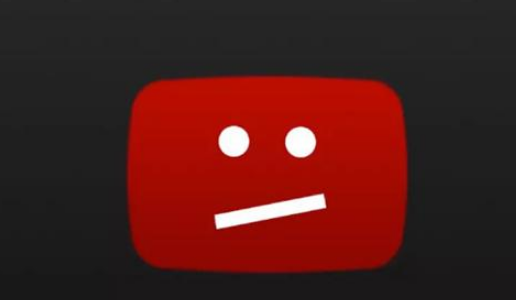
What happens is that when you try to play some YouTube video on chrome, the video doesn’t load and instead the following is seen on the screen. Usually there’s no accompanying error message.

Youtube-error-in-chrome

Because this error can be resolved easily, including users with little or no technical knowledge, there’s absolutely nothing to worry about.

In this post, we show you different ways in which you can fix the issue. Start with the first solution, and if it doesn’t work, try the next one and so on and so forth.

Solution 1 – Use Task Manager To Close Chrome

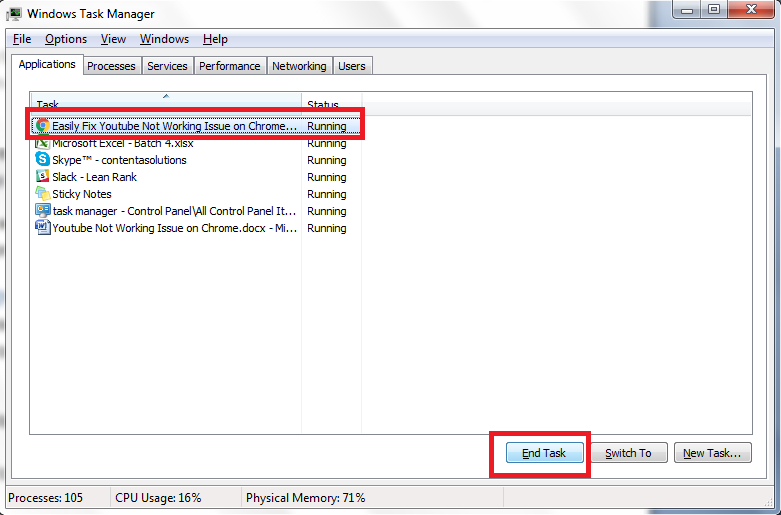
The first thing you need to do is close chrome forcefully and then restart it. Here are the steps you need to follow to close Chrome through Task Manager.

  1. Press Ctrl+Alt+Del
  2. Select Start Task Manager option (usually it is the last option in the list)
  3. Click the Application tab
  4. Select Chrome in the list of current tasks running on your computer
  5. Click the End Task button
Close Chrome

Solution 2 – Configure Chrome Settings

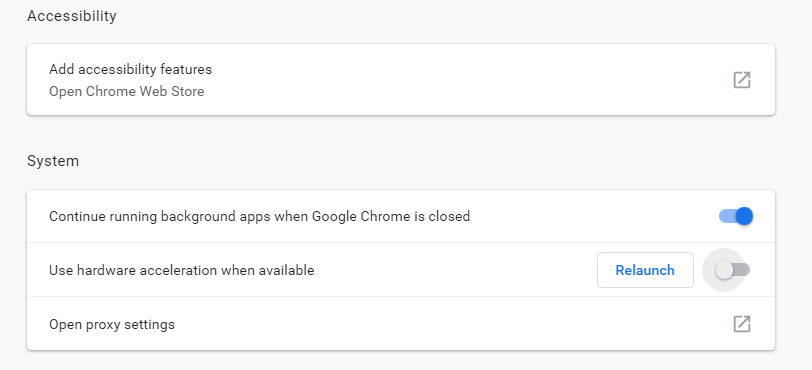
If the problem persists, open Chrome settings and uncheck the box before “Use hardware acceleration when available”.

Several Chrome users have said that this step has worked for them and it may help resolve the Youtube issue in your case, too. So it is definitely worth a shot.

Here are the steps you need to follow:

  1. Open Chrome
  2. Click the three dots on the top-right corner of your Chrome window
  3. Next click Settings
  4. Click Advanced Settings (located at the bottom of the Settings page)
  5. Browse to the System section, turn off “Use hardware acceleration when available”
disable hardware acceleration
  1. Close the Chrome window
  2. Reopen it and check if the issue is resolved

Solution 3 – Clear Cache

Try clearing the cache if the problem persists. Here are the steps to follow:

  1. Launch Chrome
  2. Click the three dots on the top-right corner of your Chrome window
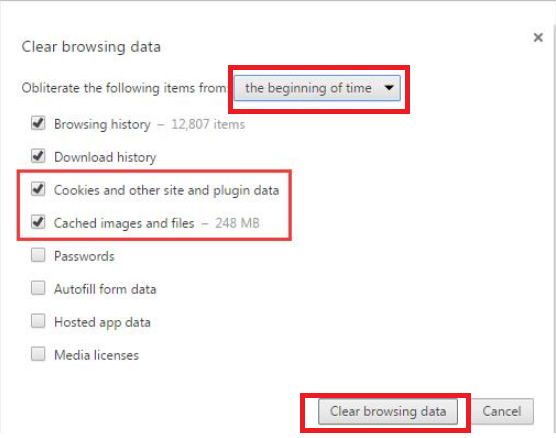
  3. Click More tools and then select Clear browsing data
  4. Make sure the check boxes before Cached images and file and Cookies and other site and plugin data are clicked
  5. From the drop-down menu at the top select the beginning of time
  6. Next click the clear browsing data button
clear browsing data
  1. Close the Chrome window
  2. Reopen it and check if the issue is resolved

Solution 4 – Disable Problematic Extension

Sometimes the YouTube issue is because of installed extensions. Therefore, you should disable the installed extensions one by one to locate the extension that’s the root cause of this problem.

Here are the steps to follow:

  1. Start Chrome
  2. Click the three dots on the top-right corner of your Chrome window
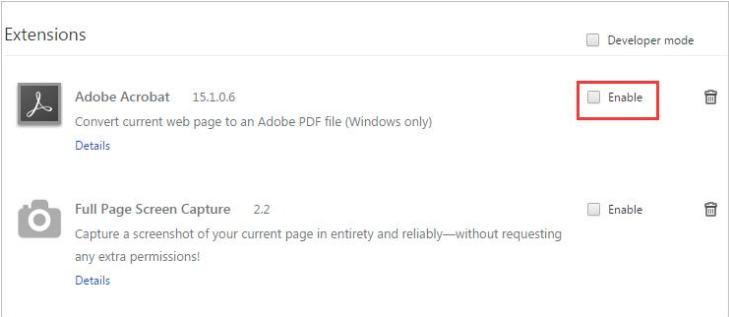
  3. Click More tools and then click Extensions
  4. Uncheck the box before the first listed extension, close Chrome, restart it and check if the issue is resolved
disable extension
  1. Now repeat this step for all extensions one by one
  2. If you find that disabling a particular extension allows YouTube videos to play on Chrome, you can safely deduce that this extension was causing the problem. Therefore delete this extension by clicking the remove button or the recycle button (depending on your Chrome version)
  3. Restart Chrome

Solution 5 – Reinstall Chrome

If the problem is not because of extensions, you should uninstall Chrome and then reinstall it.

It would be a good idea to export your bookmarks before uninstalling Chrome. Once you’ve reinstalled Chrome, you can simply import your bookmarks.

Export Bookmarks

  1. Start Chrome
  2. Click the three dots on the top-right corner of your Chrome window
  3. Click Bookmarks and then select Bookmarks Manager
  4. Click the three dots on the top-right corner of your Bookmarks Manager window
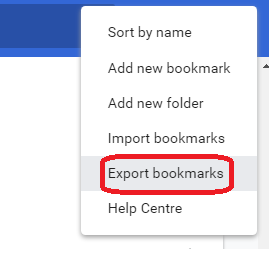
  5. Next Select Export Bookmarks
Export bookmarks
  1. Decide where you would like to save the file, give it a name, and then click the Save button

Uninstall Chrome

Once you’ve made a backup copy of your Chrome bookmarks, you can safely uninstall Chrome. To do the same, perform these steps:

  1. Type Control Panel in the start search box and then press Enter to launch the Control Panel window
  2. Click Programs and Features
  3. In the list of programs, locate and right-click Google Chrome and then click Uninstall
  4. Windows will now uninstall Chrome. The whole process shouldn’t take more than a minute.

Install Chrome

Once Chrome in uninstalled, you can go to the Google Chrome website, download the latest Chrome version, and install it.

Here are the steps to follow.

  1. Go to the Google Chrome official website
  2. Click the Download Chrome button
  3. In the Google Chrome Terms of Services window, select Set Google Chrome as my default browser
  4. Click Accept and Install
  5. Once Chrome is installed, launch it to import bookmarks

Import Bookmarks

  1. Start Chrome
  2. Click the three dots on the top-right corner of your Chrome window
  3. Click Bookmarks and then select Bookmarks Manager
  4. Click the three dots on the top-right corner of your Bookmarks Manager window
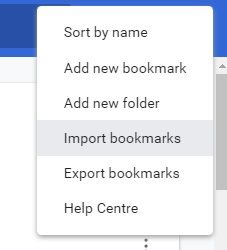
  5. Next Select Import Bookmarks
Import Bookmarks
  1. Now browse to the location where you’d stored the file containing your bookmarks, select that file, and click Open

Solution 6 – Update Your Video Drivers

Did you know that outdated video drivers can cause a host of problems, including the aforementioned YouTube issue?

That’s why it is necessary that you keep your video drivers updated.

If the above-listed solutions have not worked for you, there’s a strong chance that your video driver is either outdated or corrupt. In both cases, you need to install the latest video drivers.

How can you do that?

Well, there are two ways. You can update drivers manually through device manager or install them automatically using a reliable and quick driver update tool.

Automatic driver update tools offer many benefits, the most important ones being:

  • You can update device drivers automatically
  • The software scans and updates all outdated or missing drivers at one go
  • The tool picks the right drivers for your device and operating system, so you won’t have to worry about installing an incorrect driver by mistake
  • Automatic driver updates are 100% safe

Driver Updater is one of the best driver update tools out there. Outbyte Driver Updater will give you access to a database of over 1 million drivers. It will regularly scan your PC, suggesting new driver versions to install. Driver Updater contains drivers for a variety of Windows devices. With just one click, you can update drivers in your system.

Step 1
Click here to Install and launch the app

Step 2
Scan all devices

Step 3
Install or update drivers automatically


Start Download


Filed Under: PC Fix Tips Tagged With: Youtube not working

  • « Previous Page
  • 1
  • …
  • 139
  • 140
  • 141
  • 142
  • 143
  • …
  • 189
  • Next Page »


  • Recent Posts
  • Popular Posts
        

Read More Posts


Read More Posts

Drivers.com Sites

  • Software Drivers
  • Drivers Ed

About Us

  • Advertise
  • About Drivers
  • Drivers Support
  • Drivers.com Privacy Policy
  • Disclaimer
  • Software Drivers
  • Mac Fixes and Tips
  • PC Fix Tips
  • Security/ Backup
  • Tablets & Smartphones
  • Tech News

© Copyright 2026 PDE Publications Ltd. End User License Agreement (EULA)