Drivers.com

follow us:

facebook twitter
  • Home
  • Download Drivers
  • Drivers Help
  • PC/Mac Resources
  • Software Drivers
  • Mac Fixes and Tips
  • PC Fix Tips
  • Security/ Backup
  • Tablets & Smartphones
  • Tech News
  • Software Drivers
  • Mac Fixes and Tips
  • PC Fix Tips
  • Security/ Backup
  • Tablets & Smartphones
  • Tech News

How to change NAT Type in PS4?

By Susan C on November 7, 2018

How to change NAT Type in PS4?
change NAT type

Many PS4 console users have complained of frequent disconnections from online gaming sessions, which in turn, degrades the gaming experience. If you are experiencing similar issues, this post is for you.

Before you perform any troubleshooting steps given in solution below, make sure your Internet connection is stable.

If your network connection is fine there are chances the problem is in PS4 console NAT Type setting. One of the common solutions to this problem is to change the NAT Type in PS4 console.

What does NAT Type mean?

NAT stands for Network Address Translation which is designed for IP address conservation. NAT enables private IP networks that use unregistered IP addresses to connect to the Internet. If you participate in online gaming through PS4 console, the type of NAT will determine how good the gaming experience will be.

NAT operates on a router which connects two networks together. It translates the private IP addresses of the internal network into legal addresses before forwarding data packets to other network.

There are 3 types of NAT- Open NAT, Moderate NAT, and Strict NAT.

  • Open NAT- – Also known as Type 1, in Open NAT type, your devices are directly connected to the World Wide Web. In such scenario your PS4 console connection with game server would have lower latency and the Internet connection with the game server would be pretty fast. In other words, there would less or no frequent disconnections. One advantage of using Open NAT type is it allows connection to all NAT types. The downside of Open NAT is the connection is less secure.
  • Moderate NAT – Also known as Type 2, in Moderate NAT Type, your PlayStation 4 connects to the Internet through a router. The Moderate NAT is slower connection with higher latency in comparison to Open NAT Type. With Moderate NAT type, you can still connect to most users.
  • Strict NAT – Also known as Type 3, it is the strictest NAT Type in which your PlayStation 4 connects to the Internet through a router. In Type 3 NAT, the chances of disconnection and lag are highest. In Strict NAT, you can only connect to user with Open NAT Type. Also some of the PS4 console online gaming features won’t work with Strict NAT Type

If you are using Type 3 NAT, you need to change to other NAT Type (2 or 1) to increase the connection speed. To do so, you need to first know the type of NAT PS4 console is using for internet connection.

PS4 NAT Type Failed (Fixed)

Steps to check NAT Type on PlayStation 4

On your PlayStation 4, perform the following steps

  • Open Settings screen
  • Select Network-> Connection Status
  • After completion of the test, look for the type of NAT at the bottom of the screen.
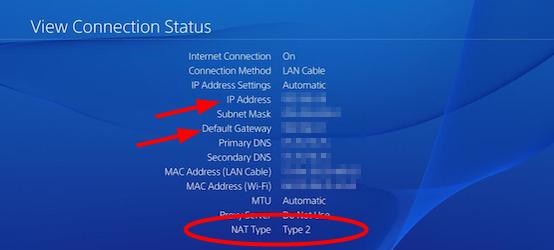
NAT type

Steps to change NAT Type

As mentioned earlier, NAT operate on router and you cannot change the type of NAT directly on PS4 console. To change the NAT type, you need to change some settings on the router. The procedure to change type of NAT differs with every router make and model. Here we have shown how to change the type of NAT on TP-Link router.

You can use this procedure as reference and change settings on your router. To know exact steps how to change the type of NAT on your router, read the official documentation of the router before following the steps given below.

  • On your computer, launch a browser
  • Type the IP address to access router’s user settings. In most case, the router IP is 192.168.1.1 or 192.168.0.1.

If you don’t know the Router’s IP address, follow the steps given below to know it.

Steps to find Router’s IP address

  • Click Start
  • Type cmd in search bar
  • In the command prompt, type ipconfig and hit Enter on the keyboard
  • Look for Default gateway value- It should read something like 192.168.X.X |(where X is single or double digit number)
  • The value of the Default gateway is your router’s IP address.

Now that you know the router’s IP address, type it in the address bar of the browser and hit Enter on the keyboard. You will see a login screen of the router interface

  • Enter login credentials (Username & Password) to access router settings
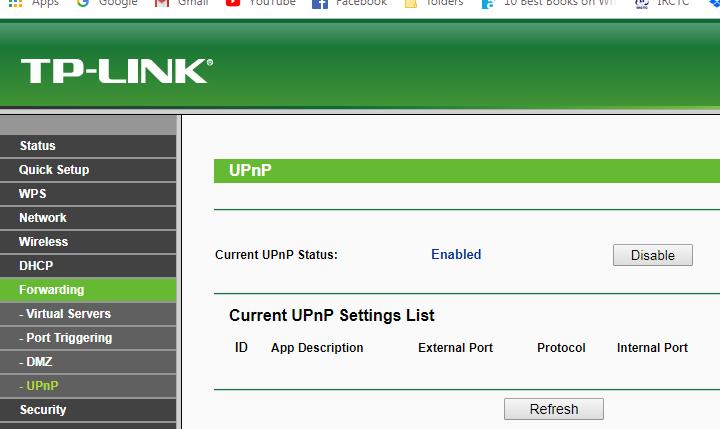
  • Click on Forwarding in the left hand pane to expand the category
  • Locate uPnP and click on it
uPnP
  • Click Enable

You can change NAT type on PS4 console in two different ways. First is DMZ and second is Port forwarding.

PS4 Controller Not Connecting Issue

What is DMZ?

DMZ stands for Demilitarized Zone. A DMZ on your router refers to DMZ host. The router DMZ host is the hosts of all internet ports that includes all UDP and TCP ports exposed and open except those ports that are forwarded.

Enabling DMZ is like connecting your computer directly to cable or DSL modem. You should avoid using DMZ for long period as simple Windows firewall cannot protect your computer or other devices on the network from Internet threats. You need to consider the security risks before proceeding to steps given below.

Steps to enable DMZ on router

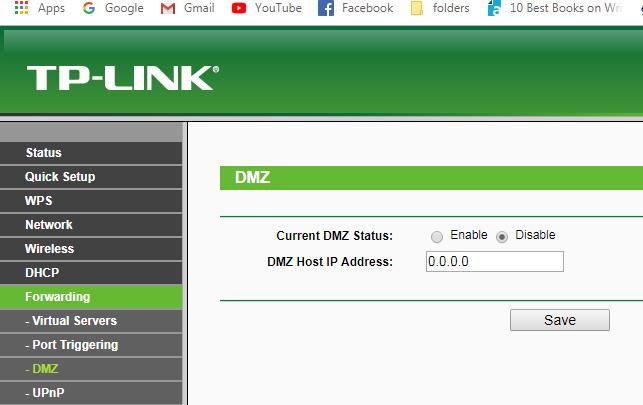
Open the router settings page and look for DMZ setting. You need to read the router manual to know the exact location of DMZ setting in the menu

  • Enable the DMZ status
DMZ
  • Enter the IP address of your PS4 console in the DMZ Host IP address box
  • Click Save
  • Now open PS4 console Settings and check whether type of NAT has changed.
  • Try playing some online multiplayer game and check whether the gaming experience is smooth and uninterrupted.

If you want to try other way to change type of NAT of your PS4 console, follow the steps given below

Steps to forward ports in router

  • Open router settings and look for setting where you can forward ports. In most cases, the forward ports option is named as “Virtual Servers” (in our case), Port Forwarding, and Applications. Check your router manual to know the exact setting to forward ports
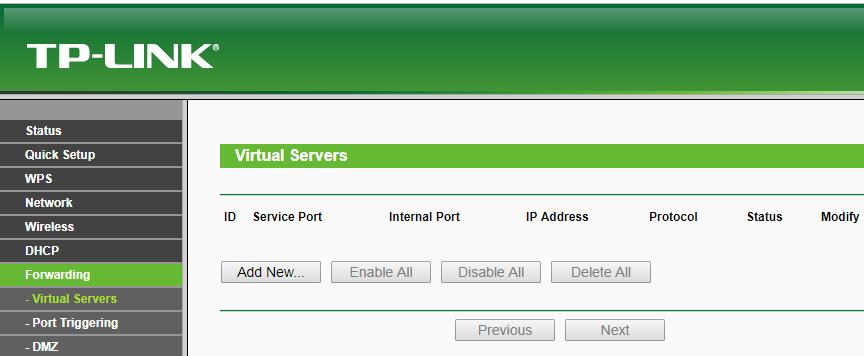
virtual servers
  • You need to add custom forwarding ports. The number and types of ports that you need to enter are mentioned below. These ports are recommended by PS4 manufacturer Sony.
  • 443(TCP), 80(TCP), 3479(TCP and UDP) 3478(TCP and UDP), 3480(TCP)
  • you also need to assign name to each port and also type PS4 console IP address in each port setting
  • Click Apply to save changes
  • Open PlayStation 4 settings and check if the NAT Type has changed.

Try playing multiplayer online game and see if the gaming experience has improved.
Filed Under: PC Fix Tips Tagged With: change NAT type

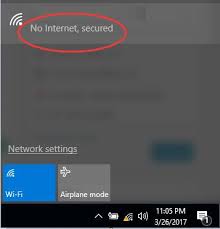
“No Internet, secured” error in Windows

By Susan C on November 5, 2018

“No Internet, secured” error in Windows

Often users are unable to access the Internet though everything else seems fine. Some users have come across unusual Internet problems where the Internet connection seems secured but there is no Internet access. They usually see the following error image on their screen.

no-internet-secured-error

Are you getting an error like the one above?

“Windows 10 cannot connect to this network” error [Fixed]

We have provided some easy solutions to fix the internet access issue. You don’t have to try all the solutions. Start with the first solution, and if it does not work, move to the next solution in the list and so on.

Solution One – Check Properties of Wi-Fi connection

  • Press Windows logo key + R simultaneously on the keyboard to bring up the Run console
  • In the Run command box, type ncpa.cpl and click OK. This will open Network connections window
  • In the Network connections window, right-click on your Wi-Fi connection and select Properties
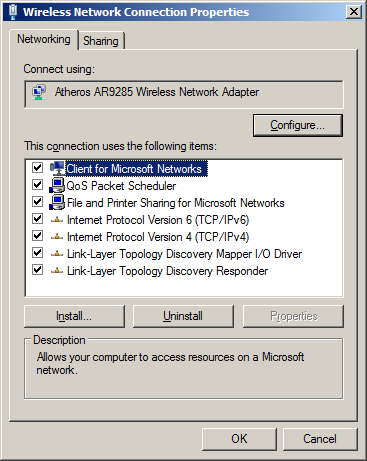
  • In the Wireless Network connection properties window, make sure the following options are selected
Wi-Fi-properties
  • Client for Microsoft networks
  • File and printer sharing for Microsoft networks
  • Link-layer topology discovery mapper I/O driver
  • Internet protocol version 4, or TCP/IPv4
  • Internet protocol version 6, or TCP/IPv6
  • Link-layer topology discovery responder
  • If any option is not selected, check the option
  • Close all windows
  • Now click on the Network icon in the system tray and select the Wi-Fi network that is giving out this error
  • If your computer has any Ethernet cable connected, unplug it.
  • Enable Airplane mode on your computer
  • Restart your modem and Wi-Fi router
  • Wait for the activity Iights on the Wi-Fi router indicating connectivity to start blinking normally
  • Disable Airplane mode your computer

You should be able to surf the Internet. If you are still getting this error, move to next solution

Solution Two- Run Network Troubleshooter

Windows comes with in-built Network Troubleshooter that can fix common problems with your Internet connection. Here are the steps to run Network Troubleshooter.

  • Click Start and type Troubleshooting in the Cortana search box
  • In the results, click the Troubleshooting Control Panel
  • In the Troubleshooting window’s search box, type Network adapter
  • Click on Network adapter
  • A Network adapter window pops up, click Next
  • Wait for the Network Troubleshooter to detect problems and then follow on-screen instructions to resolve the issue.

Check whether Internet connectivity problem is resolved. If the issue persists, move to next solution.

Solution Three- Update Network adapter software

Network drivers play an important role in establishing Internet connectivity. An outdated driver could be the reason behind “No Internet, secured” error. A simple solution to this problem is updating Network adapter software.

Here are the steps to follow.

  • Press Windows logo key + R simultaneously on the keyboard to bring up the Run command box
  • In the Run command box, type devmgmt.msc and click OK. This will open Device Manager window
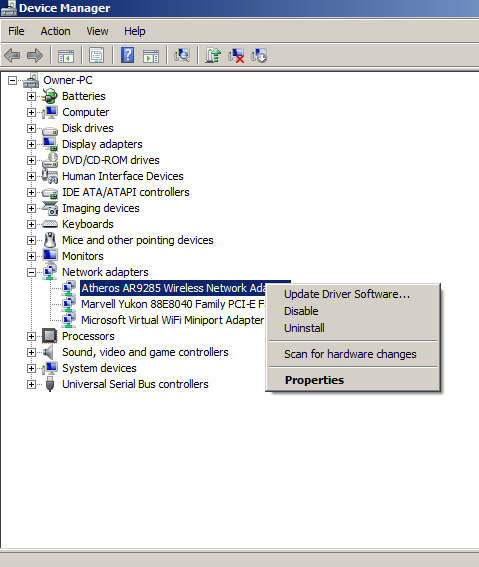
  • In Device Manager window, click On Network adapters category to expand it
  • Select the Network adapter your computer is currently using (Ethernet or wireless adapter).
  • Right-click on the Network adapter and select Update driver software
update driver software
  • In the Update driver dialog box, select “Search automatically for updated driver software” option. Windows will search for updated driver software.
  • Close all windows

Check whether “No Internet, secured” error is resolved. If Windows is unable to find drivers, you need to use driver update software to update Network adapter drivers.

Pro-tip- Use Driver Update Tool to update Network adapter drivers

Automatic driver update tools offer many benefits, the most important ones being:

  • You can update device drivers automatically
  • The software scans and updates all outdated or missing drivers at one go
  • The tool picks the right drivers for your device and operating system, so you won’t have to worry about installing an incorrect driver by mistake
  • Automatic driver updates are 100% safe

Driver Updater is one of the best driver update tools out there. Outbyte Driver Updater will give you access to a database of over 1 million drivers. It will regularly scan your PC, suggesting new driver versions to install. Driver Updater contains drivers for a variety of Windows devices. With just one click, you can update drivers in your system.

Step 1
Click here to Install and launch the app

Step 2
Scan all devices

Step 3
Install or update drivers automatically


Start Download


Solution Four- Disable TCP/IPv6

Despite the introduction of TCP/IPv6 long ago, around 80% of Internet traffic still uses TCP/IPv4.

According to some experts, TCP/IPv6 might cause issues like “No Internet, secured” error. Therefore, you need to check whether disabling it resolves the issue.

Here are the steps to follow.

  • Right-click on Network icon in Windows notification area
  • Select Open Network and Sharing center
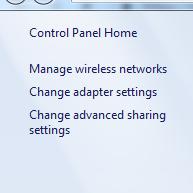
  • In the Network and Sharing center window, click Change adapter settings in the left hand column
change adapter settings
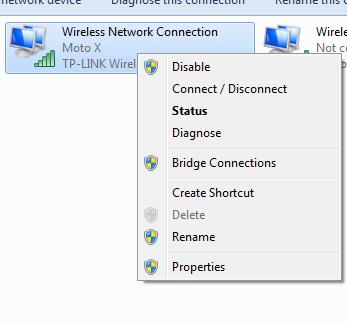
  • In the Network connections window, right-click on Wi-Fi network or Ethernet network your computer is using
wi-fi properties menu
  • Click Properties
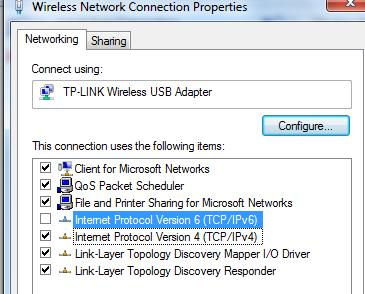
  • In the Network connection properties, uncheck the box Internet Protocol Version 6 (TCP/IPv6) to disable it
IPv6 unchecked
  • Click OK
  • Close all windows

Open a browser and check whether you are able to access the Internet. If you are still getting “No Internet, secured” error in the notification area, move to the next solution.

Solution Five- Check Windows services

There are several Windows services that are necessary for Internet connectivity. The services should be running on your computer for Internet access. Here is the list.

  • Function Discovery Resource Publication
  • SSDP Discovery
  • DNS Client
  • TCP/IP NetBIOS Helper service
  • DHCP
  • UPnP Device Host
  • Wireless lan

There is a possibility some of these services are disabled due to malware infection or any other reason. To get back Internet access, you need to ensure these services are running on your computer.

Here are the steps to follow.

Steps to check and enable Windows services

  • Press Windows logo key + R simultaneously on the computer to bring up the Run command console
  • In the Run box, type services.msc
  • In the Service window, look for the services mentioned above.

Note- We are going to demonstrate how to check Windows services, what options to select to enable it. Here we are checking and enabling Function Discovery Resource Publication service. The steps to check and enable other services remain the same.

  • Look for Function Discovery Resource Publication service in the list and check its status. If the Status is “Started” you don’t need to do anything
  • If the status of Function Discovery Resource Publication service is Stopped, you need to start it by following steps given below
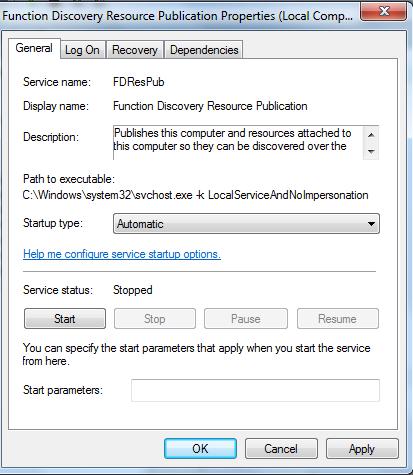
  • right-click on Function Discovery Resource Publication service and select Properties
  • In the Function Discovery Resource Publication service Properties window, go to the General tab
  • Go to Service Status section, click Start
Function service start
  • Click Apply and then click OK
  • Perform these steps for all Windows service mentioned in the list

Now check whether Internet access is restored. If you still see “No Internet, secured” error, move to next solution.

Solution Six- Modify TCP/IP properties

TCP/IP properties play an important role in Internet connectivity. You need to modify some settings and see if that helps. Here are the steps to follow.

  • Hold down Windows logo key and R simultaneously on the keyboard to bring up Run command on the screen
  • In the Run command box, type ncpa.cpl and click OK. You will see Network connections window open
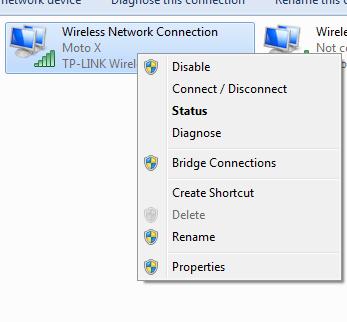
  • Choose Wi-Fi connection your computer is using and right-click on it
wi-fi properties menu
  • Select Properties
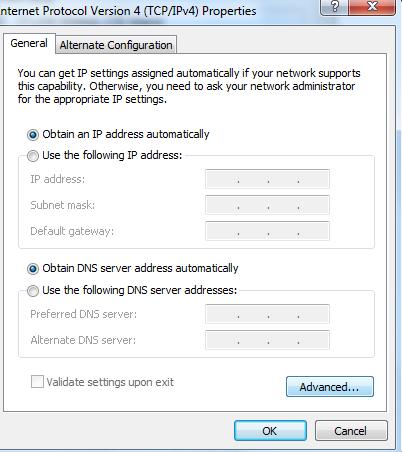
  • Double-click Internet protocol 4(TCP/IPv4) option
  • Select “obtain an IP address automatically” and “obtain DNS server automatically” options
  • Now click on Advanced
IPv4 advanced
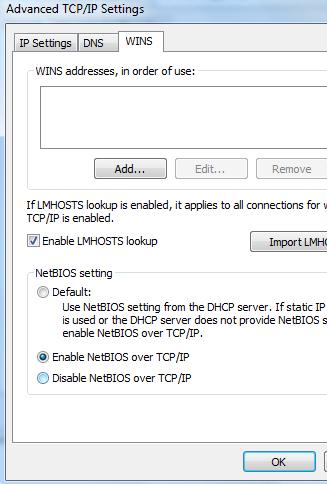
  • In the Advanced TCP/IP settings window, go to WINS tab
wins
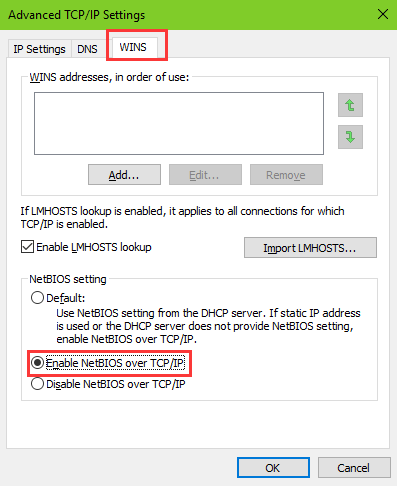
  • Scroll down to NetBIOS setting and select “Enable NetBIOS over TCP/IP” option
netbios over tcp-ip
  • Click OK
  • Close all Windows

Check whether “No Internet, secured” error is resolved. If the issue still persists, move to next solution.

Solution Seven- Change Power Management Properties

Your computer has several power management features that shut off devices to save power.

There is a possibility the power management feature is causing some problem that in turn might be causing the “No Internet, secured” error.

In order to resolve the issue, you need to modify some power management settings.

Here are the steps to follow.

  • Open Device Manager (refer the first three steps in Solution Three)
  • Go to Network adapters category and expand it.
  • Select the Network adapter that your computer is using and right-click on it
  • Select Properties
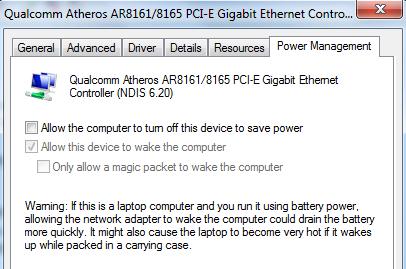
  • In the Network adapter properties window, go to the Power Management tab
  • Uncheck the option “Allow the computer to turn off this device to save power” option.
power management
  • Restart computer

Check whether the issue is resolved. If you still get No Internet, secured” error, move to next solution.

Solution Eight- Disable Wi-Fi sharing

In Windows 10, you can share your Internet connection with other devices. There is a possibility there is some conflict with router driver and wireless driver that could throw up an error like No Internet, secured”.

Here are the steps you need to follow to resolve the conflict between drivers.

  • Click Start
  • Click Settings (gear icon)
  • Click Change adapters option
  • Right-click on the Wi-Fi adapter your computer is using and choose Properties
  • In the Wi-Fi adapter properties window, go to Sharing tab
  • Uncheck “Microsoft network adapter multiplexor protocol”
  • Look for any other items related to Wi-Fi sharing and uncheck that options as well
  • (Note- You can check the description of the item to know what it is sharing. Based on the description you can know which items are related to Wi-Fi sharing and disable them accordingly)
  • Restart your computer

Check whether the issue is resolved. In our experience, we are confident that one of the solutions in this post will work for you.

Filed Under: PC Fix Tips Tagged With: No Internet error

What is Conhost.exe and why it is running on my computer?

By Susan C on November 4, 2018

What is Conhost.exe and why it is running on my computer?

conhost.exe-error

Is Conhost.exe eating too much of CPU and memory resources and slowing down your system? Are you wondering what Conhost.exe? Is it a legitimate and necessary process? Or is it a malware?

If yes, this post is just for you.

Here you’ll find answers to all your questions. Have a look.

What is Conhost.exe?

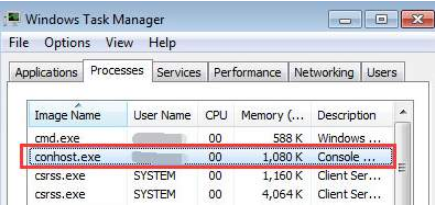
conhost process

Conhost stands for Console Application host. Understanding Conhost will require you to go into the history of the Windows operating system. Conhost was introduced to thwart malware exploitation in Windows 7 and Windows Server 2008 R2.

During the days of Windows XP, command prompt was handled by a process known as ClientServer Runtime System Service (CSRSS). CSRSS was a system level service with some security vulnerabilities. There were instances when malware exploited these security vulnerabilities.

The crash of CSRSS would bring the whole system down, which as you may guess, made its reliability questionable. And this was not the only problem with CRSS. Another problem was that it could not be themed and the command prompt did not have interface elements (like scroll bars) then.

The Conhost sits in between Command Prompt (cmd.exe) and CSRSS allowing Windows to fix the issues. With Conhost introduced Command Prompt had interface elements like scrollbars and it was also possible to drag and drop windows elements directly in Windows. For example, if you drag and drop any Word file in Windows, the result would the entire path of the word file would be copied in the command prompt.

The primary objective of introducing Conhost was to provide something like Shell to the system-level CSRSS service to enhance its security and reliability and also grant it ability to integrate with modern interface elements of Windows.

Is Conhost.exe a legitimate process?

Yes, it is.

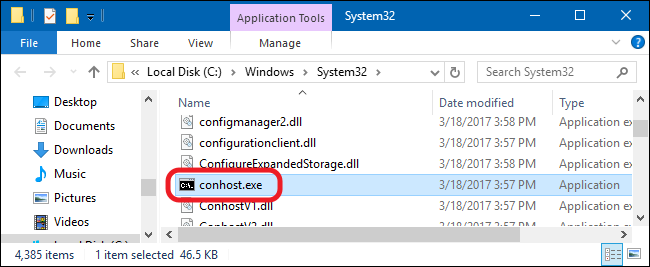
The genuine conshost.exe is a software component of the Windows operating system. The Windows operating system has at least one conhost.exe program located in “C:\Windows\System32” folder. Since it is a system-level process, you should not delete the file out of fear of a virus. Doing that may make your system unstable.

conhost.exe-folder

However, you cannot completely rule out the possibility of some malware or virus concealing itself under the name of Conhost.exe. Malware or virus frequently uses the names of legitimate files to stay undetected and fool unsuspecting users. That said, if the conhost.exe file is located in the System32 folder, the security rating is only 4% dangerous.

However, if the Conhost.exe file exists in a subfolder of C: driver or some username folder, the security rating is 76% to 80% dangerous. If the Conhost.exe is eating up CPU and RAM resources, you should use good anti-virus software to scan your system and get rid of any virus or malware infections

Why there are so many instances of Conhost running in Task Manager?

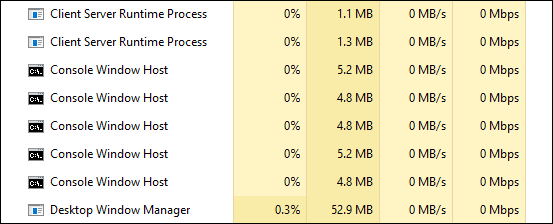
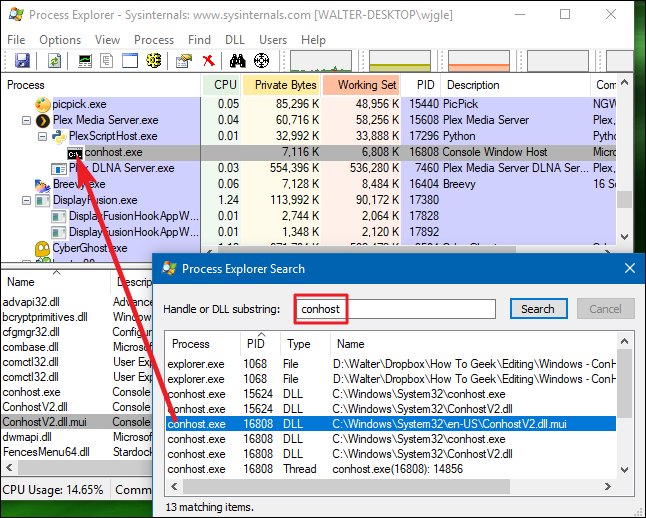
It is quite common to see many instances of Conhost running in Task Manager. One of the Conhost.exe processes might be spawned by the Command prompt window. Each window of Command prompt will spawn its own Console Window Host process.

Other programs that use the command line may also spawn their own Console Window Host process. You may not see any active windows of these programs on the desktop. For example, Plex Media Server app uses a background service that is used by many applications. Plex Media Server app uses the command line and it would spawn its own Console Window Host process.

script host

Could the Conhost.exe be a virus?

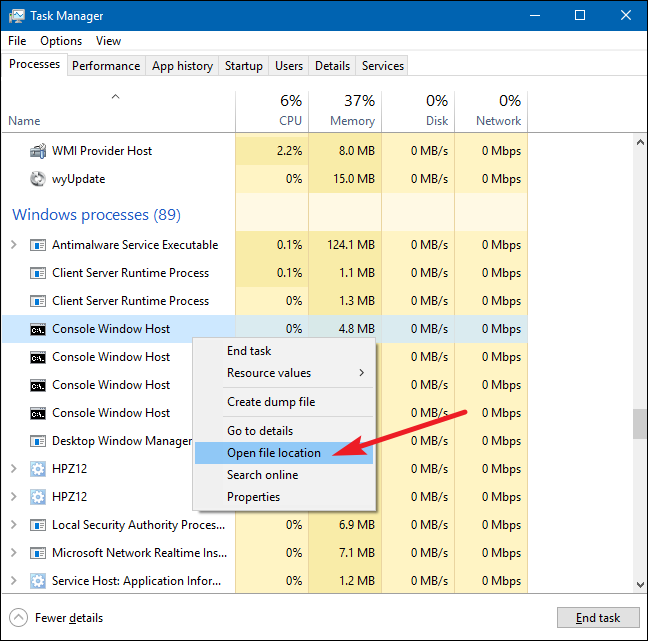
 As mentioned earlier, there is a possibility a virus is concealing itself under Conhost.exe process name. You can get your doubts cleared by checking the underlying file of the suspicious Conhost.exe process.

Here are the steps to follow.

  • Open Task Manager
  • Go to the Processes tab
  • right-click on any Conhost process you want to investigate
  • Select the Open file location

file location

  • If the file location is “C:\Windows\System32” folder, you can fairly be certain that it is not a virus and your fears are misplaced.

If the file location is something like %userprofile%\AppData\Roaming\Microsoft, there is a possibility, your system is infected by a Trojan Conhost Miner which conceals itself as Console Window Host process. You should immediately run a full system scan your Windows system to get rid of the Trojan.


Filed Under: PC Fix Tips Tagged With: conhost.exe error

  • « Previous Page
  • 1
  • …
  • 140
  • 141
  • 142
  • 143
  • 144
  • …
  • 189
  • Next Page »


  • Recent Posts
  • Popular Posts
        

Read More Posts


Read More Posts

Drivers.com Sites

  • Software Drivers
  • Drivers Ed

About Us

  • Advertise
  • About Drivers
  • Drivers Support
  • Drivers.com Privacy Policy
  • Disclaimer
  • Software Drivers
  • Mac Fixes and Tips
  • PC Fix Tips
  • Security/ Backup
  • Tablets & Smartphones
  • Tech News

© Copyright 2026 PDE Publications Ltd. End User License Agreement (EULA)