Drivers.com

follow us:

facebook twitter
  • Home
  • Download Drivers
  • Drivers Help
  • PC/Mac Resources
  • Software Drivers
  • Mac Fixes and Tips
  • PC Fix Tips
  • Security/ Backup
  • Tablets & Smartphones
  • Tech News
  • Software Drivers
  • Mac Fixes and Tips
  • PC Fix Tips
  • Security/ Backup
  • Tablets & Smartphones
  • Tech News

Conexant SmartAudio HD No Sound Issue for Windows 10

By Susan C on November 22, 2018

Conexant SmartAudio HD No Sound Issue for Windows 10

Have you just performed Windows 10 update and found that there’s no sound coming from your Conexant audio device?

Well, you’re not alone. This is one issue that troubles many Windows users.

Thankfully, it doesn’t take much to solve it. In this post, we’ll discuss some solutions that have worked for many Windows users. We’re sure that at least one of these will work for you too.

Of course, you don’t have to perform all the solutions given in this post. Just perform the solutions in the sequence they’re given below, until the problem disappears.

Error Message

This issue sometimes is accompanied with an error message, and sometimes not. When an error message appears with the issue, it is likely to be one of these.

  • “The application will exit”
  • “Failed to create Conexant Audio Factory, The SmartAudio will now exit”
  • “A conexant audio device could not be found”

The solutions discussed in this post have known to work for Toshiba, HP, Dell, Asus, Samsung, Acer, and Lenovo computers. However, there’s no reason why they wouldn’t work for a computer of any other make.

Solution 1 – Run MSConfig

A Microsoft Utility, MSConfig is also called the System Configuration Utility. You can use it to decide what services and programs load automatically with Windows.

Here are the steps to follow.

  1. Click the Windows icon in the taskbar, type “run” in the start search box, and then press Enter
  2. Now type msconfig and press Enter
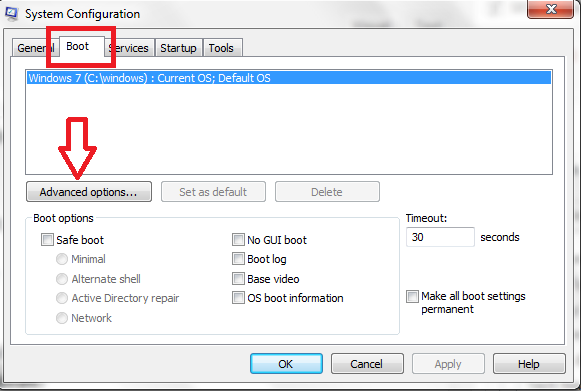
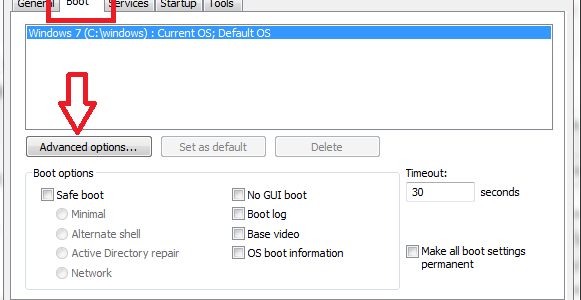
  3. Click the Boot tab
  4. system configuration
  5. Click the Advanced options tab
  6. Check the Maximum Memory box and insert the value as 3072 (If you find that this value is unavailable, then insert the value as 4096)
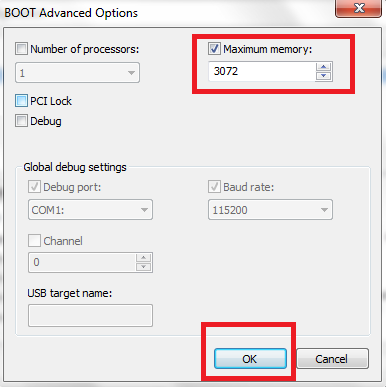
  7. Boot-Adv-Optn

Solution 2 – Update Conexant Audio Driver

This error can occur if your Conexant audio driver is missing or out-of-date. Installing the latest driver in this case will resolve the issue.

You can update Conexant audio driver manually or automatically. The latter is more recommended because it allows you to update your driver with a click of a button. Also this method doesn’t require any kind of technical knowledge.

First, we’ll look at how to update Conexant audio driver automatically and next we’ll see how to use the manual method. There are two ways to update drivers manually—through device manager and downloading the driver from the Internet. We’ll see both the methods.

Update Conexant Audio Driver Automatically

After you’ve updated the Conexant audio driver, don’t forget to reboot Windows. The changes come into effect only after restart.

Automatic driver update tools offer many benefits, the most important ones being:

  • You can update device drivers automatically
  • The software scans and updates all outdated or missing drivers at one go
  • The tool picks the right drivers for your device and operating system, so you won’t have to worry about installing an incorrect driver by mistake
  • Automatic driver updates are 100% safe

Driver Updater is one of the best driver update tools out there. Outbyte Driver Updater will give you access to a database of over 1 million drivers. It will regularly scan your PC, suggesting new driver versions to install. Driver Updater contains drivers for a variety of Windows devices. With just one click, you can update drivers in your system.

Step 1
Click here to Install and launch the app

Step 2
Scan all devices

Step 3
Install or update drivers automatically


Start Download


Update Conexant Audio Driver Using Device Manager

Here are the steps to follow for updating the Conexant Audio driver using Device Manager.

  • Click the Windows icon in the taskbar
  • Type ‘run’ in the start search box and then press enter
  • Type ‘devmgmt.msc’ and click the OK button
  • Expand Sound, video, and game controllers and then right-click on the Conexant SmartAudio HD and select Update driver software
  • Click Browse my computer for driver software
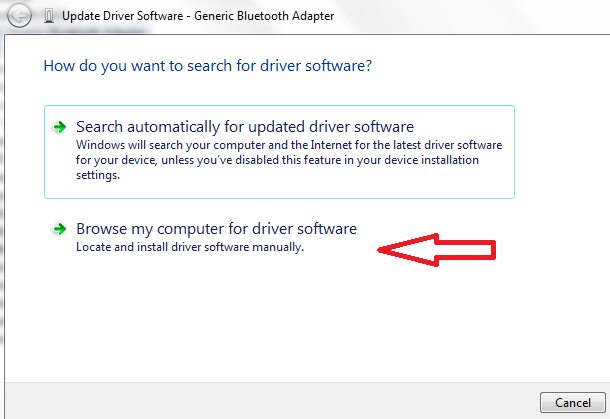
update-driver-software
  • Next, select Let me pick from a list of device drivers on my computer
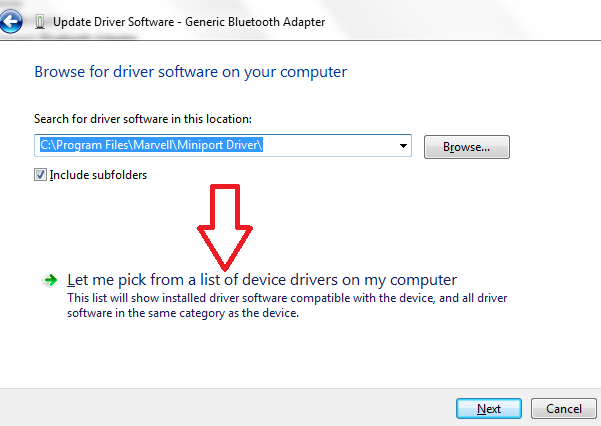
  • update driver
  • Select a suitable driver from the list that appears on your screen and follow on-screen prompts
  • Once the driver is installed, you’ll be asked to restart windows. Reboot so that the changes can take effect

Download Conexant Audio Drivers Manually

If you want, you can download the latest Conexant Audio driver manually. While Conexant offers many amazing audio and voice-enabled products for sound systems (such as Conexant HD SmartAudio) and computer peripherals, it doesn’t offer Conexant audio drivers on its official website.

So, there’s no point in searching for the latest Conexant audio driver on Conexant website. Instead you should go to your laptop or desktop manufacturer’s website and search for the compatible SmartAudio HD driver. For example, if you use a Dell laptop, then you should go Dell official site and download the latest Conexant audio driver from there. Similarly Lenovo and Acer users can get the drivers from their PC manufacturer’s site.

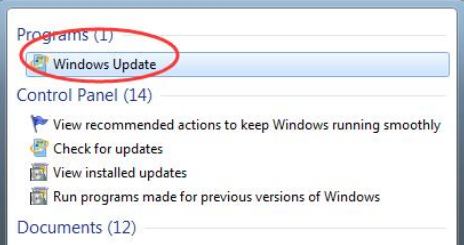
Solution 3 – Deactivate Windows Update

We don’t know why this steps work, but some Windows 10 users claim that they were able to resolve the issue by deactivating Windows Update.

Here are the steps to follow.

  • Click Start and then click Settings
  • Now click Update & Security
  • Click Windows Update (it appears in left pane)
  • Now select Update history
  • Select Uninstall updates
  • Now press Windows+R and then type services.msc and press Enter
  • Select Windows Update in the services
  • In the Startup type drop-down menu, choose Disabled. Then click the OK button
Filed Under: PC Fix Tips Tagged With: Conexant No Sound

Print Screen Not Working

By Susan C on November 21, 2018

Print Screen Not Working

So just when you needed to take a screen shot, the print screen key stops working suddenly and you have absolutely no idea in the world on how to fix the issue.

Well, don’t worry. This problem is easily fixable. And we will show you how to fix it quickly.

In this post, we’ve shared 4 solutions to troubleshoot the print screen not working issue. Needless to say, there’s no need to try all the listed solutions. Start with the first one and then move to the next one in the line and so on, till the error vanishes.

So, let’s dive in.

Solution 1 – Update Keyboard driver

Old or corrupt keyboard driver can cause a host of problems, including this one. So, the first thing you should do is update your keyboard driver.

You can update your drivers manually or automatically. We always recommend the latter, because it is not only quick but also comfortable. Plus you don’t need any kind of technical knowledge to update drivers automatically.

The only thing you require is a good driver software tool.

Update Keyboard Driver Using Driver Update Tool

Automatic driver update tools offer many benefits, the most important ones being:

  • You can update device drivers automatically
  • The software scans and updates all outdated or missing drivers at one go
  • The tool picks the right drivers for your device and operating system, so you won’t have to worry about installing an incorrect driver by mistake
  • Automatic driver updates are 100% safe

Driver Updater is one of the best driver update tools out there. Outbyte Driver Updater will give you access to a database of over 1 million drivers. It will regularly scan your PC, suggesting new driver versions to install. Driver Updater contains drivers for a variety of Windows devices. With just one click, you can update drivers in your system.

Step 1
Click here to Install and launch the app

Step 2
Scan all devices

Step 3
Install or update drivers automatically


Start Download


Update Keyboard Driver Using Device Manager

If you want to update the keyboard driver manually, there are two ways to go about it—using device manager or through the manufacturer website (discussed next).

Here are the steps to follow for updating the keyboard driver using Device Manager.

  • Click the Windows icon in the taskbar
  • Type ‘run’ in the start search box and then press enter
  • Type ‘devmgmt.msc’ and click the OK button
  • Expand Keyboards and then right-click on your keyboard device and select Update driver software
  • Click Browse my computer for driver software
update-driver-software
  • Next, select Let me pick from a list of device drivers on my computer
update driver
  • Select a suitable driver from the list that appears on your screen and follow on-screen prompts
  • Once the driver is installed, you’ll be asked to restart windows. Reboot so that the changes can take effect

Update keyboard Driver From The Manufacturer’s Website

The other way to update the keyboard driver manually is by going directly to the manufacturer’s website and downloading the driver executable file. Once you’ve have downloaded the driver file, run it to update the keyboard driver, and then reboot Windows.

Solution 2 – Press F Lock or F Mode Key

If you have the F Lock key or F Mode key on the keyboard, press it. Now check whether the Print Screen is working. Sometimes these keys may not let you use the print screen key.

However, if these keys are not there on the keyboard, simply skip this step and move on to the next one.

Solution 3 – Stop Running Programs

It is possible that one of the many programs running on your computer right now might be causing this issue. Some users have reported that stopping Dropbox or OneDrive helped them resolve this problem. It is very much possible that this step might work for you as well. Another program which is known to interfere with the Print Screen key is Snipping Tool. As a matter of fact, it would be best if you stop all the running programs and check if the Print Screen works now.

Solution 4 – Download Windows Update

Is your Windows up-to-date? No? Then download the latest updates. This might fix the Print Screen Not Working issue.

Here are the steps to follow:

  • Click the Windows icon in the taskbar
  • Type Windows Update in start search box and then press Enter
  • Windows Update
  • Click Check for Updates
  • Windows will see if there are any updates to download
  • If yes, download and install them
  • Reboot windows

What if none of these solutions work? In that case we suggest you to press Alt+Fn+PrtScn or Alt+PrtScn or Fn+PrtSCn keys. This trick might work when everything fails.

If the problem persists, you might consider using snipping tool for taking screen shots. To access it, follow these steps:

  • Click the Windows icon in the taskbar
  • Type ‘snipping tool’ in the start search box and then press Enter
  • Click snipping tool under programs.

Filed Under: PC Fix Tips Tagged With: print screen issue

Bluetooth peripheral device driver

By Susan C on November 19, 2018

Bluetooth peripheral device driver

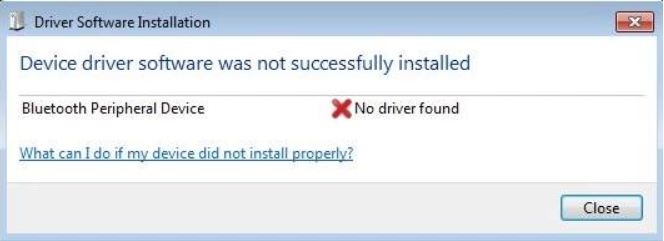
More than one Windows 7 users have complained to us about getting the following error message when they try to pair up their Bluetooth devices.

bluetooth-device-driver

If you are one the people getting this error message then don’t worry, because it’s not only a common but also an easily resolvable error.

We have dedicated an entire post to this problem and listed here not one but three ways in you can resolve this issue. And yes, don’t forget to tell us which method worked best for you!

So, let’s dive in.

Why This Error Occurs?

Understanding why a particular error occurs makes it so much easier to resolve it quickly. Some error messages are self-explanatory, like the above one.

As you can see, the error message clearly shows that the problem is with the Bluetooth device driver. Therefore, installing or updating will resolve the issue.

Let’s now see how you can install or update drivers for your Bluetooth device.

Update Drivers Automatically

There are three main ways to update device drivers – automatically using a software tool, manually through device manager, or manually from the manufacturer’s website.

The reason why we want to discuss this method (update drivers automatically) first is because it is the easiest and fastest of the all. Additionally, it is most reliable, too. You don’t need any technical knowledge to use this method.

Automatic driver update tools offer many benefits, the most important ones being:

  • You can update device drivers automatically
  • The software scans and updates all outdated or missing drivers at one go
  • The tool picks the right drivers for your device and operating system, so you won’t have to worry about installing an incorrect driver by mistake
  • Automatic driver updates are 100% safe

Driver Updater is one of the best driver update tools out there. Outbyte Driver Updater will give you access to a database of over 1 million drivers. It will regularly scan your PC, suggesting new driver versions to install. Driver Updater contains drivers for a variety of Windows devices. With just one click, you can update drivers in your system.

Step 1
Click here to Install and launch the app

Step 2
Scan all devices

Step 3
Install or update drivers automatically


Start Download


Update Drivers Manually

Here are the steps you need to follow.

  • Click the Windows icon in the taskbar and then type ‘run’ in the start search box and press Enter
  • Type “devmgmt.msc” in the run dialog box and press Enter to open the Device Manager window
  • Expand Bluetooth Radios, right-click the necessary device, and click Update Driver Software
  • Now click Browse my computer for driver software
  • update-driver-software
  • Now you’ll have two options in front of you. You can either browse to the location where the driver for this software is located, using the drop-down menu that’s, or choose the driver from the list of devices drivers installed on your computer.
  • update driver
  • We recommend you click the second option (Let me pick…)
  • Select the suitable device driver from the options that display on your screen and click Next
  • Windows will now update the driver. Once it does that, a confirmation message will pop-up on your screen. All that’s left to do is click the Close
  • You’ll be prompted to restart Windows. Do so.

Update Drivers From The Manufacturer’s Website

Last but not least, you can also update the Bluetooth device driver from the manufacturer’s website. Go to the manufacturer’s website, search the driver, and then download the exe file and install and run it.

Filed Under: PC Fix Tips Tagged With: Bluetooth driver error

  • « Previous Page
  • 1
  • …
  • 138
  • 139
  • 140
  • 141
  • 142
  • …
  • 189
  • Next Page »


  • Recent Posts
  • Popular Posts
        

Read More Posts


Read More Posts

Drivers.com Sites

  • Software Drivers
  • Drivers Ed

About Us

  • Advertise
  • About Drivers
  • Drivers Support
  • Drivers.com Privacy Policy
  • Disclaimer
  • Software Drivers
  • Mac Fixes and Tips
  • PC Fix Tips
  • Security/ Backup
  • Tablets & Smartphones
  • Tech News

© Copyright 2026 PDE Publications Ltd. End User License Agreement (EULA)