Drivers.com

follow us:

facebook twitter
  • Home
  • Download Drivers
  • Drivers Help
  • PC/Mac Resources
  • Software Drivers
  • Mac Fixes and Tips
  • PC Fix Tips
  • Security/ Backup
  • Tablets & Smartphones
  • Tech News
  • Software Drivers
  • Mac Fixes and Tips
  • PC Fix Tips
  • Security/ Backup
  • Tablets & Smartphones
  • Tech News

MTP USB Device Driver Failed

By Susan C on November 29, 2018

MTP USB Device Driver Failed

How do I solve MTP USB Device Failed error when I try to connect the mobile phone with my computer?

This is a question we are asked often and for this reason, we decided to put together a post on how to fix USB/ computer/ phone issues.

Sometimes an attempt to connect a mobile phone to a laptop or desktop PC fails and the following error message appears on the screen:

“MTP USB Device Driver Failed”

This is a relatively common issue and not very difficult to fix. This blog post lists several solutions to this error. Obviously, you don’t need to try them all. Start with the first one and move on to the next and so on until MTP USB Device Driver Failed issue is fixed.

But before we look at the solutions, let’s first understand what MTP means.

MTP – What is it?

The term ‘MTP’ stands for Media Transfer Protocol. All android phones support this protocol. When the installation of the MTP driver fails, transferring media files from your computer to your mobile phone or vice-versa will not be possible.

How to fix MTP USB error?

You can solve the problem in many ways. Here are top 5 solutions for MTP USB Device Driver Failed issue.

  • Check if hardware has a problem
  • Update MTP Driver/ Update USB Drivers
  • Use Command Prompt
  • Check Registry Settings
  • Use MTP Porting Kit

Make Sure There’s No Problem with Hardware

This is the first thing you should do when you receive the MTP USB Device Driver Failed error.

So how can you check if your phone hardware has any problem?

Connect the mobile phone to any other computer and see if it is able to connect. You should try connecting the mobile phone to different USB ports on your computer, both in the front and the back. If this doesn’t work, check if changing the USB cable makes any difference.

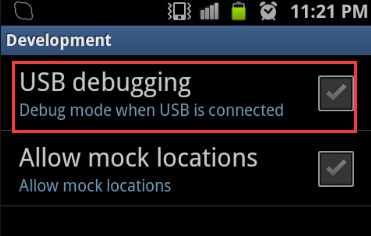
If the result is the same, select the “USB debugging” option on the android phone.

USB debugging

Next, plug it into the computer. If this doesn’t work simply revert back the settings and move on to the next step.

Update MTP Driver

If the issue is not a hardware problem, there’s a good chance that you have the wrong MTP USB Driver. Updating the driver will fix the error.

You can update MTP drivers manually. To do so, go to the manufacturer’s website, search for the latest driver, and download and install it. Make sure the driver you download is compatible with the version of Windows you’re using. Otherwise, you will not be able to install the driver and the problem will remain unsolved.

A better way to update MTP USB driver is by using a fast driver update program.

Automatic driver update tools offer many benefits, the most important ones being:

  • You can update device drivers automatically
  • The software scans and updates all outdated or missing drivers at one go
  • The tool picks the right drivers for your device and operating system, so you won’t have to worry about installing an incorrect driver by mistake
  • Automatic driver updates are 100% safe

Driver Updater is one of the best driver update tools out there. Outbyte Driver Updater will give you access to a database of over 1 million drivers. It will regularly scan your PC, suggesting new driver versions to install. Driver Updater contains drivers for a variety of Windows devices. With just one click, you can update drivers in your system.

Step 1
Click here to Install and launch the app

Step 2
Scan all devices

Step 3
Install or update drivers automatically


Start Download


Use Command Prompt

This error often occurs simply because UAC (User Access Control) restricts your computer from successfully installing the needed drivers. If this is the cause of the error in your case, too, then running a simple command will fix the issue.

Here’s what you need to do.

  • Click the Windows icon in the taskbar and then type ‘command prompt’ in the Start Search box. Then right click command prompt in the results and select run as administrator
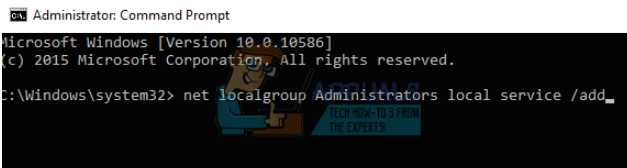
  • When the command prompt opens, type the following command and press Enter

  • command
  • command prompt
  • Once you’ve executed this command, plug in the android phone again to see if Windows is able to detect it. In case that happens, simply update the drivers to fix the issue. In case the problem reappears when you plug in the device, restart the computer and then try once more

Check Registry Settings

You can get this error when your registry settings are such that they don’t recognize an external device. Therefore, you can try to change the registry settings and see if the problem is solved.

Important Information:

Registry Editor is a very important tool. If you change the wrong keys or make wrong changes you can have serious issues. For this reason, you are advised to create a back up copy of the registry before making any changes to it. If you have a backup copy, you can revert back to the original settings in case something goes wrong.

Here are the steps you need to take to backup registry.

  • Click the Windows icon in the taskbar, type regedit in the start search box and then press Enter to open the Registry Editor window
  • Now click File > Export
  • Give a suitable name to the backup copy, choose the location where you want to save the file, and then click the Save

Once you’ve taken a backup of registry, proceed to make the necessary changes in it to sole the MTP USB Device Driver Failed issue.

Here’s what you need to do.

  • Open registry editor
  • Browse to this location: HKEY_LOCAL_MACHINE\SYSTEM\CurrentControlSet\Control/Class.
  • Now press Ctrl+F. This will open search dialogue. Now type the word “Portable Devices”. Finally press “Find Next”
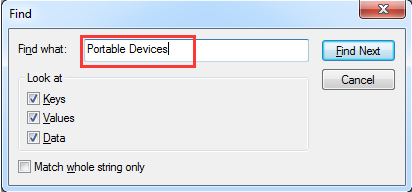
  • portable devices
    • In case Windows doesn’t locate the folder, it means this solution is not for you. Simply go to the next solution
  • In case windows throw a match, see if this folder has the key “Upper Filters”. In case you are able to locate it, delete the keyword. After this, reboot Windows so that the changes can take effect.
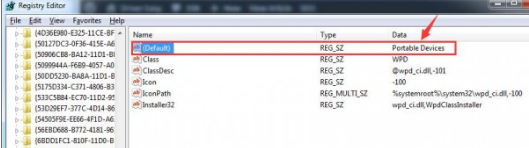
  • registry
  • Once the Window restarts, plug-in the android device and see if the issue is resolved.

Install MTP Porting Kit

If your problems still persists, it could be that the version of MTP Porting Kit on your computer is outdated or it is not installed.

To fix the issue, go to the Microsoft website to download this kit. Save the file in a convenient location.

Once the download process is complete, go to the location where you’ve saved the file. Double-click the executable file to install the software.

Once the installation is complete, you will need to reboot Windows so that the new changes can take effect.

When Windows restarts, plug in the mobile device and see if your computer is able to install the required drivers.

Filed Under: PC Fix Tips Tagged With: MTP USB Driver

HDMI No Signal Connection Issue

By Susan C on November 28, 2018

HDMI No Signal Connection Issue

Do you get “no signal” issue when you try to connect a monitor or TV to your desktop PC through HDMI ports?

no signal

If so, stop worrying. This is a common issue encountered by many users at least once, and thankfully it is also relatively easy to solve.

When you get the “no signal” message, it means your monitor or TV is unable to receive any input from the source.

In this article, we’ve discussed several solutions for this problem. You can try them one-by-one until the problem is resolved.

Switch Input Source

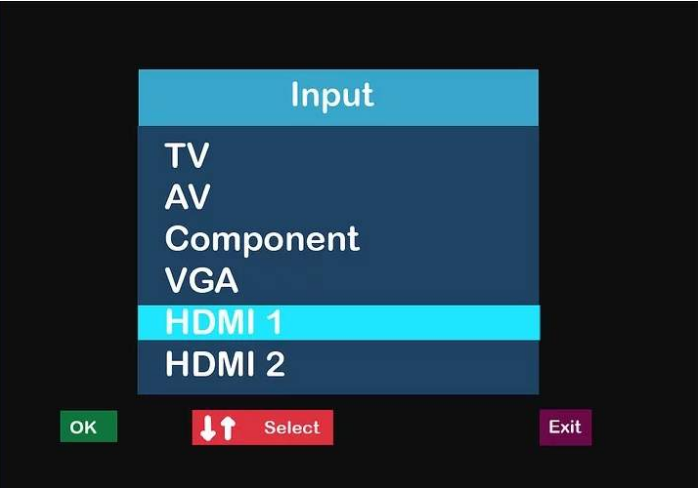
The first thing you should do upon receiving the error is switch input source. Press the Source or Input button on the remote to switch input source to HDMI port. In case of multiple HDMI ports, make sure you pick the right one.

HDMI port

Update Graphic and Chipset Drivers

If the graphics drivers and chipset drivers are faulty, this error can arise. Update your device drivers and check if the issue resolves.

You can update your device drivers in two ways—manually and automatically.

Updating drivers manually is a bit tedious. Also you require a certain degree of technical knowledge for this purpose. In case you lack time or technical knowledge, we suggest you go for the second option, that is, updating drivers automatically.

Here we’ve discussed both options. Have a look.

Updating Drivers Manually

Here are the steps you need to update your graphics drivers

  • Click the Windows icon in the taskbar and then type ‘run’ in the start search box and press Enter
  • Type “devmgmt.msc” in the run dialog box and press Enter to open the Device Manager window
  • Double-click Display adapters, right-click the necessary device, and click Update Driver Software
  • Now you’ll have two options in front of you: Search automatically for updated driver software and Browse my computer for driver software. Click the second option.
  • Now click Let me pick…
  • Select the suitable device driver from the options that display on your screen and click Next
  • Windows will now update the driver. Once it does that, a confirmation message will pop-up on your screen. All that’s left to do is click the Close
  • You’ll be prompted to restart Windows. Do so.

Update Drivers Automatically

A far easier way to update drivers is using an advanced driver update software tool.

Automatic driver update tools offer many benefits, the most important ones being:

  • You can update device drivers automatically
  • The software scans and updates all outdated or missing drivers at one go
  • The tool picks the right drivers for your device and operating system, so you won’t have to worry about installing an incorrect driver by mistake
  • Automatic driver updates are 100% safe

Driver Updater is one of the best driver update tools out there. Outbyte Driver Updater will give you access to a database of over 1 million drivers. It will regularly scan your PC, suggesting new driver versions to install. Driver Updater contains drivers for a variety of Windows devices. With just one click, you can update drivers in your system.

Step 1
Click here to Install and launch the app

Step 2
Scan all devices

Step 3
Install or update drivers automatically


Start Download


Unplug Power Cable and Then Re-plug It

Unplug power cable of your monitor or TV for a couple of seconds and then re-plug it. This simple step has worked for many people, so it’s certainly worth a try.

Disconnect HDMI Sources One-by-one and then Reconnect them

So in this step all you need to do is disconnect every HDMI source in case you have multiple HDMI sources and then reconnect them. However, in case you only have a single HDMI source, ignore this solution and move on to the next one.

Here are the steps to follow.

  • Unplug the monitor or TV from HDMI ports
  • Next unplug power cable for approximately 10 minutes
  • Now plug in power cable in your monitor or TV
  • Next plug in one device to your PC’s HDMI port
  • Turn the device on
  • You need to repeat the last steps for every device and HDMI port

Factory Reset

This is the last resort. If nothing has worked, simply reset the monitor or TV to its factory settings.

Filed Under: PC Fix Tips Tagged With: HDMI no connection

Bluetooth audio devices are not supported by the ps4

By Susan C on November 22, 2018

Bluetooth audio devices are not supported by the ps4

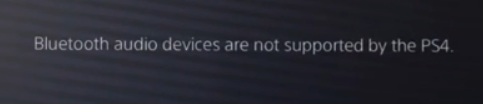
Are you getting this error message when you try pairing Bluetooth headphones to PS4?

bluetooth-not-supported-PS4

If yes, don’t worry. In this post we’ve listed 4 easy ways to resolve the error. Just pick the one which you find easiest and resolve the issue once and for all.

If you want to play your PS4 on a Mac or PC view our post here >>

However, first let’s understand why PS4 isn’t recognizing your Bluetooth audio device.

Why PS4 is not supporting Bluetooth audio devices?

Sony, after launching PS4, came up with an official statement stating that PS4 will not support A2DP, including Bluetooth audio devices. In addition to A2DP, PS4 is not going to support other audio streaming Bluetooth profiles.

The full form of A2DP is Advanced Audio Distribution Profile. It defines the stereo audio quality which can be streamed between two devices via a Bluetooth connection.

There’s actually a good reason why Sony chose to end the support of Bluetooth audio devices with PS4. The lag with A2DP is as much as 100 to 200ms. Naturally enough, this will lead to poor user experience, and that’s why most Bluetooth devices can’t be paired with PS4.

That said, you can use these workarounds and have fun playing your favorite games.

Solution 1 – Use Compatible Bluetooth Devices

In case the Bluetooth device you own is compatible with PS4, you can pair it by directly configuring the settings.

In case you’re not completely sure if your device is supported by PS4, we recommend you to have a look at headset package. This way you can find if it is indeed supported.

However, there’s no harm in performing these steps.

  • Turn on the Bluetooth audio device in the pair mode
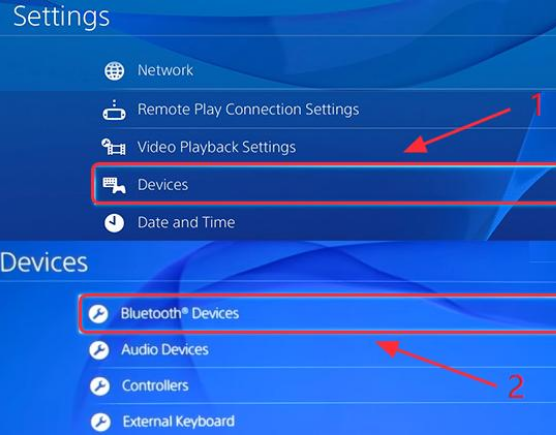
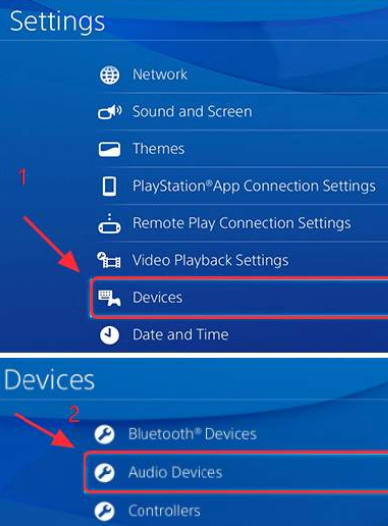
  • Click Settings in PS4. Then click Devices and select Bluetooth Devices
  • Settings
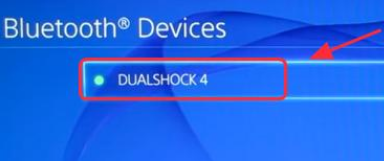
  • Choose the name of the headset you want to connect
  • Bluetooth device
  • In case the headset is able to connect, you can see if you’re able to play your favorite games with the Bluetooth headset

In case it is not able to connect successfully and you get any of these two error messages or any other error message similar to them, you can attempt the other solutions given in this post.

  • “Cannot connect to the Bluetooth device within the time limit”
  • “Bluetooth devices are not supported by the PS4”

Solution 2 – Use audio cable having an inbuilt microphone

With Sony deciding not to offer support for majority of Bluetooth audio devices in PS4, you might require an additional tool to be able to connect the Bluetooth headset you have with the PS4.

You’re going to require an audio cable having an inbuilt microphone. Majority of Bluetooth headsets come with such cable. Follow the steps listed below.

  • Connect the Bluetooth headset to the PS4 controller using an audio cable having inbuilt mic. Next, turn on the headset.
  • Now click Settings in PS4. Next select Devices and then Bluetooth Devices
  • Settings
  • Now choose the name of the headset you want to connect
  • Bluetooth device
  • Then Click Devices and then Audio Devices
  • audio devices
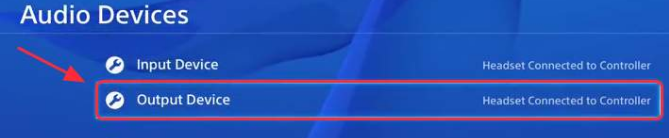
  • Next click Output Device
  • output device
  • Click Headset Connected to Controller
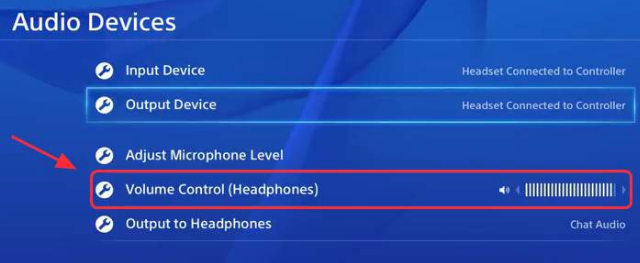
  • Now you need to click on Volume Controller and change its setting to either louder or medium
  • volume control
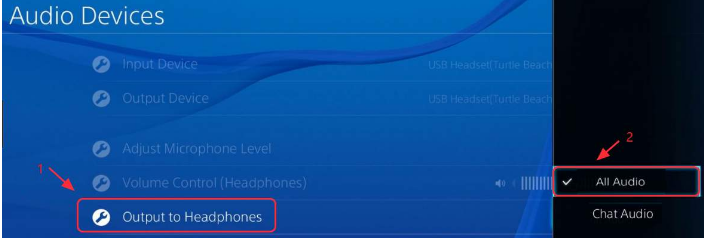
  • Click on Output to Headphone
  • output to headphones
  • Choose All Audio
  • See if your headset is working when you play games

Solution 3 – Use any USB adapter

You might be able to connect the Bluetooth headset to PS4 when you use USB adapter. Several users have said this solution worked for them. It might work for you and so is worth a try. If you don’t have a USB adapter, you might consider buying one.

Here are the steps you need to follow.

  • Insert your USB adapter in the USB Slot of PS4
  • Turn the Bluetooth headset on
  • Now in the PS4 click Settings
  • Click Devices and then Audio Devices
  • audio devices
  • Now you need to click on Output Device
  • output device
  • Click USB Headset
  • Select Volume Control. Set it to either louder or medium.
  • volume control
  • Click on Output to Headphone
  • output to headphones
  • Choose All Audio
  • See if your headset is working when you play games

Solution 4 – Use a Dongle

If you have a Dongle as well as a wireless microphone for receiving Bluetooth signal, you can try this method, especially since it’s very easy.

  • Insert wireless mic in PS4 controller
  • Now in the USB Slot of PS4, insert Bluetooth Dongle
  • Turn the Dongle on by pressing the button that’s on it
  • Turn the Bluetooth headset on. Wait a little while (not more than few seconds) for these two to connect.
  • Now click Settings in PS4
  • Click Devices and then Audio Devices
  • Now click on Input Device
  • Choose Headset Connected to Controller
  • Click on Output Devices
  • Click USB Headset
  • Now click Volume Control. Set it to either louder or medium
  • Select Output to Headphones. Click All Audio
  • See if your headset is working when you play games

Pro Tip: To get the best gaming experience on your PC, it is important to use the latest drivers for your graphic card. An easy and fast way to update your graphic drivers is by using a driver update tool.

Automatic driver update tools offer many benefits, the most important ones being:

  • You can update device drivers automatically
  • The software scans and updates all outdated or missing drivers at one go
  • The tool picks the right drivers for your device and operating system, so you won’t have to worry about installing an incorrect driver by mistake
  • Automatic driver updates are 100% safe

Driver Updater is one of the best driver update tools out there. Outbyte Driver Updater will give you access to a database of over 1 million drivers. It will regularly scan your PC, suggesting new driver versions to install. Driver Updater contains drivers for a variety of Windows devices. With just one click, you can update drivers in your system.

Step 1
Click here to Install and launch the app

Step 2
Scan all devices

Step 3
Install or update drivers automatically


Start Download


Filed Under: PC Fix Tips Tagged With: Bluetooth PS4 issue

  • « Previous Page
  • 1
  • …
  • 137
  • 138
  • 139
  • 140
  • 141
  • …
  • 189
  • Next Page »


  • Recent Posts
  • Popular Posts
        

Read More Posts


Read More Posts

Drivers.com Sites

  • Software Drivers
  • Drivers Ed

About Us

  • Advertise
  • About Drivers
  • Drivers Support
  • Drivers.com Privacy Policy
  • Disclaimer
  • Software Drivers
  • Mac Fixes and Tips
  • PC Fix Tips
  • Security/ Backup
  • Tablets & Smartphones
  • Tech News

© Copyright 2026 PDE Publications Ltd. End User License Agreement (EULA)