


How do I solve MTP USB Device Failed error when I try to connect the mobile phone with my computer?
This is a question we are asked often and for this reason, we decided to put together a post on how to fix USB/ computer/ phone issues.
Sometimes an attempt to connect a mobile phone to a laptop or desktop PC fails and the following error message appears on the screen:
“MTP USB Device Driver Failed”
This is a relatively common issue and not very difficult to fix. This blog post lists several solutions to this error. Obviously, you don’t need to try them all. Start with the first one and move on to the next and so on until MTP USB Device Driver Failed issue is fixed.
But before we look at the solutions, let’s first understand what MTP means.
MTP – What is it?
The term ‘MTP’ stands for Media Transfer Protocol. All android phones support this protocol. When the installation of the MTP driver fails, transferring media files from your computer to your mobile phone or vice-versa will not be possible.
How to fix MTP USB error?
You can solve the problem in many ways. Here are top 5 solutions for MTP USB Device Driver Failed issue.
- Check if hardware has a problem
- Update MTP Driver/ Update USB Drivers
- Use Command Prompt
- Check Registry Settings
- Use MTP Porting Kit
Make Sure There’s No Problem with Hardware
This is the first thing you should do when you receive the MTP USB Device Driver Failed error.
So how can you check if your phone hardware has any problem?
Connect the mobile phone to any other computer and see if it is able to connect. You should try connecting the mobile phone to different USB ports on your computer, both in the front and the back. If this doesn’t work, check if changing the USB cable makes any difference.
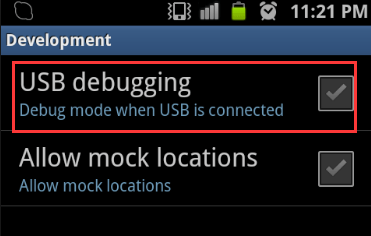
If the result is the same, select the “USB debugging” option on the android phone.
Next, plug it into the computer. If this doesn’t work simply revert back the settings and move on to the next step.
Update MTP Driver
If the issue is not a hardware problem, there’s a good chance that you have the wrong MTP USB Driver. Updating the driver will fix the error.
You can update MTP drivers manually. To do so, go to the manufacturer’s website, search for the latest driver, and download and install it. Make sure the driver you download is compatible with the version of Windows you’re using. Otherwise, you will not be able to install the driver and the problem will remain unsolved.
A better way to update MTP USB driver is by using a fast driver update program.
Automatic driver update tools offer many benefits, the most important ones being:
- You can update device drivers automatically
- The software scans and updates all outdated or missing drivers at one go
- The tool picks the right drivers for your device and operating system, so you won’t have to worry about installing an incorrect driver by mistake
- Automatic driver updates are 100% safe
Driver Updater is one of the best driver update tools out there. Outbyte Driver Updater will give you access to a database of over 1 million drivers. It will regularly scan your PC, suggesting new driver versions to install. Driver Updater contains drivers for a variety of Windows devices. With just one click, you can update drivers in your system.
Step 1
Click here to Install and launch the app
Step 2
Scan all devices
Step 3
Install or update drivers automatically
Use Command Prompt
This error often occurs simply because UAC (User Access Control) restricts your computer from successfully installing the needed drivers. If this is the cause of the error in your case, too, then running a simple command will fix the issue.
Here’s what you need to do.
- Click the Windows icon in the taskbar and then type ‘command prompt’ in the Start Search box. Then right click command prompt in the results and select run as administrator
- When the command prompt opens, type the following command and press Enter

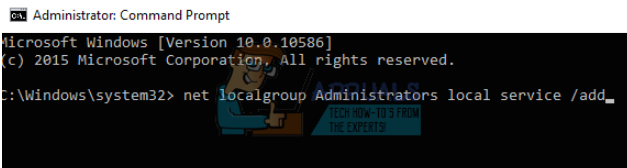
- Once you’ve executed this command, plug in the android phone again to see if Windows is able to detect it. In case that happens, simply update the drivers to fix the issue. In case the problem reappears when you plug in the device, restart the computer and then try once more
Check Registry Settings
You can get this error when your registry settings are such that they don’t recognize an external device. Therefore, you can try to change the registry settings and see if the problem is solved.
Important Information:
Registry Editor is a very important tool. If you change the wrong keys or make wrong changes you can have serious issues. For this reason, you are advised to create a back up copy of the registry before making any changes to it. If you have a backup copy, you can revert back to the original settings in case something goes wrong.
Here are the steps you need to take to backup registry.
- Click the Windows icon in the taskbar, type regedit in the start search box and then press Enter to open the Registry Editor window
- Now click File > Export
- Give a suitable name to the backup copy, choose the location where you want to save the file, and then click the Save
Once you’ve taken a backup of registry, proceed to make the necessary changes in it to sole the MTP USB Device Driver Failed issue.
Here’s what you need to do.
- Open registry editor
- Browse to this location: HKEY_LOCAL_MACHINE\SYSTEM\CurrentControlSet\Control/Class.
- Now press Ctrl+F. This will open search dialogue. Now type the word “Portable Devices”. Finally press “Find Next”
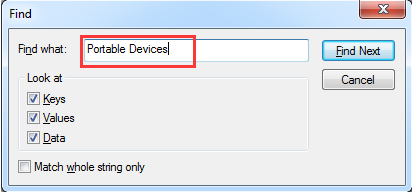
- In case Windows doesn’t locate the folder, it means this solution is not for you. Simply go to the next solution
- In case windows throw a match, see if this folder has the key “Upper Filters”. In case you are able to locate it, delete the keyword. After this, reboot Windows so that the changes can take effect.
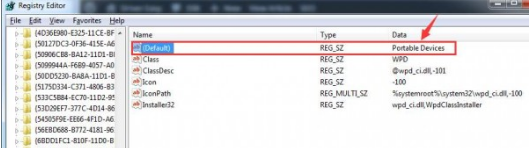
- Once the Window restarts, plug-in the android device and see if the issue is resolved.
Install MTP Porting Kit
If your problems still persists, it could be that the version of MTP Porting Kit on your computer is outdated or it is not installed.
To fix the issue, go to the Microsoft website to download this kit. Save the file in a convenient location.
Once the download process is complete, go to the location where you’ve saved the file. Double-click the executable file to install the software.
Once the installation is complete, you will need to reboot Windows so that the new changes can take effect.
When Windows restarts, plug in the mobile device and see if your computer is able to install the required drivers.