Drivers.com

follow us:

facebook twitter
  • Home
  • Download Drivers
  • Drivers Help
  • PC/Mac Resources
  • Software Drivers
  • Mac Fixes and Tips
  • PC Fix Tips
  • Security/ Backup
  • Tablets & Smartphones
  • Tech News
  • Software Drivers
  • Mac Fixes and Tips
  • PC Fix Tips
  • Security/ Backup
  • Tablets & Smartphones
  • Tech News

Razer synapse not opening

By Susan C on December 4, 2018

Razer Synapse allows you to assign micros or rebind control to Razer peripherals. You can also use it for saving your configurations in cloud-based storage. That’s why you can easily switch it between configurations. Other important features included in Razer Synapse are heat maps, hardware configurator, and stats.

One of the most common errors reported by Razer Synapse users is ‘Razer Synapse Not Working/Opening’. This error occurs after you update it. Even though Razer devices are plugged in your system, it refuses to pop-up.

Thankfully, this issue is easily resolvable. In this post, we’ll look at different ways through which you fix this issue.

Let’s dive in.

Reinstall the Software

Deleting all its files and then reinstalling the software is one solution that has worked for many users who got this error. Precisely for this reason, we recommend you try this solution first.

You’ll need to login into your system as an administrator, because its folders are hidden in the File Explored. Logging with administrative rights will allow you to access them.

Here are the steps to follow.

  • Press Window + R
  • Now in the Run box, type “cpl” and click the OK button. This will open a new window which will list the names of all installed programs
  • Right-click Razer Synapse and click Uninstall. Then right-click Razer Core and click Uninstall
  • Windows will hardly take any time to uninstall them. Once this is done, press Window+E. This will open file explorer window
  • Browse to C:\Program Files (x86)\Razer
  • This directory contains hidden folders. Therefore, first unhide them. Click View (the 4th tab in the top tab menu) and then check the box before “Hidden items”
  • Now delete the files which are present in this folder. You’ll have to delete them all. When you delete the files, you may get UAC message. If so, simply choose Yes
  • Now browse to C:\ProgramData\Razer directories and delete all the files in this folder
  • After you’ve deleted the files, restart windows
  • When windows reboots, again open Run window by pressing Window+R. Now type “msc” and press Enter. This will open device manager window.
  • Expand the type of Razer device that you’re using. It could be Razer Device, Keyboards, Human Interface Devices or Mice or other pointing devices categories.
  • Right-click the device and click Uninstall device
  • You may get a warning message prompting you to confirm you want to uninstall the device. Select the checkbox before Delete the driver software for this device and then click the Uninstall button

If other Razor devices are installed, then perform this procedure for all of them. In case you’re not sure about a particular device, simply uninstall it. You will need to restart windows after you’ve uninstalled the devices and deleted their drivers. Windows will install default drivers for these devices automatically upon restart.

Note:  Ensure all Razer devices are unplugged when you reboot Windows.

  • Now you will need to temporarily turn off windows firewall and your antivirus program. Sometimes the firewall and antivirus application can cause conflict when you are installing a new software application. By turning them off, you can avoid this conflict.
  • Turn off windows firewall. Here are the steps you need to follow
    • Press Windows+R. Now type “firewall.cpl” and then press the OK This will open the Windows Firewall window
    • In the left-pane, click Turn Windows Firewall on or off
    • Under private network location settings, select Turn off Windows Firewall (not recommended). Now under Public network location settings, select Turn off Windows Firewall (not recommended)
    • Click the OK button
  • Turn off your antivirus program. The exact steps vary from one antivirus program to another. Check the manual of your antivirus software to know the exact steps you need to follow.
  • Download and install the newest version of Microsoft .Net Framework. Click this link to download. Restart Windows after you’ve installed the framework.
  • Now go to the official Razer website and download Razer Synapse. After you’ve installed the package, make sure to check whether it opens properly. Even though you Razer Synapse should download automatically when Razer products are plugged in, you can always download it through its website.

Note:  You must be logged with the administrator account throughout this process. In case the problem doesn’t go away, instead of logging into the existing account, create a new account. See if this helps. Otherwise move on to the next solution.

Disable Razer Surround

This application improves the sound quality when you play games. That said, more than a few users have complained that this module caused the “Synapse failed to open/load/disappeared” issue.

You can try this workaround which have worked for many users.

  • Uninstall Synapse and Delete its residual files (Please refer to the steps in the first solution)
  • Go the official website of Razer and download Razer Synapse software
  • Install it. Next, you need to log into it with your account. Allow Synapse to connect to internet
  • Ignore the feature update pop up. Right now we don’t have to update the software.
  • After the installation is complete and Synapse has fetched all necessary data from internet, you’ll see two notifications on the top left-hand side: Razer Surround and Synapse Update
  • Click Razer Surround and then cancel. You must not click install Razer Surround or update/upgrade Razer Surround. This is regarded as the main issue in this very case.
  • Once you’ve cancelled the Razer surround, click Synapse Update notification to update Synapse software
  • Restart Windows after update is completed. Now see if the issue is resolved

Install Newest Windows Updates

From time to time, Windows release new updates to improve the operating system. In case you’ve not installed Windows updates for some time, we recommend you install them now.

Here are the steps to follow:

  • Click the Windows icon in the taskbar. In the start search box, type windows update and then press Enter
  • In the Windows Update window, click check for updates. Windows will search for new updates and then install them
  • You may be prompted to restart. Do so and see if the issue is fixed


Filed Under: PC Fix Tips Tagged With: Razer Synapse

Mouse Cursor Disappears on Windows 10

By Susan C on December 2, 2018

Mouse Cursor Disappears on Windows 10

Has the mouse cursor disappeared?

This is an issue reported by several Windows users who have just upgraded to Windows 10 from a previous Windows version.

What happens is that mouse cursor vanishes from the screen after the update. This mouse-disappearing problem can arise after you wake the computer from the sleep mode.

Irritating and baffling as this problem seems, thankfully it is easily resolvable—and we’ll show you how.

In this post, we have listed two solutions that have worked for Windows users in the past. We recommend you try them because there’s a good chance either of them might work for you.

Keyboard and Mouse Drivers Download & Updates

First Solution: Re-enable the mouse

It is possible that your mouse might have got disabled by mistake when you performed the upgrade or while Windows was in the sleep mode. When this happens, mouse cursor disappears, making the mouse unusable.

To solve the issue, re-enable the mouse. You can do this in two ways, both of which are discussed below.

First Method

Laptop users can try the key combination to turn on or turn off their mouse. While this combination can vary from one laptop to another, usually it is Fn+F3 or Fn+F5 or Fn+F9 or Fn+F11.

In case none of these work, we recommend you to contact your laptop manufacturer for guidance. However, before you do that, it will be a good idea to browse through the laptop manual. It is quite possible that it might contain the necessary information, obviating the need to contact the laptop manufacturer.

Second Method

The other step is to open mouse settings and enable the mouse. Here are the steps to follow:

  • Press Win key and type mouse to access Mouse settings
  • Select it and press Enter
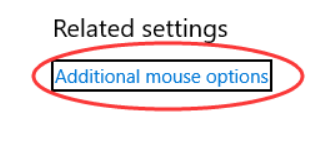
  • Now press Tab till you see Additional mouse settings is highlighted. It will appear in Related Settings. Once Additional mouse settings is highlighted, you need to press Enter.
  • mouse options
  • Now a window called Mouse Properties will open. Continue pressing the Tab button in the keyboard till Buttons tab gets highlighted
  • buttons
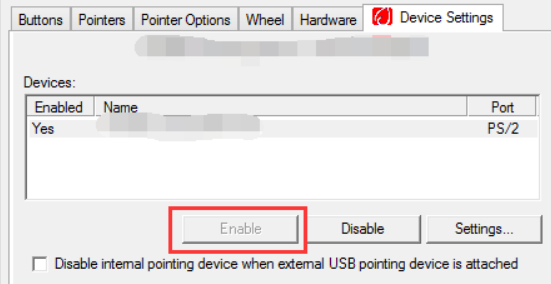
  • Use the right key arrow present in the keyboard till Device Settings window opens (It is possible that this tab has a different name in your computer. The name of this tab depends solely on the mouse type.)
  • device settings
  • If you see that the device is marked as disabled, use the Tab key present on your keyboard till Enable button gets highlighted. Now simply press Enter
  • Enable
  • Restart windows and see if the problem is solved

Second Solution – Update Mouse Device Drivers

An incorrect, outdated, or corrupt mouse driver can also cause the problem. In such a case, you’ll need to update the mouse device driver.

You can update the mouse driver manually as well as automatically using a driver update tool. The second method is more convenient and quicker. Also it doesn’t require any kind of technical knowledge.

However, for your knowledge, we’ve listed the manual step also.

Update Mouse Driver Manually

Here are the steps to follow.

  • Click Win+R to open the run dialog box
  • Type devmgmt.msc in the run dialog box to open the device manager
  • Browse through the list of installed devices till you see Mice and pointer devices and double-click it
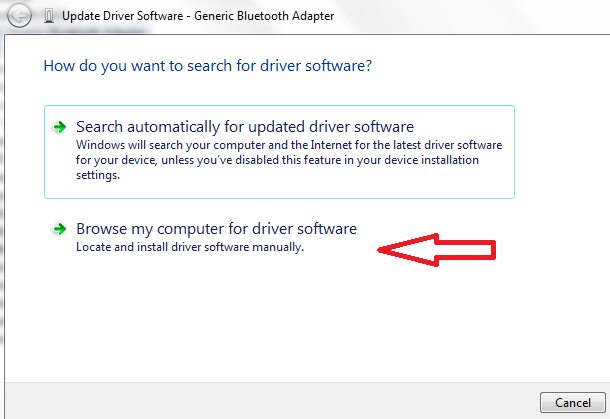
  • Select the installed mouse, right-click it and select Update Driver Software
  • Now click the second option, Browse my computer for driver software
  • update-driver-software
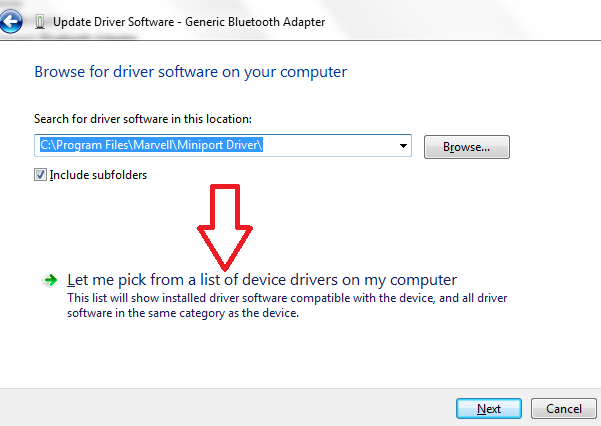
  • Here click Let me pick from a list of device drivers on my computer
  • update driver
  • Click the Next button
  • Pick the relevant driver from the list and follow onscreen prompts
  • Restart Windows so that these changes can take effect
  • Check if the issue is resolved

If this step is unable to update your driver, you can go to the mouse manufacturer’s website, search for the latest driver compatible with your PC to download it. Once you’ve downloaded the driver executable file, browse to the location where file is located, double-click the executable file and follow onscreen prompts to install the driver. You’ll need to restart windows for the new changes to take effect. Now check if the problem is resolved.

 Update Mouse Driver Automatically

If you don’t want to go through all this trouble or don’t have sufficient computer knowledge, simply download a reliable driver software tool.

Automatic driver update tools offer many benefits, the most important ones being:

  • You can update device drivers automatically
  • The software scans and updates all outdated or missing drivers at one go
  • The tool picks the right drivers for your device and operating system, so you won’t have to worry about installing an incorrect driver by mistake
  • Automatic driver updates are 100% safe

Driver Updater is one of the best driver update tools out there. Outbyte Driver Updater will give you access to a database of over 1 million drivers. It will regularly scan your PC, suggesting new driver versions to install. Driver Updater contains drivers for a variety of Windows devices. With just one click, you can update drivers in your system.

Step 1
Click here to Install and launch the app

Step 2
Scan all devices

Step 3
Install or update drivers automatically


Start Download


Filed Under: PC Fix Tips Tagged With: No Mouse Cursor

System Idle Process High CPU Usage

By Susan C on December 2, 2018

System Idle Process High CPU Usage

Is your PC running at a snail’s pace? Does it freeze often and without any good reason?

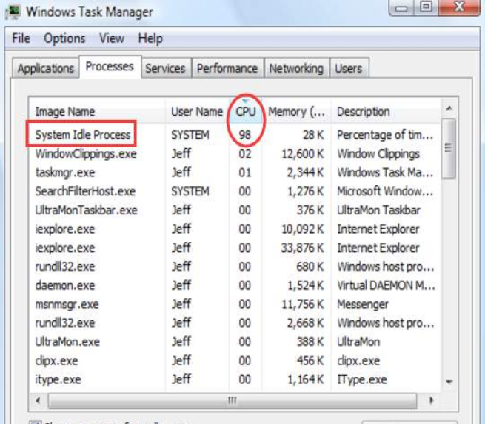
If yes, you should open the Task Manager, as it is possible that System Idle Process is the culprit.

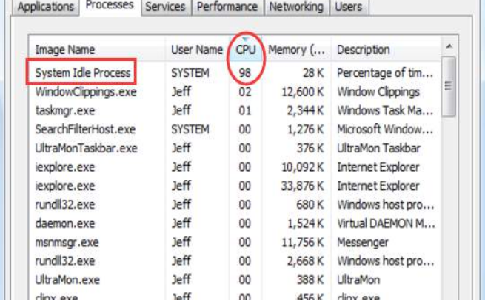
System-Idle-Process

You can check the amount of CPU usage of System Idle Process by performing these steps:

  • Press ctrl+alt+del
  • Click Start Task Manager
  • In the Windows Task Manager window, click Processes
  • Browse to the through the list until you locate System Idle Process. You can see its CPU usage next to it (in the third column)

Note: Your PC doesn’t slow every time when System Idle Process CPU usage is high. When your pc is idle, as well as at other times, System Idle Process can report high usage. As long as there’s no issue with your system’s performance, you don’t have to do anything about its high CPU usage. However, if the performance of your PC suffers, of course, take necessary steps discussed in this post.

System Idle Process High CPU Usage issue [Fixed]

Why System Idle Process shows high CPU usage?

As the name suggest, System Idle Process measures the amount of idle capacity the system has at a particular point in time.

When the CPU usage is high, it typically means that a lot of processing power is not being used. Therefore, when System Idle Process records 100% or 99% or 98% CPU usage, you may find that no process is running in background and using CPU resources. In this case, as said above, you don’t need to do a thing.

However, at times, for inexplicable reasons, when System Idle Process reports high CPU usage, the system becomes painstakingly slow or freezes all together.

If that’s happening in your case, too, try these two solutions.

First Solution – Disable unwanted Startup processes

Many processes are by default configured to load automatically with Windows. However, you may not require all of these processes to load at startup. You can safely disable those which you don’t need any more.

We’ve shown the steps to disable startup processes for both Windows 10 and Windows 7 users.

Windows 10 Users

Perform these steps to disable startup processes.

  • Press Win+R
  • This will open the Run dialog box. Now type msconfig in it and then press Enter
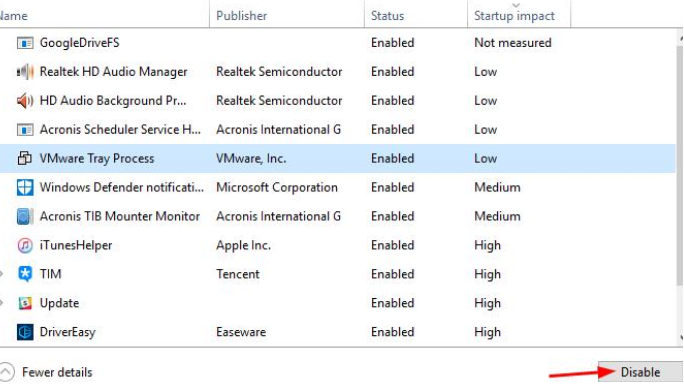
  • Click the Startup tab and then click Open Task Manager
  • In the list, select an item which you don’t require to load with Windows at startup. Then click Disable
  • disable-process
  • Repeat the last step to disable each and every item which you don’t need to start automatically when Windows load
  • Restart Windows
  • Now check if your computer’s performance has improved

Windows 7 Users

Perform these steps to disable startup processes.

  • Click the Windows icon in the taskbar and then type run in the start search box and press Enter to open the Run dialog box.
  • Here type msconfig and then press Enter
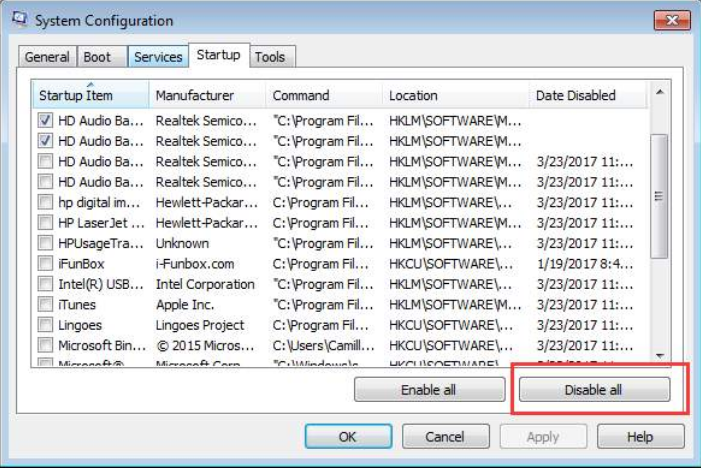
  • In the System Configuration window click the Startup tab
  • Select the item you don’t need to load automatically at startup and then select Disable all
  • disable prcss win 7
  • Now repeat the previous step to disable each and every item which you don’t need to start automatically when Windows load
  • Restart Windows
  • Now check if your computer’s performance has improved

Second Solution – Update Device Drivers

It is a known fact that outdated or corrupt device drivers can cause all sorts of problems. It is possible that this issue in your case is because of this reason. Therefore, our recommendation is to use a fast and accurate driver update tool to keep your device drivers up-to-date.

Automatic driver update tools offer many benefits, the most important ones being:

  • You can update device drivers automatically
  • The software scans and updates all outdated or missing drivers at one go
  • The tool picks the right drivers for your device and operating system, so you won’t have to worry about installing an incorrect driver by mistake
  • Automatic driver updates are 100% safe

Driver Updater is one of the best driver update tools out there. Outbyte Driver Updater will give you access to a database of over 1 million drivers. It will regularly scan your PC, suggesting new driver versions to install. Driver Updater contains drivers for a variety of Windows devices. With just one click, you can update drivers in your system.

Step 1
Click here to Install and launch the app

Step 2
Scan all devices

Step 3
Install or update drivers automatically


Start Download


Filed Under: PC Fix Tips Tagged With: Sys Idle Process

  • « Previous Page
  • 1
  • …
  • 136
  • 137
  • 138
  • 139
  • 140
  • …
  • 189
  • Next Page »


  • Recent Posts
  • Popular Posts
        

Read More Posts


Read More Posts

Drivers.com Sites

  • Software Drivers
  • Drivers Ed

About Us

  • Advertise
  • About Drivers
  • Drivers Support
  • Drivers.com Privacy Policy
  • Disclaimer
  • Software Drivers
  • Mac Fixes and Tips
  • PC Fix Tips
  • Security/ Backup
  • Tablets & Smartphones
  • Tech News

© Copyright 2026 PDE Publications Ltd. End User License Agreement (EULA)