Drivers.com

follow us:

facebook twitter
  • Home
  • Download Drivers
  • Drivers Help
  • PC/Mac Resources
  • Software Drivers
  • Mac Fixes and Tips
  • PC Fix Tips
  • Security/ Backup
  • Tablets & Smartphones
  • Tech News
  • Software Drivers
  • Mac Fixes and Tips
  • PC Fix Tips
  • Security/ Backup
  • Tablets & Smartphones
  • Tech News

Fix PUBG Crashing

By Susan C on December 19, 2018

PlayerUnknown’s Battlegrounds (PUBG) is known to crash frequently and nearly always without a warning. Some users report that the game tends to crash randomly while others say crashes usually occur after installation of an update.

If the PUBG crashing issue is affecting your game experience you should try the fixes listed in this post.

You don’t have to try all these solutions. Start with the first one and move on to the next if the problem persists. Keep moving downwards until the problem is resolved.

Before you start…

Before attempting these solutions, we recommend you install the newest patches. From time to time, Bluehole releases patches that help improve PUBG functionality, besides fixing bugs, if any are present.

First Solution – Disable Overclocking

Nowadays hardware permits users to enable overclocking of GPU/CPU to get better performance out of their machine. When you overclock hardware, it performs beyond its normal capacity for a short period of time before returning back to normal functioning to cool down.

High computation causes the temperature of process unit to rise sharply. Therefore, after the short burst of heightened activity, the hardware needs to cool down. However, once the temperature is back to normal, the processing unit once again performs high computation for a short period.

So basically when you enable overclocking, the processing unit alternates between short periods of high computing and relatively longer periods of normal activity.

Many users have reported that their game repeatedly crashed because of overclocking. This happened after the installation of the newest patch.

Therefore, we recommend you to disable it overclocking of CPU and GPU. Before your run the game, ensure overclocking is turned off from the BIOS as well.

Second Solution – Running in One Core

Several processors that offer multiple cores of computation for a running program. Due to multiple cores, this game crashes almost as soon as you launch it. The first thing you need to do is ensure PUBG is running in Windowed mode. This way we will be able to simultaneously use Windows Task Manager to restrict the total number of cores that are involved.

  • Ensure PUBG is running in Windowed mode. Open the run box by pressing Win + R. Then type taskmgr and click the OK button or press Enter. This will launch the task manager
  • Now go to Details Then launch PUBG. When this process appears in details and when it’s in reality displayed on your screen, a small window will appear. In this window, you need to right-click quickly on process and uncheck All Processors, then check CPU 0. Finally click the OK button. Now the game will be forced to start with just 1 processor
  • In case this workaround is successful, then PUBG should start without any sort of problem, allowing you to enjoy the game without any hindrance
  • When you’re in lobby, use the alt-tab to access the task manager window and there configure affinity to All Processors

Third Solution – Ensure ‘Win Management Instrumentation’ and ‘Security center’ are running

Because of many complaints raised by players, PUBG team finally replied on Twitter stating many services need to be smoothly running so that the game can run without any sort of problem. The listed services provide important utilities which game needs to implement and use in gameplay.

  • Open the run box by pressing Win + R. Then type services.msc and click the OK button or press Enter. This will open the Services window
  • In the right pane, browse to security centre. Now right-click security centre and click Properties
  • Ensure that security centre is running. Also ensure the Startup type is selected as Automatic Start.
  • Now browse to Windows Management Instrumentation
  • Then right-click it. Click Properties. Now ensure the setting of Startup type is Automatic. In case the this service is appearing as stopped, click Start
  • Now Save changes and close the Services window
  • Launch PUBG and check if the issue is fixed

Fourth Solution – Update graphics drivers

From time to time, Graphics card manufacturers release updates to improve hardware functionality and fix any bugs if present. You can download the latest driver update directly from the manufacturer’s website.

Another method is to use a driver update tool.

Automatic driver update tools offer many benefits, the most important ones being:

  • You can update device drivers automatically
  • The software scans and updates all outdated or missing drivers at one go
  • The tool picks the right drivers for your device and operating system, so you won’t have to worry about installing an incorrect driver by mistake
  • Automatic driver updates are 100% safe

Driver Updater is one of the best driver update tools out there. Outbyte Driver Updater will give you access to a database of over 1 million drivers. It will regularly scan your PC, suggesting new driver versions to install. Driver Updater contains drivers for a variety of Windows devices. With just one click, you can update drivers in your system.

Step 1
Click here to Install and launch the app

Step 2
Scan all devices

Step 3
Install or update drivers automatically


Start Download


Fifth Solution – Disable antivirus program

It is possible that your antivirus program might be interfering with this game, causing the latter to crash frequently.

Therefore, disable your antivirus program temporarily, reboot your computer and check if PUBG runs ok.

If you don’t experience any crashes while antivirus is disabled, you can safely conclude your antivirus program was the cause of the error. Contact the antivirus manufacturer to ask for a solution or switch over to another antivirus program.
Filed Under: PC Fix Tips Tagged With: PUBG Crash

How to Remote Play PS4 Games on Android Devices

By Susan C on December 16, 2018

How to Remote Play PS4 Games on Android Devices

Sony allows users to stream output of PS4 to another device. However, this functionality is available on two devices only—Xperia smartphones and PS Vita.

So how can remote play your favorite PS4 games on some other device running Android?

Well, you can do that—and we’ll show you how.

This workaround is easy, as well as simple. Just follow the instructions listed here. There are 3 steps you need to complete.

  • Configure PS4 settings to enable remote play
  • Download remote play app
  • Connect PS4 controller to the Android device you’re using

However, before we move forward and check these steps, it’s important to understand what Remote Play is after all?

When Remote Play is enabled, you can stream as well as play PS4 games from PS4 to an Android device or Mac or Windows laptop/desktop.

Thanks to Remote Play, the device connected to PS4 will display the exactly the same screen that appears on PS4. To see the home screen, press PS4 button.

Now, let’s the actual steps that help you play PS4 games on a different android device.

First Step – Configure settings in PS4 for remote play

Enabling remote play on PS4 is easy as PlayStation now allows remote play for both PS4 Pro and PS4.

Here are the steps to follow.

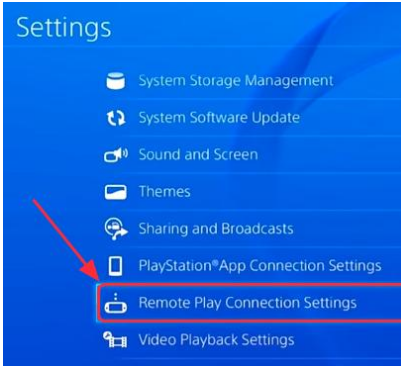
  • Open PS4 Settings
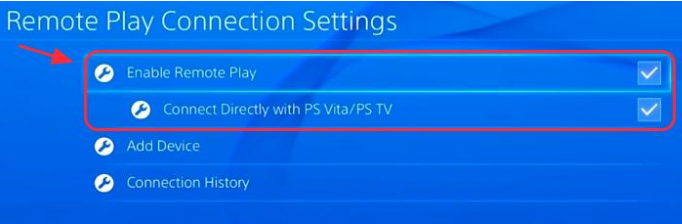
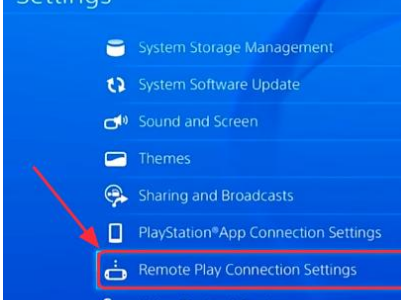
  • Click Remote Play Connection Settings
  • Settings
  • Now click Enable Remote Play by ticking the box next to it
  • enable remote play

Now that you’ve enabled this feature on PS4, it’s time to jump up to the second step.

Second Step – Download remote play application

So, you’ve made changes to PS4 settings. Now set up Android device settings.. Next, you’ll require the remote play application. Download it without delay.

Configure Android Device Settings

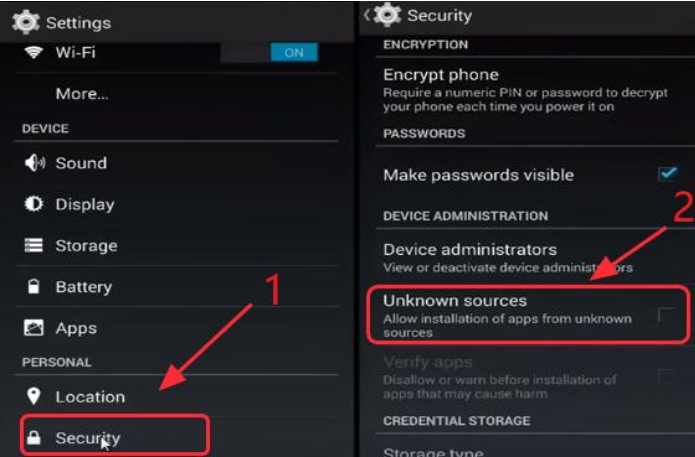
  • On your Android device, open Settings application
  • Click Security and then click Unknown sources
  • config android settings

These two steps will Android device to download as well as install apps without opening Google store.

Download, install Remote Play app on the Android device

Important: Before you proceed with the steps listed below, make sure that the Android device you’re using is 4.2 or above.

  • You can download the app by clicking on this link
  • We recommend you download it using the Android device you use
  • Once the download process is complete, browse to the location where you have downloaded the executable file and then tap it. This will kick-start the installation process. Simply follow on-screen instructions to install the app on the android device
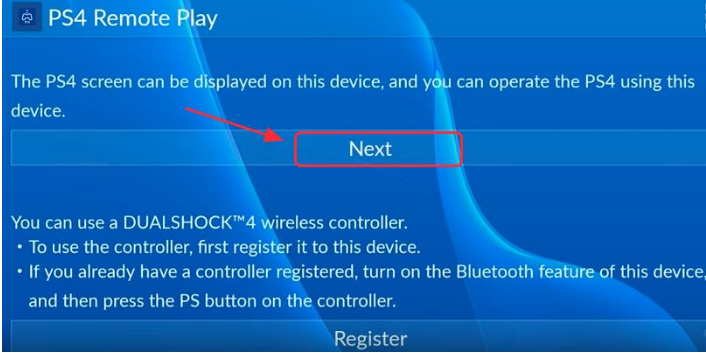
  • Once the application has been installed, launch it and tap Next.
  • click next
  • Now what you need to do is log into your own PlayStation account in this app, Once you do that, it will automatically connect

After the connection is successful, you can now stream screen on the PS4 to the Android device. When you rotate the smartphone, you will get different views of the screen.

All those having DualShock controller will need to manage their PS4 screen on their Android device using controller. To know about how to do this, simply follow the instructions listed in the following step.

Third Step – Connect PS4 controller to the Android device

You can easily play your favorite PS4 games on the Android device after you have successfully established a connection between the Android device and PS4.

That said, you can enhance your gaming experience by playing games using the controller.

Check the actual steps you need to follow to connect PS4 controller with Android device.

You can achieve this in two ways: connecting by USB cable or connecting using Bluetooth.

First Method – Connect the PS4 controller with the Android Device using USB cable

For this, you should use USB OTG cable. With this, you can connect without having to root the Android. You can purchase this type of cable for a few dollars over the Internet.

Here are the steps you need to follow to set up a connection between PS4 controller and the Android device

  • Connect the PS4 controller and the Android device using USB OTG cable
  • Now on your Android device, open Remote Play application. A pop-up message will appear on your screen
  • Now on the Android device, click Register. On the controller, press PS button
  • Now when the pop-up message appears regarding USB permission, tap allow USB permission
  • That’s it. You can enjoy favorite PS4 games using the controller

Second Method – Connect the PS4 Controller with Android device through Bluetooth

It is possible to directly connect the PS4 controller with Android device through Bluetooth.

Here are the steps you need to follow.

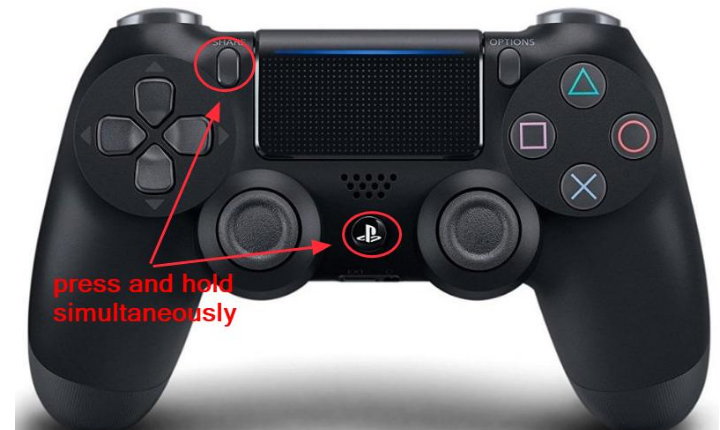
  • Hold down Share button along with PS button till it begins flashing. Now paired mode is turned on on the PS controller
  • connect via bluetooth
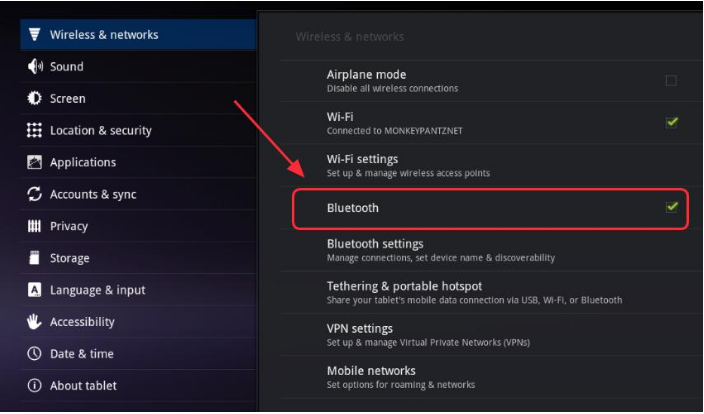
  • Now on the Android device, open Settings and then tap Bluetooth. Next, select turn on Bluetooth
  • turn on bluetooth
  • Locate Wireless Controller in Bluetooth page under Available devices, and then tap device to connect
  • Once the connection is successful, the controller will appear in Paired devices
  • Now it will be possible to manage the Android device using the PS4 controller

Filed Under: PC Fix Tips Tagged With: Remote Play PS4

Printer driver is unavailable

By Susan C on December 12, 2018

Printer driver is unavailable
printer-driver-unavailable

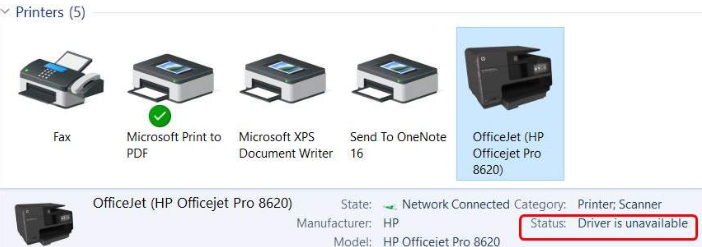
Printer driver is unavailable is a pretty common error in Windows 10. We have set out some solutions below.

Why does this error occur?

Some error messages can be quite misleading. The error message Printer driver is unavailable, while not completely misleading, doesn’t always mean that the problem is with the printer driver.

Usually this error occurs when your printer driver is corrupt. When this happens, the computer is unable to identify it. Sometimes this error also occurs when the installed printer driver is incompatible or outdated.

However, users have also reported that this error occurs because of reasons completely unrelated to the printer driver.

In this post, we’ll look at different solutions to the Printer driver is unavailable problem. You obviously don’t need to try all of these solutions. Start with the first one and move on to the next one and so on, till the issue is resolved.

Printer Drivers Download & Updates

Solutions to Printer Driver Is Unavailable Issue

Here are all known solutions to this printer driver error in Windows 10.

First Solution – Uninstall the Printer

There are 2 main solutions to Printer driver is unavailable issue. You can start with uninstalling the printer, as well as its related software. Once you’ve done that, reinstall it. Another method is to update the printer driver.

Let’s see the first method. When you uninstall your printer along with all its associated software, and then connect it, Windows will automatically install the default printer drivers.

Here are the steps to follow:

  • Press Windows key + R to launch the run box
  • Type control and click the OK button
  • In the control panel window, use the drop-down menu next to View by to select Large icons
  • Next click Devices and Printers
  • Now all installed printers will appear on your screen. Right-click the problematic printer and then click Remove device
  • Press Windows key + R to launch the run box again
  • Type devmgmt.msc and click the OK button. This will open the device manager window
  • Here browse to the Print queues category
  • Right-click the appropriate printer. Next, click Uninstall device
  • Again press Windows key + R to launch the run box
  • Here type  appwiz.cpl and then press Enter
  • All installed applications will appear. Locate the printer application, right-click it and click Uninstall
  • After you’ve performed these steps, you need to disconnect the printer from the computer in case it is connected through a USB connection. In case the printer uses wireless, disconnect it from your router.
  • Once you’ve done that, power off your computer, router, and printer. You should also plug out power supply of each of these devices
  • Wait for about 10 mins. Now plug the power supply of each of these devices. Connect your printer with the PC via USB cable. Let system detect the printer and install appropriate printer drivers
  • Now open control panel again. Right-click the device. Next choose “Set as default printer”

Once you’ve completed all these steps, check if you’re able to print.

Second Solution – Reinstall newest drivers manually

In case the aforementioned solution didn’t work, you can try to update printer drivers through the manual method.

In some cases, the printer is in perfect order and the error occurs because of a Windows update. It can happen that updated drivers may not work for certain systems. Many users with HP printers have particularly reported this problem.

Download HP Drivers

You can counter this problem by using the manual method to update printer drivers. Once you’ve done that, hide the update relevant to your printer.

Before you use Device Manager to update the printer driver, go to the official website of your printer manufacturer. Now search for the newest driver for your printer. Once you’ve found it, download the file to a suitable location on your PC.

Here are the steps to follow.

  • Press Windows key + R to launch the run box
  • Now type devmgmt.msc and click the OK button. This will open the device manager window
  • You will see all installed hardware in the list. Browse through it until you see Print queues. Right-click the printer hardware. Now click Update driver
  • You’ll see two options for updating the driver. Choose the 2nd option: Browse my computer for driver software
  • Go to the location where you’ve saved the driver file and update the printer driver

Note: It is possible that you may not see the printer in your device manager window. This problem has been reported by other users and is not a serious one. If that happens, simply run the installer. When you do that, printer driver is installed automatically.

  • See if your printer is now working properly. If that’s the case, you should go to Microsoft website (official) and download  “ “wushowhide.diagcab”” package
  • Now run this package. Then click Next
  • Choose the Hide updates option
  • If you see a printer update, select it. Follow onscreen prompts now. Through this action you can prevent Windows Update from automatically updating printer drivers

In case you don’t want to download printer drivers manually from the manufacturer’s website or in case, for some inexplicable reasons, you’re not able to locate the required drivers on the manufacturer’s website, you can use a driver update tool to update your printer drivers automatically.

Automatic driver update tools offer many benefits, the most important ones being:

  • You can update device drivers automatically
  • The software scans and updates all outdated or missing drivers at one go
  • The tool picks the right drivers for your device and operating system, so you won’t have to worry about installing an incorrect driver by mistake
  • Automatic driver updates are 100% safe

Driver Updater is one of the best driver update tools out there. Outbyte Driver Updater will give you access to a database of over 1 million drivers. It will regularly scan your PC, suggesting new driver versions to install. Driver Updater contains drivers for a variety of Windows devices. With just one click, you can update drivers in your system.

Step 1
Click here to Install and launch the app

Step 2
Scan all devices

Step 3
Install or update drivers automatically


Start Download


Other Workarounds

A few users have said that in their case the Printer Driver is unavailable issue occurred not because of any driver-related issue.

According to one user, the error happened because Windows 10 added a verification step to admin account of his PC. The user was able to resolve the issue by going through this verification step.

If the above-listed solutions failed to resolve the issue, we recommend you give this method a try, since it’s very simple. Here are the steps to follow.

  • Open Control Panel
  • Select User Accounts. Click User Accounts once more
  • Select Make changes to my account in PC settings
  • There will be a link to complete the verification process. Click this link and then follow verifications steps which you’d defined previously

Some users said that in their case installing the windows update fixed the issue. This may work if you have not installed Windows updates in a long time. As this also is a simple step, it is definitely worth a try.

Here are the steps to follow.

  • Open the start search box, type update in it and then select Check for updates
  • Click Check for updates
  • Now Windows will automatically install new updates
  • Wait for this process to complete. When that happens, restart Windows and check if the printer is working fine

Filed Under: PC Fix Tips Tagged With: printer driver unavailable

  • « Previous Page
  • 1
  • …
  • 134
  • 135
  • 136
  • 137
  • 138
  • …
  • 189
  • Next Page »


  • Recent Posts
  • Popular Posts
        

Read More Posts


Read More Posts

Drivers.com Sites

  • Software Drivers
  • Drivers Ed

About Us

  • Advertise
  • About Drivers
  • Drivers Support
  • Drivers.com Privacy Policy
  • Disclaimer
  • Software Drivers
  • Mac Fixes and Tips
  • PC Fix Tips
  • Security/ Backup
  • Tablets & Smartphones
  • Tech News

© Copyright 2026 PDE Publications Ltd. End User License Agreement (EULA)