Drivers.com

follow us:

facebook twitter
  • Home
  • Download Drivers
  • Drivers Help
  • PC/Mac Resources
  • Software Drivers
  • Mac Fixes and Tips
  • PC Fix Tips
  • Security/ Backup
  • Tablets & Smartphones
  • Tech News
  • Software Drivers
  • Mac Fixes and Tips
  • PC Fix Tips
  • Security/ Backup
  • Tablets & Smartphones
  • Tech News

How to extract audio from YouTube video?

By Susan C on October 25, 2018

How to extract audio from YouTube video?

Many times you want only the audio stream from the video. If you are looking for ways to rip audio from video, you have come to the right place. You can either use an audio extractor application or use online services to extract audio from video. Let’s look at both methods in detail.

Method One – Use an audio extractor application

There are several video converter applications that allow extraction of the audio stream from the video. Here we have used Audials One that is a popular video converter and audio extractor software. Audials One is a video-audio converter that allows you to extract audio stream in different formats like wmv, mp3, and mp4.

You can use Audials One to extract audio from any YouTube video. To extract audio you need to have a video file available on your computer. Here are the steps to extract audio using Audials One.

  • Click on the link to visit Audials One official page
  • Click on Try it free of charge to download Audials One
  • Once the file is downloaded, double-click on the setup file to start the installation
  • Open Audials One
  • In the left column, look for Universal Converter option and click on it to expand
  • Click Converter option that appears expanding Universal Converter
  • In the middle pane, click Files followed by a click on Add files option
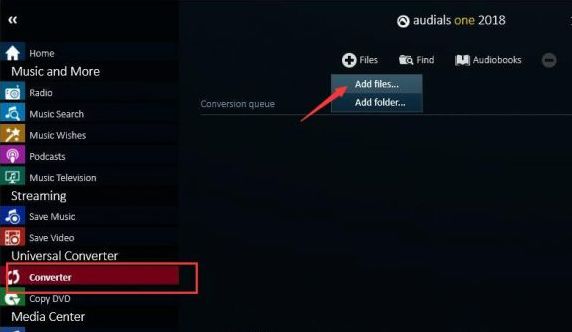
addfiles

  • Browse to the location of the downloaded YouTube video file
  • Select the file and click open
  • Audials One starts adding the selected audio Wait for the process to complete.
  • When the file is added, you will see a notification box with a Close button, click on it.
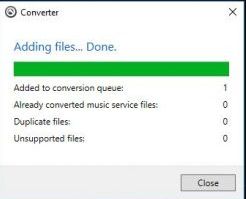
Click close

  • Now check the option – Convert video to audio and then click Start
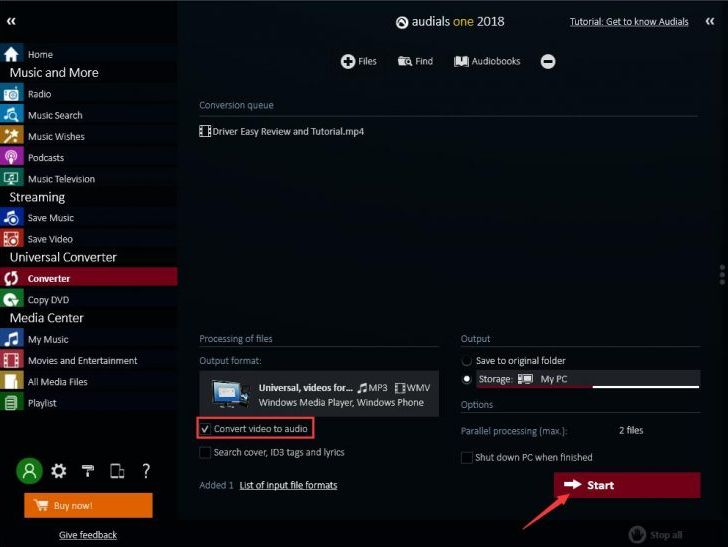
Click Start

Note – In the free version Audials One software there is a time limit on the length of the video audio conversion. You can only convert 30 minutes of video into audio. If your video is of longer duration, you will be required to upgrade to Pro version.

  • If the video length is lesser than 30 minutes, you can convert the video into audio
  • When you click on Start, you will see pop up with two options- Buy now or No thanks. If the length of the video is lesser than 30 minutes, click on No Thanks to proceed. if the video length is more than 30 minutes, you’ll have to purchase the software
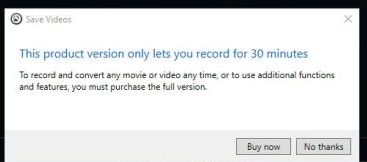
Buy now

If you do not want to upgrade to Pro version of Audials One, you can use the Method Two given below.

  • After you click Start followed by No Thanks, Audials One will start converting video to audio. Once the conversion is complete, click Edit option that appears in the right corner
  • Select Open folder to access the audio file
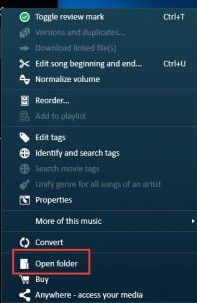
open folder

If you have any question related to using Audials One, you can refer the official help documentation. Click on the link to download manual for Audials One.

Method Two- Use online audio extraction service

In this method, you don’t need to download the YouTube video file to your computer. All you need is YouTube video URL. To rip audio from YouTube video using online service, follow the steps below

There are many online video to audio conversion services available on the Internet. You are free to use any service you like. Here we have demonstrated steps for extracting audio from video using www.onlinevideoconverter.com service.

  • Open a browser and go to onlinevideoconverter.com website
  • Copy the YouTube video URL and paste in the box
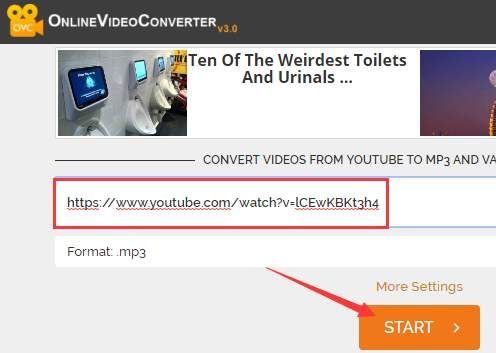
paste url

  • The default audio format is mp3. You can extract audio stream from the video in different formats like aac, ogg, m4a, wma, flac, and wav.
  • Click on More Settings to select Audio quality. the audio extraction can be done at different bit rates starting from 64 kbps to 320 kbps. the general rule is higher the bit rate, better the quality of the audio stream
  • Now click Start
  • Wait for the conversion process to complete. The time required for conversion depends on the length of the audio file.
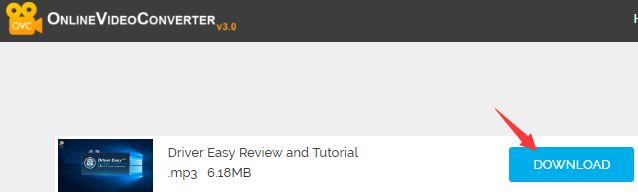
  • When the conversion of the file is done, you will see a page mentioning the name of the audio file(which is similar to video file) and two options – Download and Convert Again
  • Click Download


Filed Under: PC Fix Tips Tagged With: rip audio youtube

Enable or Disable Superfetch Service

By Susan C on October 25, 2018

Enable or Disable Superfetch Service

The Superfetch service in Windows is known to maintain and improve the performance of the system overtime.  It quietly runs in the background, analyzing RAM usage pattern and the applications you frequently use.

Over time Superfetch service marks these apps as “frequently used” and preloads them in memory. The result is the Windows operating system isn’t required to load them from the hard drive (which is slower) and the whole process of launching apps is much faster and responsive.

Why disable Superfetch service?

Though Superfetch service is intended to improve the performance of Windows, it sometimes also degrades its performance.  By default, Superfetch service is designed to take up all unused memory for all apps.  However, whenever the system needs memory, Superfetch frees the needed memory.

If you notice Superfetch is using too much of CPU and RAM resources and slowing down the system, you can disable it.  You can disable Superfetch service without any fear and it does not  impact the performance of the Windows operating system.

How to disable Superfetch service?

Here we have discussed two ways to disable Windows Superfetch service.  You can use any method to disable Superfetch service.

Method One- Disable Superfetch through Services Panel

Windows offers a centralized Services Panel through which you can manage any Windows service. Through the Services Panel, you can enable or disable any service. You can also set any Windows service to Automatic start, Automatic (delayed start) or Manual start.

Here are the steps to disable Superfetch service.

  • On your keyboard press, Windows logo key and R simultaneously to bring up Run command box
  • In the Run command box, type services.msc and hit Enter on the keyboard
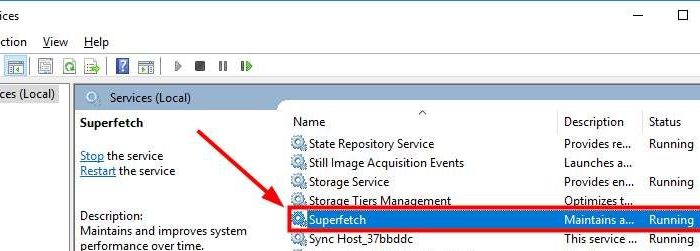
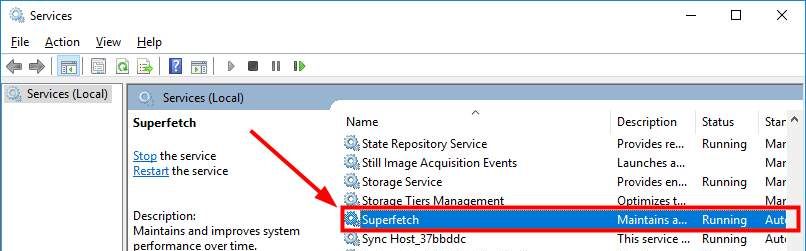
  • In the Services window, look for Superfetch service in the list and double-click on it

superfetch service

  • A Superfetch Service properties window opens, go to the General tab
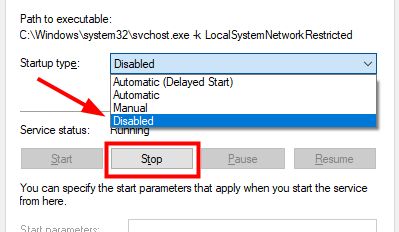
  • Under Start-up type, click the downward arrow button to reveal options in the drop-down list
  • Select Disabled

superfetch disabled

  • Under the Status section, click Stop button
  • Now click Apply and then click OK

You have successfully disabled Superfetch services. If you want to enable the Superfetch service anytime in future, just perform the steps above and in the 7th step, select Automatic or Automatic (Delayed start) and reboot your system.

Method Two- Disable Superfetch service through command prompt

  • Click Start and type cmd in Cortana search box
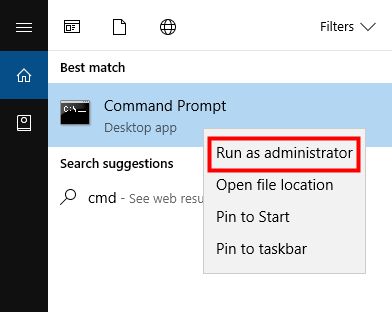
  • Right-click Command Prompt from the list of results and click Run as administrator

cmd prompt admin

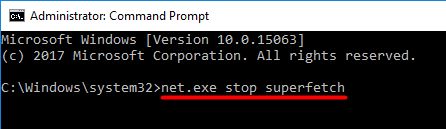
  • In the command prompt window, type the following command and press Enter on the keyboard

net.exe stop superfetch

net.exe stop superfetch

  • Wait for the command operation to complete. When the Windows stops Superfetch service, it will notify you with a message in command prompt window. See the image below.

service stopped msg

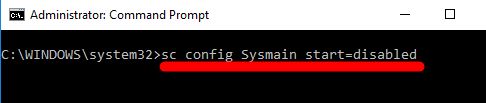
  • Now, type the following command in command prompt window and hit Enter on the keyboard

sc config sysmain start=disabled

config sysmain

  • Wait for the command operation to complete. When Window disables Superfetch service, it will notify you with “SUCCESS” message in command prompt window.

superfetch-success


Filed Under: PC Fix Tips Tagged With: superfetch disable

How to connect Bluetooth headphone to PlayStation 4?

By Susan C on October 21, 2018

If you are looking for ways to connect your Bluetooth headphone to PlayStation 4, you’ll find this post useful.

In this post, we have discussed four different ways to connect your Bluetooth headphone to PlayStation 4. Before looking at the methods to connect Bluetooth headphone, let’s see why Bluetooth connectivity in PlayStation 4 is not so straightforward and easy as one-two-three.

Can I play my PS4 on a Mac or PC?

Why you require turnarounds to connect Bluetooth headphone to PlayStation 4?

After the launch of PlayStation 4, Sony announced PlayStation 4 will not support A2DP technology, including Bluetooth devices. A2DP is an acronym for Advanced Audio Distribution Profile. The decision to not support A2DP also meant PlayStation 4 would not support any audio streaming Bluetooth profile.

The reason for Sony removing A2DP support from PlayStation 4 is technical. According to the company, the A2DP will be lagged by 100-200ms when used with PlayStation 4 and that will make things difficult for the user and affect the user gaming experience.

However, as we mentioned earlier there are turnarounds that would help you connect Bluetooth headphone to PlayStation 4.

Let’s look at different connection methods.

Method One- Use Bluetooth headphones supported by Sony

Most companies offer default support for a specific brand of Bluetooth devices, including those manufactured by them.

If you have a Sony Bluetooth headphone or your headphone packaging mentions compatibility with Sony products, there are chances your Bluetooth headphone might work with PlayStation 4.

Here are the steps you require to follow to pair your Bluetooth headphone with PlayStation 4.

  • Switch on your Bluetooth headphone and start the pairing mode
  • Switch on PlayStation 4 and open the Setting menu by following this path- Settings -> Devices
  • Click Bluetooth devices
  • You should see the name of your headphone appear in the list under Bluetooth devices
  • Click on your Bluetooth headphone name to pair the headphone with PlayStation 4.
  • if the Bluetooth headphone gets connected, you can go ahead and enjoy games on PlayStation 4 with sound directed to Bluetooth headphone

If you see an error message like could not connect to the following Bluetooth device or PlayStation 4 does not support your Bluetooth headphone, move to the next method.

Method Two- Connect Bluetooth headphone physically to the PlayStation  4 controller

In this method, you connect the Bluetooth headphone to PlayStation 4 using wire.

You will require audio cable like the ones that feature an in-built mic. Majority of the Bluetooth headphone manufacturer provide such audio cable with mic.

If you don’t have one, you can buy one from an online store. Once you have the audio cable with you, follow the steps given below.

  • Connect your PlayStation 4 controller and Bluetooth headphone with the audio cable
  • Switch on the Bluetooth headphone
  • Go to the PlayStation 4 settings menu and click Devices and then choose Bluetooth devices
  • You will see the name of your Bluetooth headphone in the list, select it
  • Now go to Devices and then click Audio Devices
  • Select Output Device and then choose Headset connected to the controller
  • Select Volume Control
  • Adjust the volume level as per your preference.
  • Select Output to headphones and then choose All audio

Now see if the Bluetooth headphone works with your PlayStation 4. If this method does not work for you, go to the next method.

Method Three – Use a USB adapter to connect Bluetooth headphone to PlayStation 4 controller

This is one of the easiest ways to connect your Bluetooth headphone to your PlayStation 4 controller.

All you require is a USB adapter to connect to PlayStation 4. You can use any USB adapter. If you don’t have any USB adapter, you can buy one online.

  • Plug in the USB adapter in PlayStation 4 USB port
  • Switch on your Bluetooth headphone
  • Go to the PlayStation 4 Settings screen and select Devices and then choose Audio Devices
  • Select Output Device and then choose USB headphone
  • Select Volume control
  • Adjust the volume level to your preference
  • Choose Output to headphones and then choose All audio

Start your PlayStation 4 and see if the Bluetooth headphone is working. If this method does not work for you, try the next method.

Method Four – Use a Bluetooth dongle to connect Bluetooth headphone to PlayStation 4

This is also one of the easiest methods to connect your Bluetooth headphone to PlayStation 4. In this, you will require a Bluetooth USB dongle and a wireless microphone.

Here are the steps to follow.

  • Plug in the wireless mic in the PlayStation 4 controller
  • Plug in the Bluetooth USB dongle in PlayStation 4 USB port
  • turn on the Dongle on by pressing the button on it
  • Switch on your Bluetooth headphone and move closer to Bluetooth dongle. Wait for some time to allow them to connect.
  • go to the PlayStation 4 settings screen
  • Select Devices -> Audio Devices
  • Select Input Device and then choose Headset connected to the controller
  • Select Output Devices and then choose USB headphone
  • Select Volume control
  • Adjust the volume level to your preference
  • Choose Output to headphones and then choose All audio

Now see if the Bluetooth headphone works with your PlayStation 4. If one of the methods has worked for you, we suggest you update display drivers to enhance game performance.

Here’s how you update your drivers.

Pro-tip – Update Drivers

As you might already know, you can update drivers manually through Device Manager. But did you know that this method is often time-consuming? What’s worse, you mightn’t be able to find the latest drivers for a device through manual method even after spending several minutes.

Precisely for this reason, many Windows users prefer to use a driver update program.

Automatic driver update tools offer many benefits, the most important ones being:

  • You can update device drivers automatically
  • The software scans and updates all outdated or missing drivers at one go
  • The tool picks the right drivers for your device and operating system, so you won’t have to worry about installing an incorrect driver by mistake
  • Automatic driver updates are 100% safe

Driver Updater is one of the best driver update tools out there. Outbyte Driver Updater will give you access to a database of over 1 million drivers. It will regularly scan your PC, suggesting new driver versions to install. Driver Updater contains drivers for a variety of Windows devices. With just one click, you can update drivers in your system.

Step 1
Click here to Install and launch the app

Step 2
Scan all devices

Step 3
Install or update drivers automatically


Start Download


Filed Under: PC Fix Tips Tagged With: bluetooth on PS4

  • « Previous Page
  • 1
  • …
  • 142
  • 143
  • 144
  • 145
  • 146
  • …
  • 189
  • Next Page »


  • Recent Posts
  • Popular Posts
        

Read More Posts


Read More Posts

Drivers.com Sites

  • Software Drivers
  • Drivers Ed

About Us

  • Advertise
  • About Drivers
  • Drivers Support
  • Drivers.com Privacy Policy
  • Disclaimer
  • Software Drivers
  • Mac Fixes and Tips
  • PC Fix Tips
  • Security/ Backup
  • Tablets & Smartphones
  • Tech News

© Copyright 2026 PDE Publications Ltd. End User License Agreement (EULA)