


Every Windows update serves some purpose or the other. However, Windows 10 anniversary update is particularly important because it brings exciting improvements and features to Windows 10. Additionally, this update also improves Windows 10 stability.
In case you have chosen the Windows Update installed automatically option, you don’t need to do anything to get this update, since it will be automatically downloaded and installed on your system.
On the other hand, if you have not set this option, you will have to download it manually and then install it. This is an easy procedure and anybody, even those with limited technical knowledge, can do this without any hassle. And in this post we will show you how to manually download as well as install Windows 10 anniversary update.
Manual Installation of Windows 10 Anniversary Update
You’ll have to perform the following steps to manually download as well install this all-important update.
- In the Start Search box that you see on the left bottom corner of your screen, type settings
- A menu will appear with search results. Click the Settings option in this menu
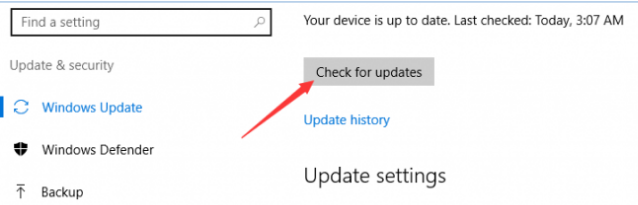
- Next select Update & Security
- Then select Check for updates
- Once you click this, the system will download all the latest updates, including Windows 10 Anniversary Update. The version of this update is 1607
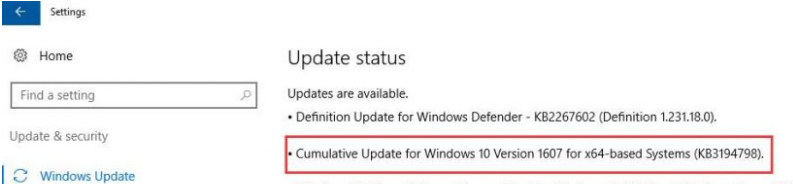
- You’ll need to reboot your computer after the update is complete. Therefore you need click the Restart Now option that appears on your screen
Note: You can use Windows Update feature to download the Anniversary Update only if you have had Windows 10 for a minimum of 30 days. In case 30 days have not passed since you’ve updated to Windows 10, you can go to the Microsoft website to download the update.
Getting Windows 10 Anniversary Update From Microsoft Website
This update is also available on the Microsoft Site. Here are the steps you need to follow to get the update.
- Go to the Microsoft download page
- Here you need to click Get the Anniversary Update now
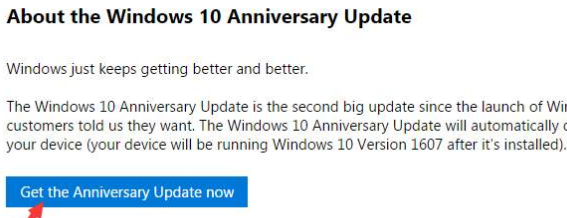
- Once you click it, the download process will start automatically
Next you need to browse to the location where the downloaded file has been saved (this file will have the .exe extension). Double-click the file to install the update. Once the update has been installed, you’ll be prompted to restart your computer. Do that so that the new changes can take effect.
Leave a Reply