Drivers.com

follow us:

facebook twitter
  • Home
  • Download Drivers
  • Drivers Help
  • PC/Mac Resources
  • Software Drivers
  • Mac Fixes and Tips
  • PC Fix Tips
  • Security/ Backup
  • Tablets & Smartphones
  • Tech News
  • Software Drivers
  • Mac Fixes and Tips
  • PC Fix Tips
  • Security/ Backup
  • Tablets & Smartphones
  • Tech News

Resources by Tag

Youtube not working

YouTube Not working in Google Chrome Issue [7 DIY Solutions]

YouTube Not working in Google Chrome Issue [7 DIY Solutions]

YouTube is a popular video sharing and social media platform. Millions of people (if not more) use it on a daily basis, but that doesn’t mean it cannot throw up an error every now and then.

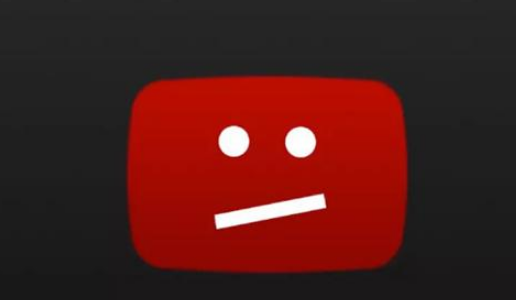
A common problem that users report is “YouTube Not Working in Google Chrome.”

Are you facing the same issue? If so, this post is just for you. We have discussed seven solutions to this problem. Of course, you don’t have to try each one of them. Start with the first one in the list and move to the next solution and so forth until you are able to fix the issue.

Before anything else

Before you follow any troubleshooting solution, you need to check a few things like your internet speed and the video quality (resolution) selected in the YouTube app. YouTube allows you to watch YouTube ads in HD which requires a fast internet connection. By default, YouTube video resolution is set to change automatically depending on your internet speed.

If your internet is slow (it happens sometimes), automatic settings can cause problems. Hence, you need to check your internet speed and try playing the YouTube video at a lower resolution.

Solution One –Close Chrome through Task Manager

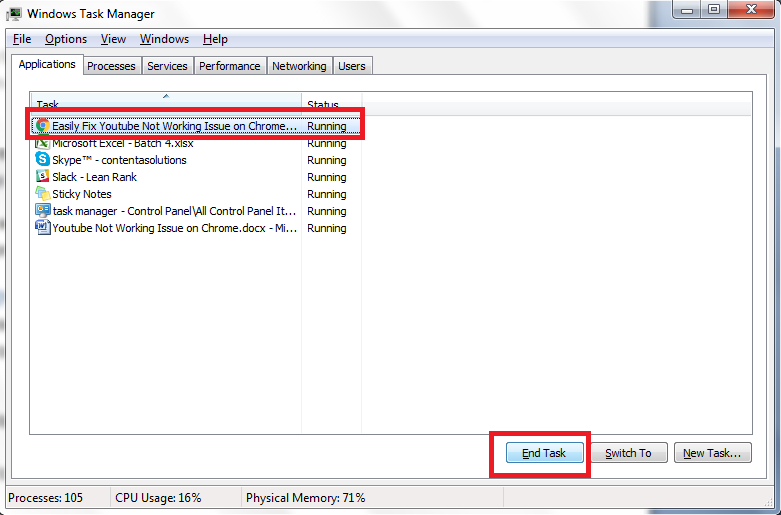
There is a possibility the YouTube Chrome issue is temporary and restarting the Chrome can help resolve the issue. You don’t need to close the Chrome browser like you normally do. Instead, close it via the Task Manager. This will end all processes related to Chrome.

Here are the steps to follow.

  • Press Ctrl+Alt+Delete on the keyboard to open Task manager.
  • In the Task Manager window, right-click on Google chrome listed under Apps
  • Click End task from the task list.
  • Restart your browser and see if YouTube is working.

Solution Two- Clear Chrome browsing data

Deleting the browsing data helps troubleshoot and it also improves the performance of web applications. Many times the browser does not load a new version of the application and continues to use information from the cache when loading a particular web application. By deleting browsing data, the browser will be forced to connect to the application’s web server and load the new version. Here are the steps to follow.

  • Open Chrome browser
  • Click the three dots on the top right-hand side to open the Chrome menu
  • Look for option More tools and click on it
  • You see a new column with an option Clear browsing data
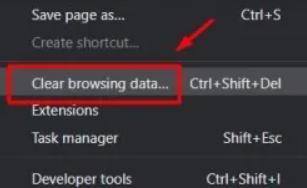
  • In the next window, you will find an option Time Range. You need to select All time from the drop-down menu
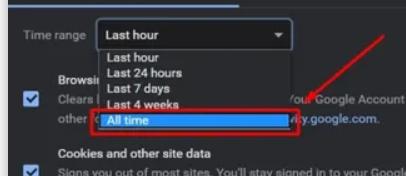
  • Close all menus
  • Refresh the page and try loading YouTube again.

Solution Three – Turn Off hardware acceleration

Hardware acceleration is a feature in Chrome that allows the application to offload certain tasks to specialized hardware components instead of CPU.

Many users have mentioned turning off hardware acceleration has helped them resolve YouTube not working on Chrome issue.

Here are the steps to turn off hardware acceleration.

  • Open Chrome and click the three-dot menu on the top right-hand corner
  • Click Settings
  • In the Settings window, type hardware acceleration to find the option
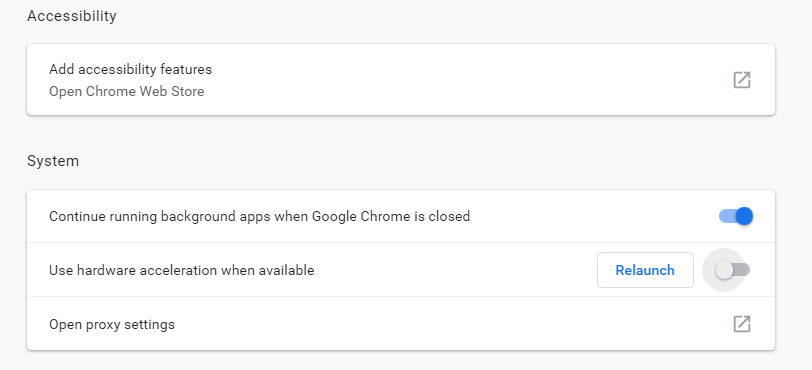
  • In the search results, look for the “use hardware acceleration when available” option and click the toggle switch to turn it off.
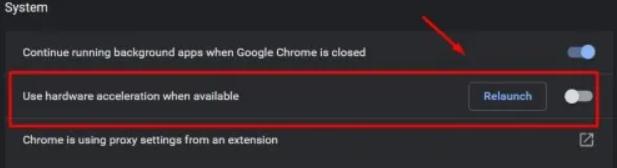
  • Restart Chrome browser and see if the YouTube not loading issue is resolved

Solution Four – Enable JavaScript

According to experts, the embed code of YouTube is an iframe that links to a normal HTML page that uses JavaScript to load the video you want to see. However, you can also watch YouTube videos without enabling JavaScript in Chrome. Here we will try enabling JavaScript and see if it helps resolve the issue.

Here are the steps to enable JavaScript.

  • Open Chrome browser
  • Click the Menu option and then click Settings
  • Under “Privacy and security“, you will find an option Site settings, click on it
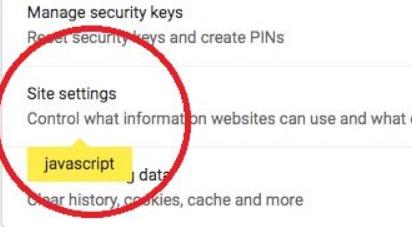
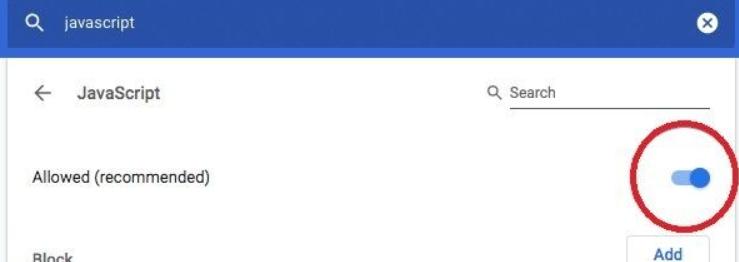
  • In the next window, click JavaScript
  • A new window will open that provides you the option to enable JavaScript. Click the toggle switch to enable JavaScript.
  • Close Settings window

Solution Five – Use Chrome’s Incognito Mode

Chrome offers an Incognito mode that does not track any user information. Open the Chrome in Incognito Mode and try playing YouTube videos. If the YouTube videos play well in Incognito mode, the issue could be related to your Google Account or its settings.

Solution Six – Update Video Drivers

The YouTube not playing in Chrome could be related to your graphic drivers. There is a possibility the graphics drivers are outdated.

You can update graphics driver in two ways — manually and automatically. The latter is a much simpler and faster process and doesn’t require any technical knowledge. All the same, we have given the steps for both methods.

Updating Graphics Card Manually

  • Press Windows logo key + R together to bring up the Run command
  • In Run command, type devmgmt.msc and click OK
  • In the Device Manager, go to Display adapters and expand it
  • Right-click your graphics card and click Properties
  • Go to the driver tab and click Update Driver
  • In the next window, select Search automatically for updated driver software and follow onscreen instructions

Windows will search the internet to find a driver update and install it. If it does not find a driver update, you have to manually download the graphics card driver and install it.

  • Open Internet browser
  • Go to the Graphics Card manufacturer website
  • Go to the Download section and select your product
  • Download the graphics driver compatible with your OS. For instance, Windows 10 32-bit users should download the driver meant for 32-bit PCs. Likewise, if you use 64-bit Windows 10, go for a driver designed for 64-bit.
  • Double-click on the driver setup file to install the driver and follow onscreen instructions (if any)
  • Restart your computer

Updating Graphics Card Automatically

Automatic driver update tools offer many benefits, the most important ones being:

  • You can update device drivers automatically
  • The software scans and updates all outdated or missing drivers at one go
  • The tool picks the right drivers for your device and operating system, so you won’t have to worry about installing an incorrect driver by mistake
  • Automatic driver updates are 100% safe

Driver Updater is one of the best driver update tools out there. Outbyte Driver Updater will give you access to a database of over 1 million drivers. It will regularly scan your PC, suggesting new driver versions to install. Driver Updater contains drivers for a variety of Windows devices. With just one click, you can update drivers in your system.

Step 1
Click here to Install and launch the app

Step 2
Scan all devices

Step 3
Install or update drivers automatically


Start Download


Solution Seven – Reinstall Chrome

As a last resort, uninstall and reinstall Google Chrome. Here are the steps to follow.

  • Click Start and type Control panel
  • In the control panel, click Uninstall a program
  • Right-click Google Chrome from the list and select uninstall
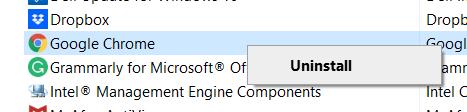
  • After Google Chrome is installed, open Microsoft Edge and download and install the latest version of Google Chrome
Filed Under: PC Fix Tips Tagged With: Youtube not working

YouTube Not Working Issue on Chrome

YouTube Not Working Issue on Chrome

More than once users have reached out to us to help them with “YouTube not working issue on chrome”.

Given that this issue is common—as well as easily resolvable—we’ve decided to dedicate a full post to it.

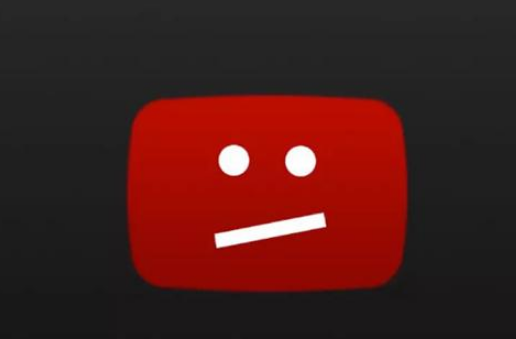
What happens is that when you try to play some YouTube video on chrome, the video doesn’t load and instead the following is seen on the screen. Usually there’s no accompanying error message.

Youtube-error-in-chrome

Because this error can be resolved easily, including users with little or no technical knowledge, there’s absolutely nothing to worry about.

In this post, we show you different ways in which you can fix the issue. Start with the first solution, and if it doesn’t work, try the next one and so on and so forth.

Solution 1 – Use Task Manager To Close Chrome

The first thing you need to do is close chrome forcefully and then restart it. Here are the steps you need to follow to close Chrome through Task Manager.

  1. Press Ctrl+Alt+Del
  2. Select Start Task Manager option (usually it is the last option in the list)
  3. Click the Application tab
  4. Select Chrome in the list of current tasks running on your computer
  5. Click the End Task button
Close Chrome

Solution 2 – Configure Chrome Settings

If the problem persists, open Chrome settings and uncheck the box before “Use hardware acceleration when available”.

Several Chrome users have said that this step has worked for them and it may help resolve the Youtube issue in your case, too. So it is definitely worth a shot.

Here are the steps you need to follow:

  1. Open Chrome
  2. Click the three dots on the top-right corner of your Chrome window
  3. Next click Settings
  4. Click Advanced Settings (located at the bottom of the Settings page)
  5. Browse to the System section, turn off “Use hardware acceleration when available”
disable hardware acceleration
  1. Close the Chrome window
  2. Reopen it and check if the issue is resolved

Solution 3 – Clear Cache

Try clearing the cache if the problem persists. Here are the steps to follow:

  1. Launch Chrome
  2. Click the three dots on the top-right corner of your Chrome window
  3. Click More tools and then select Clear browsing data
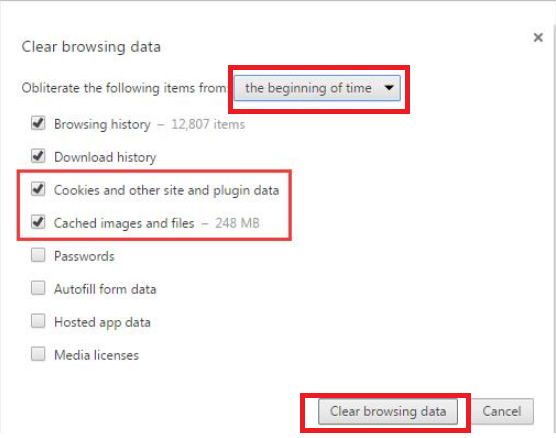
  4. Make sure the check boxes before Cached images and file and Cookies and other site and plugin data are clicked
  5. From the drop-down menu at the top select the beginning of time
  6. Next click the clear browsing data button
clear browsing data
  1. Close the Chrome window
  2. Reopen it and check if the issue is resolved

Solution 4 – Disable Problematic Extension

Sometimes the YouTube issue is because of installed extensions. Therefore, you should disable the installed extensions one by one to locate the extension that’s the root cause of this problem.

Here are the steps to follow:

  1. Start Chrome
  2. Click the three dots on the top-right corner of your Chrome window
  3. Click More tools and then click Extensions
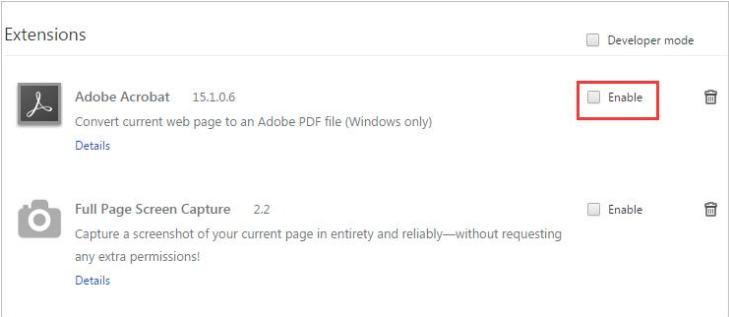
  4. Uncheck the box before the first listed extension, close Chrome, restart it and check if the issue is resolved
disable extension
  1. Now repeat this step for all extensions one by one
  2. If you find that disabling a particular extension allows YouTube videos to play on Chrome, you can safely deduce that this extension was causing the problem. Therefore delete this extension by clicking the remove button or the recycle button (depending on your Chrome version)
  3. Restart Chrome

Solution 5 – Reinstall Chrome

If the problem is not because of extensions, you should uninstall Chrome and then reinstall it.

It would be a good idea to export your bookmarks before uninstalling Chrome. Once you’ve reinstalled Chrome, you can simply import your bookmarks.

Export Bookmarks

  1. Start Chrome
  2. Click the three dots on the top-right corner of your Chrome window
  3. Click Bookmarks and then select Bookmarks Manager
  4. Click the three dots on the top-right corner of your Bookmarks Manager window
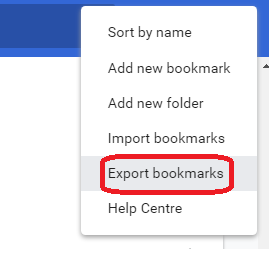
  5. Next Select Export Bookmarks
Export bookmarks
  1. Decide where you would like to save the file, give it a name, and then click the Save button

Uninstall Chrome

Once you’ve made a backup copy of your Chrome bookmarks, you can safely uninstall Chrome. To do the same, perform these steps:

  1. Type Control Panel in the start search box and then press Enter to launch the Control Panel window
  2. Click Programs and Features
  3. In the list of programs, locate and right-click Google Chrome and then click Uninstall
  4. Windows will now uninstall Chrome. The whole process shouldn’t take more than a minute.

Install Chrome

Once Chrome in uninstalled, you can go to the Google Chrome website, download the latest Chrome version, and install it.

Here are the steps to follow.

  1. Go to the Google Chrome official website
  2. Click the Download Chrome button
  3. In the Google Chrome Terms of Services window, select Set Google Chrome as my default browser
  4. Click Accept and Install
  5. Once Chrome is installed, launch it to import bookmarks

Import Bookmarks

  1. Start Chrome
  2. Click the three dots on the top-right corner of your Chrome window
  3. Click Bookmarks and then select Bookmarks Manager
  4. Click the three dots on the top-right corner of your Bookmarks Manager window
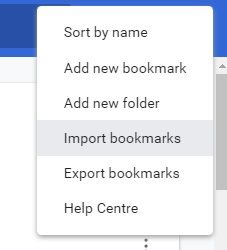
  5. Next Select Import Bookmarks
Import Bookmarks
  1. Now browse to the location where you’d stored the file containing your bookmarks, select that file, and click Open

Solution 6 – Update Your Video Drivers

Did you know that outdated video drivers can cause a host of problems, including the aforementioned YouTube issue?

That’s why it is necessary that you keep your video drivers updated.

If the above-listed solutions have not worked for you, there’s a strong chance that your video driver is either outdated or corrupt. In both cases, you need to install the latest video drivers.

How can you do that?

Well, there are two ways. You can update drivers manually through device manager or install them automatically using a reliable and quick driver update tool.

Automatic driver update tools offer many benefits, the most important ones being:

  • You can update device drivers automatically
  • The software scans and updates all outdated or missing drivers at one go
  • The tool picks the right drivers for your device and operating system, so you won’t have to worry about installing an incorrect driver by mistake
  • Automatic driver updates are 100% safe

Driver Updater is one of the best driver update tools out there. Outbyte Driver Updater will give you access to a database of over 1 million drivers. It will regularly scan your PC, suggesting new driver versions to install. Driver Updater contains drivers for a variety of Windows devices. With just one click, you can update drivers in your system.

Step 1
Click here to Install and launch the app

Step 2
Scan all devices

Step 3
Install or update drivers automatically


Start Download


Filed Under: PC Fix Tips Tagged With: Youtube not working


  • Recent Posts
  • Popular Posts
        

Read More Posts


Read More Posts

Drivers.com Sites

  • Software Drivers
  • Drivers Ed

About Us

  • Advertise
  • About Drivers
  • Drivers Support
  • Drivers.com Privacy Policy
  • Disclaimer
  • Software Drivers
  • Mac Fixes and Tips
  • PC Fix Tips
  • Security/ Backup
  • Tablets & Smartphones
  • Tech News

© Copyright 2026 PDE Publications Ltd. End User License Agreement (EULA)