


Many Windows 10 users have complained about various sound problems after installing updates. One of the sound related complaints is there is no sound. This issue can be quite frustrating. Most of the times such sound issue occurs when drivers are not compatible with Windows 10 or sound drivers are missing altogether.
If you are facing a similar problem, don’t worry as we have provided 3 solutions that could fix the issue. Let’s get started
Step 1- Check sound drivers
Before you proceed to update drivers or make any changes to sound settings, you need to ensure the cause of the “no sound” issue is related to drivers. It’s quite easy to find out. All you need to do is open Device Manager and look for any problems with the sound driver.
Based on your findings, you can then proceed to choose the right solution to fix the issue. There are three probabilities when you check the sound drivers in Device Manger.
- If you see a yellow exclamation mark besides the Realtek HD Audio, it means the drivers are incompatible or outdated. A simple solution to this problem is updating sound drivers
- If you see a red cross besides the Realtek HD Audio, it means the drivers are missing. A simple solution to this problem is installing the right sound drivers
- If you see there is no indicative sign besides Realtek HD Audio, you need to update drivers to see if it resolves the issue
Step 2 – Update Drivers
Here are the steps you need to follow
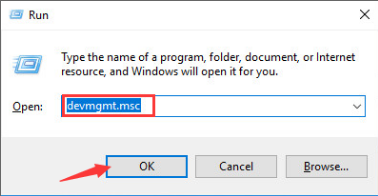
- Press Windows logo key and R simultaneously to bring up the Run command console.
- In the Run command box, type devmgmt.msc and hit Enter on keyboard
- In the Device Manager window, go to Sound, video and game controllers and expand it
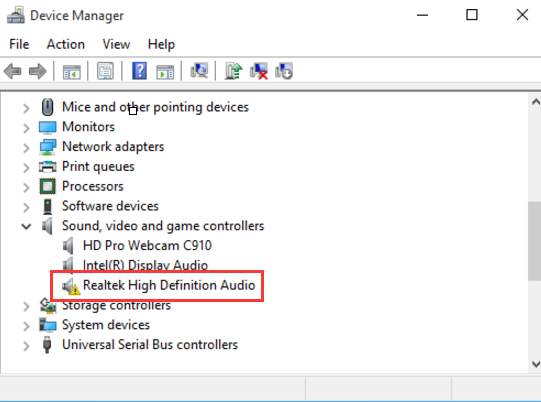
- Look for any signs like a yellow exclamation mark or a red cross besides Realtek High Definition Audio
- If you see the yellow exclamation mark, go to Solution One.
- If you see a red cross, go to Solution Two
Solution One – Updating Realtek sound driver through Device Manager
- Open Device Manager and go to go to Sound, video and game controllers and expand it
- right-click Realtek High Definition Audio and choose Update Driver Software
- In the next window, click Browse My Computer for Driver Software.
- Under Let me pick from a list of device drivers on my computer, select Install High Definition Audio Device.
- Once you have completed the above steps, repeat steps 1-4, and then install the latest Realtek High Definition Audio Version.
Play any audio file and see if you can hear the sound. If the problem still persists, move to Solution Four
Solution Two – Download and install sound drivers from Realtek website
- Open browser and go to Realtek portal
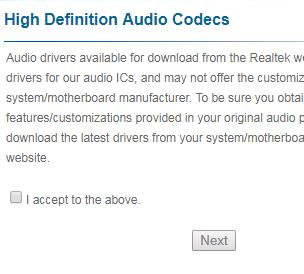
- Click the box – I accept to the above and click Next
- You can see the Realtek website offers different options for downloading sound drivers. If you have 32-bit Windows 10, download 32-bit sound drivers and if you have 64-bit sound drivers, download 64-bit sound drivers
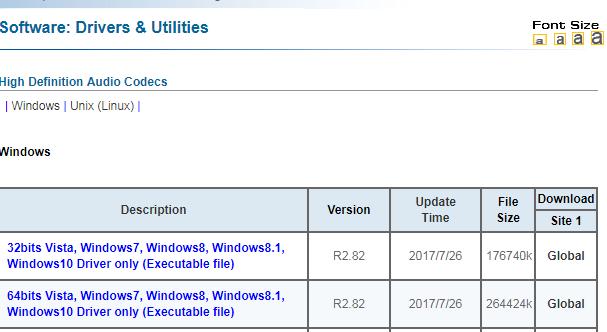
- The sound drivers are downloaded as an exe After the file is downloaded, double-click on the exe file to start the installation
- Follow any instructions that appear on the screen to install Realtek HD sound drivers
Open media player and play any audio or video file to check whether sound issue is resolved. If the problem persists, move to next solution.
Solution Three – Update sound drivers with Driver Update Tool
Automatic driver update tools offer many benefits, the most important ones being:
- You can update device drivers automatically
- The software scans and updates all outdated or missing drivers at one go
- The tool picks the right drivers for your device and operating system, so you won’t have to worry about installing an incorrect driver by mistake
- Automatic driver updates are 100% safe
Driver Updater is one of the best driver update tools out there. Outbyte Driver Updater will give you access to a database of over 1 million drivers. It will regularly scan your PC, suggesting new driver versions to install. Driver Updater contains drivers for a variety of Windows devices. With just one click, you can update drivers in your system.
Step 1
Click here to Install and launch the app
Step 2
Scan all devices
Step 3
Install or update drivers automatically