


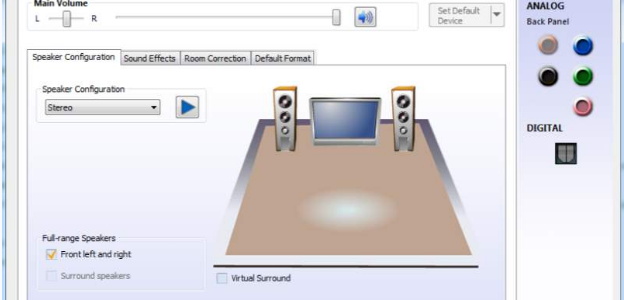
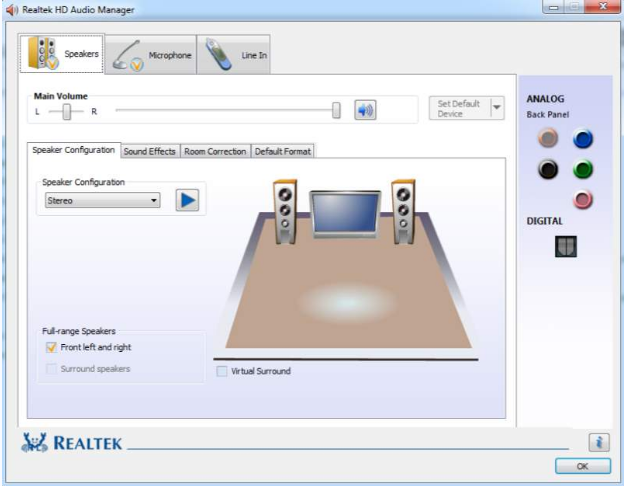
When you install Realtek Audio Driver on your pc, Realtek HD Audio Manager gets automatically installed. You can use this application to tweak sound settings as you like to customize the sound experience.
However at times, you may find that Realtek HD Audio Manager is missing for no reason. When this happens, there’s a strong chance your Realtek audio driver has become corrupt.
The good news is that the “Realtek HD Audio Manager Missing” issue is not a serious one. You can resolve it easily by reinstalling the Realtek audio driver.
Read on to learn how to reinstall Realtek audio driver.
Downloading Realtek Audio Driver
You can download this driver in two ways.
- Manually – To download Realtek audio driver or any other driver for that matter, you need some basic computer skills. Along with it, you also need some patience as manual downloading process can be time-consuming.
- Automatically (Recommended) – We recommend this method simply because it allows you to update the Realtek audio driver in less than 2 minutes and with far less effort.
Downloading Realtek Audio Driver Manually
First you’ll need to know your system version. If you don’t know this, simply perform the steps below.
- Press Windows Key + R to launch the run dialog box
- Type ‘winver’ in the box and press Enter
- The necessary information will be displayed on your screen
Once you’ve gathered the required information, go to the official Realtek website and search for the latest drivers for your windows version. Once you’ve found the drivers, download and install them.
Downloading Realtek Audio Driver Automatically
As you can see, the manual option is time-consuming and a little technical. A more straightforward and quick approach is to use a reliable and accurate driver update software tool.
Automatic driver update tools offer many benefits, the most important ones being:
- You can update device drivers automatically
- The software scans and updates all outdated or missing drivers at one go
- The tool picks the right drivers for your device and operating system, so you won’t have to worry about installing an incorrect driver by mistake
- Automatic driver updates are 100% safe
Driver Updater is one of the best driver update tools out there. Outbyte Driver Updater will give you access to a database of over 1 million drivers. It will regularly scan your PC, suggesting new driver versions to install. Driver Updater contains drivers for a variety of Windows devices. With just one click, you can update drivers in your system.
Step 1
Click here to Install and launch the app
Step 2
Scan all devices
Step 3
Install or update drivers automatically