
Drivers.com

follow us:

facebook twitter
  • Home
  • Download Drivers
  • Drivers Help
  • PC/Mac Resources
  • Software Drivers
  • Mac Fixes and Tips
  • PC Fix Tips
  • Security/ Backup
  • Tablets & Smartphones
  • Tech News
  • Software Drivers
  • Mac Fixes and Tips
  • PC Fix Tips
  • Security/ Backup
  • Tablets & Smartphones
  • Tech News

Scan to Computer is no Longer Activated Printer Error (Fixed)

By Susan C on January 8, 2020

Printer errors can be very frustrating and the “scan to computer is no longer activated” error is no different. However, the good news is that it is relatively easy to fix.

In this post, we’ll show not one but three possible solutions for this error.

Solution 1 – Check Your Printer Connection

This error, much like several printer-related issues, can prevent you from printing files. Before you try other solutions, we recommend you check the printer connection.

First check how your printer is connected. Is it connected using a USB? In that case make sure the USB is properly connected to the computer.

Have you connected the printer not via a USB but wirelessly? In that case ensure your printer is connected to your network.

If your printer is already properly connected, move on to the next solution in the post.

Solution 2 – Reinstall the Printer Driver

As often as not, the real cause behind this kind of printer issue is a corrupt printer driver. In such cases, updating the printer driver usually does the trick.

Now you can update the driver software in two ways – manually and automatically. The latter is easier and much faster. It also doesn’t require any sort of technical knowledge. Nonetheless we have discussed both options so you can decide which one to choose yourself.

Updating Printer Driver Manually

Here are the steps to follow:

  • Press Windows logo key + R together to bring up the Run command
  • In Run command, type devmgmt.msc and click OK
  • In the Device Manager, go and expand Print queues
  • Right-click the printer software and select Uninstall device
  • Restart Windows. Upon reboot, Windows will install the printer driver on its own.

However, in case Windows fails to do that, you’ll have to visit the printer manufacturer’s website and download and install the latest printer driver manually. Make sure you download the latest driver for your version of Windows. For instance, if you are using a 32-bit Windows 10, the driver should be for 32-bit only, not 64-bit.

Update Printer Driver Automatically

Automatic driver update tools offer many benefits, the most important ones being:

  • You can update device drivers automatically
  • The software scans and updates all outdated or missing drivers at one go
  • The tool picks the right drivers for your device and operating system, so you won’t have to worry about installing an incorrect driver by mistake
  • Automatic driver updates are 100% safe

Driver Updater is one of the best driver update tools out there. Outbyte Driver Updater will give you access to a database of over 1 million drivers. It will regularly scan your PC, suggesting new driver versions to install. Driver Updater contains drivers for a variety of Windows devices. With just one click, you can update drivers in your system.

Step 1
Click here to Install and launch the app

Step 2
Scan all devices

Step 3
Install or update drivers automatically


Start Download


Solution 3 – Remove ‘Scan to computer is no longer activated error’

In some case, you are able to print files, even though the aforementioned error message keeps popping up on your screen every few minutes.

Here are the steps to remove it.

  • Press Ctrl+Shift+Esc
  • In the task manager window, locate scanToPCActivationApp below Process tab. Now right-click it and select End task
  • Now click the Startup tab. Under it locate and select scanToPCActivationApp. Now right click it and select Disable
Filed Under: PC Fix Tips Tagged With: printer error

USB Device Over Current Status Detected (Fixed)

By Susan C on January 3, 2020

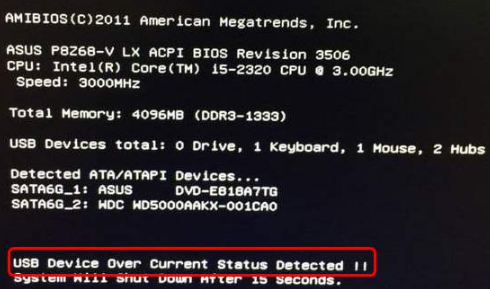
USB Device Over Current Status Detected (Fixed)

This is one problem that many Asus users have reported. What happens is that the computer shuts itself down after the user has been playing video games for some time. The following error message is likely to appear on the screen.

So what can you do to get rid of this error? Well, try the solutions in this post. They have worked for other users, and we are positive at least one of these will do the trick for you as well.

Let’s dive right in.

Error Introduction

Before we look at the solutions, first let’s understand what “USB Device Over Current Status Detected” means in the first place?

As you may have guessed, the error has something to do with the USB devices. Specifically speaking, at least one of the USB devices is facing some sort of overlading issue. Because of this, the computer shuts itself to protect it against further damage. However, in some cases, this preemptory action is a minute too late and much damage has already been done. In these cases, you’d be able to smell something burning.

The precise issue may vary from one case to another. Sometimes something is wrong with the BIOS while other times faulty devices are the culprit. Still other times the real reason be mangled USB ports or faulty USB devices.

Now let’s see the troubleshooting steps.

Solution 1 – Connect the USB devices one at a time

Here are the steps to follow:

  • Turn Windows off
  • Now unplug every USB device
  • Wait for a couple of minutes and then power on the computer
  • Now plug one USB device at a time, and restart Windows after plugging every USB device
  • This method may help you find the faulty device. If you’re able to identify the guilty device or bad USB port, stop using it

Solution 2 – Disconnect USB ports

A problematic plugged-in USB device can lead to this issue. To check if the culprit is indeed a USB device, follow these steps:

  • Turn Windows off
  • Unplug your PC from the electrical socket (if it is attached to one)
  • Disconnect every USB device, particularly those attached to front ports
  • Remove case of the system unit
  • Detach front USB plug from the motherboard
  • Reboot Windows and check if things run fine
  • If everything is back to normal, don’t use front USB ports

In case nothing’s changed, try the last solution in the list.

Solution 3 – Ensure there’s no missing jumper

A lot of users have reported that the real cause in their case was a missing jumper. As a last resort, check if that’s not the case with you as well.

Here are the steps to follow.

  • Power off your computer
  • Unplug all plugs from the wall
  • Now remove the case of the system unit
  • Now check the USB internal port
  • Do you see a missing jumper? If yes, insert it to short 1 and 2
  • Reboot windows and check if the issue is resolved
Update USB Drivers

Filed Under: PC Fix Tips Tagged With: USB Device Error

Realtek Digital Output Has No Sound (Solved)

By Susan C on December 27, 2019

Having issues producing sound through Realtek Digital Output?

Sometimes when Realtek Digital Output is marked as the default device, sound issues can occur.

Here are two solutions to fix the problem.

Realtek High Definition Audio Driver Issue for Windows 10

Set speakers as default device

It actually may not be necessary to use Digital Output, which refers to high-definition audio devices (digital). Your laptop or computer may use standard cables and for instance, your home theatre system makes use of digital output, as does a television that has an HDMI connection.  

So if your speakers are standard and you have marked Realtek Digital Output as the default device, sound issues can occur. To fix this issue, mark your speakers as the default device.

Here are the steps to follow:

  • Right-click on the speaker icon in taskbar. Next click Playback devices
  • Now click Playback, and then right click Speakers. Finally, select the option “Set as Default Device.”
  • Click the OK button

Update Realtek audio driver

An outdated audio driver can cause all sorts of problem, including the error ‘Realtek digital output has no sound’. Therefore, if the first solution didn’t work, you should update your Realtek audio driver.

To update the driver manually, go to the Realtek website and download the latest driver compatible with your Windows version and type. That is, if you have a Windows 10 (32-bit), download a driver meant for 32-bit Windows 10 only.

Save the driver file on your desktop and then follow these steps:

  • Press Windows logo key + R together to bring up the Run command
  • In Run command, type devmgmt.msc and click OK
  • In the Device Manager, expand Sound, video and game controllers category
  • Right-click the Realtek sound card and click Update Driver Software
  • Click “Browse my computer for driver software”
  • Click the Browse button and navigate to the location where you have saved driver file. Select it and follow onscreen instructions
  • If required, restart Windows

Automatic Driver Updates

Automatic driver update tools offer many benefits, the most important ones being:

  • You can update device drivers automatically
  • The software scans and updates all outdated or missing drivers at one go
  • The tool picks the right drivers for your device and operating system, so you won’t have to worry about installing an incorrect driver by mistake
  • Automatic driver updates are 100% safe

Driver Updater is one of the best driver update tools out there. Outbyte Driver Updater will give you access to a database of over 1 million drivers. It will regularly scan your PC, suggesting new driver versions to install. Driver Updater contains drivers for a variety of Windows devices. With just one click, you can update drivers in your system.

Step 1
Click here to Install and launch the app

Step 2
Scan all devices

Step 3
Install or update drivers automatically


Start Download


Filed Under: PC Fix Tips Tagged With: Update Realtek Driver

  • « Previous Page
  • 1
  • …
  • 100
  • 101
  • 102
  • 103
  • 104
  • …
  • 189
  • Next Page »


  • Recent Posts
  • Popular Posts
        

Read More Posts


Read More Posts

Drivers.com Sites

  • Software Drivers
  • Drivers Ed

About Us

  • Advertise
  • About Drivers
  • Drivers Support
  • Drivers.com Privacy Policy
  • Disclaimer
  • Software Drivers
  • Mac Fixes and Tips
  • PC Fix Tips
  • Security/ Backup
  • Tablets & Smartphones
  • Tech News

© Copyright 2026 PDE Publications Ltd. End User License Agreement (EULA)