Drivers.com

follow us:

facebook twitter
  • Home
  • Download Drivers
  • Drivers Help
  • PC/Mac Resources
  • Software Drivers
  • Mac Fixes and Tips
  • PC Fix Tips
  • Security/ Backup
  • Tablets & Smartphones
  • Tech News
  • Software Drivers
  • Mac Fixes and Tips
  • PC Fix Tips
  • Security/ Backup
  • Tablets & Smartphones
  • Tech News

PS4 Safe Mode (All you wanted to know about it)

By Susan C on December 25, 2019

PS4 Safe Mode (All you wanted to know about it)

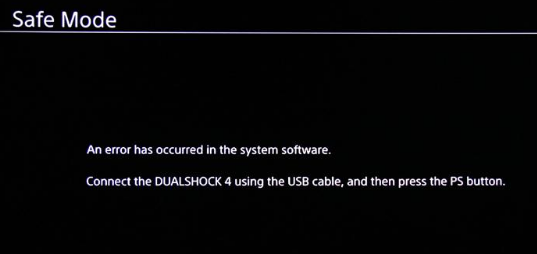
Some issues related to PS4 can be easily fixed using the Safe Mode. For instance, if you ever encounter the error mentioned below, you can troubleshoot it by putting the PS4 into the Safe Mode.
Not sure how to go about using PS4 Safe Mode?

Worry not. We would lay it all for you. Let’s get going, then.

PS4 Safe Mode – Introduction

Have you ever booted Windows in the Safe Mode?

Of course, you have. Just like Windows, PS4 also has a Safe Mode, in which only the most basic functions are loaded.

When you aren’t able to power on the PS4 console or facing problems with it is just a few situations when you are likely to use the console through Safe Mode.

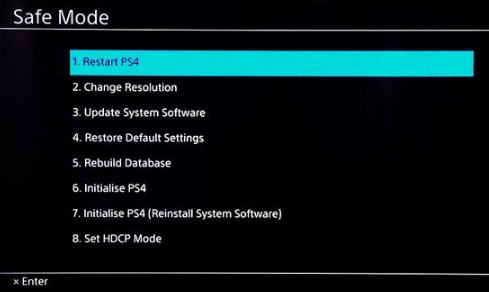
There are different options in PS4 Safe Mode, which can prove useful when you want to troubleshoot problems related to PS4.

Which are these options? We’ll look at them soon. But first the most important bit—how to start the PS4 safe mode?

Using PS4 Safe Mode

Here are the steps to follow:

  • Turn the PS4 off if it is powered on.
  • After turning off the PS4 system, press down the power button and hold it until you hear the second beep
  • Now you are likely to see a message saying “Connect DUALSHOCK 4 using the cable”
  • Follow the instructions and connect PS4 controller (Dualshock) by USB cable with console
  • Now you need to press PS button that’s there on the controller

  • Safe Mode menu screen will appear on your window

Now, let’s see each individual Safe Mode option.

Different Safe Mode Options

Restart PS4

Want to reboot PS4 normally? Use this option. It allows you to get PS4 out of the Safe Mode and load in the normal way.

Change Resolution

You can use this option to set the display resolution of the PS4 to the default 480P once it loads normally.

So when does this option come in handy?

For starters, when you are facing display screen issues, such as the black screen issue. A mismatched resolution issue can be also fixed using this option.

Update System Software

Want to update PS4 manually? This is the option you’ll ever need. Whether you want to update PS4 manually using USB storage device or direct download, this option is the way to go.

Keeping your PS4 system up-to-date can save you from a lot of trouble, besides helping you troubleshoot all kinds of pesky issues. You can use this option when you are up against an error and can’t seem to be able to update PS4 normally.

Restore Default Settings

This one is self-explanatory. You’d want to use it when you want to restore the PS4 to its default settings.

If you’re worried selecting this option will wipe out PS4 data, rest easy. Nothing of that sort will ever happen, since this is not a factory reset. It only adjusts settings such as date, time, and the like.

Rebuild Database

With this option you can not only clean PS4 data by creating a new database but also speed it up a little by reorganizing the stored data. This option can save the day for you when you are encountering issues such as PS4 game freezing or frame rates dropping.

Initialize PS4

If your PS4 system is not functioning at all, you might want to select this option, which deletes all the PS4 content and restore to its original state.

Initialize PS4 (Reinstall System Software)

This option is pretty much like the one before. The only difference being that it also removes the PS4 firmware.

Set HDCP Mode

HDCP stands for high bandwidth digital content protection. You can select this option in case the 4k images are not appearing on the screen.
Do you want to play your PS4 on a Mac or PC?

Filed Under: PC Fix Tips Tagged With: PS4 safe mode

Download USB 3.0 driver windows for 10

By Susan C on December 21, 2019

Download USB 3.0 driver windows for 10

If you use Windows 10, you can use USB devices directly though a USB 3.0 port, since Windows 10 come with inbuilt drivers for USB 3.0. Precisely for this very reason, several manufactures has not released updates for such drivers for Windows 10.

This post shows you how to download as well as update Intel USB 3.0 host controller driver for Windows 10 in case you need to install this driver manually.

You can download the required drivers in two ways. Pick the one that looks easier to you.

  • Download drivers manually from the manufacturer’s website
  • Use a Driver Update Tool  to download the necessary driver (recommended)

Solution 1 – Download drivers manually from manufacturer website

It is important that you download drivers from its official manufacturer website, and not elsewhere. Such drivers are safe, while the same couldn’t be said about driver files obtained from other sites. You can download drivers from your PC manufacturer site, such as HP, Dell, Acer, etc. Alternately, you can visit the website of the device manufacturer, which in this case is Intel.

Also, look for the latest driver file on PC manufacturer’s site, since they often release new updates from time to time. However, there’s one thing you need to do before you start looking for a driver on the manufacturer’s site. That is, check whether your operating system is 32-bit or 64-bit.

To find this out, simply press and hold the Windows key and Pause key. In the System window, you will be able to see the required information next to System type.

  • Now go to the manufacturer’s website and look for the latest driver compatible with your Windows 10 operating system.
  • Next, double-click the setup file (.exe) to download it and save the file in a suitable location
  • Now press Windows key and R key
  • Type devmgmt.msc in the Run dialog box to launch Device Manager
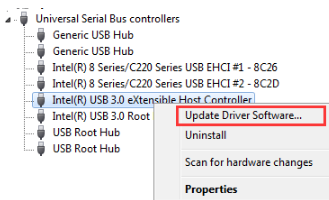
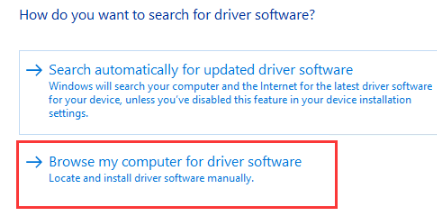
  • In the Device Manager window, expand “Universal Bus controllers” category and locate Intel USB 3.0 extensible Host Controller. Right click it and select Update Driver Software  
  • Choose the second option in the list, which is Browse my…
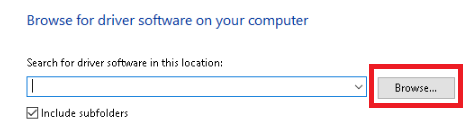
  • Now click the Browse button in the next screen, go to the location where you have saved the driver file and select it
  • Follow the onscreen instructions to complete the driver update process
  • Restart Windows if prompted

Solution 2 – Update driver using driver update software

Automatic driver update tools offer many benefits, the most important ones being:

  • You can update device drivers automatically
  • The software scans and updates all outdated or missing drivers at one go
  • The tool picks the right drivers for your device and operating system, so you won’t have to worry about installing an incorrect driver by mistake
  • Automatic driver updates are 100% safe

Driver Updater is one of the best driver update tools out there. Outbyte Driver Updater will give you access to a database of over 1 million drivers. It will regularly scan your PC, suggesting new driver versions to install. Driver Updater contains drivers for a variety of Windows devices. With just one click, you can update drivers in your system.

Step 1
Click here to Install and launch the app

Step 2
Scan all devices

Step 3
Install or update drivers automatically


Start Download


Filed Under: PC Fix Tips Tagged With: update intel driver

PS4 controller wont sync (Fixed)

By Susan C on December 17, 2019

Are you unable to connect your PS4 controller to the console?

Do you want to play your PS4 on a Mac or PC?

If yes, you are at the right place. In this post, we will discuss not one but three solutions for this common issue.

Solution 1 – Reset the PS4 Controller

Many users have reported that resetting the PS4 controller did the job for them. Since this has worked for multiple users and is easy to complete, let’s start with this one.

Here are the steps to follow.

  • Turn off the PlayStation 4
  • Using a small, unfolded paper-clip (alternately, you can use something else that looks similar)push the rest button, located on back of the controller adjacent to L2 shoulder button and then hold the button down for 1-2 seconds. Now release it.
  • Connect the controller to the PS4 console.
  • Now turn on your PS4

Solution 2 – Connect the PS4 controller with data cable

If the before-mentioned step didn’t work for you, try connecting the PS4 controller with a cable. First, use the one that you received with the PS4 console. If that doesn’t do the trick, you can try it out with a different one.

 Solution 3 – Restart the PS4 console

In case the previous solution didn’t work for you, try this solution out.

Sometimes, corruption issues can disconnect the controller. In such cases, restarting PS4 console is the way to go.

Here are the steps to follow.

  • Press PS4 power button and hold it till you distinctly hear the second beep. Now release the power button
  • Take the cable off the plug and disconnect the controller
  • Leave the PS4 as it is for a couple of minutes
  • Now plug in the power cable as well as the controller
  • Turn on the PS4
  • Check if the things are back to normal

Filed Under: PC Fix Tips Tagged With: PS4 Controller issue

  • « Previous Page
  • 1
  • …
  • 101
  • 102
  • 103
  • 104
  • 105
  • …
  • 189
  • Next Page »


  • Recent Posts
  • Popular Posts
        

Read More Posts


Read More Posts

Drivers.com Sites

  • Software Drivers
  • Drivers Ed

About Us

  • Advertise
  • About Drivers
  • Drivers Support
  • Drivers.com Privacy Policy
  • Disclaimer
  • Software Drivers
  • Mac Fixes and Tips
  • PC Fix Tips
  • Security/ Backup
  • Tablets & Smartphones
  • Tech News

© Copyright 2026 PDE Publications Ltd. End User License Agreement (EULA)