Drivers.com

follow us:

facebook twitter
  • Home
  • Download Drivers
  • Drivers Help
  • PC/Mac Resources
  • Software Drivers
  • Mac Fixes and Tips
  • PC Fix Tips
  • Security/ Backup
  • Tablets & Smartphones
  • Tech News
  • Software Drivers
  • Mac Fixes and Tips
  • PC Fix Tips
  • Security/ Backup
  • Tablets & Smartphones
  • Tech News

Connecting and Using PS4 Keyboard and Mouse Made Easy

By Susan C on November 28, 2019

Connecting and Using PS4 Keyboard and Mouse Made Easy

Did you know that Playstation 4 works pretty well with mouse devices and keyboards? What’s more, you might even be able to play at least a couple of your favorite games (if not more) using your mouse and keyboard. Interesting, eh?

Keyboard and Mouse Drivers Download & Updates

Before we look at how to connect and use a mouse and keyboard with PS4, let’s the advantages of doing so.

Mouse and keyboard control, according to some PS4 enthusiasts, leads to better aiming, which can be a great advantage to have in shooting games. So much so, that many users believe it’s not fair for someone with access to mouse and keyboard control to play along with someone who doesn’t. They believe the former enjoys a significant advantage.

Anyway, currently there are only a handful of games that support mouse and keyboard control. These includes, among others, War Thunder, Paragon, Overwatch, and Final Fantasy XIV.

So, let’s now get to the meat of the matter and check out how you can use your keyboard and mouse with PS4.

Connecting a Keyboard and Mouse with PS4

Keyboard and Mouse, whether wired or wireless, can be used with PS4. There are two ways in which you can achieve this (both are discussed ahead). You can pick the one that works better for you.

Solution 1 – Connecting a Wireless Bluetooth Keyboard and Mouse with PS4

As Bluetooth is pretty standardized, you can use pretty much any brand of wireless keyboard and mouse with PS4.

Here are the steps to follow.

  • Ensure your PS4 is able to find your wireless keyboard and mouse
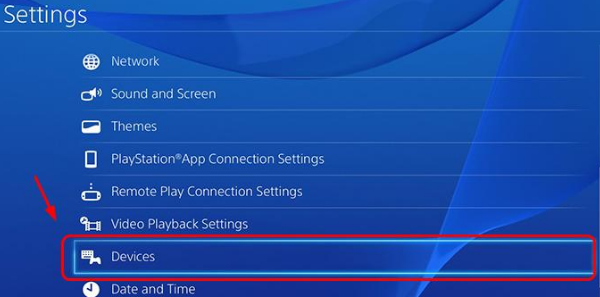
  • Click the Settings button of your PS4
  • Now click Devices
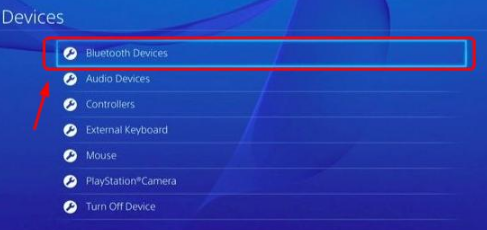
  • Select Bluetooth Devices
  • Here your Bluetooth keyboard and mouse will appear. All you got to do is pair up them. It is possible that you might have to enter a password. Simply follow whatever onscreen instructions flash on your screen
  • You can even customize the wireless mouse and keyboard as per your needs. For this, click Settings and after that click Devices
  • You can click Mouse or External Keyboard
  • If you have clicked External Keyboard, a preference page like this one should appear on your screen
  • Just select your preference and that’s it. Your keyboard and mouse is all set up

Connecting a Wired USB Keyboard and Mouse to PS4

Compared to connecting a wireless keyboard and mouse, wired ones are much easier. Of course, all you actually have to do is to connect them to functional USB ports. Having said there’s much more you can do.

  • Connect the USB keyboard and mouse to PS4
  • The PS4 will automatically pick up the new devices. With help of the arrow keys, you should be able to easily go forward and back. However, if you want, there’s a lot more that you can do
  • Using the keyboard or controller click Settings. Next, click Devices
  • Click Controllers
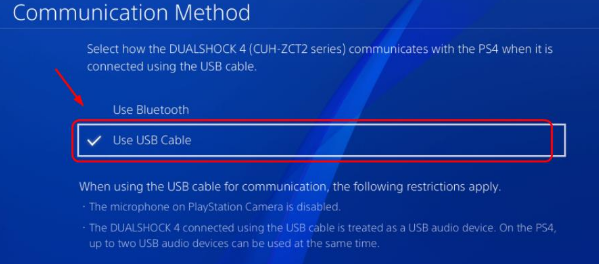
  • Click Communication Method
  • Select Use USB Cable
  • That’s it. You have set up your USB keyboard and mouse

Do you want to play your PS4 on a Mac or PC?

Filed Under: PC Fix Tips Tagged With: PS4 Keyboard and Mouse

The connection was reset chrome

By Susan C on November 25, 2019

The connection was reset error typically appears when you are trying to open a website to which you don’t have access.

As to why this error occurs, there could be many reasons, ranging from registry-related problems to network settings. This means there is more than one way to solve the issue. However, it is not possible to pinpoint beforehand which one will work for you. Therefore, we recommend you to try out these solutions in the order they appear until you find one that does the trick.

Solution 1 – Disable your antivirus program

Sometimes protection software interferes with things and causes all sorts of error. Therefore, before you do anything else, it’s recommended that you temporarily disable the antivirus program. Most antivirus programs can be easily disabled by right-clicking on their icon in the system tray and then selecting the appropriate option. However, since the actual steps may vary from one software tool to another, we recommend you check the exact steps for your software before proceeding.

If disabling the antivirus program works, you might want to replace it with some other protection program.

Solution 2 – Look at Internet Proxy Settings

Here are the steps to follow:

  • Click Start and then select Control Panel
  • In the Control Panel window, select the Small icons option in the View by drop-down menu
  • Click Internet Options
  • Click the Connection tab
  • Click LAN Settings
  • Ensure the box before  Use a proxy… is checked
  • Click the OK button

Solution 3 – Clear Browsing History

Here are the steps to follow:

  • Open Google Chrome
  • Click the three dot icon in the top right hand corner
  • Now highlight More Tools and then click Clear browsing data
  • Finally select which type of data you would like to remove and then click the Clear browsing data button

Solution 4 – Update Network Drivers

Outdated drivers can cause all kinds of issues, including the connection was reset error. Therefore, make sure your network drivers are up-to-date.

You can update your network driver in two ways, manually and automatically. While we recommend the latter because it is convenient, fast, and more accurate, we have shared the steps for both.

Let’s start with manual driver update method.

Update Your Network Driver Manually

Here are the steps to follow:

  • Press Windows logo key + R together to bring up the Run command
  • In Run command, type devmgmt.msc and click OK
  • In the Device Manager, go to Network Adapters category and expand it
  • Select your network driver and right-click on it
  • Select update driver from the list of options
  • In the next window, select Search automatically for updated driver software.
  • Windows will search the internet to find a driver update and install it. If it does not find a driver update, you have to manually download the mouse driver and install it.
  • Open Internet browser
  • Go to the Network Adapter manufacturer’s website
  • Go to the Download section and select your product
  • Download the network adapter driver compatible with your OS version (Windows 7/8/8.1/10)
  • Double-click on the driver setup file to install the driver
  • Restart your computer

Update Network Adapter Driver Automatically

Automatic driver update tools offer many benefits, the most important ones being:

  • You can update device drivers automatically
  • The software scans and updates all outdated or missing drivers at one go
  • The tool picks the right drivers for your device and operating system, so you won’t have to worry about installing an incorrect driver by mistake
  • Automatic driver updates are 100% safe

Driver Updater is one of the best driver update tools out there. Outbyte Driver Updater will give you access to a database of over 1 million drivers. It will regularly scan your PC, suggesting new driver versions to install. Driver Updater contains drivers for a variety of Windows devices. With just one click, you can update drivers in your system.

Step 1
Click here to Install and launch the app

Step 2
Scan all devices

Step 3
Install or update drivers automatically


Start Download


Filed Under: PC Fix Tips Tagged With: connection reset error

How To Disable Avast

By Susan C on November 18, 2019

Sometimes your antivirus program can interfere with installations of other programs. If you’re facing problem installing a program successfully, we recommend you disable your antivirus temporarily.

Of course, we wouldn’t want your PC to be vulnerable in the digitally-connected world and that’s why we are against uninstalling the antivirus software. Just disable it long enough to be be able to install the program, and then enable the protection tool immediately.

If you are using Avast antivirus software, you can use the following steps to disable it.

Right-click the Avast icon in the system tray (located at the left bottom corner). Place your cursor on Avast shields control and then disable it for 10, 20, or 60 minutes.

After you’ve installed the required software, follow the previous steps to enable the software (Just select the enable option instead of disable).

Filed Under: PC Fix Tips Tagged With: Disable Avast

  • « Previous Page
  • 1
  • …
  • 102
  • 103
  • 104
  • 105
  • 106
  • …
  • 189
  • Next Page »


  • Recent Posts
  • Popular Posts
        

Read More Posts


Read More Posts

Drivers.com Sites

  • Software Drivers
  • Drivers Ed

About Us

  • Advertise
  • About Drivers
  • Drivers Support
  • Drivers.com Privacy Policy
  • Disclaimer
  • Software Drivers
  • Mac Fixes and Tips
  • PC Fix Tips
  • Security/ Backup
  • Tablets & Smartphones
  • Tech News

© Copyright 2026 PDE Publications Ltd. End User License Agreement (EULA)