
Drivers.com

follow us:

facebook twitter
  • Home
  • Download Drivers
  • Drivers Help
  • PC/Mac Resources
  • Software Drivers
  • Mac Fixes and Tips
  • PC Fix Tips
  • Security/ Backup
  • Tablets & Smartphones
  • Tech News
  • Software Drivers
  • Mac Fixes and Tips
  • PC Fix Tips
  • Security/ Backup
  • Tablets & Smartphones
  • Tech News

ERR_EMPTY_RESPONSE (Fixed)

By Susan C on November 14, 2019

ERR_EMPTY_RESPONSE (Fixed)

Are you getting the Err_Empty_Response error when you are trying to open a website?

If yes, this post is just for you. In this post, we discuss a few solutions to resolve this problem once and for all.

Solution 1 – Clear browsing data

Sometimes Google Chrome’s browsing data might cause this error. Therefore, we recommend you first try this solution.

Here are the steps to follow:

  • Press the Ctrl+Shift+Del keys simultaneously
  • In the drop-down menu next to Obliterate the following items from select “the beginning of time”
  • And then click “Clear browsing data”

If the error persists, move on to the next solution

Solution 2 – Reset the network settings

Incorrect network settings might also cause ERR_EMPTY_RESPONSE error. Resetting the settings might just do the trick, so it’s worth a shot.

Here are the steps to follow:

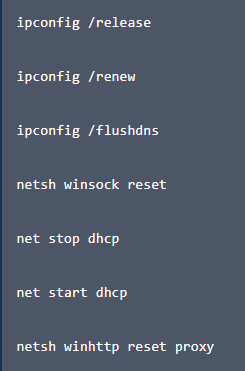
  • Click the Start button and then type “cmd”
  • Now right-click Command Prompt in the result list and choose Run as administrator
  • Type these commands and press Enter after each one of them
Solution 3 – Update device drivers

Outdated or faulty drivers can cause all sorts of issues, including ERR_EMPTY_RESPONSE. Therefore, if the problem has not resolved by now, you should try updating your device drivers.

You can update drivers manually be downloading the latest driver from the device manufactures’ websites and then installing them. This step, however, is time consuming. Also, there’s a chance you might install an incorrect driver, which in turn can cause further harm.

That’s why using a driver update tool is highly recommended.

Automatic driver update tools offer many benefits, the most important ones being:

  • You can update device drivers automatically
  • The software scans and updates all outdated or missing drivers at one go
  • The tool picks the right drivers for your device and operating system, so you won’t have to worry about installing an incorrect driver by mistake
  • Automatic driver updates are 100% safe

Driver Updater is one of the best driver update tools out there. Outbyte Driver Updater will give you access to a database of over 1 million drivers. It will regularly scan your PC, suggesting new driver versions to install. Driver Updater contains drivers for a variety of Windows devices. With just one click, you can update drivers in your system.

Step 1
Click here to Install and launch the app

Step 2
Scan all devices

Step 3
Install or update drivers automatically


Start Download


Filed Under: PC Fix Tips Tagged With: Err_Empty_Response

Elan Touchpad Not Working (Solved)

By Susan C on November 12, 2019

Has the Elan touchpad stopped working suddenly?

If yes, don’t worry. This is a common problem faced by many, but thankfully, also easy to resolve.

In this post, we’ve discussed three solutions that have worked for other users. You don’t have to try each one. Start with the first one on the list and move your way down, until you are able to fix the problem.

Enable the Touchpad

We recommend you perform this step before others. It’s not only easy to perform but also fixes the problem in many cases.

At times, some PC-related changes automatically switch your Elan touchpad’s status from enabled to disabled. So how can you enable the touchpad again? Well, just perform these simple steps.

  • Press Windows and I keys simultaneously
  • Then click Devices
  • Now click Mouse & touchpad. Next, click Additional mouse options
  • Now click the last tab, which could either be ELAN or Device Settings
  • Make sure the checkbox before Enable Touchpad is selected. If not, select it and click the OK button

You might also want to check whether pressing a particular function key enables or disables the touchpad. On many laptops, F6 is the key for this purpose. In some other laptops, Fn+F6 or Fn+F5 do the trick. Take a look at the laptop manual to find out which key or combination works in the case of your laptop.

Laptop Touchpad Not Working?

Reinstall the drivers

Did you know that faulty drivers are the root cause of many Windows errors, including Elan Tocuhpad not working.

To resolve the issue, you should install the latest Elan Touchpad drivers. The easiest way of doing this is by using a fast, reliable driver update tool.

Automatic driver update tools offer many benefits, the most important ones being:

  • You can update device drivers automatically
  • The software scans and updates all outdated or missing drivers at one go
  • The tool picks the right drivers for your device and operating system, so you won’t have to worry about installing an incorrect driver by mistake
  • Automatic driver updates are 100% safe

Driver Updater is one of the best driver update tools out there. Outbyte Driver Updater will give you access to a database of over 1 million drivers. It will regularly scan your PC, suggesting new driver versions to install. Driver Updater contains drivers for a variety of Windows devices. With just one click, you can update drivers in your system.

Step 1
Click here to Install and launch the app

Step 2
Scan all devices

Step 3
Install or update drivers automatically


Start Download


Stop automatic Windows updates

If nothing else has worked, try disabling automatic update feature. Sometimes a faulty driver from Windows Update can lead to this issue.

  • In the Windows start search bar, type device and printers. Now click device and printers and then right-click the your computer icon and select Device installation settings
  • Select the “No, let me choose what to do” option and then select “Never install driver software from Windows update” option.
  • Finally click the Save Changes button

Filed Under: PC Fix Tips Tagged With: Elan Touchpad

How to Remove Password in Windows 10

By Susan C on November 5, 2019

If you share your Windows 10 computer with someone else, you should use a log-in password. Likewise, if you don’t want others to access your computer without your consent, set a password to log in.

That said, it is possible that you might want to stop using a password to enter Windows. If that’s the case, this post is just for you.

Removing the log-in password is no rocket science. All you have to do is perform these easy steps:

  • In the start search box, type netplwiz, and then select netplwiz in the popup menu
  • Now unselect Users must enter a user name and password to use this computer in User Accounts dialog box. Click the OK button
  • Windows will check whether this operation is authorized or not. It will ask you enter the log-in password, so enter the password and then click OK.  
  • Now restart your Windows 10. Upon restart, you will not be asked to enter any password.

In case in future you decide to use a log-in password, repeat these steps, but instead of unselecting, select the box before Users must enter a user name and password to use this computer.

That’s it. This is all you need to do remove a password or set it.

Filed Under: PC Fix Tips Tagged With: remove password

  • « Previous Page
  • 1
  • …
  • 103
  • 104
  • 105
  • 106
  • 107
  • …
  • 189
  • Next Page »


  • Recent Posts
  • Popular Posts
        

Read More Posts


Read More Posts

Drivers.com Sites

  • Software Drivers
  • Drivers Ed

About Us

  • Advertise
  • About Drivers
  • Drivers Support
  • Drivers.com Privacy Policy
  • Disclaimer
  • Software Drivers
  • Mac Fixes and Tips
  • PC Fix Tips
  • Security/ Backup
  • Tablets & Smartphones
  • Tech News

© Copyright 2026 PDE Publications Ltd. End User License Agreement (EULA)