Drivers.com

follow us:

facebook twitter
  • Home
  • Download Drivers
  • Drivers Help
  • PC/Mac Resources
  • Software Drivers
  • Mac Fixes and Tips
  • PC Fix Tips
  • Security/ Backup
  • Tablets & Smartphones
  • Tech News
  • Software Drivers
  • Mac Fixes and Tips
  • PC Fix Tips
  • Security/ Backup
  • Tablets & Smartphones
  • Tech News

PC Randomly Starts Issue (Fixed)

By Susan C on February 1, 2020

Is your Windows computer restarting randomly?

This is a very annoying issue but luckily it is also very easy to solve. In this post, we’ve listed 4 solutions to this problem.

Solution 1 – Disable automatically restart feature

Here are the steps to follow.

  • In the Start Search box type My Computer
  • Right-click on your PC’s name and then click Properties
  • In the System Window, click Advanced system settings in the left pane. Next in the System Properties box, click the Advanced tab and then click the Settings button in the Startup and Recovery box
  • Unselect Automatically Restart and then click the OK button
  • Now check if the issue is fixed

Solution 2 – Tweak advanced power settings

Here are the steps to follow.

  • In the Start Search box, type Power Options
  • Click Edit power plan
  • Next in the Edit Plan Settings, click Change advanced power settings
  • Now in the Balanced section, you need to expand Processor power management and then Minimum processor state. Set the latter to 5% or 2% or even 0%.
  • Click the Apply button and then the OK button
  • Check if the issue is fixed

Solution 3 – Update the graphic card

This issue often occurs due to corrupt, old, or incorrect graphic card drivers. To solve the issue, you’d need the to update to the latest driver.

How can I update to the latest Drivers?

There are two ways to do this: update the driver manually or use a driver update tool. We recommend the latter, but have listed the steps for both ways, so you can decide for yourself which one you’d like to use.

Update Driver Manually

Here are the steps you need to perform to update graphic card driver manually.

  • Press Windows logo key + R together to bring up the Run command
  • In Run command, type devmgmt.msc and click OK
  • In the Device Manager, go to Display Adapters and expand it
  • Note your graphics card and then go the graphic card manufacturer’s website. Locate and download the latest driver for your graphics card. Make sure the driver you download is compatible with your version of Windows.
  • Next save the driver file in a suitable location, such as your desktop
  • Now again open Device Manager, expand Display Adapters, right-click the graphics card and then click Update Driver
  • In the next window, select Browse my computer for driver software.
  • Click the Browse button, navigate to the location where you have saved the driver file, andselect it.
  • Click the Next button and follow onscreen instructions
  • Restart your computer

Update Driver Automatically

Automatic driver update tools offer many benefits, the most important ones being:

  • You can update device drivers automatically
  • The software scans and updates all outdated or missing drivers at one go
  • The tool picks the right drivers for your device and operating system, so you won’t have to worry about installing an incorrect driver by mistake
  • Automatic driver updates are 100% safe

Driver Updater is one of the best driver update tools out there. Outbyte Driver Updater will give you access to a database of over 1 million drivers. It will regularly scan your PC, suggesting new driver versions to install. Driver Updater contains drivers for a variety of Windows devices. With just one click, you can update drivers in your system.

Step 1
Click here to Install and launch the app

Step 2
Scan all devices

Step 3
Install or update drivers automatically


Start Download


Solution 4 – Check Power Issue

Some users have said that in their cases power issue caused the PC to reboot randomly. If none of the above solutions have worked for you, it might be worth the trouble to try replacing power cables or even power supply unit to check if that makes a difference.

Filed Under: PC Fix Tips Tagged With: PC restarts randomly

Webcam not working after Windows 10 Update [Fixed]

By Susan C on January 28, 2020

Webcam not working after Windows 10 Update [Fixed]

Driver-related issues, like driver conflicts or faulty drivers, can cause “integrated webcam not working issue” after a Windows 10 update.

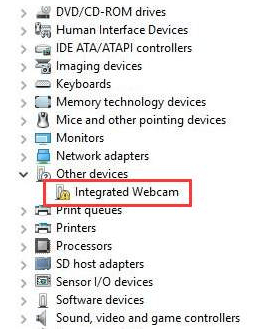
The first thing you need to do is check if there’s a yellow exclamation mark against the webcam device in the Device Manager window. Here are the steps to follow.

  • Type devmgmt.msc in the Start Search box and then press Enter
  • In the Device Manager window, navigate to Other devices or Imaging devices. Expand this entry and check if there’s a yellow mark against the webcam device (it might be listed as Unknown Device)

If you do see a yellow mark, update or reinstall the driver to solve the issue. In case that doesn’t work, you will need to disable and then enable the said device.

device manager integrated webcam

Reinstall the Driver

Here are the steps to follow:

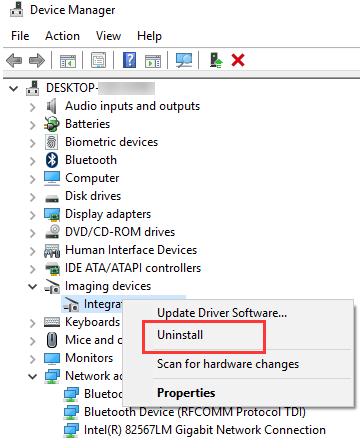
  • Right-click the device and click Uninstall
device manager uninstall driver
  • Click the OK button in the Confirm Device Uninstall window
  • Restart Windows. Upon restart, Windows will automatically reinstall the right driver
  • Now check if your webcam is working

Update the Driver

You can update the said driver either manually or automatically. We’ve listed both methods for you. You can check which one works better for you.

Updating the driver manually

You’ll need to go to your PC manufacturer’s site and locate the newest Windows driver for the webcam. Next, download it. Make sure you use a driver that’s for your PC model and specific operating system. To know the version of operating system that you use, simply press Windows key and Pause/Break Key simultaneously. You will find the relevant details in the System Properties dialog box.  

It is possible that the PC manufacturer may not have released Windows 10 driver for your PC model. In that case, you can use the driver for Windows 8 or Windows 7.

Once you’ve located the latest driver file, download and save it on your desktop. Next, double-click the .exe file and follow onscreen instructions.

Update the driver automatically

Automatic driver update tools offer many benefits, the most important ones being:

  • You can update device drivers automatically
  • The software scans and updates all outdated or missing drivers at one go
  • The tool picks the right drivers for your device and operating system, so you won’t have to worry about installing an incorrect driver by mistake
  • Automatic driver updates are 100% safe

Driver Updater is one of the best driver update tools out there. Outbyte Driver Updater will give you access to a database of over 1 million drivers. It will regularly scan your PC, suggesting new driver versions to install. Driver Updater contains drivers for a variety of Windows devices. With just one click, you can update drivers in your system.

Step 1
Click here to Install and launch the app

Step 2
Scan all devices

Step 3
Install or update drivers automatically


Start Download


Filed Under: PC Fix Tips Tagged With: webcam not working

Download Error 0x80248007 [Fixed]

By Susan C on January 25, 2020

Download Error 0x80248007 [Fixed]

Many users have reported that they get the Error 0x80248007 when they are trying to update their Windows 10.

For users seeing this error, we have listed two solutions below which should fix the issue..

Solution 1 – Modify Windows Update Service

Quite often this error occurs because the Windows Update Service is not functioning correctly. Here’s how you can fix the issue:

  • Press the Windows logo key on the keyboard
  • Click Control Panel
  • Set View by to Large icons
  • Next click Administrative Tools
  • Now double-click Services. In case you’re asked to enter the password for the administrator’s account, do so
  • Now right-click on Windows Update. Then click Stop

Once you’ve completed these steps, you should delete temporary update files stored inside the SoftwareDistribution folder. Here are the steps to follow.

  • Open Windows Explorer. Navigate to C:\Windows\SoftwareDistribution
  • Now double-click on the DataStore folder. Next delete all files, as well as folders, present in it.
  • Once you’ve done that, navigate back to C:\Windows\SoftwareDistribution
  • Now double-click on the Download folder. Next delete all files, as well as folders, present in it.

After you’ve performed these steps, it’s time to restart Windows Update service.

  • Press the Windows logo key on the keyboard
  • Click Control Panel
  • Set View by to Large icons
  • Next click Administrative Tools
  • Now double-click Services. In case you’re asked to enter the password for the administrator’s account, do so
  • Next right-click on Windows Update and then click Start
  • Now exit the Services window, as well as Administrative Tools window

Solution 2 – Update your device drivers

Sometimes, such errors are triggered by a corrupt or old driver. The easiest fix is to use a driver update tool to automatically update all your drivers at a click of the button.

Automatic driver update tools offer many benefits, the most important ones being:

  • You can update device drivers automatically
  • The software scans and updates all outdated or missing drivers at one go
  • The tool picks the right drivers for your device and operating system, so you won’t have to worry about installing an incorrect driver by mistake
  • Automatic driver updates are 100% safe

Driver Updater is one of the best driver update tools out there. Outbyte Driver Updater will give you access to a database of over 1 million drivers. It will regularly scan your PC, suggesting new driver versions to install. Driver Updater contains drivers for a variety of Windows devices. With just one click, you can update drivers in your system.

Step 1
Click here to Install and launch the app

Step 2
Scan all devices

Step 3
Install or update drivers automatically


Start Download


Filed Under: PC Fix Tips Tagged With: Error 0x80248007

  • « Previous Page
  • 1
  • …
  • 98
  • 99
  • 100
  • 101
  • 102
  • …
  • 189
  • Next Page »


  • Recent Posts
  • Popular Posts
        

Read More Posts


Read More Posts

Drivers.com Sites

  • Software Drivers
  • Drivers Ed

About Us

  • Advertise
  • About Drivers
  • Drivers Support
  • Drivers.com Privacy Policy
  • Disclaimer
  • Software Drivers
  • Mac Fixes and Tips
  • PC Fix Tips
  • Security/ Backup
  • Tablets & Smartphones
  • Tech News

© Copyright 2026 PDE Publications Ltd. End User License Agreement (EULA)