Drivers.com

follow us:

facebook twitter
  • Home
  • Download Drivers
  • Drivers Help
  • PC/Mac Resources
  • Software Drivers
  • Mac Fixes and Tips
  • PC Fix Tips
  • Security/ Backup
  • Tablets & Smartphones
  • Tech News
  • Software Drivers
  • Mac Fixes and Tips
  • PC Fix Tips
  • Security/ Backup
  • Tablets & Smartphones
  • Tech News

Resources by Tag

USB Device Error

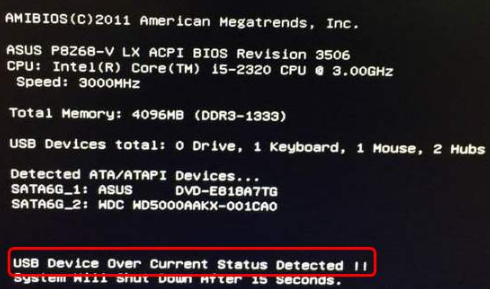
USB Device Over Current Status Detected (Fixed)

USB Device Over Current Status Detected (Fixed)

This is one problem that many Asus users have reported. What happens is that the computer shuts itself down after the user has been playing video games for some time. The following error message is likely to appear on the screen.

So what can you do to get rid of this error? Well, try the solutions in this post. They have worked for other users, and we are positive at least one of these will do the trick for you as well.

Let’s dive right in.

Error Introduction

Before we look at the solutions, first let’s understand what “USB Device Over Current Status Detected” means in the first place?

As you may have guessed, the error has something to do with the USB devices. Specifically speaking, at least one of the USB devices is facing some sort of overlading issue. Because of this, the computer shuts itself to protect it against further damage. However, in some cases, this preemptory action is a minute too late and much damage has already been done. In these cases, you’d be able to smell something burning.

The precise issue may vary from one case to another. Sometimes something is wrong with the BIOS while other times faulty devices are the culprit. Still other times the real reason be mangled USB ports or faulty USB devices.

Now let’s see the troubleshooting steps.

Solution 1 – Connect the USB devices one at a time

Here are the steps to follow:

  • Turn Windows off
  • Now unplug every USB device
  • Wait for a couple of minutes and then power on the computer
  • Now plug one USB device at a time, and restart Windows after plugging every USB device
  • This method may help you find the faulty device. If you’re able to identify the guilty device or bad USB port, stop using it

Solution 2 – Disconnect USB ports

A problematic plugged-in USB device can lead to this issue. To check if the culprit is indeed a USB device, follow these steps:

  • Turn Windows off
  • Unplug your PC from the electrical socket (if it is attached to one)
  • Disconnect every USB device, particularly those attached to front ports
  • Remove case of the system unit
  • Detach front USB plug from the motherboard
  • Reboot Windows and check if things run fine
  • If everything is back to normal, don’t use front USB ports

In case nothing’s changed, try the last solution in the list.

Solution 3 – Ensure there’s no missing jumper

A lot of users have reported that the real cause in their case was a missing jumper. As a last resort, check if that’s not the case with you as well.

Here are the steps to follow.

  • Power off your computer
  • Unplug all plugs from the wall
  • Now remove the case of the system unit
  • Now check the USB internal port
  • Do you see a missing jumper? If yes, insert it to short 1 and 2
  • Reboot windows and check if the issue is resolved
Update USB Drivers

Filed Under: PC Fix Tips Tagged With: USB Device Error

USB device not Recognized error in Windows 10

USB device not Recognized error in Windows 10

Windows 10 is designed to support various USB PC accessories like portable hard drives, thumb drives, USB mouse and keyboard, camera, phone, printer, and many devices at once. Modern laptops and desktops have 3-4 USB ports to support these devices.

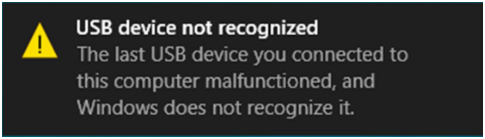
Most of the times you are able to connect USB devices successfully to your Windows 10 computer but sometimes your computer stops recognizing USB devices that you have connected earlier and you see an error that says “USB device not recognized”.

error image

If you are getting this error, there is nothing to worry about as it can be easily resolved. We have provided some simple solutions that would fix the “USB device not recognized” error and help you connect USB device successfully as earlier.  Let’s get started.

Solution One – Restart Computer

This is the simplest solution you need to try first and if it works, you will save a lot of time. All you need to do is unplug the USB device from the port and restart the computer. After the Windows operating system is loaded and everything is running normally, plug the USB device again and see if it is recognized this time.

If you still get “USB device not recognized” error, try different USB port on your computer and see if the issue is resolved.  If none of your attempts yield success, try next solution.

Solution Two – Try another computer

There is a possibility that USB device is non-functional. You can check this by connecting the USB device to another computer. If you get “USB device not recognized” error on another computer as well, you can conclude the fault lies in the USB device

If the USB device is recognized in another computer, you can conclude the problem lies in your computer. Then, you need to try the solutions given below one after another until the USB issue is resolved.

Solution Three – Unplug other USB devices

If there are too many USB devices connected to your computer, Windows might not be able to recognize the new USB device plugged in due to conflicts, resulting in “USB device not recognized” error. To resolve this problem, unplug other USB devices and then plug in the USB device which was not getting recognized.

If the USB device is recognized, the problem is solved. If you still get “USB device not recognized” error, try next solution.

Solution Four- Make changes to the Power Management setting for the USB Root Hub

Windows has Power Management feature that allows making incremental power savings to help the battery last longer. If your computer has been set to save power, Windows will shut down to USB Root hub that could lead to errors like “USB device not recognized”.

You need to make changes to the Power Management setting for the USB Root hub to resolve the “USB device not recognized” error. Here are the steps to follow.

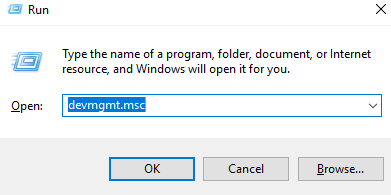
  • Press Windows logo and R key simultaneously to bring up the Run command console
  • In the Run command box, type devmgmt.msc and click OK
devmgmt
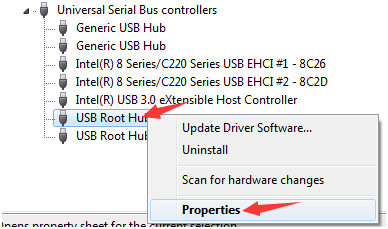
  • In the Device Manager window, go to Universal Bus Controllers category and double-click on it to expand the category
  • Right-click USB Root Hub option and click Properties.
properties
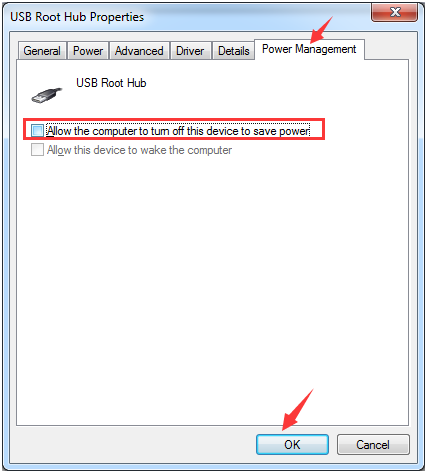
  • In the USB Root Hub properties window, click Power Management tab and uncheck the Allow the computer to turn off this device to save power option
turn off device
  • Click OK
  • Repeat the above three steps for every USB Root Hub entry in the list
  • Close the Device Manager window

Try connecting a USB device to any port. If the USB device is recognized, the problem is resolved. If you still get the USB device not recognized error, move to next solution.

Solution Five – Update Drivers

You might get this error if you have outdated or corrupt device drivers on your computer. To resolve the issue you would need to update your device drivers. The easiest way to update device drivers is by using a reliable driver update tool.

Automatic driver update tools offer many benefits, the most important ones being:

  • You can update device drivers automatically
  • The software scans and updates all outdated or missing drivers at one go
  • The tool picks the right drivers for your device and operating system, so you won’t have to worry about installing an incorrect driver by mistake
  • Automatic driver updates are 100% safe

Driver Updater is one of the best driver update tools out there. Outbyte Driver Updater will give you access to a database of over 1 million drivers. It will regularly scan your PC, suggesting new driver versions to install. Driver Updater contains drivers for a variety of Windows devices. With just one click, you can update drivers in your system.

Step 1
Click here to Install and launch the app

Step 2
Scan all devices

Step 3
Install or update drivers automatically


Start Download


Solution Six – Make changes to the USB Selective Suspend Settings

The USB Selective Suspend feature is a power saving option in Windows that stops power supply to selected USB port in an idle state without affecting other USB operations and USB ports. This power saving feature might be the reason behind the USB device not recognized error.

The simple solution to this issue is making changes to the USB Selective Suspend settings. Here are the steps to follow.

  • Go to Start and type control in Cortana search box
  • Select Control Panel from the list of results
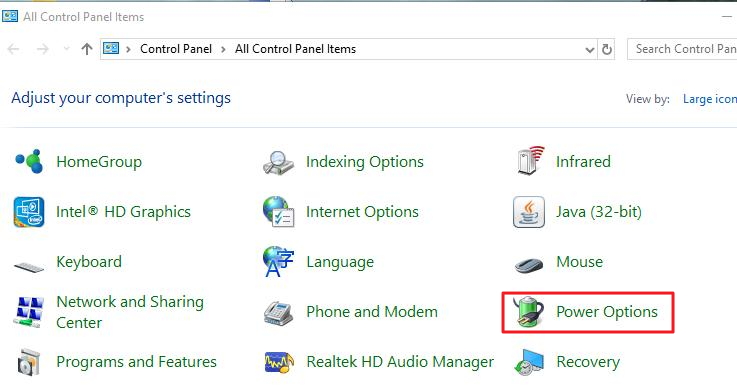
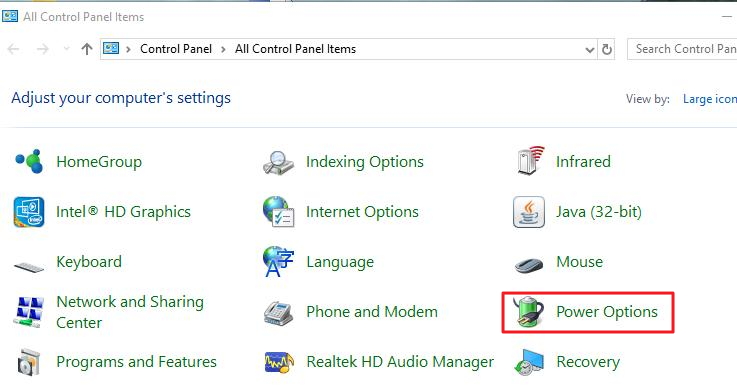
  • On control panel window, select Power Options
power options
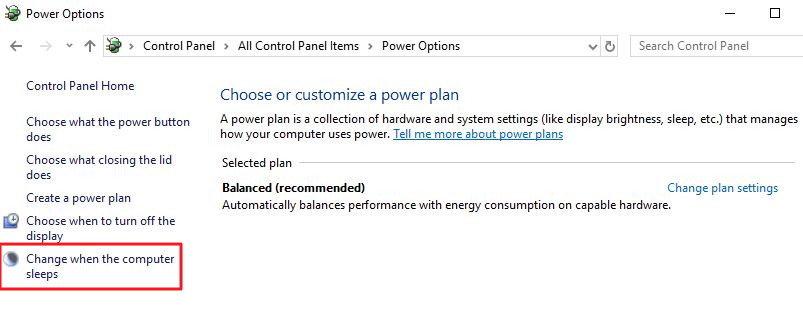
  • In the next window, select Change when the computer sleeps  that appears in the left pane
change computer sleeps
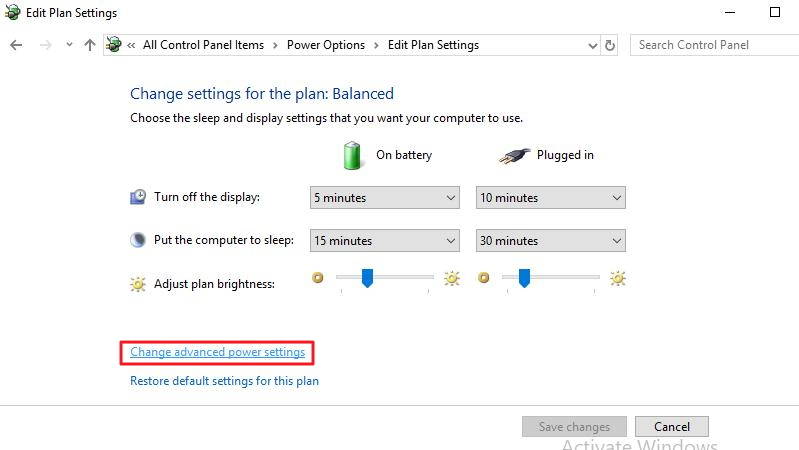
  • Click Change advanced power settings
advanced power settings
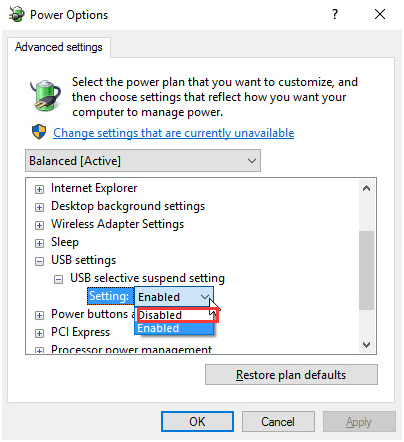
  • Find USB settings and expand it
  • <insert udnr – usb selective suspend>
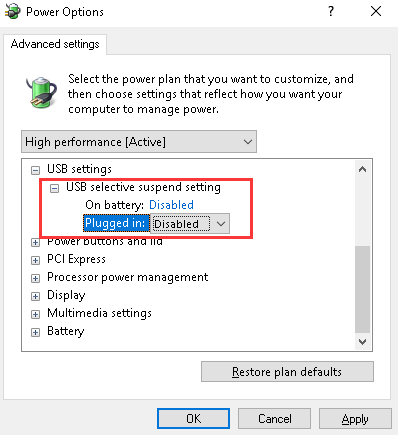
  • Expand USB selective suspend setting and disable On Battery and Plugged in options
disabled
  • Click Apply and then click OK
  • Close all settings windows and restart your computer

Try connecting USB device to any USB port and see if the USB not recognized issue is resolved. If you are still getting the error, try next solution.

Solution Seven- Disable Fast Startup

The Fast Startup option in Windows is designed to speed up booting and save time. When Fast Startup is enabled Windows does not shut down normally, it saves the state of the system in a hibernation file which is used to load Windows during next reboot.

The Fast Startup could be the reason behind USB not recognized issue. There is a possibility Windows only remembers the USB devices that were attached to the computer prior restart. And that could be the reason Windows is not recognizing the newly attached USB device to the computer.

To rule out this possibility, disable Fast startup option which would force the Windows to load everything from scratch.  Here are the steps to follow,

  • Click Start and type control panel in the search box
  • Click Control Panel from the list of search results
  • In the Control Panel window, set the view by to Large Icons
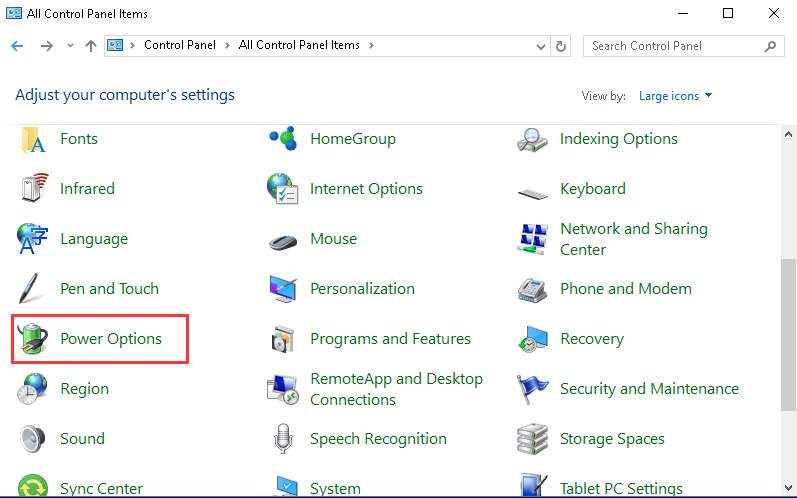
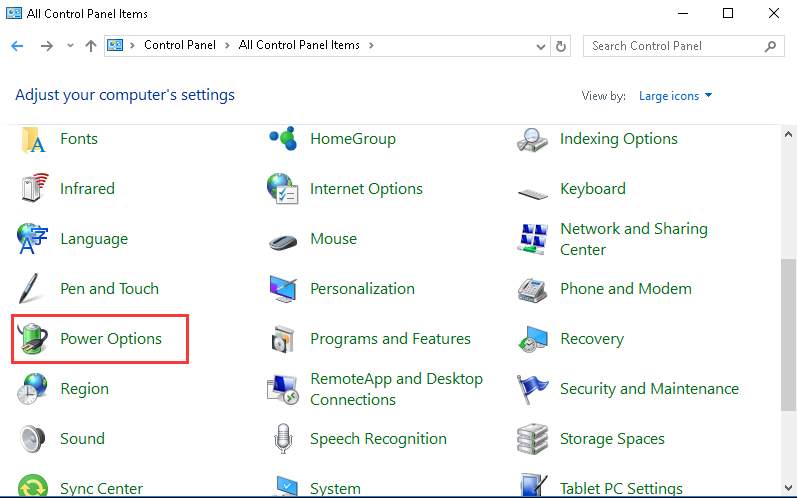
  • Click Power Options
power options
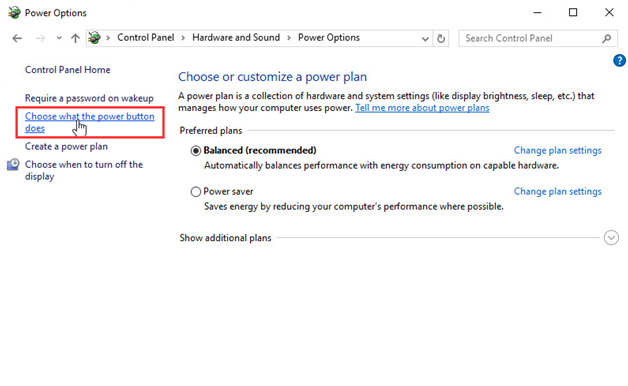
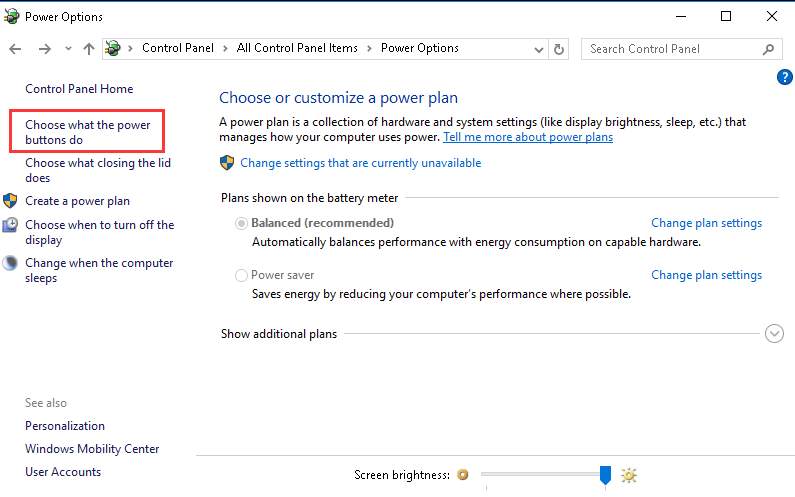
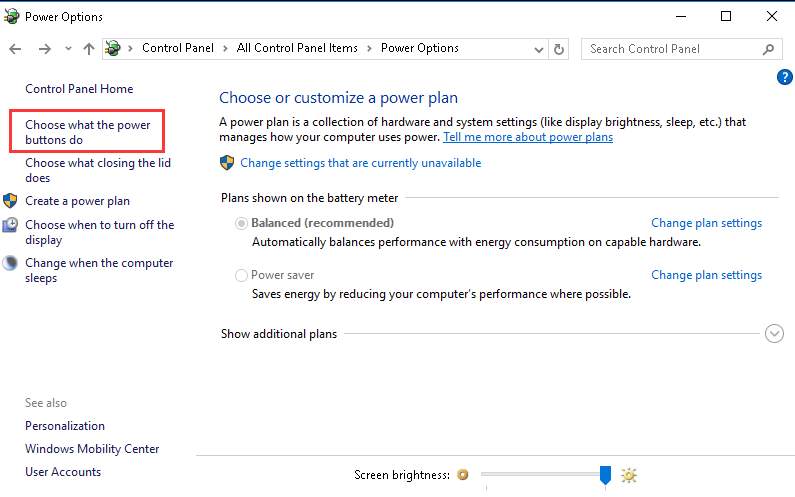
  • In the Power Options window, click Choose what the power button does
choose power button
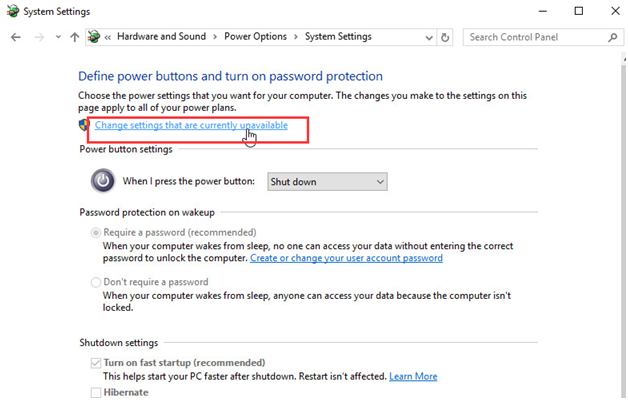
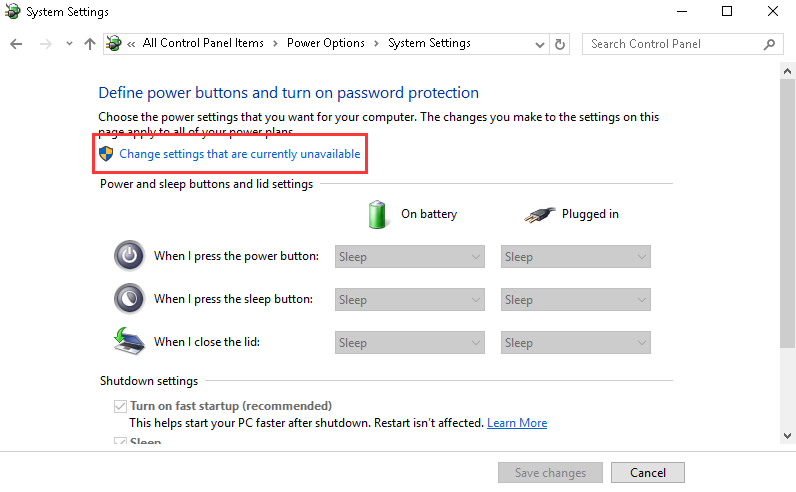
  • Click Change settings that are currently unavailable
change settings unavailable
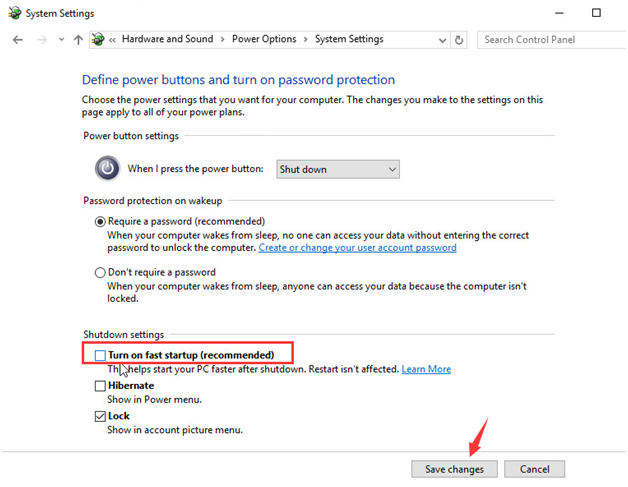
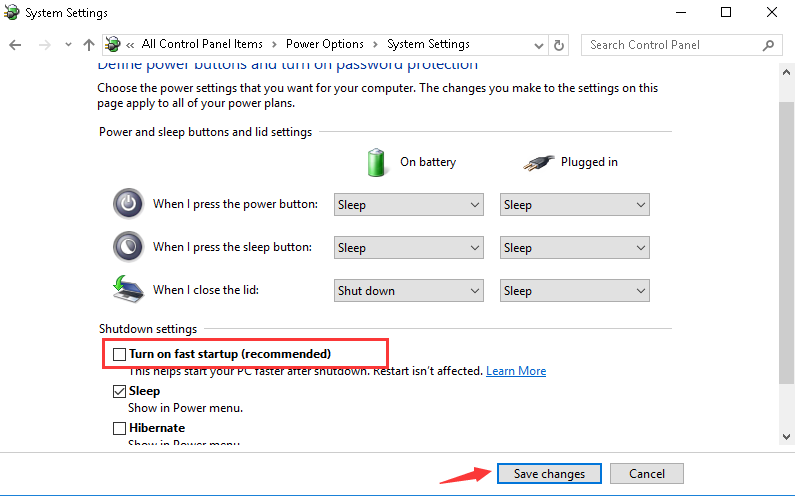
  • Un-check the box corresponding to Turn on fast startup (recommended)
uncheck fast startup
  • Click Save changes to save and exit.
  • Restart your computer and try connecting the USB you intend to any USB port.

In most cases, you should see the “USB device not recognized” issue is resolved.

Filed Under: PC Fix Tips Tagged With: USB Device Error

Device Descriptor Request failed error

Device Descriptor Request failed error

Sometimes Windows 10 does not recognize your USB device and you get an Unknown USB Device (device descriptor request failed) error in Device Manager.

When you get this error, you will see a yellow exclamation mark near one of the devices in the Universal Bus controllers category.

In this post, we’ll discuss some solutions to fix this issue.

The error could be caused by some hardware problem, so do some basic troubleshooting (listed below) before attempting the solutions discussed in the post.

  • Connect USB device to a different USB port – This will allow you to determine if the problem lies with USB port.
  • Connect USB device to a different computer– This will allow you to determine if the problem lies with the USB

If there is no problem with the USB port on your computer or the USB device, try the solutions given below. You can start with the first solution and work your way downwards and try other solutions until the issue is fixed.

Solution One- Disconnect power supply

If the error is caused by power supply, the steps given below will effectively fix the unknown USB device error.

Here are the steps to follow.

  • Remove the power supply cord from the PC
  • Restart the computer and connect the USB device to the port
  • Now, plug-in power supply to the PC

Solution Two – Uninstall the USB driver in Device Manager

  • Go to desktop and type Device Manager in the search box
  • Click Device Manager from the list of results
  • In Device Manager window, go to Universal Serial Bus Controllers category and expand it
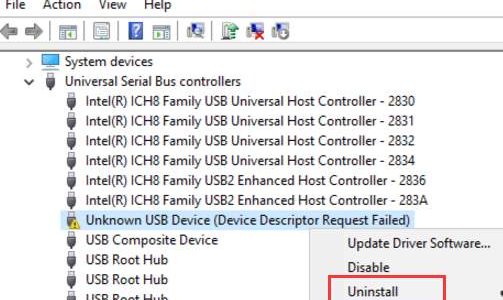
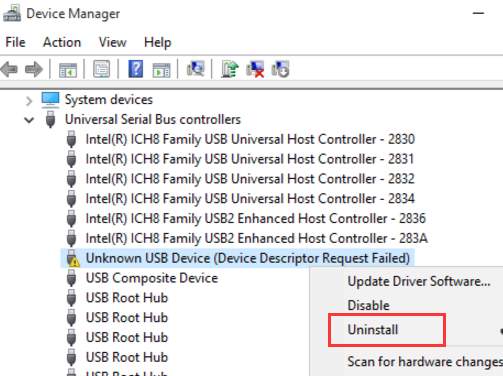
  • Look for Unknown USB Device(Device Descriptor Request Failed) entry in the list with a yellow exclamation mark and right-click on it
uninstall usb
  • Select Uninstall
  • After the Unknown USB device is uninstalled, restart the computer
  • Now, connect the USB device to the same USB port, windows will install drivers required for the USB device which would resolve the Unknown USB device issue.
  • If the issue still persists, try the next solution.

Solution 3 – Update USB driver

Many problems with USB are related to drivers. If you are facing problems like device not recognized or device descriptor request failed error, update USB drivers. There are two ways to update USB drivers – manually through Device Manager and automatically using a driver update tool.

Manual Driver Update

  • Open Device manager
  • Go to Universal Serial Bus Controllers category and expand it
  • Right-click Unknown USB device( device descriptor request failed) and select update driver software
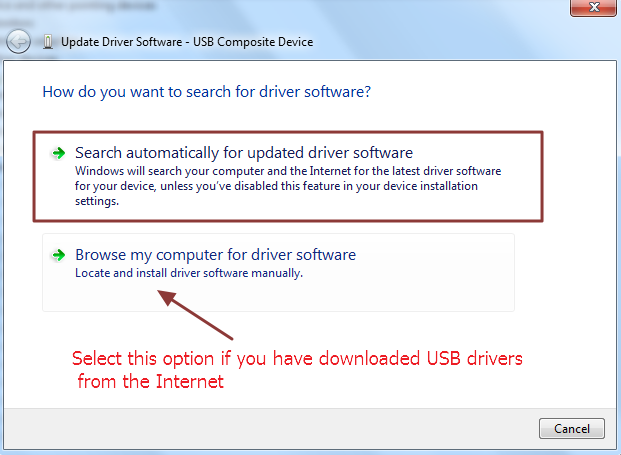
  • In the next window, select search automatically for updated driver software
update driver software
  • Alternatively, you can go to device manufacturer website or motherboard manufacturer website and download latest USB driver for your device. In that case, you need to select Browse my computer for driver software
  • Navigate to the location where you have downloaded the USB driver file and select it
  • Follow on-screen instructions to install USB driver

(Note- the driver files are available in a variety of formats such as EXE, INF, or ZIP files. The above steps would work when the file format is ZIP or INF. If the driver file is in ZIP format, you need to unzip the contents and then follow the step above.  If the driver file in Exe format, you can straightway double-click on the file and follow on-screen instructions to install USB driver)

Automatic Driver update

Automatic driver update tools offer many benefits, the most important ones being:

  • You can update device drivers automatically
  • The software scans and updates all outdated or missing drivers at one go
  • The tool picks the right drivers for your device and operating system, so you won’t have to worry about installing an incorrect driver by mistake
  • Automatic driver updates are 100% safe

Driver Updater is one of the best driver update tools out there. Outbyte Driver Updater will give you access to a database of over 1 million drivers. It will regularly scan your PC, suggesting new driver versions to install. Driver Updater contains drivers for a variety of Windows devices. With just one click, you can update drivers in your system.

Step 1
Click here to Install and launch the app

Step 2
Scan all devices

Step 3
Install or update drivers automatically


Start Download


Solution Four – Disable Fast Startup

The Fast startup comes across as a good option to save time spent in booting and shutting down your computer. But it may be one of the reasons behind unknown USB device (device description request failed) error.

The fast startup works like hibernation where the state of the computer is saved as an image on the hard drive and the same image is used to boot up fast. When the fast startup option is enabled, Windows does not reload kernel drivers and that could be the reason behind USB error.

The simple solution to this problem is disabling fast startup. Here are the steps you need to follow.

  • Press Windows key + R simultaneously on the keyboard to invoke Run command console
  • In Run command box, type control and click OK. This will open the control panel
  • Set the View by to Large icons and select Power options
power options
  • In the power options window, select Choose what the power buttons do that appears in the left pane
choose power buttons
  • Click Change settings that are currently unavailable.
change settings unavailable
  • In the System Settings window, go to Shutdown settings section and uncheck the box next to Turn on fast startup (recommended)
fast startup disable
  • Click Save changes
  • Reboot the computer and see if the USB issue is resolved.

If the unknown USB device issue still persists, try next solution

Solution Five – Modify the USB Selective Suspend Settings

The USB Selective Suspend option is a power saving option that suspends power supply to selected USB port in an idle state without affecting other USB operations and USB ports. This feature could be a reason behind Unknown USB Device (device descriptor request failed) error.

The simple solution to this problem is to make changes to the USB Selective Suspend settings. Here are the steps to follow.

  • Go to Start and type control in Cortana search box
  • Select Control Panel from the list of results
  • On control panel window, select Power Options
power options
  • In the next window, select Choose what the power buttons do that appears in the left pane
choose power buttons
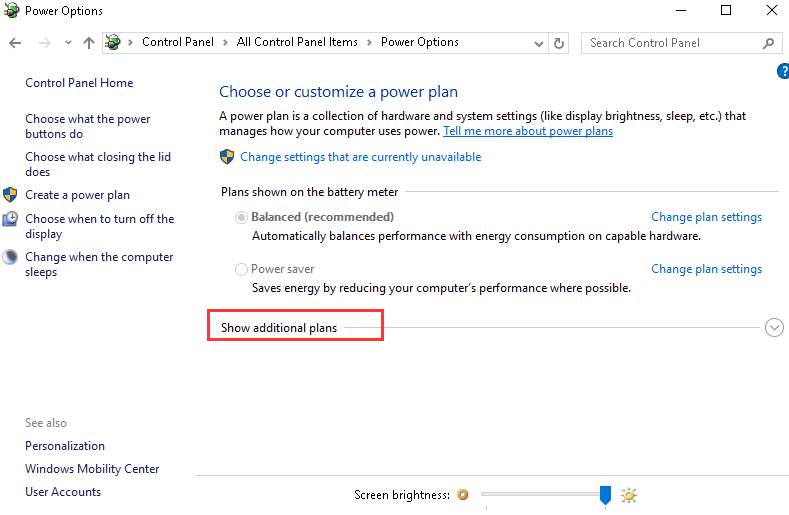
  • Click Show additional plans
show additional plans
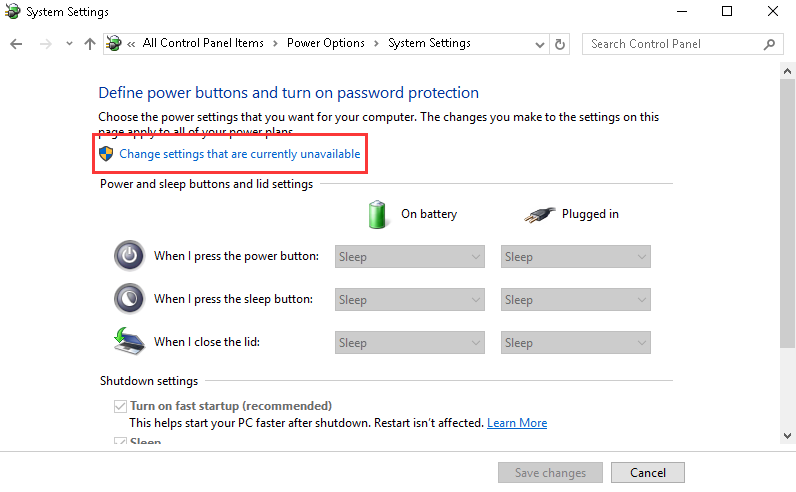
  • Click Change settings that are currently unavailable
change settings unavailable
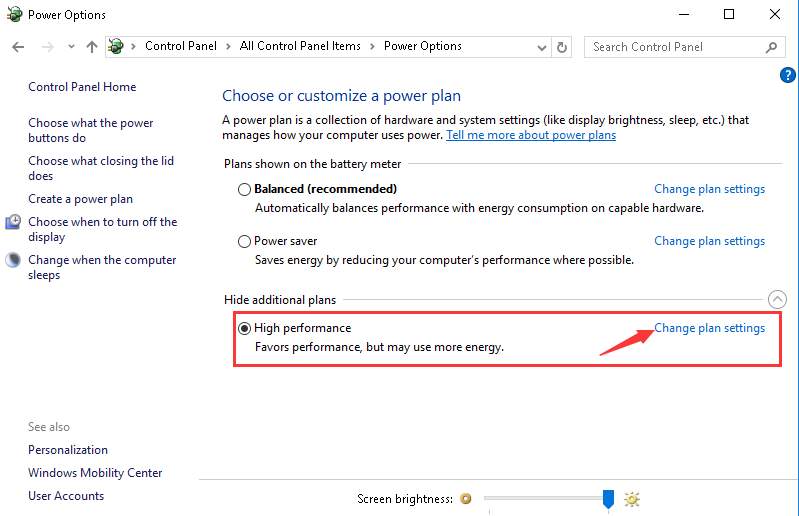
  • Select High-performance option and then click Change plan settings
change plan settings
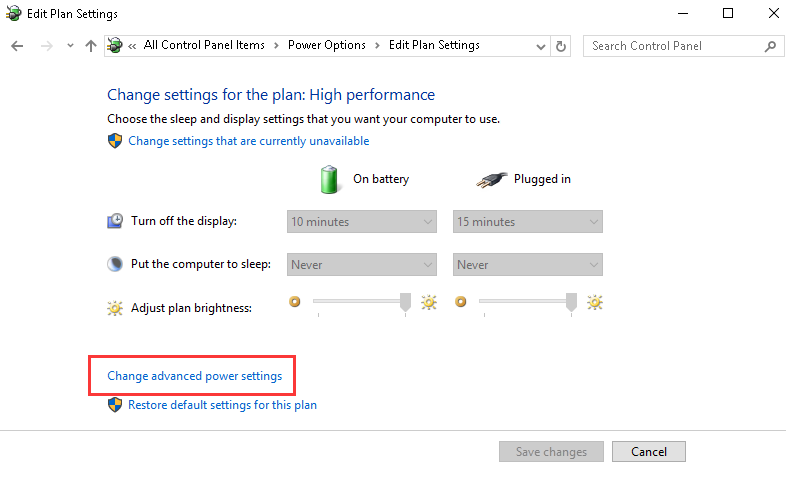
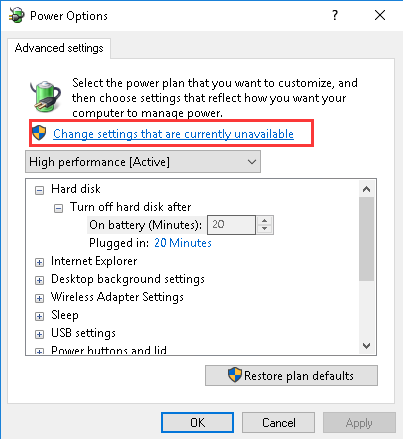
  • Click Change advanced power settings
advanced pwr settings
  • Click Change settings that are currently unavailable
power change settings
  • Find USB settings and expand it
  • Expand USB selective suspend setting and disable On Battery and Plugged in options
usb selective suspend
  • Click Apply and then click OK
  • Close all settings windows and restart your computer

In most cases, you should see the unknown USB device (device descriptor request failed) issue is resolved.

Filed Under: PC Fix Tips Tagged With: USB Device Error


  • Recent Posts
  • Popular Posts
        

Read More Posts


Read More Posts

Drivers.com Sites

  • Software Drivers
  • Drivers Ed

About Us

  • Advertise
  • About Drivers
  • Drivers Support
  • Drivers.com Privacy Policy
  • Disclaimer
  • Software Drivers
  • Mac Fixes and Tips
  • PC Fix Tips
  • Security/ Backup
  • Tablets & Smartphones
  • Tech News

© Copyright 2026 PDE Publications Ltd. End User License Agreement (EULA)