Drivers.com

follow us:

facebook twitter
  • Home
  • Download Drivers
  • Drivers Help
  • PC/Mac Resources
  • Software Drivers
  • Mac Fixes and Tips
  • PC Fix Tips
  • Security/ Backup
  • Tablets & Smartphones
  • Tech News
  • Software Drivers
  • Mac Fixes and Tips
  • PC Fix Tips
  • Security/ Backup
  • Tablets & Smartphones
  • Tech News

ScanSnap iX500 driver

By lisak on May 28, 2024

ScanSnap iX500 driver

Has your ScanSnap iX500 scanner stopped working on Windows 10 or Windows 11?

ScanSnap iX500 is a popular scanner model by Ricoh – formerly Fujitsu. All devices require software updates and if you are having issues with your scanner it may be the result of a Driver issue. In recent Operating Systems Fujitsu updated their software and ScanSnap home has ScanSnap Manager instead of the previous ScanSnap Home.

Download ScanSnap software

You can download the updated software driver directly from the Ricoh website. To do so follow the steps set out below.

  1. Go to the Ricoh software downloads page 
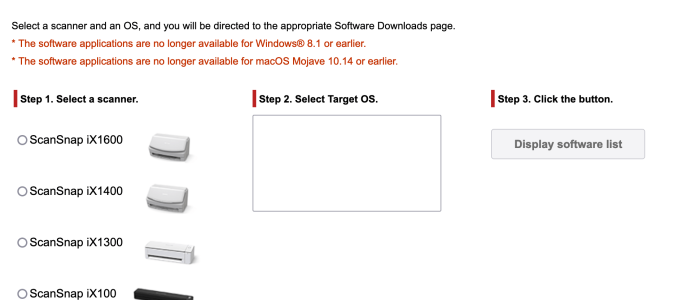
  2. download ricoh scanner driversScroll down to ‘Discontinued Scanners’ and select ScanSnap iX500
  3. download ricoh scanner driverNext, select your Windows Operating System in the dropdown list and then click the Display software list button
  4. Under Setup Programs, click the Download link next to the SnapScan Home Download Installer 2.22.0
  5. rich scansnap ix500 fixSelect the location to download the software update to and then click the Download Installer
  6. Once downloaded locate the file and double-click on it to launch it
  7. Follow the on-screen instructions to install the ScanSnap Home software.
  8. Restart your computer when finished and your install should be complete!

Install Ricoh ScanSnap iX500 driver

Once you have installed ScanSnap Home you can then install the ScanSnap iX500 driver.

  1. Open ScanSnap Home software.
  2. Select the iX500 model and click Start setup
  3. Ensure the iX500 scanner is connected to your computer and the device is powered on
  4. When the device is installed click Finish

Automatically update Ricoh Scanner Drivers

If you prefer an easier and faster automatic driver update option, then click on the link below to download a Driver Update Tool which will take care of all driver updates for you.

Automatic driver update tools offer many benefits, the most important ones being:

  • You can update device drivers automatically
  • The software scans and updates all outdated or missing drivers at one go
  • The tool picks the right drivers for your device and operating system, so you won’t have to worry about installing an incorrect driver by mistake
  • Automatic driver updates are 100% safe

Driver Updater is one of the best driver update tools out there. Outbyte Driver Updater will give you access to a database of over 1 million drivers. It will regularly scan your PC, suggesting new driver versions to install. Driver Updater contains drivers for a variety of Windows devices. With just one click, you can update drivers in your system.

Step 1
Click here to Install and launch the app

Step 2
Scan all devices

Step 3
Install or update drivers automatically
 

Start Download


https://www.drivers.com/update_scanner_drivers_main/

Filed Under: Software Drivers Tagged With: ricoh, scanner

Canon PIXMA MG2522 Driver Download & Update

By lisak on May 27, 2024

Canon PIXMA MG2522 Driver Download & Update

Are you having problems with your Canon PIXMA MG2522 printer not printing? Is your printer behaving erratically or crashing when you are trying to send print jobs?

If so you may have a problem with corrupt or out-of-date Canon printer drivers. In this post we will show you two of the main methods for updating your Canon PIXMA MG2522 printer drivers. Updating your printer drivers should fix any print errors and issues preventing you from using your Canon printer.

1. Automatically update Canon printer drivers

This is the fastest option as the update process is automated and all you need to do is download the driver update tool. This will also ensure all your other drivers (sound, USB, wifi etc) are kept up-to-date.

2. Manually update Canon printer drivers

This option may take a bit longer than the first one but if you are confident in downloading and installing files then you could try this option. You will need to be familiar with both your printer model number and your Operating System.

1. Automatically update Canon printer drivers

If you want the quickest and simplest option for getting your Canon PIXMA MG2522 printer back in action, then you can download a driver update tool to automate this process for you.

driver updater

Automatic driver update tools offer many benefits, the most important ones being:

  • You can update device drivers automatically
  • The software scans and updates all outdated or missing drivers at one go
  • The tool picks the right drivers for your device and operating system, so you won’t have to worry about installing an incorrect driver by mistake
  • Automatic driver updates are 100% safe

Driver Updater is one of the best driver update tools out there. Outbyte Driver Updater will give you access to a database of over 1 million drivers. It will regularly scan your PC, suggesting new driver versions to install. Driver Updater contains drivers for a variety of Windows devices. With just one click, you can update drivers in your system.

Step 1
Click here to Install and launch the app

Step 2
Scan all devices

Step 3
Install or update drivers automatically


Start Download


2. Manually update Canon PIXMA MG2522 printer drivers

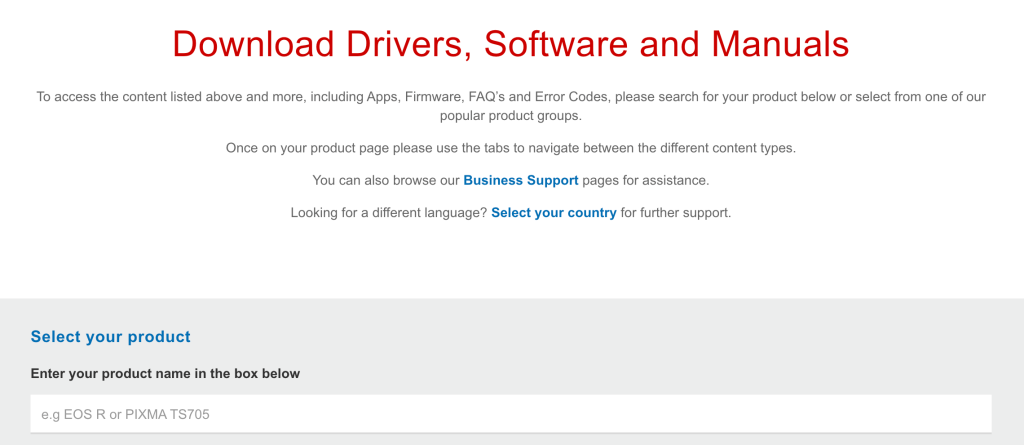
If you choose to manually update your Canon 2522 printer drivers, you will first need to go to the Canon website support section.

Then select ‘software & drivers’ > ‘printers’ > PIXMA > MG Series > PIXMA MG2522

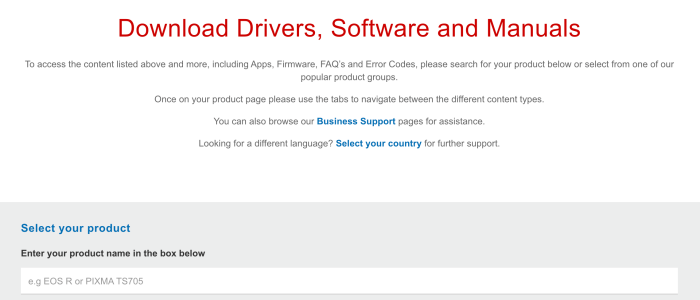
You may also see the screen where you simply type in the printer model directly as below:

download canon pixma mg2522 printer drivers

You will then need to select your operating system from the dropdown list and finally click ‘select’ next to the driver file you wish to download. Select ‘download’ to download the file.

Restart your computer after downloading the driver file.

You should now have updated drivers for your Canon MG2522 printer. If you are still having problems with your printer, see some of our printer troubleshooting posts below.

Canon Pixma – common errors and fixes
Fix Canon Printer Error

Filed Under: Software Drivers Tagged With: 2522, canon, pixma, printer

Epson printer not printing

By lisak on May 15, 2024

When your Epson printer is not printing there are a number of troubleshooting steps you should work through. We start with the most obvious and simple solutions first so make sure to run through the entire list below.

  1. Check your printer is connected:
    Make sure that your power cables are seated correctly, check the actual power outlet is working by checking with another device. Then check that the print is connected either by cable or wirelessly to your computer.
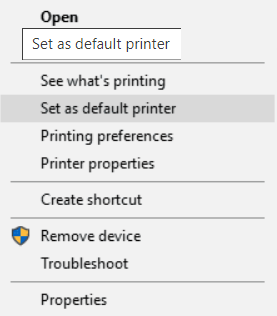
  2. Ensure your Epson printer is the default printer:
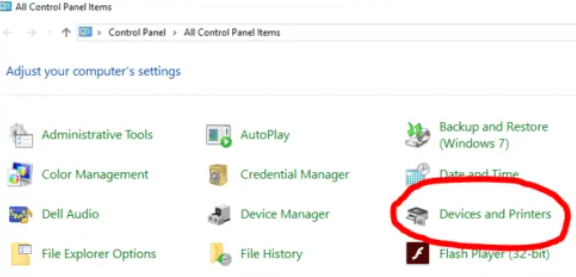
    You may have more than one printer on your network or even an old printer listed as the default. To check that your Epson printer is the default printer, go to Control Panel > Devices and Printers

    click devices and printers

    epson default printer

  3. Check your Epson Printer for error messages:
    These messages may appear either on your computer screen or on the screen of the printer itself or both. Take note of any error messages and search either your manual or online to see what the error means.
  4. Check your printers ink or toner levels:
    Your printer is likely to have a display screen which will alert you to low ink or toner levels. If these levels are too low then your printer will not print.
  5. Printer paper jam:
    This is a frustratingly common issue, to check for a paper jam open your printer and look inside, even something small on the printer roller can cause a problem with printing.
  6. Epson printer queue:
    The printer queue is the list of jobs the printer is waiting to complete. Somethings this can get stuck and it is best to just clear the queue and start again.
  7. Restart your computer and printer:
    It is always a good option to restart a device you are having problems with, this can often clear issues. When rebooting it is important to unplug your device for a couple of minutes to ensure it fully clears before being turned back on.
  8. Epson printer driver issues:
    Printer drivers need to be kept updated so you should ensure you have the correct printer driver installed. Click here to view our page on updating Epson printer drivers.
  9. Epson Firmware Updates: Check the Epson website for any firmware updates available for your printer and install them if needed.

Hopefully the above steps will have helped you resolve your Epson printer not printing error. If not, browse some of the articles below for more help.

Fix/ Download Epson Drivers

Troubleshooting EPSON printer problems in Windows 10

Apple HP & Epson printer drivers updates

How to get Epson printer online?


Filed Under: PC Fix Tips Tagged With: epson, printer

  • « Previous Page
  • 1
  • 2
  • 3
  • 4
  • 5
  • …
  • 23
  • Next Page »


  • Recent Posts
  • Popular Posts
        

Read More Posts


Read More Posts

Drivers.com Sites

  • Software Drivers
  • Drivers Ed

About Us

  • Advertise
  • About Drivers
  • Drivers Support
  • Drivers.com Privacy Policy
  • Disclaimer
  • Software Drivers
  • Mac Fixes and Tips
  • PC Fix Tips
  • Security/ Backup
  • Tablets & Smartphones
  • Tech News

© Copyright 2026 PDE Publications Ltd. End User License Agreement (EULA)