Drivers.com

follow us:

facebook twitter
  • Home
  • Download Drivers
  • Drivers Help
  • PC/Mac Resources
  • Software Drivers
  • Mac Fixes and Tips
  • PC Fix Tips
  • Security/ Backup
  • Tablets & Smartphones
  • Tech News
  • Software Drivers
  • Mac Fixes and Tips
  • PC Fix Tips
  • Security/ Backup
  • Tablets & Smartphones
  • Tech News

My Dell USB ports stopped working

By lisak on October 3, 2024

My Dell USB ports stopped working

We rely on our USB ports for connecting to various external devices such as phones, printers, hard drives etc. When the USB ports on your Dell computer stop working this can stop us from using or accessing these devices. There are several steps you can try to resolve the USB issue on your Dell laptop or desktop.

dell usb problem

Restart Your Computer

Quite often simply restart your Dell device can reset the USB controller and resolve temporary issues. It is always worth trying this solution before anything else.

Check for Power Issues

Rule out problems with power in your Dell USB ports by checking devices (and USB cables) that you know are working on another port. If devices and cables are working on another USB port and not the one in question, then you know the problem is with the USB port itself.

Update USB Drivers

https://www.drivers.com/update_dell_drivers_main/

  1. Open the Device Manager
  2. Press `Windows + X` and select ‘Device Manager’
  3. Expand the ‘Universal Serial Bus controllers’ section
  4. Right-click on each USB Root Hub or Host Controller and select ‘Update Driver’
  5. Select the option to search automatically for updated drivers
  6. You can also visit Dell’s official website to download and install the latest drivers for your system

Disable USB Selective Suspend Setting

Open the Control Panel
Go to ‘Hardware and Sound’ > ‘Power Options’
Click ‘Change plan settings’ next to your current power plan
Click ‘Change advanced power settings’
Expand ‘USB settings’ and set ‘USB selective suspend setting’ to ‘Disabled’

Uninstall and Reinstall USB Drivers

This can fix Dell USB Drivers that have become corrupt or are simply out-of-date.

  1. In ‘Device Manager’ right-click on each USB device under ‘Universal Serial Bus controllers’ and choose ‘Uninstall device’
  2. After uninstalling all USB controllers, restart your computer. Windows will automatically reinstall the drivers.

Check for Windows Updates

Running Windows Updates will often resolve issues with devices and is worth doing as good security practice whether you are having issues or not.

  1. Go to ‘Settings’ > ‘Update & Security’ and check if there are any pending updates
  2. Install any available updates, as they may contain fixes for USB issues.

Do a Power Reset (for laptops)

  1. Shut down your laptop, unplug the charger, and remove the battery (if possible). This allows the system to fully reset
  2. Hold down the power button for 30 seconds to drain residual power
  3. Reinsert the battery, plug the charger in, and turn on the laptop to check if the USB ports now work

Check for Physical Damage

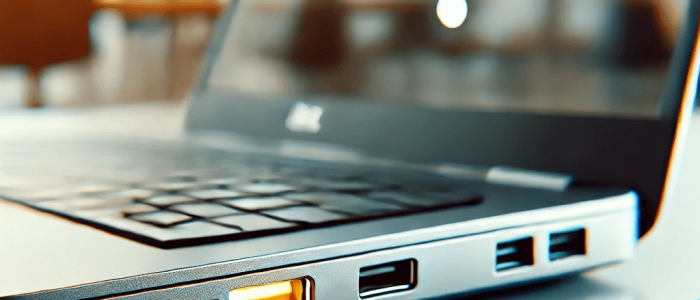
Check the USB ports for any visible damage or build-up of anything within the port itself. If the USB port is physically damaged then you will need to look at a professional repair or replacement.

If none of the above steps fix the issue with your USB port, the USB controller hardware may have failed, and you might need professional repair or replacement of the motherboard.

https://www.drivers.com/fix_usb_drivers_problems/
Filed Under: Software Drivers Tagged With: dell, usb

Common Issues with Canon TS3500 Wireless Setup

By lisak on May 30, 2024

Common Issues with Canon TS3500 Wireless Setup

Canon TS3500 Series Color Inkjet All-in-One Printer

Canon TS3500 series printers support WiFi direct printing as well as USB and HDMI cable connection.

Wireless printing can be very convenient but as with anything, problems can occasionally arise. Below are the most common Canon TS3500 printer connection errors and how to fix these printer errors.

Canon TS3500 printer not detecting Wi-Fi network

This is a very common issue which thankfully is often very easy to fix.

The first thing to do is to make sure that your Wi-Fi network is actually working. Can you connect other devices to it? If so, move on to the next step. If not, you will need to firstly fix your Wi-Fi or wireless connection problems.

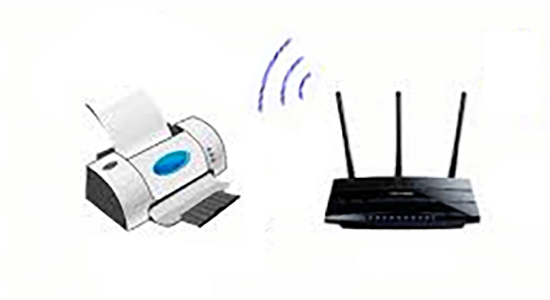
Next you should ensure that your printer is within close range of your router with no major obstructions (such as thick walls) in the way. This may solve the problem immediately so always test after each troubleshooting step.

printer and router wifi range

If your router-printer distance was not the issue, the next step is to restart both devices. It is important to note that unplugging devices for a few minutes is important in order to fully restart the device, simply using the off switch is not enough. This should refresh all the settings and may solve the wireless connectivity issues with your Canon TS3500 printer.

Canon TS3500 printer showing offline

If your Canon TS3500 printer is showing offline during wireless setup make sure that the printer is fully powered on and no errors are showing.

Make sure your printer is connected to your wireless network, double-check the network name and password. You can do this through printer settings. Again, restarting both devices can often clear any errors and refresh the settings.

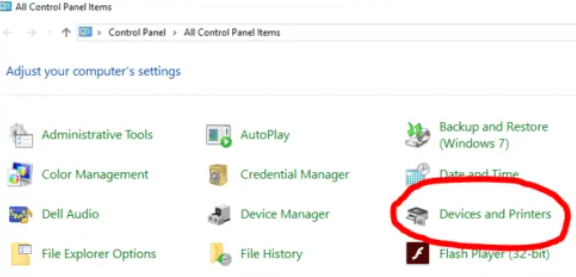
click devices and printers

Canon TS3500 printer not printing wirelessly

Even after successfully connecting your Canon TS3500 wirelessly you may experience issues when trying to send files to print.

The first thing to do in this case is to make sure you have up-to-date printer drivers for your Canon TS3500 printer. You can get the latest Drivers on Canon’s official website or you can use a Driver Update Tool to automate the process for you.

Automatic driver update tools offer many benefits, the most important ones being:

  • You can update device drivers automatically
  • The software scans and updates all outdated or missing drivers at one go
  • The tool picks the right drivers for your device and operating system, so you won’t have to worry about installing an incorrect driver by mistake
  • Automatic driver updates are 100% safe

Driver Updater is one of the best driver update tools out there. Outbyte Driver Updater will give you access to a database of over 1 million drivers. It will regularly scan your PC, suggesting new driver versions to install. Driver Updater contains drivers for a variety of Windows devices. With just one click, you can update drivers in your system.

Step 1
Click here to Install and launch the app

Step 2
Scan all devices

Step 3
Install or update drivers automatically


Start Download


https://www.drivers.com/update_canon_drivers_main/
https://www.drivers.com/update-canon-printer-drivers/

Filed Under: Software Drivers Tagged With: canon, printer, TS3500, wifi, wireless

HP DeskJet 2130 All-in-One Printer

By lisak on May 29, 2024

HP DeskJet 2130 All-in-One Printer

HP deskjet 2130 printer errors

hp deskjet 2130

If you are having problems with your HP deskjet 2130 then follow our instructions below to troubleshoot your printing issues.

The first thing to do with any printer error on any Operating System is to turn off the printer and unplug for a few minutes, then restart the printer. This can help to reset any simple problems and also confirms you have all the cables plugged in correctly.


HP deskjet 2130 error printing windows 10

If you are running Windows 10 you may have seen the error “driver is unavailable” when trying to print to your HP deskjet 2130 printer. If this is the case it is likely you need to update your printer drivers. You can do this automatically or manually. If you are confident with downloading and running files you can attempt to manually update the drivers. This will only update these specific drivers whereby a Driver Update Tool will keep all your device drivers up-to-date.

Manually update HP Deskjet 2130 drivers

To manually update your printer drivers you would need to do the following:

  1. go to the HP website software drivers section

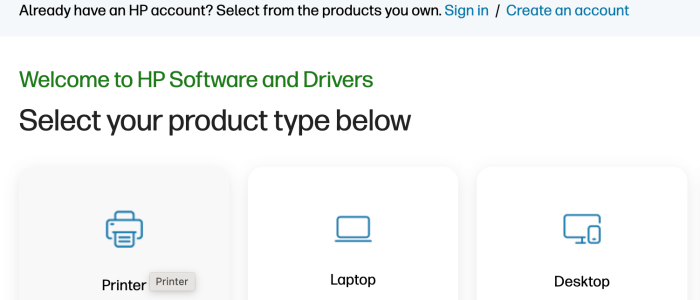
    hp support website

  2. Select printer and then type in your printer details as below
    hp support printer details
    download hp printer driver
  3. Once you have downloaded the printer driver, follow the onscreen instructions to install it.
  4. Restart your computer

Automatically update HP Deskjet 2130 drivers

If you would prefer to automatically update your printer drivers, you can use a Driver Update Tool to automate the process for you.

Automatic driver update tools offer many benefits, the most important ones being:

  • You can update device drivers automatically
  • The software scans and updates all outdated or missing drivers at one go
  • The tool picks the right drivers for your device and operating system, so you won’t have to worry about installing an incorrect driver by mistake
  • Automatic driver updates are 100% safe

Driver Updater is one of the best driver update tools out there. Outbyte Driver Updater will give you access to a database of over 1 million drivers. It will regularly scan your PC, suggesting new driver versions to install. Driver Updater contains drivers for a variety of Windows devices. With just one click, you can update drivers in your system.

Step 1
Click here to Install and launch the app

Step 2
Scan all devices

Step 3
Install or update drivers automatically


Start Download


Filed Under: Software Drivers Tagged With: HP deskjet 2130, printer

  • « Previous Page
  • 1
  • 2
  • 3
  • 4
  • …
  • 23
  • Next Page »


  • Recent Posts
  • Popular Posts
        

Read More Posts


Read More Posts

Drivers.com Sites

  • Software Drivers
  • Drivers Ed

About Us

  • Advertise
  • About Drivers
  • Drivers Support
  • Drivers.com Privacy Policy
  • Disclaimer
  • Software Drivers
  • Mac Fixes and Tips
  • PC Fix Tips
  • Security/ Backup
  • Tablets & Smartphones
  • Tech News

© Copyright 2026 PDE Publications Ltd. End User License Agreement (EULA)