Drivers.com

follow us:

facebook twitter
  • Home
  • Download Drivers
  • Drivers Help
  • PC/Mac Resources
  • Software Drivers
  • Mac Fixes and Tips
  • PC Fix Tips
  • Security/ Backup
  • Tablets & Smartphones
  • Tech News
  • Software Drivers
  • Mac Fixes and Tips
  • PC Fix Tips
  • Security/ Backup
  • Tablets & Smartphones
  • Tech News

Brother DCP-L2550DW Driver Download [step by step guide]

By lisak on February 27, 2024

update brother driverAre you trying to set up your Brother DCP-L2550DW printer or having problems with the Brother DCP-L2550DW printer drivers?

In this step-by-step guide, we will walk you through the process of downloading the necessary drivers for your Brother DCP-L2550DW printer. Whether you are updating the drivers from older ones, or downloading the Brother DCP-L2550DW printer drivers for the first time, this post is here to help.

Step 1: Get the necessary Information

Before you begin the driver download process, make sure you have all the necessary information. This includes the model number of your Brother printer (DCP-L2550DW), your computer’s operating system, and your internet connection. Having this information on hand will make the process much easier.

Step 2: Visit the Brother Website

Open your web browser and go to the Brother website. Once on the website go to the support section and  select downloads. This will take you to the Downloads page where you can find the drivers specific to your Brother DCP-L2550DW Printer.

Step 3: Select Your Operating System

On the Downloads page of the Brother website, you will see a list of available drivers for different Brother products. Scroll down until you find the DCP-L2550DW printer. Click on the “Select Your Operating System” drop-down menu and choose your computer’s operating system. This will filter the results and show only the drivers compatible with your system.

Step 4: Download the Driver

Once you have selected your operating system, you will see a list of available drivers for your printer. Look for the “Full Driver & Software Package” and click on the “Download” button next to it. This will start the download process. Depending on your internet speed, this may take a few minutes.

Step 5: Install the Driver

After the download is complete, locate the downloaded file on your computer and double-click on it to begin the installation process. Follow the on-screen instructions to complete the installation. Make sure to read and accept the license agreement before proceeding.

Step 6: Connect Your Printer

Once the driver is installed, connect your printer to your computer using a USB cable. Your computer should automatically detect the printer and install the necessary drivers. If prompted, select “Install driver” to complete the process.

Step 7: Test Your Printer

No that you have successfully downloaded and installed the Brother DCP-L2550DW driver you will need to ensure that everything is working correctly so print a test page. If the test page prints successfully, your printer is ready to use.

Some of the supported printer models

DCP-L2550DW

DCP-L5500DN

DCP-L5600DN

DCP-L5650DN

HL-2270DW

HL-2275DW

HL-2280DW

HL-3040CN

HL-3045CN

HL-3070CW

HL-3075CW

HL-3170CDW

HL-3180CDW

HL-4570CDW

HL-4570CDWT

HL-5350DN

HL-5370DW/HL-5370DWT

HL-5450DN

HL-5470DWT

MFC-9460CDN

Automatically update Brother DCP-L2550DW  Printer Drivers

Automatic driver update tools offer many benefits, the most important ones being:

  • You can update device drivers automatically
  • The software scans and updates all outdated or missing drivers at one go
  • The tool picks the right drivers for your device and operating system, so you won’t have to worry about installing an incorrect driver by mistake
  • Automatic driver updates are 100% safe

Driver Updater is one of the best driver update tools out there. Outbyte Driver Updater will give you access to a database of over 1 million drivers. It will regularly scan your PC, suggesting new driver versions to install. Driver Updater contains drivers for a variety of Windows devices. With just one click, you can update drivers in your system.

Step 1
Click here to Install and launch the app

Step 2
Scan all devices

Step 3
Install or update drivers automatically

Start Download

Filed Under: Software Drivers Tagged With: brother, DCP-L2550DW, drivers, printer

How to Fix No Signal on Monitor problem [solved]

By lisak on February 15, 2024

How to Fix No Signal on Monitor problem [solved]

Is your computer showing a blank screen and a message that says “No Signal”. This can be a very frustrating issue but don’t worry, in this article, we’ll walk you through the steps to troubleshoot and fix the “No Signal” problem on your monitor.

What Does “No Signal” Mean?

Before we go into the troubleshooting steps, let’s first understand what “No Signal” means. This message appears on your monitor when it is not receiving a signal from your computer. This can happen for a variety of reasons, such as a loose cable connection, a faulty graphics card, or a problem with your computer’s settings.

Troubleshooting No Signal on Monitor

no signal

If you’re experiencing the “No Signal” issue on your monitor, here are some steps you can take to troubleshoot and fix the problem.

Check your Cable Connections

The first thing you should do is check all the cable connections between your computer and your monitor. Make sure that the cables are securely plugged in and that there are no loose connections. If you’re using an HDMI cable, try unplugging it and plugging it back in to ensure a secure connection.

Test with a Different Cable

If you’re using an HDMI cable and the “No Signal” issue persists, try using a different cable. Sometimes, cables can become damaged or faulty, causing the signal to be lost. If you don’t have a spare cable, you can also try using a different type of cable, such as a VGA or DVI cable, to see if that resolves the issue.

Check Your Monitor’s Input Source


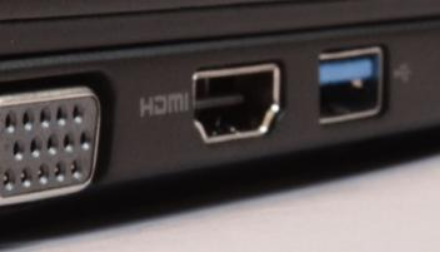
HDMI port

If you have multiple input sources on your monitor, such as HDMI, VGA, and DVI, make sure that the correct input source is selected. You can usually change the input source by pressing a button on your monitor or using the menu options on your monitor’s display.

Restart Your Computer

Sometimes, a simple restart can fix the “No Signal” issue. Try restarting your computer and see if the problem persists. If it does, move on to the next step.

Check Your Graphics Card

If you have run through all the above steps and the “No Signal” issue persists, the problem may lie with your computer’s graphics card. Check to make sure that your graphics card is properly connected and that there are no loose connections. If you have a spare graphics card, you can also try swapping it out to see if that resolves the issue.

Update Your Drivers

Outdated or faulty drivers can also cause the “No Signal” problem. Make sure that your graphics card drivers are up to date by visiting the manufacturer’s website and downloading the latest drivers. You can also use a driver update tool to automatically scan and update your drivers.

Check Your Computer’s Settings

change display settings

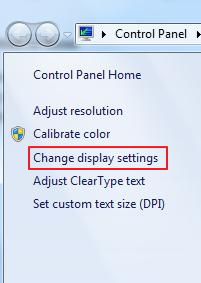
If none of the above steps have resolved the “No Signal” issue, it’s time to check your computer’s settings. Make sure that your computer is set to output to the correct display and that the resolution and refresh rate are set correctly. You can usually access these settings through your computer’s display settings or graphics card control panel.

Try a Different Monitor

If you have access to a different monitor, try connecting it to your computer to see if the “No Signal” issue persists. If the problem is resolved with a different monitor, then the issue lies with your original monitor and it may need to be repaired or replaced.

Preventing Monitor Problems

Now that you’ve successfully fixed the “No Signal” issue on your monitor, here are some tips to help prevent it from happening in the future.

Keep Your Cables Secure

computer monitor cables

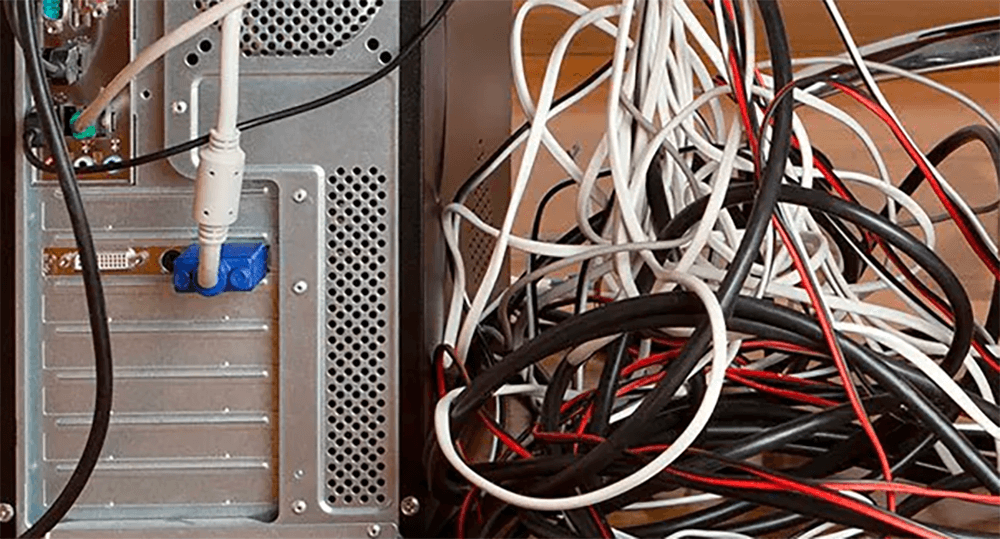
One of the most common causes of the “No Signal” problem is loose cable connections. To prevent this from happening, make sure that all your cables are securely plugged in and that there are no loose connections. You can also use cable ties or clips to keep your cables organized and secure.

Use High-Quality Cables

Using high-quality cables can also help prevent monitor problems. Cheap or faulty cables can cause signal loss and other issues, so it’s worth investing in good quality cables to ensure a reliable connection.

Keep Your Drivers Up to Date

As mentioned earlier, outdated or faulty drivers can cause the “No Signal” issue. Make sure to regularly check for driver updates and keep them up to date to prevent any potential problems.

Clean Your Monitor Regularly

Dust and debris can build up on your monitor over time, which can cause problems with the display. Make sure to regularly clean your monitor with a soft, lint-free cloth to keep it in good working order.

Automatic Driver Updates

Automatic driver update tools offer many benefits, the most important ones being:

  • You can update device drivers automatically
  • The software scans and updates all outdated or missing drivers at one go
  • The tool picks the right drivers for your device and operating system, so you won’t have to worry about installing an incorrect driver by mistake
  • Automatic driver updates are 100% safe

Driver Updater is one of the best driver update tools out there. Outbyte Driver Updater will give you access to a database of over 1 million drivers. It will regularly scan your PC, suggesting new driver versions to install. Driver Updater contains drivers for a variety of Windows devices. With just one click, you can update drivers in your system.

Step 1
Click here to Install and launch the app

Step 2
Scan all devices

Step 3
Install or update drivers automatically

Start Download

Filed Under: Software Drivers Tagged With: monitor, signal

How to Update ASUS X200CA Drivers

By lisak on February 12, 2024

How to Update ASUS X200CA Drivers

If you have an ASUS X200CA laptop, you may have noticed that your device is not performing as well as it used to. This could be due to outdated or corrupt device drivers. These drivers are essential for the proper functioning of your ASUS laptop. In this article, we will walk you through the process of updating your ASUS X200CA drivers to improve the performance of your ASUS laptop.

Why Update Device Drivers?

Drivers are software programs that allow your operating system to communicate with the hardware components of your laptop. They are essential for the proper functioning of your device and can affect its performance, stability, and security. Outdated drivers can cause a range of issues, such as slow computer performance, crashes, and even security vulnerabilities. Therefore, it is important to regularly update your drivers to ensure your laptop is running at its best.

How to Check for Driver Updates

The first step in updating your ASUS X200CA drivers is to check for any available updates. To do this, follow these steps:

  1. Press the Windows key + X on your keyboard and select “Device Manager” from the menu.
  2. In the Device Manager window, expand the categories to find the drivers you want to update.
  3. Right-click on the driver and select “Update driver.”
  4. Choose the option to search automatically for updated driver software.
  5. If any updates are found, follow the prompts to install them.

Download Drivers from ASUS Website

If your device is not automatically finding updates, you can manually download and install the latest drivers from the ASUS website. Follow these steps:

  1. Go to the ASUS Support website and enter your laptop’s model number (X200CA) in the search bar.
  2. Select your operating system from the drop-down menu.
  3. Click on the “Driver & Tools” tab.
  4. Expand the categories to find the drivers you want to update.
  5. Click on the driver and select the “Global” option to download the driver.
  6. Once the download is complete, double-click on the downloaded file and follow the prompts to install the driver.

Use Driver Update Software

outbyte driver updater


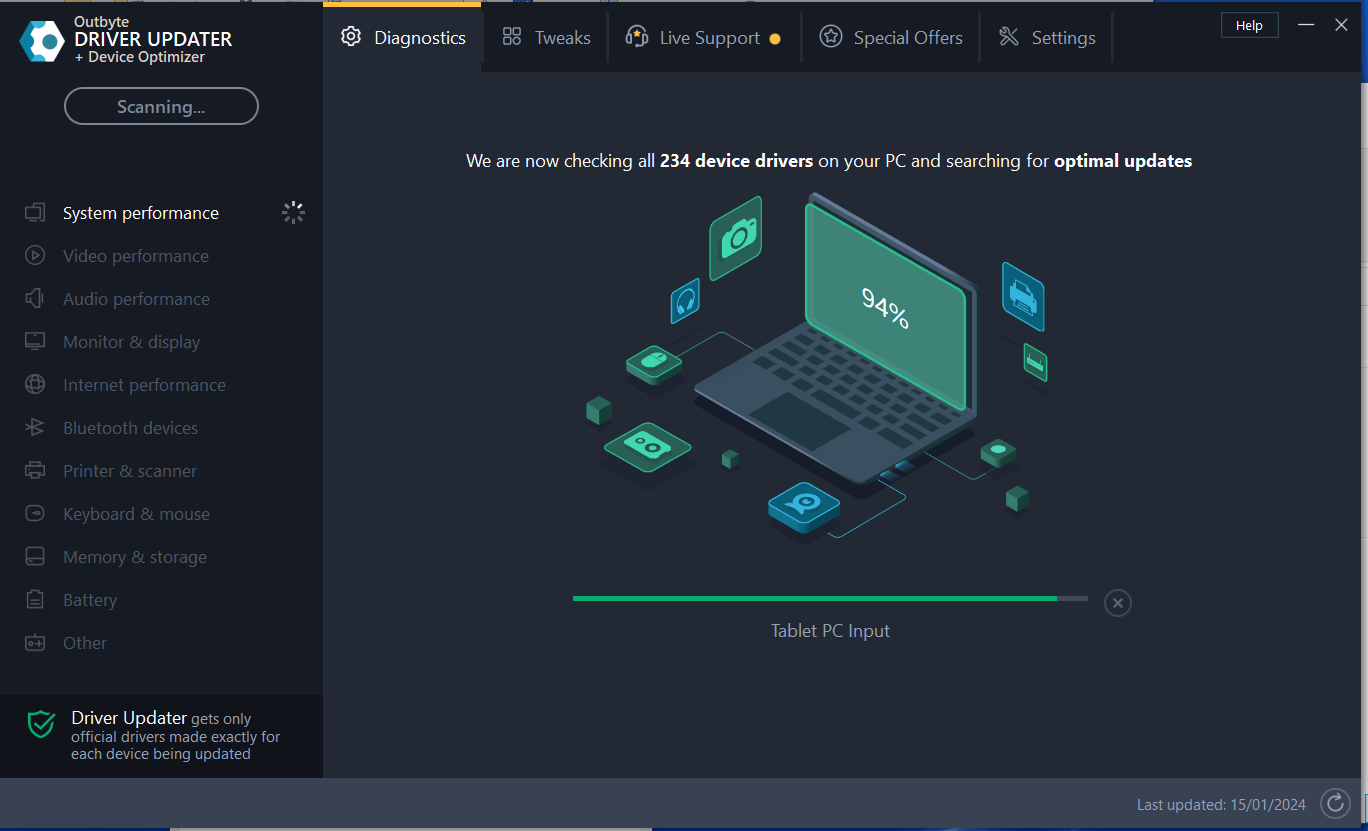
If you are not comfortable manually updating your drivers, you can use driver update software to update the drivers for you. These programs scan your system for outdated drivers and automatically download and install the latest versions.

Automatic driver update tools offer many benefits, the most important ones being:

  • You can update device drivers automatically
  • The software scans and updates all outdated or missing drivers at one go
  • The tool picks the right drivers for your device and operating system, so you won’t have to worry about installing an incorrect driver by mistake
  • Automatic driver updates are 100% safe

Driver Updater is one of the best driver update tools out there. Outbyte Driver Updater will give you access to a database of over 1 million drivers. It will regularly scan your PC, suggesting new driver versions to install. Driver Updater contains drivers for a variety of Windows devices. With just one click, you can update drivers in your system.

Step 1
Click here to Install and launch the app

Step 2
Scan all devices

Step 3
Install or update drivers automatically

Start Download

Filed Under: Software Drivers Tagged With: asus, drivers, X200CA

  • « Previous Page
  • 1
  • 2
  • 3
  • 4
  • 5
  • 6
  • …
  • 23
  • Next Page »


  • Recent Posts
  • Popular Posts
        

Read More Posts


Read More Posts

Drivers.com Sites

  • Software Drivers
  • Drivers Ed

About Us

  • Advertise
  • About Drivers
  • Drivers Support
  • Drivers.com Privacy Policy
  • Disclaimer
  • Software Drivers
  • Mac Fixes and Tips
  • PC Fix Tips
  • Security/ Backup
  • Tablets & Smartphones
  • Tech News

© Copyright 2026 PDE Publications Ltd. End User License Agreement (EULA)