

Drivers.com

follow us:

facebook twitter
  • Home
  • Download Drivers
  • Drivers Help
  • PC/Mac Resources
  • Software Drivers
  • Mac Fixes and Tips
  • PC Fix Tips
  • Security/ Backup
  • Tablets & Smartphones
  • Tech News
  • Software Drivers
  • Mac Fixes and Tips
  • PC Fix Tips
  • Security/ Backup
  • Tablets & Smartphones
  • Tech News

Resources by Tag

asus

How to Update ASUS X200CA Drivers

How to Update ASUS X200CA Drivers

If you have an ASUS X200CA laptop, you may have noticed that your device is not performing as well as it used to. This could be due to outdated or corrupt device drivers. These drivers are essential for the proper functioning of your ASUS laptop. In this article, we will walk you through the process of updating your ASUS X200CA drivers to improve the performance of your ASUS laptop.

Why Update Device Drivers?

Drivers are software programs that allow your operating system to communicate with the hardware components of your laptop. They are essential for the proper functioning of your device and can affect its performance, stability, and security. Outdated drivers can cause a range of issues, such as slow computer performance, crashes, and even security vulnerabilities. Therefore, it is important to regularly update your drivers to ensure your laptop is running at its best.

How to Check for Driver Updates

The first step in updating your ASUS X200CA drivers is to check for any available updates. To do this, follow these steps:

  1. Press the Windows key + X on your keyboard and select “Device Manager” from the menu.
  2. In the Device Manager window, expand the categories to find the drivers you want to update.
  3. Right-click on the driver and select “Update driver.”
  4. Choose the option to search automatically for updated driver software.
  5. If any updates are found, follow the prompts to install them.

Download Drivers from ASUS Website

If your device is not automatically finding updates, you can manually download and install the latest drivers from the ASUS website. Follow these steps:

  1. Go to the ASUS Support website and enter your laptop’s model number (X200CA) in the search bar.
  2. Select your operating system from the drop-down menu.
  3. Click on the “Driver & Tools” tab.
  4. Expand the categories to find the drivers you want to update.
  5. Click on the driver and select the “Global” option to download the driver.
  6. Once the download is complete, double-click on the downloaded file and follow the prompts to install the driver.

Use Driver Update Software
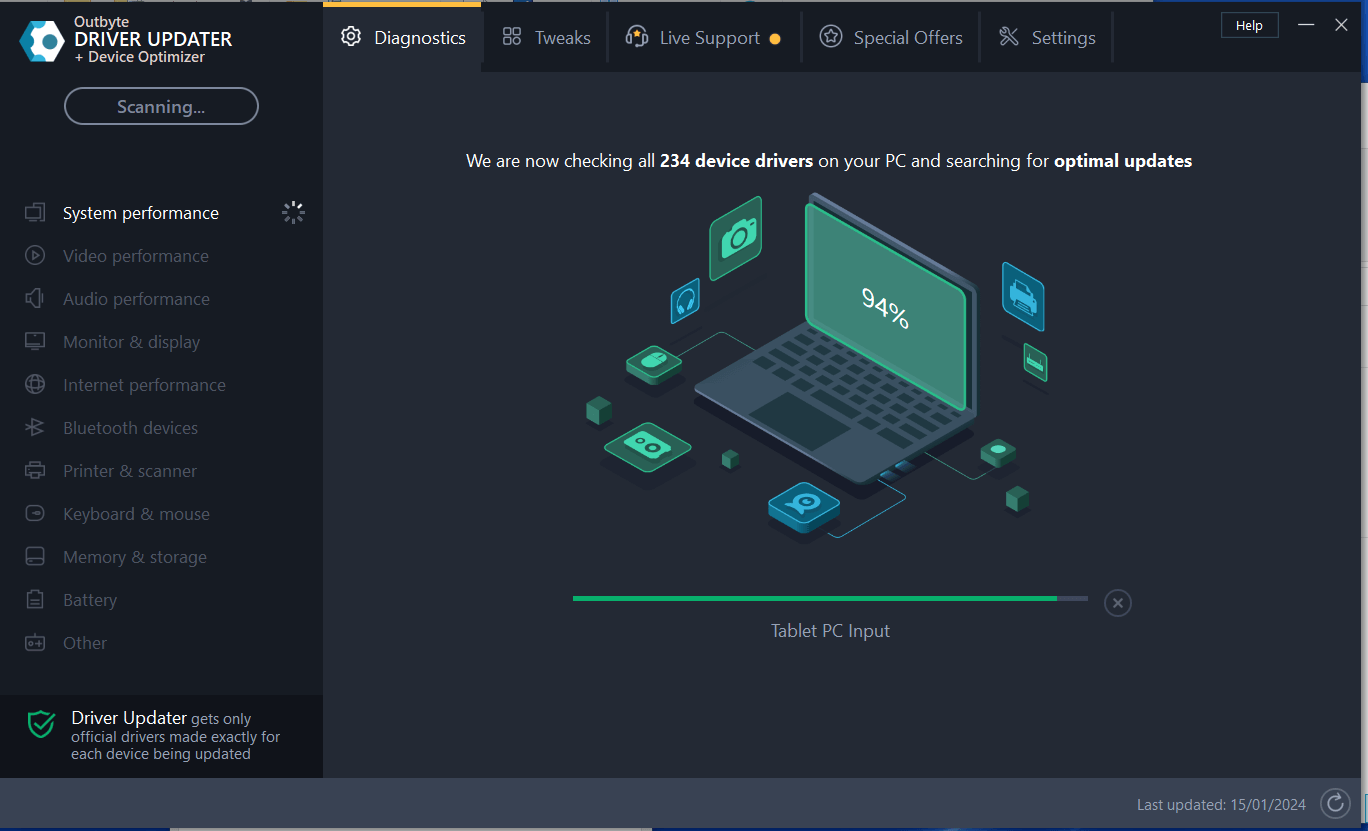
outbyte driver updater


If you are not comfortable manually updating your drivers, you can use driver update software to update the drivers for you. These programs scan your system for outdated drivers and automatically download and install the latest versions.

Automatic driver update tools offer many benefits, the most important ones being:

  • You can update device drivers automatically
  • The software scans and updates all outdated or missing drivers at one go
  • The tool picks the right drivers for your device and operating system, so you won’t have to worry about installing an incorrect driver by mistake
  • Automatic driver updates are 100% safe

Driver Updater is one of the best driver update tools out there. Outbyte Driver Updater will give you access to a database of over 1 million drivers. It will regularly scan your PC, suggesting new driver versions to install. Driver Updater contains drivers for a variety of Windows devices. With just one click, you can update drivers in your system.

Step 1
Click here to Install and launch the app

Step 2
Scan all devices

Step 3
Install or update drivers automatically

Start Download

Filed Under: Software Drivers Tagged With: asus, drivers, X200CA

Google and Asus team up to offer Wave Control

If you use a router in your home or office network setup, you will be aware that these networking devices are less than perfect and there is still great scope for improvement. We have become used to connections dropping unexpectedly, often leaving us with no option other than to reset the router and the interfaces of these routers are not always that user-friendly.

Google plans to change this and has teamed up with Asus to offer a new generation router that speeds up the internet connection on your device by a simple wave of hand over the router. Below we will look at this router in more detail.

The 2nd generation OnHub Router from Google and Asus

Google launched its first OnHub router with TP-Link and it is now presenting a newer version of OnHub that has the smart Wave control feature. The highlight of this new OnHub router is that you can boost speed of any WiFi device by simply waving your hand on the top of the Asus OnHub router. This single feature separates the Asus OnHub from the all routers in the market, including its predecessor.

More about Asus OnHub router

The Asus OnHub router is cylindrical in shape, but its base is wider than the TP-Link OnHub. The OnHub router is powered by a dual core CPU tuned to clock speed of 1.4 GHz. Asus OnHub also offers 4 GB internal storage, so that it can install updates to work smarter.  The routers settings can be accessed from an app on your Smartphone.

How does Wave control work?

A very useful feature of the Asus OnHub router is that it allows you to set a priority level for devices. For example, let’s say you have three devices at home accessing Internet through OnHub, smart TV, a laptop and a Smartphone. The laptop is listed as a priority device in OnHub. If at any time, you experience slow internet speed while working on the laptop, all you have to do is just wave your hand on the top of Asus OnHub and the router will immediately grant more bandwidth to your laptop so your work does not suffer. This smart feature is quite useful as you are not required to log into the router interface and set priority yourself every time you experience low internet speed.

Filed Under: Tech News Tagged With: asus, google, wave control


  • Recent Posts
  • Popular Posts
        

Read More Posts


Read More Posts

Drivers.com Sites

  • Software Drivers
  • Drivers Ed

About Us

  • Advertise
  • About Drivers
  • Drivers Support
  • Drivers.com Privacy Policy
  • Disclaimer
  • Software Drivers
  • Mac Fixes and Tips
  • PC Fix Tips
  • Security/ Backup
  • Tablets & Smartphones
  • Tech News

© Copyright 2026 PDE Publications Ltd. End User License Agreement (EULA)