Drivers.com

follow us:

facebook twitter
  • Home
  • Download Drivers
  • Drivers Help
  • PC/Mac Resources
  • Software Drivers
  • Mac Fixes and Tips
  • PC Fix Tips
  • Security/ Backup
  • Tablets & Smartphones
  • Tech News
  • Software Drivers
  • Mac Fixes and Tips
  • PC Fix Tips
  • Security/ Backup
  • Tablets & Smartphones
  • Tech News

Fix HP Officejet Pro 8600 “No Computer Detected” or “Connection Error” message

By DriversExpert on June 21, 2014

HP OfficeJet Pro 8600 Driver Download

HP OfficeJet Connection Error

While HP Officejet Pro 8600 all-in-one printers are among the best in their category, one complaint user have had with them is of frequently receiving a “No Computer Detected” or “Connection Error” message. Below are some common causes of this error and solutions to these problems.

Causes of HP errors

For Wired (Ethernet) or Wireless connection

Your computer restarted or was shut down and Scan to Computer connection was disabled

Your computer was in hibernation mode, sleep mode, or in standby mode and the Scan to Computer connection was disabled

After you ran the initial software installation, the Scan to Computer connection remained disabled

You did not install the HP Software program, or the software program was not installed correctly

For USB connection

You did not install the HP Software program, or the software program was not installed correctly

There is some problem in the USB connection

Solution for Wired Ethernet connection

Check if the HP software is installed on your computer. If not, install the HP software and choose the right type of connection while installing the software.

If the HP software is already installed, restart the computer, HP Officejet Pro 8600 and all attached network devices and see if the problem is resolved. If the connection error persists, try uninstalling and reinstalling the HP software. After reinstalling the HP software, check the Network configuration of your all-in-one device. To do so, follow these steps:

  • On Printer Control Panel, press Right Arrow > Setup
  • Press the Down arrow on the screen and Select Reports
  • Select Network configuration page and your device will print all network settings on a page.
  • The Network configuration page should list a valid IP address. If the IP address is missing, check the wired connection and the Ethernet port for any fault by changing the Ethernet wire.

For Wireless Connection

Resolving a wireless connection issue between your HP Officejet Pro 8600 and the computer starts with checking the entries in the Network configuration page. Take a print of the Network settings by following the steps given above. The Network configuration page should list a valid IP address. If not, try moving your HP Officejet Pro 8600 closer to the router and try connecting to the router using the Wireless Setup wizard. Follow the steps given below to connect your All-in-one device wirelessly.

On your printer control panel, press Right Arrow > Setup

  • Select Network  > Wireless Setup Wizard and Continue
  • You should see your Network SSID in the list. Select right Network SSID
  • If you do not see your Network SSID, press Down Arrow on the Network SSID screen, select Enter New Network Name, then enter a Network SSID and let printer scan for the Network. Next, enter a password when prompted.

For USB connection

To resolve the issue, try connecting to a different USB port in your computer. Try changing the USB wire connecting your printer and computer. If the problem persists after checking the physical connections, uninstall and reinstall the HP software.

HP Officejet Pro 8600 errors can also occur due to missing or corrupt drivers. So keep your printer drivers up to date. An easy way of doing this is by using a driver update tool.

View Driver Update Tools Here

Filed Under: Software Drivers Tagged With: hp, network, printer

Acer Wireless Networking Not Working?

By DriversExpert on June 17, 2014

Acer Wireless Networking Not Working?

Problems with Wireless connection on Acer Laptop?

If you are experiencing wireless issues with your Acer Laptop then the problem is going to be one of the following:

  1. A problem with your wireless connection itself
  2. Problem with Laptop settings
  3. Missing/ corrupt or outdated Acer Wireless Drivers

There are many different Acer wireless connection problems such as issues with Acer wireless keyboard, Acer wireless mouse, Acer Wireless optical mouse and even Acer wireless earbuds. If you are having problems with any of these devices, or other Acer wireless connections, then read the article below to troubleshoot and fix your Acer wireless problems.

The simplest and often most effective way to fix your wireless connection issues is to reboot your Acer device to see if that fixes the issue. If this reboot doesn’t work, then read on but it is always best to try this first.

You can also read our post which describes 6 easy Solutions to WiFi network not showing up.

If you wish to run a Drivers Scan for Acer Driver Updates, click here for more details. Alternatively, you can start your download below to run a Drivers Scan of your PC.

Start Download

1. Problem with the Wireless Connection on your Acer PC

To rule out this problem you will need to try to connect using another device. If the wireless connection works for another device, then this is not the problem.


2. Problem with Laptop settings

It is often the case that the problem with your Acer Wireless connection is just that the ‘wireless’ button has been inadvertently turned off. Many users are unaware that the button is even there so it can often be switched accidentally.


 How to enable Wireless Networking on an Acer Laptop

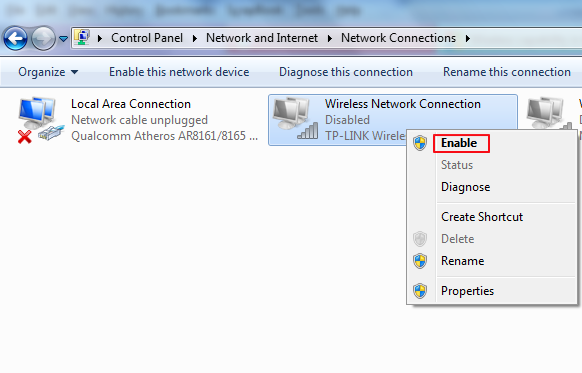
acer wireless disabled

In some Acer models you can use a combination of keys on the keyboard to enable or disable wireless networking, in other models there is a wireless switch on the front or side of the laptop. There is a list in the section below of various models and where wireless toggle buttons can be located. These are either:

  • A wireless button above the keyboard
  • A toggle slider button on the front or side of the laptop
  • The fn (function) key pressed in conjunction with another key showing the wireless icon on your keyboard. The Wireless icon will look like one of the images below …
acer wireless icons

Enable/ Disable Wireless on various Acer Laptop Models

  • General Wireless toggle on/ off – fn+F5
  • Acer Aspire 1000/1640Z/1690/2012 – toggle Keys above the keyboard
  • Aspire 2000 Series – button to front of Laptop (apart from Acer Aspire 2010 – see note above)
  • Aspire 3005 – button on lower right-hand side of laptop
  • Aspire 5612 – button on the side of the laptop
  • Aspire 9302 – blue button on the left-hand side of laptop
  • Aspire 94xx – button found below the Lock key
  • Aspire One – sliding button on front of laptop (where latch to open latptop would usually be) . If the LED light to the right of this button is on, then the wireless is on, if not, slide the button towards the antenna icon
  • Extensa 2000/2500 Series – button above the keyboard
  • Ferrari 3000/3020/3400/4000 – button on front of Laptop

3. Missing/ corrupt or outdated Acer Wireless Drivers

If, when you have ensured that the wireless connection is working and  Wireless Networking is not disabled on your laptop, you are still having problems with your Wireless connection, then the problem is most likely with your Acer Wireless Drivers. Drivers need to be kept up-to-date and it may be that your Acer Drivers have become corrupt or are just out of date. If your issue is with Acer sound drivers, click here.

There 2 options in updating your Acer Wireless Drivers:

  1. search for, download and install the Drivers yourself, or
  2. you can use a Driver Update Tool to update the Drivers for you (and automatically keep all Drivers updated).

Both options will require an internet connection so you will need to use a wired connection in order to fix the wireless connection issue.

To manually install the Drivers you will need to make a note of the missing Drivers and download them from the Acer Website.  You can then install the Drivers (there may be instructions for this on the Acer website).

You can also opt for automatic Driver updates. A Driver Update Tool will scan your machine to identify the missing Drivers and will then automatically download and install them for you.

Automatic driver update tools offer many benefits, the most important ones being:

  • You can update device drivers automatically
  • The software scans and updates all outdated or missing drivers at one go
  • The tool picks the right drivers for your device and operating system, so you won’t have to worry about installing an incorrect driver by mistake
  • Automatic driver updates are 100% safe

Driver Updater is one of the best driver update tools out there. Outbyte Driver Updater will give you access to a database of over 1 million drivers. It will regularly scan your PC, suggesting new driver versions to install. Driver Updater contains drivers for a variety of Windows devices. With just one click, you can update drivers in your system.

Step 1
Click here to Install and launch the app

Step 2
Scan all devices

Step 3
Install or update drivers automatically


Start Download


You can download Acer Driver Updates manually or use a Driver Update Tool.

View our separate post here if you are having Acer Graphics Driver problems specific to Windows 10.

Filed Under: Software Drivers Tagged With: acer, drivers, network, wireless

Fix Samsung CLX 3170 Driver Errors

By DriversExpert on June 11, 2014

Samsung CLX Errors

The most common Samsung CLX 3170 error you will get while using this multi-function device is that the machine does not print. This post contains information on how to resolve this and some other Samsung CLX 3710 Driver errors that you may encounter.

How to manually update Samsung Drivers

How to resolve the “the machine does not print” error

There can be several reasons why your Samsung CLX 3170 is not able to start a printing job, reasons such as:

  • Printer is not receiving power
  • Problem in connection between your computer and printer
  • This printer is not selected as the default printing device in your computer.
  • Other problem with printer
  • The toner cartridge is not compatible
  • Incorrect Port Setting
  • Printer driver not installed or has become corrupt
  • Problem with Document size

To fix this issue, we recommend you first check if the Samsung CLX 3170 is receiving power. Check the power cord, power switch and power outlet to ensure everything is functioning properly.

Once you have checked your power connections, you need to check the connection between your computer and printer. Disconnect and re-connect the printer cable. To ensure the printer cable works, try connecting your printer to another computer that is functioning properly and try printing a document.

Check whether Samsung CLX 3170 is the default printer or not. If it is not, perform the steps listed below to make it the default printer:

  • Click Start
  • Click Devices and Machines (or Machines and Fax)
  • Locate and right-click “Samsung CLX 3170” and then select “Set as default machine”

In case the Samsung CLX 3170 was already the default printer, or in case the error persists even after it is selected as the default printer, you will need to check if the printer is having a problem related to the toner cartridge or paper. There can be several issues that can affect the proper functioning of your Samsung CLX 3170 printer. You need to check your printer for the following issues

  • The front cover and rear cover of the printer should be closed
  • The paper should be loaded and there should be no paper jams.
  • The toner cartridge should be properly installed. If possible try replacing the toner cartridge.

You need to check your printer is communicating with the correct port. Follow the steps given below to check the port settings for your Samsung CLX 3170.

  • Click on Start -> Control Panel –> System
  • Click on Hardware tab -> Device Manager
  • Under Ports (Com and LPT), go to Printer Port (LPT1) and double-click on it to view its Properties
  • In General section under Device Status you should see message “This device is working properly” which confirms the port settings are correct.

If none of these solutions have worked to resolve the issue, it is more likely the printer drivers have become corrupt or out of date. Try uninstalling and re-installing the printer drivers and printer software.

Every printer has some minimum system requirements which include free hard drive space. The minimum hard drive space requirements for different OS are as follows

Windows 2000 – 600 MB

Windows XP – 1.5GB

Windows Vista – 15GB

Windows 7 – 16GB

Windows Server 2008 – 10 GB

The above mentioned values for free hard drive space are recommended values. If the document size which you are trying to print is big then you need to ensure you have at least the recommended free hard drive space on your computer.

click here to go to  our Samsung drivers page to download Samsung driver updates (this will allow you to run a free Driver Scan)

How to resolve “A print job is extremely slow” issue?

Many things may cause delays in printing with a Samsung CLX 3170. One reason is the print job is too complex. You can resolve the issue by reducing the complexity of the document or changing the print settings of the documents. You can reduce the resolution of the document to 1200dpi (Normal) or 600dpi (Draft). If that doesn’t solve the slow printing issue, try connecting to other computer.

How to resolve “Scanner Locked” error?

Your Samsung CLX 3170 has a lock switch, which you need to set to the unlocked position. If that doesn’t help, switch off the device and start again.

How to fix “Fuser error” messages?

You may notice “Over heat Error (Cycle Power)”, “Low heat error (Cycle Power)”, or “Open heat error (Cycle Power)” message on your Samsung CLX 3170 LCD screen. These errors are related to Fuser and Exit sensor in your device. The solution to this problem is to replace the Fuser and Exit Sensor in your device.

One more common cause of printer errors is outdated or corrupt Samsung CLX 3170 drivers. The issue can be resolved by installing new drivers, which can be downloaded manually from the Samsung website or using a reputable driver update tool. To update your Samsung CLX 3170 drivers automatically click here and select the download link to run a free Drivers Scan.

Filed Under: Software Drivers Tagged With: printer, samsung

  • « Previous Page
  • 1
  • …
  • 8
  • 9
  • 10
  • 11
  • 12
  • …
  • 22
  • Next Page »


  • Recent Posts
  • Popular Posts
        

Read More Posts


Read More Posts

Drivers.com Sites

  • Software Drivers
  • Drivers Ed

About Us

  • Advertise
  • About Drivers
  • Drivers Support
  • Drivers.com Privacy Policy
  • Disclaimer
  • Software Drivers
  • Mac Fixes and Tips
  • PC Fix Tips
  • Security/ Backup
  • Tablets & Smartphones
  • Tech News

© Copyright 2026 PDE Publications Ltd. End User License Agreement (EULA)