
Drivers.com

follow us:

facebook twitter
  • Home
  • Download Drivers
  • Drivers Help
  • PC/Mac Resources
  • Software Drivers
  • Mac Fixes and Tips
  • PC Fix Tips
  • Security/ Backup
  • Tablets & Smartphones
  • Tech News
  • Software Drivers
  • Mac Fixes and Tips
  • PC Fix Tips
  • Security/ Backup
  • Tablets & Smartphones
  • Tech News

Windows Update : How to use Windows Update

By DriversExpert on October 21, 2014

What is Windows Update?

Windows Update is a built in feature of all Windows Operating Systems (since Windows 98), it is a service provided by Microsoft to provide updates such as patches and updated Drivers for the Operating System you are using.

Why do I need Windows Update?

Windows Update is a feature made necessary by the ever-changing and evolving nature of technology and computers. As new viruses, threats and technology changes arises, the Operating System must be able to keep up-to-date or risk becoming obsolete or vulnerable to threats. Windows Update is a feature that allows Microsoft to ‘patch’ your Operating System to keep it as up-to-date as possible.

Windows Update can update some Drivers but by no means in all cases. This is where you will need to either contact the specific device manufacturer or you can use a Driver Update Tool to automate these Windows Driver updates.

How do I access the Windows Update feature?

This will depend on what Operating System you are using. If you are using either Windows 8, Windows 7 or Windows Vista then Windows Update is accessed via the Control Panel. In Windows XP and previous versions, Windows Updates is only accessible via the Windows Update website.

 How do I use the Windows Update feature?

To access the Windows Update feature you will need to go to the control Panel (this is accessible either via the Start menu, or by swiping in from the right edge of the screen in touchscreen versions of Windows 8. As mentioned above, if you are using an older version of Windows, you will access Windows Updates by going to the Windows Update website using the link in the paragraph above.

Within the Windows Update feature you will be presented with a list of available updates. These updates are specific to your machine. You can select the updates that you would like to install (you may want to leave some to a later time or not install at all for whatever reason), once selected the system will guide you through the installation of these updates. If Windows Updates are available then, unless there is a particular reason not to, you should install these updates as they are there to protect and enhance your Operating System.

Operating Systems from Windows ME onward, you can choose to automatically install the most important updates (such as security patches).

Windows Update is a very useful feature but only if you install the updates so make sure that important updates are automatically installed and other updates are installed as soon as they become available.

Filed Under: Software Drivers Tagged With: Windows

LG Drivers Download & Automatic Updates

By DriversExpert on October 3, 2014

LG Monitor Driver Download and Updates

IMPORTANT NOTICE: Downloading the latest Driver releases helps resolve Driver conflicts and improve your computer’s stability and performance. Updates recommended for all Windows XP, Vista, and Windows 7, 8, 10 and 11 users.

Download and install LG Drivers

How Do I Install Driver updates?

To fix your Drivers problems you will need to know the particular model of the LG device you are having problems with. Once you have the details you can search the LG website for your drivers and, if available, download and install these drivers.

How do I know if I need to update my Drivers?

If you are unsure of whether or not you need to update your Drivers, or indeed which Drivers may need to be updated, you can run a Drivers scan using a driver update tool (you will need to pay to register this tool but usually the Drivers scan is free). This will allow you to assess your Driver needs without any commitment. Alternatively, you can use the device manager to check if there are problems with any of your hardware devices.

Can I update the Drivers myself?

In many cases the answer to this is yes, however in some cases the manufacturers no longer make the Drivers available so you need to use a Driver Update Tool to install the missing Drivers. The purpose of such as tool is to save you time and effort by automatically downloading and updating the Drivers for you.


How will a Driver Update Tool fix my LG Monitor Drivers?

A Driver Update Tool is used by both home PC users and computer professionals every day to take the headache out of updating Drivers. Such tools will scan your PC for missing or outdated Drivers and then download these Drivers for you and keep them updated so you do not encounter these problems again.

In addition, a driver update tool will give you:

  • Up to 3 times faster internet connection and download speeds
  • Better PC performance for games and audio applications
  • Smooth-running of all your PC devices such as printers, scanners etc.
  • Better all-round performance of your PC due to automatic driver updates which will keep all your devices and your PC in top condition

Driver Update Utility

Automatically Update PC Drivers

Fixes Driver Issues

Supports Windows 11,10,8,7

Start Download

Common LG Monitor Driver Problems

The most common LG Monitor Drivers relate to the monitor not being recognised or not behaving as expected.

Filed Under: Software Drivers Tagged With: lg

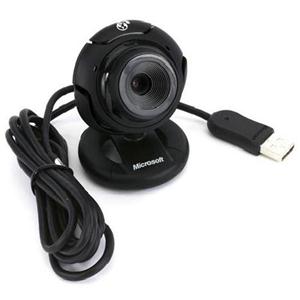
LifeCam Driver: LIFECAM VX-1000 Driver Errors

By DriversExpert on September 22, 2014

lifecam driver fixLifeCam Driver Error & Solution:

Resolving web camera errors can be tricky as often a computer may not show any error message and all you see is a blank screen. To help you out, here are some common LIFECAM VX-1000 errors and their solutions.

Solution to errors displayed by LifeCam Software

When there is a problem with LifeCam VX-1000, either of the following occurs:

  • You get a blank screen when you launch LifeCam software
  • You see a random error message, such as “There is no camera connected to the computer” or “Initialization error”

There are several reasons for such errors: corrupt Display Drivers, LifeCam software not installed properly, or the computer does not meet the minimum system requirements for installing LifeCam VX-1000.

The first thing you must do is ensure your system meets the minimum requirements for LifeCam VX-1000. If it does not, perform the necessary upgrades.

LifeCam VX-1000 requires a USB connection

You should always connect LifeCam VX-1000 to USB ports that are directly connected to the motherboard as they offer better bandwidth than front USB ports. After connecting the LifeCam VX-1000 to a direct USB port, download and install the latest LifeCam software available for your webcam. If the problem still persists, you need to check Video Adapter Drivers and adjust display settings on your computer to resolve the issue.

Steps to update Video Adapter Drivers

To update Video Adapter Drivers, you need to have the name of the device and manufacturer of your video hardware. Follow the steps given below to find the necessary information about the video adapter manufacturer:

  1. Click Start
  2. In Start search box, type dxdiag. Press enter
  3. If prompted, enter Administrator password.
  4. Click Display Tab.
  5. Under Device tab, you can get the details of name and manufacturer of your video hardware.
  6. Click Exit

You will be required to use this information to download latest Drivers for video hardware from the manufacturer’s website.

Steps to adjust display settings

The minimum display resolution required for LifeCam VX-1000 is 800 x 600 at High Color.  Follow the steps given below to adjust display settings

  1. Click Start
  2. In Start search box, type Personalization
  3. In the Programs List, click Personalization
  4. In Display Properties, click Settings Tab
  5. Move the Screen Resolution slider to 800 x 600 pixels setting
  6. In the Color Quality box, click on Highest
  7. Click OK two times
  8. Click Yes to save the changes to Display Settings

In majority of the LifeCam VX-1000 Driver errors, you will be required to download and install the latest Drivers for your Display Adapter and Webcam. This task becomes much easier with a Driver Update Tool, which automatically scans and updates all outdated Drivers on your system in minutes.

To update your LifeCam VX-1000 Drivers automatically, you can use a driver update tool and run a free Driver scan for your LifeCam VX-1000 or you can choose to manually update the drivers yourself.

Filed Under: Software Drivers Tagged With: camera, lifecam, microsoft

  • « Previous Page
  • 1
  • …
  • 6
  • 7
  • 8
  • 9
  • 10
  • …
  • 22
  • Next Page »


  • Recent Posts
  • Popular Posts
        

Read More Posts


Read More Posts

Drivers.com Sites

  • Software Drivers
  • Drivers Ed

About Us

  • Advertise
  • About Drivers
  • Drivers Support
  • Drivers.com Privacy Policy
  • Disclaimer
  • Software Drivers
  • Mac Fixes and Tips
  • PC Fix Tips
  • Security/ Backup
  • Tablets & Smartphones
  • Tech News

© Copyright 2026 PDE Publications Ltd. End User License Agreement (EULA)