Drivers.com

follow us:

facebook twitter
  • Home
  • Download Drivers
  • Drivers Help
  • PC/Mac Resources
  • Software Drivers
  • Mac Fixes and Tips
  • PC Fix Tips
  • Security/ Backup
  • Tablets & Smartphones
  • Tech News
  • Software Drivers
  • Mac Fixes and Tips
  • PC Fix Tips
  • Security/ Backup
  • Tablets & Smartphones
  • Tech News

How can I listen to MP3 files on a CD player?

By DriversExpert on February 6, 2015

I can’t play my audiobook/ MP3 CD in the car

Audiobooks increasingly use the MP3 format for audio files, a format which will not work with many older stereos and CD players.

This article will show you how to copy mp3 files onto a CD that can be played on older or newer stereos or computers.

Audio books contain a huge amount of data and therefore the most efficient way of getting this data onto as few discs as possible is to use a highly compressed (‘Lossy’) format. If audio books were on the traditional ‘CD’ format of music files, then it would take multiple discs to hold the same amount of data.

When you are listening to music on your ipod or phone or even streaming service, the format of these music files is most likely MP3. However, when it comes to either copying these files to an audio CD, or playing an MP3 CD in your car, it may not work. If you have a very new stereo it should work fine but otherwise you will encounter problems.

Converting MP3 files the easy way

There are lots of software programs out there for converting from MP3 to .aiff or .wav format (uncompressed audio formats for CDs), some paid and some freeware. However, a much easier way to convert your MP3 CD is to use iTunes. If you don’t have iTunes you can download it for free here.

Steps to convert MP3 to AIFF

Burning an MP3 CD to an audio CD in iTunes is as simple as inserting a blank audio CD, making a ‘playlist’ in iTunes and clicking the ‘Burn’ button – done!

Here it is in a little bit more detail!

if you have not imported your MP3 files into iTunes already, do so now (you will usually be prompted to do so when inserting the disc, if not you can open iTunes and import the files from there. When you have imported the disc contents into iTunes, do the following:

  1. Open iTunes and create a playlist of the tracks from the audiobook/ MP3 disccreate itunes playlist
  2. Insert a blank CD – audio CDs are usually limited to just over 70 minutes of playtime, you can get CD-R or CD-RW, the former can be ‘burnt’ only once and the latter is rewritable so can be recorded over.
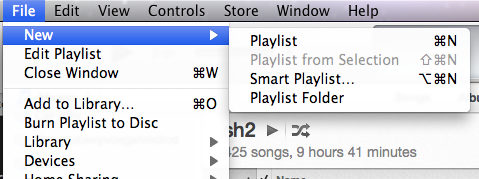
  3. Burn the playlist to disc, File > Burn Playlist to Disc (see menu item in image above)
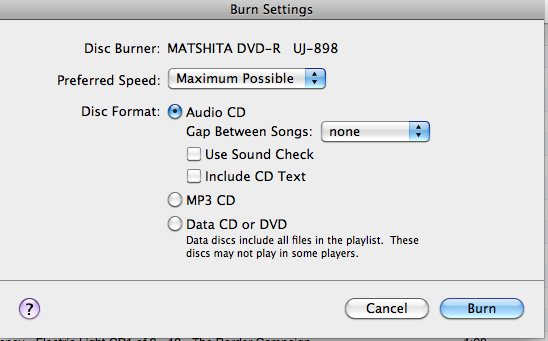
  4. Save as an audio CDburn playlist in itunes

That should be it! The CD you just burned should work in your older CD player or car stereo, you may however need a lot more discs than the original MP3 format required (due to high levels of compression in MP3 format).


Filed Under: PC Fix Tips Tagged With: audio-sound, mp3

Problems With Sound On My Computer – Is It a Sound Drivers Issue?

By DriversExpert on January 12, 2015

Sound Problems on PC

First of all, it is very important to clarify the type of sound problem on your PC in order to diagnose the cause of the problem.

Sound issues can include:

  1. intermittent crackling/ interrupted audio
  2. constant crackling or ‘noise’ on the audio
  3. no audio or sound output

In this article we will deal with each of these sound/ audio problems and look at the likely reasons and fixes for the issues.

Update Audio Drivers for Windows 11, 10, 8, 7, Vista and XP

1. Intermittent crackling/ interrupted audio

If you are getting intermittent (not constant) crackling or noise on your audio output, then your problem is very likely related to hardware, specifically, wiring.

If you have ever used a pair of headphones with loose wires you will be familiar with this problem. The sound comes in and out as the wires connect and disconnect. Wear and tear may have caused the wires to come loose and not hold the connection. As with headphones, this same problem can happen either on external or internal speakers

2. Constant crackling or ‘noise’ on the audio

If you are hearing constant crackling or noise on your audio/ sound output the likely cause is a ground loop problem. Ground Loop problems can be quite complex and are too detailed to deal with in this article, click here to view a thread on this. To rule out a Ground Loop issue you should unplug all audio cables from your computer and plug in some headphones. If the sound is clear then you probably have a Ground Loop issue and should click on the link above for more information.

3. No audio or sound output

If you have no audio or sound output then your problem is probably either with the hardware or the Audio Software Drivers.

It is easiest to rule out the hardware problem first. To do this you should look at the most obvious first

– if using external speakers, are they plugged in/ turned on/ turned up?

– is the volume setting on your system set to the appropriate level (usually an icon in the system tray)?

– is the ‘mute’ box checked?

– have you tried using external speakers/ headphones to test if there is any sound?

Once you have checked all the above, and no obvious causes can be found, it is time to move on to look at the Sound Card. Our ‘No Sound in Windows‘ article shows you how to check if the issue is with your Sound Card.

Sometimes the problem is that the PCI Sound Card is not recognised due to dust or dirt on the contact heads of the PCI slot, removal and cleaning will usually solve this issue.

Update Sound Drivers

If the above actions do not deal with or solve your audio output problems, then we would recommend you run a driver update tool to check your sound drivers or manually search for driver updates.

Filed Under: Software Drivers Tagged With: audio-sound

HP Printer Not Printing

By DriversExpert on January 6, 2015

Before you start troubleshooting your HP Printer, check the three most obvious and common culprits first!

Top 3 HP Printer Problems

1. The HP Printer is not plugged in or there is a problem with the power outlet 2. The printer is out of ink and/ or paper 3. The HP Printer is not connected to your computer (USB or Ethernet cable), or if printing via a wireless connection, there is a problem with the WiFi If you have checked the above issues and are confident that the cause of your printer problems lies elsewhere, then read on for more HP Printer troubleshooting tips. When your HP Printer fails to print, the reason for this failure falls into one of two categories, software or hardware. A hardware issue is one that relates to the actual hardware, in this case the printer. A software issue relates to programs or communication between devices (such as the communication between your Computer and HP Printer). It can be unclear which category a problem falls into so we have tried to clarify the possible HP Printer issues below.

HP Printer Hardware Issue

A printer hardware issue is likely to be a physical problem with the printer. This can be as simple as a cable not plugged in fully or it can be a more complex mechanical problem. Our advice is always to check the obvious first. Is there power going to the printer? If not, rule out other power issues such as problems with fuses or sockets before assuming the problem is with the HP Printer. Is paper getting stuck? Is there an unusual sound from the printer that may point to mechanical problems? HP Printer hardware problems are beyond the remit of this article but our advice would be to detail the symptoms of the problem before trying to troubleshoot it. Note the circumstances under which the errors/ problems occur. Sometimes, issues that seem mechanical can actually be software or Driver-related. For example, if your printer is not responding at all to print commands, this does not necessarily mean the printer is broken, it is most likely an issue with the communication between the computer and printing device.

HP Printer Software Issue

If your HP Printer is not printing, not recognized by your computer or behaving/ printing erratically then the problem may be with your HP Printer Drivers. You should keep your Drivers up-to-date to ensure all your devices run efficiently and effectively. Drivers may be out of date or may become corrupt over time. Also, the addition of new software or an upgrade to a new Operating System may cause problems with Device Drivers such as HP Print Drivers.

This software will scan your computer for missing or out-of-date Drivers and the Drivers report will tell you what Drivers you need to update. You can use this information to search for and download these Drivers yourself, or you can register a Driver Update Tool and automate all your HP Printer and other Driver Updates.

Filed Under: PC Fix Tips Tagged With: hp, printer

  • « Previous Page
  • 1
  • …
  • 4
  • 5
  • 6
  • 7
  • 8
  • …
  • 22
  • Next Page »


  • Recent Posts
  • Popular Posts
        

Read More Posts


Read More Posts

Drivers.com Sites

  • Software Drivers
  • Drivers Ed

About Us

  • Advertise
  • About Drivers
  • Drivers Support
  • Drivers.com Privacy Policy
  • Disclaimer
  • Software Drivers
  • Mac Fixes and Tips
  • PC Fix Tips
  • Security/ Backup
  • Tablets & Smartphones
  • Tech News

© Copyright 2026 PDE Publications Ltd. End User License Agreement (EULA)