
Drivers.com

follow us:

facebook twitter
  • Home
  • Download Drivers
  • Drivers Help
  • PC/Mac Resources
  • Software Drivers
  • Mac Fixes and Tips
  • PC Fix Tips
  • Security/ Backup
  • Tablets & Smartphones
  • Tech News
  • Software Drivers
  • Mac Fixes and Tips
  • PC Fix Tips
  • Security/ Backup
  • Tablets & Smartphones
  • Tech News

Brother Printer Drivers for Windows 7

By DriversExpert on February 24, 2015

Brother Printer Driversbrother printers


If you have a Brother Printer, whether it is Laserjet, Inkjet or all-in-one, you will need updated Brother Printer Drivers. If you are upgrading to Windows 7 from another Operating System, then you will need Printer Drivers compatible with Windows 7.

Brother Printer Drivers enable your Brother Printer and your PC to communicate with each other. If these Drivers are missing, out-of-date, have become corrupted over time or are designed for the wrong Operating System, then this communication may experience problems.

Update Brother Printer Drivers

Common Brother Printer Driver Errors:

Problems with Brother Printer Drivers will often manifest as:

  • Brother Printer not recognised
  • Unable to print or erratic printing

Causes of Brother Printer Driver Errors:

  • out-of-date driver (Drivers are regularly updated so always check for the latest version)
  • your Brother Printer Driver has become corrupt. This can happen when upgrading Operating Systems or installing other Software programs
  • Driver is incompatible with your Operating System, if you are updating to Windows 7, you will need updated Printer Drivers for this Operating System
  • the incorrect Driver is installed. There are numerous Brother Printer Drivers for all the various printer types and series, you must ensure that your Driver matches the type and model of Printer you are using
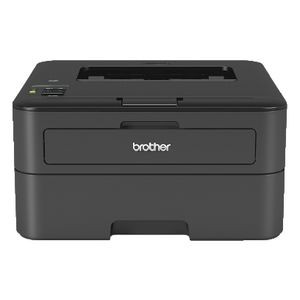
brother printer drivers

Windows 7 compatibility with Brother Printers

If you have bought a new Brother Printer and are having compatibility issues with your Windows 7 Operating System, then you need to first of all check that the printer is compatible with Windows 7 (there should be specifications on the box or any documentation that came with the printer).

Assuming the printer is compatible with Windows 7, and you are having problems installing it then you should uninstall any current Brother Printer Drivers (always do a backup before doing this). Once you have uninstalled all Brother Drivers, reboot your PC and install the Drivers for your new Brother Printer (they will either be provided on a disc or you will be given a link to download these Drivers from)

Once you have done a clean install then your Drivers and Printer should work. If you prefer to get automatic Driver Updates, rather than installing and updating the Drivers yourself, you can use a driver update tool.

Filed Under: Software Drivers Tagged With: brother, printer, windows 7

How To Fix Error Code 1603

By DriversExpert on February 23, 2015

What Is Error Code 1603?

This is a general error code that appears with a Microsoft Windows Installer alerting you to a possible problem during program or software installation. The code means that one of several things has gone wrong during the installation process:

  • The Microsoft Windows installer itself is not installed correctly
  • A file is locked
  • permissions will not allow installation
  • Failed uninstall of a corrupted file
  • Your Windows Temp folders are full
  • There is a short file name
  • A current version of the software is not being used

These are some of the most common reasons for seeing error code 1603.

How Do you Fix Error Code 1603?

To fix a 1603 error, follow the steps set out below:

  1. Under the Security tab on your home screen click on Add
  2. Under System what appears under Name click Add and then OK
  3. Under permissions click Allow > Full Control > Advanced
  4. Check the box that replaces all previous permissions
  5. If you are on Windows XP you may just be asked to click OK
  6. Click Yes when a box appears asking you to do so
  7. Double-click the installer package that had the error
  8. Your error should now be resolved

If the error was caused by a permissions issue, taking the above steps should solve it. If this doesn’t fix the error, try closing all Programs or restarting your system as the error can also be caused by a required file being in use by another Program.

How To Avoid This Problem

There are ways to help prevent error code 1603 from appearing. First, empty all your temporary files and make sure that the target machine does not have a short extension name; which can corrupt the installation. During an installation make sure that there are no other programs running on your computer and use the Microsoft Windows Installer Clean-Up tool if you think there could be a problem with your installer.

Error codes appear for various different reasons but to help reduce the amount of times you experience these errors, you should install software according to instructions and try to keep your computer virus-free by using a recommended antivirus tool.

It is also recommended to run Windows Update regularly, this will install updates and patches that can prevent you getting many of these types of errors.

Error Code 1603 can also be caused by Registry problems, to clean up your Registry click here to read our post.

Filed Under: PC Fix Tips Tagged With: error 1603

Tips on Keeping Your Email Inbox Free of Spam

By DriversExpert on February 19, 2015

Junk messages, scams, phishing schemes: spam comes in many forms. While some messages can be just annoying, others can actually lead to viruses that may damage your computer or even put your finances and personal information at risk. Whether you just created a new email account or your current address has been getting bombarded with junk, it helps to learn ways to combat spam.

By following these tips, the only messages that you’ll receive in your email inbox will be the ones that you want!

Set up Filters

Most email clients like Gmail and Yahoo! Mail allow you to organize your messages according to filters. While these filters are useful for organizing your inbox, they can also move messages straight to your trash folder. To enable this:

  1. Access your settings on your email account
  2. Copy the email address of the spammer and paste it in the filters area

If you set up the filter correctly, all emails from the spammer will automatically be deleted rather than end up in your inbox.

Don’t Open the Message

When you receive a spam message, it can be tempting to look into the content of the email. This is especially true if you are not familiar with spam mail. However, opening these emails can be risky, especially if you click any attachments in the email. Clicking a link or opening an attachment can lead to inadvertently downloading malware or other viruses that can wreak havoc on your computer, as well as potentially compromising your personal information.

Alter Your Email Account to Delete Pictures

There are ways to tip off a scammer that your email address is live and active, and pictures are one of them. These pictures may be invisible to the naked eye as they may only consist of a single pixel that matches the color of the body of the email. You could never find this picture by yourself, so go into your email account settings to turn off all pictures. The amount of spam that you receive just may decrease as a result of this simple action.

Don’t Email Back

No matter what kind of email message that you receive from a spammer, absolutely never message back. Many spam accounts try to look like legitimate businesses, but you can often tell that something isn’t quite right. To stay safe, consider this rule of thumb: if you don’t know who is emailing you and you didn’t reach out to this person first, it’s best not to reply.

Invest in Software

Lastly, if you find that the above measures aren’t really helping reduce your rate of spam, you may want to consider an anti-spam program. This software gains permission from your email account to prevent unwanted spam messages from ever reaching your inbox. That should hopefully take care of your spam problem for good.

Filed Under: PC Fix Tips Tagged With: email, spam

  • « Previous Page
  • 1
  • …
  • 3
  • 4
  • 5
  • 6
  • 7
  • …
  • 22
  • Next Page »


  • Recent Posts
  • Popular Posts
        

Read More Posts


Read More Posts

Drivers.com Sites

  • Software Drivers
  • Drivers Ed

About Us

  • Advertise
  • About Drivers
  • Drivers Support
  • Drivers.com Privacy Policy
  • Disclaimer
  • Software Drivers
  • Mac Fixes and Tips
  • PC Fix Tips
  • Security/ Backup
  • Tablets & Smartphones
  • Tech News

© Copyright 2026 PDE Publications Ltd. End User License Agreement (EULA)