Drivers.com

follow us:

facebook twitter
  • Home
  • Download Drivers
  • Drivers Help
  • PC/Mac Resources
  • Software Drivers
  • Mac Fixes and Tips
  • PC Fix Tips
  • Security/ Backup
  • Tablets & Smartphones
  • Tech News
  • Software Drivers
  • Mac Fixes and Tips
  • PC Fix Tips
  • Security/ Backup
  • Tablets & Smartphones
  • Tech News

How to Solve Bad Pool Header issue

By Susan C on April 8, 2018

How to Solve Bad Pool Header issue

A bad pool header error indicates Windows is having a problem allocating memory. The most common cause of the error is a problem with device drivers. With that said, the problem might occur because of other reasons, too, like disk write issues, bad sectors or even some problem with routers.

If you are getting this error, keep your worries aside as we are providing some easy solutions to fix the bad pool header issue.

Try the solutions one by one starting from the top and tell us which one worked for you.

Solution One- Disable third-party antivirus

Many users have said that they received the error because of 3rd party antivirus clients.

You need to check whether the 3rd party antivirus is not using too much of non-paged pool that is causing interference in memory allocation. Disabling the antivirus for some time is a good way to check whether the antivirus is the cause of the problem.

The exact steps to disable a 3rd party antivirus program might vary from product to product. Refer to the documentation of the anti-virus to know the exact steps to disable it.

If disabling the anti-virus resolves the issue, contact your anti-virus manufacturer and ask for their advice to resolve the bad pool header issue. Another option is installing another anti-virus.

Solution Two- Update All Drivers

As mentioned earlier, device drivers might be one of the causes behind the bad pool header error. Updating all drivers is an easy way to fix the issue.

You have two options to update all drivers, update all drivers manually or update all drivers automatically.

Manual driver update– If you are using an assembled PC, you will be required to visit hardware manufacturer’s website and find latest drivers update for your system. Laptop users need to go their device manufacturers website and look for driver updates available for your system.

Updating drivers manually is a time-consuming task that needs some expertise and lots of patience. If you are not confident about updating drivers manually, we suggest you use a Driver Update Tool to update all drivers automatically.

Updating Drivers Automatically

Automatic driver update tools offer many benefits, the most important ones being:

  • You can update device drivers automatically
  • The software scans and updates all outdated or missing drivers at one go
  • The tool picks the right drivers for your device and operating system, so you won’t have to worry about installing an incorrect driver by mistake
  • Automatic driver updates are 100% safe

Driver Updater is one of the best driver update tools out there. Outbyte Driver Updater will give you access to a database of over 1 million drivers. It will regularly scan your PC, suggesting new driver versions to install. Driver Updater contains drivers for a variety of Windows devices. With just one click, you can update drivers in your system.

Step 1
Click here to Install and launch the app

Step 2
Scan all devices

Step 3
Install or update drivers automatically


Start Download


Solution three – Disable fast start-up

The Fast start-up option is different from the regular boot.

Unlike the regular boot, the fast start-up does not reload the kernel and drivers; it just reloads the system image from the hibernation file and refreshes RAM.

Disabling fast start-up will force the Windows operating system to reload kernel and device drivers individually that might resolve the issue. Here are the steps to follow.

  • Go to Desktop
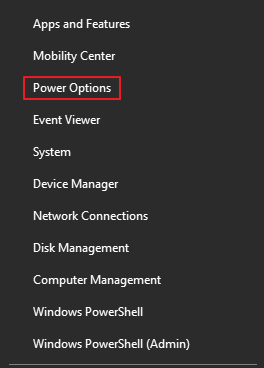
  • Right-click on Start button and select Power options
power options
  • In the next screen, select Advanced Power Settings that appears in the right-hand side pane
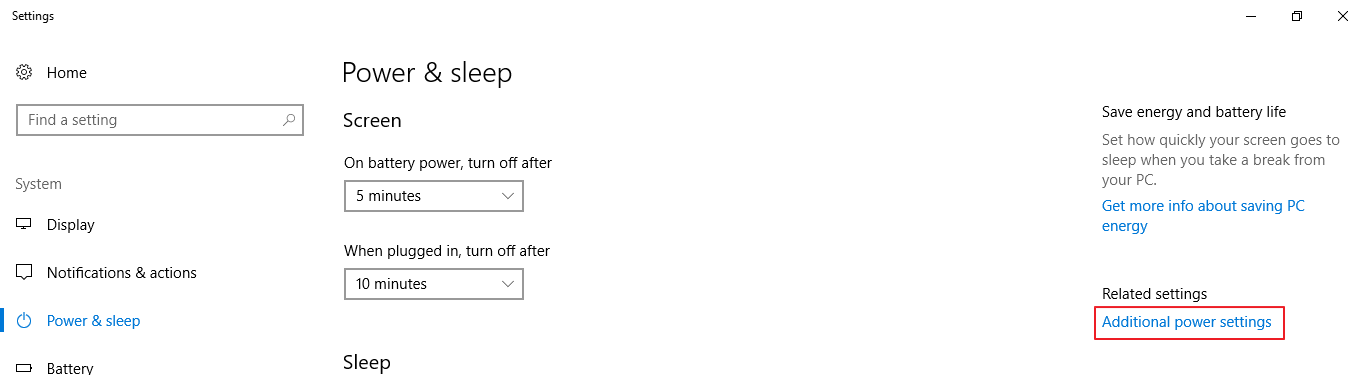
advanced power
  • In the Power Options window, select Choose what the power button does
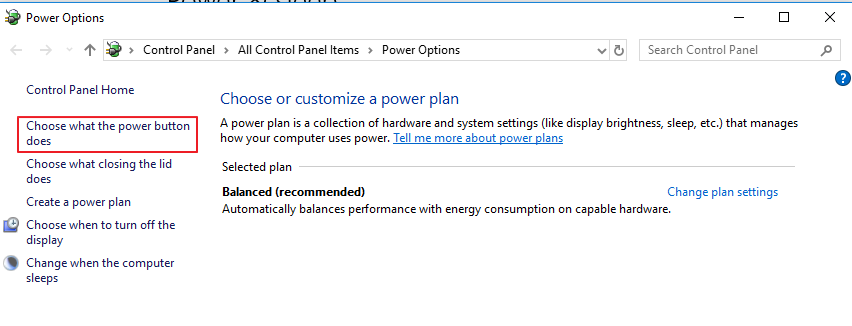
power options
  • In the System Settings window, select Change Settings that are currently unavailable
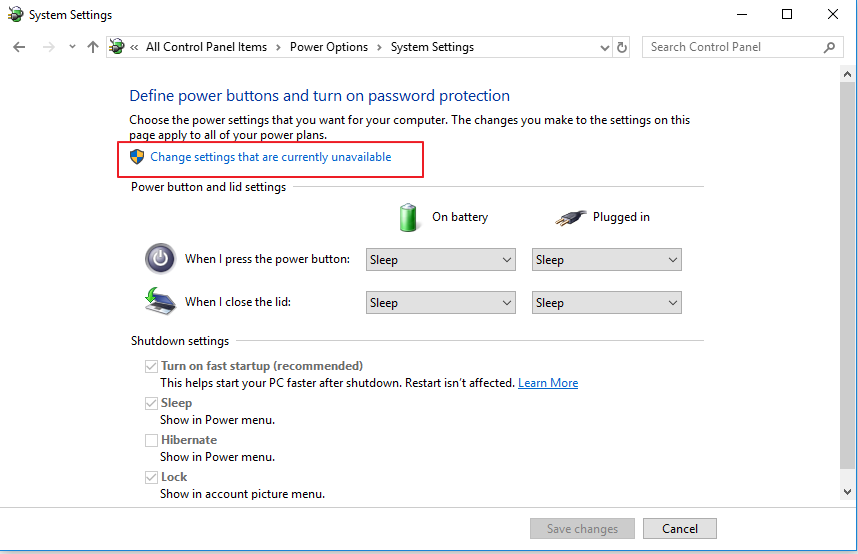
change settings
  • In the next window, uncheck the option- Turn on fast start-up(recommended)
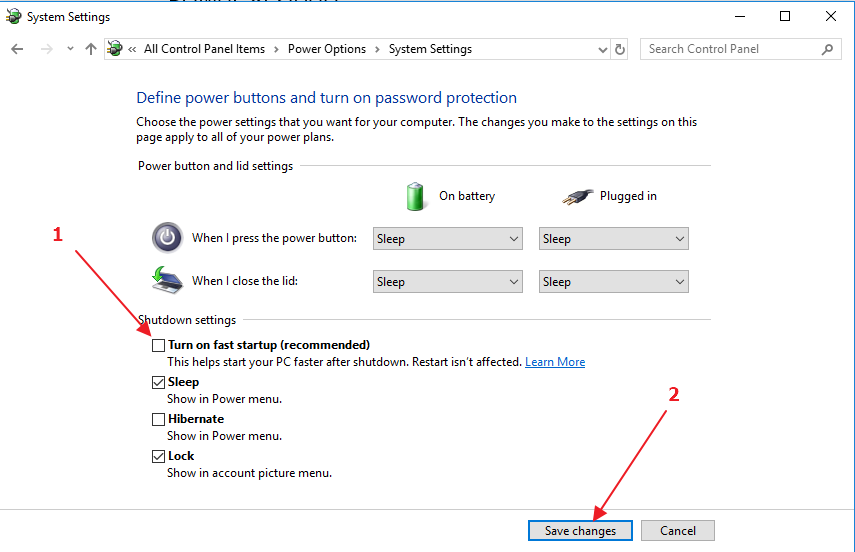
change settings
  • Click Save Changes
  • Close all windows and reboot PC and see if the issue exists

Solution Four- Unplug all external devices

As mentioned earlier, one of the devices drivers might be the reason behind the issue. To find out the problematic device, you need to unplug all external devices from your computer. You can keep the USB mouse and keyboard connected.

Restart the PC and see if the issue persists. If you don’t get the bad pool header error, shut down the PC. Now connect one USB device and restart your computer and see if you get the bad pool header error. Shut down the system again and check one USB device at a time to find

out the faulty device behind the bad pool header. Once you recognize the faulty device, update its drivers to resolve the issue.

Solution Five- Check if the RAM is faulty

A faulty RAM module can cause the bad pool header error. To check whether the RAM module is faulty, first switch off the PC and remove the RAM module from its slot. Clean the dust off the RAM, especially the golden colored connector strip. Use a lint-free clean cloth to clean it.

After cleaning the RAM, insert the RAM module in the slot and see if the error persists. If you still get the error, try inserting RAM module in a different slot. Alternatively, you can also use a different RAM module to check whether the first RAM module is faulty.
Filed Under: PC Fix Tips Tagged With: bad pool header

Why Update Drivers and How to Make Updating Driver Easy

By Susan C on April 8, 2018

You might have read in a tech forum or been told by a techie to update your drivers at some point in time, but what does this really mean? What are drivers and why it is so important to keep them up-to-date?

What are Drivers?

A hardware device and Windows system and applications don’t speak the same language.

Or to be specific, there’s no way for Windows system and other applications on your computer to use a hardware device directly unless something helps them to do so.

And this is where drivers come into the picture.

Drivers are computer programs which allow Windows system and applications to interact with installed hardware device.

As you can guess by now, drivers are mighty important. Without them, you can’t do much on your PC. For instance, you can’t print anything if the printer drivers are missing, corrupt, or outdated.

When You Might Need to Update Drivers

There are many scenarios which might require you to update drivers.

  • A hardware device is not working properly

If a hardware device is not working at all or not working properly, you should consider updating drivers. For example, if your network card is behaving erratically and a latest driver is available for it, you should definitely consider updating the driver before attempting any other more complicated resolutions.

  • You need better features

When you plug in a hardware device for the first time, more often than not, Windows will install a generic version of the driver itself. There are things for which the generic version is fine and others for which it is seriously inadequate.

For example, generic sound drivers will never give you advanced features like room correction or virtual sound. To enjoy such features, you’d need to get the latest drivers released by the manufacturer.

Similarly, doing away with the generic video drivers and installing the latest drivers is almost necessary. Latest drivers will offer you a host of advanced options to allow you to personalize your graphic performance.

  • Improve Performance

In most cases updating a driver will not improve the device’s or PC’s performance notably—but there are exceptions. For instance, updating your video driver might boost your card’s performance significantly.

  • Security Alert

This is not common, but at times you might learn that a particular driver has some potential security concerns. In such a case, updating the driver would be the right thing to do.

How to Update Drivers?

Well, there are two ways to do this—manually or automatically.

Updating drivers manually can take a long time. And at times, you still mightn’t be able to locate the latest driver.

A better way is to use a driver software tool.

Updating Drivers Automatically

Automatic driver update tools offer many benefits, the most important ones being:

  • You can update device drivers automatically
  • The software scans and updates all outdated or missing drivers at one go
  • The tool picks the right drivers for your device and operating system, so you won’t have to worry about installing an incorrect driver by mistake
  • Automatic driver updates are 100% safe

Driver Updater is one of the best driver update tools out there. Outbyte Driver Updater will give you access to a database of over 1 million drivers. It will regularly scan your PC, suggesting new driver versions to install. Driver Updater contains drivers for a variety of Windows devices. With just one click, you can update drivers in your system.

Step 1
Click here to Install and launch the app

Step 2
Scan all devices

Step 3
Install or update drivers automatically


Start Download


Filed Under: PC Fix Tips Tagged With: Update Drivers

How to solve Realtek Audio Manager is not found Error

By Susan C on April 7, 2018

How to solve Realtek Audio Manager is not found Error

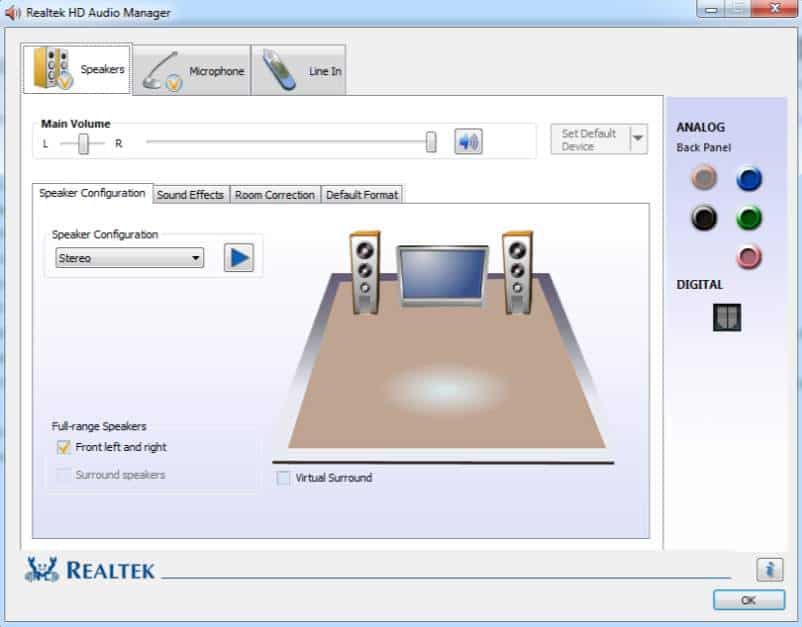
The Realtek Audio Manager is installed with Realtek High Definition Audio Driver that delivers high-quality, Dolby Digital, DTS Surround sound capabilities to your system. The Realtek Audio Manager interface is used for changing sound settings on your Window system.

Realtek audio manager

If the sound drivers on your Windows system are corrupt, you will not have access to Realtek Audio Manager. To get back Realtek Audio Manager, you need to install Realtek High Definition Audio Driver again.

There are two ways to install Realtek sound drivers – manually and automatically.

Steps to manually update Realtek audio drivers

Updating Realtek audio drivers is a bit risky as you cannot go to Realtek website and download the drivers. The motherboard manufacturers make several customizations to audio ICs and you may not get all features supported by your motherboard.

You need to go to your motherboard manufacturer website, search for latest Realtek audio drivers for your motherboard model and download drivers that are compatible with your Windows system.

As you can guess, updating Realtek audio drivers manually is not an easy thing to do. It is a time-consuming task that needs some technical expertise.

If you are looking for an easy way to update Realtek audio driver, we suggest you, try Driver Downloader that can update Realtek audio drivers automatically.

Realtek HD Audio Drivers

Steps to update Realtek audio drivers automatically

When you use a driver update tool to update Realtek Audio Driver, you don’t need to go to Realtek website or to the motherboard manufacturer’s website to download the latest audio drivers. The Driver Update Tool will scan your system for outdated and corrupt audio driver and download the latest audio driver for your windows system.

Automatic driver update tools offer many benefits, the most important ones being:

  • You can update device drivers automatically
  • The software scans and updates all outdated or missing drivers at one go
  • The tool picks the right drivers for your device and operating system, so you won’t have to worry about installing an incorrect driver by mistake
  • Automatic driver updates are 100% safe

Driver Updater is one of the best driver update tools out there. Outbyte Driver Updater will give you access to a database of over 1 million drivers. It will regularly scan your PC, suggesting new driver versions to install. Driver Updater contains drivers for a variety of Windows devices. With just one click, you can update drivers in your system.

Step 1
Click here to Install and launch the app

Step 2
Scan all devices

Step 3
Install or update drivers automatically


Start Download


  • After the Realtek audio drivers are successfully updated, you will have access to Realtek Audio Manager again.
  • To access Realtek Audio manager, follow the steps given below

Steps to access Realtek Audio Manager

  • Click Start
  • Type Control Panel in the search box
  • Select Control Panel from search results
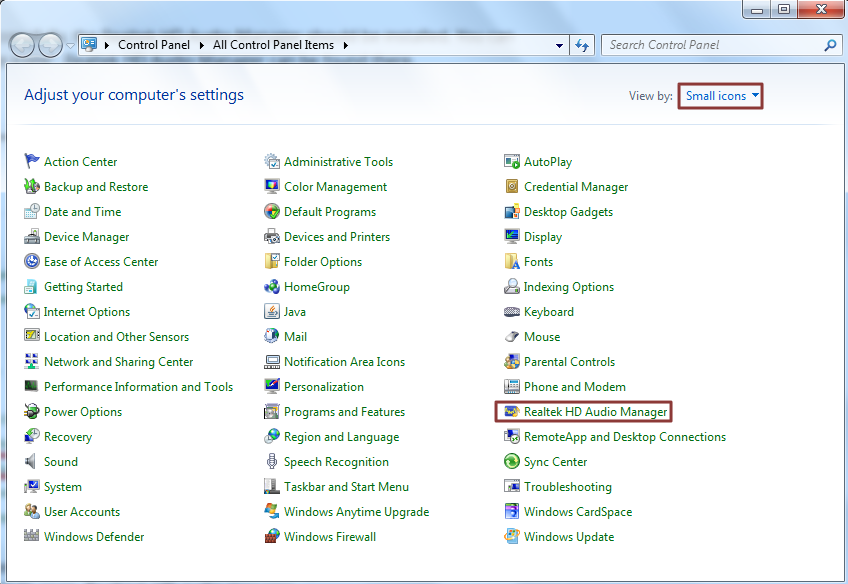
  • In the Control Panel window, switch the view to Small icons
  • Look for Realtek HD Audio Manager option and click on it to launch Realtek Audio Manager Interface
Open Realtek
  • If you don’t find Realtek HD Audio Manager option, browse to C:\Program Files\Realtek\Audio\HDA and look for RtkNGUI64.exe. file
  • Double-click on the file to launch Realtek Audio Manager Interface
Fix/ Download ASUS Realtek Audio Driver

Filed Under: PC Fix Tips Tagged With: fix realtek error

  • « Previous Page
  • 1
  • …
  • 182
  • 183
  • 184
  • 185
  • 186
  • …
  • 189
  • Next Page »


  • Recent Posts
  • Popular Posts
        

Read More Posts


Read More Posts

Drivers.com Sites

  • Software Drivers
  • Drivers Ed

About Us

  • Advertise
  • About Drivers
  • Drivers Support
  • Drivers.com Privacy Policy
  • Disclaimer
  • Software Drivers
  • Mac Fixes and Tips
  • PC Fix Tips
  • Security/ Backup
  • Tablets & Smartphones
  • Tech News

© Copyright 2026 PDE Publications Ltd. End User License Agreement (EULA)