Drivers.com

follow us:

facebook twitter
  • Home
  • Download Drivers
  • Drivers Help
  • PC/Mac Resources
  • Software Drivers
  • Mac Fixes and Tips
  • PC Fix Tips
  • Security/ Backup
  • Tablets & Smartphones
  • Tech News
  • Software Drivers
  • Mac Fixes and Tips
  • PC Fix Tips
  • Security/ Backup
  • Tablets & Smartphones
  • Tech News

Whea Uncorrectable error

By Susan C on April 13, 2018

Whea Uncorrectable error

Are you worried about the Whea uncorrectable BSOD error you get at startup?

Blue Screen of Death error is an indication of some serious problem with your computer. But even that may be so, there’s nothing to worry about.

In this post we’ll look at some simple solutions to fix the issue. So let’s dig in…

About Whea Uncorrectable Error
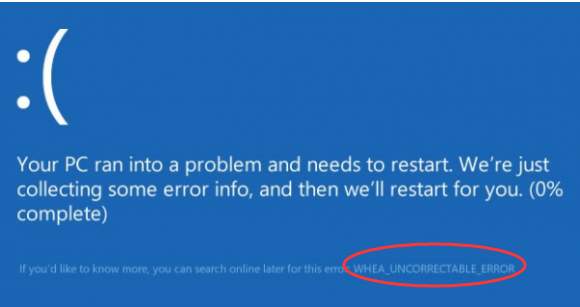
whea error

Also known as a 0xc0000124 error, this error indicates the Windows system has found an incorrectable hardware error. There can be many causes of this error such as corrupt drivers, faulty hardware, driver conflicts, or over-clocked CPU.

In most cases, corrupt drivers are the main cause behind the Whea uncorrectable error.  We have provided two solutions that might fix the issue.

Are you able to boot normally in Windows? If yes, you should try the troubleshooting steps given in Solution 2.

If you cannot boot into Windows, you need to perform the troubleshooting steps given in Solution 1

 Solution 1 – Disable Overclocking

  • Click Start Menu and select Settings
startup settings
  • In the next screen, select Update & Security
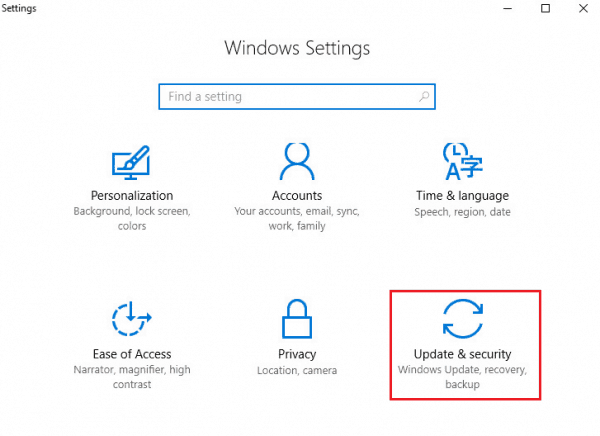
update & security
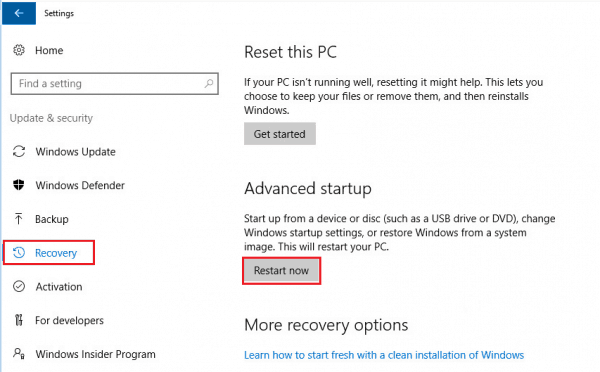
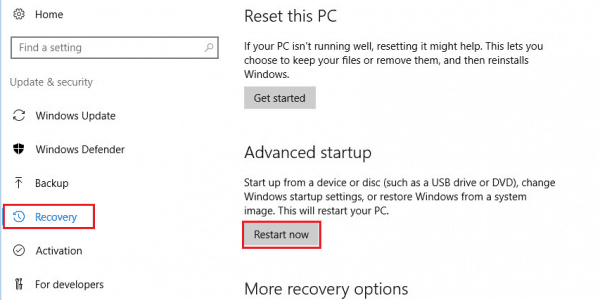
  • Look for Recovery option on the left-hand side and click on it
  • Click Restart now
recovery restart now
  • In the Windows Recovery environment screen, click Troubleshoot->Advanced option-> UEFI firmware settings-> Restart
  • After your PC reboots, you need to enter BIOS settings and disable overclocking

After you have disabled overclocking, see if the issue persists. If you are still getting the error, you need to update drivers in Safe Mode by following steps in Solution 2

Solution 2 – Update Drivers in Safe Mode

If you are able to boot normally in Windows, you need to enter Safe Mode and update drivers. Here are the steps to follow

  • Click Start Menu and select Settings
  • In the next screen, select Update & Security
  • Look for Recovery option on the left-hand side and click on it
  • Click Restart now
  • In Choose an option screen, select Troubleshoot
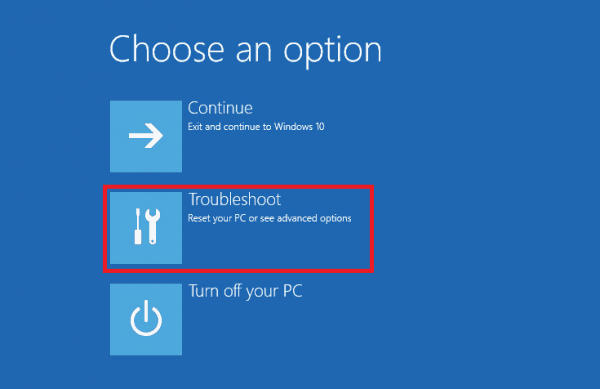
troubleshoot
  • Select Advanced options
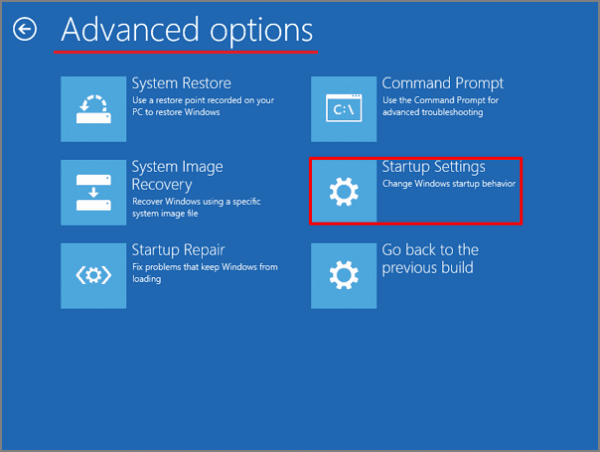
  • In the Advanced options screen, select Startup Settings
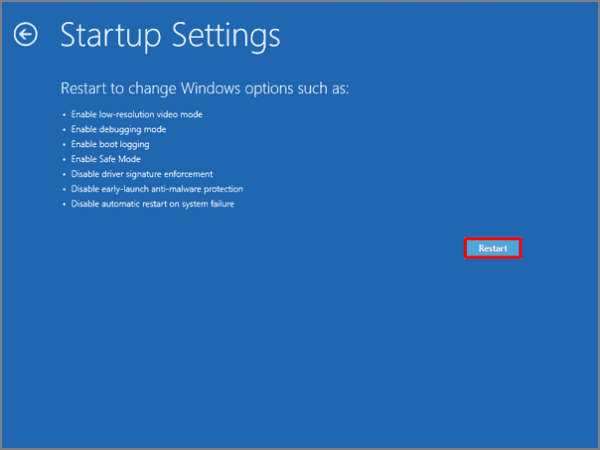
startup settings restart
  • In Startup Settings screen, click Restart
  • When you see the Startup Settings screen, press 4 number key on the keyboard to Enable Safe Mode
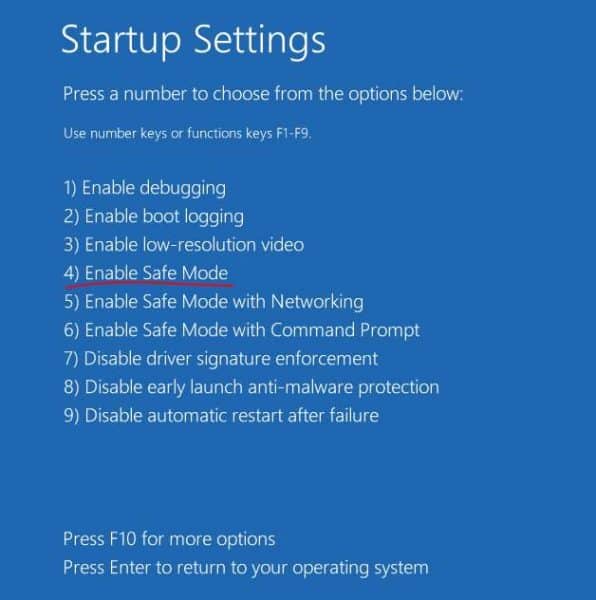
enable safe mode
  • When the computer boots in Safe mode, press Windows key and R at the same time to invoke Run command
  • Type msc in the command box
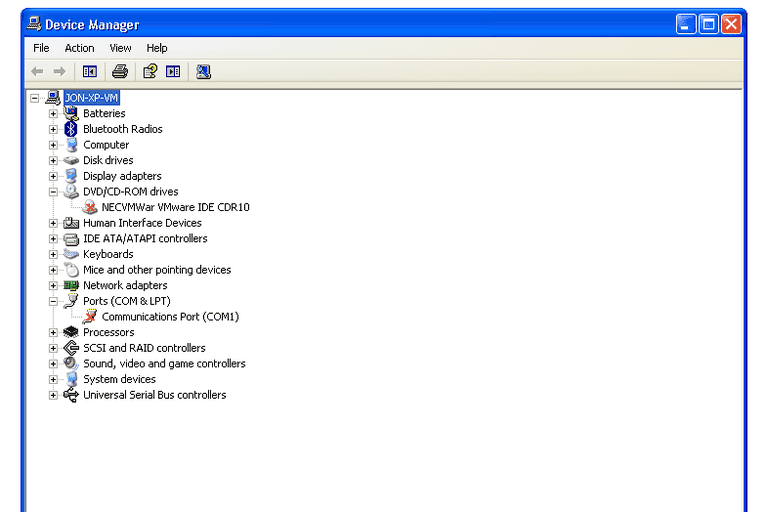
  • In the Device Manager window, look for any red or yellow sign beside any devices. Update driver software for such devices
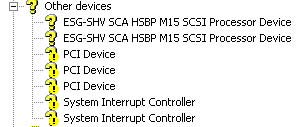
device yellow sign
device red sign
  • Right-click on the device(with a yellow exclamation mark or Red sign) and select Update driver software
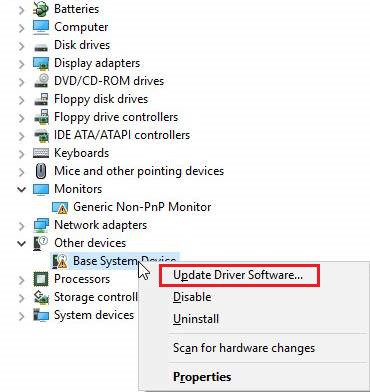
update driver software
  • Windows will search for driver updates and install them. If Windows is unable to find drivers, you need to use Driver update software to update drivers for such devices

Updating Drivers Automatically

Automatic driver update tools offer many benefits, the most important ones being:

  • You can update device drivers automatically
  • The software scans and updates all outdated or missing drivers at one go
  • The tool picks the right drivers for your device and operating system, so you won’t have to worry about installing an incorrect driver by mistake
  • Automatic driver updates are 100% safe

Driver Updater is one of the best driver update tools out there. Outbyte Driver Updater will give you access to a database of over 1 million drivers. It will regularly scan your PC, suggesting new driver versions to install. Driver Updater contains drivers for a variety of Windows devices. With just one click, you can update drivers in your system.

Step 1
Click here to Install and launch the app

Step 2
Scan all devices

Step 3
Install or update drivers automatically
 

Start Download


Filed Under: PC Fix Tips Tagged With: Whea error

Api ms win crt runtime l1 1 0 dll missing error

By Susan C on April 12, 2018

Api ms win crt runtime l1 1 0 dll missing error

Are you getting an api ms win crt runtime l1 1 0 dll error when launching an application?

If yes, you are not alone. This is quite a common error and many Window users come across it at some point in time.

Thankfully, it is not difficult to resolve. And of course, you can solve it yourself. We’ll show you how.

In this post, you’ll learn some simple yet effective ways to resolve api ms win crt runtime l1 1 0 dll error.

So, let’s dig in….

Note: Don’t be in a rush to download dll file from the Internet. Downloading dll files from any unidentified source on the Internet puts your system at risk. Besides, downloading the dll file will not resolve the issue.

What does api ms win crt runtime l1 1 0 dll mean?

The error means the program cannot start because api ms win crt runtime l1 1 0 dll is missing.

The DLL file mentioned in the error is part of Microsoft Visual C++ Redistributable for Visual Studio 2015 package.

If you do not have the software installed on your system or the file is missing, the system throws up the error when you try to launch programs that need this file.

You may also get this error if the dll file is corrupt or incompatible.

Here are some solutions to fix the issue.

 How to fix the api ms win crt runtime l1 1 0 dll missing error?

Since the DLL file is part of Microsoft Visual C++ Redistributable for Visual Studio 2015 package, installing the software is one of the simplest solutions to fix the issue.

The first and second solution is applicable for users who do not have Microsoft Visual C++ Redistributable for Visual Studio 2015 package installed on their systems.

On the other hand, if you already have Microsoft Visual C++ Redistributable for Visual Studio 2015 package installed on your system, you need to follow the Solution 3 to resolve the issue.

You can install Microsoft Visual C++ Redistributable for Visual Studio 2015 package through Windows update.

Alternatively, you can download standalone Microsoft Visual C++ Redistributable for Visual Studio 2015 package from Microsoft website.

Below you will find steps for both ways to install the software package

Solution 1 – Use Windows update

Microsoft provides Visual C++ Redistributable for Visual Studio 2015 through Windows Update KB2999226. You can get the software by installing the windows update.

Here are the steps to follow.

  • Go to Desktop
  • Type update in the search box near the Start button
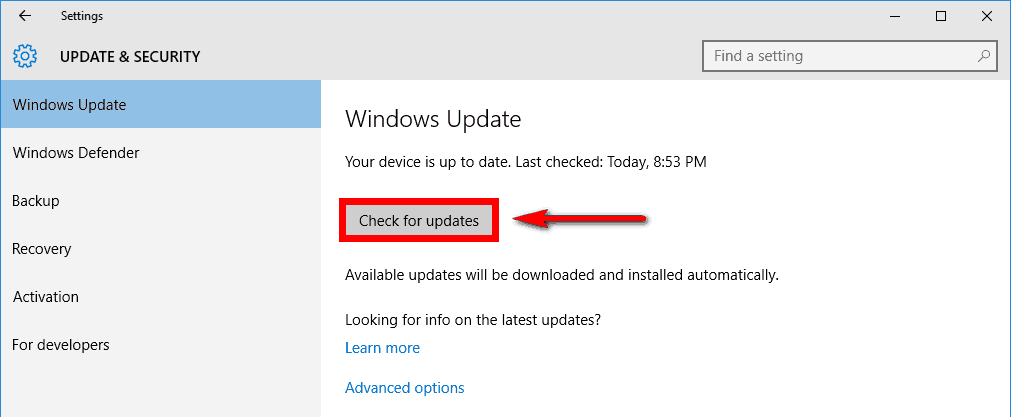
  • Select Check for updates from search results
  • In the next screen, click check for updates
check updates
  • Windows will now check for updates. It will download and install updates including Windows Update KB2999226 that would resolve the issue
  • Restart your computer
  • Repeat the above steps until no more updates are available

Solution 2- Download and Install Visual C++ Redistributable for Visual Studio 2015 from Microsoft website

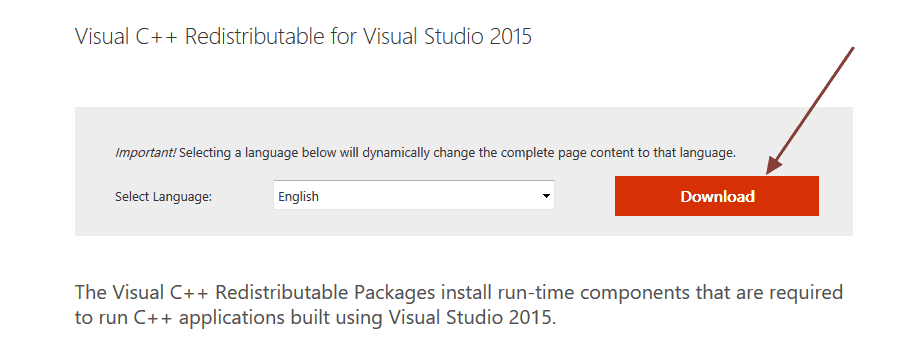
  • Go to Microsoft Download Center
  • Click Download
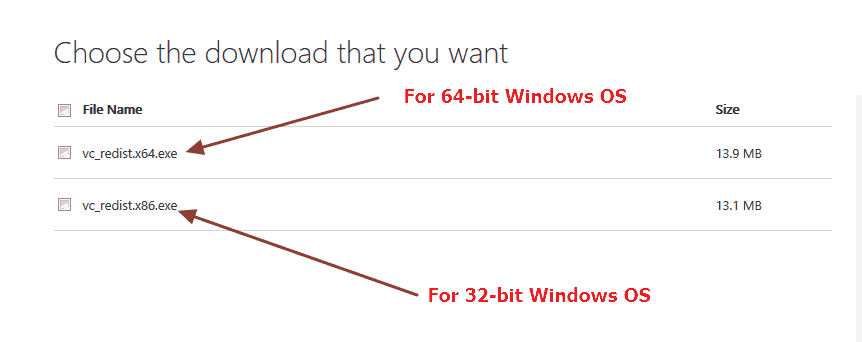
download package
  • You get two options- vc_redist.x64.exe andx86.exe.
  • If your computer is running 64-bit Windows version, you need to download – vc_redist.x64.exe file
  • If your computer is running 64-bit Windows version, you need to download – vc_redist.x86.exe file.

Note- if you don’t know system type, click Start->Control Panel->System to know the type of Windows System

  • To select the file, check the box near the right type of file and click Next.
select right file
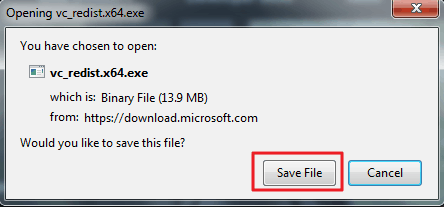
  • You will see a pop-up with the option to Save File, click on it to start the download.
save file
  • After the file is downloaded, navigate to the Downloads folder and double-click on the file to install the Visual C++ Redistributable for Visual Studio 2015 software
  • Follow on-screen instructions to install the software.

Solution 3 – Repair Visual C++ Redistributable for Visual Studio 2015 installation on your computer

If you have the Visual C++ Redistributable for Visual Studio 2015 software, you need to repair the software to resolve the issue. Here are the steps to follow.

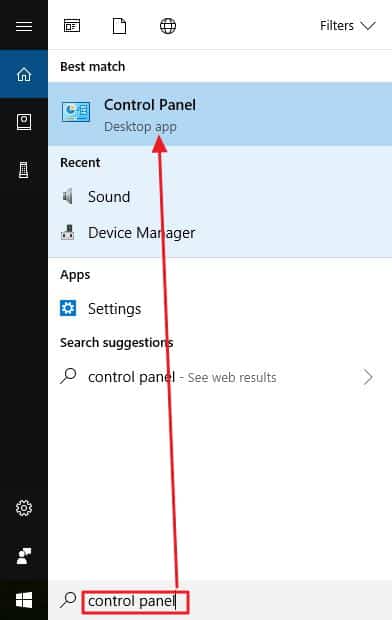
  • Go to Start menu and type control panel in the search box
control panel
  • Click Control Panel from search results
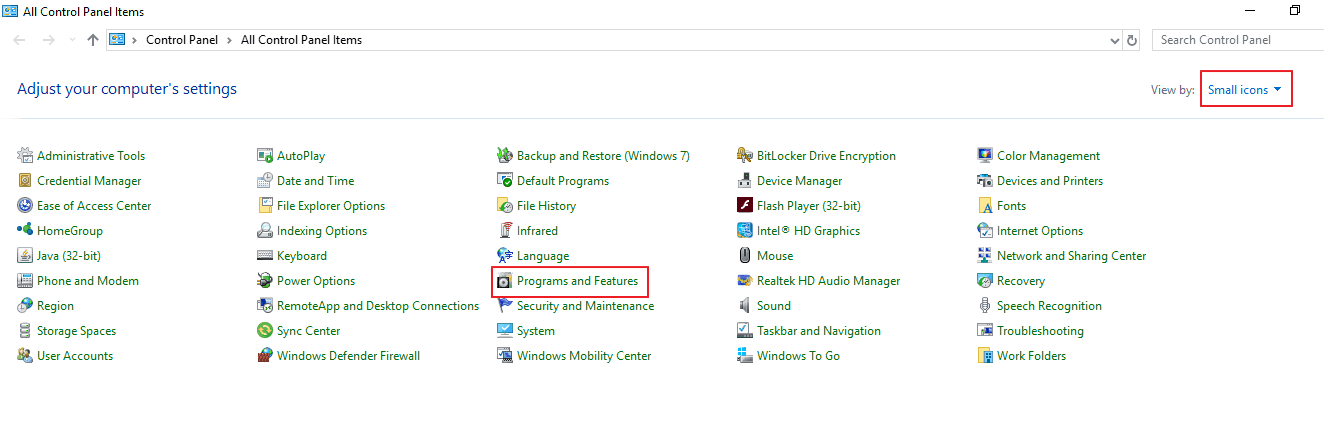
  • In the next screen, set the View by Small icons and select Programs and Features
programs & features
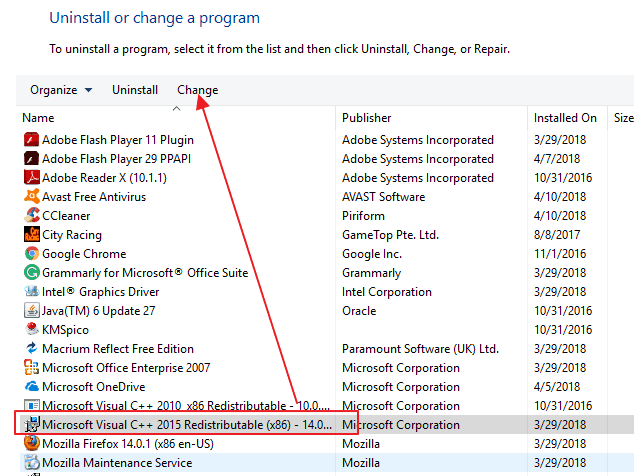
  • Select Microsoft Visual C++ 2015 Redistributable from the list of programs and then click Change.
select VisualC++
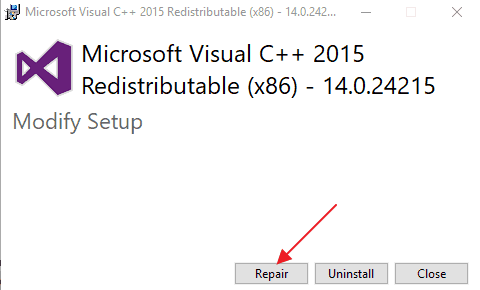
  • In the Microsoft Visual C++ 2015 Redistributable pop-up, click Repair
Click Repair
  • Select Yes when prompted by User Account Control
  • Follow on-screen instructions to repair the software

Filed Under: PC Fix Tips Tagged With: api runtime error

Turn On Bluetooth

By Susan C on April 11, 2018

Turn On Bluetooth

Bluetooth is a short-range wireless technology which can be used to connect to computers, wireless mouse and keyboard, mobile phones, headphones and other devices with Bluetooth functionality.

If you want to listen to music on wireless headphones or transfer files from your mobile phone to computer or vice-versa without connecting the two devices, you’d need to first activate Bluetooth on your computer.

In this post, we will show you how to use Bluetooth in Windows 10 and fix some Bluetooth issues in Windows 10

Steps to turn on Bluetooth in Windows 10

  • To open Settings window, press Windows key + I on the keyboard simultaneously
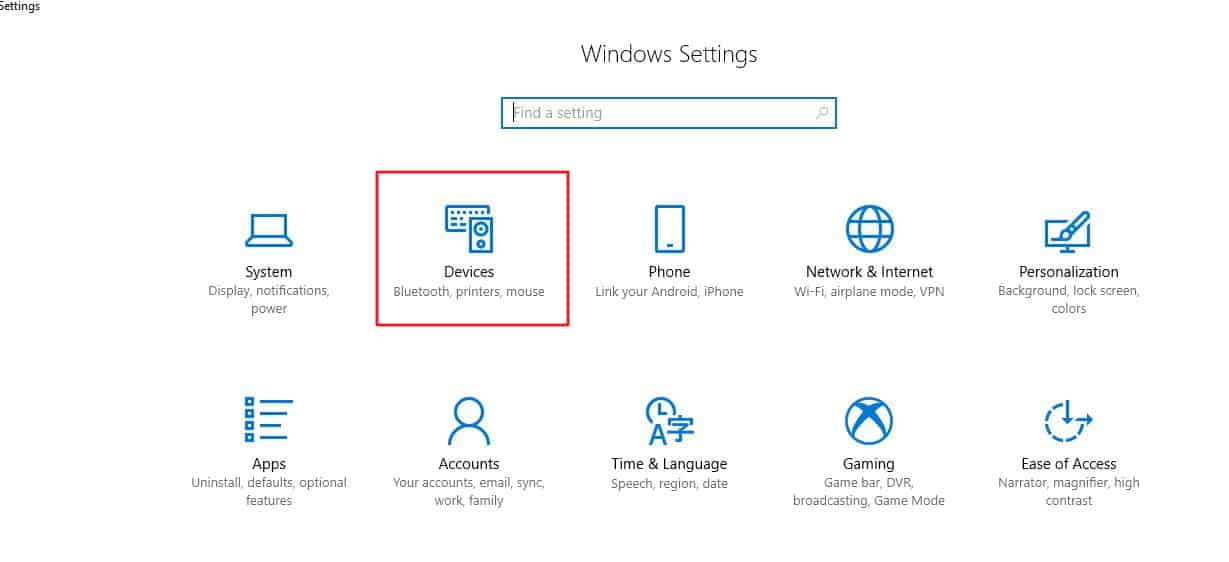
  • Select Devices
settings - devices
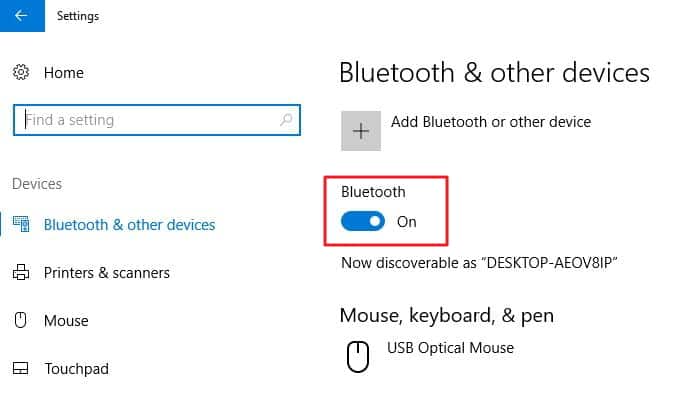
  • Click on Bluetooth switch to turn on Bluetooth. You will see On near the slider that indicates Bluetooth is activated.
Bluetooth on

If you cannot find Bluetooth option in Settings, don’t panic. We have provided some solutions that will help you get back Bluetooth settings on your Windows computer.

How to fix Bluetooth option not found on the computer?

Before you perform any troubleshooting steps, you need to ensure your computer has Bluetooth supporting hardware.  You can check your device manufacturer’s website to know whether your laptop/desktop model has Bluetooth functionality.

Below are some solutions to fix the Bluetooth missing issue.

Update Microsoft Bluetooth Drivers

Missing or corrupt Bluetooth drivers are one of the main causes of the “Bluetooth option missing in the Devices section” issue.

Start with the Solution 1 and if the issue is not resolved you can try Solution 2 and Solution 3.

Solution 1 – Update Drivers

If you have verified the device has Bluetooth supporting hardware, you can go ahead and update drivers.

There are two ways to update Bluetooth drivers- manually and automatically.

Manual update– You will need to visit the device manufacturer’s website to download latest Bluetooth drivers. If you have upgraded to Windows 10 from Windows 8 or 8.1, you need to look for Bluetooth drivers compatible with Windows 10 on the device manufacturer’s website.

If the device manufacturer does not offer Bluetooth driver for Windows 10, you can use the Driver update software to download and install Bluetooth driver.

Method 2 – Automatic update – We suggest you to try a Driver Update Tool to update Bluetooth drivers automatically.

Automatic driver update tools offer many benefits, the most important ones being:

  • You can update device drivers automatically
  • The software scans and updates all outdated or missing drivers at one go
  • The tool picks the right drivers for your device and operating system, so you won’t have to worry about installing an incorrect driver by mistake
  • Automatic driver updates are 100% safe

Driver Updater is one of the best driver update tools out there. Outbyte Driver Updater will give you access to a database of over 1 million drivers. It will regularly scan your PC, suggesting new driver versions to install. Driver Updater contains drivers for a variety of Windows devices. With just one click, you can update drivers in your system.

Step 1
Click here to Install and launch the app

Step 2
Scan all devices

Step 3
Install or update drivers automatically
 

Start Download


Solution 2 – Re-enable Bluetooth Device in Device Manager

  • Go to Desktop
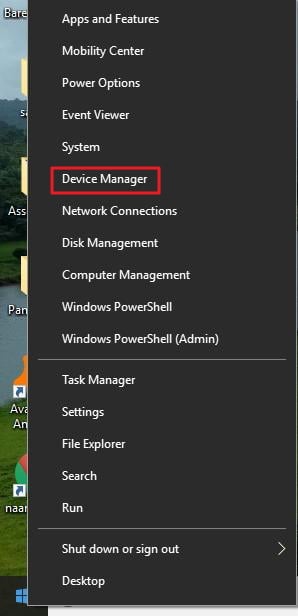
  • Right-click on Start button and click Device Manager from the menu
open DM
  • In the Device Manager window, click Bluetooth and expand it
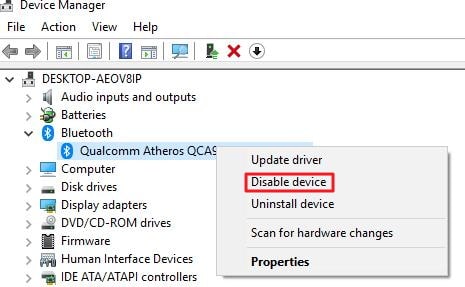
  • Right-click on Bluetooth device software and select Disable device
disable device
  • When you are asked for confirmation, click Yes
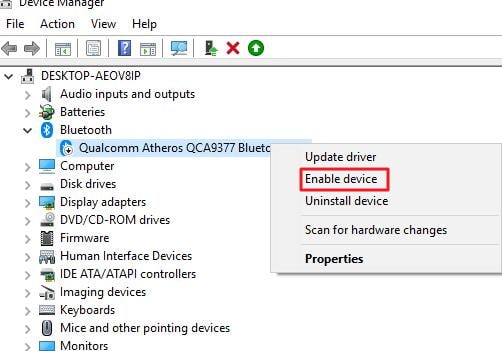
  • After you are completed above step, Right-click on Bluetooth device software and select Enable device
select enable device
  • Close Device Manager window
  • Press Windows key + I on the keyboard to access Settings
  • Click Devices
  • In the Bluetooth section, you should see the Bluetooth slider button to activate Bluetooth.

Solution 3 – Check the Bluetooth Service

The Bluetooth service is an important component of the Bluetooth functionality. In this solution, we check if the Bluetooth service is active. If not, perform the steps to activate Bluetooth services.

Here are the steps to follow.

  • On your keyboard, press Windows key and R simultaneously to invoke Run command
  • In the Run command window, type msc and hit Enter on the keyboard
  • Right-click Bluetooth service and select Start
  • If the Start option is grayed out, click Restart
  • Right-click on Bluetooth services again and select Properties
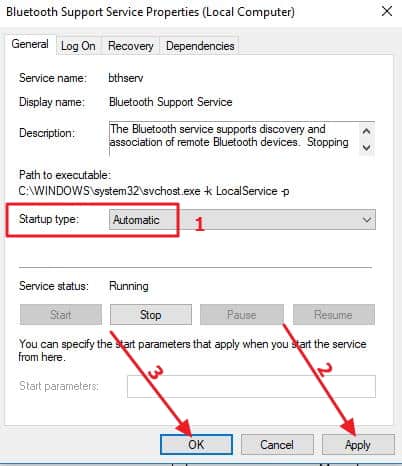
  • Set the Startup Type to Automatic
BT automatic
  • Click Apply -> OK
  • Close the Services window
  • Press Windows key + I on the keyboard to access Settings
  • Click Devices
  • In the Bluetooth section, click Bluetooth slider button to activate it

Filed Under: PC Fix Tips Tagged With: bluetooth missing

  • « Previous Page
  • 1
  • …
  • 180
  • 181
  • 182
  • 183
  • 184
  • …
  • 189
  • Next Page »


  • Recent Posts
  • Popular Posts
        

Read More Posts


Read More Posts

Drivers.com Sites

  • Software Drivers
  • Drivers Ed

About Us

  • Advertise
  • About Drivers
  • Drivers Support
  • Drivers.com Privacy Policy
  • Disclaimer
  • Software Drivers
  • Mac Fixes and Tips
  • PC Fix Tips
  • Security/ Backup
  • Tablets & Smartphones
  • Tech News

© Copyright 2026 PDE Publications Ltd. End User License Agreement (EULA)