Drivers.com

follow us:

facebook twitter
  • Home
  • Download Drivers
  • Drivers Help
  • PC/Mac Resources
  • Software Drivers
  • Mac Fixes and Tips
  • PC Fix Tips
  • Security/ Backup
  • Tablets & Smartphones
  • Tech News
  • Software Drivers
  • Mac Fixes and Tips
  • PC Fix Tips
  • Security/ Backup
  • Tablets & Smartphones
  • Tech News

Boot in Safe Mode in Windows 10

By Susan C on April 10, 2018

Boot in Safe Mode in Windows 10

There are four different ways to boot into Safe Mode in Windows.

  • Press F8 or Shift + F8 to enter Safe Mode
  • Enter Safe Mode when normal boot does not work
  • Enter Safe Mode from Normal mode
  • Enter Safe Mode from Login screen

Why F8 option does not work?

Until Windows 10, the easiest way to boot in Safe Mode was pressing F8 on the keyboard.

But things have changed with Windows 10 and the F8 option to enter Safe Mode does not work any longer.

This is because the boot process has become faster than ever before. But that does not mean, the F8 boot option has been removed completely from the Safe Mode option.

It stills exists in the Advanced Menu and is disabled by default. You need to activate the F8 option in Advanced Boot Menu to get it back.

Here are the steps to follow.

How to Get F8 option working again to boot into Safe Mode?

To make F8 option active for booting into Safe Mode, you need to make some changes in Boot Configuration Data also known as BCD.

The Boot Configuration Data Editor is known as Bcdedit.exe command-line tool that allows you to edit, delete or add entries in BCD.

Here are the steps to activate the F8 option in boot configuration data.

  • Press Windows Key + R simultaneously on the keyboard to launch Run command
  • Type cmd and then press Ctrl + Shift + Enter buttons on the keyboard simultaneously to launch Command Prompt tool with Administrator rights. Alternatively, you can right click on cmd in search results and select Run as administrator option from the menu.
  • Type bcdedit /set {default} bootmenupolicy legacy command in the Command Prompt window and press Enter
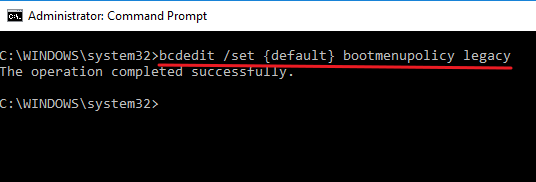
activate F8

  • Reboot your computer
  • Press F8 before Window logo appears and you should see a screen that offers you the option to boot into Safe Mode

How to use other Safe Mode options in Windows 10?

If you are getting a BSOD error or can’t boot normally in Windows 10, use the Method 1 to enter Safe Mode.

If you can boot normally in Windows but need to access Safe Mode to make some changes, use the Method 2.

The Method 3 can be used if you want to enter Safe Mode from the login screen.

Below you will find detailed steps to enter Safe Mode using all the methods mentioned above.

Method One – Enter Safe Mode when normal boot does not work

In Safe Mode, windows load minimum drivers and processes.

In any event when windows can’t boot normally due to some issue, you can easily enter Safe Mode using this method.

Once you have entered Safe Mode, you can find the cause that is preventing you from booting Windows in Normal mode and rectify the issue.

Here are the steps to follow.

  • Switch off your computer
  • Press the power button on your computer and keep it holding for 5 seconds until the computer shuts down again. Repeat the steps 2-3 times until you get the Preparing Automatic Repair screen
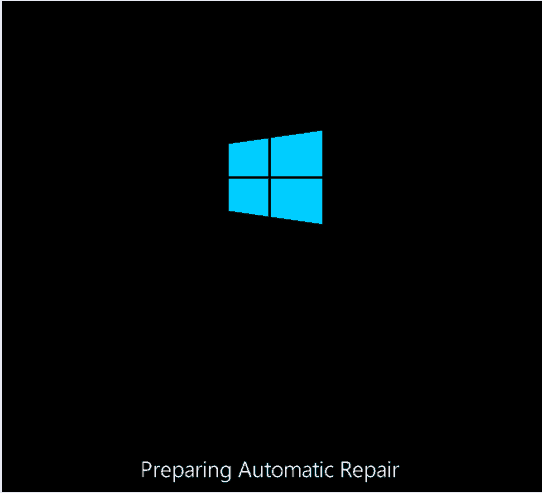
preparing auto repair

Note- When the computer is not able to start after repeated attempts, windows automatically initiates the Automatic Repair option that allows you to fix any issue that is causing booting problem.

  • Wait for the Windows to diagnose your computer
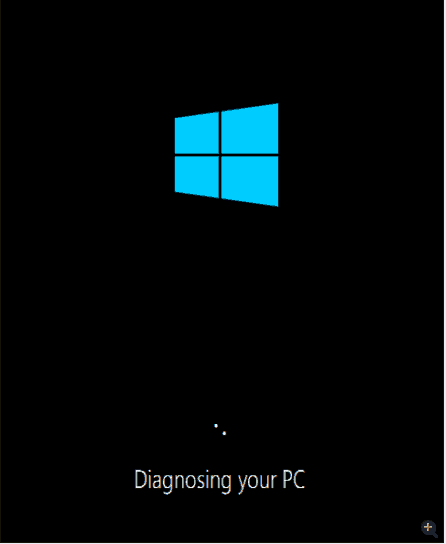
diagnosing PC

  • In the Startup Repair screen, select Advanced options
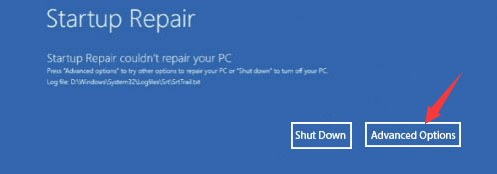
Advanced options

  • In the Choose options screen, select Troubleshoot
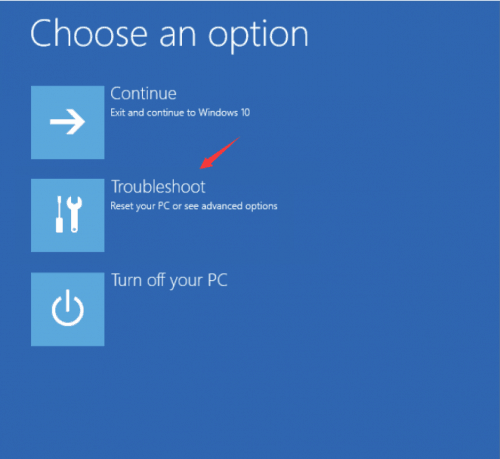
Troubleshoot

  • In the Troubleshoot screen, select Advanced options
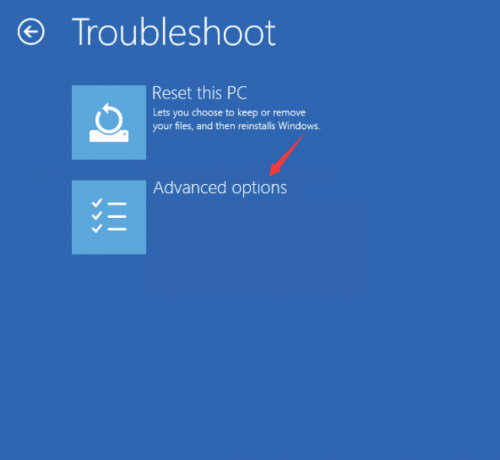
advanced options

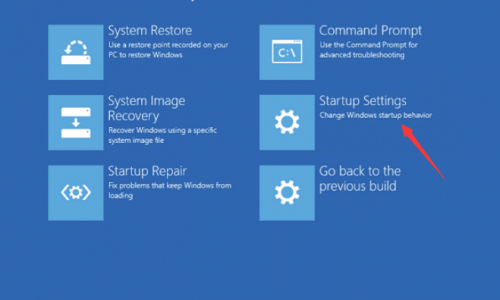
  • In the Advanced Options screen, select Startup Settings
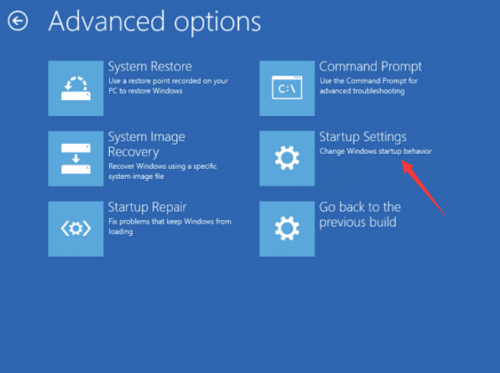
startup settings

  • In the Startup Settings Screen, click Restart
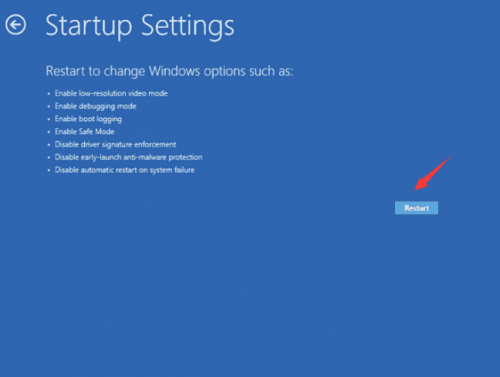
click restart

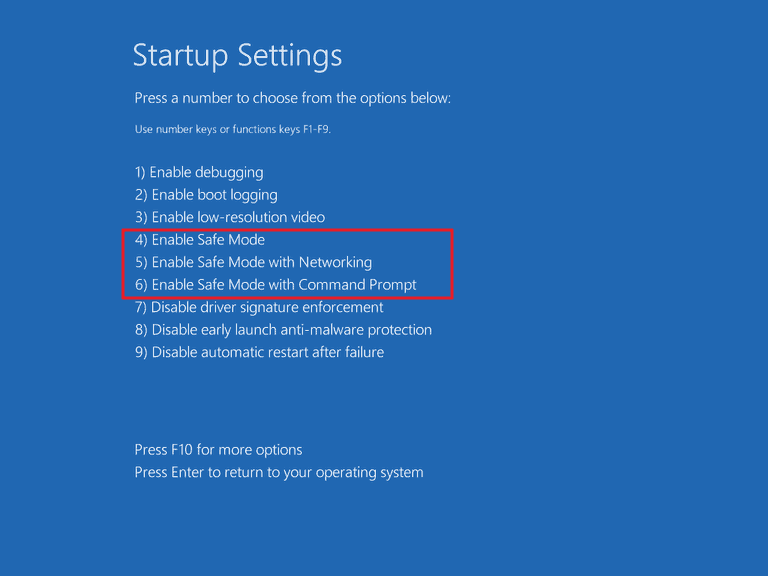
  • You are presented with different options to boot in Safe Mode.
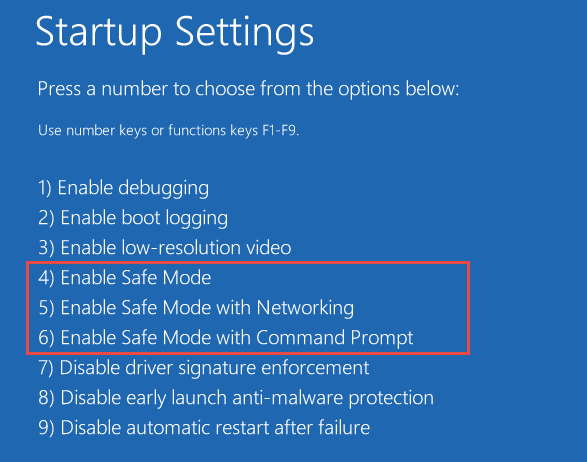
boot options

  • Press the 4 number key on the keyboard to enter into Safe Mode
  • Press the 5 number key on the keyboard to enter Safe Mode with Networking
  • Press the 6 number key on the keyboard to enter Safe Mode with Command Prompt

After you have completed tasks in Safe Mode, you need to disable the Safe Mode before logging out.

If you keep the Safe Mode option checked in, Windows will not boot in Normal Mode.

Method Two – Enter Safe Mode from Normal mode

If Windows has booted successfully in Normal mode, you can access the System Configuration tool to activate the Safe Boot Mode option.

The System configuration tools offer you different configuration options for Safe Mode.

However, selecting Minimal mode is enough to fix an issue which is the default option when you activate Safe Mode.

Here are the steps to follow.

  • Press Windows Key and R simultaneously on the keyboard to launch Run command
  • Type msconfig and select System Configuration option from the results
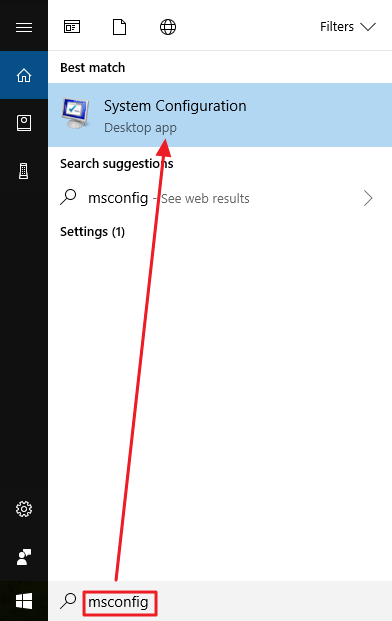
system configuration

  • When the System Configuration window opens, click Boot tab
  • Under Boot Options, check the box Safe Mode. You will see the Minimal option is automatically selected, let it be.
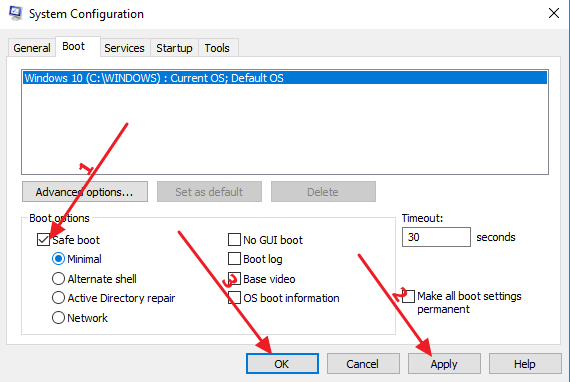
select safe mode

  • Click Apply and then OK
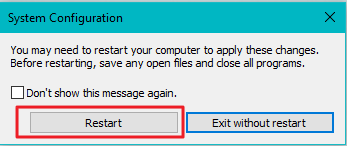
  • Windows will prompt you to restart the computer and present you with options
  • Click Restart

click restart

Windows will enter into Safe Mode. After you have completed tasks in Safe Mode, you need to disable the Safe Mode before logging out. If you keep the Safe Mode option checked in, Windows will not boot in Normal Mode.
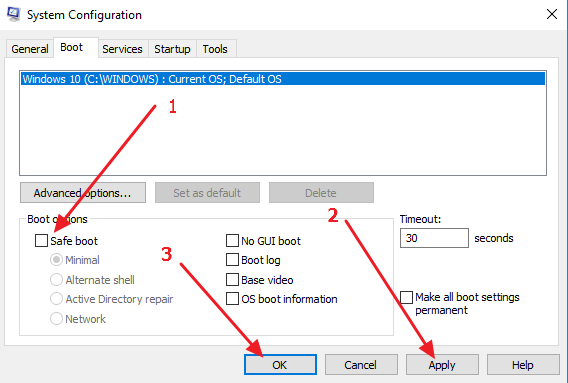
select safe mode

Method 3 – Enter Safe Mode from the Login screen

If the computer boots up to the login screen and you need to access Safe Mode, you can do so without loading Windows completely.

Here are the steps to follow.

  • Considering you are on the login screen, Press Shift key on the keyboard
  • While holding the Shift key, look for the Power button on the bottom-right corner of the screen and click on it.
  • Select Restart (you need to continue holding the Shift key while performing this step). This will bring up the Windows Recovery environment just like in Method 1).
  • In the Choose options screen, click Troubleshoot
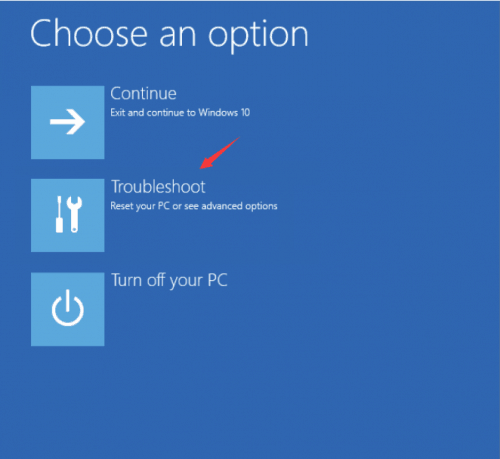
select troubleshoot

  • In the Troubleshoot screen, click Advanced options
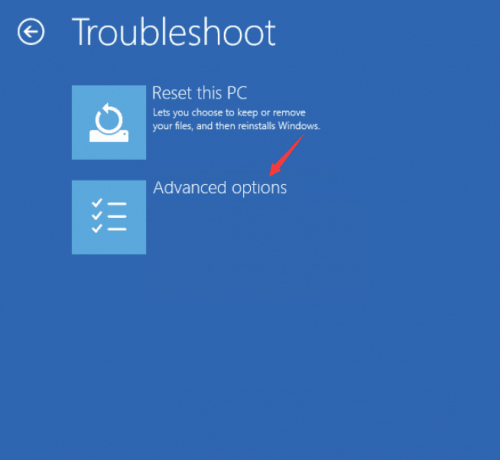
advanced options

  • In the Advanced Options screen, click Startup Settings
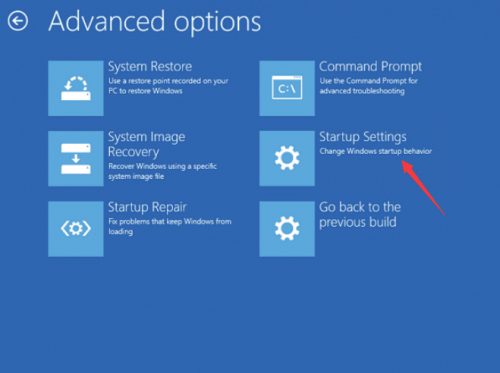
click startup settings

  • In the Startup Settings Screen, click Restart

click restart

  • You are presented with different options to boot in Safe Mode.
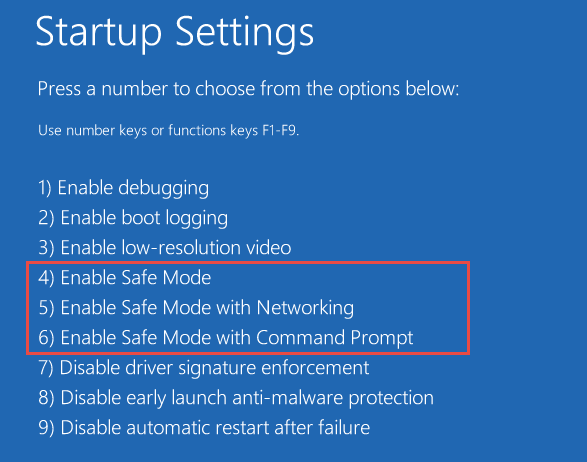
safe mode options

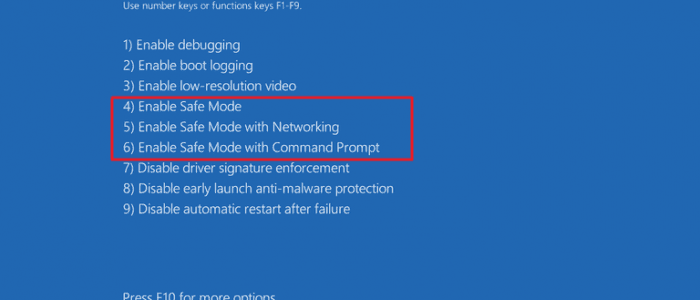
  • Press the 4 number key on the keyboard to enter into Safe Mode
  • Press the 5 number key on the keyboard to enter Safe Mode with Networking
  • Press the 6 number key on the keyboard to enter Safe Mode with Command Prompt


Filed Under: PC Fix Tips Tagged With: enter safe mode

All You Wanted to Know About Windows Safe Mode

By Susan C on April 9, 2018

All You Wanted to Know About Windows Safe Mode

Safe Mode in Windows refers to a diagnostic mode that is used to access Windows operating system and its settings when the computer fails to boot normally.

In Safe Mode, the Windows operating system only loads a minimal set of drivers and services that are needed for Windows functioning. No third party programs or drivers are loaded in Safe Mode.

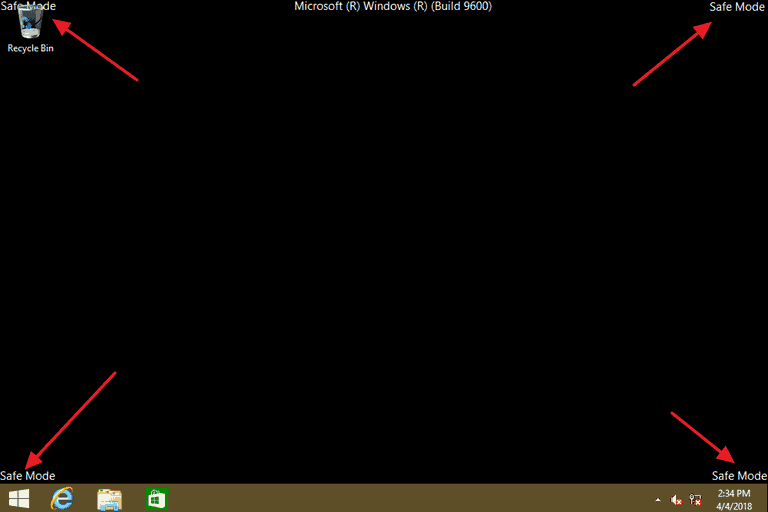
You know when your computer boots in Safe Mode because you will see Safe Mode mentioned at all four corners of the screen.

safe mode

When should you use Safe Mode?

You can use Safe Mode when experiencing problems in Windows in normal mode and you don’t know the exact reason or software that is causing the problem.

Since Windows only loads essential drivers and services, it is easy to remove the problematic software that is causing the problem.

Windows Safe Mode also provides you a safe environment to roll-back drivers or update drivers for any devices. This is because Windows uses generic drivers for most devices that allow you to roll-back driver or update drivers more easily.

 Which issues can be solved in Safe Mode?

The Safe Mode in Windows allows you to narrow down on the cause of the trouble.

Since no third party programs or drivers are loaded, you can know whether there is a problem with Windows components or if the problem is due to some third-party program.

  • Find out the cause of the error and fix it

If you are getting BSOD or any other errors that hamper normal functioning of the Windows, log into Safe Mode to sort the problem.

For example, if the Windows runs fine in Safe Mode, you can draw a conclusion that one of the third-party applications is the cause of Windows instability. You can uninstall recently installed programs and log into normal mode again to see if the issue is fixed.

  • Install or uninstall software

If you are facing problems while installing/uninstalling specific software in Normal mode, you can try doing it in Safe Mode.

In most cases, the installation/ un-installation in Safe Mode would run smoothly as Windows operating system is running basic services that are less likely to interfere with the process.

  • Remove Malware

If your computer is infected with malware or you have unstable drivers for some devices, you can use Safe Mode to rectify such problems.

Many malware programs lock files to prevent their removal from computer. In Safe Mode, the malware program files do not get loaded at boot, and it is easy for you to scan the system and get rid of malware from the system.

  • Update Drivers

If some hardware issue is making your Windows unstable, you will need to update drivers for that hardware device.

However, due to the instability of Windows in Normal mode, it might not be possible to update drivers. You can use the Safe Mode to update drivers.

What are different types of Safe Modes available?

There are three different types of Safe Modes available to Windows users

  • Safe Mode
  • Safe Mode with Networking
  • Safe Mode with Command Prompt
safe mode
  • Safe Mode

When you select this Safe Mode option, the computer loads basic configuration. You will get the GUI mode, that is, you will see a desktop with a black background where most program icons will be visible. However, these icons will be bigger in size as graphics drivers are not loaded in Safe Mode.

You will have access to the Start menu and some basic Windows tools like Event Viewer, Command Prompt, PowerShell, Device Manager, Event Log viewer that might prove useful to learn the cause of the error and fix it.

You will also have access to files and can use the antivirus to scan your system. If any malware is not completely removed in Normal Windows mode or the malware prevents you from using any removal tools, this Safe Mode is the best option to run Anti-virus scan or run removal tools to get rid of malware

Safe Mode with Networking

There are not many differences between Safe Mode and Safe Mode with Networking. When you select Safe Mode with Networking, Windows loads Network drivers that enable you to access the Internet.

It might be helpful to download some programs or utilities to fix an issue. However, expert advice not to surf the Internet like you do it regularly, as the anti-virus is not active in Safe Mode.

Also, the Windows built-in firewall would only be active if you have enabled the Windows Firewall option in Safe Mode with Networking.

Safe mode with Command Prompt

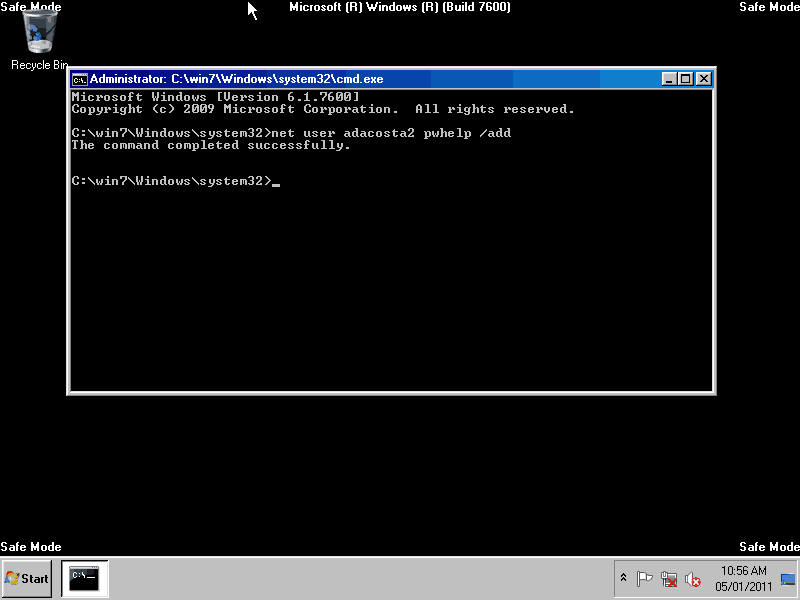
In this Safe mode option, you don’t get GUI or the Desktop and Start button.

You only see a command prompt window. This Safe Mode is for expert users who know how to perform advanced troubleshooting in Windows through commands.

SM-command prompt

Filed Under: PC Fix Tips Tagged With: safe mode

How to Solve Start Menu Not Working In Windows 10 Issue

By Susan C on April 9, 2018

How to Solve Start Menu Not Working In Windows 10 Issue

Are you unable to use the very useful Search feature because of Start Menu Is Not Opening issue?

If yes, you’re not alone.

Many users are grappling with this problem. And in different PCs, the cause can be different.

But you don’t need to worry. We will show you how to solve the issue.

This post discusses several ways to solve Start Menu Is Not Opening issue. You don’t have to try all of them. Start with first one and proceed downward until the issue is resolved.

So, let’s begin…

Solution 1 – Re-log to your account

In case the Start menu is appearing at times and not present at other times, re-logging into the desktop might do the trick.

Here are the steps to follow:

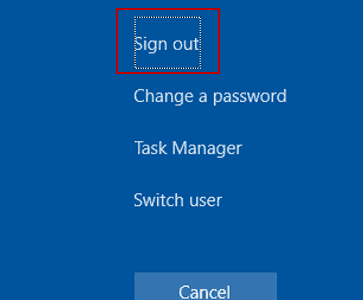
  • Press Ctrl+Alt+Del
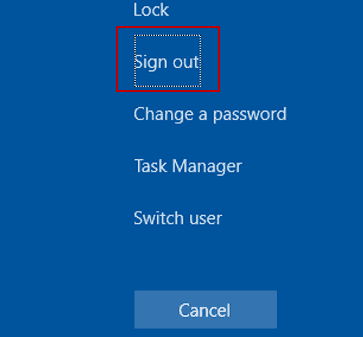
  • Click Sign out
sign out
  • Enter the login password to re-login
  • Check if the Start Menu is working fine

Solution 2 – Setup a new user account

If the step 1 doesn’t work or if the Start menu is absent not occasionally but all the time, try this step:

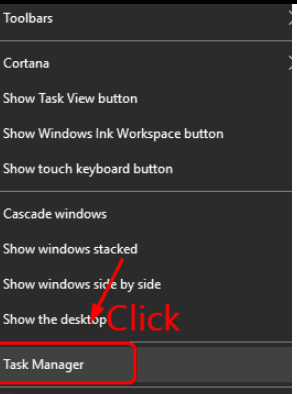
  • Right-click on taskbar and select Task Manager
click task manager
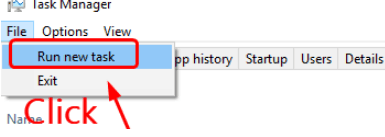
  • In the Task Manager window, click the File Next click Run new task.
Run new task
  • In the Create new task dialog box, type powershell and select the box against Create this task with administrative privileges.
  • Click OK.
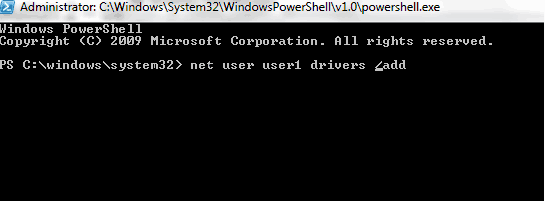
  • Copy and paste the following command in the PowerShell window and press Enter
new user command

We have used the username “user1”. The password is “drivers”

add new user
  • Reboot your PC
  • Login to the new account
  • Now the Start menu should be working just fine. Now, make the new account a Microsoft account. Next, transfer the files as well as settings.

Solution 3 – Reinstall video drivers and sound drivers

More than a few users have stated that in their case the culprit was sound driver and video card driver. When they updated their sound and video drivers, they were able to get rid of the problem.

Here are the steps you need to follow:

First uninstall video and sound drivers

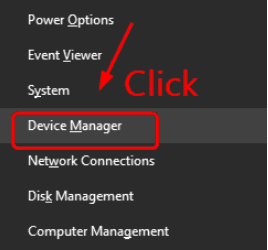
  • Press Windows + X to open Quick Access Menu and then select Device Manager
open device manager
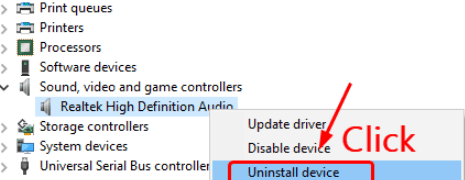
  • In the Device Manager window, double-click Sound, video and game controllers
  • Right-click the audio card driver and then select Uninstall device
uninstall audio driver
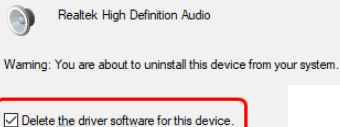
  • In the next screen you’ll get a message asking you to confirm if you want to delete the installed drivers. Simply select the box against Delete the driver software for this device.
delete driver
  • Reboot your pc
  • Update your video and audio drivers (discussed ahead)

There are two ways to update your drivers—manually and automatically.

Updating drivers manually – This process is tedious and time-consuming. Worse, you might not be able to find the right drivers even after spending considerable time and effort. If you want to update drivers manually, go to video card manufacturer’s website and download the latest drivers released for your operating system.

Updating drivers automatically –

Automatic driver update tools offer many benefits, the most important ones being:

  • You can update device drivers automatically
  • The software scans and updates all outdated or missing drivers at one go
  • The tool picks the right drivers for your device and operating system, so you won’t have to worry about installing an incorrect driver by mistake
  • Automatic driver updates are 100% safe

Driver Updater is one of the best driver update tools out there. Outbyte Driver Updater will give you access to a database of over 1 million drivers. It will regularly scan your PC, suggesting new driver versions to install. Driver Updater contains drivers for a variety of Windows devices. With just one click, you can update drivers in your system.

Step 1
Click here to Install and launch the app

Step 2
Scan all devices

Step 3
Install or update drivers automatically


Start Download


Solution 4 – Temporarily disable any installed third-party antivirus software program

In case you are facing the Start menu issue after you’ve installed a third-party antivirus tool such as AVG, Kaspersky, Avast Behavior Shield, Malwarebytes, or Norton, you should turn the antivirus tool off temporarily.

Next restart your computer and check if now you can see the Start Menu. If yes, get in touch with the vendor for help.

Temporarily shutting off your antivirus tool should not cause problem because you’d still have Windows Defender protecting you. By default, this anti-malware from Microsoft is turned on.

Solution 5 – Get rid of Dropbox

Some users have said that they got the error soon after installing Dropbox and were able to get the Start menu back after uninstalling it.

You can try this option if you, too, are getting the error after you’ve installed Dropbox.

Here are the steps to follow:

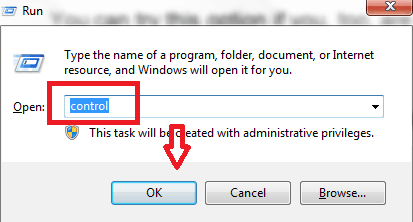
  • Press Window + R on the keyboard and then type control and press OK
open control panel
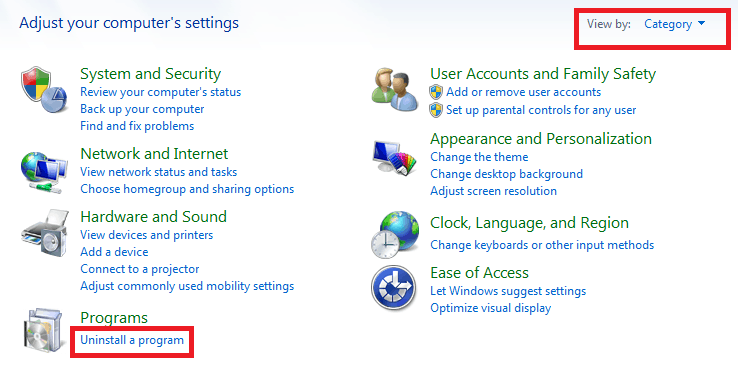
  • In the View by drop-down menu, select Category and then select Uninstall a program
uninstall a program
  • Browse through the list until you see Dropbox. Select it and click Uninstall. Follow the onscreen prompts.
  • Restart Windows

Filed Under: Software Drivers Tagged With: Start Menu issue

  • « Previous Page
  • 1
  • …
  • 181
  • 182
  • 183
  • 184
  • 185
  • …
  • 189
  • Next Page »


  • Recent Posts
  • Popular Posts
        

Read More Posts


Read More Posts

Drivers.com Sites

  • Software Drivers
  • Drivers Ed

About Us

  • Advertise
  • About Drivers
  • Drivers Support
  • Drivers.com Privacy Policy
  • Disclaimer
  • Software Drivers
  • Mac Fixes and Tips
  • PC Fix Tips
  • Security/ Backup
  • Tablets & Smartphones
  • Tech News

© Copyright 2026 PDE Publications Ltd. End User License Agreement (EULA)