Drivers.com

follow us:

facebook twitter
  • Home
  • Download Drivers
  • Drivers Help
  • PC/Mac Resources
  • Software Drivers
  • Mac Fixes and Tips
  • PC Fix Tips
  • Security/ Backup
  • Tablets & Smartphones
  • Tech News
  • Software Drivers
  • Mac Fixes and Tips
  • PC Fix Tips
  • Security/ Backup
  • Tablets & Smartphones
  • Tech News

How to Solve SYSTEM_THREAD_EXCEPTION_NOT_HANDLED Error

By Susan C on April 6, 2018

How to Solve SYSTEM_THREAD_EXCEPTION_NOT_HANDLED Error

The SYSTEM_THREAD_EXCEPTION_NOT_HANDLED is a BSOD error that is generally caused by faulty drivers, especially graphics drivers.

The bug check value of this BSOD error is 0x0000007. The error gives the name of the driver that caused the problem.

Getting a BSOD error is always frustrating, but don’t worry we have some solutions that can help you fix the issue.

Try the listed solutions one by one, until the problem is solved.

Solution One – Find the driver that is causing the problem and update it

If the SYSTEM_THREAD_EXCEPTION_NOT_HANDLED error is followed by nvlddmkm.sys, it points towards NVIDIA driver file.

If you notice igdkmd64.sys after the error message, it points towards Intel Graphics Kernel Mode driver.

Generally, if there is conflict in drivers, Windows operating system will generate a BSOD error.

You can use the Event Viewer to find the conflicting driver and then update the driver by downloading the latest driver from the Internet. Here are the steps to follow.

Steps to find the driver causing the SYSTEM_THREAD_EXCEPTION_NOT_HANDLED error

  • Click Start
  • Type cmd in the search box
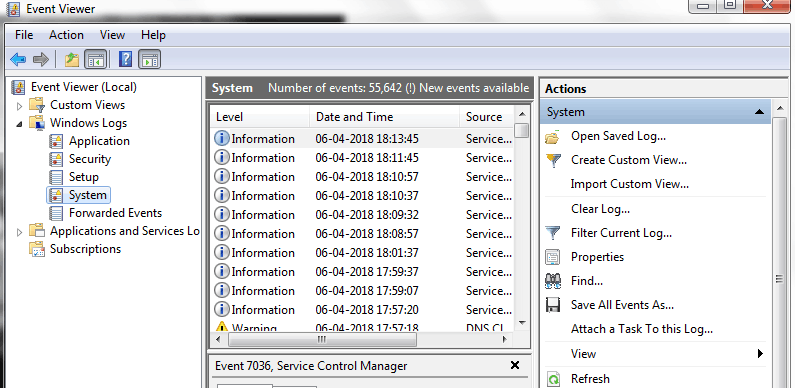
  • In the command prompt window, type eventvwr and hit enter on the keyboard
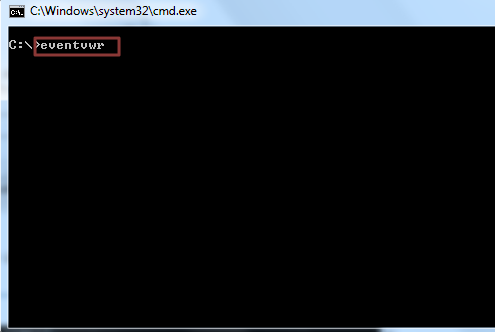
command prompt
  • Wait for Event Viewer window to load, look for Windows Logs and expand it
  • Click System
EV - System
  • In the right-hand console, click on Source tab to sort alphabetically
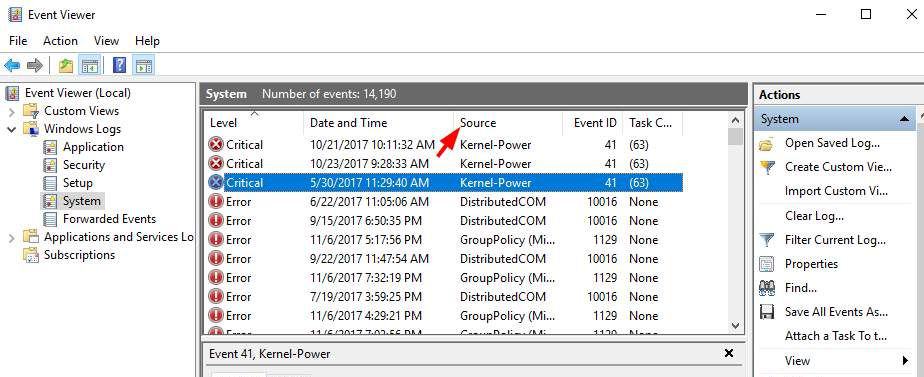
Event Viewer
  • Try to find the driver – sys or nvlddmkm.sys ( it depends on the driver displayed after the error)
  • You can locate System Thread Exception Not Handled error by “Date and Time”.
  • Once you have identified the problematic driver behind the SYSTEM_THREAD_EXCEPTION_NOT_HANDLED error, go ahead and update it by following any method given below

Steps to update drivers

 You can either update drivers manually or automatically. Here is how to do it.

Manual Drivers update – To manually update drivers you need to go the hardware manufacturer website and look for latest driver updates available that are compatible with your Windows system.

You have to be careful when downloading drivers manually and pay attention to things like Windows version and Windows architecture (32-bit or 64-bit).

Manually updating drivers is a time-consuming task that needs patience and some expertise as well.

If you are looking for simple way to update drivers, try Driver Downloader software that can update all drivers automatically.

Automatic Drivers update

Automatic driver update tools offer many benefits, the most important ones being:

  • You can update device drivers automatically
  • The software scans and updates all outdated or missing drivers at one go
  • The tool picks the right drivers for your device and operating system, so you won’t have to worry about installing an incorrect driver by mistake
  • Automatic driver updates are 100% safe

Driver Updater is one of the best driver update tools out there. Outbyte Driver Updater will give you access to a database of over 1 million drivers. It will regularly scan your PC, suggesting new driver versions to install. Driver Updater contains drivers for a variety of Windows devices. With just one click, you can update drivers in your system.

Step 1
Click here to Install and launch the app

Step 2
Scan all devices

Step 3
Install or update drivers automatically


Start Download


Solution Two – Update BIOS

The BIOS and firmware incompatibility, IRQ conflicts or the memory conflicts can cause SYSTEM_THREAD_EXCEPTION_NOT_HANDLED error. Updating the BIOS can resolve the problem

To update BIOS you need to go to the motherboard manufacturer’s website and check for the BIOS update.

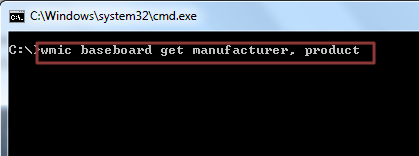
Before you go to the motherboard’s manufacturer website, you need to know the model name or number.  If you are not aware of the product name of the motherboard, follow the steps given below to get that information.

Steps to find out motherboard model number

  • Click Start
  • Type cmd in the search box
  • In the command prompt window, type wmic baseboard get manufacturer, product and hit enter on the keyboard
command prompt
  • Note down the details of the motherboard model
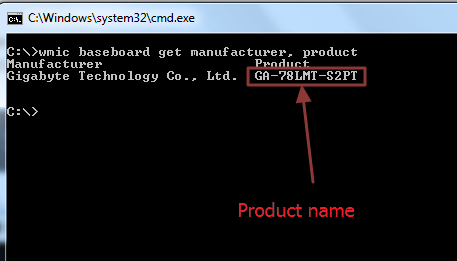
product name

Most motherboard manufacturers offer different ways to update BIOS. Go to motherboard manufacturer website, select your motherboard model and look for the BIOS update available.

You will have two options – download executable file or zip file. The instructions to install BIOS update is given on the website. Note down the instructions for the BIOS update method you want to follow.

Solution three – Check for any incompatible hardware with your Windows 10 operating system

Windows 10 does not work with old hardware. If you have upgraded to Windows 10, you need to check whether your computer has any incompatible hardware installed.

You can get more information about supported hardware in Windows 10 specifications.
Filed Under: Software Drivers Tagged With: BSOD error

How to solve “DNS address could not be found” error

By Susan C on April 5, 2018

How to solve “DNS address could not be found” error

Are you struggling with “server dns address could not be found” error?

If you are having problems with this DNS address error then the article below should help.

Solution One – Update Drivers

One of the reasons behind the “server DNS address could not be found” error message is outdated and corrupt network drivers. If this is the case, updating Drivers may resolve the issue.

There are two ways to update the Drivers – Manually and Automatically.

Manual Drivers Update – To update drivers manually, you need to go to the hardware manufacturers website and download the latest compatible drivers for your Windows version. You need to also pay attention to the Windows operating system architecture, that is, whether your system is 32-bit or 64-bit. For some drivers, you will be required to search the hardware manufacturer’s website and also your device manufacturer website for required updates. Manually updating drivers can require some technical knowledge and patience so it may not be the best solution for everyone.

Automatic Drivers Update: You can use Driver Downloader software to update drivers automatically. With Driver Downloader you don’t have to visit the hardware manufacturers website, nor do you need to find the exact Windows version you are using. The Driver update software will update the drivers automatically.

Automatic driver update tools offer many benefits, the most important ones being:

  • You can update device drivers automatically
  • The software scans and updates all outdated or missing drivers at one go
  • The tool picks the right drivers for your device and operating system, so you won’t have to worry about installing an incorrect driver by mistake
  • Automatic driver updates are 100% safe

Driver Updater is one of the best driver update tools out there. Outbyte Driver Updater will give you access to a database of over 1 million drivers. It will regularly scan your PC, suggesting new driver versions to install. Driver Updater contains drivers for a variety of Windows devices. With just one click, you can update drivers in your system.

Step 1
Click here to Install and launch the app

Step 2
Scan all devices

Step 3
Install or update drivers automatically


Start Download


Solution Two– Delete all files from etc folder in C drive

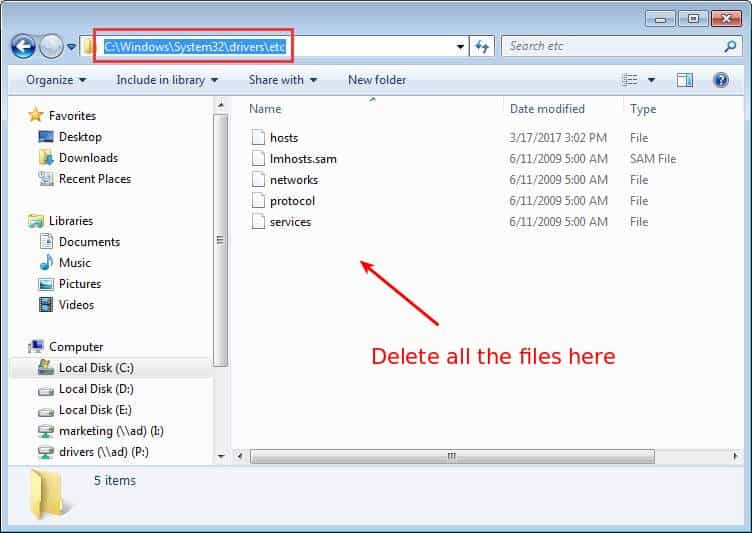
The simple solution to the “server DNS address could not be found” error is deleting all files in the etc folder and then try visiting the websites. Below are the steps to will need to follow:

  • Navigate to C:\Windows\System32\drivers\etc
driver files
  • Press Ctrl + A to select all files in the folder
  • Press Delete button on the keyboard
  • Press OK or Yes when asked for confirmation

Solution Three – Clear Chrome’s Host Cache

Google has its own cache system and if Chrome’s host cache is full or has become corrupted, the browser will prevent you from accessing some sites or you will face web browsing problems.

The simple solution to this problem is clearing Chrome’s Host Cache.

Here are the steps to follow.

  • Open the Chrome browser
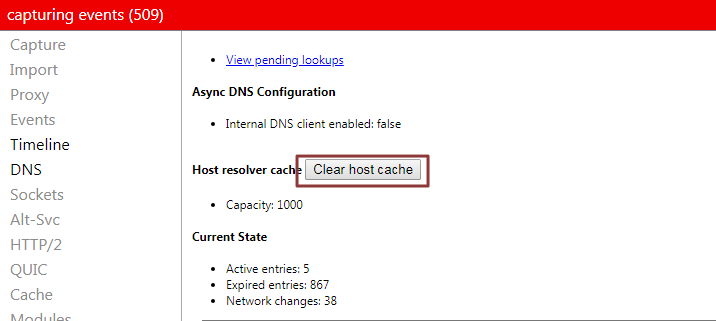
  • In the address bar, type chrome://net-internals/#dns
clear host cache
  • Look for Clear Host Cache button and click on it.
  • Check if the issue persists

Solution Four – Modify DNS Server settings

If the DNS server settings are not configured correctly, it can result in the “server DNS address could not be found” error.

To solve the issue, enter the correct DNS server addresses.

Here are the steps to follow.

  • Press Windows logo key + R key simultaneously to invoke the Run command
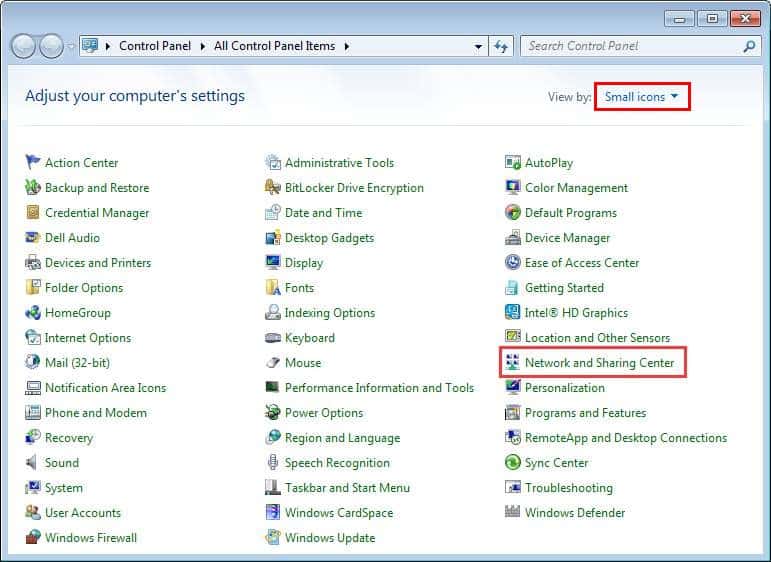
  • Type control panel in the box and click OK
open control panel
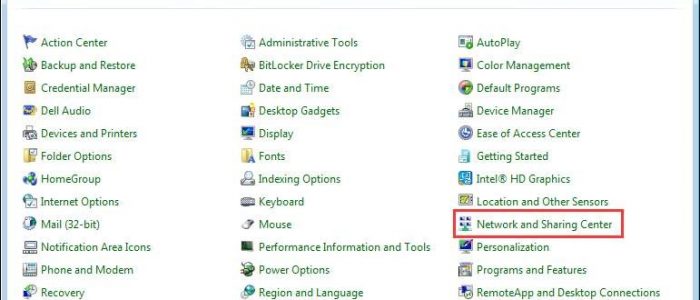
  • In the control panel window, select the View by small icons
  • Select Networking and Sharing center
networking & sharing center
  • Select Change Adapter settings on the left-hand side
  • Right-click on Wireless connection or Local Area Connection
network connections
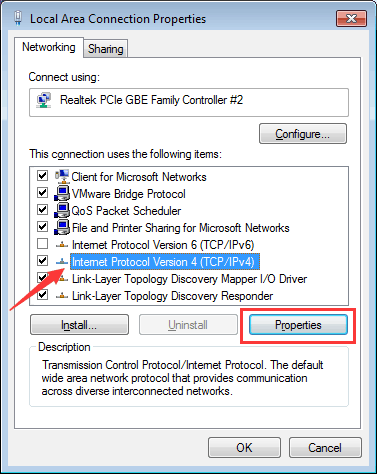
  • Select Properties
  • Click Internet Protocol Version 4 (TCP/IPv4)
select IPv4
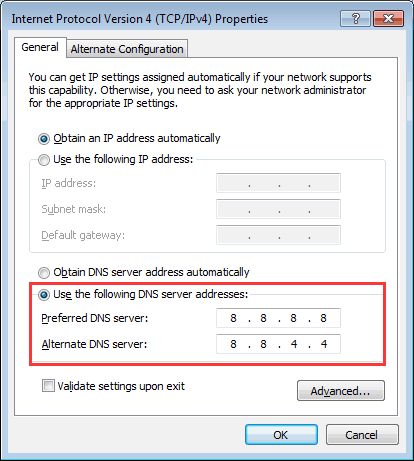
  • In the General tab, click Use the following DNS server addresses
IPv4 properties
  • Enter the following DNS server address
  • Preferred DNS server: 8.8.8
  • Alternate DNS server: 8.4.4
  • Click OK

Check if the issue is resolved; otherwise follow the steps in Solution 5

Solution Five – Flush and Renew DNS

Windows stores the IP addresses of the sites you visit so that it can open the websites faster when you visit them the next time.

Over time, the DNS cache can become full or corrupt, which in turn prevents you from visiting websites or prevents you from accessing the Internet.

Flushing the DNS values and renewing the DNS IP addresses is the simplest solution to this problem. Below are the steps you will need to follow in order to do this:

  • Click Start and type cmd in the search box
  • Right-click cmd from the search results and select Run as administrator
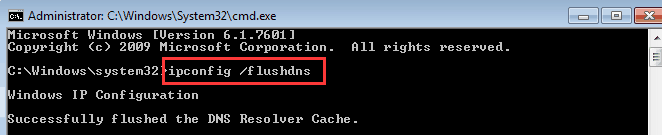
  • Type ipconfig /flushdns and then hit Enter on the keyboard
flush ip
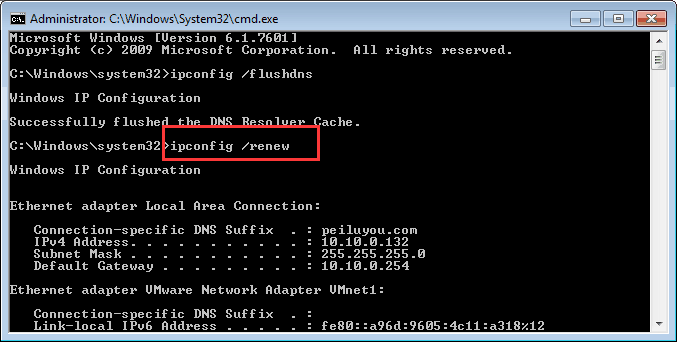
  • Type ipconfig /renew and hit Enter
renew ip
  • Type ipconfig /registerdns and hit Enter on your keyboard
register dns
  • Reboot yourWindows system

If you are still having problems with the “DNS address could not be found” error, then please post details of your issue below so our tech experts can help.

Filed Under: PC Fix Tips Tagged With: DNS address issue

How to Solve Reboot and select proper boot device error

By Susan C on April 4, 2018

How to Solve Reboot and select proper boot device error

Few computer issues are as frustrating as “Reboot and select proper boot device” error. Thankfully, there are many ways to solve this error, all of which can be done by an average Windows user.

In this post, we will take you through a few solutions to fix this issue. However, you don’t need to try them all. Start with the first one and start moving down until you are able to resolve the error.

However, before you try any of these given solutions, check for any USB devices attached to the system. Unplug your portable drive, thumb drive or USB camera and try restarting the Windows system.

If it still throws up “Reboot and select proper boot device error”, it might mean there’s something seriously wrong with some hardware. It might also mean that the cables are not properly connected to your hard drive.

To resolve the issue, try these solutions in the order they appear.

Solution One – Check the cables connecting the hard drive

The hard drive has two slots – one for the power cable and other for data cable that connects to the motherboard.

The first thing you need to do is ensure the power cable is seated firmly in the hard drive slot. Now, check the data cable is seated firmly on both ends: motherboard slot and hard drive slot.

If both connections are good, the problem might be with the power cable. It might be damaged and, as a result of which, unable to supply the required voltage to the hard drive. This in turn can prevent the motherboard from detecting hard drive, causing the error message to appear on your screen.

Test the power cable/SMPS on another computer. If you get the same error, get the power cable/SMPS replaced.

Solution Two – Clean RAM

A dusty RAM could be the reason behind the booting error. Remove the RAM module and clean it with a soft lint-free cloth. Put the RAM module, restart the system and check whether you still get the error.

Solution Three – Check the Boot Settings in BIOS

The motherboard allows you to boot from different devices such as HDD, FDD, USB, CD/DVD, Zip drive, Legacy LAN, USB CD-ROM, and few other options.

Whenever you restart the Windows system, the BIOS checks the first boot device entry and tries to load information from that boot source.

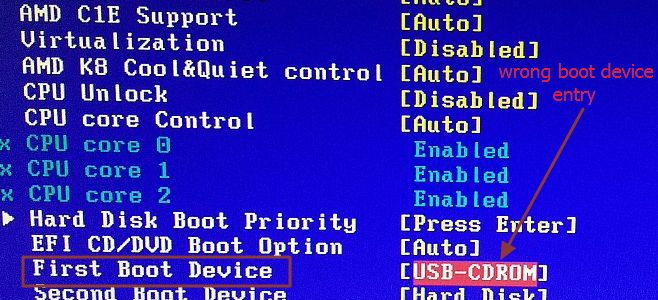
A wrong boot device entry could be the reason behind the error. Selecting the right first boot device will help solve the issue.

Here are the steps you need to follow.

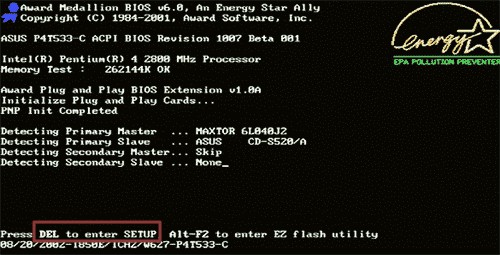
  • Restart your system and press Del button on your keyboard to enter BIOS setup. Depending on the motherboard make and model or BIOS utility, you may have other option to enter BIOS setup. Check the bootup screen for more information about it
Enter Setup
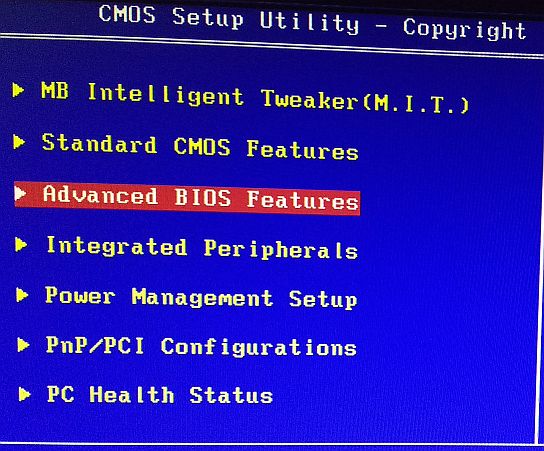
  • Once you have entered the BIOS setup, look for options such as Advanced BIOS features or Startup to check the boot device priority
advanced bios features
  • Check the first boot device entry and modify if necessary
select first boot device

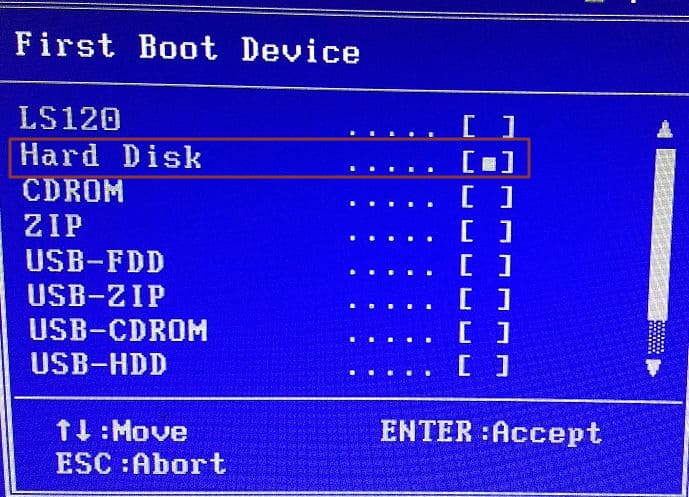
If you see a wrong device selected as First Boot Device, select the Hard Drive as the first boot device

correct 1st bt device
  • Press F10 to save the changes and exit BIOS. Depending on the BIOS make and version, you may have other option to save the changes. Look at the bottom of BIOS screen for the right way to save changes and exit BIOS

If the error still exists, the last option is to update your drivers. Here are the steps to follow.

Solution Four – Update Drivers in Safe Mode

Automatic driver update tools offer many benefits, the most important ones being:

  • You can update device drivers automatically
  • The software scans and updates all outdated or missing drivers at one go
  • The tool picks the right drivers for your device and operating system, so you won’t have to worry about installing an incorrect driver by mistake
  • Automatic driver updates are 100% safe

Driver Updater is one of the best driver update tools out there. Outbyte Driver Updater will give you access to a database of over 1 million drivers. It will regularly scan your PC, suggesting new driver versions to install. Driver Updater contains drivers for a variety of Windows devices. With just one click, you can update drivers in your system.

Step 1
Click here to Install and launch the app

Step 2
Scan all devices

Step 3
Install or update drivers automatically


Start Download


Filed Under: PC Fix Tips Tagged With: boot device error

  • « Previous Page
  • 1
  • …
  • 183
  • 184
  • 185
  • 186
  • 187
  • …
  • 189
  • Next Page »


  • Recent Posts
  • Popular Posts
        

Read More Posts


Read More Posts

Drivers.com Sites

  • Software Drivers
  • Drivers Ed

About Us

  • Advertise
  • About Drivers
  • Drivers Support
  • Drivers.com Privacy Policy
  • Disclaimer
  • Software Drivers
  • Mac Fixes and Tips
  • PC Fix Tips
  • Security/ Backup
  • Tablets & Smartphones
  • Tech News

© Copyright 2026 PDE Publications Ltd. End User License Agreement (EULA)