Drivers.com

follow us:

facebook twitter
  • Home
  • Download Drivers
  • Drivers Help
  • PC/Mac Resources
  • Software Drivers
  • Mac Fixes and Tips
  • PC Fix Tips
  • Security/ Backup
  • Tablets & Smartphones
  • Tech News
  • Software Drivers
  • Mac Fixes and Tips
  • PC Fix Tips
  • Security/ Backup
  • Tablets & Smartphones
  • Tech News

How to Use Device Manager to Resolve Driver-Related Issues

By Susan C on March 30, 2018

How to Use Device Manager to Resolve Driver-Related Issues

Device Manager is a centralized Windows utility that allows you to manage hardware attached to your system.  You can manage devices and install and uninstall drivers for different devices and hardware components.

In Device Manager, you can see hardware sorted in different categories which makes it all the easier to locate devices or hardware with problems and resolve the issues.

How to Identify a Problematic Device or Hardware Component

Whenever a device or hardware component is not working properly, you can find the problematic hardware component or device highlighted in the Device Manager with a yellow exclamation mark. In most cases, the problematic device is listed under Other Devices.

How to access Device Manager

Though Windows operating system has evolved over the time, the look and functionality of Device Manager has not much changed for the end-user. There are different ways to access Device Manager in Windows but luckily there is one way that works on all Windows versions.

Let’s see the most common way to access Device Manager. Here are the steps you need to follow

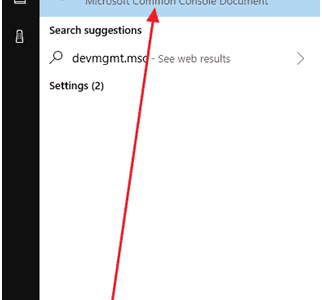
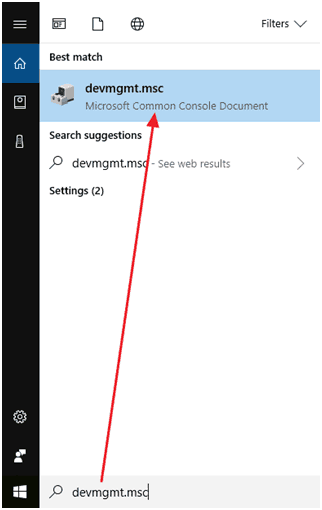
  • Go to Desktop and type devmgmt.msc in the search box
devmgmt.msc
  • Select devmgmt.msc from the list of results

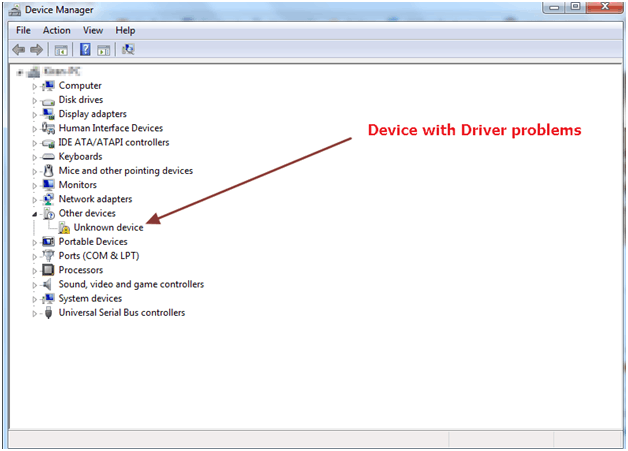
The Device Manager window opens and you can see different categories such as Disk Drives, Display Adapters, Monitors, and Network Adapters etc.
device manager
  • The Devices with problems are marked with a yellow exclamation mark

To resolve the issue, you need to update the driver by following steps given below

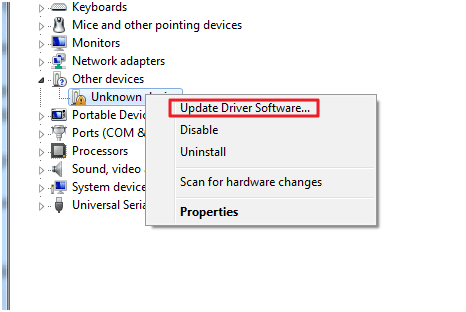
  • Right-click on problematic device and select Update Driver Software
update driver
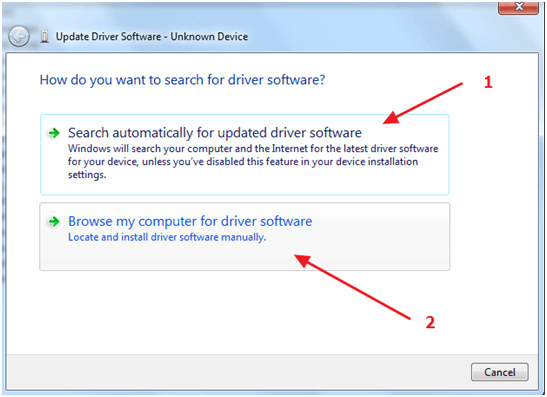
  • In the next window, you are presented with two options: 1) Search automatically for updated driver software and 2) Browse my computer for driver software
update driver software
  • If you select the 1st option, Windows will search for driver updates on the Internet and install them. However, there is no guarantee this option would work every time and many times you get a message stating “Windows could not find driver software for your device”
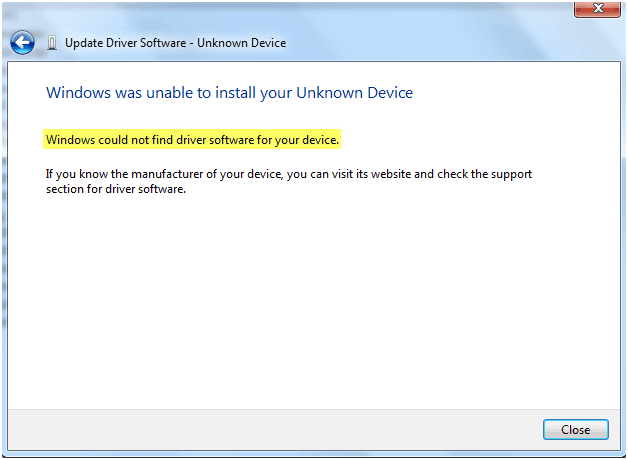
Windows can't find driver
  • The 2nd option would only work if you have drivers stored in a folder on your hard drive or have a driver CD/DVD. If you don’t have a driver CD or have latest drivers on your hard drive, this option won’t work.

Driver Update Software Makes Updating Driver Easy

If you are unable to find drivers for your Windows system, we suggest you try Driver Downloader software that can find latest drivers for all hardware components on your system.

Driver Downloader software is your best bet if you have not downloaded or installed drivers manually earlier. One good thing about a Driver Update Tool is it saves time and update drivers automatically with a click of a button.

Automatic driver update tools offer many benefits, the most important ones being:

  • You can update device drivers automatically
  • The software scans and updates all outdated or missing drivers at one go
  • The tool picks the right drivers for your device and operating system, so you won’t have to worry about installing an incorrect driver by mistake
  • Automatic driver updates are 100% safe

Driver Updater is one of the best driver update tools out there. Outbyte Driver Updater will give you access to a database of over 1 million drivers. It will regularly scan your PC, suggesting new driver versions to install. Driver Updater contains drivers for a variety of Windows devices. With just one click, you can update drivers in your system.

Step 1
Click here to Install and launch the app

Step 2
Scan all devices

Step 3
Install or update drivers automatically
 

Start Download


Filed Under: PC Fix Tips Tagged With: device manager

Solution to DPC_WATCHDOG_VIOLATION error

By Susan C on March 29, 2018

Solution to DPC_WATCHDOG_VIOLATION error

Blue Screen of Death error is one error which no Windows users would want to see, because this error leads to system crash and you might end up losing all unsaved work.

When you get BSOD screen error you don’t have any other option than rebooting your system. The DPC Watchdog violation error is one of the common BSOD errors experienced by Windows 8 and 10 users.

Many users don’t know what to do next, but there’s no need to worry as there are some quick fixes that could help you.

What is DPC_WATCHDOG_VIOLATION error?

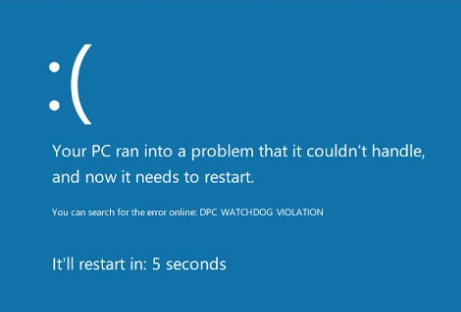
dpc

The DPC_WATCHDOG_VIOLATION bug check value is 0x00000133.  Whenever you see this bug value in BSOD, it indicates the DPC Watchdog has been executed which resulted in BSOD.

There can be many technical reasons behind it. One of the reasons behind DPC Watchdog execution is your SSD drive uses old firmware that is not supported by the operating system.

Another reason could be one of the hardware components has an outdated driver. For example, if your sound card has an outdated driver, you will get the DPC Watchdog violation error whenever you plug in the headphone.

Though rare, one of the software installations can also lead to DPC_WATCHDOG_VIOLATION BSOD error.

Here are some solutions to fix the issue.

Solution 1 – Change SATA AHCI controller driver

  • Press Windows key and X simultaneously on your keyboard
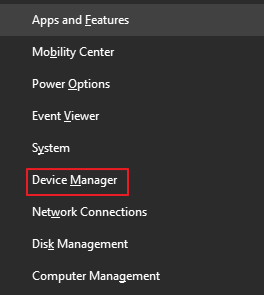
  • Click Device Manager from the list
device manager
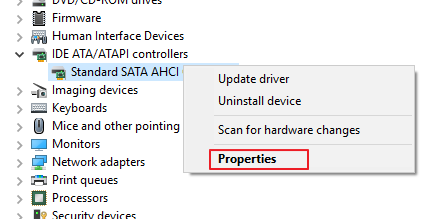
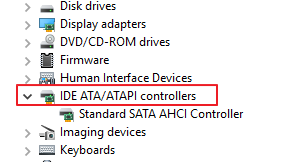
  • In Device Manager window, go to IDE ATA/ATAPI Controllers and expand it
device manager
  • Right-click SATA AHCI controller and select Properties
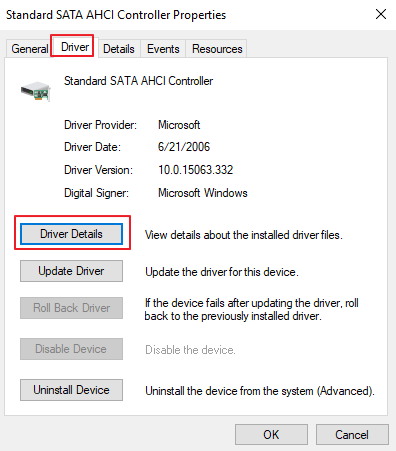
  • You need to verify you have selected the right controller. Go to Driver tab and click Driver details
driver details
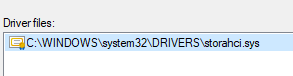
  • If you see sys listed as a driver, click OK and proceed to the next step. On the other hand, if you see storachi.sys listed as a driver, click OK and abandon these troubleshooting steps and instead try Solution 2.
driver files
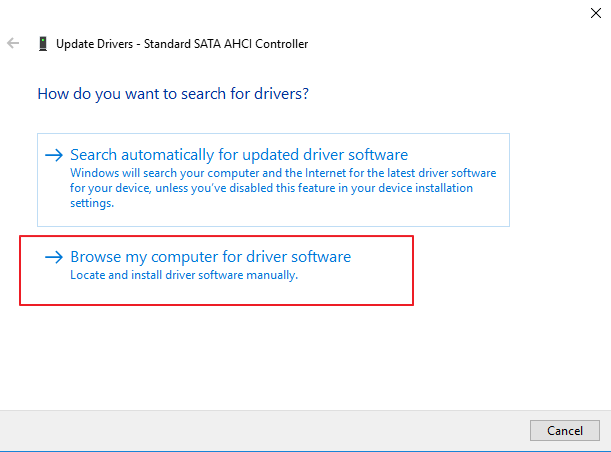
  • In Driver tab, click Update Driver
  • Select Browse my computer for driver software option
update drivers
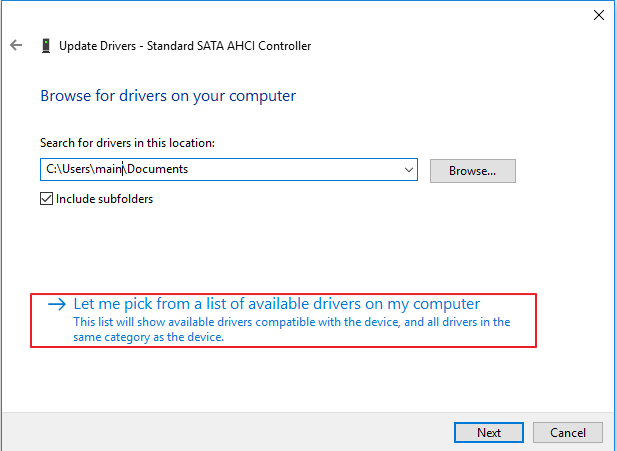
  • Select Let me pick from a list of device drivers on my computer option
update drivers
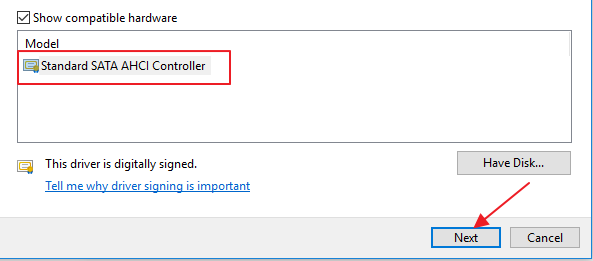
  • Select Standard SATA AHCI Controller, then click Next
update drivers
  • Follow on-screen instructions to change the SATA AHCI controller driver.
  • After the update process is completed, restart the computer to apply changes.

Solution 2 – Use the Event Viewer to find more about the error

This is not actually a solution but it would help you find the device or component that is causing the DPC_WATCHDOG_VIOLATION error. Here are the steps to follow.

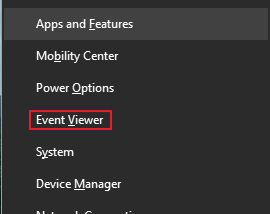
  • Press the Windows key and X simultaneously on your keyboard
  • Click Event Viewer from the list
Event Viewer
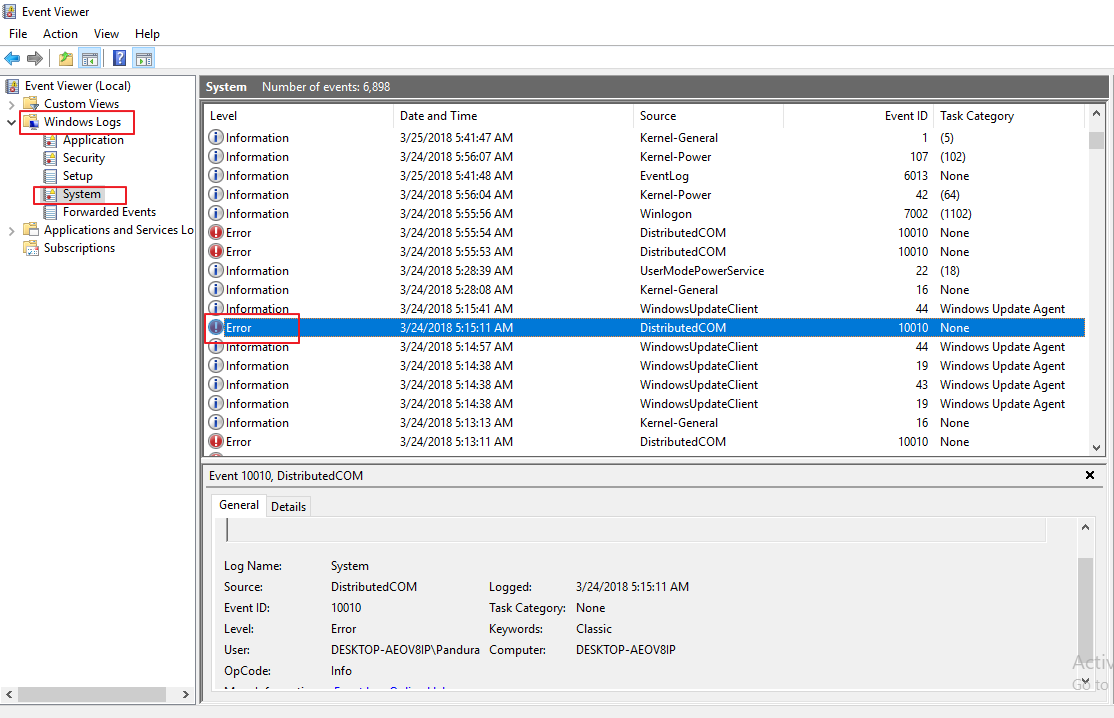
  • On the left side of the panel, click Windows Logs->
event viewer
  • Look for any entries like error or warning in the middle area of the panel
  • Click on Error or Warning entries and see details like the time and the type of error. You can also know more details about the error in the bottom area of the panel in the details

You can use this information to know about the problematic device or hardware component. Once you have this information, disconnect the problematic device and see if the issue is resolved.

Solution 3 – Run Check Disk

If your disk is in a bad state, it could be one of the reasons behind BSOD.

Running Check Disk is one of the options to ensure your disk is in good condition. Here are the steps to follow.

  • Press Windows Logo key on the keyboard
  • Type cmd in the search box
  • Right-click Command Prompt option and select Run as administrator
  • In user account control pop-up, click Yes
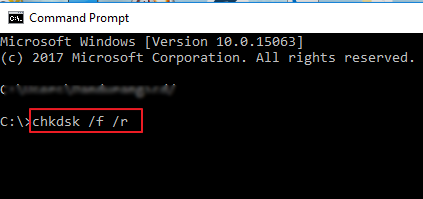
  • In the command prompt window, type chkdsk /f /r and hit Enter
check disk
  •  Press Y on the keyboard

Windows system will start the check disk utility when you reboot the system and scan your disk for errors. Be patient as the process can take longer time depending on the capacity of the disk. Wait until the process completes.

Solution 4 – Check hardware and software compatibility

As mentioned earlier, hardware and software compatibility issues could be one of the reasons behind DPC_WATCHDOG_VIOLATION error. Here are the instructions to check hardware and software compatibility.

To check hardware compatibility

Unplug all USB devices like external hard drives, thumb drives and any other USB devices from your computer. You can keep the USB keyboard and mouse connected. Start the system and see if you get the DPC_WATCHDOG_VIOLATION error.

If you don’t get the error for a long time, you can draw a conclusion that one of the USB devices is the culprit. You can either stop using the problematic USB device or update drivers by following the steps in Solution 2.

To check software compatibility

If you are getting DPC_WATCHDOG_VIOLATION error recently, try to recall the changes you made to the system which includes installing new software or updating any programs. If you are unable to recall, you can use the Restore option to go back to the previous state of your PC and see if that helps.

Solution 5 – Update Drivers

As mentioned above, outdated drivers could be one of the reasons for DPC_WATCHDOG_VIOLATION error. Updating drivers is one of the ways to resolve the issue. You have two options – update drivers manually or automatically.

Update drivers manually

Updating drivers manually can be a cumbersome and time-consuming task for many users. You need to go to the manufacturer’s website and search for the right driver.

This requires computer skills, patience and time. If you want an easy way to update drivers, we suggest you try Driver Downloader that can update all drivers automatically with a click of a button.

Update Drivers automatically               

Automatic driver update tools offer many benefits, the most important ones being:

  • You can update device drivers automatically
  • The software scans and updates all outdated or missing drivers at one go
  • The tool picks the right drivers for your device and operating system, so you won’t have to worry about installing an incorrect driver by mistake
  • Automatic driver updates are 100% safe

Driver Updater is one of the best driver update tools out there. Outbyte Driver Updater will give you access to a database of over 1 million drivers. It will regularly scan your PC, suggesting new driver versions to install. Driver Updater contains drivers for a variety of Windows devices. With just one click, you can update drivers in your system.

Step 1
Click here to Install and launch the app

Step 2
Scan all devices

Step 3
Install or update drivers automatically
 

Start Download


Filed Under: PC Fix Tips Tagged With: BSOD error

Fix for “your connection is not private” error

By Susan C on March 28, 2018

Fix for “your connection is not private” error

While surfing the Internet from Chrome or any browser, you sometimes get an error message which says “your connection is not private”. This can be an alarming error as it means all your sensitive information can be accessed by others, and they can take advantage of it.

If you are receiving this error, here are some quick solutions to get rid of the error. We will also see how you can protect your sensitive data from falling into wrong hands.

Solution 1 – Check Date and time on your computer

One of the common reasons behind this error is wrong date and time on your computer.

Generally, the system picks the date and time from BIOS or synchronizes the clock with time.windows.com.

However, due to some reasons, the computer clock might be showing wrong date and time which in turn could lead to this error.

Follow these steps to set right date and time on your computer.

  • Right-click the date and time section on the taskbar
  • Click Adjust date/time
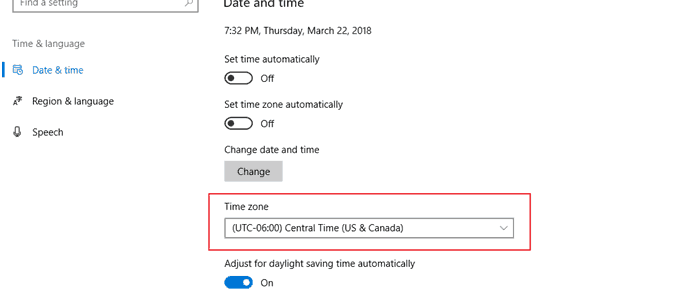
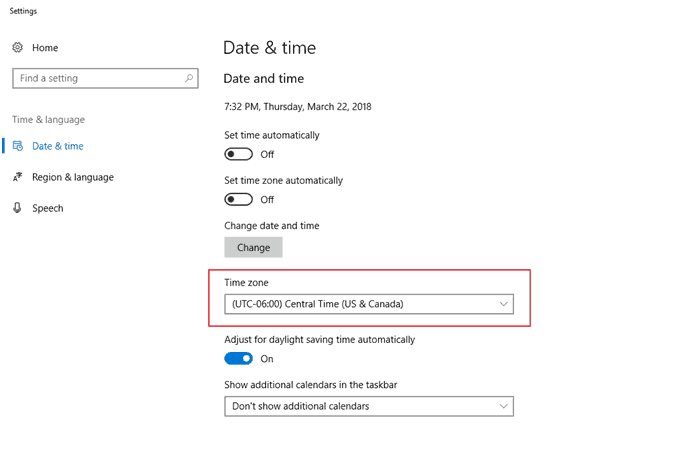
  • In the Settings pane, go to time zone section
date  and time
  • Select the right time zone from the drop-down list

Solution 2 – Clean browsing data from Google Chrome

Every time you visit a website, the browser stores some data like passwords, images, and files from the sites in its cache. The system uses this information to load the webpages faster when you visit the website next time.

If you do not clean browsing data from time to time, it can lead to large collection of junk files on your computer. Also, it may lead to errors like “your connection is not private”.

A simple fix to this error is clearing the browsing data from Chrome. Here are the steps to follow.

  • Open GoogleChrome browser
  • Click the menu icon ( the three vertical dots) located at the top right corner
  • Select Settings
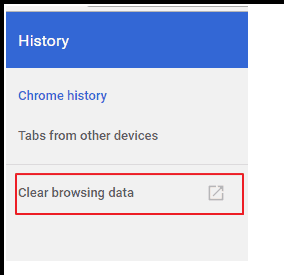
  • Click History ->History
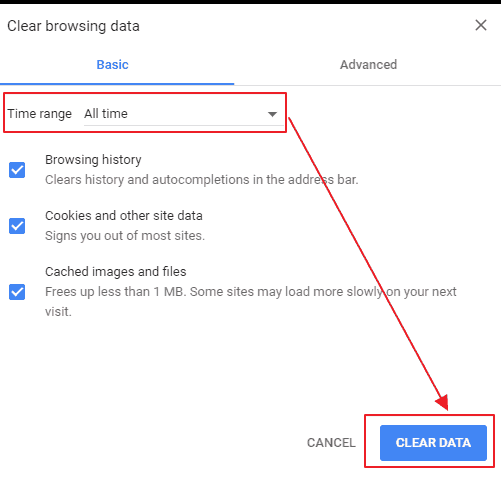
  • Click Clear Browsing data
clear browsing data
  • Go to Basic tab
  • In the time range field, select All time from the drop-down list
clear browsing data
  • Make sure the options Browsing history, Cookies and other sites data, and Cached image and files are checked
  • Click Clear Data
  • Close the Settings tab

Solution 3 – Change Anti-virus settings

Some anti-virus settings are oversensitive and they block a suspicious website’s security certificate. This may lead to “your connection is not private” error.

The solution to fix this issue is to alter a few anti-virus settings. Here are the steps you need to follow

For Avast Antivirus

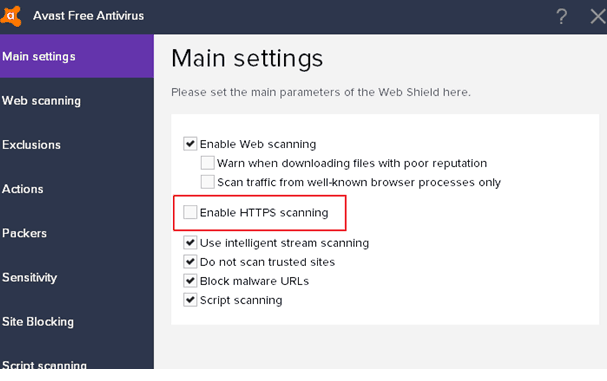
  1. Open Avast Antivirus interface
  2. Go to Settings -> Components -> Web Shield-> Customize
  3. Uncheck the “Enable HTTPS scanning” option
Avast antivirus

For Bitdefender

  1. Open Bitdefender interface
  2. Click Settings
  3. Click Phishing Control -> Antiphising tab
  4. Turn off the option Scan SSL

The above steps are general and the basic idea behind it is turning off the Scan SSL option in antivirus. You need to refer to general FAQ or documentation of the anti-virus you use to know exact steps to switch off the Scan SSL option.

If you find these steps difficult, you can also temporarily turn off the anti-virus. But then you need to be sure the website you are visiting is safe.

Solution 4- Check browser extensions

Many times browser extensions are the root cause of the “your connection is not private”error.

You can verify it by using the Incognito mode in the Chrome browser. Follow the steps given below to check browser extensions

  1. Press Ctrl+Shift+N on your keyboard to launch Chrome browser in Incognito mode
  2. Try opening the site which gave out the error in normal browser mode
  3. If the website opens fine in Incognito mode, one of the browser extension might be the cause of the error

Now you have to disable browser extensions one by one to single out the extension causing the problem. Here are the steps you need to follow.

  • Click the menu icon ( the three vertical dots) located at the top right corner
  • Select Settings
  • Click More tools options and select Extensions

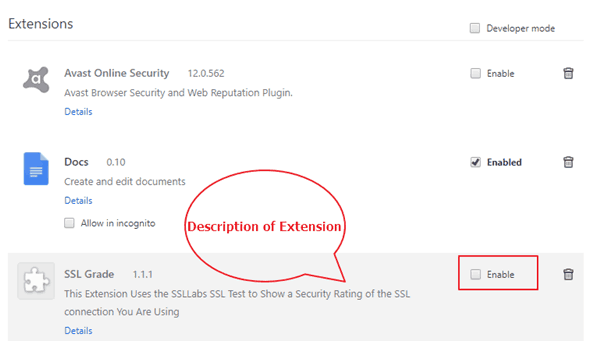
A new tab opens which list all browser extensions. Here are the steps you need to follow.

  • You will see two options for each extension- acheckbox and a recycle bin option that allows you to delete the extension.
  • Look for any information that tells the browser extension uses the SSL option.
  • If yes, you can straightway disable it. To disable the extension, uncheck the box.
  • If you do not see any information of SSL in the extension description, you need to disable browser extensions one at a time and see if the issue is resolved.
  • If you find the browser extension that is causing the “your connection is not private” error, you can disable it or remove it completely.

If none of the above solutions work for you, the last resort is updating network drivers.  It is always recommended to update networks drivers to prevent any network problems.

Solution 5 – Updating the network drivers

Finding latest network drivers on the Internet can be time-consuming and difficult. Since the hardware info of network chips is not easily available to users, you need to dig in Device Manager to find the hardware manufacturer, the hardware component and the latest version of the driver.

If you are not a tech-savvy person, you might download a wrong or incompatible driver that could make system unstable and lead to many errors.

The easy way to update network driver is using Drivers Downloader software that updates drivers automatically.

Automatic driver update tools offer many benefits, the most important ones being:

  • You can update device drivers automatically
  • The software scans and updates all outdated or missing drivers at one go
  • The tool picks the right drivers for your device and operating system, so you won’t have to worry about installing an incorrect driver by mistake
  • Automatic driver updates are 100% safe

Driver Updater is one of the best driver update tools out there. Outbyte Driver Updater will give you access to a database of over 1 million drivers. It will regularly scan your PC, suggesting new driver versions to install. Driver Updater contains drivers for a variety of Windows devices. With just one click, you can update drivers in your system.

Step 1
Click here to Install and launch the app

Step 2
Scan all devices

Step 3
Install or update drivers automatically
 

Start Download


Filed Under: PC Fix Tips Tagged With: connection not private error

  • « Previous Page
  • 1
  • …
  • 185
  • 186
  • 187
  • 188
  • 189
  • Next Page »


  • Recent Posts
  • Popular Posts
        

Read More Posts


Read More Posts

Drivers.com Sites

  • Software Drivers
  • Drivers Ed

About Us

  • Advertise
  • About Drivers
  • Drivers Support
  • Drivers.com Privacy Policy
  • Disclaimer
  • Software Drivers
  • Mac Fixes and Tips
  • PC Fix Tips
  • Security/ Backup
  • Tablets & Smartphones
  • Tech News

© Copyright 2026 PDE Publications Ltd. End User License Agreement (EULA)