Drivers.com

follow us:

facebook twitter
  • Home
  • Download Drivers
  • Drivers Help
  • PC/Mac Resources
  • Software Drivers
  • Mac Fixes and Tips
  • PC Fix Tips
  • Security/ Backup
  • Tablets & Smartphones
  • Tech News
  • Software Drivers
  • Mac Fixes and Tips
  • PC Fix Tips
  • Security/ Backup
  • Tablets & Smartphones
  • Tech News

How to Solve Kodi Not Working Issue

By Susan C on April 2, 2018

How to Solve Kodi Not Working Issue

Kodi is an amazing video streaming player that is perfect for anyone who likes movies, TV shows, and sports. Using different add-ons the Kodi player can stream video content from different sources on the Internet.

If you have been using Kodi for a long time and it suddenly stops working, you might feel irritated. However, don’t worry.  We have provided some solutions that can quickly fix the Kodi not working issue.

Before performing troubleshooting steps

Many times you cannot watch a video in Kodi because the video link is no longer valid.

Before performing troubleshooting steps, you need to ensure the problem is in Kodi player by opening different video links. If you see none of the video links open in Kodi player, it means that problem lies with the Kodi player.

In this case, use these solutions in the order they appear here, until you are able to resolve the error.

Solution 1 – Update your graphics drivers

Since Kodi plays the majority of the video formats, you need to have updated graphics drivers. If you are experiencing problems watching videos, the reason can be outdated graphics drivers.

You can update graphics drivers using Driver Downloader software. Driver Downloader software offers you an easy way to update all drivers on your system including graphics drivers.

Updating Drivers Automatically

Automatic driver update tools offer many benefits, the most important ones being:

  • You can update device drivers automatically
  • The software scans and updates all outdated or missing drivers at one go
  • The tool picks the right drivers for your device and operating system, so you won’t have to worry about installing an incorrect driver by mistake
  • Automatic driver updates are 100% safe

Driver Updater is one of the best driver update tools out there. Outbyte Driver Updater will give you access to a database of over 1 million drivers. It will regularly scan your PC, suggesting new driver versions to install. Driver Updater contains drivers for a variety of Windows devices. With just one click, you can update drivers in your system.

Step 1
Click here to Install and launch the app

Step 2
Scan all devices

Step 3
Install or update drivers automatically


Start Download


If the Kodi not working issue is not resolved after updating graphics drivers, you would need to also update DirectX.

Solution 2 -Update DirectX on Windows

DirectX is part of modern Windows operating system and the updates for DirectX are generally made available through Windows updates.

Before performing any steps to update DirectX on Windows, you need to first check the version of DirectX on your system.

Here is some important information about DirectX and their versions on different Windows operating systems.

  • Windows 10 – the latest supported version is DirectX 12
  • Windows 8.1 – the latest supported version is DirectX 11.2
  • Windows 8 – the latest supported version is DirectX 11.1
  • Windows 7 – the latest supported version is DirectX 11.1

Here are the steps to check DirectX version of Windows 10

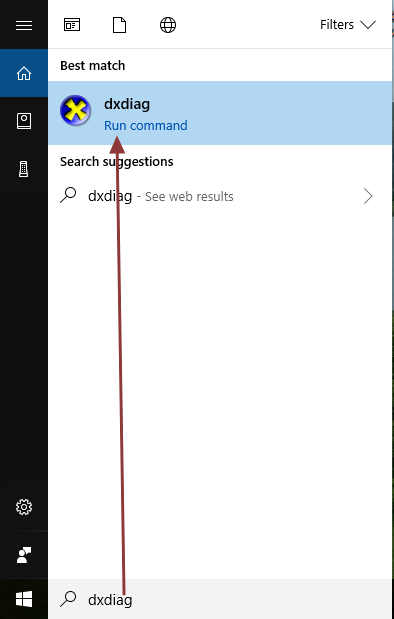
  • Go to Desktop and type dxdiag in the search box
  • Select dxdiag from search results
directx diagnostic tool
  • In the System information section, check the DirectX version
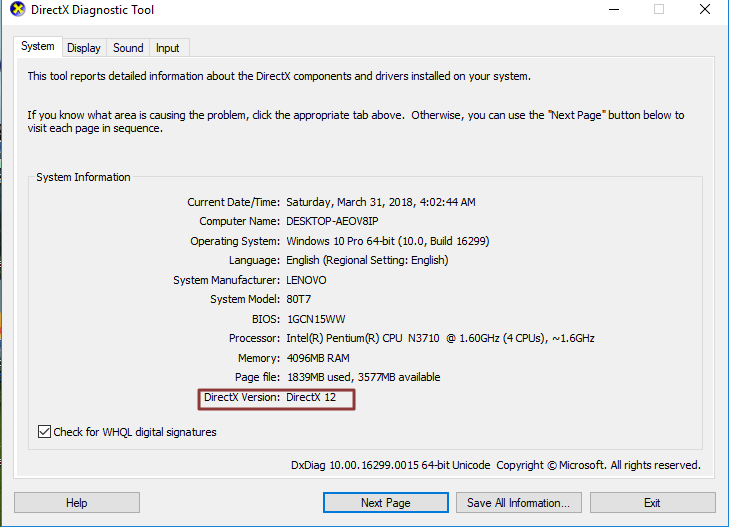
directx version

If you see your system has latest DirectX version, you don’t need to perform steps given below.  You can try other solutions to fix the Kodi not working issue.

How to update DirectX on Windows?

As mentioned earlier, Microsoft does not provide standalone versions of DirectX. To get the latest supported version of DirectX for your Windows OS, you need to install all pending updates that will automatically update DirectX on your Windows system.

Here are the steps to install pending updates in Windows 10

  • Go to Desktop
  • Click Start and select Settings
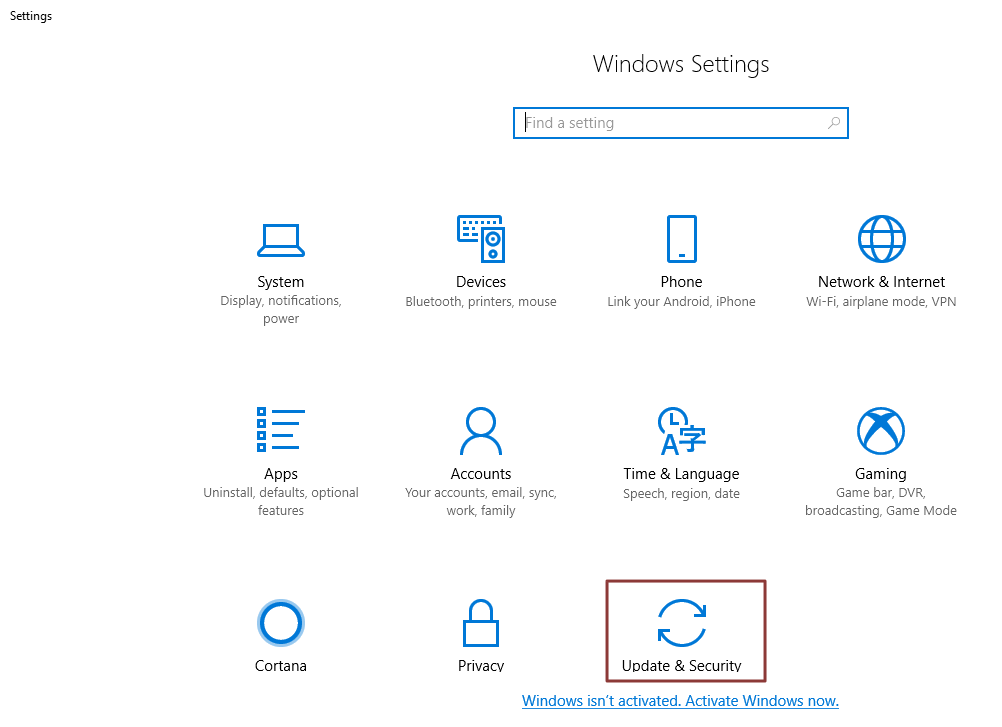
  • Click Update & Security
windows settings
  • Click Windows updates and then select Check for updates

Solution 3 – Disable hardware acceleration

Hardware acceleration in Windows allows you to specify performance of graphics hardware on your system.

In Kodi, hardware acceleration is enabled by default. When Kodi stops working, disabling hardware acceleration might fix any issues in Kodi.

Here are the steps to disable hardware acceleration in Kodi.

  • Open Kodi Player
  • Click Settings
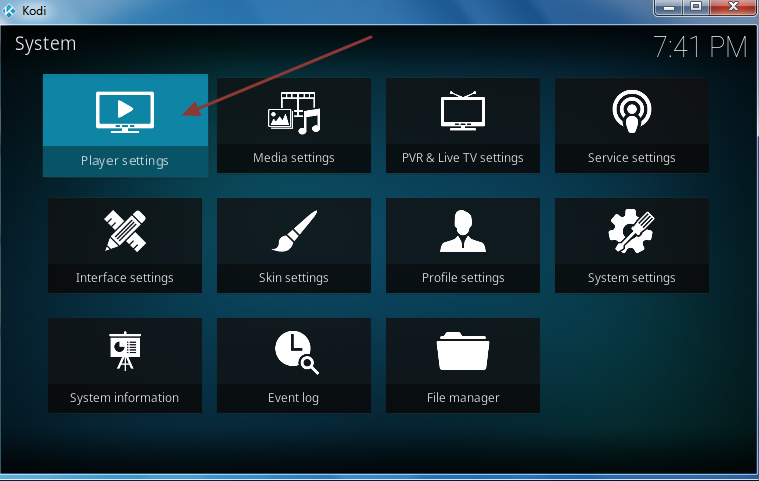
  • Select Player Settings
Kodi Settings
  • Click Settings(gear icon) below three times until you see Expert label for Settings
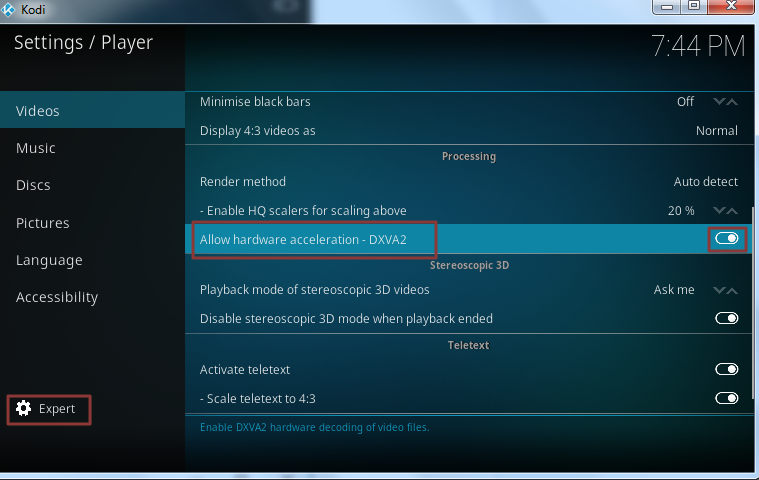
Kodi Settings
  • In the right-hand section, look for Allow hardware acceleration –DXVA2 option
  • Move the slider to disable hardware acceleration
  • Restart Kodi player

Solution 4 – Clear add-on cache

 Add-ons are known to store cache every time you use Kodi player. If you have not cleared cache of add-ons for a long time, it can result in too much cache that may cause Kodi to behave erratically and throw up errors.

The simple solution to this problem is clearing add-on cache.

Here are the steps to follow

  • Start Kodi player
  • Click Add-ons
  • On the right-hand side, you can see add-ons installed in Kodi.

Here we have shown you steps to clear cache for Exodus add-on

  • Select Video add-ons and then select Exodus
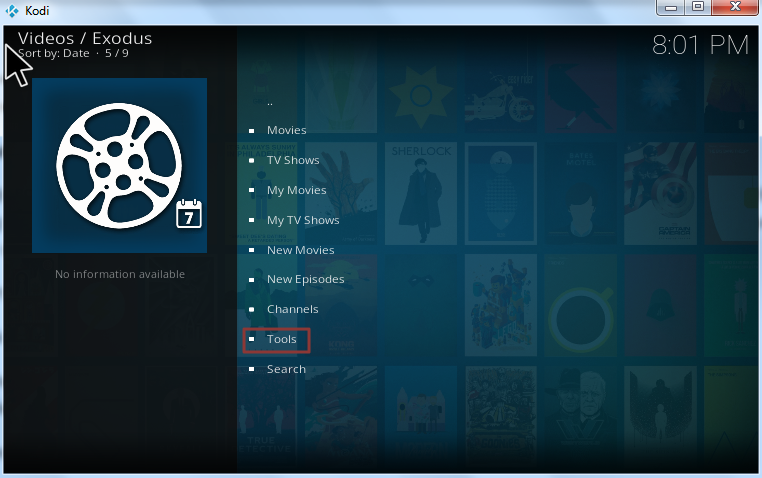
  • In the next screen, select Tools
Kodi/Exodus
  • Look for Exodus: Clear Cache option in the lower section and click on it
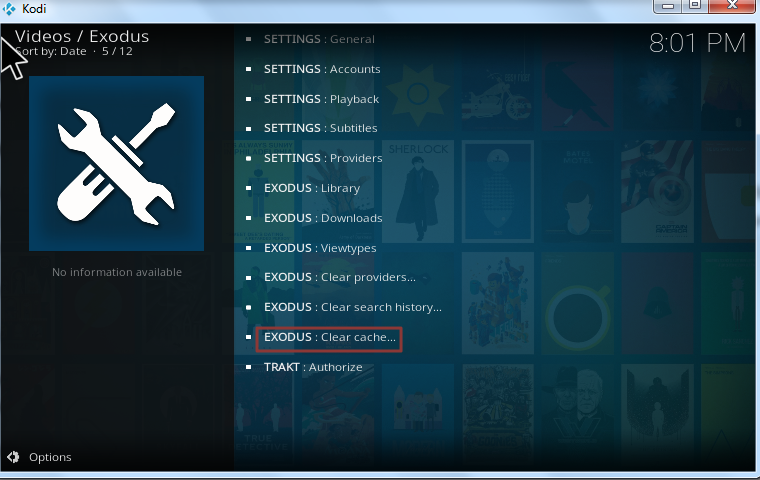
Exodus Clear Cache
  • When you are prompted for confirmation, select Yes
  • Restart Kodi

Solution 5 – Disable add-ons

Having many add-ons gives you several entertainment options but sometimes too many add-ons can cause Kodi player to behave erratically.

The simple solution to this problem is disabling add-ons that you don’t use frequently. Here are the steps you need to follow.

  • Start Kodi player
  • Click Add-ons

Note: If you know the add-ons that need to be disabled and also know their respective category, you can go ahead and select the category first and then double-click on the add-on you want to disable. If you are not sure about which add-ons to disable but want to see all add-ons installed and then take the decision to disable a few, select all which will give you a complete list of add-ons. Kindly note the add-ons with a check mark are the ones installed in your Kodi player.

  • Select All
  • Scroll down the list to select any add-on you want to disable.
  • Double-click the add-on. Here we have shown you steps to disable Exodus add-on
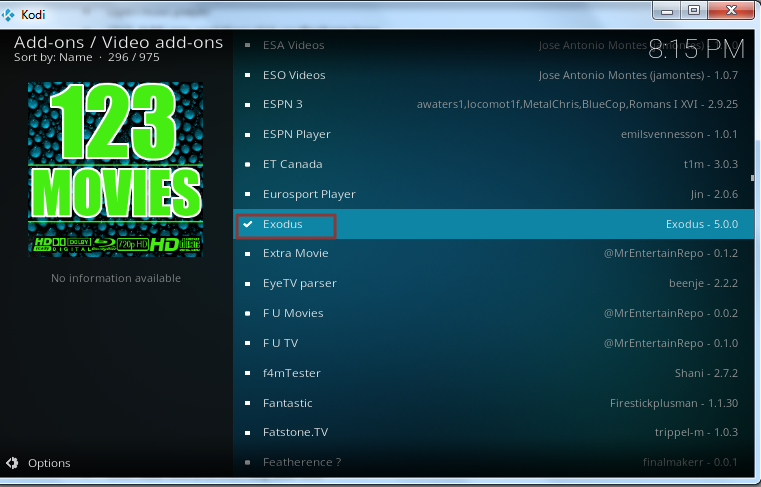
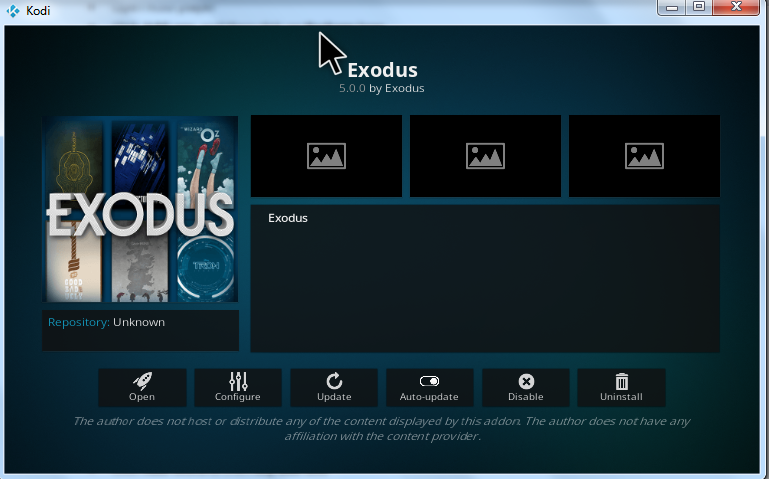
Disable Exodus
  • Select Disable
Disable Exodus
  • Follow the above 2 steps to disable any add-on that you don’t use frequently
  • Restart Kodi player.

View our post How to install Exodus add-on in Kodi?

View post Exodus not working issue
View post How to install Covenant add-on in Kodi

Filed Under: Software Drivers

How to solve msvcp 140 dll is missing error

By Susan C on April 2, 2018

How to solve msvcp 140 dll is missing error
msvcp140.dll error message

Does this look like the error you are getting?

Well, if so, don’t worry. In this post, we will show many ways to solve the “msvcp 140 dll is missing” error.

Of course, you don’t need to try each of the solutions listed here. Just move from one solution to next until the issue is resolved.

Error Message

Typically, this error occurs when you install a new program or launch a game. When this error occurs, you will get either of these messages on your screen:

  • The code execution can’t proceed because MSVCP140.dll was not found. Reinstalling the application may fix the problem.
  • This program cannot start because MSVCP140.dll is missing from your computer. Try reinstalling the program to fix this problem.

First Solution – Reinstall Microsoft Visual C++ Redistributable Package

This dll file is part of Visual C++ Redistributable package for Visual Studio 2015. This whole package makes it possible to run C++ applications.

Without this package, Microsoft will not be able to run apps and programs. That’s why when you install Windows operating system, this package is installed automatically.

However, in case there’s something amiss with Visual C++ Redistributable package, you are going to have a corrupted msvcp140 dll file on your PC.

The easiest and surest way to fix the issue is by re-downlading this package directly from Microsoft website.

Note: When you need a dll file, always, we repeat always, download it from an official source. If you use an approved source, the file you download might be comprised (that is, it might have viruses).

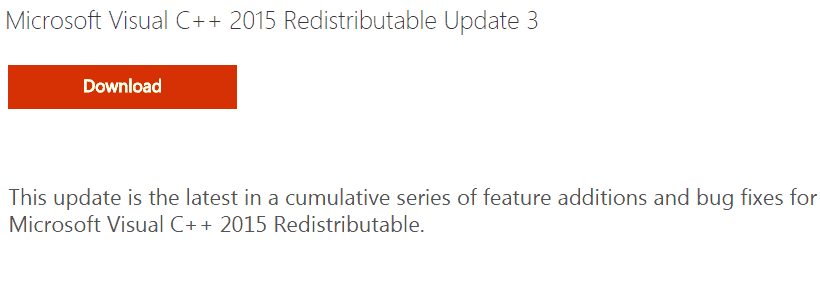
  • Open your web browser, go to Microsoft Download Center
  • Click the Download button
Download visual c++ package
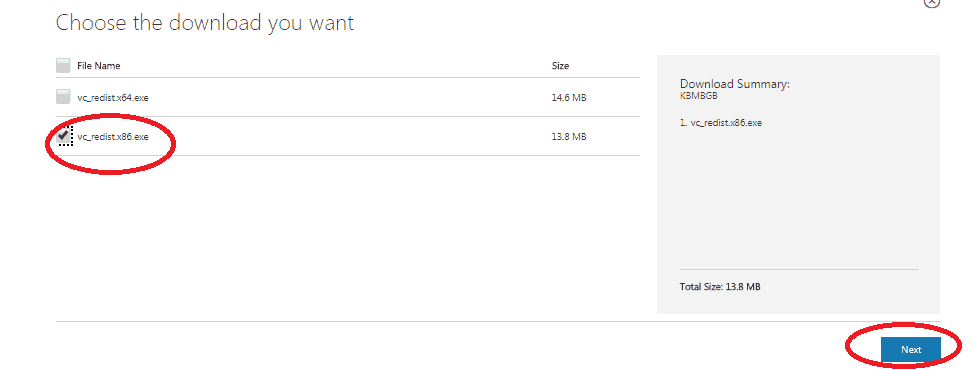
  • Choose the file that is appropriate for your processor type you are using (those with 32-bit should choose x86 and those with 64-bit should choose x64). Once you’ve selected the right file, click the Next
download visual c++ package 2
  • Once the file has been downloaded, double-click it and follow on-screen prompts to install it
  • Reboot windows. Check and see if you are now able to run the program with which you were getting the error earlier

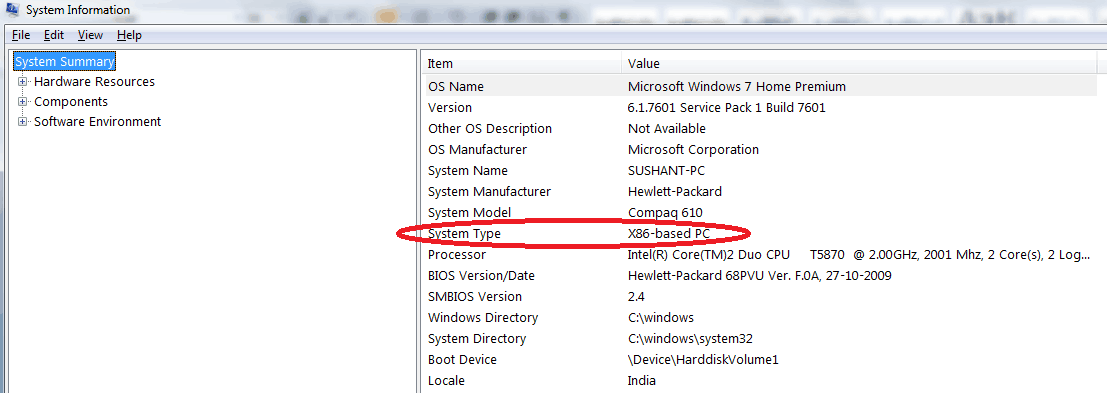
If you are not sure about your system type, perform these steps

  • In the start search box, type system info
  • In the right-hand window pane, you’ll find the system type you are using

Second Solution – Clean Install the Program

If the problem persists, you should reinstall the program in question. It might have happen that the msvcp140.dll file got corrupted when you installed this program. But the correct file version might be present in the installation package of this program.

So reinstalling the program might do the trick.

  • In the start search box, type cpl and press enter
  • Select the program with which you’re getting this error, and then click Uninstall
  • Click Yes
  • Reboot your PC
  • Reinstall the program and check if now it is working fine

Third Solution – Run System File Checker

This is a built-in tool in your Windows system which helps identify and repair files which have become corrupted.

  • Type cmd in the start search box and then right click exe under Programs and select Run as administrator
  • In the command prompt type sfc/scannow and press Enter
  • The tool will scan the system and fix any issues it detects automatically. Once verification is complete, exit close prompt and run the program in question to check if it is now running smoothly.

Fourth Solution – Scan your system for virus

It is possible that you might be getting the error because of a virus infection. So, if the error persists, scan your entire Windows system for virus.

Fifth Solution – Update drivers

If some drivers on your pc are outdated or missing, you can get this error. To resolve the issue, simply update the drivers.

You can update drivers manually or automatically. To update drivers manually, you need some computer skills and time. This can be done via Device Manager.

A better way would be to download a driver update tool to do the work for you.

Automatic driver update tools offer many benefits, the most important ones being:

  • You can update device drivers automatically
  • The software scans and updates all outdated or missing drivers at one go
  • The tool picks the right drivers for your device and operating system, so you won’t have to worry about installing an incorrect driver by mistake
  • Automatic driver updates are 100% safe

Driver Updater is one of the best driver update tools out there. Outbyte Driver Updater will give you access to a database of over 1 million drivers. It will regularly scan your PC, suggesting new driver versions to install. Driver Updater contains drivers for a variety of Windows devices. With just one click, you can update drivers in your system.

Step 1
Click here to Install and launch the app

Step 2
Scan all devices

Step 3
Install or update drivers automatically


Start Download


Filed Under: PC Fix Tips Tagged With: fix msvcp140.dll

How to Solve Exodus Not Working Issue

By Susan C on March 31, 2018

How to Solve Exodus Not Working Issue

Exodus is an important video add-on on Kodi that gets you loads of videos and other entertainment content from the Web.

If Exodus is not working on Kodi, you are left with very few entertainment options on Kodi player. Here are some of the common problems with Exodus and their quick solutions.

The most common problem is “Exodus not working” on Kodi. If you are facing similar issue try the Solution 1 that would fix the Exodus not working issue.

If that doesn’t work, you can try the final solution that is updating drivers. For other Exodus issues, you can try the related solutions.

How to install Exodus add-on in Kodi?

Solution 1 – Uninstalling and reinstalling Exodus add-on

Uninstalling and reinstalling the Exodus add-on is a common solution to fix the Exodus not working issue.

However, we recommend users to update the Exodus add-on before uninstalling and reinstalling the latest version of Exodus add-on in Kodi player.

Here are the steps to follow.

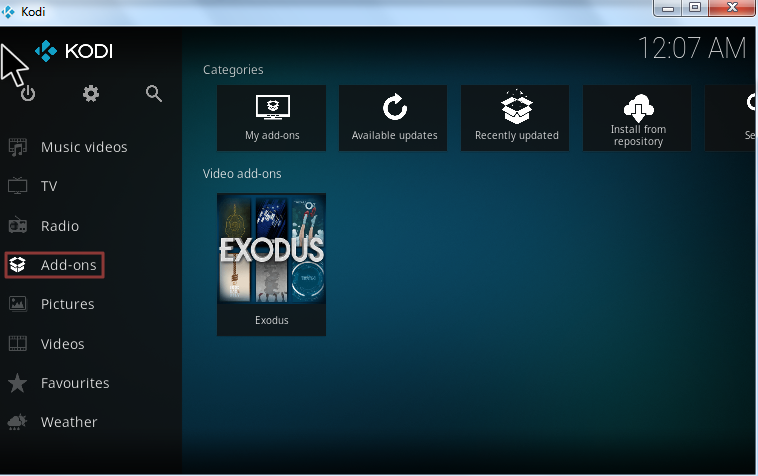
  • Open Kodi
  • Click Add-on -> My add-ons
kodi add-on
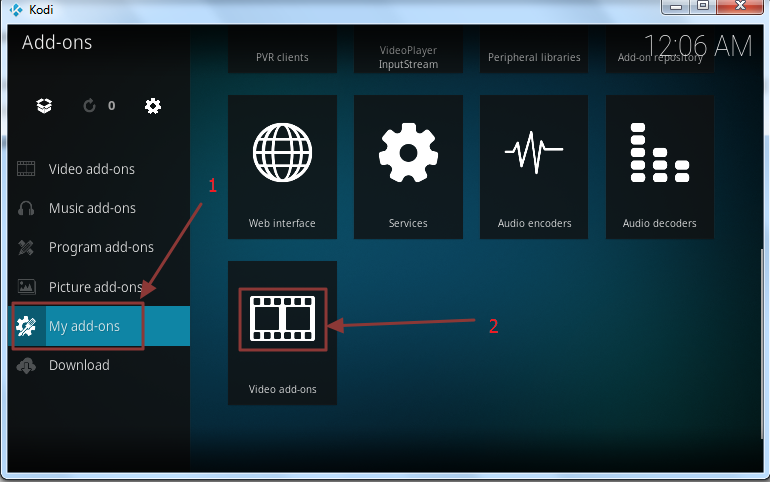
  • Click Video add-ons from the list
kodi video add-on
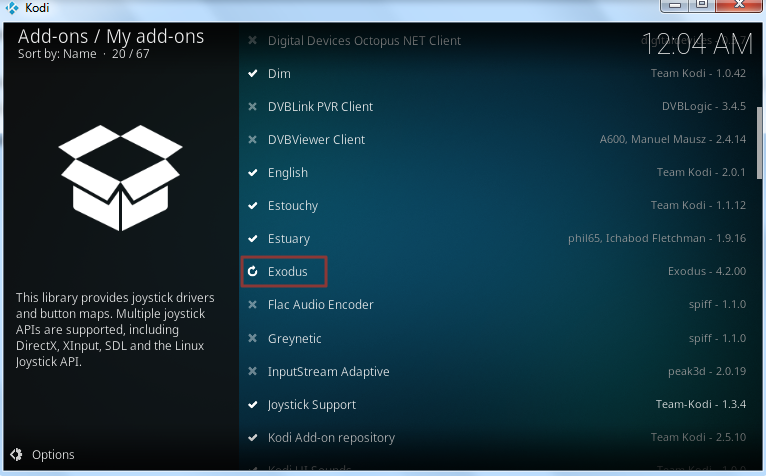
  • Double-click Exodus add-on
kodi exodus add-on
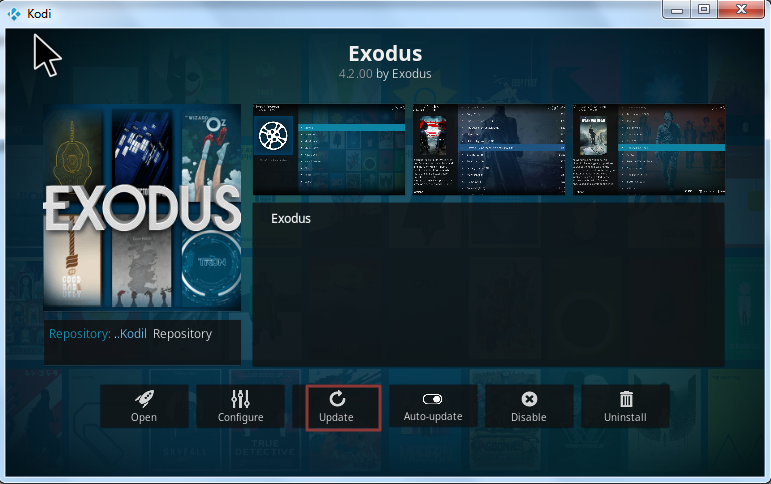
  • Click Update option
kodi exodus
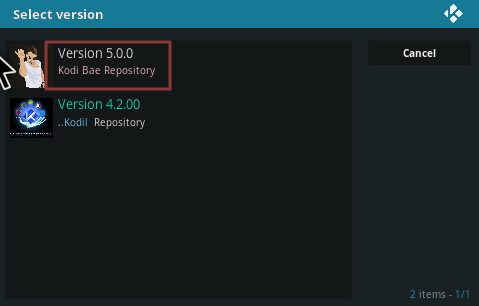
  • Select the latest version of the list – version 5.0.0
kodi exodus
  • Wait until the download completes and you see a message Exodus add-on updated message.
  • Open Kodi player and see if the issue is resolved

If the issue is not resolved, you need to uninstall and reinstall the Exodus add-on by following the steps given below.

Steps to uninstall Exodus add-on

  • Open Kodi
  • Click Add-on -> My add-ons
  • Click Video add-ons from the list
  • Double-click Exodus add-on
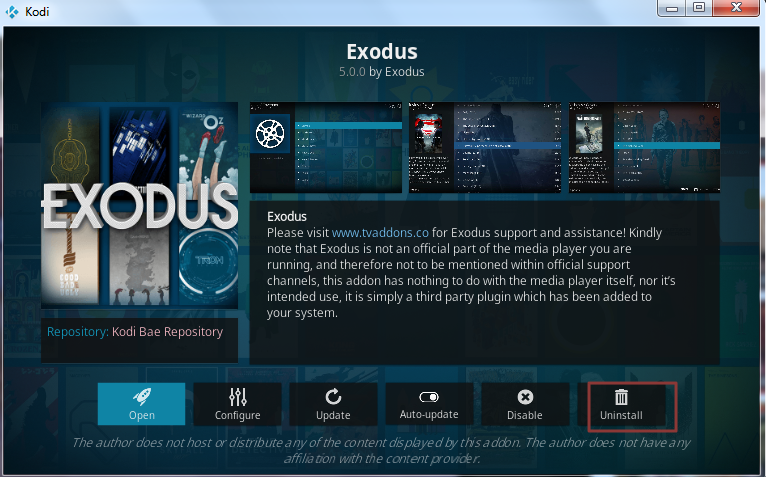
  • Click Uninstall option
exodus uninstall

Now you need to reinstall Exodus add-on by following the steps given below

There are different ways to install Exodus add-on on Kodi. You can check the article “how to install Exodus on Kodi” article for more information.

Here we are following the method of downloading the Kodil repository file to the computer and install the Exodus add-on in offline mode. Here are the steps you need to follow.

Steps to install Exodus add-on on Kodi player

  • Click on the hyperlink to download the Kodi Bae Repository Zip File
  • Open Kodi player
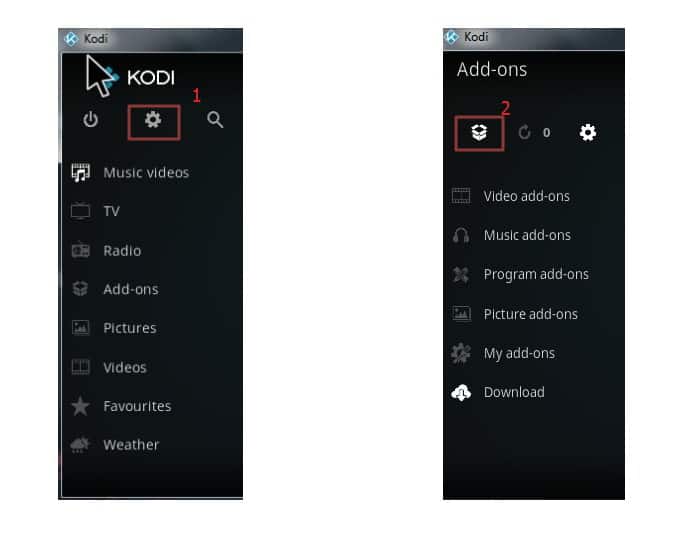
  • Click Add-ons and then click on Package icon
install kodi
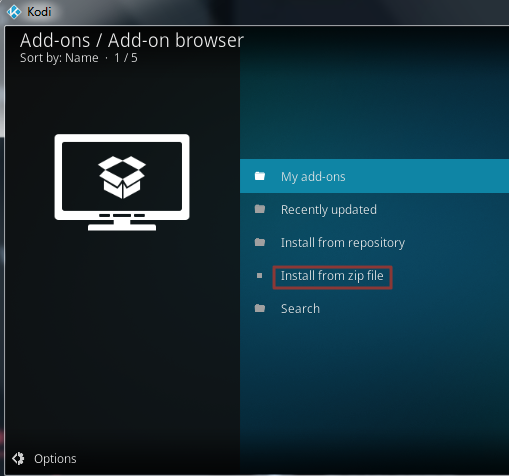
  • Select Install from zip file
install kodi
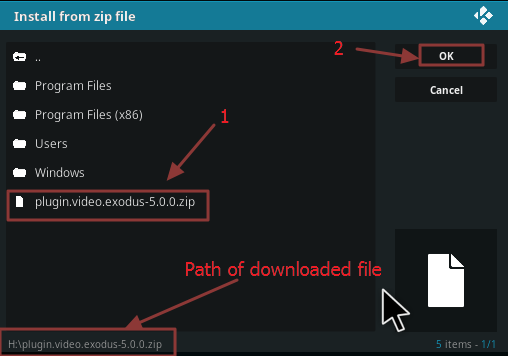
  • Browse to the location where you have downloaded the Kodi Bae repository file. The name of the repository file is video.exodus-5.0.0.zip. Select the file and click OK
install kodi
  • Wait for the installation to complete. You will see an Exodus add-on installed message in the top right-hand corner of the Kodi player.

You need to check whether the Exodus add-on is working fine. If the issue is not resolved, you need to proceed to final solution to fix the Exodus add-on not working issue.

Below are some of the Exodus add-on issues and their solutions.

Exodus not working due to “No stream available” error

One of the common Exodus errors on Kodi is “No Stream available”.

There can be many reasons for it which includes a problem with your internet connection. Other reasons can be a problem with cache and providers.

You can solve the issue by clearing the cache and providers in your Exodus add-on. Here are the steps to follow.

Steps to clear cache and providers in Exodus add-on

  • Click Add-ons and then My add-ons
  • In the next screen, select Video add-ons and then Exodus.
  • Click Tools
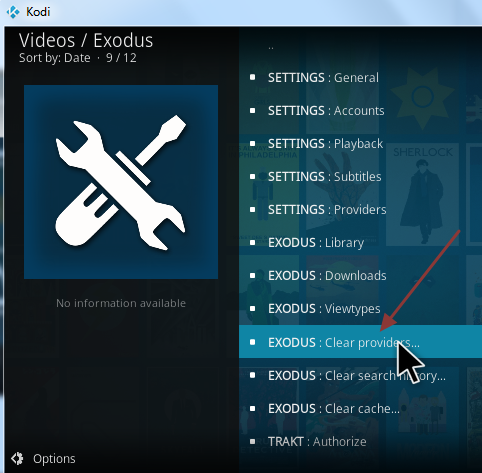
  • Click Clear Providers and then click Yes to confirm
exodus clear providers
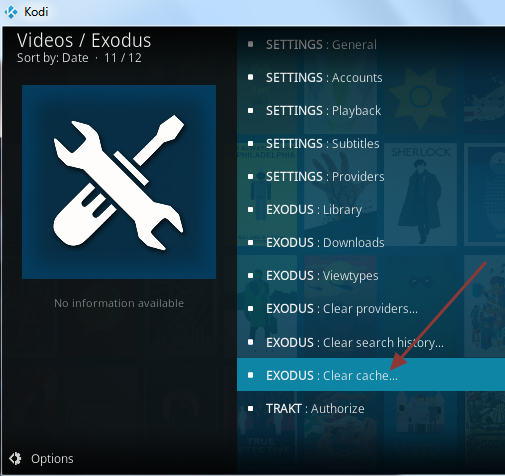
  • Click Clear Cache and then click Yes to confirm
exodus clear cache
  • Restart Kodi Player

If the above troubleshooting steps do not resolve the issue, you need to set suitable stream time to fix the error.

Steps to set suitable stream time in Exodus add-on

The Exodus add-on streams content from Web. If you have a slow internet connection, you are more likely to see No stream available error.

Also, if the Exodus add-on has short stream time, it may be one of the reasons for No stream available error.

The simple solution to the problem is increasing the stream time or set it to maximum (the maximum stream time value is 60). Here are the troubleshooting steps you need to follow.

  • Select Add-ons and then click My add-ons
  • In the next screen, select Video add-ons and then click
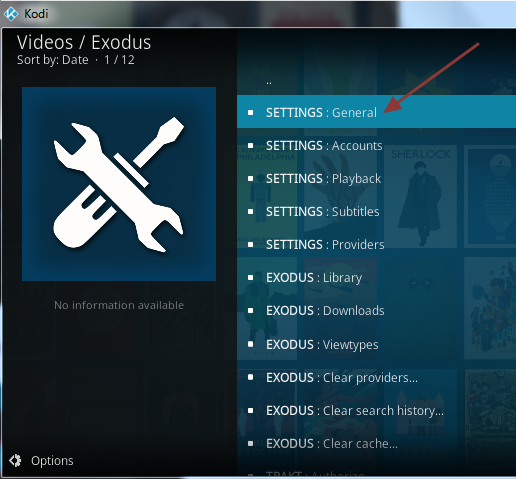
  • Click Tools on the left side
  • Click General
exodus settings general
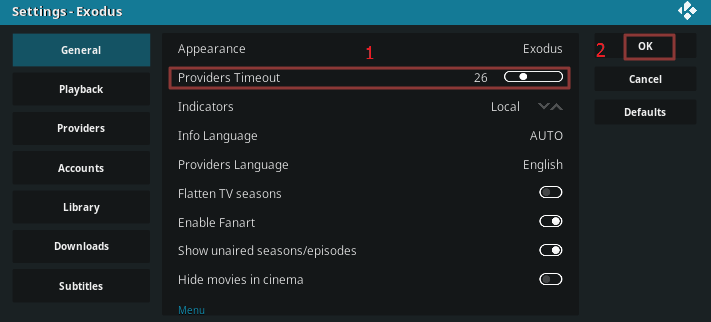
  • In the next window, look for Providers timeout If it is below 40 or 50, move the slider to the right till it reaches the maximum value of 60.
exodus providers timeout
  • Click OK

View our post How to install Exodus add-on in Kodi?

View post Kodi not working issue

View post How to install Covenant add-on in Kodi

Final solution to fix the Exodus not working issue- Update Drivers

Since Exodus is a video-add on, it relies on the graphics when streaming the content from the web. One of the reasons for Exodus not working is outdated graphics driver.

If you have not updated the driver manually before or don’t have the skill or time to search for drivers on the Internet, you can use a Driver Update Tool to update all outdated drivers on your system with a few clicks.

Updating Drivers Automatically

Automatic driver update tools offer many benefits, the most important ones being:

  • You can update device drivers automatically
  • The software scans and updates all outdated or missing drivers at one go
  • The tool picks the right drivers for your device and operating system, so you won’t have to worry about installing an incorrect driver by mistake
  • Automatic driver updates are 100% safe

Driver Updater is one of the best driver update tools out there. Outbyte Driver Updater will give you access to a database of over 1 million drivers. It will regularly scan your PC, suggesting new driver versions to install. Driver Updater contains drivers for a variety of Windows devices. With just one click, you can update drivers in your system.

Step 1
Click here to Install and launch the app

Step 2
Scan all devices

Step 3
Install or update drivers automatically


Start Download


How to Install Covenant add-on in Kodi

Filed Under: PC Fix Tips Tagged With: Exodus not working

  • « Previous Page
  • 1
  • …
  • 184
  • 185
  • 186
  • 187
  • 188
  • 189
  • Next Page »


  • Recent Posts
  • Popular Posts
        

Read More Posts


Read More Posts

Drivers.com Sites

  • Software Drivers
  • Drivers Ed

About Us

  • Advertise
  • About Drivers
  • Drivers Support
  • Drivers.com Privacy Policy
  • Disclaimer
  • Software Drivers
  • Mac Fixes and Tips
  • PC Fix Tips
  • Security/ Backup
  • Tablets & Smartphones
  • Tech News

© Copyright 2026 PDE Publications Ltd. End User License Agreement (EULA)