Drivers.com

follow us:

facebook twitter
  • Home
  • Download Drivers
  • Drivers Help
  • PC/Mac Resources
  • Software Drivers
  • Mac Fixes and Tips
  • PC Fix Tips
  • Security/ Backup
  • Tablets & Smartphones
  • Tech News
  • Software Drivers
  • Mac Fixes and Tips
  • PC Fix Tips
  • Security/ Backup
  • Tablets & Smartphones
  • Tech News

All You Needed To Know About Vulkan Runtime Libraries

By Susan C on March 28, 2018

Often users take uncommon entries in programs list as something dangerous and start worrying about it. For instance Vulkan Runtime Libraries often confuse people, who, upon seeing them, fear that their PCs are infected.

If your concern is the same and you have Vulkan Runtime Libraries installed on your system, there is nothing to worry about.

Here is some information about Vulkan Runtime Libraries to help you get over your unfounded fears. It also answers your question whether you should keep them or uninstall them.

What is Vulkan Runtime Libraries?

Though the name is weird, Vulkan Runtime Libraries are perfectly legitimate. Vulkan Runtime Libraries are not harmful to your system in any way.

Runtime libraries are related to a compiler or platform. Vulkan is a graphics API similar to DirectX and OpenGL. It is a new graphics standard and the Vulkan Runtime Libraries are tools associated with 3D graphics API.

They get installed with your graphics driver and they don’t need permission or show any notification when they are installed on your computer.  In most cases, the Vulkan Runtime Libraries got installed on your system when you updated your NVIDIA or graphics drivers. While not all games need 3D graphics tools, some modern games require 3D graphics API for smooth rendering of graphics.

Should you remove Vulkan Runtime Libraries?

Since Vulkan Runtime Libraries is not a virus or malware, there is no reason to remove them.

However, if you are not into gaming, they are not of much use to you, and you can choose to remove them without fear of affecting system stability and performance.

But if you love to play games, you should let them be. If you remove them, some games may not run well on your system.

Before you go ahead and uninstall them, you need to know that you will have to install graphics driver again if you need Vulkan Runtime Libraries in near future. The Vulkan Runtime libraries are not standalone applications and they get installed with graphics drivers provided by AMD or NVIDIA. Also, you will not find Vulkan Runtime Libraries on a system with the integrated graphics card.

How to get back Vulkan Runtime Libraries?

If you have accidentally uninstalled Vulkan Runtime Libraries and need them back, you need to find and install graphics cards driver again. If you are looking to update your graphics card drivers, we would recommend using a Driver update tool to update drivers.

Automatic driver update tools offer many benefits, the most important ones being:

  • You can update device drivers automatically
  • The software scans and updates all outdated or missing drivers at one go
  • The tool picks the right drivers for your device and operating system, so you won’t have to worry about installing an incorrect driver by mistake
  • Automatic driver updates are 100% safe

Driver Updater is one of the best driver update tools out there. Outbyte Driver Updater will give you access to a database of over 1 million drivers. It will regularly scan your PC, suggesting new driver versions to install. Driver Updater contains drivers for a variety of Windows devices. With just one click, you can update drivers in your system.

Step 1
Click here to Install and launch the app

Step 2
Scan all devices

Step 3
Install or update drivers automatically

 

Start Download


Filed Under: PC Fix Tips Tagged With: Vulkan Runtime Libraries

Solution to Microsoft Compatibility Telemetry High CPU Usage Issue

By Susan C on March 28, 2018

Solution to Microsoft Compatibility Telemetry High CPU Usage Issue

The telemetry service in Windows 10 is used for sending usage and performance data to specific Microsoft IP addresses. Microsoft uses this information to fix potential issues and improve user experience. The Windows Telemetry service is enabled by default.

The Windows Compatibility Telemetry service is known to use a large amount of disk processing resources that in turn can lead to high CPU usage, resulting in sluggish performance of the system.

If you are experiencing a similar problem due to Microsoft compatibility Telemetry services, you can shut down windows compatibility telemetry services for good by following any of these methods.

Method 1 – Through Group Policy Editor

  • Press Windows Logo key + R simultaneously on your keyboard to open the Run command
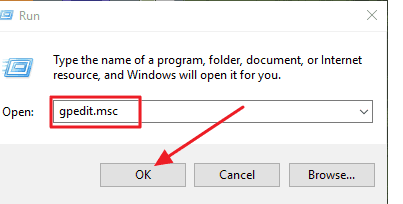
  • Type gpedit.msc and click OK
gpedit.msc
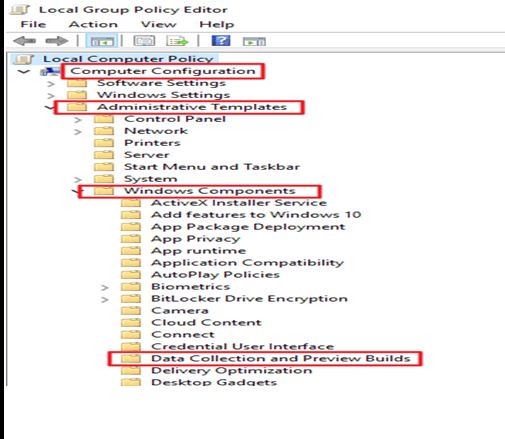
  • In the Local Group Policy Editor window, click Computer Configuration
  • Click Administrative Templates -> Windows Components -> DataCollection and Preview Builds
local group policy editor
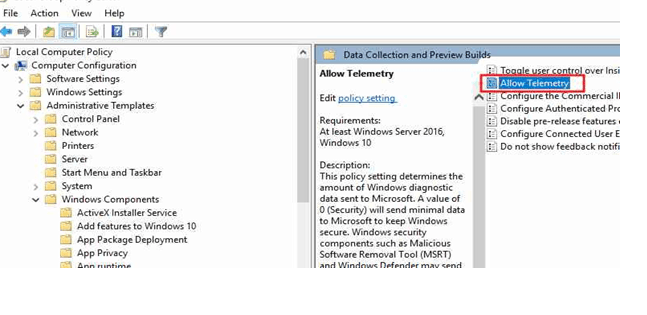
  • Double-click Allow Telemetry
allow telemery
  • Click Disabled option and then click Apply
  • Click OK to close the window
telemetry service

Method 2 – Through Registry Editor

If you are using Windows 10 Home edition, you will not have the option of disabling Windows Compatibility Telemetry using Group Policy Editor. In that case, you will be required to use the registry editor to reduce disk usage by Windows Compatibility Telemetry services. Here are the steps you need to follow.

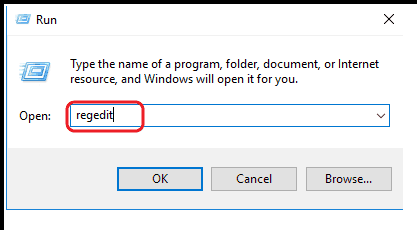
  • Open Run command by pressing Windows Logo key + R simultaneously on your keyboard
  • Type regedit and click OK
open registry
  • If you are prompted for User Account Control, click Yes
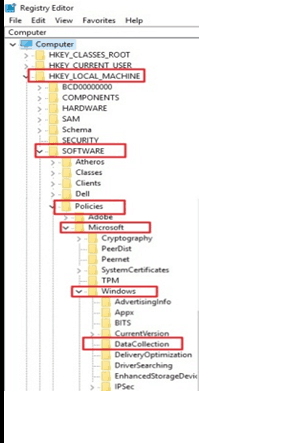
  • In the Registry Editor window, navigate to HKEY_LOCAL_MACHINE > SOFTWARE > Policies > Microsoft > Windows > DataCollection
Registry Editor
  • In the right-pane, double-click Allow Telemetry

Note- if you don’t see Allow Telemetry in the right-pane, you need to create manually by following the instruction in Step 6; else move to Step7

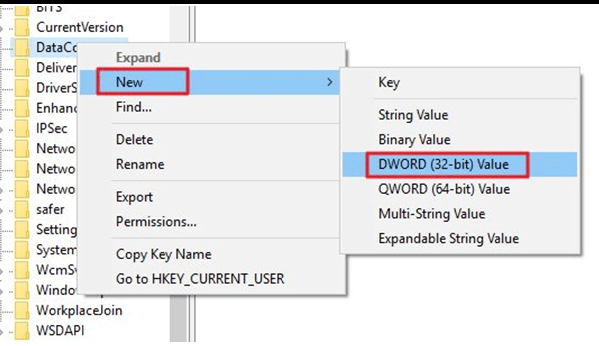
  • Right-click on DataCollection key in the left pane and select New -> DWORD 32-bit value
disable telemetry
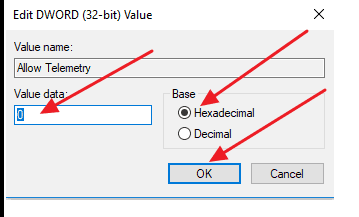
  • Enter 0 (zero) in the Value data field and click OK
disable telemetry

After disabling Windows Compatibility Telemetry, you need to also disable the Connected User Experience and Telemetry Service by following steps given below

  • Go to Desktop
  • Invoke Run command app by pressing Windows Logo key + R simultaneously on your keyboard
  • Type msc and click OK
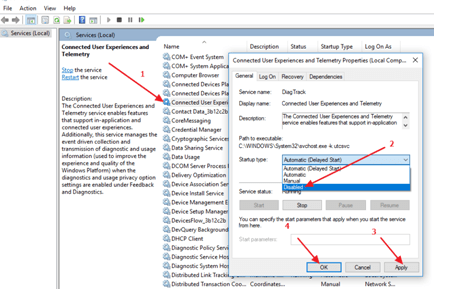
  • In the Services window, look for Connected User Experience and Telemetry Service in the list and double-click on it
disable connected user experience
  • In the Startup Type field, select Disabled from the drop-down list
  • Click Apply and then OK to close the window
  • Press Ctrl + Alt + Esc keys simultaneously on your keyboard and see if you notice high disk usage in the Processes tab

 Method 3- Using Command Prompt

 To resolve the high disk usage, you can disable Windows compatibility Telemetry service. Here are the steps you need to follow.

  1. Launch Run command app by pressing Windows Logo key + R simultaneously on your keyboard
  2. Type cmd and click OK
  3. Right-click on Command Prompt app in the results and select Run as administrator
  4. In the command prompt window, type the following commands and press Enter after every command
  • sc delete DiagTrack
  • sc delete dmwappushservice
  • echo ““ > C:\ProgramData\Microsoft\Diagnosis\ETLLogs\AutoLogger\AutoLogger-DiagTrack-Listener.etl
  • red add “HKLM\SOFTWARE\Policies\\Microsoft\Windows\DataCollection”/v AllowTelemtery/t REG_DWORD/d 0 /f

Method 4 – Update Drivers

If your computer is still running slow, it’s time to update drivers that might fix the issue. Updating drivers manually can be a time-consuming and complicated task as you need to know exact manufacturers and hardware components name to find and download right device drivers.

Updating Drivers Automatically

Automatic driver update tools offer many benefits, the most important ones being:

  • You can update device drivers automatically
  • The software scans and updates all outdated or missing drivers at one go
  • The tool picks the right drivers for your device and operating system, so you won’t have to worry about installing an incorrect driver by mistake
  • Automatic driver updates are 100% safe

Driver Updater is one of the best driver update tools out there. Outbyte Driver Updater will give you access to a database of over 1 million drivers. It will regularly scan your PC, suggesting new driver versions to install. Driver Updater contains drivers for a variety of Windows devices. With just one click, you can update drivers in your system.

Step 1
Click here to Install and launch the app

Step 2
Scan all devices

Step 3
Install or update drivers automatically
 

Start Download


After the Driver Downloader software is installed, you can update all drivers automatically with a click.

Filed Under: PC Fix Tips Tagged With: Telemetry service issue

How to install Exodus add-on in Kodi?

By Susan C on March 25, 2018

Kodi is open source media software that allows you to store and share content across devices in your home. This free media player can run on wide range of operating systems and stream content from local storage, internet, and home network.

Since it is open source, you can install a wide range of entertainment add-ons without worrying about licensing issues. Exodus is one of the best KODI add-ons which brings vivid content (movies, videos, music) from the Internet and allows users to view content on any Kodi-compatible device, like you computer or TV.

There are different ways to install the Exodus add-on in Kodi. The following are some of the ways you can include Exodus on your Kodi player.

Before Installation of Exodus on your Kodi player

You will need to tweak the settings in the Kodi player in order to enable it to download third-party add-ons. Here are the steps you need to follow to do this:

kodi add-on
  • Launch Kodi on your device
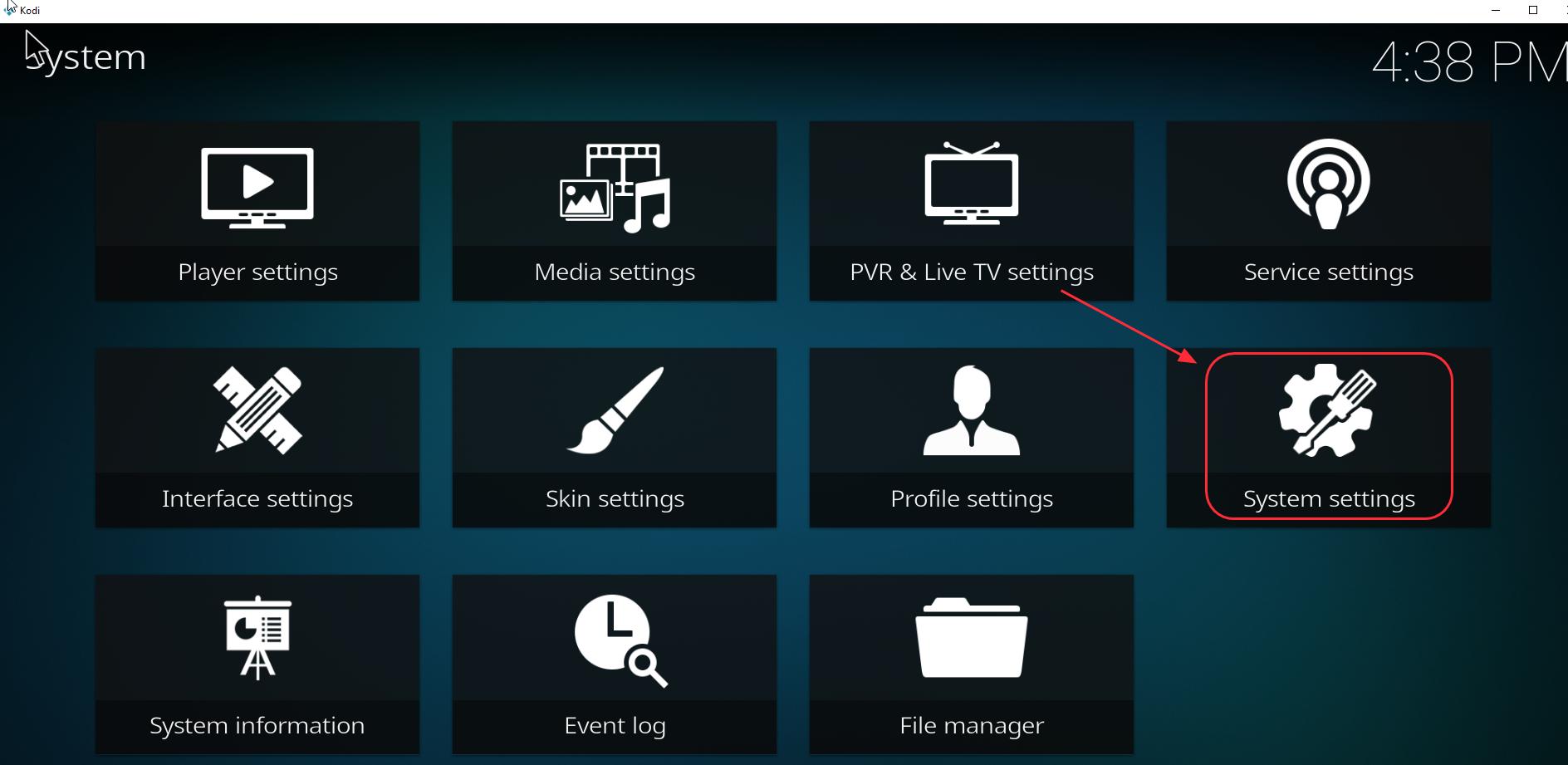
  • Click Settings followed by System settings
system settings
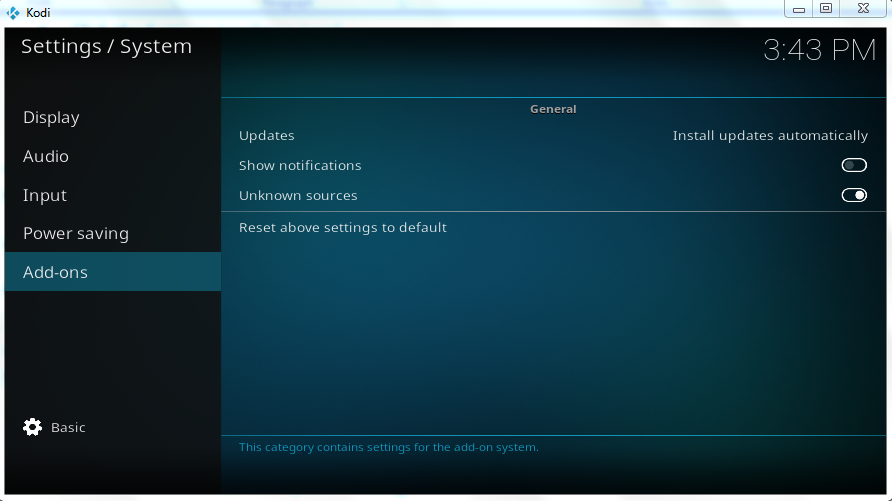
  • Click Add-ons. Look for the option Unknown sources and click the button beside it
addons unknown sources
  • Click Yes when prompted to confirm your action
  • Now Kodi will allow you to install the Exodus add-on

There are no direct options available in Kodi to install the Exodus add-on and different methods discussed here use different repositories to install Exodus on Kodi.

Software repositories are storage locations on the internet from which you can download software packages and core modules for software and install them on your device or computer.

Method 1- Installing Exodus on Kodi using the Kodil repository

The Kodil repository has several add-ons including Exodus.  Below we will look at the installation steps:

  1. Open Kodi on your device
  2. Click the gear symbol (Settings) that appears on the top left corner of the home screen
  3. Click File Manager
  4. Look for Add source option that appears at bottom and double-click on it
  5. Click the option <None> and then type the address for Kodil repository. The web address for Kodil repository is – http://kdil.co/repo/
  6. At the bottom, you will be required to name the installation. By default, the installation name is Kdil, leave it unchanged and click OK to proceed with the installation

Note – The Kodi app will now try to access the Kodil repository on the Internet and download the software package for the Exodus add-on. Make sure the Internet connection is active and the firewall or anti-virus is not blocking the download.

  1. Navigate back to Kodi Home Screen
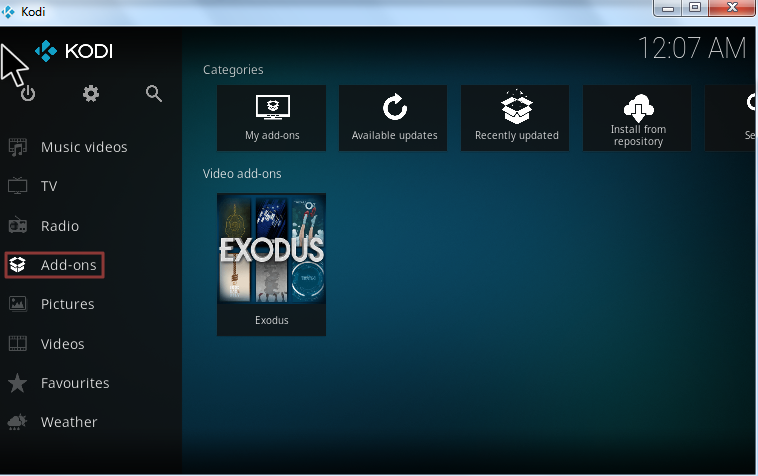
  2. Select Add-ons
  3. Choose the option “Install from a Zip file”
  4. Select the file name “kodil” that appears in the list
  5. In the next screen, choose zip
  6. Wait for the installation notification to appear on the screen
  7. When the notification appears, click Install from the repository
  8. Wait until the process completes. You will see an entry Kodil repository in the list, click on it
  9. In the next screen, select the Video add-ons option that appears at the bottom
  10. In the next screen, click Exodus followed by the Install option that appears on the bottom left

Method 2 – Installing Exodus on Kodi using the XvBMC repository

The installation steps for Exodus on Kodi using XvBMC repository are somewhat similar to the first method. The primary difference is the web address of the repository and the steps that come after it. Here are the steps you need to follow.

  1. Launch the Kodi app on your device
  2. Go to Home Screen and click Settings(the gear icon) followed by File Manager
  3. Click Add Source option that appears left on the screen
  4. Select <None> in Add File Source screen
  5. Type the following address in the field – http://archive.org/download/repository.xvbmc/ and click OK
  6. In the text box labeled – Enter a name for this media source, type xvbmc and click OK
  7. Navigate back to Kodi Home Page
  8. Select Add-ons and then click on package icon that appears in the left corner of the screen
  9. In the next screen, select Install from zip file
  10. Select xvbmc in the list which is the name of the file you saved earlier
  11. Wait until the Add-on enabled notification appears on the screen
  12. In the next screen, select install from repository
  13. Choose (Add-ons) REPOsitory option
  14. In the next installation screen, select Add-on repository and then select tknorris Release Repository
  15. Click Install to start the installation. Wait until you see install notification in the right-hand corner of the screen
  16. In the next screen, choose Video-Add-ons and then Exodus
  17. Select Install that appears at the bottom right corner of the screen
  18. Wait for the installation to complete which takes few seconds. Now you should see notification of Exodus add-on enabled in Kodi
  19. To use Exodus in Kodi, go to Main Menu in Kodi and then click Add-ons
  20. Click Video add-ons and then click Exodus

You can now start enjoying streaming videos using Exodus on Kodi. However, Exodus needs to be updated frequently for better viewing experience and content. Below are the steps to update Exodus on Kodi:

  1. Open the Kodi app on your device
  2. Go to Add-ons and then My add-ons
  3. Select Video add-ons
  4. In the next screen, select Exodus
  5. Click on Update option and follow the instruction to update Exodus.

View our post How to solve Exodus not working issue?

View post Kodi not working issue

View post How to install Covenant add-on in Kodi

Filed Under: Tech News Tagged With: install exodus

  • « Previous Page
  • 1
  • …
  • 186
  • 187
  • 188
  • 189
  • Next Page »


  • Recent Posts
  • Popular Posts
        

Read More Posts


Read More Posts

Drivers.com Sites

  • Software Drivers
  • Drivers Ed

About Us

  • Advertise
  • About Drivers
  • Drivers Support
  • Drivers.com Privacy Policy
  • Disclaimer
  • Software Drivers
  • Mac Fixes and Tips
  • PC Fix Tips
  • Security/ Backup
  • Tablets & Smartphones
  • Tech News

© Copyright 2026 PDE Publications Ltd. End User License Agreement (EULA)