



The telemetry service in Windows 10 is used for sending usage and performance data to specific Microsoft IP addresses. Microsoft uses this information to fix potential issues and improve user experience. The Windows Telemetry service is enabled by default.
The Windows Compatibility Telemetry service is known to use a large amount of disk processing resources that in turn can lead to high CPU usage, resulting in sluggish performance of the system.
If you are experiencing a similar problem due to Microsoft compatibility Telemetry services, you can shut down windows compatibility telemetry services for good by following any of these methods.
Method 1 – Through Group Policy Editor
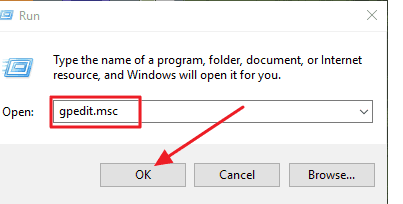
- Press Windows Logo key + R simultaneously on your keyboard to open the Run command
- Type gpedit.msc and click OK
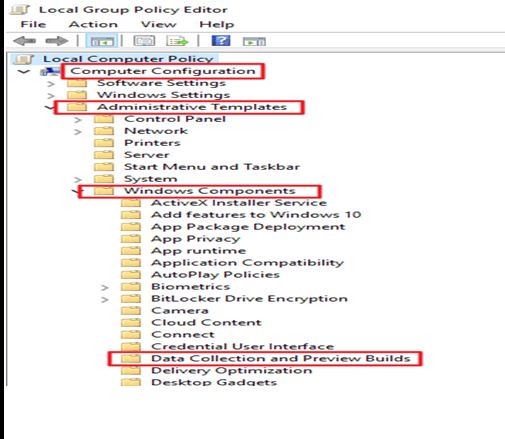
- In the Local Group Policy Editor window, click Computer Configuration
- Click Administrative Templates -> Windows Components -> DataCollection and Preview Builds
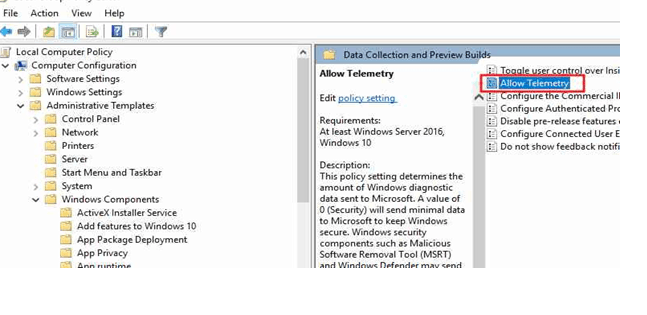
- Double-click Allow Telemetry
- Click Disabled option and then click Apply
- Click OK to close the window

Method 2 – Through Registry Editor
If you are using Windows 10 Home edition, you will not have the option of disabling Windows Compatibility Telemetry using Group Policy Editor. In that case, you will be required to use the registry editor to reduce disk usage by Windows Compatibility Telemetry services. Here are the steps you need to follow.
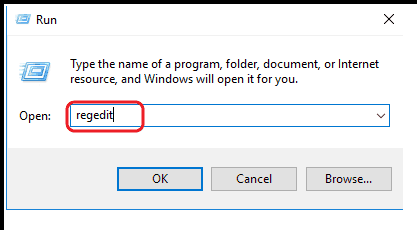
- Open Run command by pressing Windows Logo key + R simultaneously on your keyboard
- Type regedit and click OK
- If you are prompted for User Account Control, click Yes
- In the Registry Editor window, navigate to HKEY_LOCAL_MACHINE > SOFTWARE > Policies > Microsoft > Windows > DataCollection
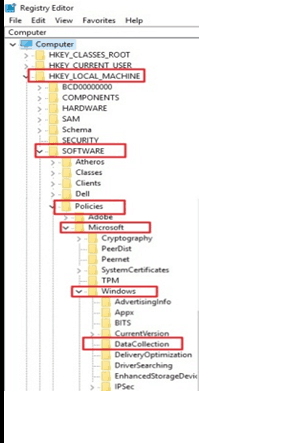
- In the right-pane, double-click Allow Telemetry
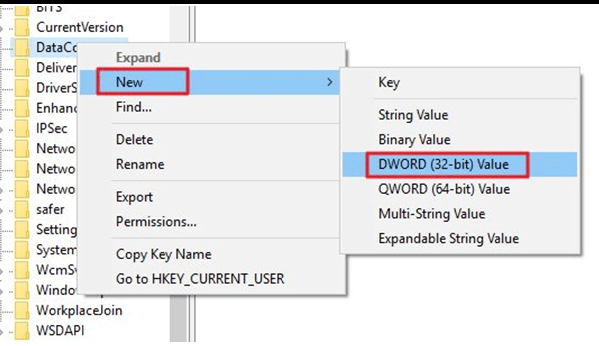
Note- if you don’t see Allow Telemetry in the right-pane, you need to create manually by following the instruction in Step 6; else move to Step7
- Right-click on DataCollection key in the left pane and select New -> DWORD 32-bit value
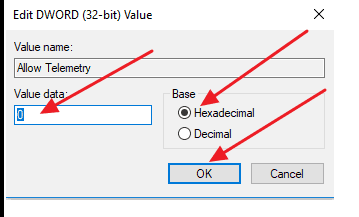
- Enter 0 (zero) in the Value data field and click OK
After disabling Windows Compatibility Telemetry, you need to also disable the Connected User Experience and Telemetry Service by following steps given below
- Go to Desktop
- Invoke Run command app by pressing Windows Logo key + R simultaneously on your keyboard
- Type msc and click OK
- In the Services window, look for Connected User Experience and Telemetry Service in the list and double-click on it
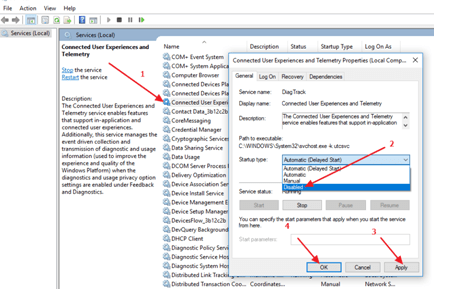
- In the Startup Type field, select Disabled from the drop-down list
- Click Apply and then OK to close the window
- Press Ctrl + Alt + Esc keys simultaneously on your keyboard and see if you notice high disk usage in the Processes tab
Method 3- Using Command Prompt
To resolve the high disk usage, you can disable Windows compatibility Telemetry service. Here are the steps you need to follow.
- Launch Run command app by pressing Windows Logo key + R simultaneously on your keyboard
- Type cmd and click OK
- Right-click on Command Prompt app in the results and select Run as administrator
- In the command prompt window, type the following commands and press Enter after every command
- sc delete DiagTrack
- sc delete dmwappushservice
- echo ““ > C:\ProgramData\Microsoft\Diagnosis\ETLLogs\AutoLogger\AutoLogger-DiagTrack-Listener.etl
- red add “HKLM\SOFTWARE\Policies\\Microsoft\Windows\DataCollection”/v AllowTelemtery/t REG_DWORD/d 0 /f
Method 4 – Update Drivers
If your computer is still running slow, it’s time to update drivers that might fix the issue. Updating drivers manually can be a time-consuming and complicated task as you need to know exact manufacturers and hardware components name to find and download right device drivers.
Updating Drivers Automatically
Automatic driver update tools offer many benefits, the most important ones being:
- You can update device drivers automatically
- The software scans and updates all outdated or missing drivers at one go
- The tool picks the right drivers for your device and operating system, so you won’t have to worry about installing an incorrect driver by mistake
- Automatic driver updates are 100% safe
Driver Updater is one of the best driver update tools out there. Outbyte Driver Updater will give you access to a database of over 1 million drivers. It will regularly scan your PC, suggesting new driver versions to install. Driver Updater contains drivers for a variety of Windows devices. With just one click, you can update drivers in your system.
Step 1
Click here to Install and launch the app
Step 2
Scan all devices
Step 3
Install or update drivers automatically
After the Driver Downloader software is installed, you can update all drivers automatically with a click.
Leave a Reply