


While surfing the Internet from Chrome or any browser, you sometimes get an error message which says “your connection is not private”. This can be an alarming error as it means all your sensitive information can be accessed by others, and they can take advantage of it.
If you are receiving this error, here are some quick solutions to get rid of the error. We will also see how you can protect your sensitive data from falling into wrong hands.
Solution 1 – Check Date and time on your computer
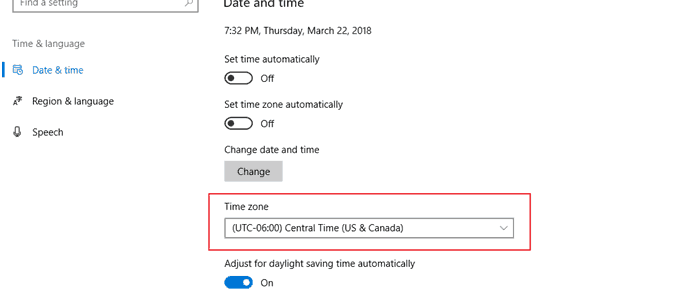
One of the common reasons behind this error is wrong date and time on your computer.
Generally, the system picks the date and time from BIOS or synchronizes the clock with time.windows.com.
However, due to some reasons, the computer clock might be showing wrong date and time which in turn could lead to this error.
Follow these steps to set right date and time on your computer.
- Right-click the date and time section on the taskbar
- Click Adjust date/time
- In the Settings pane, go to time zone section
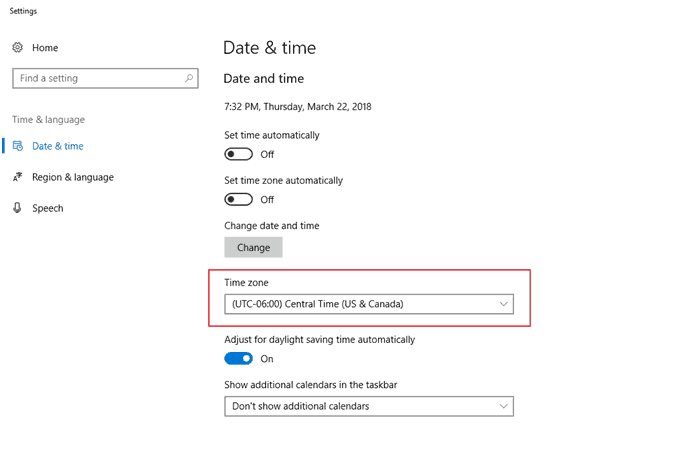
- Select the right time zone from the drop-down list
Solution 2 – Clean browsing data from Google Chrome
Every time you visit a website, the browser stores some data like passwords, images, and files from the sites in its cache. The system uses this information to load the webpages faster when you visit the website next time.
If you do not clean browsing data from time to time, it can lead to large collection of junk files on your computer. Also, it may lead to errors like “your connection is not private”.
A simple fix to this error is clearing the browsing data from Chrome. Here are the steps to follow.
- Open GoogleChrome browser
- Click the menu icon ( the three vertical dots) located at the top right corner
- Select Settings
- Click History ->History
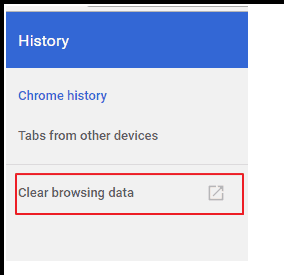
- Click Clear Browsing data
- Go to Basic tab
- In the time range field, select All time from the drop-down list
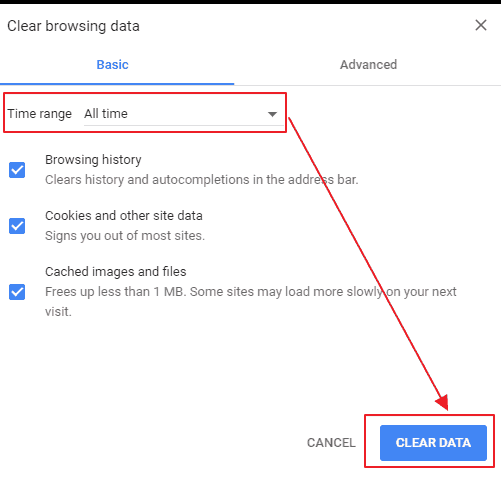
- Make sure the options Browsing history, Cookies and other sites data, and Cached image and files are checked
- Click Clear Data
- Close the Settings tab
Solution 3 – Change Anti-virus settings
Some anti-virus settings are oversensitive and they block a suspicious website’s security certificate. This may lead to “your connection is not private” error.
The solution to fix this issue is to alter a few anti-virus settings. Here are the steps you need to follow
For Avast Antivirus
- Open Avast Antivirus interface
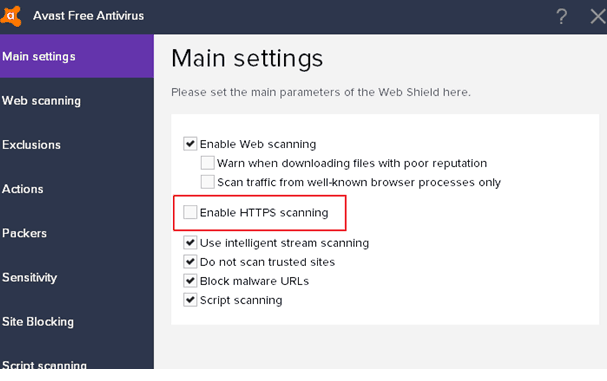
- Go to Settings -> Components -> Web Shield-> Customize
- Uncheck the “Enable HTTPS scanning” option
For Bitdefender
- Open Bitdefender interface
- Click Settings
- Click Phishing Control -> Antiphising tab
- Turn off the option Scan SSL
The above steps are general and the basic idea behind it is turning off the Scan SSL option in antivirus. You need to refer to general FAQ or documentation of the anti-virus you use to know exact steps to switch off the Scan SSL option.
If you find these steps difficult, you can also temporarily turn off the anti-virus. But then you need to be sure the website you are visiting is safe.
Solution 4- Check browser extensions
Many times browser extensions are the root cause of the “your connection is not private”error.
You can verify it by using the Incognito mode in the Chrome browser. Follow the steps given below to check browser extensions
- Press Ctrl+Shift+N on your keyboard to launch Chrome browser in Incognito mode
- Try opening the site which gave out the error in normal browser mode
- If the website opens fine in Incognito mode, one of the browser extension might be the cause of the error
Now you have to disable browser extensions one by one to single out the extension causing the problem. Here are the steps you need to follow.
- Click the menu icon ( the three vertical dots) located at the top right corner
- Select Settings
- Click More tools options and select Extensions
A new tab opens which list all browser extensions. Here are the steps you need to follow.
- You will see two options for each extension- acheckbox and a recycle bin option that allows you to delete the extension.
- Look for any information that tells the browser extension uses the SSL option.
- If yes, you can straightway disable it. To disable the extension, uncheck the box.
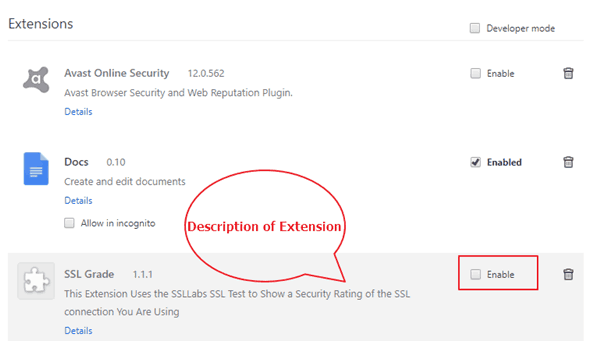
- If you do not see any information of SSL in the extension description, you need to disable browser extensions one at a time and see if the issue is resolved.
- If you find the browser extension that is causing the “your connection is not private” error, you can disable it or remove it completely.
If none of the above solutions work for you, the last resort is updating network drivers. It is always recommended to update networks drivers to prevent any network problems.
Solution 5 – Updating the network drivers
Finding latest network drivers on the Internet can be time-consuming and difficult. Since the hardware info of network chips is not easily available to users, you need to dig in Device Manager to find the hardware manufacturer, the hardware component and the latest version of the driver.
If you are not a tech-savvy person, you might download a wrong or incompatible driver that could make system unstable and lead to many errors.
The easy way to update network driver is using Drivers Downloader software that updates drivers automatically.
Automatic driver update tools offer many benefits, the most important ones being:
- You can update device drivers automatically
- The software scans and updates all outdated or missing drivers at one go
- The tool picks the right drivers for your device and operating system, so you won’t have to worry about installing an incorrect driver by mistake
- Automatic driver updates are 100% safe
Driver Updater is one of the best driver update tools out there. Outbyte Driver Updater will give you access to a database of over 1 million drivers. It will regularly scan your PC, suggesting new driver versions to install. Driver Updater contains drivers for a variety of Windows devices. With just one click, you can update drivers in your system.
Step 1
Click here to Install and launch the app
Step 2
Scan all devices
Step 3
Install or update drivers automatically