Drivers.com

follow us:

facebook twitter
  • Home
  • Download Drivers
  • Drivers Help
  • PC/Mac Resources
  • Software Drivers
  • Mac Fixes and Tips
  • PC Fix Tips
  • Security/ Backup
  • Tablets & Smartphones
  • Tech News
  • Software Drivers
  • Mac Fixes and Tips
  • PC Fix Tips
  • Security/ Backup
  • Tablets & Smartphones
  • Tech News

Windows Update Error 0x800705b4

By Susan C on April 17, 2018

Windows Update Error 0x800705b4

Have you received an Update Error (0x800705b4) while updating Windows?

If yes, we believe this post is just for you.

In this post, we discuss some possible solutions. You don’t have to try all of them. Start with the first one and proceed to the rest in the order they appear till the issue is resolved.

Solution One – Disable third-party antivirus

If you are using any 3rd party anti-virus, disable it temporarily but make sure the Windows Firewall is turned on. In addition, ensure Microsoft’s Windows Defender is working.

By default, Windows Defender is turned on, but it is possible you might have unknowingly disabled it. So check if it is enabled.

Temporarily disabling your 3rd party anti-virus software tool will not be a security risk if Windows Defender, a perfectly competent protection tool, and Windows Firewall are doing their work.

Sometimes 3rd party anti-virus programs are known to cause problems in Windows update. After you have disabled the anti-virus, try updating Windows and see if the issue reappears.

If the issue doesn’t reoccur, you might want to contact your antivirus manufacturer and apprise him of the situation. It is very much possible that you might encounter issues in future while downloading Windows update. Therefore, you should look for a permanent solution, if available.

Solution Two – Start Windows Defender service

According to Microsoft, the Update Error (0x800705b4) is related to Windows Defender. In such cases, starting Windows Defender service is the simplest solution to resolve the issue. Here are the steps to follow.

  • Press Windows key + R simultaneously on the keyboard
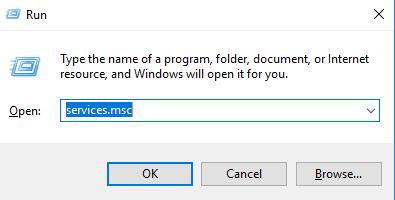
  • Type services.msc in the search box
services
  • In the services window, locate Windows Defender service in the list
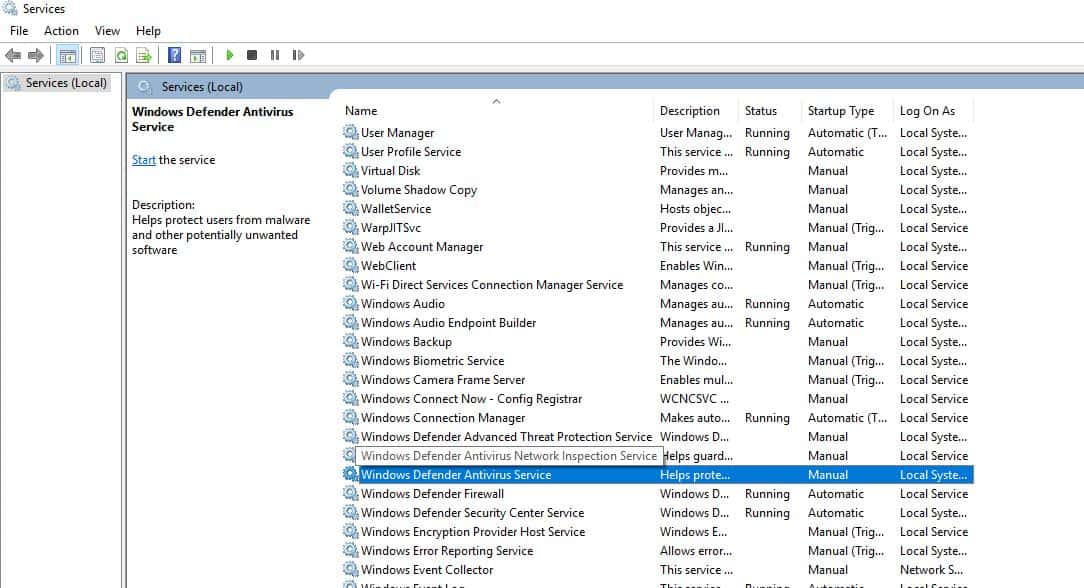
windows defender
  • Verify the status of Windows Defender service, check if it is Started
  • If the Status column is blank, right-click on the Windows Defender service and select Start
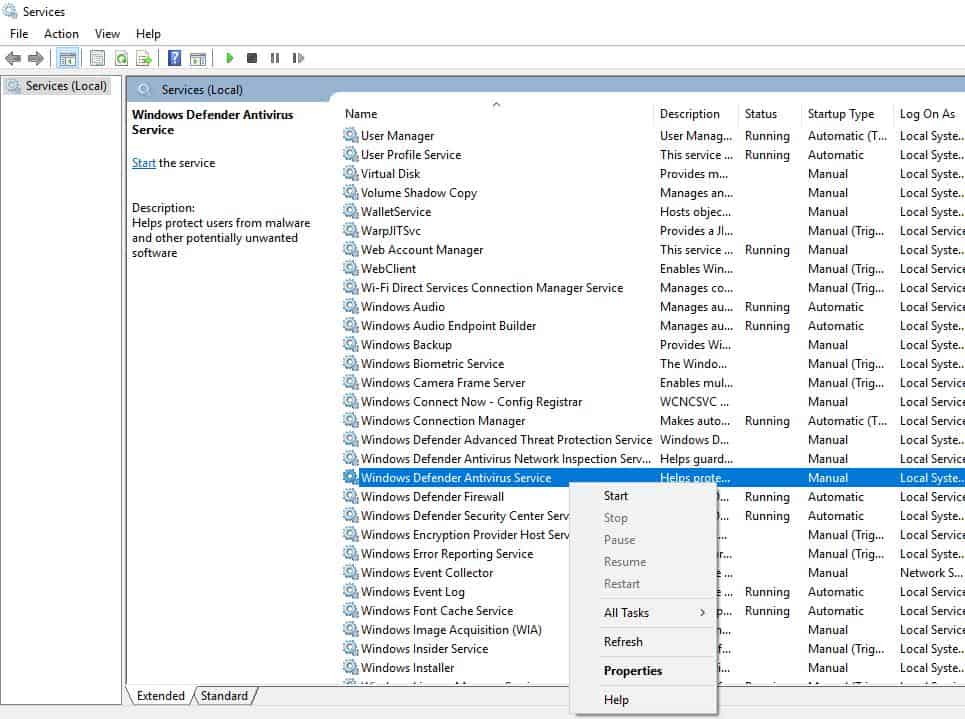
windows defender start
  • If you get an error when trying to start Windows Defender Service, change the Startup Type to Automatic
  • Restart your computer
  • Try updating Windows and see if the issue is resolved

Solution Three-Run Windows Update Troubleshooter

Microsoft provides Windows Update Troubleshooter that might help resolve the issue. Here are the steps to run Windows Update Troubleshooter.

  • In Cortana search box, type troubleshoot
  • Click Troubleshooting from the list of results
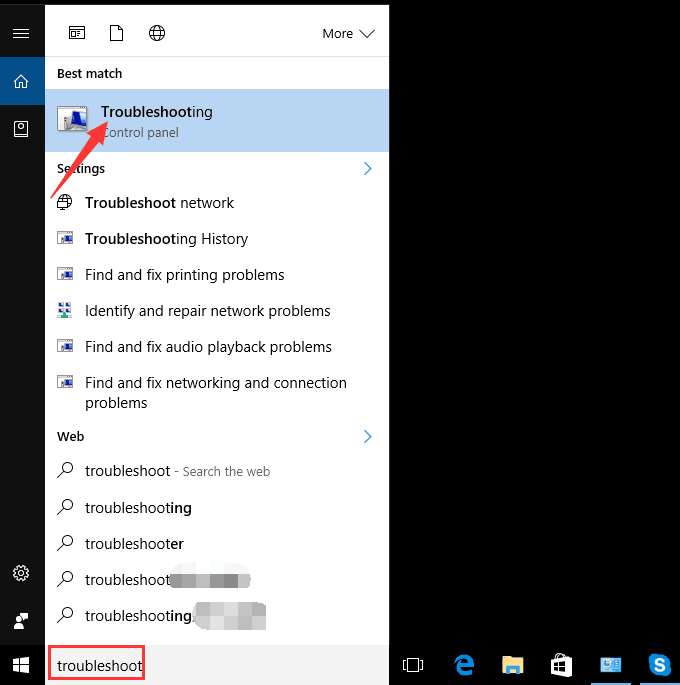
troubleshooting
  • In the Troubleshooting window, click View All in the left pane
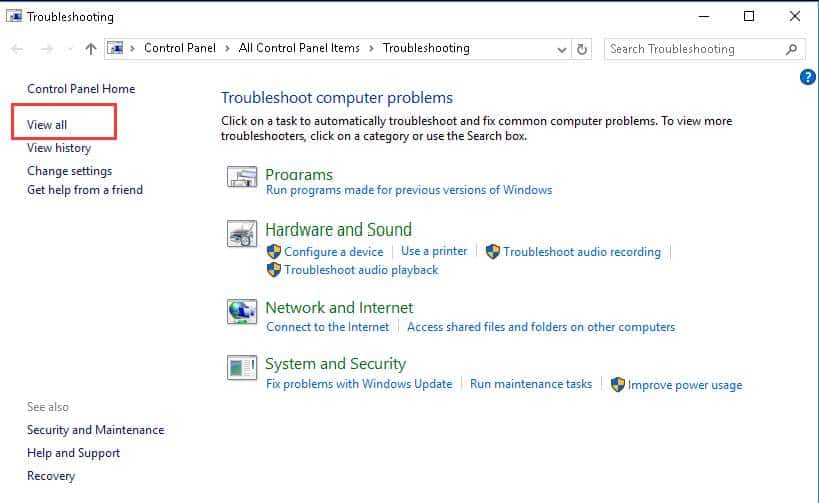
view all
  • Select Windows update in the list
windows update
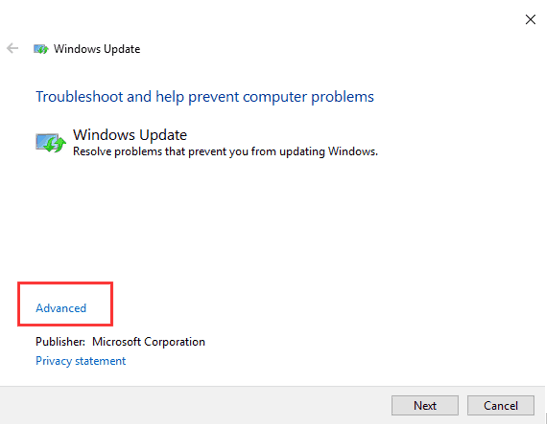
  • In the next window, click Advanced
windows update advanced
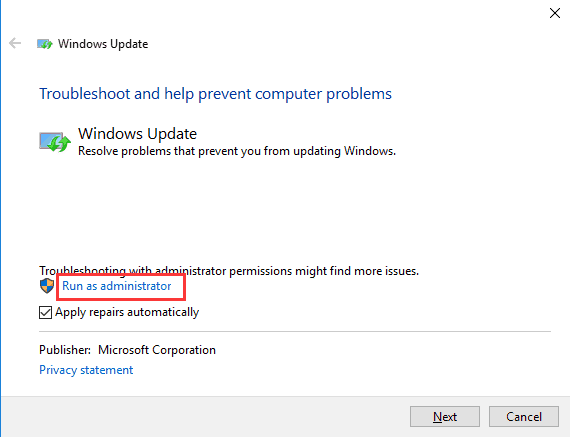
  • Click Run as administrator
run as admin
  • Click Next button

The Windows Update Troubleshooter will now detect any problems in windows update and fix them.

Solution Four – Modify Windows Update Settings

This solution has worked for many Windows 10 users and it might also work for you. If the solution works for you, don’t forget to mention it in the comments. Here are the steps to follow.

  • In Cortana search box, type Windows update
  • Click check for updates from the list of results
  • In the Settings windows, click Advanced options
  • <insert 0x800705b4 -update advanced options>
  • In the next window, uncheck the box for option- Give me updates for other Microsoft products when I update Windows
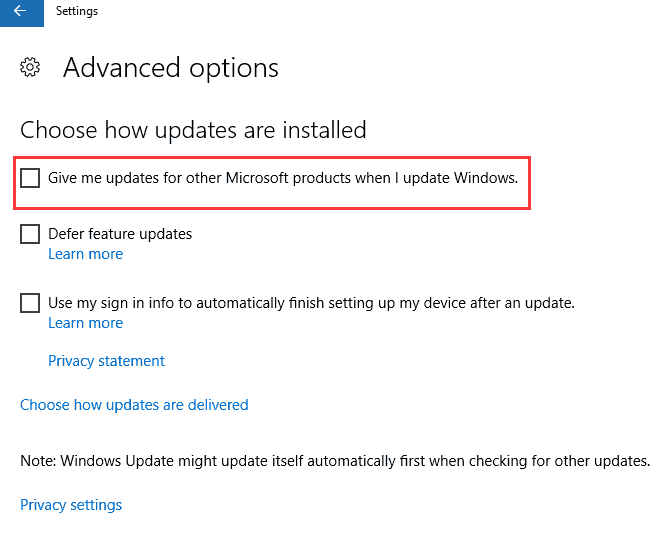
uncheck give me updates
  • Restart your computer to let the changes take effect

Note: After the computer restarts, you need to perform steps once again to get all Windows updates installed. Once all windows updates are installed, you will get a message: “Your device is up to date”. You need to perform the steps given below after you receive the above message.

  • In Cortana search box, type Windows update
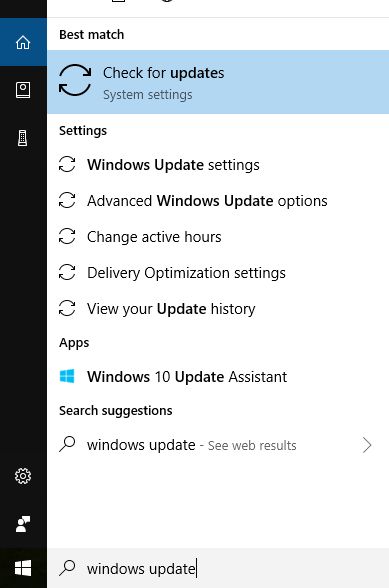
cortana windows update
  • Click check for updates from the list of results
  • In the Settings windows, click check for updates
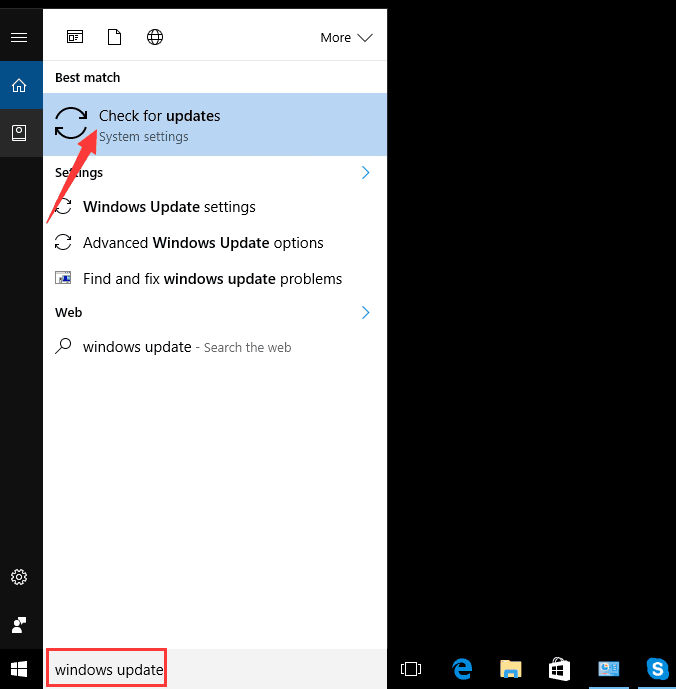
cortana check updates
  • In the next window, check the box for option- Give me updates for other Microsoft products when I update Windows
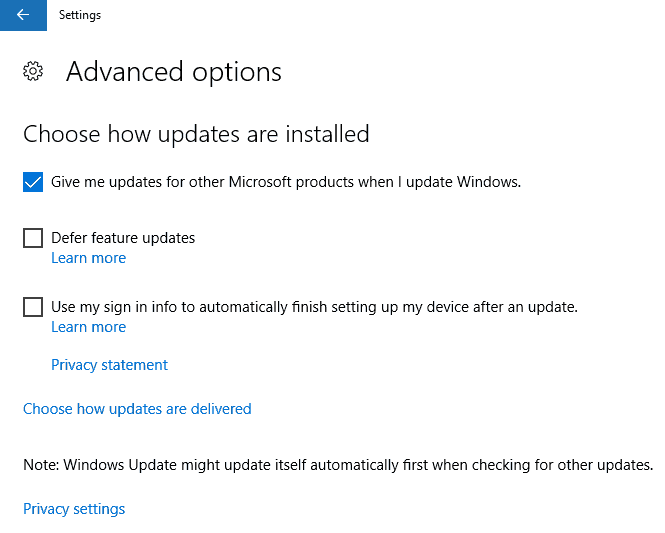
check give me updates
  • Go back to the previous window, click check for updates

Windows will now download and install all pending updates and  the Windows Update Error 0x800705b4 error should get resolved.

Solution Five- Delete some update related files

  • In Cortana search box, type Services
cortana services
  • Click Services from the list of results
  • In the Services window, select Background Intelligent Transfer service and right-click on it
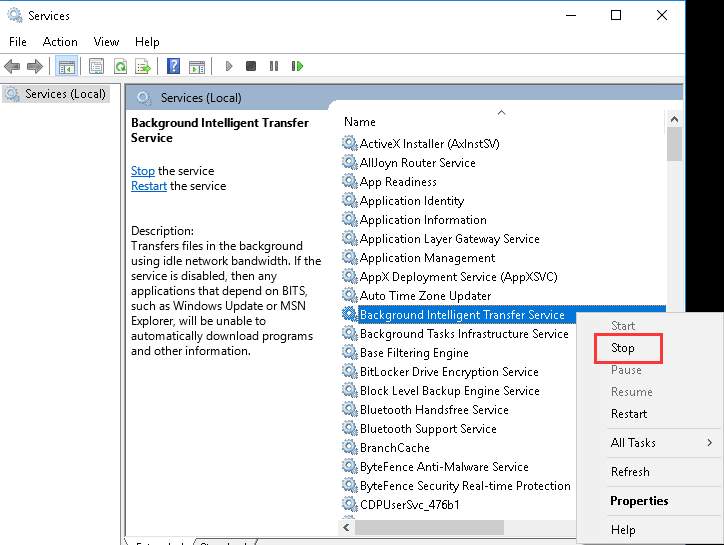
background intelligent service
  • Select Stop from the menu
  • Next, select Windows update service and right-click on it
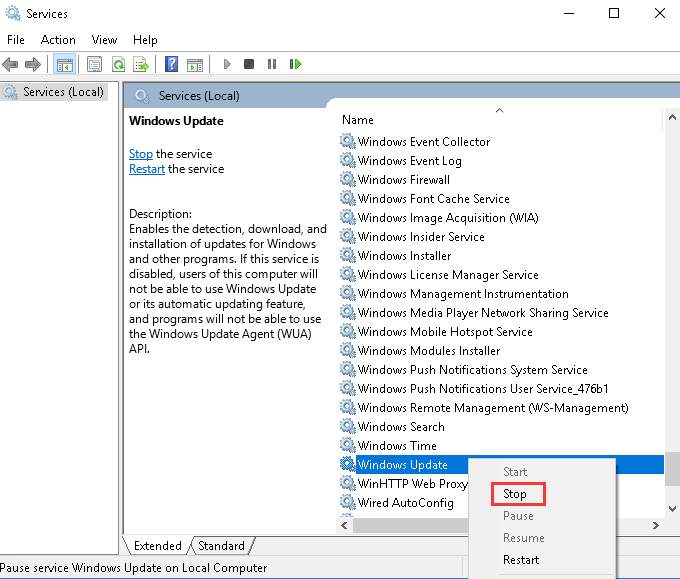
windows update stop
  • Select Stop from the menu
  • Open Windows Explorer and navigate to “C:\Windows\SoftwareDistribution”
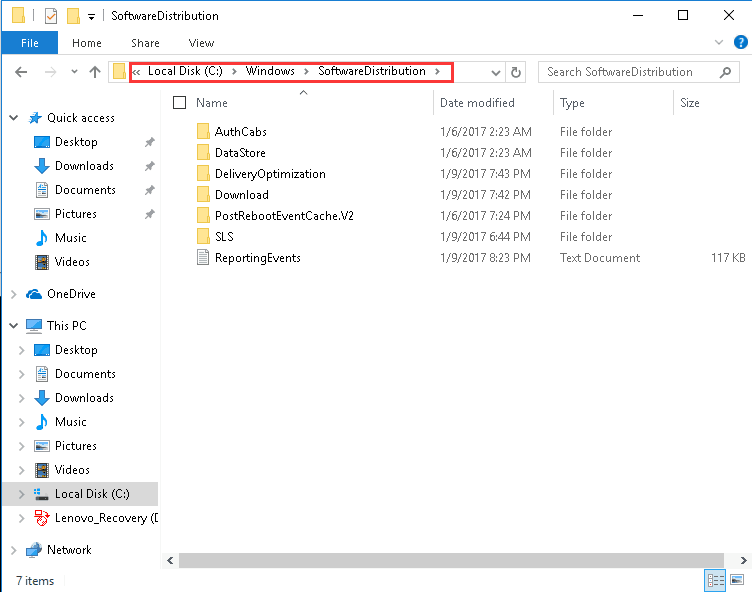
software distribution folder
  • Press Ctrl + A on the keyboard to select all contents in the folder and press Delete on the keyboard
  • If all content is not deleted, make sure the folders  DeliveryOptimization and Downloads are deleted
  • Restart your computer and see if the issue is resolved

Solution Six – Upgrade to Windows Build 1607

If you have installed Windows Build 1511, you need to upgrade windows to build 1607. Here are the steps to check Windows Version and OS build.

  • In the Cortana search box, type Run
  • Select run from the list of results to invoke Run command app
  • Type winver in the box
  • You will get a Windows pop-up that mentions Windows version and OS build
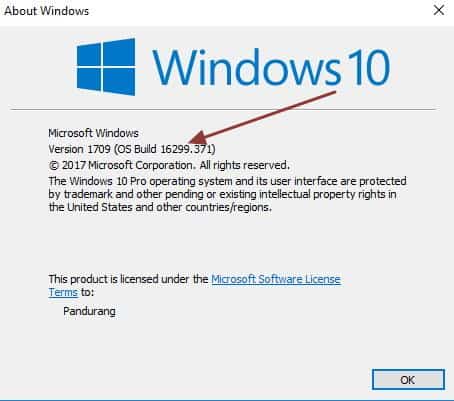
windows build number

Once you have upgraded to OS build 1607 or higher, try installing the windows updates and the error should resolve.

Solution Seven – Update Drivers

If you look at the various problems related to Windows 10, many of them are caused due to incompatible or corrupt drivers. That’s why it is necessary to keep your device drives up-to-date all the time.

Though updating drivers manually is one of the options available, we do not recommend it. This is because it requires sufficient computer knowledge and is time-consuming at the very least. Worse, it is possible to download wrong drivers by mistake and turn a bad situation into something far worse.

Updating Drivers Automatically

Automatic driver update tools offer many benefits, the most important ones being:

  • You can update device drivers automatically
  • The software scans and updates all outdated or missing drivers at one go
  • The tool picks the right drivers for your device and operating system, so you won’t have to worry about installing an incorrect driver by mistake
  • Automatic driver updates are 100% safe

Driver Updater is one of the best driver update tools out there. Outbyte Driver Updater will give you access to a database of over 1 million drivers. It will regularly scan your PC, suggesting new driver versions to install. Driver Updater contains drivers for a variety of Windows devices. With just one click, you can update drivers in your system.

Step 1
Click here to Install and launch the app

Step 2
Scan all devices

Step 3
Install or update drivers automatically
 

Start Download


Filed Under: PC Fix Tips Tagged With: Windows update error

Critical Process Died error in Windows 10

By Susan C on April 16, 2018

Critical Process Died error in Windows 10

Many Windows users ask: How can we solve critical process died error in Windows 10?

This is a relatively common error. Thankfully, it is not difficult to solve.

Information about Critical Process Died error

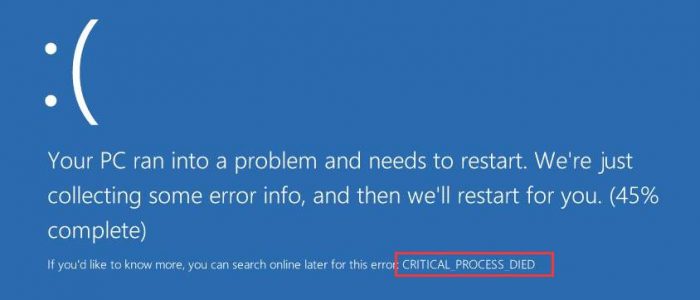
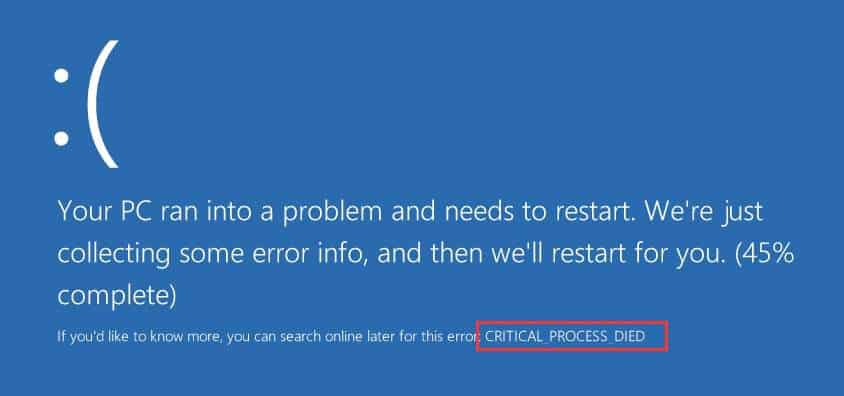
critical process died error

When a critical system process fails to run, the Windows system generates a Blue Screen of Death error with the critical process died message.  The error occurs because the process needed to run Windows 10/8/7 ended abruptly due to some reasons.

If you have got this error for the first time, Windows will reboot. If you are getting this BSOD error repeatedly, you need to find the solution to this problem.

We have provided you with 4 solutions to fix the issue. You can start with Solution One and move on to other solutions in the order they appear, until the issue is fixed.

Solution One- Run Anti-virus scan

The critical process died error could be a result of malware or virus infection. To rule out this cause, you need to run an anti-virus scan on your computer to check for any malware or virus infection.

You can use any trusted anti-virus software for this purpose. If the anti-virus detects any malware programs and files, remove them completely from your computer and see if the issue is resolved.

Solution Two – Update Drivers

Corrupt or incompatible drivers could be the cause of the critical process died error. Updating drivers is the easiest solution available in such cases. The easiest way to update your drivers is by using a reliable driver update software tool.

Automatic driver update tools offer many benefits, the most important ones being:

  • You can update device drivers automatically
  • The software scans and updates all outdated or missing drivers at one go
  • The tool picks the right drivers for your device and operating system, so you won’t have to worry about installing an incorrect driver by mistake
  • Automatic driver updates are 100% safe

Driver Updater is one of the best driver update tools out there. Outbyte Driver Updater will give you access to a database of over 1 million drivers. It will regularly scan your PC, suggesting new driver versions to install. Driver Updater contains drivers for a variety of Windows devices. With just one click, you can update drivers in your system.

Step 1
Click here to Install and launch the app

Step 2
Scan all devices

Step 3
Install or update drivers automatically
 

Start Download


Solution Three – Undo Recent Changes

One of the reasons behind critical process died error is buggy or incompatible programs. If you have installed some programs recently, uninstall them completely and see if it helps resolve the issue.

If you have upgraded to Windows 10, try updating the programs and remove the ones which do not have latest versions or are not compatible with Windows 10. After you have uninstalled unstable programs, see whether the critical process died error is resolved.

Solution Four-Run System File Checker and DISM

If the RAM is corrupt or hard drive has bad sectors, the Windows system may face problems running windows processes that lead to the generation of the critical process died error.

The Windows system has two inbuilt utilities – System File Checker (SFC) and Deployment Image Servicing and Management (DISM). The System File Checker is used in conjunction with SCANNOW to automatically detect and automatically fix missing and corrupt Windows system files.

The DISM is a command-line tool that is used to mount and service Windows before deployment. If the SFC is not able to fix any issue then you need to use DISM to enable the SFC to fix the issue. Here are the steps to use SFC and DISM to fix the critical process died error.

Steps to run System File Checker

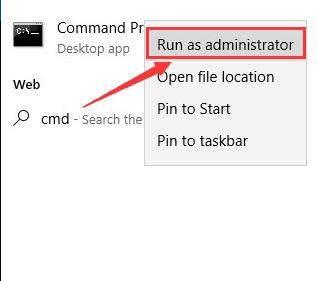
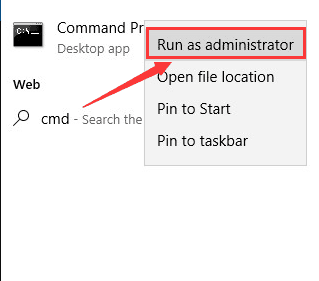
  • Press Windows key on the keyboard and type cmd in the search box
  • Right-click command prompt from search results and select Run as administrator
cmd run admin
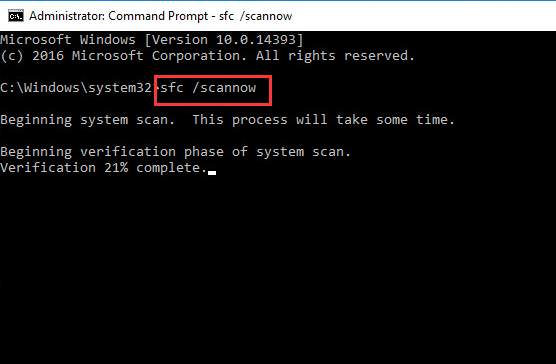
  • In the command prompt window, type sfc /scannowand press Enter.
sfc scan now
  • Wait for the process to finish
  • Restart your computer.

You need to check if the critical process error dies error is generated. If yes, you need to use the DISM command-line tool to fix the issue.

Steps to run DISM

  • Press Windows key on the keyboard and type cmd in the search box
  • Right-click command prompt from search results and select Run as administrator
cmd run admin
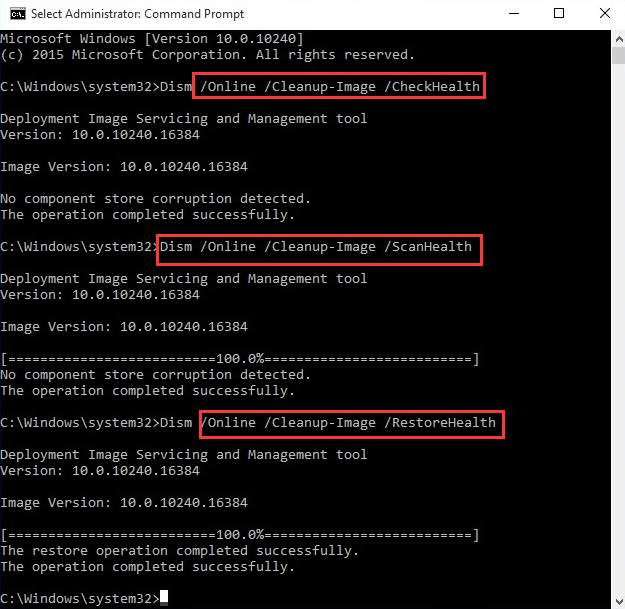
  • In the command prompt window, type the following commands and press Enter after typing each command.
DISM
  • Dism /Online /Cleanup-Image /CheckHealth
  • Dism /Online /Cleanup-Image /ScanHealth
  • Dism /Online /Cleanup-Image /RestoreHealth
  • Restart your computer and see if the error is fixed

Last Resort- Reset Windows

If the error is not fixed by any solutions given above, the last solution is reset Windows.

Filed Under: PC Fix Tips Tagged With: critical process died

Keyboard not working issue

By Susan C on April 16, 2018

Keyboard not working issue

Has your keyboard stopped working after upgrading to Windows 10 or after installing any Windows 10 update?

This is a common issue. Many Windows 10 users have complained about keyboard not working after installing the KB4074588 update that was released around February 12, 2018.

In this post, we will be looking at 4 simple solutions that may fix the keyboard not working issue.

It would be hard to guess which one will work for you. Hence, we suggest you start with Solution One and work your way down until your keyboard issue is fixed.

Solution One- Check the USB port is working

One of the common problems after Windows upgrade is the USB ports or some hardware stops functioning.

Such things might happen due to driver problems. You need to first ensure the USB port is working.

Here are the steps to follow.

Unplug your USB keyboard from its port and plug in another USB device in the port. Does the new USB device is being detected and working normally?

If yes, the problem is with USB keyboard and you need to follow the steps given in Solution Four.

If the newly connected USB device does not get detected, the problem is with the USB port and you need to follow the steps given in Solution Two.

Solution Two- Change some keyboard settings

There is something about filter keys settings in Windows that causes some keyboard problems.

Filter keys is a Windows settings that allows you to manage how your system deals with repeated keystrokes.

If the Filter keys setting is turned on, it might lead to keyboard not working issue. The first thing you need to do is check whether the Filter keys settings is on. If Yes, switch off the Filter keys.

Here are the steps to follow.

  • Go to Desktop
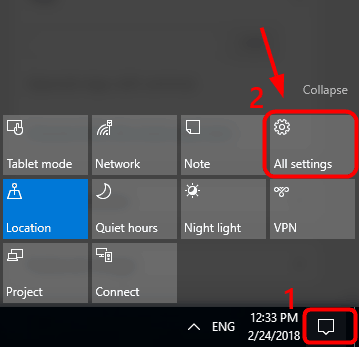
  • Click the Action Center icon that appears at the bottom-right corner of the screen
  • Click All Settings
all settings
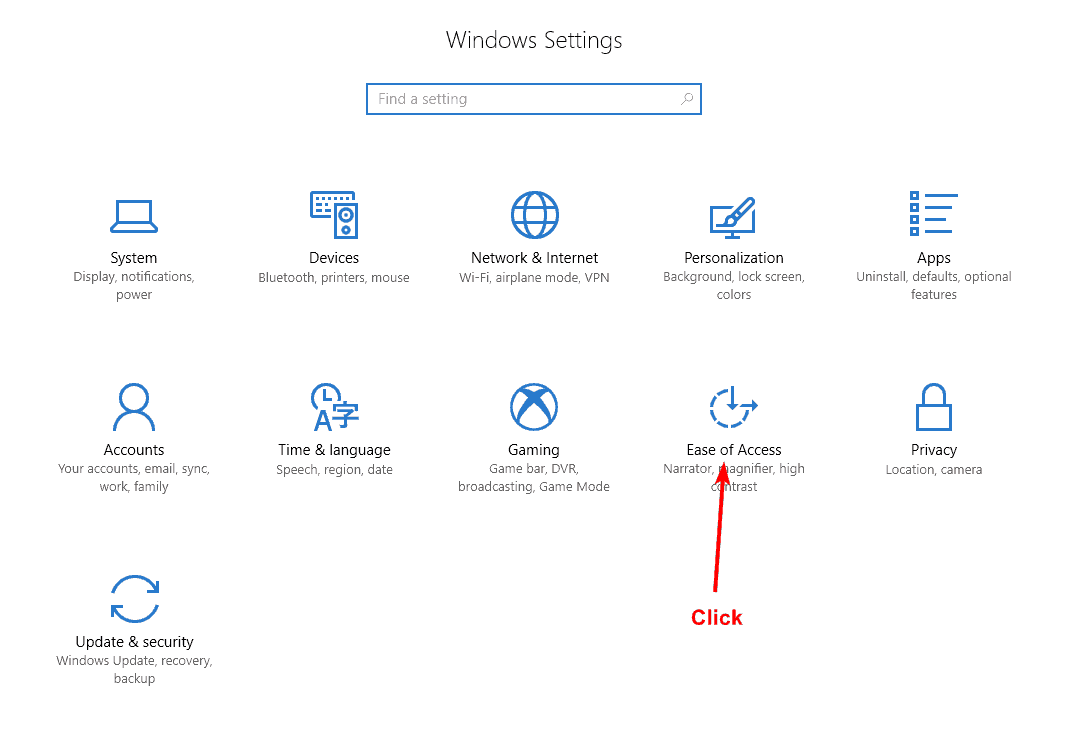
  • In Windows Settings window, click Ease of Access
ease-of-access
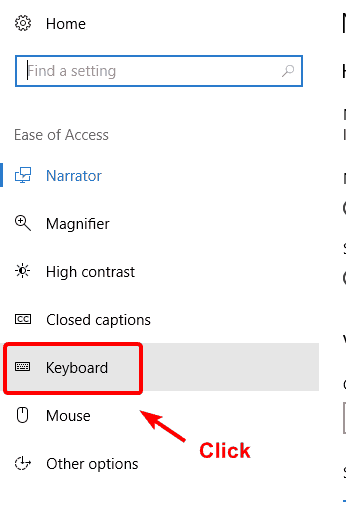
  • In the Settings window, click Keyboard option in the left pane
keyboard
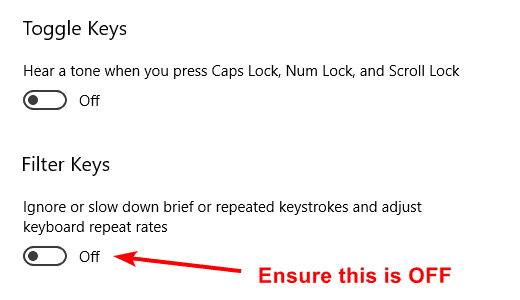
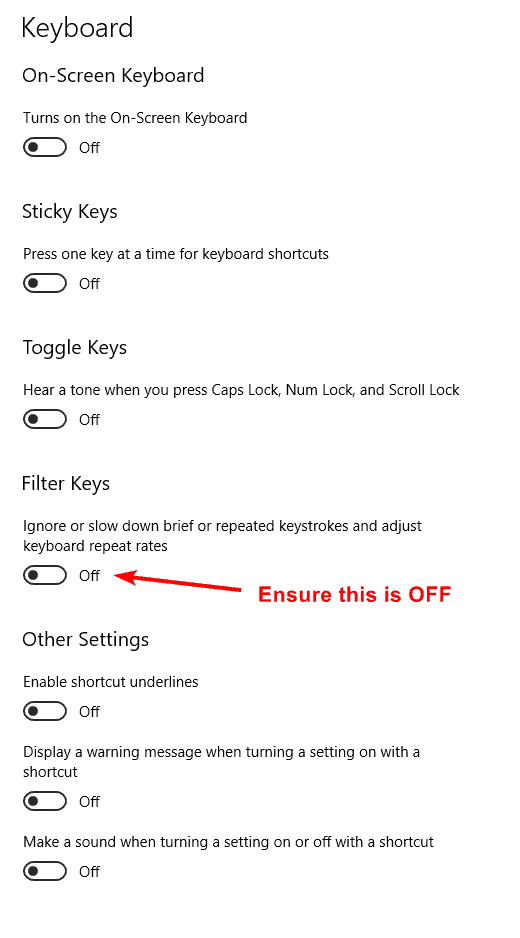
  • Ensure the Filter Keys are Off
filter keys off
  • Close all windows

Solution Three – Reinstall keyboard drivers

If the keyboard driver has become damaged or corrupted during upgrade or update, reinstalling the keyboard driver might fix the issue.

Here are the steps to follow

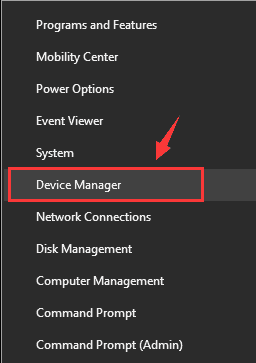
  • Right-click Start button and select Device Manager from the list
device-manager
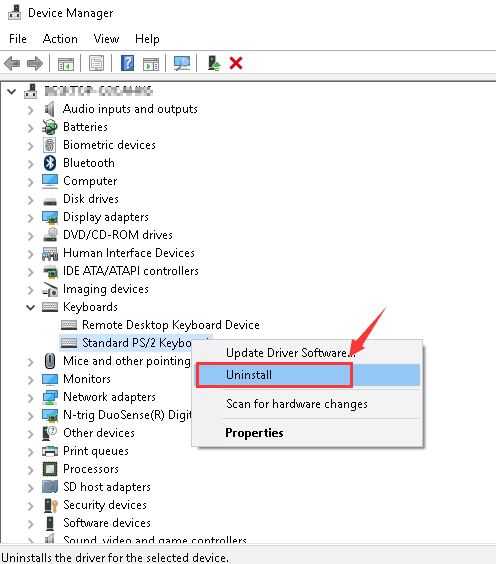
  • In the Device Manager window, click Keyboards to expand the category
  • Right-click Standard PS/2 Keyboard and select Uninstall from the menu
keyboard uninstall
  • When the system prompts you for confirmation, click OK
  • After the keyboard is uninstalled, reboot your Windows system

When the system reboots, Windows system will detect keyboard and install new drivers. See if the keyboard is working.

Solution Four – Update USB and keyboard driver (recommended)

One of the common reasons behind keyboard not working is the outdated or corrupt driver. There are two ways to update drivers for USB and keyboard – manual update or automatic update.

Updating Drivers Automatically

Automatic driver update tools offer many benefits, the most important ones being:

  • You can update device drivers automatically
  • The software scans and updates all outdated or missing drivers at one go
  • The tool picks the right drivers for your device and operating system, so you won’t have to worry about installing an incorrect driver by mistake
  • Automatic driver updates are 100% safe

Driver Updater is one of the best driver update tools out there. Outbyte Driver Updater will give you access to a database of over 1 million drivers. It will regularly scan your PC, suggesting new driver versions to install. Driver Updater contains drivers for a variety of Windows devices. With just one click, you can update drivers in your system.

Step 1
Click here to Install and launch the app

Step 2
Scan all devices

Step 3
Install or update drivers automatically
 

Start Download


The driver software will update the USB and keyboard driver and other drivers instantly. Yes, it’s that easy!

Filed Under: PC Fix Tips Tagged With: keyboard not working

  • « Previous Page
  • 1
  • …
  • 178
  • 179
  • 180
  • 181
  • 182
  • …
  • 189
  • Next Page »


  • Recent Posts
  • Popular Posts
        

Read More Posts


Read More Posts

Drivers.com Sites

  • Software Drivers
  • Drivers Ed

About Us

  • Advertise
  • About Drivers
  • Drivers Support
  • Drivers.com Privacy Policy
  • Disclaimer
  • Software Drivers
  • Mac Fixes and Tips
  • PC Fix Tips
  • Security/ Backup
  • Tablets & Smartphones
  • Tech News

© Copyright 2026 PDE Publications Ltd. End User License Agreement (EULA)