Drivers.com

follow us:

facebook twitter
  • Home
  • Download Drivers
  • Drivers Help
  • PC/Mac Resources
  • Software Drivers
  • Mac Fixes and Tips
  • PC Fix Tips
  • Security/ Backup
  • Tablets & Smartphones
  • Tech News
  • Software Drivers
  • Mac Fixes and Tips
  • PC Fix Tips
  • Security/ Backup
  • Tablets & Smartphones
  • Tech News

Teredo Tunneling Pseudo Interface Code 10 error

By Susan C on April 25, 2018

Teredo Tunneling Pseudo Interface Code 10 error

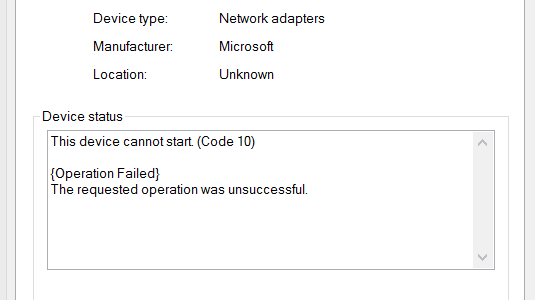
Do you see a yellow exclamation mark in Device Manager next to the device Teredo Tunneling Pseudo-Interface?

Does the status of Teredo Tunneling Pseudo-Interface say “The device cannot start (Code 10)?
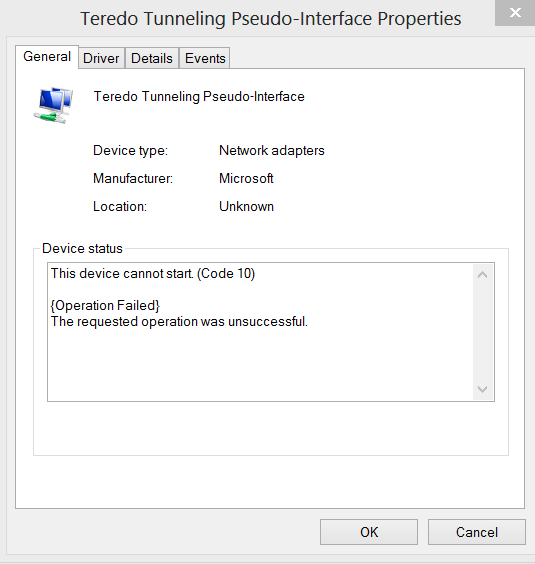
teredo error

We have provided you with quick solutions that will resolve the issue with Teredo Tunneling Pseudo-Interface.

What is Teredo Tunneling Pseudo-Interface and why it is important?

Teredo is a transition technology that enables IPv6 connectivity with hosts that are on the IPv4 Internet but are IPv6 capable.

This tunneling technology allows the IPv4 hosts to enjoy IPv6 connectivity even when they do not have a direct connection with IPv6 network.

A host on IPv4 network uses Teredo Tunneling protocol to access the IPv6 Internet. The Teredo Tunneling Pseudo-interface needs to work properly to ensure your PC is able to access all sites on IPv6 and IPv4 network.

How to fix the Teredo Tunneling Pseudo-Interface issue?

We have listed four solutions to fix the issue. You need not try all of them. We suggest you start with Solution one and work your way downwards trying other solutions until the Teredo Tunneling Pseudo-Interface issue is fixed.

Solution One – Remove all Teredo Tunneling Adapters & Interfaces

  • Press Windows key and R on the keyboard simultaneously to bring up the Run command
  • In the Run command box, type devmgmt.msc and press Enter on the keyboard
  • In the Device Manager window, go to Network adapters and expand the category
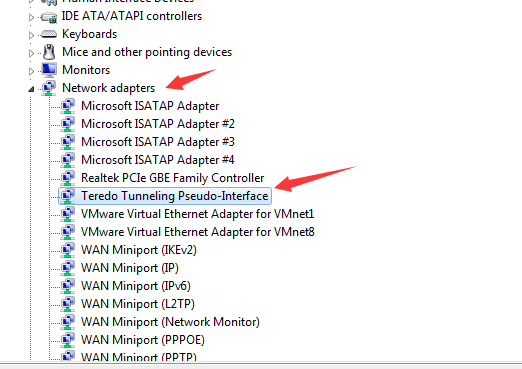
device manager network adapter
  • Locate Teredo Tunneling Pseudo-Interface in the list of network adapters
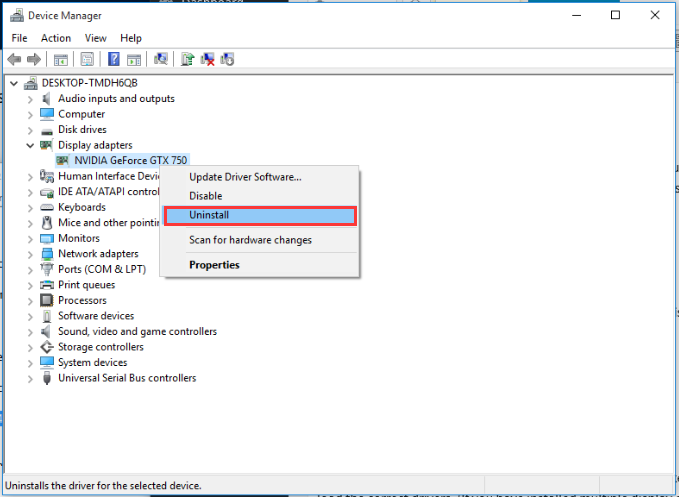
  • Right-click Teredo Tunneling Pseudo-Interface and select Uninstall
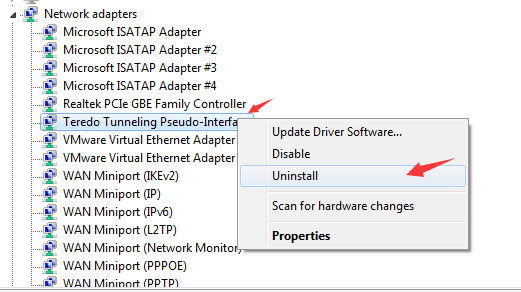
teredo uninstall

Note: some users might see additional Teredo Tunneling Pseudo-Interface entries like Microsoft Teredo Tunneling Adapter no. 2, no. 3, no. 4 and so on. You need to uninstall all of them

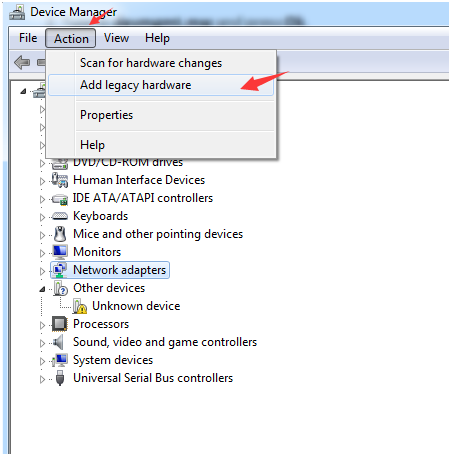
  • Click Action at the top of Device Manager Window
  • Click Add Legacy Hardware
add legacy hardware
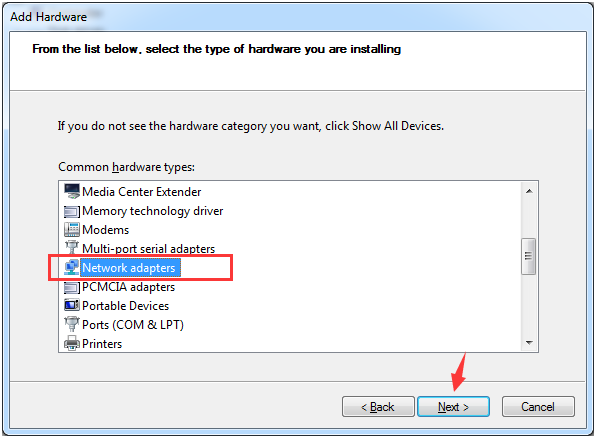
  • Click Next in all windows until you see the panel will following options
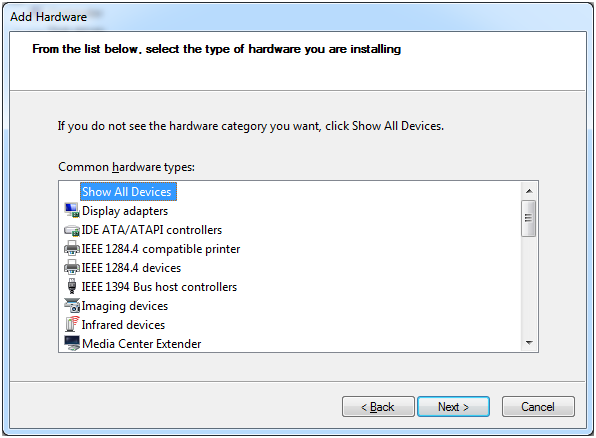
all devices panel
  • Click Network Adapter and click next
add network adapters
  • In the left panel, click Microsoft and in the right panel, click Microsoft Teredo Tunneling Adapter and then click Next
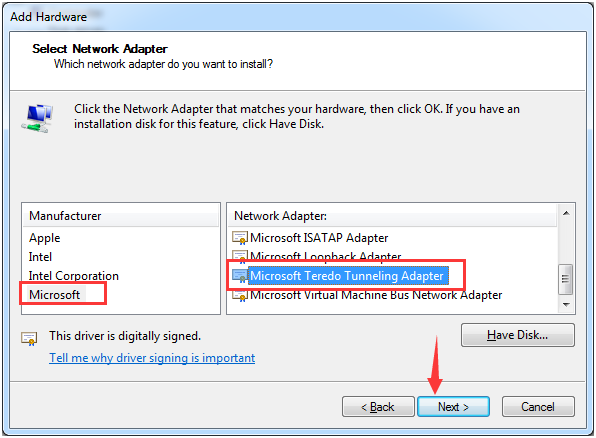
microsoft teredo adapter

Solution Two- Update Drivers

You can fix this issue in Windows by updating drivers. You have two options when it comes to updating drivers for Windows 10: manual update and automatic update.

The method of updating driver manually is time-consuming as you need to visit device manufacturer’s website and sometimes also hardware manufacturer website to download latest drivers.

Before you go these websites to download driver updates, you need to find the version of Windows running on your computer and also information about Windows architecture (64-bit or 32-bit). Thus, you can see updating drivers manually needs some technical expertise otherwise you are more likely to download wrong drivers which can cripple your system.

Updating Drivers Automatically

Automatic driver update tools offer many benefits, the most important ones being:

  • You can update device drivers automatically
  • The software scans and updates all outdated or missing drivers at one go
  • The tool picks the right drivers for your device and operating system, so you won’t have to worry about installing an incorrect driver by mistake
  • Automatic driver updates are 100% safe

Driver Updater is one of the best driver update tools out there. Outbyte Driver Updater will give you access to a database of over 1 million drivers. It will regularly scan your PC, suggesting new driver versions to install. Driver Updater contains drivers for a variety of Windows devices. With just one click, you can update drivers in your system.

Step 1
Click here to Install and launch the app

Step 2
Scan all devices

Step 3
Install or update drivers automatically


Start Download


Solution Three – Use Command Prompt

  • Go to Cortana search box and type cmd
  • Right-click on Command prompt in the list of results and select Run as administrator
  • Type the following commands in command prompt window and hit Enter after each command
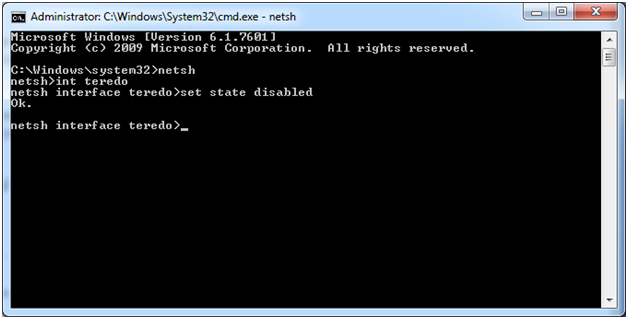
netsh command
  • netsh
  • int teredo
  • set state disabled
  • Press Windows key and R simultaneously on the keyboard to bring up the Run command
  • In the Run command box, type devmgmt.msc and press Enter on the keyboard
  • When the Device Manager opens, go to Network adapters and expand the category
  • Look for Teredo Tunneling Pseudo-Interface in the list of network adapters
  • Right-click Teredo Tunneling Pseudo-Interface and select Uninstall
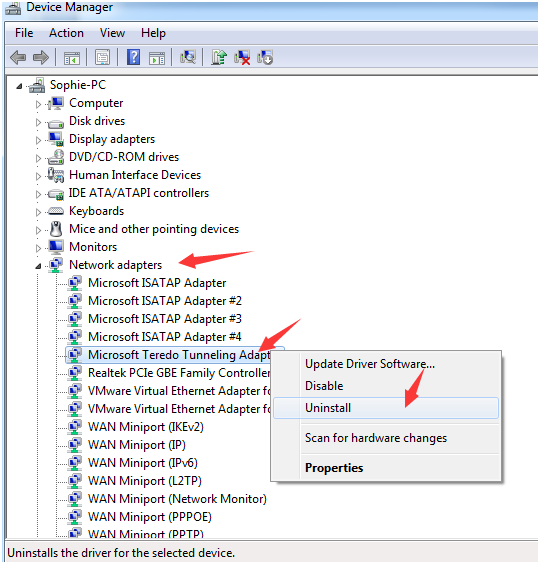
microsoft teredo uninstall
  • Now go back to the command prompt windows again
  • Type the following commands in command prompt window and press Enter on the keyboard after each command
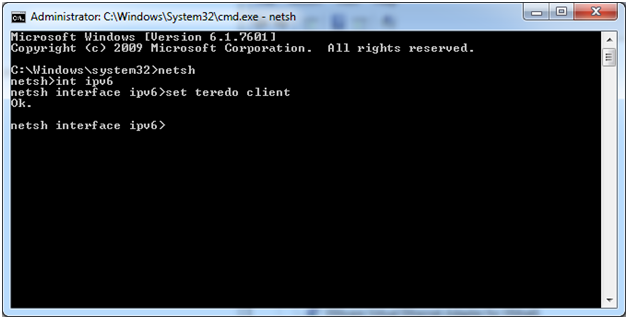
netsh set teredo
  • netsh
  • int ipv6
  • set teredo client
  • Go back to the Device Manager window again and click on Scan for hardware changes option at the top
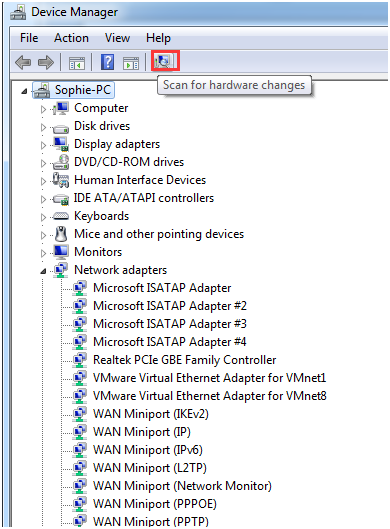
scan for hardware changes
  • From the view menu, select Show Hidden Devices
  • You should see the Teredo Tunneling Pseudo-Interface is now present with no errors.

Solution Four – From the Registry

  • Go to the search bar in the Start menu and type regedit to open the Registry editor
  • When the registry editor window opens navigate to
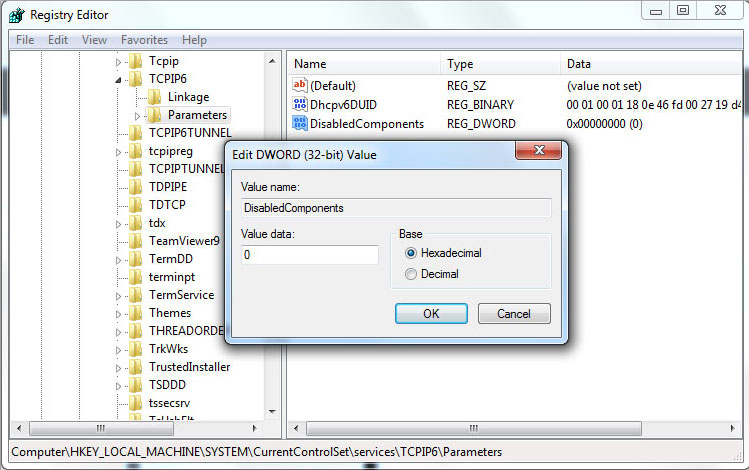
regedit-ipv6-2

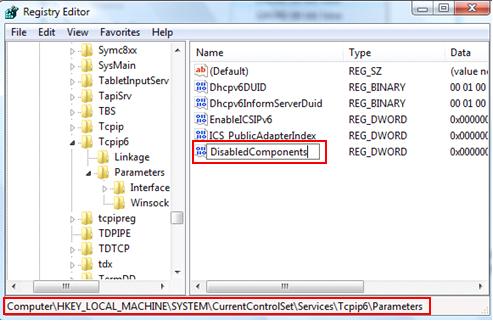
HKEY_LOCAL_MACHINE\SYSTEM\CURRENTCONTROLSET\SERVICES\TCPIP6\PARAMETERS

  • In the right-hand pane, select Parameters and you will see an option of DisabledComponents
  • Right-click on DisabledComponents
disabledcomponents-ipv6
  • Set the DWORD value to 0(zero)
  • Close the Registry editor window and reboot system
Filed Under: Software Drivers

Driver-IRQL-Not-Less-Or-Equal error

By Susan C on April 25, 2018

Driver-IRQL-Not-Less-Or-Equal error

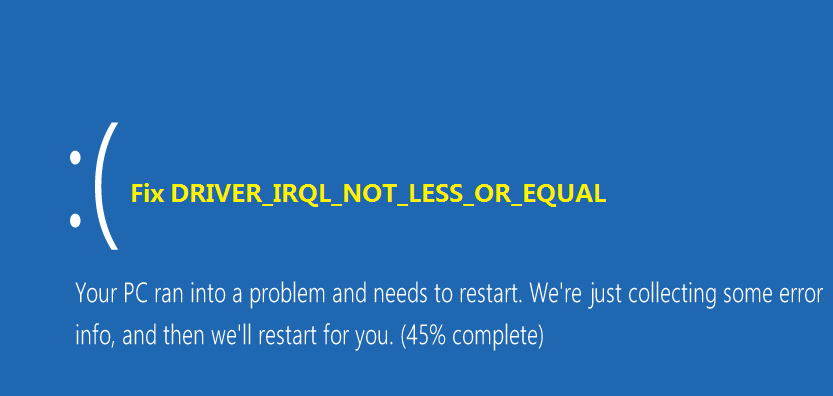
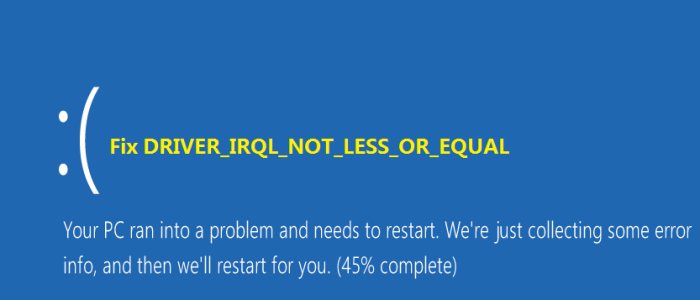
The Driver_IRQL_Not_Less_Or_Equal is a Blue Screen of Death error that shows up during startup or after a successful login. You may get this error several times when using your Windows system that leads to frequent reboots. This, as you can guess, can be quite annoying.

Driver_IRQL error

Many times the error will also show the name of a particular file. Many Windows 7 and 10 users have reported receiving this error at some point in time.

So this is quite a common error. Plus you don’t need to worry much if you are receiving it. This is because there are some simple solutions available that can fix the issue.

In this post, we will take a look at two simple DIY solutions to this issue.

Why your system throws up Driver_IRQL_Not_Less_Or_Equal error?

There can be many reasons behind this error. One of them is your network driver uses an incorrect memory address.

You can confirm this by the name of the file displayed with the error. If you see ndis.sys file name on the screen, you can draw a conclusion the network driver is the reason behind this BSOD error.

The solution to this error is to update the network driver. If the Driver_IRQL_Not_Less_Or_Equal error shows a different file name, updating network driver may not help. In that case, you should try solution 3 only.

Solution One – Uninstall Network Driver

Before you update the network driver, you need to uninstall the existing one. Here are the steps to follow.

  • Press Windows key and R simultaneously on the keyboard to bring up the Run command
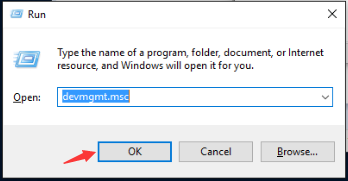
  • In the Run command box, type devmgmt.msc
run devmgmt
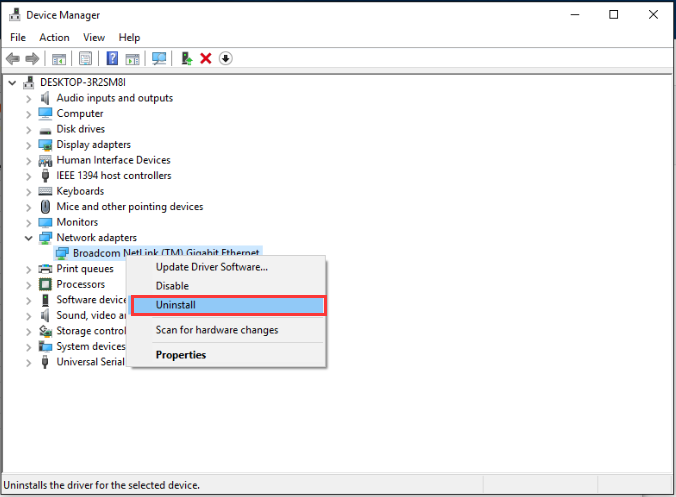
  • In the Device Manager window, go to Network Adapters and expand it
network driver uninstall
  • Right-click on Network adapter in the list and click Uninstall
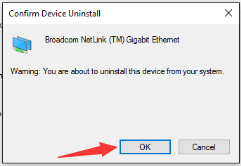
  • When the system prompts for confirmation, click Yes
confirm uninstall
  • If your system cannot boot normally, you need to boot into Safe Mode and perform the steps given below.
  • On the keyboard, press Windows key and R simultaneously to invoke Run command
  • In the Run command box, type msc
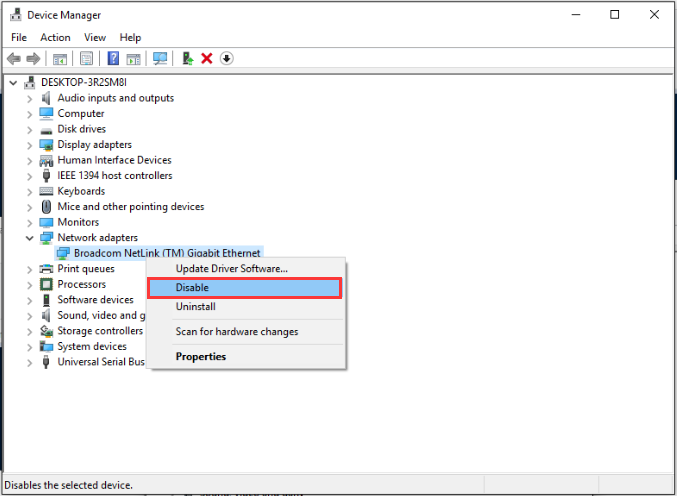
  • In the Device Manager window, go to Network Adapters and expand it
network driver disable
  • Right-click on Network adapter in the list and click Disable
  • If you see any wireless network adapters in the list, uninstall them by performing the steps given above.
  • Close all windows and reboot.

In most cases, you should see the Driver_IRQL_Not_Less_Or_Equal error is gone.

Now, you can go ahead and install latest network driver by performing the steps given in Solution Two.

Solution Two- Update Network Drivers

Automatic driver update tools offer many benefits, the most important ones being:

  • You can update device drivers automatically
  • The software scans and updates all outdated or missing drivers at one go
  • The tool picks the right drivers for your device and operating system, so you won’t have to worry about installing an incorrect driver by mistake
  • Automatic driver updates are 100% safe

Driver Updater is one of the best driver update tools out there. Outbyte Driver Updater will give you access to a database of over 1 million drivers. It will regularly scan your PC, suggesting new driver versions to install. Driver Updater contains drivers for a variety of Windows devices. With just one click, you can update drivers in your system.

Step 1
Click here to Install and launch the app

Step 2
Scan all devices

Step 3
Install or update drivers automatically


Start Download


Solution Three – Update Problematic Drivers

If the error code does not show a problem with Network driver, you need to update the driver mentioned in the error message. Some of the commonly corrupted drivers that cause the system to throw up the Driver_IRQL_Not_Less_Or_Equal  error message are

  • rtwlane.sys – Realtek PCIE Wireless LAN PCI-E NIC driver
  • sys – Atheros Wireless LAN Driver
  • sys – Intel Storage drivers
  • sys – Network I/O Subsystem
  • usbuhci.sys – UHCI USB Miniport Driver
  • sys – Intel Graphics driver
Network Adapter Drivers Updates

Filed Under: PC Fix Tips Tagged With: Driver IRQL Error

NVIDIA Control Panel missing

By Susan C on April 23, 2018

NVIDIA Control Panel missing

Are you unable to find NVIDIA control panel on your computer?

If yes, this post is just for you. In this post, we have provided simple DIY solutions to get back the NVIDIA control panel.

What is NVIDIA Control Panel?

NVIDIA Control Panel is next generation hardware control software that unlocks the advanced features of NVIDIA drivers. The application gets installed when you install NVIDIA driver.

It is a dedicated user interface that allows you to change the configuration of the NVIDIA hardware in your system and adjust driver settings for better graphical performance.

Why “NVIDIA Control Panel is missing” error occurs and how to resolve it?

Many Windows users have reported that they aren’t able to find the NVIDIA control panel that was earlier there. They cannot access NVIDIA control panel, even through the Desktop context menu and even when they have not made any changes to the NVIDIA software.

This error generally happens when you upgrade Windows. Naturally, such an error is quite annoying.

Without NVIDIA control panel, you cannot make changes to the graphics configuration which is why it is important to get it back.

Here are some solutions that will get back the NVIDIA control panel.

Solution One- Unhide NVIDIA Control Panel

The Windows operating system goes through a lot of changes when you upgrade and the NVIDIA control panel is hidden in the Windows Control Panel.

To access NVIDIA control panel through Desktop context menu, you need to first access it through Windows control panel and then make some changes in the settings to unhide it.

Here are the steps to follow.

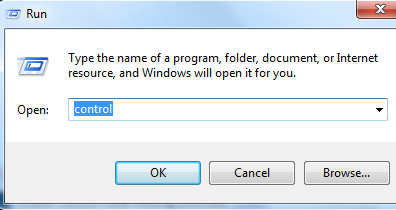
  • Press Windows key and R on the keyboard simultaneously to invoke Run command
  • Type control in Run command box
run control panel
  • Click OK
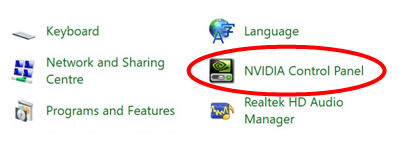
  • In the Windows, Control Panel window set the view by large icons
  • Click NVIDIA Control Panel
NVIDIA control panel
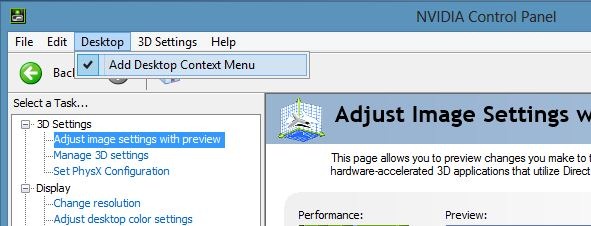
  • In NVIDIA Control Panel window, click Desktop option at the top
  • Click Add Desktop context menu
add desktop context menu
  • Close the NVIDIA control panel window
  • You should now see the NVIDIA control panel in the Desktop Context menu that resolves the NVIDIA control panel missing issue.

Solution Two – Update graphic drivers

NVIDIA Control Panel is missing error can occur because of corrupt or outdated or missing graphic drivers. Just download a reliable driver update tool and use it to update your device drives. Of course, you can manually update drivers too, but the process is not free of hassles—and that’s not even the worst part. It is very much possible that even after putting a lot of effort and time, you might fail to locate the right drivers manually.

Updating Drivers Automatically

Automatic driver update tools offer many benefits, the most important ones being:

  • You can update device drivers automatically
  • The software scans and updates all outdated or missing drivers at one go
  • The tool picks the right drivers for your device and operating system, so you won’t have to worry about installing an incorrect driver by mistake
  • Automatic driver updates are 100% safe

Driver Updater is one of the best driver update tools out there. Outbyte Driver Updater will give you access to a database of over 1 million drivers. It will regularly scan your PC, suggesting new driver versions to install. Driver Updater contains drivers for a variety of Windows devices. With just one click, you can update drivers in your system.

Step 1
Click here to Install and launch the app

Step 2
Scan all devices

Step 3
Install or update drivers automatically


Start Download


Solution Three- Reinstall graphics drivers

If updating graphics drivers has not resolved the issue, you need to uninstall NVIDIA graphic drivers completely and then reinstall latest NVIDIA graphics drivers. Here are the steps to follow

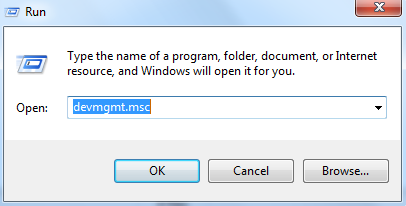
  • Press Windows key and R simultaneously on your keyboard to bring up the Run command
  • Type devmgmt.msc in the Run command box
run devmgmt
  • Click OK
  • In the Device Manager window, go to Display Adapters and expand it
  • Right-click on the NVIDIA entry in the list and click Uninstall
uninstall NVIDIA graphics
  • After you have uninstalled NVIDIA drivers from Device Manager, go to C:\Program Files (x86) and C:\Program Files
  • Delete all NVIDIA files from these folders
  • Reinstall NVIDIA graphics drivers using Driver Update software

Filed Under: PC Fix Tips Tagged With: Nvidia error

  • « Previous Page
  • 1
  • …
  • 176
  • 177
  • 178
  • 179
  • 180
  • …
  • 189
  • Next Page »


  • Recent Posts
  • Popular Posts
        

Read More Posts


Read More Posts

Drivers.com Sites

  • Software Drivers
  • Drivers Ed

About Us

  • Advertise
  • About Drivers
  • Drivers Support
  • Drivers.com Privacy Policy
  • Disclaimer
  • Software Drivers
  • Mac Fixes and Tips
  • PC Fix Tips
  • Security/ Backup
  • Tablets & Smartphones
  • Tech News

© Copyright 2026 PDE Publications Ltd. End User License Agreement (EULA)