Drivers.com

follow us:

facebook twitter
  • Home
  • Download Drivers
  • Drivers Help
  • PC/Mac Resources
  • Software Drivers
  • Mac Fixes and Tips
  • PC Fix Tips
  • Security/ Backup
  • Tablets & Smartphones
  • Tech News
  • Software Drivers
  • Mac Fixes and Tips
  • PC Fix Tips
  • Security/ Backup
  • Tablets & Smartphones
  • Tech News

err-connection-timed-out

By Susan C on April 30, 2018

err-connection-timed-out

When you try to open a website in Google chrome and the server takes considerably more time to reply to your request, you might get err_connection_timed_out error.

And you will get the following error message on your screen.
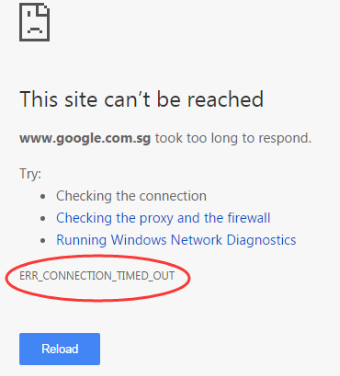
err_connection_timed_out error msg

Thankfully, you can resolve this error on your own, and that too, fairly quickly. In this post, we have listed 6 ways to fix err_connection_timed_out error.

These are as follows:

  • Remove your browsing data
  • Check Windows hosts file
  • Adjust the LAN settings
  • Flush/Renew DNS & IPS
  • Deselect Proxy Option
  • Update Network Adapter drivers

You obviously don’t need to try out each one of these. Simply start with the first solution, and if the issue persists, move on to second one and so on, until you are able to fix the issue.

Let’s start then…

Two things to remember

First things first, before you attempt these fixes, ensure:

  • You are trying to connect to an existing server
  • There’s no problem with the network connection you are using

Solution 1 – Remove browsing data

It is possible that the browsing data that Chrome saves, like app data, cookies, and cache files, among other things, might trigger this error.

Therefore, clear your browsing data before attempting other solutions.

  • Click the hamburger menu in Chrome (the three vertical dots placed next to the URL box) and then Click Settings
Chrome - Settings
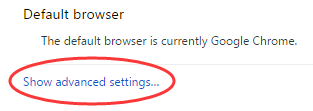
  • Scroll down and click Advanced or Show Advanced Settings
advanced settings - chrome
  • Click on Clear browsing data (it is located under Privacy)
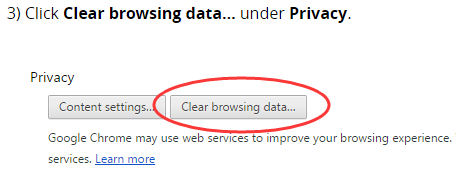
clear browsing data
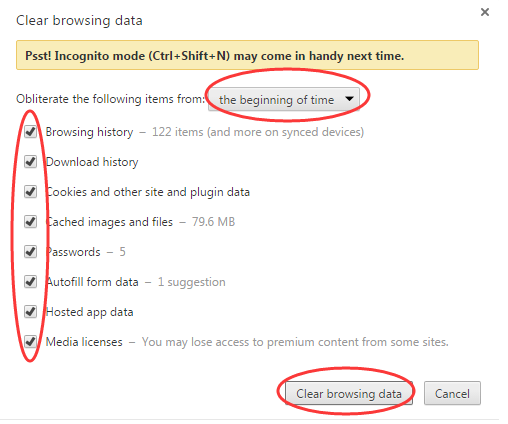
  • From the Obliterate the following items from drop-down menu, select the beginning of time
  • Ensure all the items in the list are selected.
  • Click Clear browsing data
clearing data

Solution 2 – Check the hosts file

It is possible that you might have used Windows hosts file for blocking access to certain websites. At times when you add website URLs and IP addresses in Windows hosts file in order to block certain websites, some other additional websites might also get blocked in the process.

Precisely for this reason, it is important to have a look at Windows hosts file. In case you find any URLs or IP addresses listed there, remove them. The location of hosts file is c:\windows\system32\drivers\etc.

However, it is not possible to make changes to the hosts file there. You will need to perform these steps to make changes to Windows hosts file.

  • Click Windows icon on your taskbar, right-click notepad, and select Run as administrator
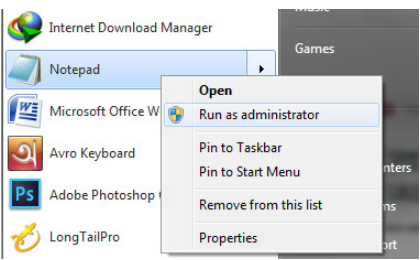
Notepad (admin)
  • In notepad, click File>Open
  • Now browse to this folder: Computer > Local Disk C: > Windows > System32 > Drivers > etc
  • Click the drop-down menu on the bottom right hand corner (just above Open and Cancel buttons) and select All Files
  • Select the hosts file in the displayed list of files and click the Open button
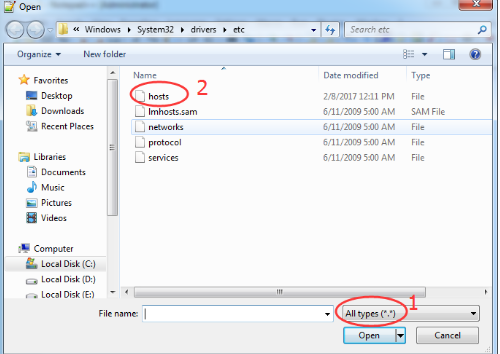
open hosts file
  • Go through the file and in case you see any IP address or website URL listed after the final # sign in the file, delete that IP address or website URL
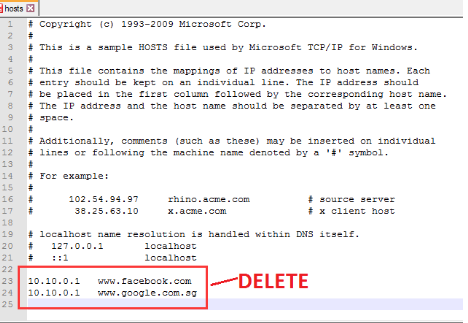
host file
  • Click the File menu and click Save

Solution 3 – Adjust your LAN settings

Perform the following steps to do this.

  • Press Windows key + R, type control panel, and hit Enter
  • Select Large Icons from the View By drop-down menu and then select Internet Options
  • Click the Connections tab in the Internet properties Window and then click LAN Settings
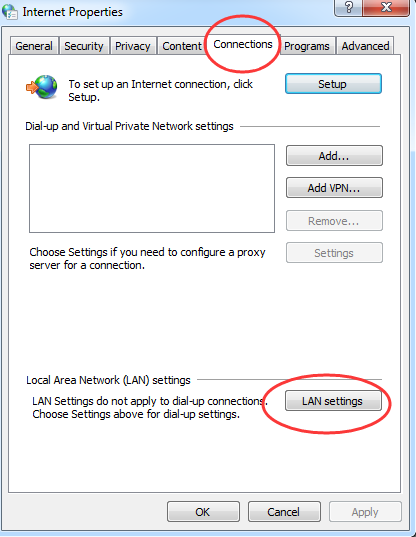
click LAN settings
  • Ensure all the check boxes in this window are unticked, and then Click on OK.
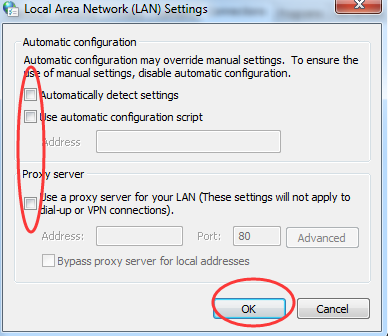
Untick LAN settings

Solution 4 – Flush/Renew DNS & IPS

To flush/renew DNS & IPS, perform the following steps:

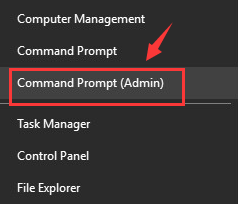
  • Press Windows key + X
  • Choose Command Prompt (Admin)
  • In the command prompt window type the following commands and press enter key on the keyboard after each command
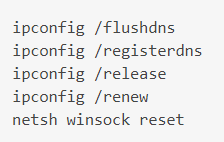
flush, renew IP
  • Reboot Windows

Solution 5 – Deselect Proxy Option

Perform the following steps.

  • Press Windows key + R
  • In the Run dialog box, type cpl and then click the OK button
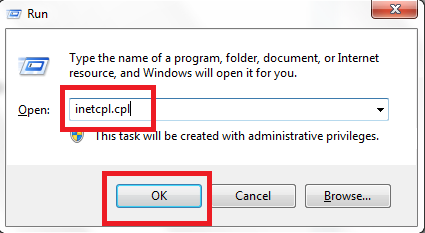
Open Internet Properties
  • In the Internet Properties dialog box, click Connections and then select LAN settings
  • Deselect the box before Use a proxy server for your LAN and ensure the box next to Automatically detect settings is selected
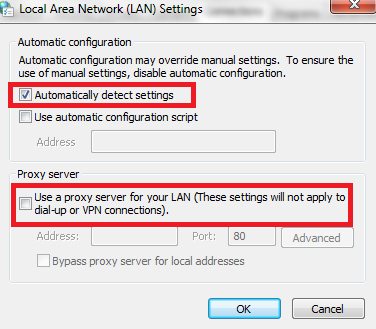
LAN settings
  • Click OK and then click Apply
  • Reboot your computer

Solution 6 – Update drivers for network adapter

err_connection_timed_out can occur when your network adapter is outdated or corrupt. In such a case, updating them might solve the issue.

Automatic driver update tools offer many benefits, the most important ones being:

  • You can update device drivers automatically
  • The software scans and updates all outdated or missing drivers at one go
  • The tool picks the right drivers for your device and operating system, so you won’t have to worry about installing an incorrect driver by mistake
  • Automatic driver updates are 100% safe

Driver Updater is one of the best driver update tools out there. Outbyte Driver Updater will give you access to a database of over 1 million drivers. It will regularly scan your PC, suggesting new driver versions to install. Driver Updater contains drivers for a variety of Windows devices. With just one click, you can update drivers in your system.

Step 1
Click here to Install and launch the app

Step 2
Scan all devices

Step 3
Install or update drivers automatically
 

Start Download


Filed Under: PC Fix Tips Tagged With: Chrome error

Service host local system high disk

By Susan C on April 28, 2018

Service host local system high disk
service host high CPU

Recently a user reached out to us and asked, “Service Host Local System is hogging my system resources—how do I resolve it?”

Many other people, too, have had this very problem at different points in time, and therefore we’ve decided to dedicate a full blog post to this windows issue.

If you are also facing this very issue, we are sure this post will prove helpful to you.

Let’s start then….

First thing first, Service Host (svchost.exe) is a genuine Windows process. It is not malware. Therefore, don’t ever think of removing it. If you remove it, your system will mightn’t work properly.

Service Host:Local System is a collection of System Processes that operates automatically in Windows. This includes, among others, Windows Auto Update. At times, you might find it hogging CPU resources or taking up huge memory space, disk space, & RAM.

Thankfully, you can resolve this issue fairly quickly and on your own. We’ve listed 4 solutions for this problem. All of them can be easily performed by an average user.

You mightn’t need to try each of these 4 solutions. Just start with the first in the list and move on to the next one and so on, until the issue is resolved. (Let us know which of these solutions worked for you by leaving a comment.)

Solution 1 – Disable Superfetch

Disabling Superfetch, which helps reduce boot time, might help. While a useful thing, it has had it shares of problems. In Windows 8, Superfetch has been known to cause disk performance problems. These same issues have been reported by many Windows 10 users also.

Here are the steps you need to perform to disable Superfetch.

  • Press Windows + X
  • Select Command Prompt (Admin)
command prompt admin
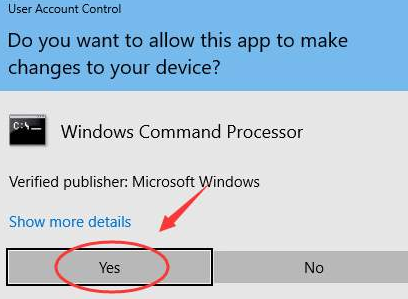
  • In the User Account Control, click Yes
UAC
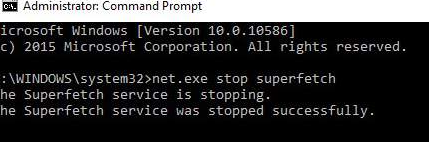
  • Type this command
stop superfetch
  • Press Enter
command prompt - stop superfetch
  • Check after a few minutes to see if things have improved.

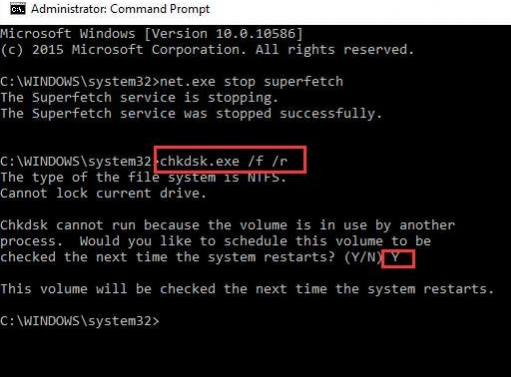
In case you wish, you can run disk check. To do so, simply type the command listed below and then press Enter.

run chkdsk

Using the keyboard, type Y. This will confirm disk check.

confirm chkdsk

Now check if the issue is solved.

Solution 2 – Run Troubleshooter to Fix Issues with Windows Update

Quite often the cause of this problem is Windows Update. Obviously, you can’t disable Windows Update because then you will not receive latest releases from Microsoft.

A much better option is to run troubleshooter to check if Windows Update is causing the Service Host Local System high disk usage issue.

Here are the steps to follow.

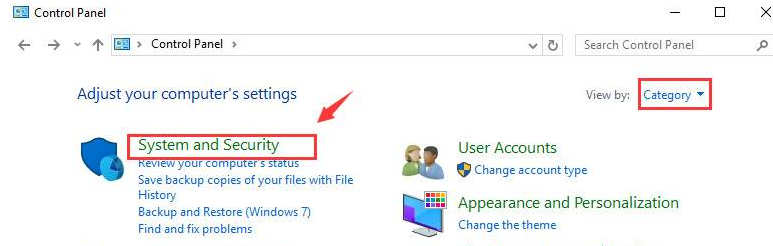
  • Open Control Panel
  • Select Category in View By drop-down menu
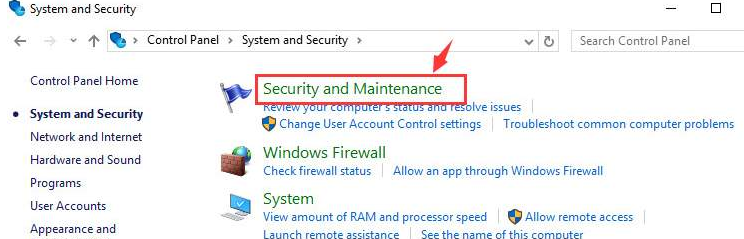
  • Select System and Security
Sys & Sec
  • Select Security and Maintenance
Security & Maintenance
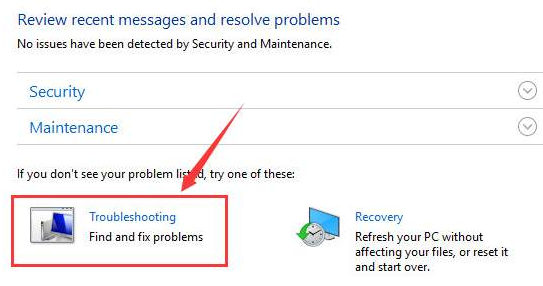
  • Select Troubleshooting
troubleshooting
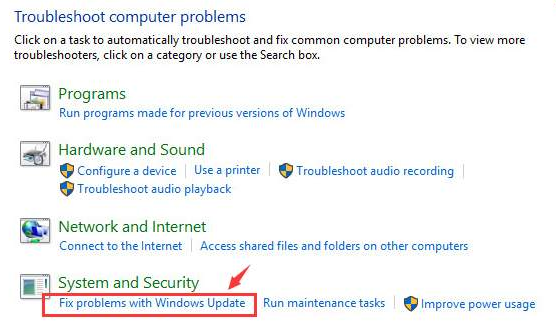
  • Select the Fix problems with Windows Update option
Fix Win Update
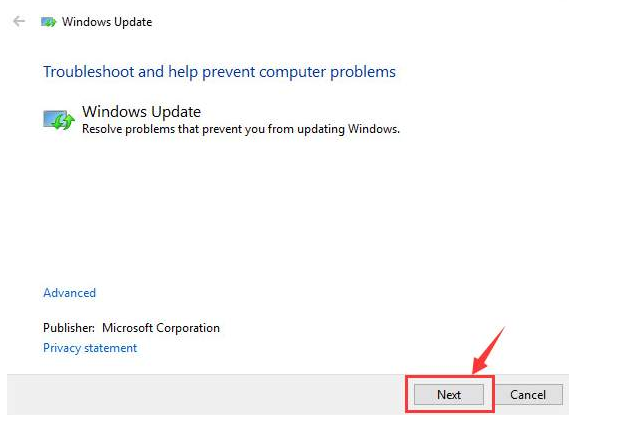
  • Select Next
Win Upd - click next
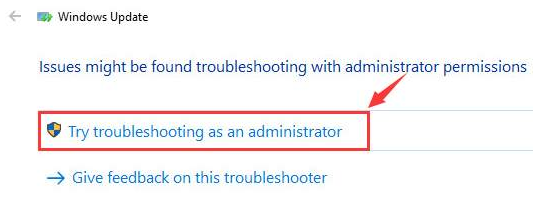
  • Select the Try troubleshooting as an administrator option
Win Updt - Troubleshoot
  • Reboot your PC and check if the issue is fixed

 Solution 3 – Update Device Drivers

Service Host Local System High Disk Usage can occur because of outdated or corrupt device drivers. Updating outdated drivers will fix the issue if error is occurring because of this. You can update all the device drivers automatically.

Automatic driver update tools offer many benefits, the most important ones being:

  • You can update device drivers automatically
  • The software scans and updates all outdated or missing drivers at one go
  • The tool picks the right drivers for your device and operating system, so you won’t have to worry about installing an incorrect driver by mistake
  • Automatic driver updates are 100% safe

Driver Updater is one of the best driver update tools out there. Outbyte Driver Updater will give you access to a database of over 1 million drivers. It will regularly scan your PC, suggesting new driver versions to install. Driver Updater contains drivers for a variety of Windows devices. With just one click, you can update drivers in your system.

Step 1
Click here to Install and launch the app

Step 2
Scan all devices

Step 3
Install or update drivers automatically
 

Start Download


Solution 4 – Disable Some Specific Services

It is possible to find the service that is using too much disk space or hogging CPU. Next, you can disable it.

  • Right-click on your taskbar and select Task Manager
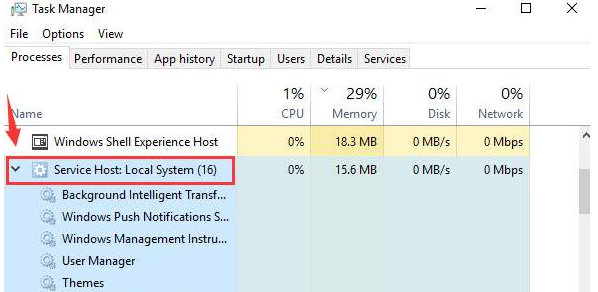
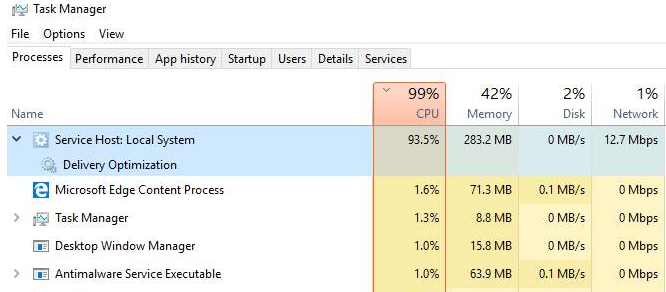
  • Expand Service Host: Local System. You’ll find many items under it.
TASK MNGR - Service Host
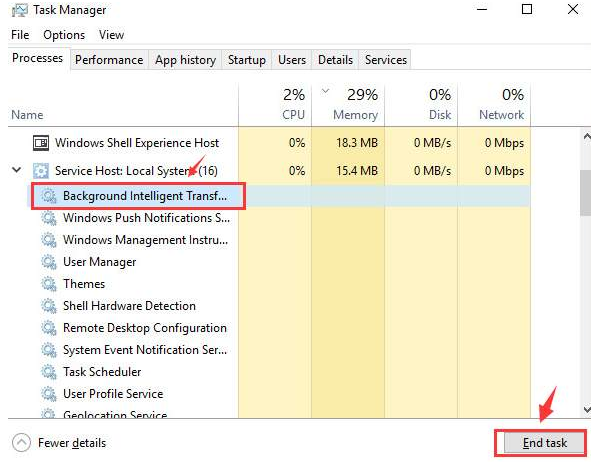
  • Select the first item and then click End Task and note if there’s a sharp reduction in CPU Usage. Continue to perform this step until you find the culprit.
TSK MNGR - End Task

Once you’ve found the service that’s causing your computer to become slow, disable it. To do this, perform these steps:

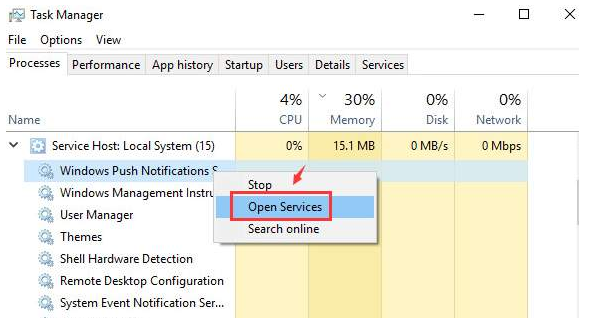
  • Right-click the problematic item and select Open Services (In this example, we have identified Windows Push Notification Service as the culprit).
Open Services
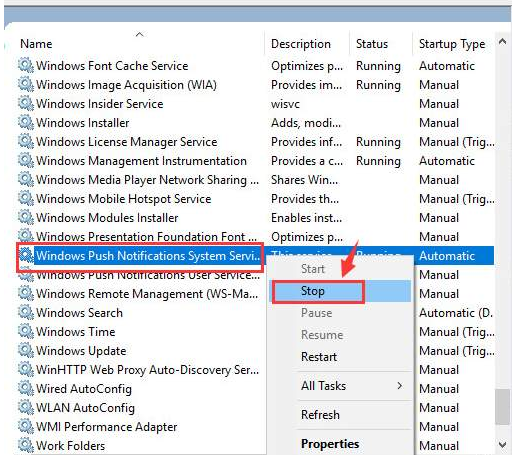
  • Locate the selected service in the list of services that appear on your screen now, right-click it and select Stop.
Stop services

If the CPU or disk usage or memory usage is now normal or close to normal, it means you’ve rightly located the problematic service. You could try disabling the problematic service.

To do so, perform these steps:

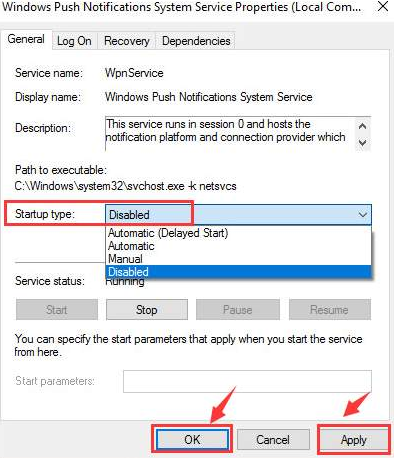
  • Double-click the service
  • Under the General tab, select Disabled in the Startup type drop-down menu
  • Click OK and then click Apply
Disable service

Filed Under: PC Fix Tips Tagged With: Service Host issue

msvcr120 dll

By Susan C on April 27, 2018

msvcr120 dll

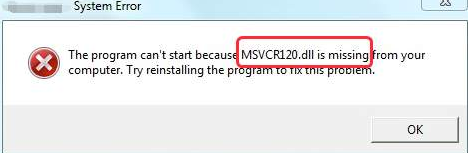
Are you getting this error message or something similar to it?

msvcr120dll error message

If yes, stop worrying. This is a fairly common error. It is also easily resolvable.

Just follow the solutions given in this post. Of course, there’s no need to try all the 5 solutions listed here. Start with the first one and then move to the next one and so on, until the issue is gone.

1st Solution – Reinstall Microsoft Visual C++ package

This dll file is part of Visual C++ Redistributable package for Visual Studio 2013. Thanks to this package, your pc can run C++ applications.

In absence of this package, Microsoft can’t run apps and programs written in C++. This package is installed automatically when you install Windows operating system.

With that said, in case something goes wrong with Visual C++ Redistributable package, the msvcr120.dll on your computer might become corrupt.

You can re-download this package directly from Microsoft website and fix the error.

Note: Whenever you need to independently install a dll file, use the official source. There are many unapproved sources of dll files on the Internet, but downloading the file from such a source can cause problems. Often unapproved sources push malware in disguise of dll files or attach them to these files. Your system’s security can get compromised if you install such a file.

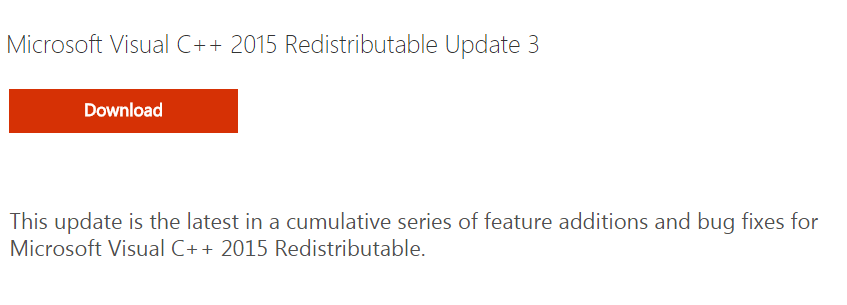
  • The first thing you need to do is open a browser window and go to Microsoft Download Center
  • Click Download
Download visual c++
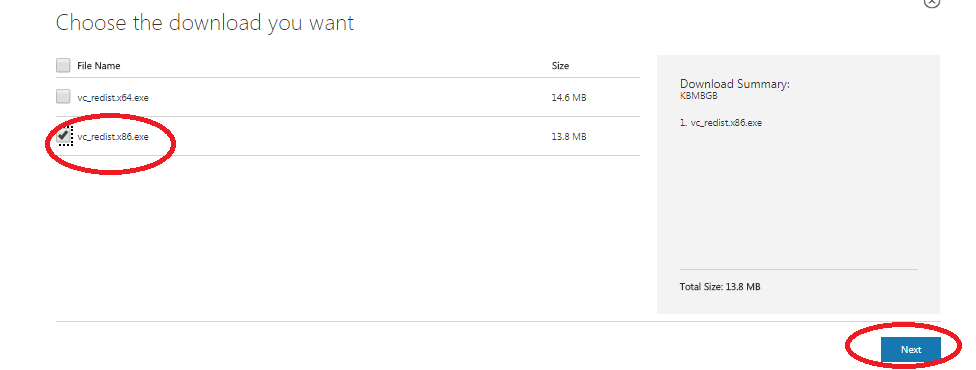
  • You’ll now have to select the file which is meant for your processor type (If you are using 32-bit, choose x86. If you are using 64-bit, choose x64). Then click the Next button.
download visual c++
  • After you’ve downloaded the relevant file, browse to the location where you’ve saved it (it’s best to save it on Desktop because then locating it becomes super easy), double-click it and follow the prompts that appear on your screen.
  • Reboot windows. You should be able to run the program with which you were receiving this error.

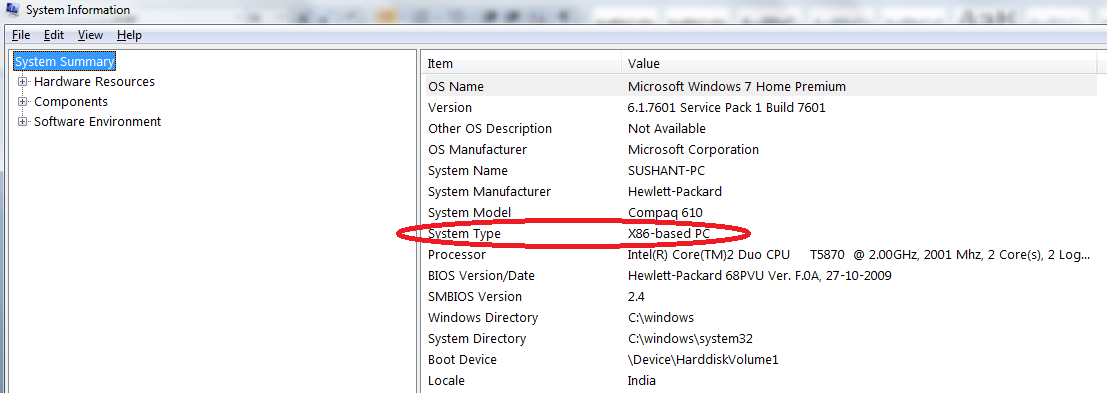
In case you are not sure whether your system is 32- or 64-bit, these steps would help.

  • Type system info in your start search box
  • In the window pane on the right-hand side, the system type would be listed
system info

2nd Solution – Reinstall the Program

In case the problem is not resolved, try this step. It involves uninstalling and installing the problematic program. It is very much possible that msvcr120.dll file could’ve become corrupt during the installation of this program, and the installation package of this program contains the correct file version.

  • In the start search box, type appwiz.cpl and press enter
  • Select the program that was throwing msvcr120.dll is missing error, and then click Uninstall
  • Click Yes
  • Reboot your PC
  • Reinstall the program
  • Check if error is gone

3rd Solution – System File Checker

System File Checker is a useful built-in tool in Windows. With help of it, you can not only identify files that have become corrupt but also repair them.

  • In your start search box, type cmd. Now right click cmd.exe under Programs and choose Run as administrator
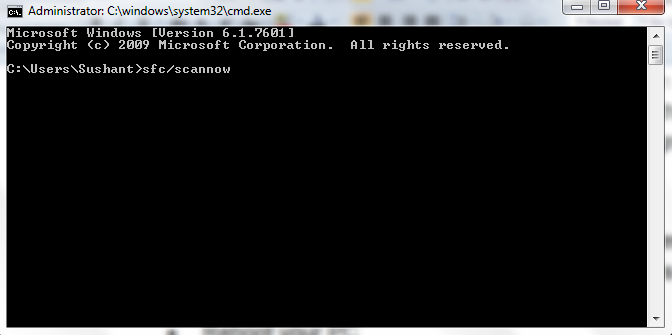
  • Type sfc/scannow and press Enter
system check
  • The tool runs a scan on your whole system. Any identified issue will be fixed automatically
  • Once verification is over, close the command prompt
  • Now launch the problematic program and see if the msvcr120.dll error is gone

4th Solution – Run a virus scan

A virus or malware infection can also lead to msvcr120.dll error. Therefore, if the error has not been resolved by now, you should run a boot scan using a reliable antivirus program.

5th Solution – Update device drivers

msvcr120.dll error at times can occur because of outdated or corrupt device drivers. So as a last resort update your drivers.

While it is possible to update drivers manually, the whole process is not only time consuming but also not hundred percent accurate. Moreover, you need some computer skills to update drivers manually.

Updating Drivers Automatically

Automatic driver update tools offer many benefits, the most important ones being:

  • You can update device drivers automatically
  • The software scans and updates all outdated or missing drivers at one go
  • The tool picks the right drivers for your device and operating system, so you won’t have to worry about installing an incorrect driver by mistake
  • Automatic driver updates are 100% safe

Driver Updater is one of the best driver update tools out there. Outbyte Driver Updater will give you access to a database of over 1 million drivers. It will regularly scan your PC, suggesting new driver versions to install. Driver Updater contains drivers for a variety of Windows devices. With just one click, you can update drivers in your system.

Step 1
Click here to Install and launch the app

Step 2
Scan all devices

Step 3
Install or update drivers automatically
 

Start Download


Filed Under: PC Fix Tips Tagged With: msvcr120 dll

  • « Previous Page
  • 1
  • …
  • 175
  • 176
  • 177
  • 178
  • 179
  • …
  • 189
  • Next Page »


  • Recent Posts
  • Popular Posts
        

Read More Posts


Read More Posts

Drivers.com Sites

  • Software Drivers
  • Drivers Ed

About Us

  • Advertise
  • About Drivers
  • Drivers Support
  • Drivers.com Privacy Policy
  • Disclaimer
  • Software Drivers
  • Mac Fixes and Tips
  • PC Fix Tips
  • Security/ Backup
  • Tablets & Smartphones
  • Tech News

© Copyright 2026 PDE Publications Ltd. End User License Agreement (EULA)