Drivers.com

follow us:

facebook twitter
  • Home
  • Download Drivers
  • Drivers Help
  • PC/Mac Resources
  • Software Drivers
  • Mac Fixes and Tips
  • PC Fix Tips
  • Security/ Backup
  • Tablets & Smartphones
  • Tech News
  • Software Drivers
  • Mac Fixes and Tips
  • PC Fix Tips
  • Security/ Backup
  • Tablets & Smartphones
  • Tech News

Resources by Tag

Chrome error

ERR-EMPTY-RESPONSE error

ERR-EMPTY-RESPONSE error

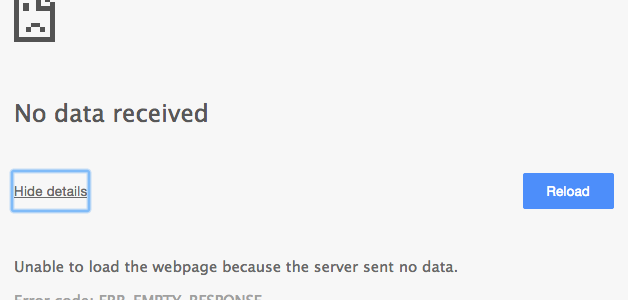
Are you receiving the “err-empty response” error when you try to go to a website using Chrome?
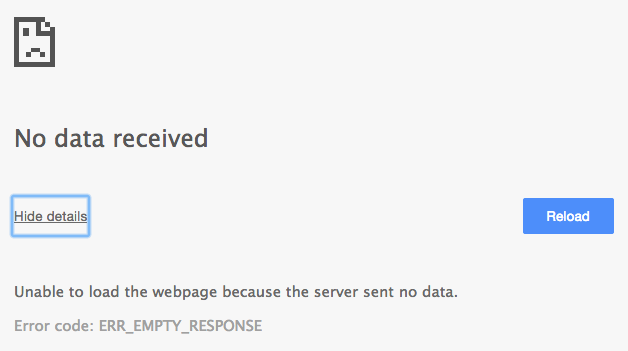
error image

If so, stop worrying. In this post we will discuss some practical solutions to this problem.

So, let’s get going…

What does err-empty response error mean?

The err-empty response error generally means a bad connection, but it mayn’t necessarily refer to Internet connection.

The error is generated when you are trying to access a specific website but your computer is blocked from doing so.

There can be many reasons behind this error, such as a problem at the website server end or some issue with your computer or browser.

Below are some easy solutions that might fix the issue

Solution One – Check Network connection

When you come across “err_empty_response” error, the first thing you need to do is check the network connection. There is a possibility that the router, modem is not working properly or there is some problem with the Internet connection.

Check the Internet connection of your computer and ensure the network devices like router and modem are functioning properly. You can try accessing your mail or visiting other websites to ensure there is no problem with the network connection.

If there is any problem with your network connection, it might be the reason behind err_empty_response error. Contact your ISP or Network administrator to fix the problem with the network connection

Solution Two- Delete browsing data

Whenever you visit a website, Google Chrome saves some browsing data like cookies, temp files, and images that can assist in loading the website faster when you visit the website again. The browsing data size in your computer keeps on increasing unless you delete it.

If you have not deleted browsing data for a long time, there is a possibility it has grown to a big volume and some of the files might have become corrupted.

It can be one of the reasons behind err_empty_response error. The simple solution to resolve this issue is to delete browsing data following the steps given below.

  • Open Google Chrome
  • Press Ctrl, Shift and Delete buttons on the keyboard simultaneously
  • A data clearing window pops up on screen
  • Select “All time” from the drop-down list for Time Range field
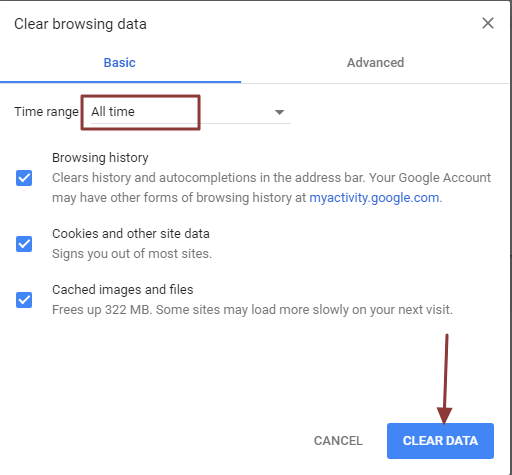
Chrome clear data
  • Click Clear Data

Now try visiting the website again and see if the issue persists. If you still get the err_empty_response error, try the next solution.

Solution Three- Reset Network settings

Improper DNS or network settings could be the reason behind err_empty_response error.

You can resolve this problem with flushing or resetting the network settings. Here are the steps to follow.

  • Open Start menu and type cmd in the search box
  • Right-click command prompt in search results and select Run as administrator
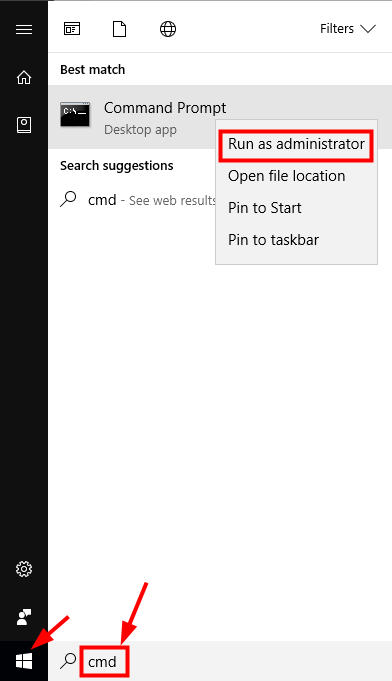
cmd prompt
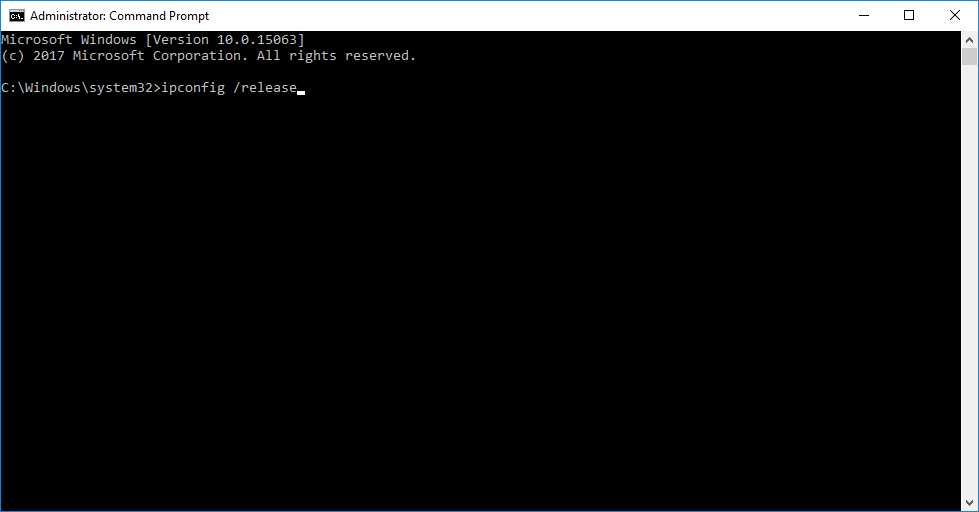
  • In the command prompt window, type the commands given below and press Enter after typing each command
  • Close command prompt window
  • ipconfig /release
  • ipconfig /all
  • ipconfig /flushdns
  • ipconfig /renew
  • netsh int ip set DNS
  • netsh winsock reset
ip config commands
  • Reboot your computer and see if the issue is resolved. If you are still getting the error, try updating drivers

Solution Four- Update Drivers

Many problems with Internet connectivity are related to drivers. Try updating drivers and see if it resolves the issue. There are two ways to update drivers – manually and automatically.

To manually update drivers, you need to visit device manufacturer website or hardware manufacturer website to download driver updates. Since Windows system has many drivers, manually updating drivers would take a lot of time and there is always a risk of downloading wrong drivers.

Using a driver update tool is the best option available. The software is easy to use and it can update all system driver automatically with a click of a button.

Automatic driver update tools offer many benefits, the most important ones being:

  • You can update device drivers automatically
  • The software scans and updates all outdated or missing drivers at one go
  • The tool picks the right drivers for your device and operating system, so you won’t have to worry about installing an incorrect driver by mistake
  • Automatic driver updates are 100% safe

Driver Updater is one of the best driver update tools out there. Outbyte Driver Updater will give you access to a database of over 1 million drivers. It will regularly scan your PC, suggesting new driver versions to install. Driver Updater contains drivers for a variety of Windows devices. With just one click, you can update drivers in your system.

Step 1
Click here to Install and launch the app

Step 2
Scan all devices

Step 3
Install or update drivers automatically


Start Download


Solution Five- Use another browser

If none of the above solutions has worked for you, there is a possibility that there is some inherent problem with Google Chrome. Try using another browser like Mozilla Firefox or Windows Edge and see if you are able to visit the site and surf Internet normally.

If there is some problem with Google Chrome, you need to uninstall it and then download and install the latest version of Google Chrome from Internet. Here are steps you need to follow.

  • Open Start Menu
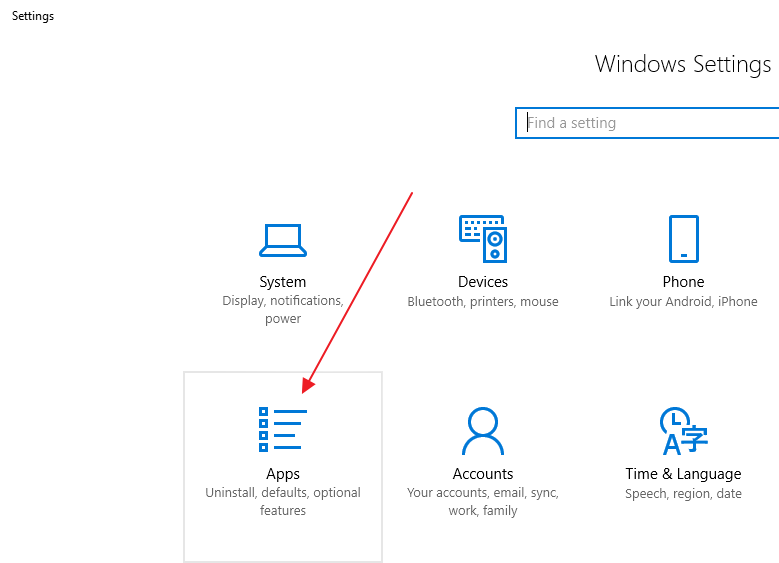
  • Click Settings
  • Click Apps
settings apps
  • Select Apps and features from the left pane
  • Select Google Chrome from the right pane
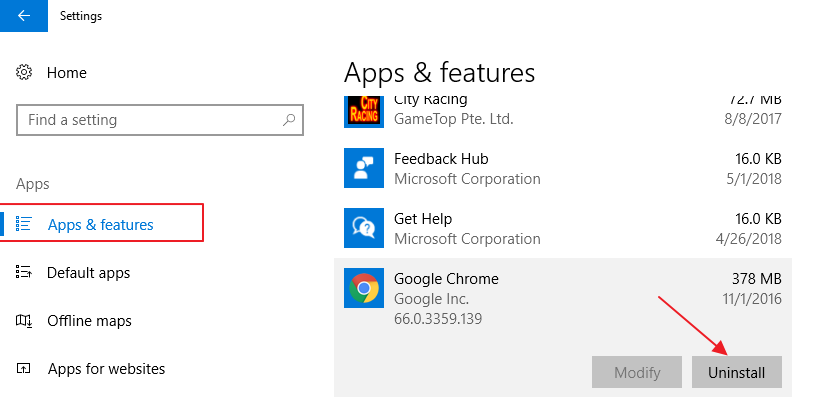
chrome uninstall
  • Click Uninstall
  • Download latest Google Chrome setup file from the Internet and install it
Filed Under: PC Fix Tips Tagged With: Chrome error

err-connection-timed-out

err-connection-timed-out

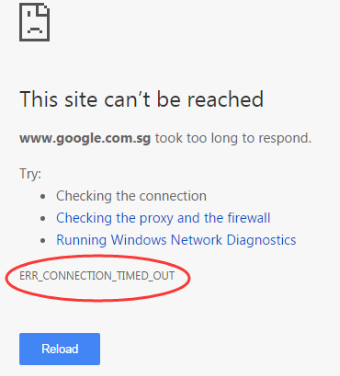
When you try to open a website in Google chrome and the server takes considerably more time to reply to your request, you might get err_connection_timed_out error.

And you will get the following error message on your screen.

err_connection_timed_out error msg

Thankfully, you can resolve this error on your own, and that too, fairly quickly. In this post, we have listed 6 ways to fix err_connection_timed_out error.

These are as follows:

  • Remove your browsing data
  • Check Windows hosts file
  • Adjust the LAN settings
  • Flush/Renew DNS & IPS
  • Deselect Proxy Option
  • Update Network Adapter drivers

You obviously don’t need to try out each one of these. Simply start with the first solution, and if the issue persists, move on to second one and so on, until you are able to fix the issue.

Let’s start then…

Two things to remember

First things first, before you attempt these fixes, ensure:

  • You are trying to connect to an existing server
  • There’s no problem with the network connection you are using

Solution 1 – Remove browsing data

It is possible that the browsing data that Chrome saves, like app data, cookies, and cache files, among other things, might trigger this error.

Therefore, clear your browsing data before attempting other solutions.

  • Click the hamburger menu in Chrome (the three vertical dots placed next to the URL box) and then Click Settings
Chrome - Settings
  • Scroll down and click Advanced or Show Advanced Settings
advanced settings - chrome
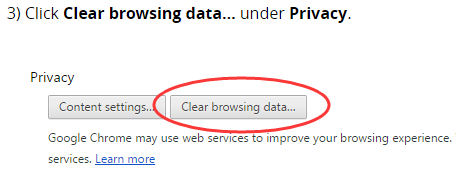
  • Click on Clear browsing data (it is located under Privacy)
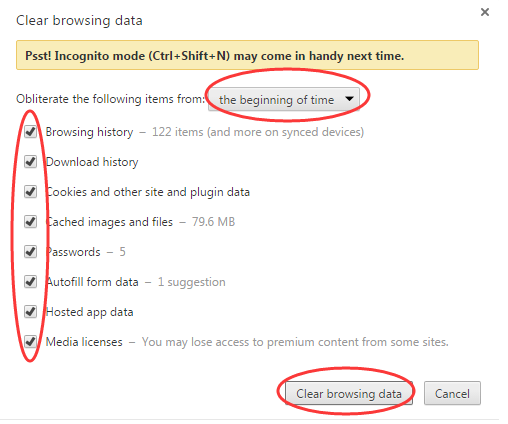
clear browsing data
  • From the Obliterate the following items from drop-down menu, select the beginning of time
  • Ensure all the items in the list are selected.
  • Click Clear browsing data
clearing data

Solution 2 – Check the hosts file

It is possible that you might have used Windows hosts file for blocking access to certain websites. At times when you add website URLs and IP addresses in Windows hosts file in order to block certain websites, some other additional websites might also get blocked in the process.

Precisely for this reason, it is important to have a look at Windows hosts file. In case you find any URLs or IP addresses listed there, remove them. The location of hosts file is c:\windows\system32\drivers\etc.

However, it is not possible to make changes to the hosts file there. You will need to perform these steps to make changes to Windows hosts file.

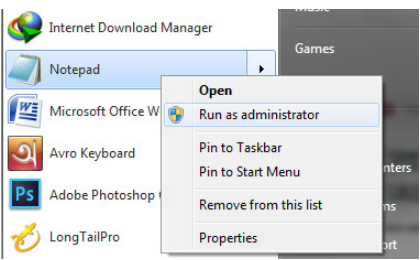
  • Click Windows icon on your taskbar, right-click notepad, and select Run as administrator
Notepad (admin)
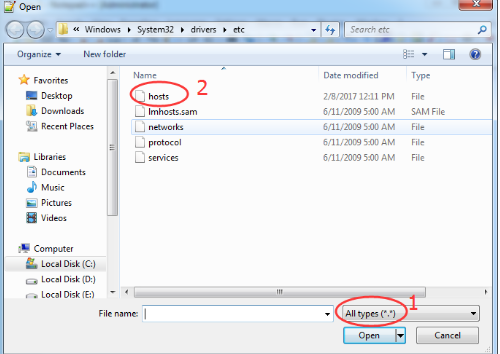
  • In notepad, click File>Open
  • Now browse to this folder: Computer > Local Disk C: > Windows > System32 > Drivers > etc
  • Click the drop-down menu on the bottom right hand corner (just above Open and Cancel buttons) and select All Files
  • Select the hosts file in the displayed list of files and click the Open button
open hosts file
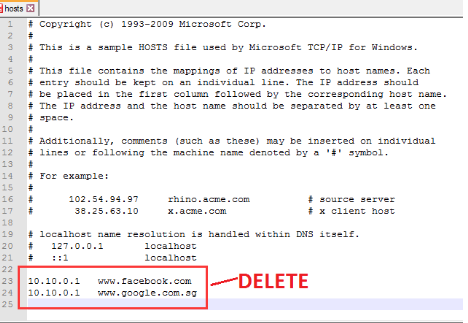
  • Go through the file and in case you see any IP address or website URL listed after the final # sign in the file, delete that IP address or website URL
host file
  • Click the File menu and click Save

Solution 3 – Adjust your LAN settings

Perform the following steps to do this.

  • Press Windows key + R, type control panel, and hit Enter
  • Select Large Icons from the View By drop-down menu and then select Internet Options
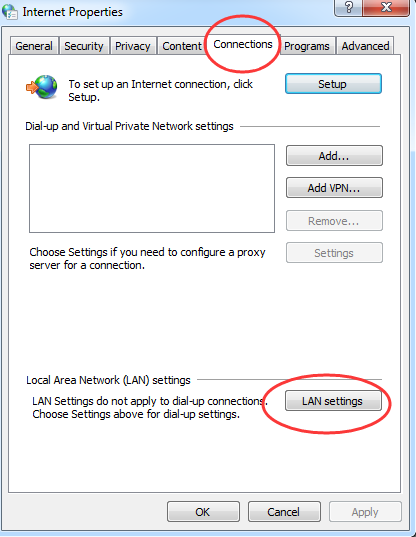
  • Click the Connections tab in the Internet properties Window and then click LAN Settings
click LAN settings
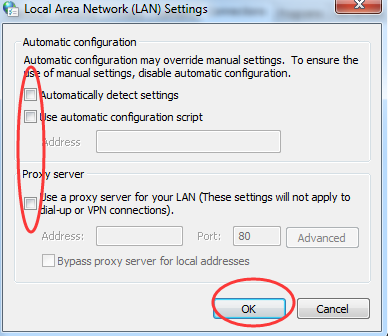
  • Ensure all the check boxes in this window are unticked, and then Click on OK.
Untick LAN settings

Solution 4 – Flush/Renew DNS & IPS

To flush/renew DNS & IPS, perform the following steps:

  • Press Windows key + X
  • Choose Command Prompt (Admin)
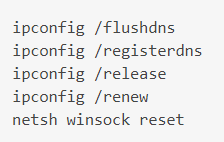
  • In the command prompt window type the following commands and press enter key on the keyboard after each command
flush, renew IP
  • Reboot Windows

Solution 5 – Deselect Proxy Option

Perform the following steps.

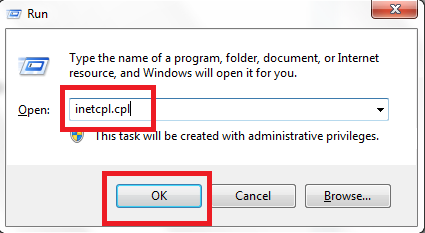
  • Press Windows key + R
  • In the Run dialog box, type cpl and then click the OK button
Open Internet Properties
  • In the Internet Properties dialog box, click Connections and then select LAN settings
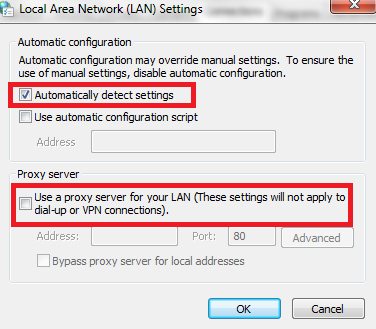
  • Deselect the box before Use a proxy server for your LAN and ensure the box next to Automatically detect settings is selected
LAN settings
  • Click OK and then click Apply
  • Reboot your computer

Solution 6 – Update drivers for network adapter

err_connection_timed_out can occur when your network adapter is outdated or corrupt. In such a case, updating them might solve the issue.

Automatic driver update tools offer many benefits, the most important ones being:

  • You can update device drivers automatically
  • The software scans and updates all outdated or missing drivers at one go
  • The tool picks the right drivers for your device and operating system, so you won’t have to worry about installing an incorrect driver by mistake
  • Automatic driver updates are 100% safe

Driver Updater is one of the best driver update tools out there. Outbyte Driver Updater will give you access to a database of over 1 million drivers. It will regularly scan your PC, suggesting new driver versions to install. Driver Updater contains drivers for a variety of Windows devices. With just one click, you can update drivers in your system.

Step 1
Click here to Install and launch the app

Step 2
Scan all devices

Step 3
Install or update drivers automatically


Start Download


Filed Under: PC Fix Tips Tagged With: Chrome error


  • Recent Posts
  • Popular Posts
        

Read More Posts


Read More Posts

Drivers.com Sites

  • Software Drivers
  • Drivers Ed

About Us

  • Advertise
  • About Drivers
  • Drivers Support
  • Drivers.com Privacy Policy
  • Disclaimer
  • Software Drivers
  • Mac Fixes and Tips
  • PC Fix Tips
  • Security/ Backup
  • Tablets & Smartphones
  • Tech News

© Copyright 2026 PDE Publications Ltd. End User License Agreement (EULA)