Drivers.com

follow us:

facebook twitter
  • Home
  • Download Drivers
  • Drivers Help
  • PC/Mac Resources
  • Software Drivers
  • Mac Fixes and Tips
  • PC Fix Tips
  • Security/ Backup
  • Tablets & Smartphones
  • Tech News
  • Software Drivers
  • Mac Fixes and Tips
  • PC Fix Tips
  • Security/ Backup
  • Tablets & Smartphones
  • Tech News

ERR-TOO-MANY-REDIRECTS error

By Susan C on May 11, 2018

ERR-TOO-MANY-REDIRECTS error

While browsing the Internet, you may sometimes get a strange error which says “err too many redirects”. The caption of the error is “this webpage has redirect loop”.

err_too_many_redirects

If you are getting this error, there is nothing to worry about as we have some simple fixes to resolve the issue.

What causes “err too many redirects” error?

The “err too many redirects” is related to your browser. Sometimes the browser is redirected from original URL to new URL and the redirects process enters an indefinite redirect loop. The browser detects the situation and breaks the loop showing the error message.

The reason for “err too many redirects” can be a problem at the server end of the website which you are trying to visit or at the user’s end. Here are some simple solutions to fix this issue.

Solution One – Try another browser

There is a possibility the problem lies in the browser and you can verify it by using another browser. If you are getting this error while using Chrome, try opening the same site with another browser like Firefox, Internet Explorer, or Microsoft Edge.

If the site opens with another browser, you can reach a conclusion that the problem lies with your browser. If the error surfaces even when using other browsers, the problem might be on the server side of the website.

If the error does not appear with another browser, you can try the solutions given below to fix the issue with your browser.

Solution Two – Delete browser data

Your browser stores various types of data from websites you visit. Some of the browser data like cookies, temporary files, browsing history, and cache can grow to big volumes and also contain corrupt files. Clearing this browser data is an effective way to fix browser issue. Here are the steps to follow.

On Google Chrome

  • In the address bar, type chrome://settings and hit Enter on the keyboard

chrome settings
  • Click on the hamburger icon(three horizontal lines) that appears on left
  • Click Advanced and then Privacy and Security
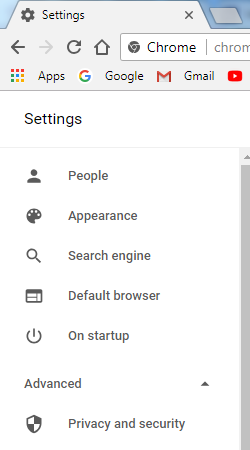
privacy and security
  • In the right-hand pane, scroll down and click Browsing data
  • In the Clear Browsing data, select All time from the drop-down list for time range field
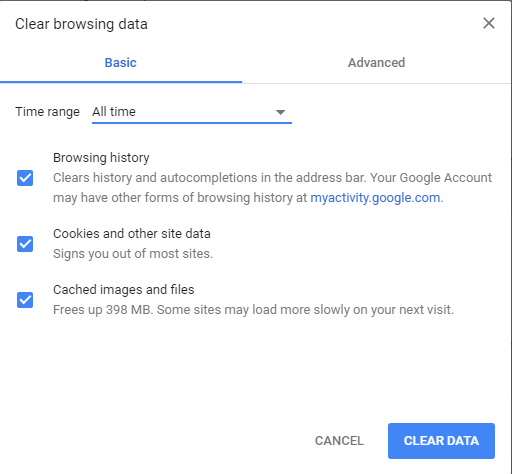
chrome clear data
  • Click Clear Data

 On Firefox

  • Click hamburger menu(three horizontal lines)
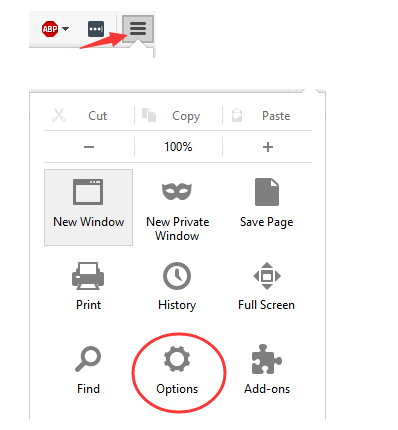
click options
  • Click Options
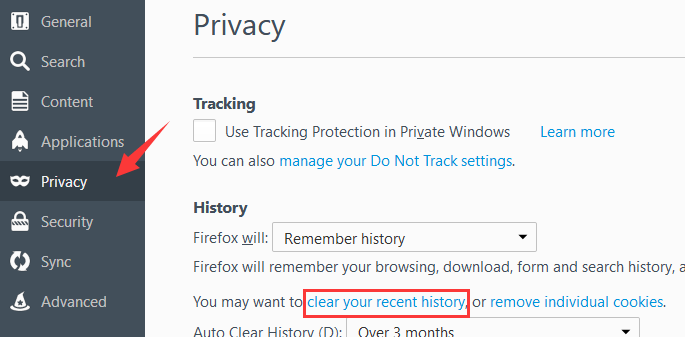
  • Click Privacy
  • Click clear recent history
firefox clear history
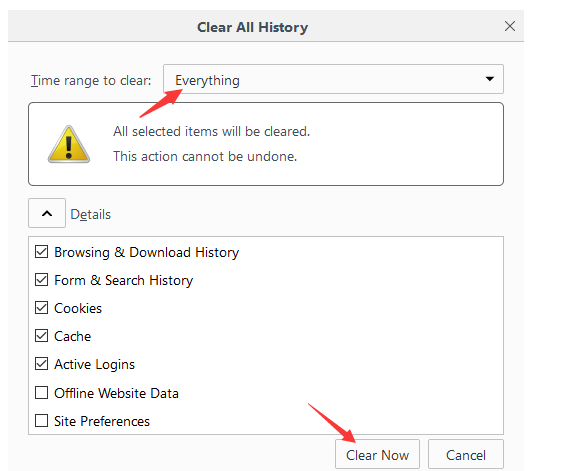
  • In the time range to clear, select Everything
  • Click Clear Now
click clear now

Once the browser data is cleared, try visiting the website again and see if the issue is resolved. If the issue persists, try next solution

Solution Three – Check browser extensions

Browser extensions add different functionalities to the browser but sometimes they might be the reason behind “err too many redirects” error. Here are the steps to check browser extensions.

On chrome

  • In the address bar, type chrome://extensions and hit Enter on the keyboard
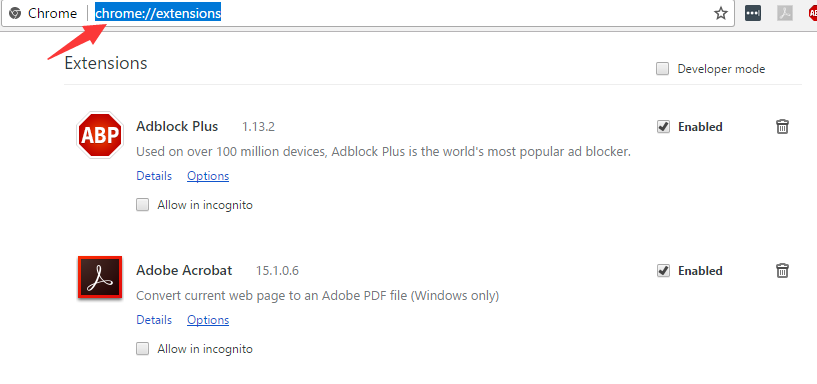
chrome extensions
  • You will now see the list of extensions installed in your Chrome browser
  • Uncheck the option Enabled to disable an extension
  • Try disabling the extensions one by one and see if the issue is resolved

On Firefox

  • In the address bar, type about: addons and hit Enter on the keyboard
  • You will now see the list of extensions installed in your Firefox browser

firefox extensions
  • Click Disable to disable the extension
  • Try disabling the extensions one by one and see if the issue is resolved

If the issue is not resolved even after disabling extensions, try the next solution

Solution Four- Correct your system date and time

The date and time stamp of your computer plays an important role in SSL for certificate validation. If your computer system date and time are wrong, the server of the website may not authenticate the connection with your computer that may result in errors like “err too many redirects”.

The easiest solution to this problem is updating your system date and time. Here are the steps to follow.

  • Press Windows key and R simultaneously on the keyboard to bring up the Run command console
  • In the Run command box, type control panel and hit Enter.
  • In the Control Panel window, click Date and Time
  • Go to Internet time tab and click Change settings.
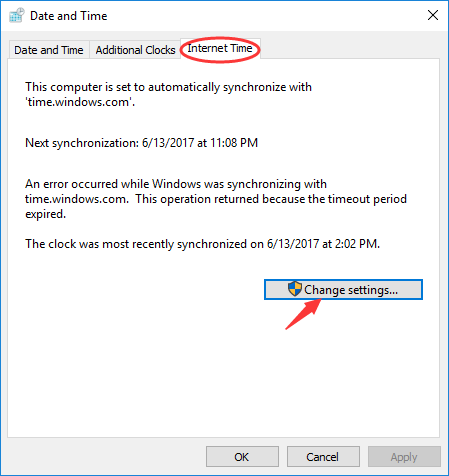
internet time
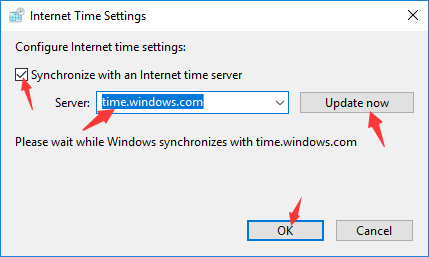
  • In Internet Time Settings, tick the box “Synchronize with an Internet time server”
  • Select a time server like time.windows.com and click update now
update time
  • Click OK

The system date and time is now updated and this should resolve the “err too many redirects” error.
Filed Under: PC Fix Tips Tagged With: browser error

Video TDR Failure error

By Susan C on May 11, 2018

Video TDR Failure error

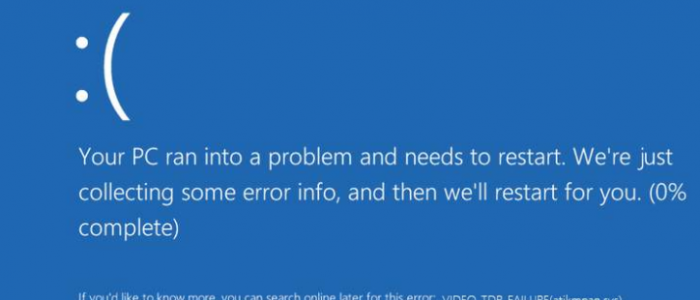
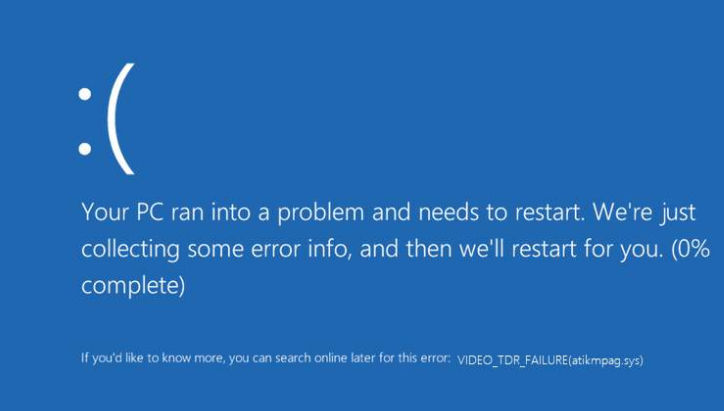
Like any other BSOD error, the video TDR failure error can prevent you from using your PC.  The problem mainly occurs in Windows 8 and later versions.

video_tdr_failure

In this post, we’ll talk about what is video TDR failure error and, more importantly, we’ll three solutions which users have told us have worked for them.

Of course, there’s no need for you try all the three if you are getting this error. Begin with the first one and move on to the next one and so on, until the issue is resolved. And, yes, please leave a comment telling us which one worked for you!

What is video TDR failure error?

The TDR in the error message stands for Timeout Detection and Recovery components in Windows.  It is a feature in Windows operating system that detects problems with the graphics card and resets the graphics card to recover from frozen situations.

If the Windows fails to reset the graphics card driver in given time (2 seconds), the system generates a blue screen of death error with message “ video TDR failure”

To perform the troubleshooting steps given in solutions below, you need to be logged in Windows system. If the PC does not boot in normal mode, power on and off your PC three times in a row which will enable you to start the PC in safe mode.

Solution One – Update graphics card drivers.

As the video TDR failure is caused by video driver’s problems, the first thing you need to do is update graphics card drivers.  You can update drivers manually or use a driver update tool that can update graphic driver automatically.

  • Manual update- you need to visit the graphics card manufacture website and download latest drivers for your Windows system and install it
  • Automatic update- you can use a Driver Update Tool to update graphics drivers automatically.

Automatic driver update tools offer many benefits, the most important ones being:

  • You can update device drivers automatically
  • The software scans and updates all outdated or missing drivers at one go
  • The tool picks the right drivers for your device and operating system, so you won’t have to worry about installing an incorrect driver by mistake
  • Automatic driver updates are 100% safe

Driver Updater is one of the best driver update tools out there. Outbyte Driver Updater will give you access to a database of over 1 million drivers. It will regularly scan your PC, suggesting new driver versions to install. Driver Updater contains drivers for a variety of Windows devices. With just one click, you can update drivers in your system.

Step 1
Click here to Install and launch the app

Step 2
Scan all devices

Step 3
Install or update drivers automatically


Start Download


Solution Two- Reinstall graphics drivers in Safe Mode

To re-install graphics driver in Safe Mode, you need to have latest graphics driver for your Windows system. You can also use a Driver Update Tool to reinstall graphics drivers in Safe Mode. Here are the steps to follow.

  • Boot your computer in Safe Mode
  • Type Device Manager in Start search box and double-click Device Manager from the list of results
  • In the Device Manager window, go to Display adapters and expand it
  • Right-click on Display adapter name and click uninstall
uninstall graphics driver
  • Click OK
  • Reboot your computer and install latest graphics drivers you have downloaded manually or use a Driver Update Tool to re-install latest graphics card drivers

Solution Three – Replace atikmdag.sys or atikmpag.sys file

If the above solutions have not worked for you, try replacing the atikmdag.sys or atikmpag.sys file shown in error code. There is a possibility the file mentioned in the error code is corrupt and replacing it might resolve the issue.

Note- You need to be careful while replacing the files – atikmdag.sys or atikmpag.sys. Remember you need to only replace one file that is shown in error code and not both files.

  • Download the latest version of atikmdag.sys or atikmpag.sys file from ATI or AMD website
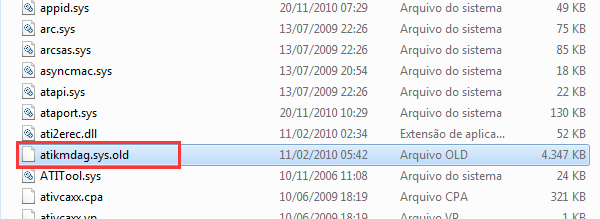
  • Navigate to C:\Windows\System32\drivers folder and locate the atikmdag.sys (or atikmpag.sys) file
find atimkdag
  • Rename the file as atikmdag.sys.old (or atikmpag.sys.old)
rename atimkdag
  • Now go to ATI directory on your computer that is generally C:\ATI
  • Locate the file – atikmdag.sy_ or atikmpag.sy_
  • Copy the file to your desktop
  • Press Windows logo key and R simultaneously on the keyboard to invoke Run command console
  • In Run command box, type cmd, and select command prompt from the list of results
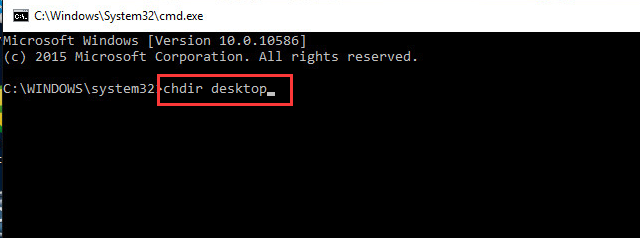
  • In the command prompt window that opens, type chdir desktop and hit Enter
cmd chdir desktop
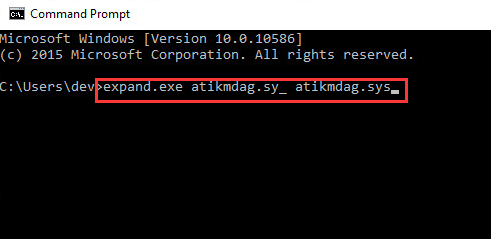
  • Next, type expand.exe atikmdag.sy_ atikmdag.sys and hit Enter
cmd expand atikmdag

Or

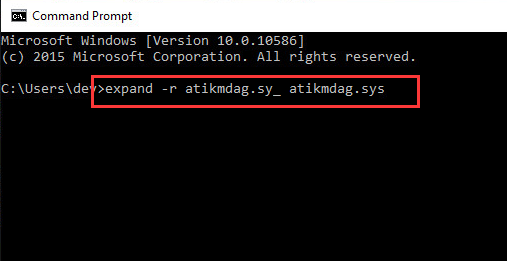
  • You can type expand -r atikmdag.sy_ atikmdag.sys and hit Enter.
cmd expand -r atikmdag
  • The above commands will expand the original driver files. After the expansion is complete, do the following
  • Copy the newly created atikmdag.sys file on your Desktop to C:\Windows\System32\Drivers folder
  • Reboot your PC.

Copying these expanded driver files in driver folder will ensure you have graphics drivers in the original state which would resolve the video TDR failure error.

Filed Under: PC Fix Tips Tagged With: video TDR failure

Windows 10 Freezes

By Susan C on May 9, 2018

Windows 10 Freezes

Microsoft provides regular updates and fixes to enhance performance of Windows 10 and to fix any bugs. But sometimes the updates don’t work as intended and may cause problems that include random system freeze-ups.

If you are facing problems like windows freezing randomly, we have some simple solutions for you.

You don’t need to try all these solutions. Just start with the first solution and work your way downwards till the issue is fixed.

Solution One- Update Drivers

Outdated or corrupt drivers can cause a lot of issues in Windows 10, include system freeze-ups. Therefore, before trying other troubleshooting steps, we recommend you first ensure all your device drivers are up-to-date.

The easiest way to do this is by using a reliable driver update tool.

Automatic driver update tools offer many benefits, the most important ones being:

  • You can update device drivers automatically
  • The software scans and updates all outdated or missing drivers at one go
  • The tool picks the right drivers for your device and operating system, so you won’t have to worry about installing an incorrect driver by mistake
  • Automatic driver updates are 100% safe

Driver Updater is one of the best driver update tools out there. Outbyte Driver Updater will give you access to a database of over 1 million drivers. It will regularly scan your PC, suggesting new driver versions to install. Driver Updater contains drivers for a variety of Windows devices. With just one click, you can update drivers in your system.

Step 1
Click here to Install and launch the app

Step 2
Scan all devices

Step 3
Install or update drivers automatically


Start Download


Solution Two- Delete all temporary files

Over time, the volume of temporary files in Windows can grow to big volumes and this might lead to space shortage.

Windows creates temporary files every time you boot and use the computer. If there is insufficient space in C drive, your computer may freeze and become unresponsive.

In such cases, deleting temporary files is the easiest solution available. Here are steps to follow.

  • Press Windows key and R on the keyboard simultaneously to bring up the Run command console
  • In Run command box, type temp and click OK
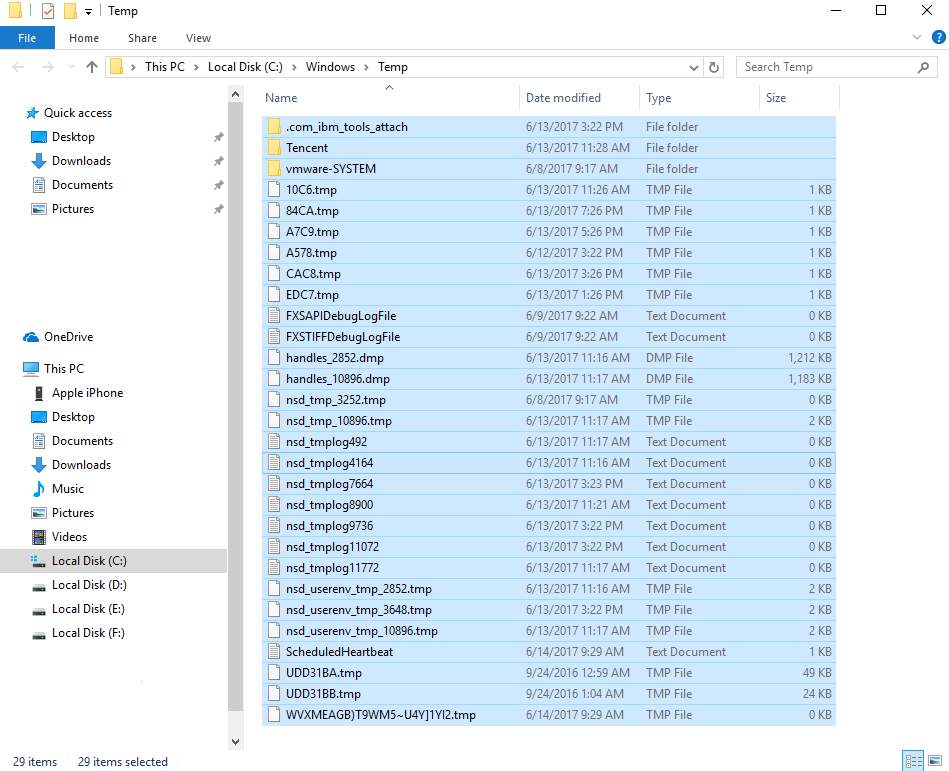
  • The above step will open the Window’s temp folder where you can see all temp files stored in your system
  • Press Ctrl+A on the keyboard to select all files in the Temp folder and press Delete button on the keyboard
delete temp files
  • If your computer still freezes after clearing all temp files, try the next solution.

Solution Three- Check RAM module for any faults

A faulty RAM module can be one of the reasons behind Windows OS freezing. This is because Windows need to access physical RAM to store several files during operation.

If the memory module is faulty, it creates problems in normal Windows operation that might freeze your Windows 10 system.

Windows have an inbuilt memory diagnostic tool that can check RAM module for any faults.

Here are the steps you need to perform.

  • Press Windows key and R button simultaneously on the keyboard to access Run command console
  • In the Run command window, type mdsched.exe
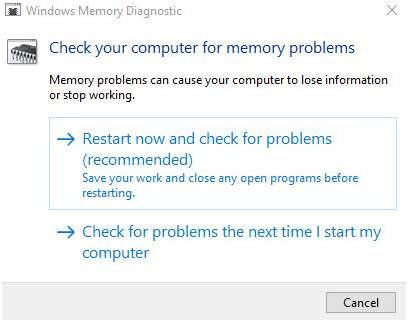
  • You will get two options- 1) Restart now and check for problems (recommended) and 2) Check for problems the next time I start my computer.
check memory options
  • If you want to immediately check memory, select the option one; else select the option two
  • If you have selected the first option, the computer will restart and you will see Windows Memory Diagnostic tool in action checking RAM module for any faults
  • If you select the second option, the Windows Memory Diagnostic tool would run when the computer reboots the next time.
  • If Windows Memory Diagnostic tool finds any faults, it will report an error. If the Windows Memory Diagnostic tool completes the process without reporting any error, you can draw a conclusion the RAM modules are in perfect condition.
  • Start the PC and see if the issue is resolved. If the issue still persists, try next solution.

Solution Four – Increase Virtual memory

Virtually memory refers to the capability of the Windows OS to use a combination of hardware and software to compensate for the shortage of physical memory.

If your Windows OS is running some resource-intensive tasks, it will use more virtual memory to compensate for physical memory shortages.

By default Windows sets the size of virtual memory equivalent to physical memory size. For example, if you have 2GB RAM installed, the size of the page file (virtual memory) is limited to 2GB. However, you can increase the virtual memory to some extent and, in process, increase the memory available to Windows.

Here are the steps to follow.

  • Press Windows key and Pause/Break key simultaneously on the keyboard. This will open the Control Panel Home window
  • On the left panel, select Advanced System settings
  • Click the Advanced tab and then click Settings
  • In Performance Options window, click the Advanced tab and click Change
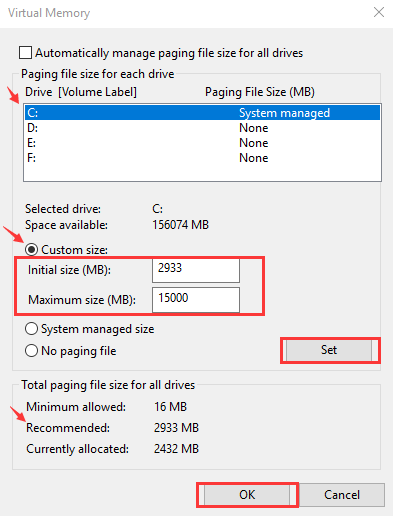
  • Ensure the option “Automatically manage paging file size for all drives” is not checked
set paging file size
  • Select drive where Windows is installed. By default, it is C drive for most Windows systems.
  • Click Custom size and enter the initial size and maximum size for the virtual memory
  • Initial size – If you are unable to decide the right value for initial size, you can enter the recommended value
  • Maximum size- It varies from computer to computer and mainly depends on the size of Physical RAM installed. Microsoft recommends maximum size anything between 1.5 times to 3 times of the physical RAM size installed. If you have 2GB RAM(2048 MB) installed, the recommended maximum size can be 2048×1.5 = 3072 MB
  • Once you have entered an initial and maximum size for virtual memory, click Set and then click OK
  • If your Windows 10 system still freezes, try next solution

Solution Five- Check Hard disks for errors

If you have ensured there is no problem with RAM modules and the computer has enough virtual memory and still Windows 10 freeze-ups occur frequently, you should check the hard disk.

Windows had an inbuilt tool to check and resolve hard disk errors. Here are the steps to follow.

  • Close all files and programs
  • Go to Desktop and double- click This PC icon else Click Start-> File Explorer -> This PC
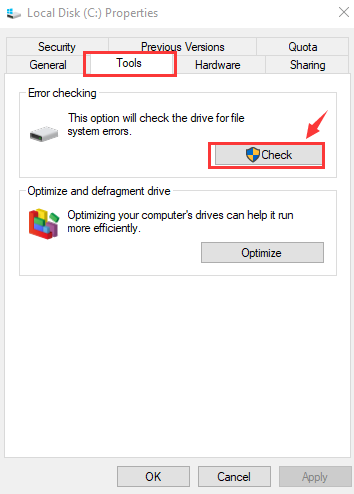
  • Right-click the hard drive partition you would like to check and select Properties
  • Go to Tools tab and click Check
check disk

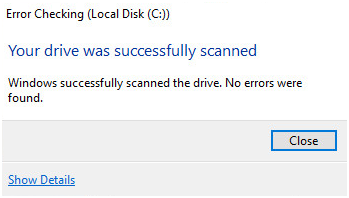
The Windows OS will check hard drive for any errors and fix them. If the end result of checking hard disk is like the one shown below, you can draw a conclusion that the hard disk is in good condition and not the cause for Windows freezing.

drive scanned

Solution Six-Run SFC (System File Checker)

 Missing or corrupt system files can be the reason behind Windows freezing. However, there is nothing to worry about as Microsoft has provided an easy-to-use tool known as SFC which can fix such problems.

The System File Checker tool checks the integrity of system files and uses the cached versions or restores original files to replace corrupt and missing files.

Here are the steps to use SFC.

  • Press Windows + R key simultaneously on the keyboard to bring up Run command console on the screen
  • In the Run command box, type cmd
  • Right-click command prompt from the list of results and select Run as administrator
  • In the User Account control pop-up, click Yes
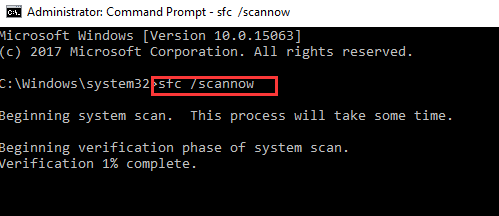
  • In the command prompt window, type sfc /scannow and hit Enter
cmd sfc

Windows will scan for corrupted files and restore the right versions of the file. If it does not find any corrupt files, the SFC completes the whole process of scanning for corrupt files without reporting any errors. In the latter case, you can safely draw a conclusion that system files are in good condition and you might need to try the last solution in the list.

Solution Seven- Disable C-State in BIOS

In order to make processors and motherboard green and eco-friendly, manufacturing companies use different technologies to reduce power consumption. The C-State refers to a procedure where the CPU enters low power mode when idle.

Though these technologies do a commendable job of saving power, they may also cause performance problems. There is a possibility that C-state might be the cause behind Windows freezing randomly.

(Note: The C-state discussed here is an Intel Power saving technology used to reduce power consumption in Intel CPUs. AMD CPUs have a C1E power management state that works on similar lines. You need to check which processor is fitted in your device and see the steps to disable power saving feature in BIOS)

The steps given here are applicable to devices that use Intel CPUs. Here are the steps to disable C-State in BIOS.

  • Restart PC and press F2 key to enter BIOS setup. (the key to enter BIOS differ with BIOS manufacturers and it is listed on the logo screen that you see when PC starts)
  • Once you are inside the BIOS setup, go to the Advanced Configuration tab
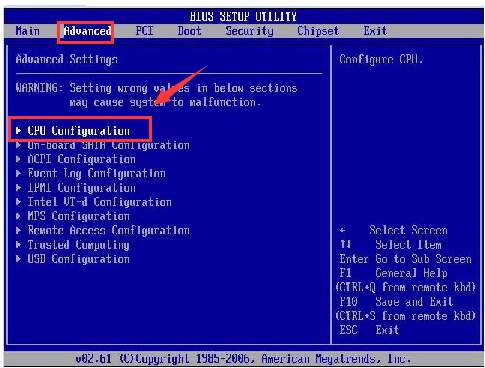
  • Select CPU configuration using the up and down arrow keys
CPU config
  • Once the CPU configuration is highlighted, hit enter
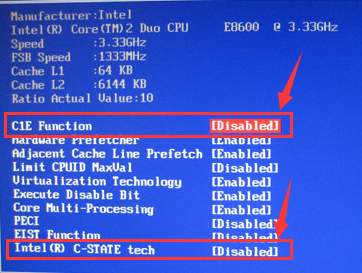
  • Look for C1E and Intel® C-State tech and disable these options using the navigation keys
disable C-state
  • Now, save and exit settings in BIOS
  • Restart your computer

In most cases, you should see the Windows freezing problem is resolved and you can use your computer without worrying about system becoming not responsive.

Filed Under: PC Fix Tips Tagged With: fix windows freeze

  • « Previous Page
  • 1
  • …
  • 173
  • 174
  • 175
  • 176
  • 177
  • …
  • 189
  • Next Page »


  • Recent Posts
  • Popular Posts
        

Read More Posts


Read More Posts

Drivers.com Sites

  • Software Drivers
  • Drivers Ed

About Us

  • Advertise
  • About Drivers
  • Drivers Support
  • Drivers.com Privacy Policy
  • Disclaimer
  • Software Drivers
  • Mac Fixes and Tips
  • PC Fix Tips
  • Security/ Backup
  • Tablets & Smartphones
  • Tech News

© Copyright 2026 PDE Publications Ltd. End User License Agreement (EULA)