Drivers.com

follow us:

facebook twitter
  • Home
  • Download Drivers
  • Drivers Help
  • PC/Mac Resources
  • Software Drivers
  • Mac Fixes and Tips
  • PC Fix Tips
  • Security/ Backup
  • Tablets & Smartphones
  • Tech News
  • Software Drivers
  • Mac Fixes and Tips
  • PC Fix Tips
  • Security/ Backup
  • Tablets & Smartphones
  • Tech News

Steam won’t open issue

By Susan C on May 17, 2018

Steam won’t open issue

Steam is a digital and multiplayer platform to distribute games. One of the frustrating experiences that some Steam users go through is that the Steam client does not open.

In some cases, the Steam client opens for few seconds and closes itself. There can be many reasons behind this such as interference from other software or open Steam processes running in the background.

Irrespective of the cause, the fact of the matter is that you cannot play games in the Steam library, nor can you join your friends in the game session. If you have been facing this problem repeatedly, we are sure you would like to know the solutions to fix the problem.

We have provided you with seven easy solutions that can fix the issue. Many Steam users have been able to solve the issue by following solutions given below.

You may not be required to try all given solutions here. Just start with the first solution and work your way downwards trying other solutions until the issue with Steam is fixed.

Solution One – Restart your computer

There is a possibility that some other processes or applications are preventing Steam client from opening. Also, there is a chance that current system state or cache is causing some problems in the successful launch of the Steam client. You can resolve such issues by restarting your computer.

Restart your computer and try opening the Steam client. If the issue is not resolved, try next solution.

Solution Two- Close all Steam processes running in the background

Sometimes when you close the Steam client, the application doesn’t shut down properly. Though the Steam client interface vanishes from the screen, the background process of the Steam client can still be active in the background.

When you try to launch Steam client again, the operating system thinks the Steam process (from the earlier session) is already running and the Steam client is already launched. Hence, it does not call forth another Steam process, and as a result you get the Steam client does not open.

To resolve this issue, you need to close all Steam processes running in the background and try opening Steam client again. Here are the steps to follow.

  • Right-click on empty space in the Taskbar and then click Task Manager
  • In the Task Manager window, go to Processes tab
  • Look for processes like exe, steamwebhelper.exe in the list
list steam processes
  • Right-click on Steam process and select End Process
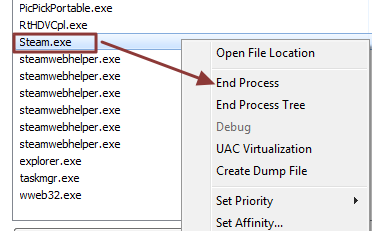
end process
  • Perform the above step to end all processes related to Steam client
  • Now try opening Steam client and see if the issue is resolved

Solution Three – Restart your network devices

 Problems in network or networking devices can also be the reason behind Steam client not opening. You can fix this problem by restarting your network devices (modem and router) which will get them back in the normal state. Here are the steps to follow.

  • Shut down your computer and then switch off modem and router
  • Unplug the power cables from router and modem
  • Wait for few minutes
  • Plug back power cables in router and modem
  • Start your modem and router. Wait till the Internet connectivity is established and the devices are in normal state.
  • Start your computer and try launching the Steam client
  • If the issue still persists, try next solution

Solution Four – Reinstall Steam client

There is a possibility some files of the Steam client are missing or corrupt. You can fix such issues by reinstalling the Steam client. Here are the steps to follow.

  • Go to Steam client website and download new Steam installer
  • Once the Steam installer is downloaded, double-click on it to start installation
install steam
  • Follow on-screen instructions to install Steam client on your computer

Note- you need to reinstall Steam client to same location where it is already installed. If you install it in different location, all your games and user data would be lost.

Solution Five- Update operating system and update drivers

If your system is not up-to-date, then too you can get this error. You need to install all pending system updates and see if it resolves the Steam not opening issue. Here are the steps to update operating system.

  • Click Start and type updates in Cortana search
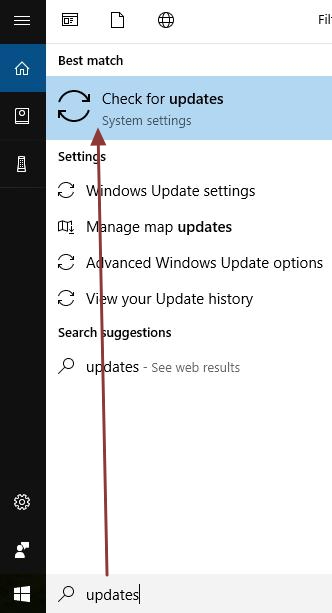
updates
  • In the list of results, click Check for updates or Windows Update
  • In the Settings window, click check for updates that appears in right pane
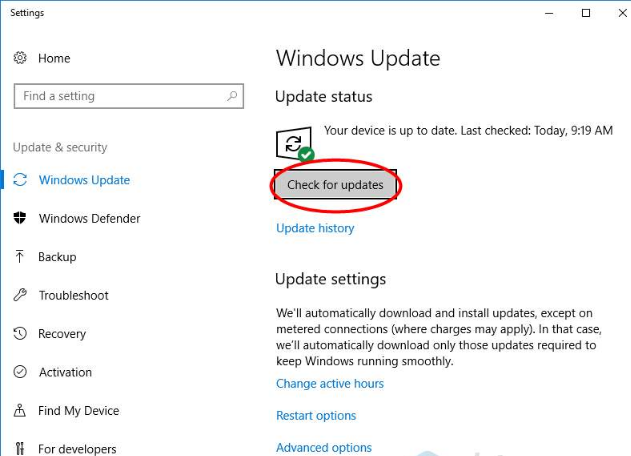
check for updates
  • Windows update will check for pending updates and show you the list of updates that need to be installed
  • Click on individual update item to download and install it. You need to perform this step to install all pending updates
  • Now try launching Steam client. If the issue is not resolved, you need to update drivers

Updating all system drivers manually can be a time-consuming and difficult task for many. Hence, we suggest you to use a driver update tool to update drivers automatically.

Automatic driver update tools offer many benefits, the most important ones being:

  • You can update device drivers automatically
  • The software scans and updates all outdated or missing drivers at one go
  • The tool picks the right drivers for your device and operating system, so you won’t have to worry about installing an incorrect driver by mistake
  • Automatic driver updates are 100% safe

Driver Updater is one of the best driver update tools out there. Outbyte Driver Updater will give you access to a database of over 1 million drivers. It will regularly scan your PC, suggesting new driver versions to install. Driver Updater contains drivers for a variety of Windows devices. With just one click, you can update drivers in your system.

Step 1
Click here to Install and launch the app

Step 2
Scan all devices

Step 3
Install or update drivers automatically


Start Download


Solution Six- Disable antivirus software

Sometimes your anti-virus may prevent the Steam client from opening. To ensure, your anti-virus is not interfering in Steam client opening, disable anti-virus temporarily. The steps to disable anti-virus differ with each application. Refer the anti-virus documentation for exact steps to disable it temporarily.

If the Steam client opens after disabling the anti-virus, you can conclude the anti-virus is the culprit behind Steam not opening issue. In such case, you need to contact anti-virus manufacturer and explain the problem and ask for a solution. Another way to resolve this problem is to use other anti-virus software you like.

If the Steam client not opening issue is not resolved even after disabling anti-virus, try next solution.

Solution Seven – Use System Restore to revert your computer to previous state (when the steam client was opening)

You need to recall when the Steam client not opening problem started. There is a possibility that you have installed some new software or made changes to settings some time back which might be the reason behind Steam client not opening issue.

In such a case, restoring the computer to the previous state would undo the changes and resolve the Steam not an opening problem.

You can also try uninstalling any application that you have recently installed and see if it fixes the issue. If the issue still persists, use the System Restore option. Here are the steps to follow.

  • Click Start and type recovery in the Cortana search box
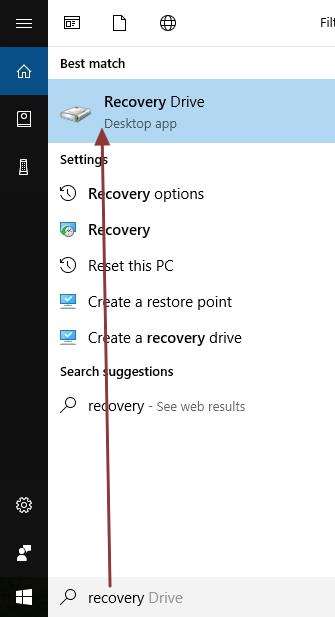
recovery
  • Select Recovery from the list of results
  • In the Recovery window, click Open System Restore
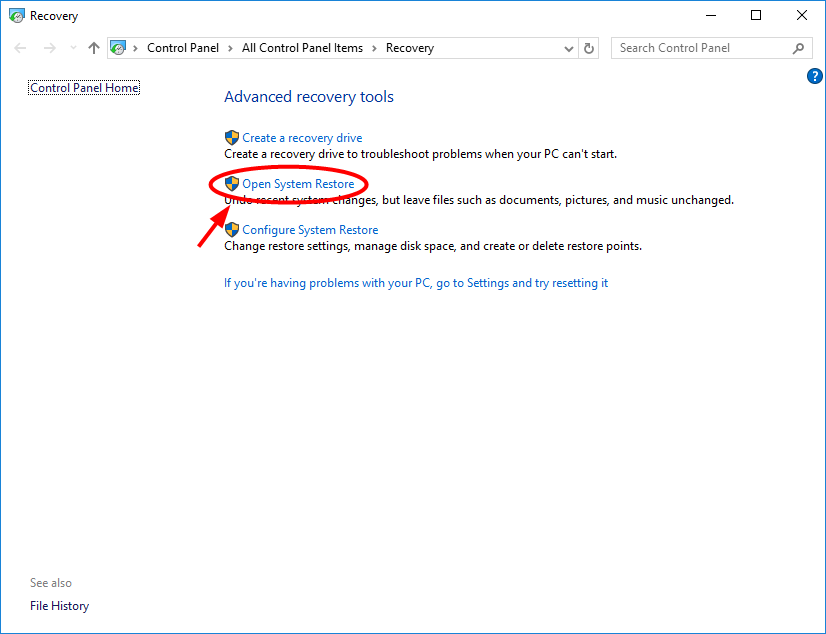
open system restore
  • When the System Restore window opens, click Next
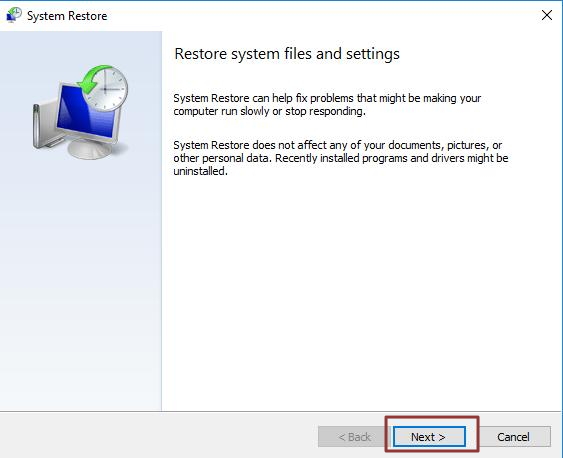
next
  • In the next window, select the appropriate Restore point from the list and click Next
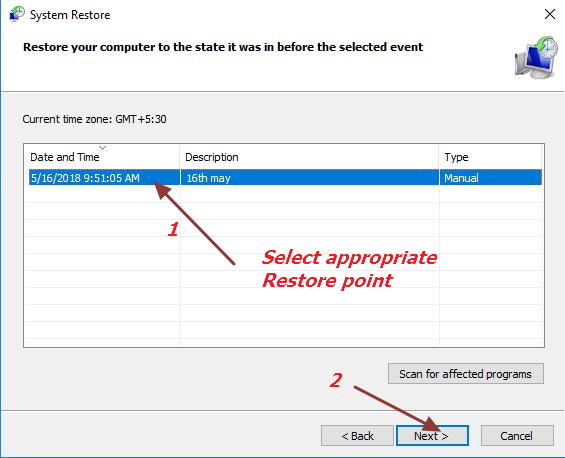
system restore point
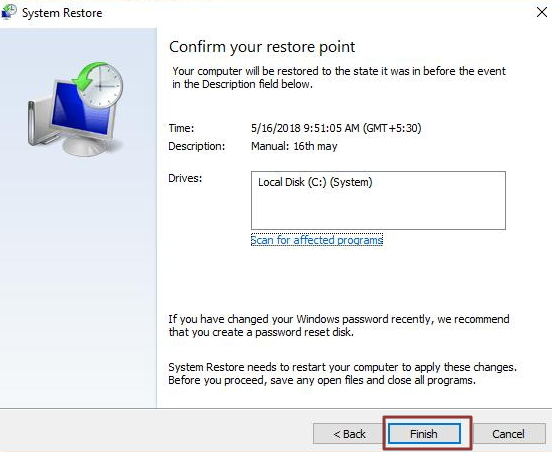
  • In the next window, click Finish
system restore click finish
  • Windows will start the System Restore process. You need to be patient as the process may take some time to complete. After  the System Restore is completed, computer will reboot and you should see the computer restored to earlier state.
  • After the computer is restored to an earlier state, try opening Steam client and see if the issue is resolved
Filed Under: PC Fix Tips Tagged With: steam issue

WMI Provider Host service high CPU usage issue

By Susan C on May 15, 2018

WMI Provider Host service high CPU usage issue

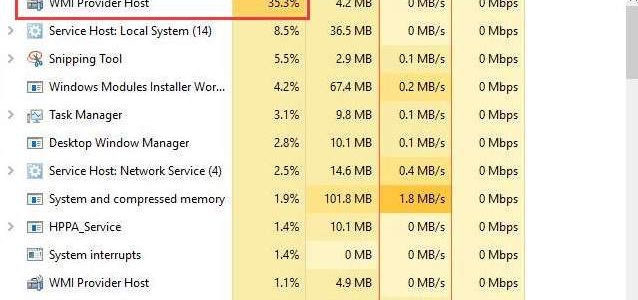
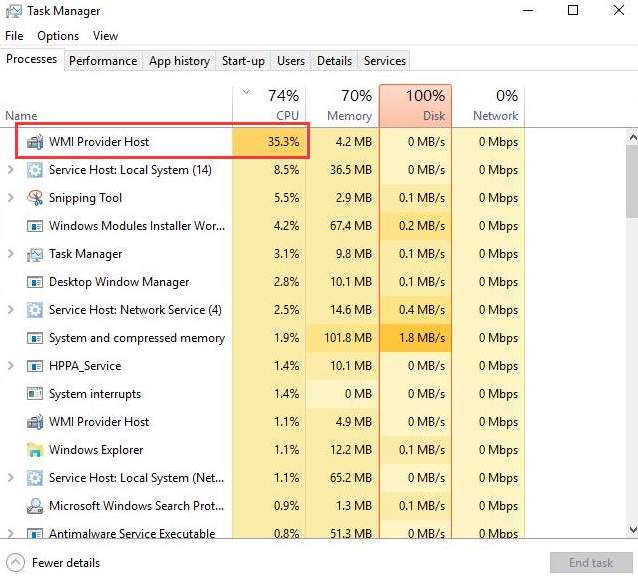
If your computer is running slow, you need to first check the Task Manager. Sometimes you may see WMI Provider Host process is hogging your computer CPU usage, causing your system to work at a snail’s pace.

If you see a similar image on your screen like the one below, you would want to try the solutions listed in this post.

error image

We have provides four solutions to fix the issue. You might not be required to try all solutions. Just start with the first solution and work your way downwards until the high CPU usage by WMI Provider Host process is fixed.

What is WMI provider host (WmiPrvSE.exe)?

WMI stands for “Windows Management Instrumentation”. It is an important feature that is needed to run applications. If the WMI provider host process is stopped, many features of Windows would become useless and this in turn may lead to other errors.

In general, WMI provider host service doesn’t use much CPU as it is not doing anything. It only uses CPU when an application requests information. Prolonged high CPU usage by WMI provider host process indicates something is wrong. Here are some solutions that might fix the issue.

Solution One- Run Virus Scan

You cannot rule out the possibility of malware and virus behind the high CPU usage of WMI provider host process. Run anti-virus scan and remove any suspicious programs and files it detects. After you have scanned the computer with anti-virus software, restart the computer and see if the issue is fixed. If you still see high CPU usage by WMI provider host process, try next solution.

Solution Two- Run Microsoft Support Diagnostic Tool in Safe Mode

Microsoft provides troubleshooter that allows you to fix many performance related issues using command line tool. To ensure nothing interferes with troubleshooter, you need to run msdt.exe in safe mode. Here are the steps to follow.

  • Press Windows keys + R simultaneously on your keyboard to invoke Run command tool
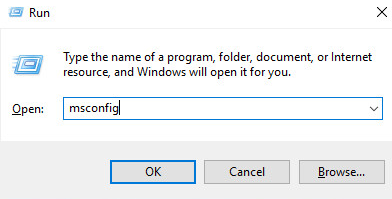
  • In Run command box, type msconfig and click OK
msconfig
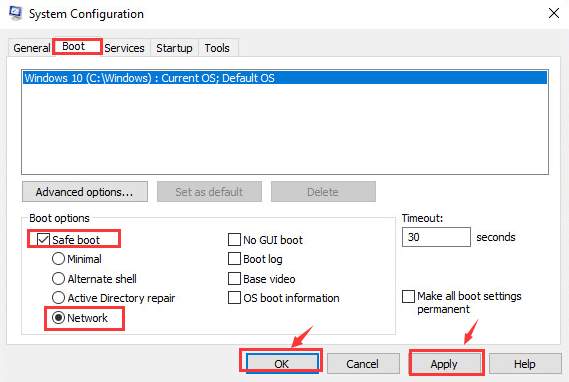
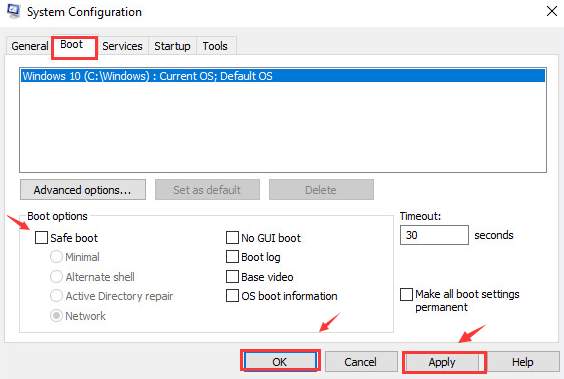
  • Go to Boot tab and check the box for Safe boot
enable safe boot
  • Select Network option
  • Click Apply -> OK to save
  • Now restart the PC to enter Safe Mode
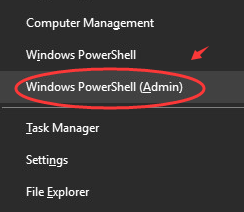
  • When the PC boots in Safe Mode, press Windows key and X at the same time
  • Click Windows Powershell(Admin)
windows powershell admin
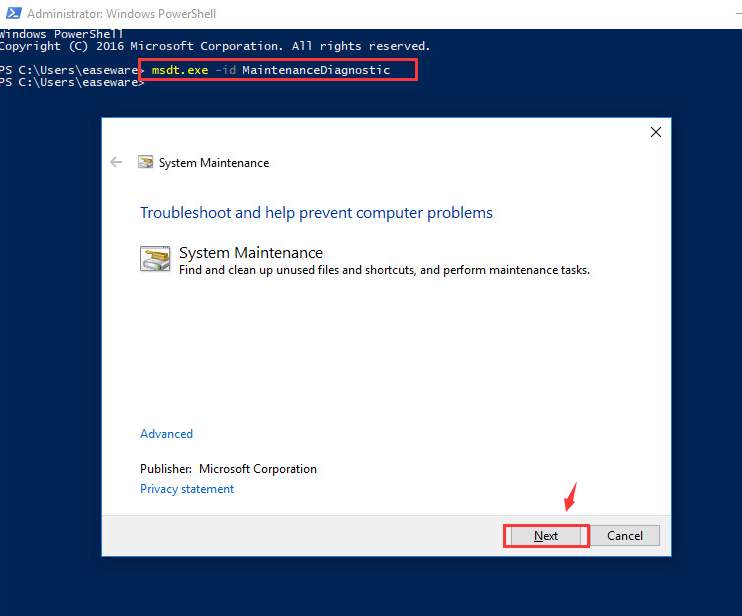
  • Type the following command and hit enter
  • exe -id MaintenanceDiagnostic
msdt system maintenance
  • You will see a troubleshooting window pops up on the screen, click Next to run the troubleshooter
  • If the troubleshooter detects any problems, follow the instructions to fix the issue.
  • Now go to the Powershell window again and type the following command and press Enter
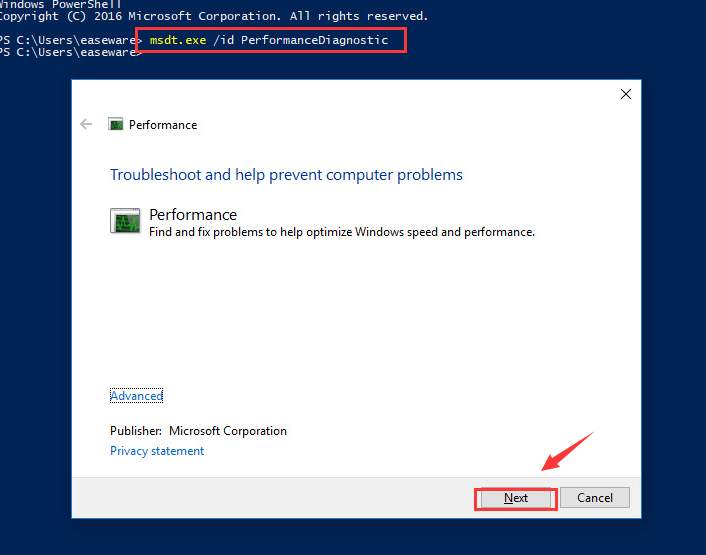
  • exe /id PerformanceDiagnostic
msdt performance
  • You will again see a troubleshooting window pop up on the screen, click Next to run the troubleshooter
  • If you receive any notification to make changes to system settings, follow the on-screen instructions to make changes.
  • When the troubleshooting process is completed, you need to boot your computer into normal mode. You need to repeat the first two steps and then go to Boot tab
disable safe boot
  • Uncheck the box for Safe Mode option
  • Click Apply and then OK to save changes
  • Restart your computer to boot into normal mode
  • Open Task Manager and see if the high CPU usage by WMI provider host process is resolved. If the issue still persists, try next solution.

Solution Three – Restart WMI Provider Host service

If the WMI Provider Host service is utilizing too many resources, restarting it might solve the problem. Here are the steps to follow.

  • Press Windows key and R button on the keyboard simultaneously to invoke Run command
  • In the Run command box, type services.msc and click OK
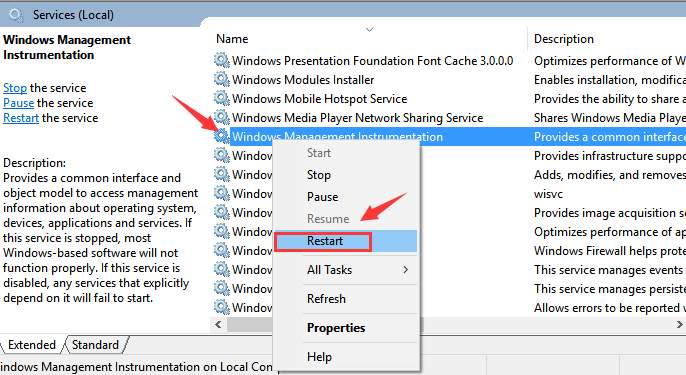
  • In the Services window, locate Windows Management Instrumentation Right-click on it and select Restart
windows management instrumentation
  • In the Cortana search box, type cmd
  • Right-click on the Command Prompt in the list and select Run as administrator
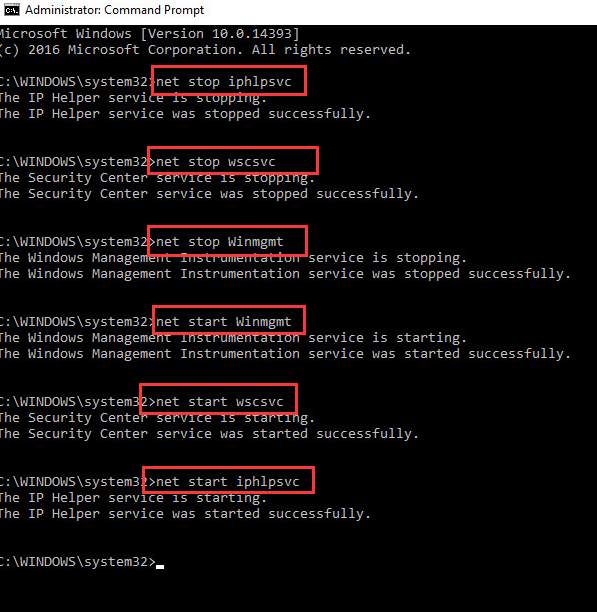
  • In the command prompt window, type the following command and hit Enter after each command.
net stop commands
  • net stop iphlpsvc
  • net stop wscsvc
  • net stop Winmgmt
  • net start Winmgmt
  • net start wscsvc
  • net start iphlpsvc
  • After the commands are executed successfully, close the command prompt window

Restart the computer and check the Task Manager to see if the high CPU usage of WMI provider host is fixed. If the issue still persists, move to next solution.

Solution Four – Remove Components and Drivers Causing the Problem

One of the reasons behind high CPU usage of WMI provider host is corrupt drivers and faulty components. You need to uninstall them in order to fix the issue. Here are the steps to follow.

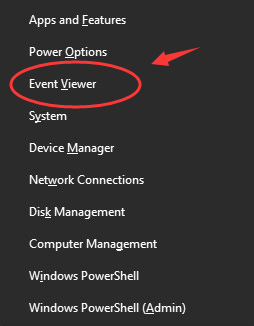
  • Press Windows key and X simultaneously on the keyboard and select Event Viewer from the list that pops up
event viewer
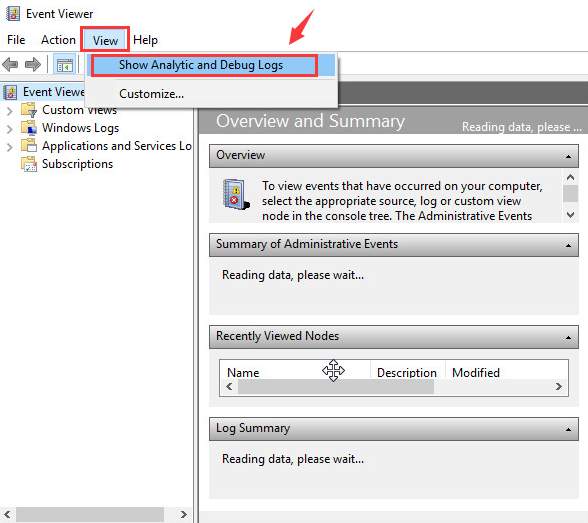
  • In the Event Viewer window, click View option that appears on top and select Show Analytic and Debug Logs
show analytic and debug
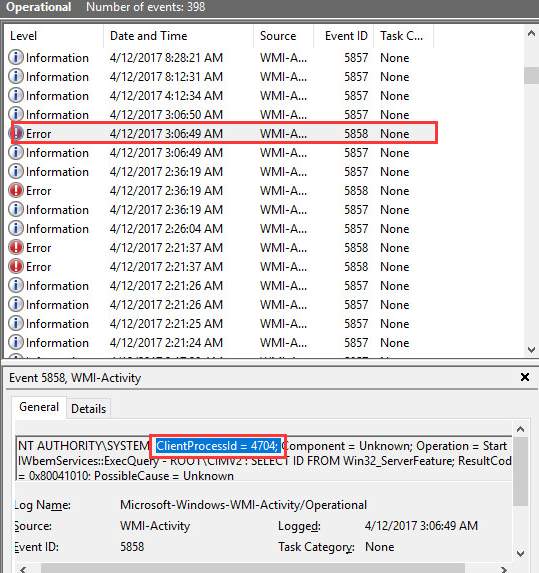
  • On the left pane, follow the path : Applications and Service Logs -> Microsoft -> Windows -> WMI Activity -> Operational log
  • Find entries that are marked as errors in the list
  • Click on the error and go to the general tab and note down the process ID for the error
error process ID
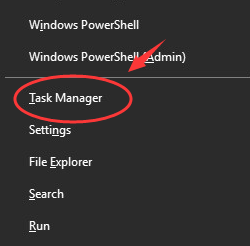
  • Now, press Windows key and X simultaneously on the keyboard and select Task Manager from the list
task manager
  • In the Task Manager window, go to Services tab and look for process ID that you have found for errors. When you find them, click on process ID and find out the application and service related to it by reading the description

Once you know the application or service associated with various errors, you can disable the services and uninstall the application.

To Disable Services in Windows 10, follow the steps given below

  • Open Start Menu and type services in Cortana search box
  • In the Services window, double-click on the services you want to disable
  • From Startup type, select Disabled
  • Click OK

To uninstall applications in Windows 10, follow the steps given below

  • Open Start Menu and click Settings(gear icon)
  • In the Settings window, click Apps
  • Click Apps & features from the left pane
  • Select an app you wish to uninstall
  • Click the Uninstall button that appears

Last Resort- Update Drivers

If none of the above solutions has fixed the issue, we suggest you update drivers and see if it helps. You need to always download drivers from trusted sources. If you have never updated drivers manually earlier, we suggest you use a Driver update tool that can update drivers automatically. Here are the steps to follow.

Updating Drivers Automatically

Automatic driver update tools offer many benefits, the most important ones being:

  • You can update device drivers automatically
  • The software scans and updates all outdated or missing drivers at one go
  • The tool picks the right drivers for your device and operating system, so you won’t have to worry about installing an incorrect driver by mistake
  • Automatic driver updates are 100% safe

Driver Updater is one of the best driver update tools out there. Outbyte Driver Updater will give you access to a database of over 1 million drivers. It will regularly scan your PC, suggesting new driver versions to install. Driver Updater contains drivers for a variety of Windows devices. With just one click, you can update drivers in your system.

Step 1
Click here to Install and launch the app

Step 2
Scan all devices

Step 3
Install or update drivers automatically


Start Download


Filed Under: PC Fix Tips Tagged With: WMI Provider Host

err-network-changed

By Susan C on May 14, 2018

err-network-changed

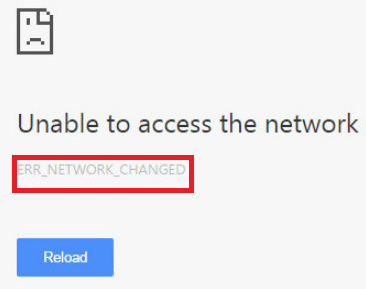
Are you getting the err_network_changed error when you try to search something on Chrome?

err network changed

If yes, don’t worry. This is a common error. Thankfully, it won’t take much to solve the problem.

In this post, we’ll discuss some easy-to-do solutions for the err_network_changed error.

We recommend you start troubleshooting with the solution one and then move on to the next one, and then to the next one, and so on, until the error is gone. (Of course, we would love to hear from you which solution worked in your case, so do leave a comment!)

First Solution – Restart the router or modem

Before you try any other troubleshooting step, you should restart the router or modem. Turn off the router or modem by pressing the power button, wait for 1-2 minutes, and then turn on the device.

Second Solution – Reset IP/TCP

  • Click the Start menu and then type cmd in the start search box
  • Now right-click Command Prompt and click Run as administrator
  • In the User Account Control, click the Yes button
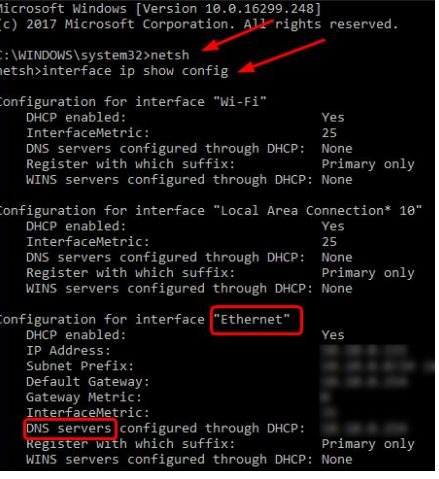
  • In the Command Prompt, type these two commands and hit Enter on your keyboard after each command to run these commands one after another. Next locate your computers’ network interface as well as the DNS address it is using
netsh
reset IP-TCP
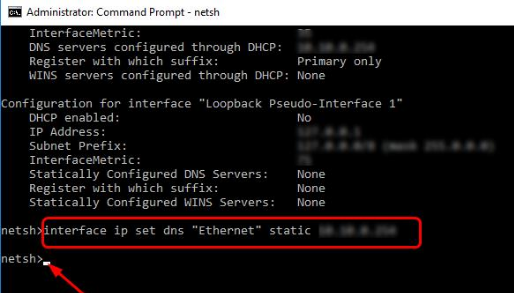
  • Next type interface ip set dns “name of your network interface” static “DNS address” and hit Enter
netsh 2

Note: You will have to use the information you gathered in the step 4 while typing the above-mentioned command. For example, my computer’s network interface is “Ethernet”. Therefore I’m writing this…

  • You’ll see netsh> in the next line after some seconds. Now you’ll have to type the command listed below and then hit Enter
  • Reboot Windows and see if the issue is resolved
Third Solution – Reinstall the network adapter

To do this, perform the steps listed below.

  • Press Windows + X to launch the quick-access menu
  • Click Device Manager
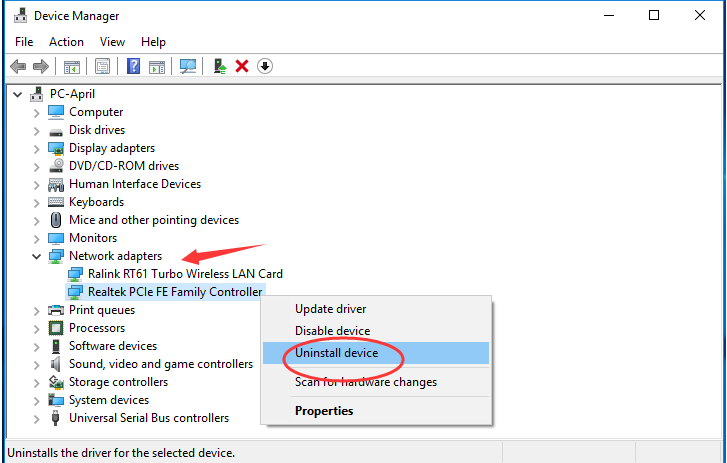
  • In the Device Manager window, click Network adapters to see the devices under it. Now right-click the installed network adapter software and then select Uninstall device
  • Restart Windows. Upon reboot, Windows will reinstall the network adapter drivers
uninstall network adapter drivers

Note: In case you are not comfortable in uninstalling device drivers or Windows is unable to reinstall required drivers upon reboot, you should use a driver update tool.

Driver Update Tools like Driver Updater update your network adapter driver and other drivers in just a few clicks. The software is free to download, install, and run. However, to get automatic driver updates, you’ll need to register.

Fourth Solution – Change LAN Settings

  • Type control panel in the Start Search box
  • Click Network and Internet
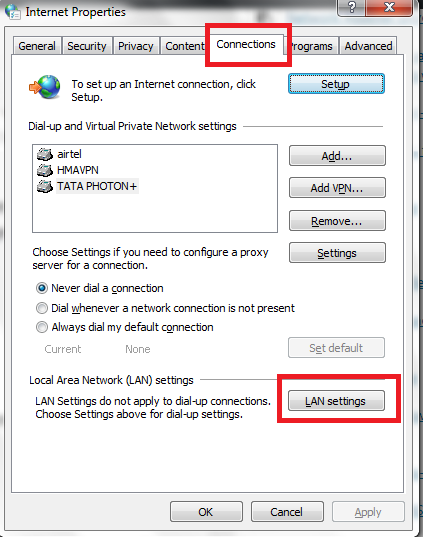
  • Click Internet Options to open the Internet Properties dialog box
  • Click the Connections tab
  • Click the LAN Settings button
click LAN settings
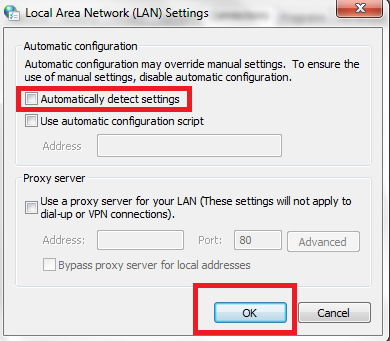
  • Uncheck the box before Automatically detect settings
  • Click the OK button
uncheck automatically detect settings
  • Launch Chrome and see if you can now visit the websites that you couldn’t access earlier

If the error persists, move on to the next step.

Fifth Solution – Troubleshoot the browser

It is very much possible that this error might be because of your browser. In such a case, you would need to clear the browsing data.

Here’s how you clear the browsing data on Chrome:

  • Open Google Chrome
  • Press Ctrl, Shift and Delete buttons on the keyboard simultaneously
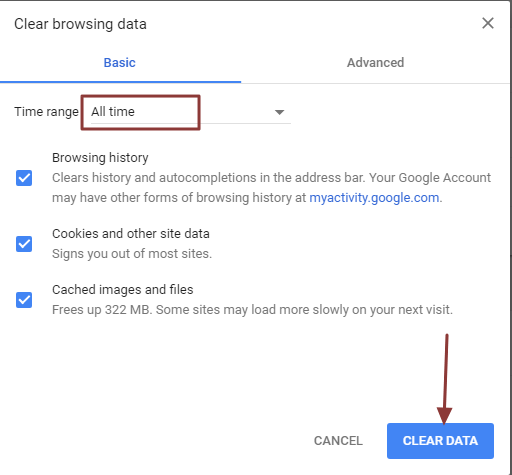
  • A data clearing window pops up on screen
  • Select “All time” from the drop-down list for Time Range field
Chrome clear data
  • Click Clear Data

Sixth Solution – Flush DNS

This is the last solution in the list. If everything else have failed, you can try flushing DNS. The steps for it are fairly simple.

Here’s how you can flush DNS.

  • In the start search box type cmd, right-click Command Prompt or exe and select Run as Administrator
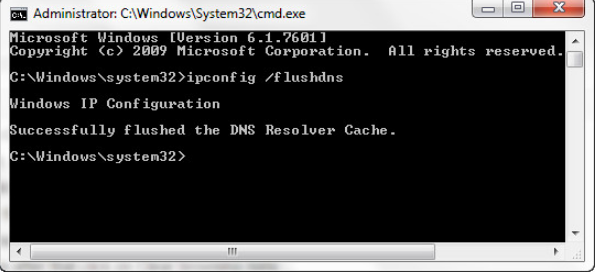
  • Now in the window that opens on your screen, you need to type ipconfig /flushdns and press the Enter key
flush dns
  • When you do this correctly, you will receive a message stating “Successfully flushed the DNS Resolver Cache” (see the image above)

Filed Under: PC Fix Tips Tagged With: err network changed

  • « Previous Page
  • 1
  • …
  • 171
  • 172
  • 173
  • 174
  • 175
  • …
  • 189
  • Next Page »


  • Recent Posts
  • Popular Posts
        

Read More Posts


Read More Posts

Drivers.com Sites

  • Software Drivers
  • Drivers Ed

About Us

  • Advertise
  • About Drivers
  • Drivers Support
  • Drivers.com Privacy Policy
  • Disclaimer
  • Software Drivers
  • Mac Fixes and Tips
  • PC Fix Tips
  • Security/ Backup
  • Tablets & Smartphones
  • Tech News

© Copyright 2026 PDE Publications Ltd. End User License Agreement (EULA)