Drivers.com

follow us:

facebook twitter
  • Home
  • Download Drivers
  • Drivers Help
  • PC/Mac Resources
  • Software Drivers
  • Mac Fixes and Tips
  • PC Fix Tips
  • Security/ Backup
  • Tablets & Smartphones
  • Tech News
  • Software Drivers
  • Mac Fixes and Tips
  • PC Fix Tips
  • Security/ Backup
  • Tablets & Smartphones
  • Tech News

Your DNS server might be unavailable Error

By Susan C on May 20, 2018

Your DNS server might be unavailable Error

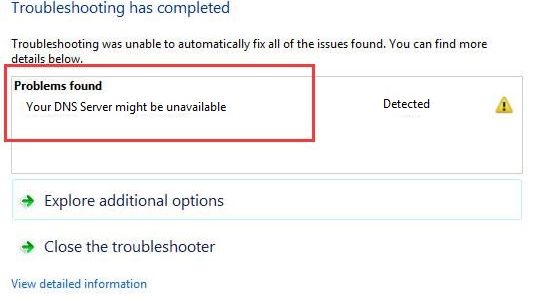
“Your DNS server might be unavailable” is one of the most common Internet errors you might come across. When you get this error, you can’t surf the Internet. Though frustrating, the error is not dreadful as many think, and you can easily fix it with solutions we have listed here.
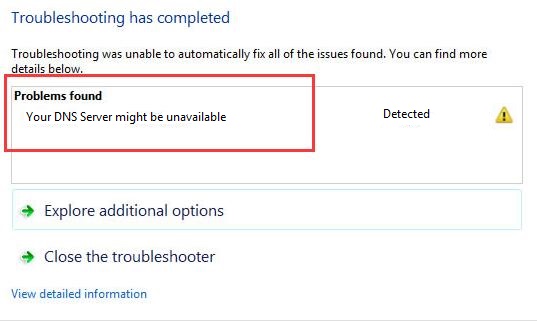
DNS unavailable

Solution One – Flush DNS

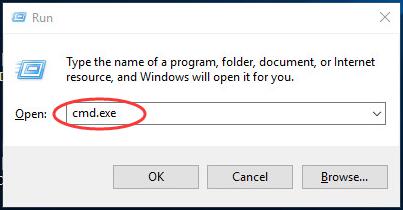
  • On your keyboard, press Windows key and R simultaneously to bring up Run command interface
  • Type exe and click OK
Run cmd
  • In the command prompt window that opens, type the following commands and press Enter after each command
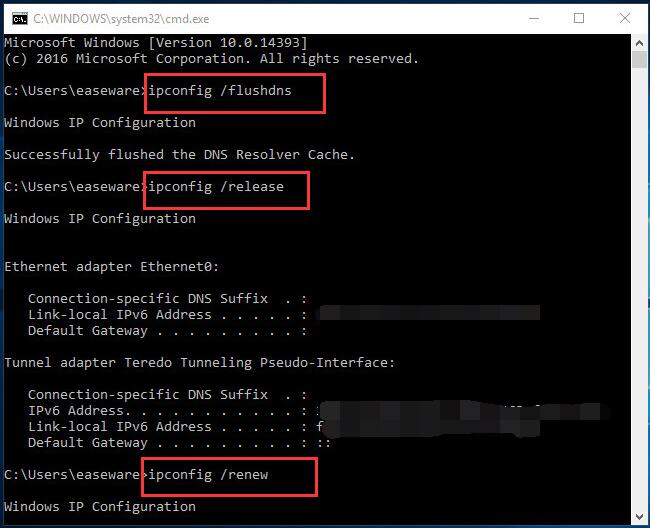
ipconfig commands
  • ipconfig /flushdns
  • ipconfig /release
  • ipconfig /renew
  • close the command prompt window

Open a browser and try to open any website. If the error still persists, move on to next solution

Solution Two- Reset Router

In the majority of the Internet connections, the DNS servers are allocated automatically.  If you are experiencing DNS related errors, you should reset the router and see if it helps. Here are the steps to follow.
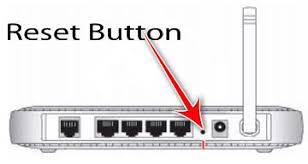
reset router

Every router has a Reset button and you need to use it to Reset the router. If you are not sure how to do it, refer the router documentation for detailed steps. After you have reset the router, you will be required to enter details of your Internet connection.

Once the Internet connectivity has been established, open the browser and see if the issue persists. If you are still receiving “Your DNS server might be unavailable”, try the next solution

Solution Three – Use Public DNS

It is possible that there might be some problem with your ISP’s DNS server.  In that case, you can use public DNS to get your Internet connection working. All you have to do is change DNS settings of your computer by following steps given below.

  • To open Run command console, press Windows key and R simultaneously on your keyboard
  • In the Run command box, type ncpa.cpl and click OK
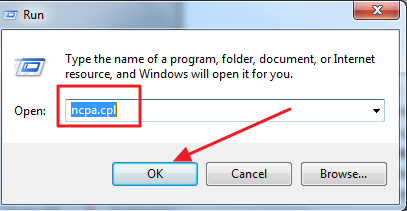
ncpa
  • In the Network Connections window, right-click on the Network and select Properties
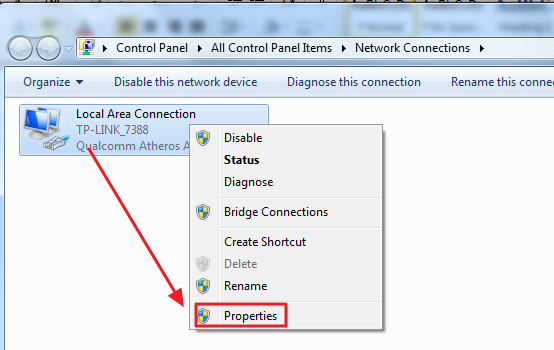
network
  • In the Network Properties window, look for Internet Protocol Version 4 (TCP/IPv4) in the list and select it
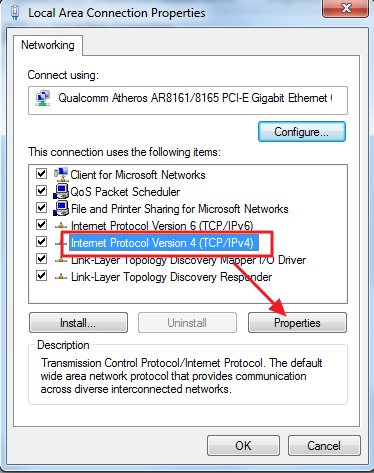
TCP-IPv4
  • Now, click Properties
  • In the Internet Protocol Version 4 (TCP/IPv4) properties window, select the option Use the following DNS server addresses and enter the following addresses.
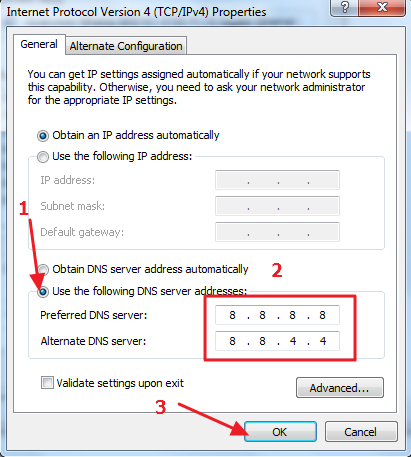
IPV4 DNS addresses
  • Preferred DNS server: 8.8.8
  • Alternate DNS server: 8.8.4.4
  • Now go back to Network Properties window. This time select Internet Protocol Version 6 (TCP/IPv6) and click Properties
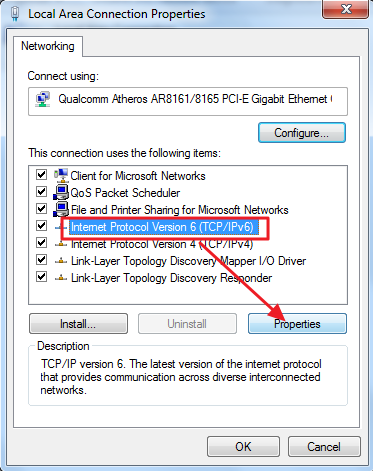
TCP-IPv6
  • In the Internet Protocol Version 6 (TCP/IPv6) properties window, select the option Use the following DNS server addresses and enter the following addresses.
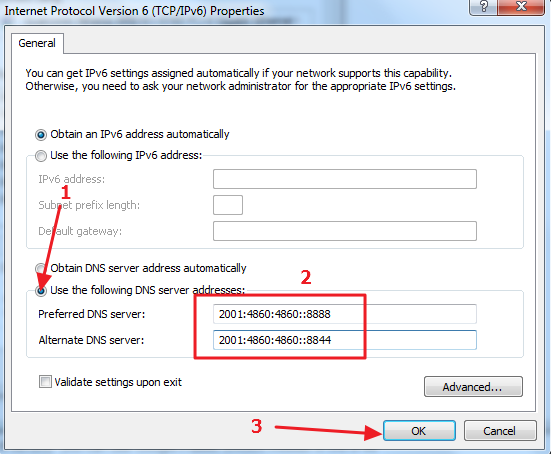
IPv6 DNS addresses
  • Preferred DNS server: 2001:4860:4860::8888
  • Alternate DNS server: 2001:4860:4860::8844
  • Save your settings and close all windows

Open a browser and try opening a website and see if the issue persists. If you still get an error “Your DNS server might be unavailable”, try the next solution.

Solution Four – Reset TCP/IP

 The TCP/IP plays an important role in establishing an Internet connection. There is a possibility the TCP/IP settings are corrupt which is causing the “Your DNS server might be unavailable” error. To rule out this possibility, follow the steps given below to reset TCP/IP.

  • Open command prompt with admin rights
 cmd (admin)
  • In the command prompt window, type netsh int ip reset resettcpip.txt and press Enter on the keyboard

netsh TCP-IP reset

Filed Under: PC Fix Tips Tagged With: DNS server unavialable

Memory Management BSOD Error on Windows 10

By Susan C on May 18, 2018

Memory Management BSOD Error on Windows 10

If your computer is throwing BSOD with memory management error, this post is exactly for you.

The BSOD Windows Management error affects a Windows system badly and can cause abrupt shutdown and reboots. With that said, there’s no need to let frustration spoil your mood when you encounter the dreaded BSOD error.

Dreaded though BSOD errors are, they are usually not difficult to resolve. This is the case with memory management BSOD too.

We have provided 5 do-it-yourself solutions to memory management BSOD. Of course, you don’t need to try all of them; start with the first one and move on to the next one and so on until the error goes away.

However, first you might want to understand what memory management error is all about.

What is memory management error?

As the name suggests, the memory management is related to allocation of memory. Every Windows processes and programs that you run have memory requirements.

Windows allocates memory to processes and programs. When you close any program, it frees up memory space, which is then made available to other program or process.

Like any other process, memory management can crash. When that happens, the system cannot function normally.  The result is the system throws up BSOD memory management error and reboots to recover from the error.

What causes Memory management error?

There can be several reasons behind the BSOD Memory management error. Some of the reasons are

  • Hardware or software conflicts
  • Disk errors
  • Virus infection
  • Faulty video driver
  • Faulty RAM

Now that you have adequate knowledge about BSOD Memory management error, let’s look at the solutions available to fix the issue.

Solution One – Update video drivers

One of the causes of memory management error is outdated or corrupt video card driver. To fix this issue, you need to update video card driver. You can either update driver manually or use driver update software which would update video driver automatically.

Manual Driver Update

To update drivers manually, you need to be familiar with Device Manager, an inbuilt utility in Windows that allows you to install or uninstall device drivers, among other things.

Here are the steps to update video drivers manually using Device Manager.

  • Go to device manufacturer website or video card manufacturer website
  • The driver file is available in different formats- ZIP, EXE, SYS, and other formats. Download the driver file in zip format
  • Unzip the file to a designated folder
  • Click Start and type Device Manager in Cortana search box
  • Click Device Manager from the list of results
  • In the Device Manager window, go to Display adapters and expand it
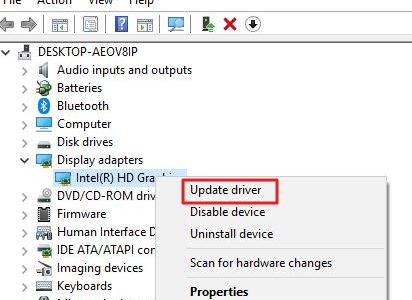
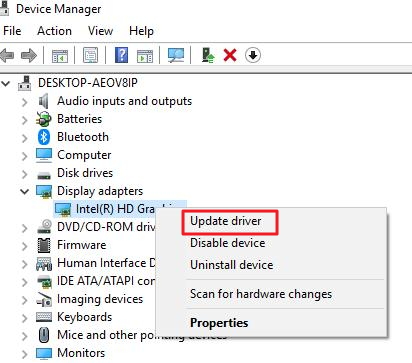
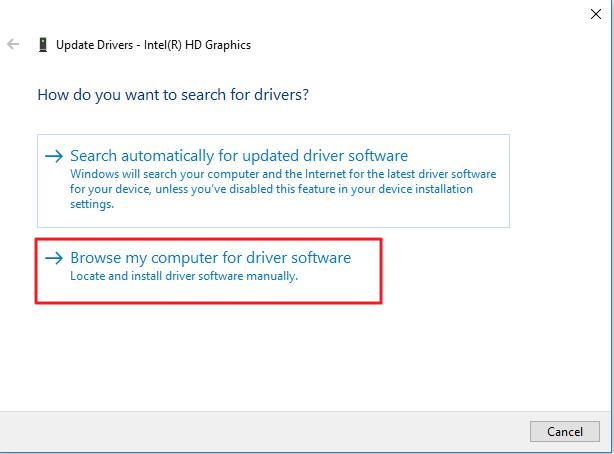
  • Right-click video card and click Update Driver
update driver
  • Click Browse my computer for driver software.
browse driver software
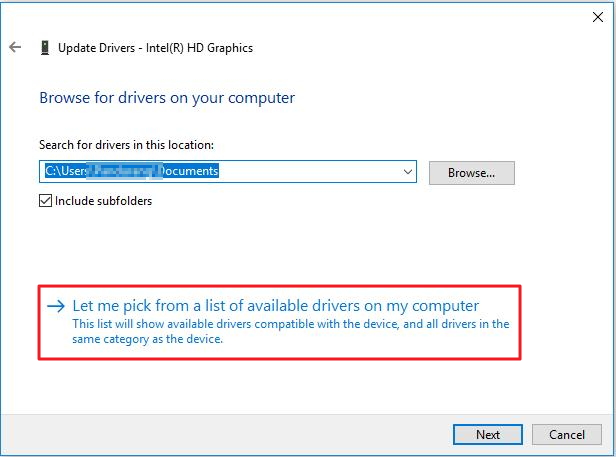
  • Click Let me pick from a list of device drivers on my computer
choose driver
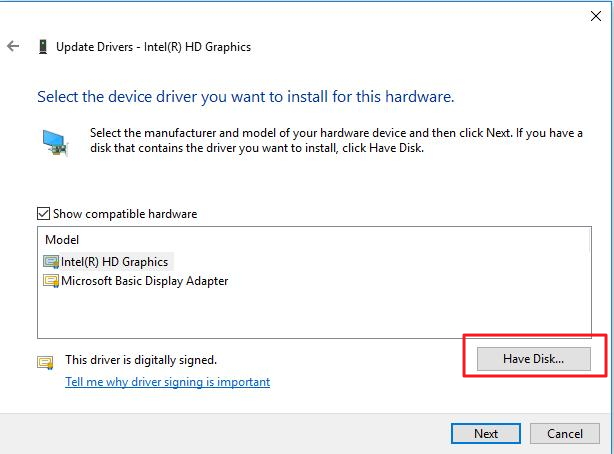
  • Click Have Disk
click have disk
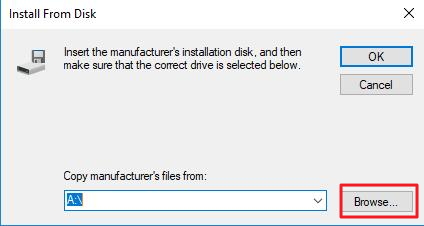
  • Click Browse
click browse
  • Access the designated folder where the video card driver is stored
  • Select the driver file
  • Click Open and then Click OK
  • Click Next
  • Windows will install the video card driver. After the video card driver is installed successfully, restart the computer

Automatic Driver Update

Updating driver using a driver software tool is a good option.

Automatic driver update tools offer many benefits, the most important ones being:

  • You can update device drivers automatically
  • The software scans and updates all outdated or missing drivers at one go
  • The tool picks the right drivers for your device and operating system, so you won’t have to worry about installing an incorrect driver by mistake
  • Automatic driver updates are 100% safe

Driver Updater is one of the best driver update tools out there. Outbyte Driver Updater will give you access to a database of over 1 million drivers. It will regularly scan your PC, suggesting new driver versions to install. Driver Updater contains drivers for a variety of Windows devices. With just one click, you can update drivers in your system.

Step 1
Click here to Install and launch the app

Step 2
Scan all devices

Step 3
Install or update drivers automatically


Start Download


Solution Two- Run Check Disk

The Windows system might also throw up BSOD memory management error on the screen if the NTFS volume is corrupt. To resolve this problem, you need to fix NTFS file system errors by running Check Disk. Here are the steps to follow.

  • Press Windows key + S simultaneously on the keyboard to bring up Cortana search
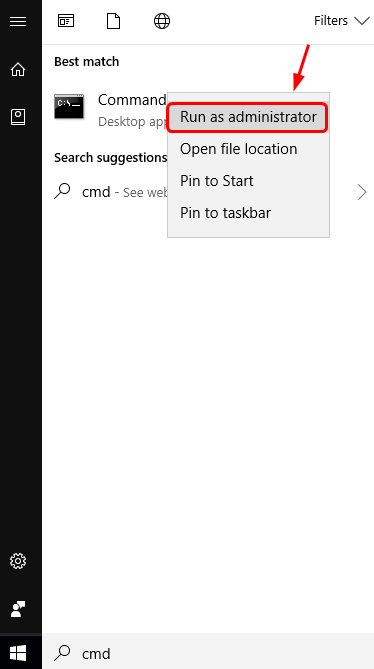
  • In the search box, type cmd and click OK
cmd
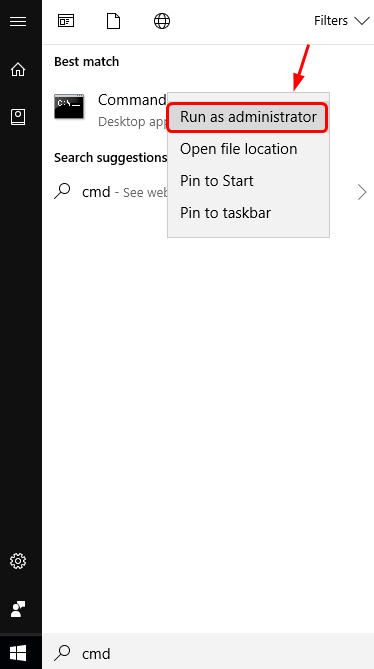
  • Right-click Command Prompt from the list of results and select Run as administrator
run as admin
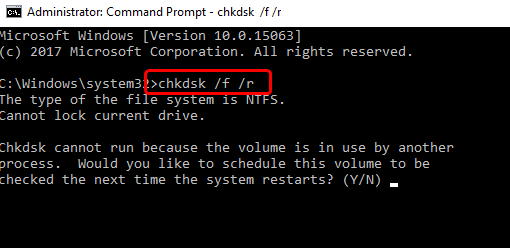
  • In the command prompt window, type chkdsk /f /r, and press Enter on your keyboard.
chkdsk
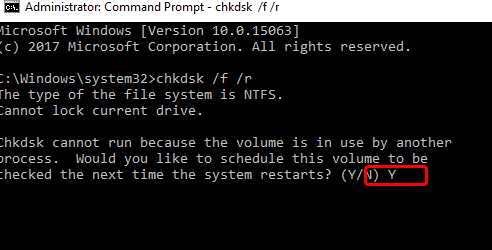
  • When the system asks “Would you like to schedule this volume to be checked next time the system restarts?”, press Y on the keyboard
system restart Yes
  • Close the command prompt window and restart your computer.
  • When the computer reboots, Windows will run the check disk program to fix any errors with NTFS volume.
  • Use your computer for some time and see if the error is generated. If the issue persists, try next solution.

Solution Three-Run Windows memory diagnostic test

When your computer shows memory management errors, there is a possibility there is some problem with physical RAM installed in your computer. To rule out this possibility, you can run Windows memory diagnostic tool to check physical RAM for any faults.

Here are the steps to follow.

  • Press Windows key + R simultaneously on the keyboard to bring up the Run command console
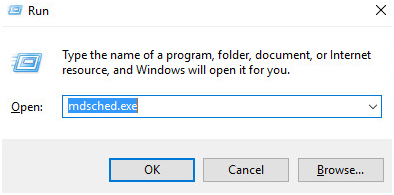
  • In the Run command window, type mdsched.exe and click OK
mdsched
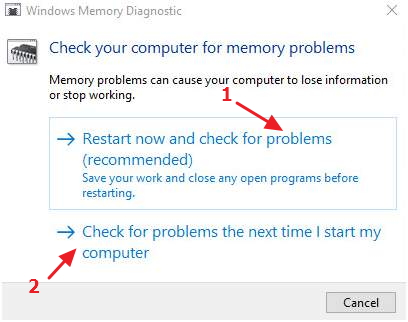
  • Windows will provide two options – Restart now and check for problems (recommended)or Check for problems the next time I start my computer
memory check options
  • If you want to run Windows memory diagnostic tool immediately, select Restart now and check for problems (recommended) else select Check for problems the next time I start my computer
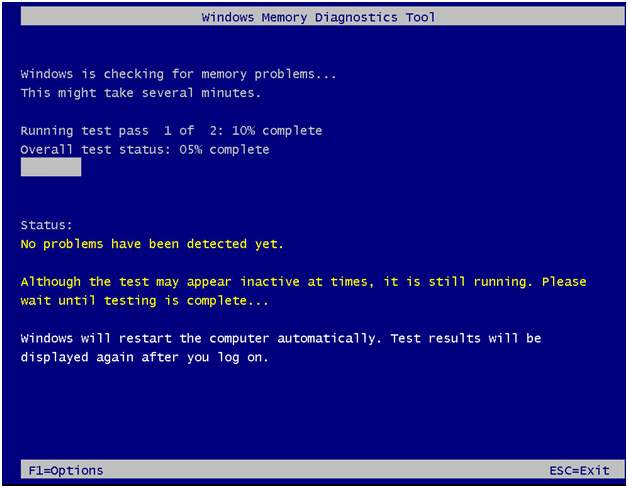
  • When the Windows runs Windows memory diagnostic tool, you will see the progress and also see errors that Windows memory diagnostic tool may encounter.
memory tool running
  • When the Windows memory diagnostic test is completed, the computer reboots and you can see the test results when you log on

If the Windows memory diagnostic test results show no errors, you can conclude the physical RAM is in good condition. You need to move to next solution to resolve the issue.

Solution Four- Check newly installed hardware and software

Try to recall any changes you made to the system after which BSOD memory management error started appearing.

Have you recently installed any new hardware or software? There is a possibility the newly installed hardware or software is not compatible with your system, which in turn might be causing the memory management error.

You should remove any newly installed hardware and also uninstall any new software and see if the issue is resolved. If the issue still persists, you need to try next solution.

Solution Five- Scan your system for virus infection

Though very rare, a virus infection can be the reason behind BSOD memory management error. If you haven’t scanned your system for virus infection recently, do it now.

If you don’t have any 3rd party anti-virus installed, you can use the built-in Windows Defender to scan your system and get rid of virus infections if any.

We are sure you would be able to resolve the error using one of these methods. Do let us know which solution worked for you by leaving a comment. Thanks!

Filed Under: PC Fix Tips Tagged With: memory management error

Extract Audio from YouTube videos easily

By Susan C on May 17, 2018

Extract Audio from YouTube videos easily

Sometimes you hear a catchy video song on YouTube and might want to extract the song as an audio file. To help you do just that, we have listed two easy ways to extract audio from YouTube videos.

The first option here shows you how to extract audio from YouTube video using an online audio extraction service. The second option discussed here shows how to extract audio from YouTube video using video converter applications.

The first option needs less time as you are not required to download the YouTube video. However, in online audio extraction, the quality of the audio might not be great.

The second option requires you to download the video first and then use the video converter to extract the audio file. The advantage of using a converter is that you get a higher quality audio.

Option One- Use online audio extractor service

There are many online audio extractor services that can help you extract audio from YouTube video. You can use any online audio extractor website you trust.

However, if you are unable to decide which website to use, you can go to www.onlinevideoconverter.com and follow the steps given below to extract audio from YouTube video and download the audio file.

  • Go to onlinevideoconverter.com
  • Click Convert a Video Link/URL option
convert a video link
  • In the next screen, enter the YouTube video link that you want to extract audio
  • The default audio format selected is mp3. You can select other audio formats like aac, ogg, m4a, wav audio formats from the drop-down list.
  • Click More settings to select the bit-rate. The default bit-rate is 192 kbps. You can select a higher or lower bit-rate as per your preference. The bit-rate is related to audio-quality; higher the bit-rate, better the audio quality
start conversion online
  • Click Start
  • After the audio is extracted, you will get an option to Download the file, click Download to download the audio

If you want to extract audio from several YouTube videos, we would suggest you use video converters for the purpose.

Option Two- use video converter to extract audio stream from YouTube video

There are several 3rd party video converters that allow you to extract audio file from YouTube videos. Here we have discussed two video converters – Audials One and VLC Media player which are popular video converters.

Below you will find steps to extract audio file from YouTube videos using both video converters.

Note: You will need to have the video file (YouTube video) on your local drive.

Steps to extract the audio file using Audials One

Audials One is an easy to use video converter that allows you to extract audio file from video files in different formats. Some of the audio formats supported in Audials One are MP3, WMA, AAC, and many others. Here are the steps to extract audio file from YouTube video

  • Download and install Audials One
  • Open Audials One
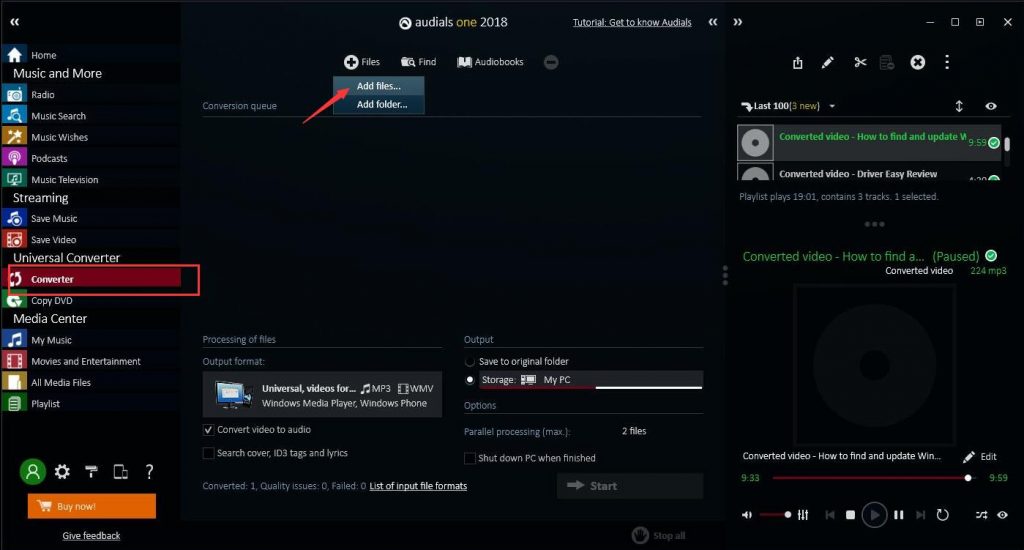
  • In the left pane, under Universal Converter, click Converter
  • Click File and then click Add files
add files audials
  • Select the downloaded YouTube file
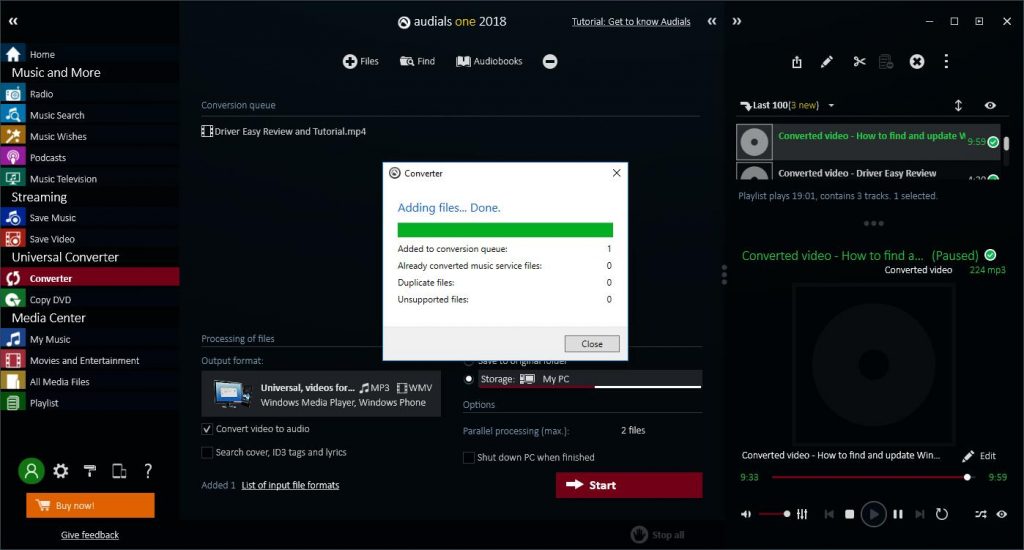
  • Click Close when you are promoted to add more files
close audials one
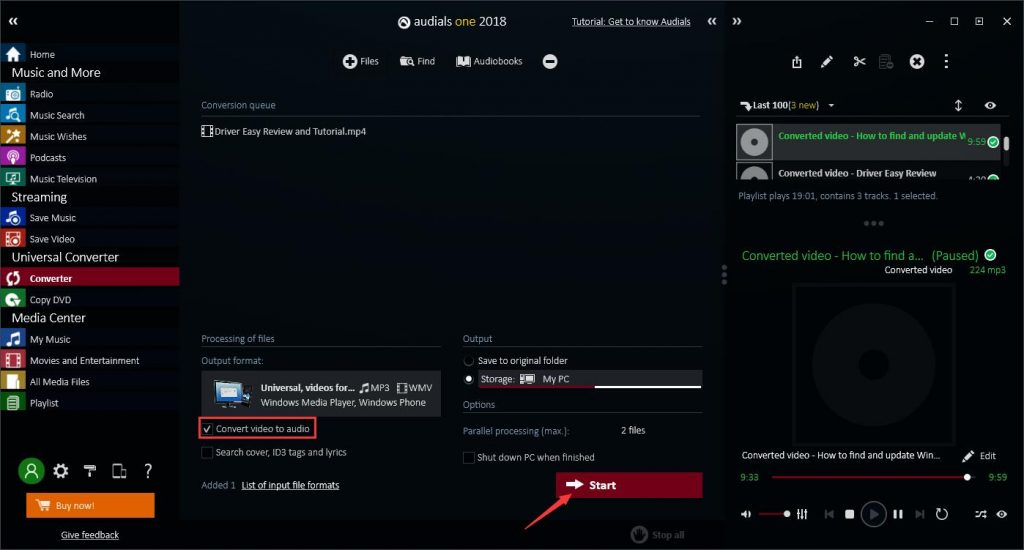
  • Check the box – convert video to audio
  • Click Start
start audials one
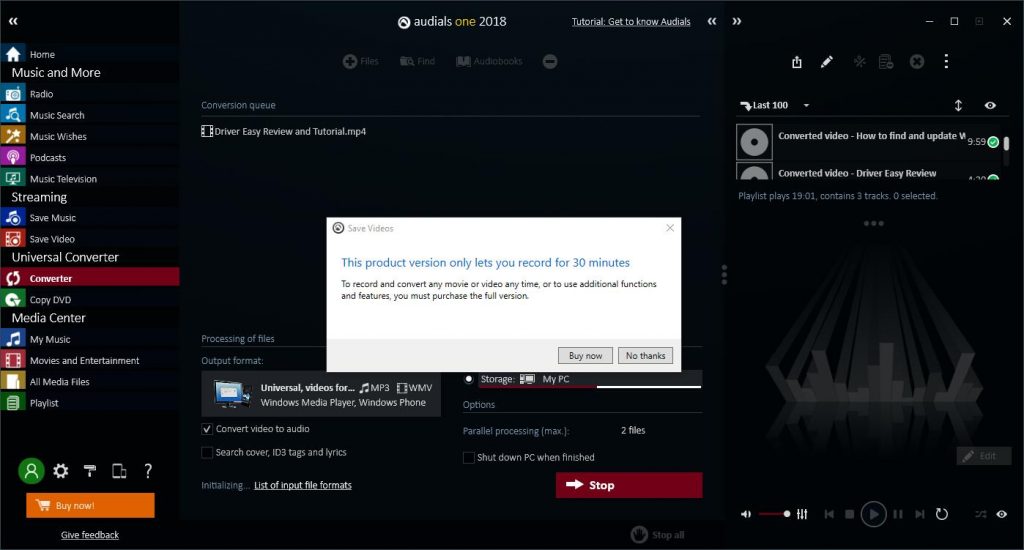
  • The Free version of Audials One only allows you to convert YouTube videos having duration of 30 minutes or less. Before the conversion, the software presents you with an option to Buy Pro version. If the YouTube video duration is less than30 minutes, click No Thanks option which will start the conversion. If the YouTube video duration is more than 30 minutes, click Buy Now to upgrade to Pro version
30 minutes limit
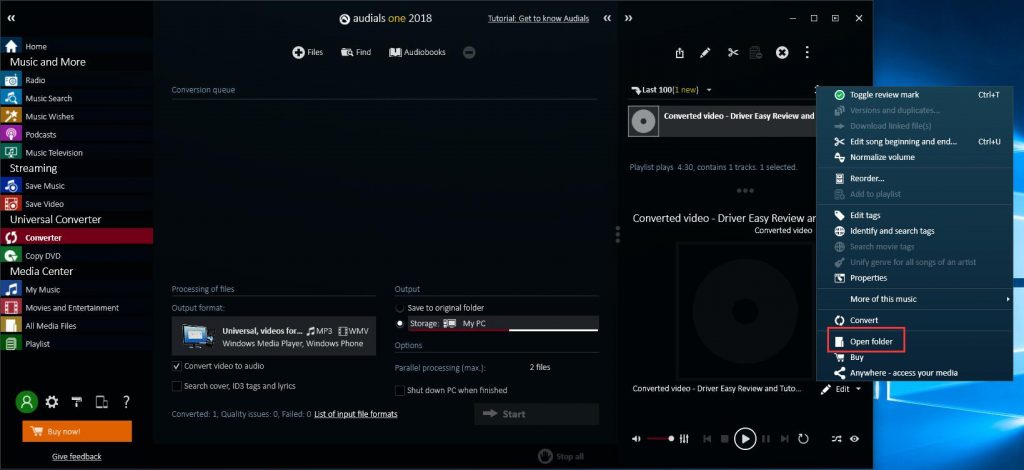
  • After the audio file is converted, click Edit in the right corner
  • Select Open folder to see the converted audio file
open folder

Steps to extract audio file using VLC Media player

  • Download and install VLC Media player
  • Launch VLC media player
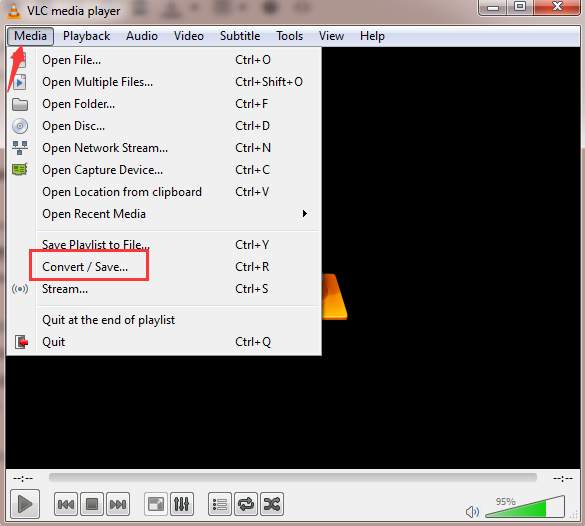
  • Click Media in top menu bar and select Convert/Save
convert-save
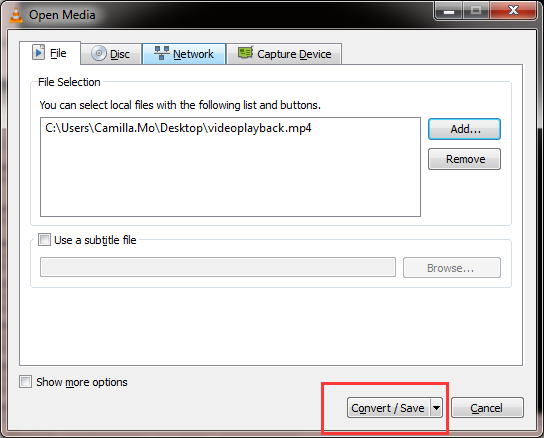
  • Click Add button
convert-save VLC
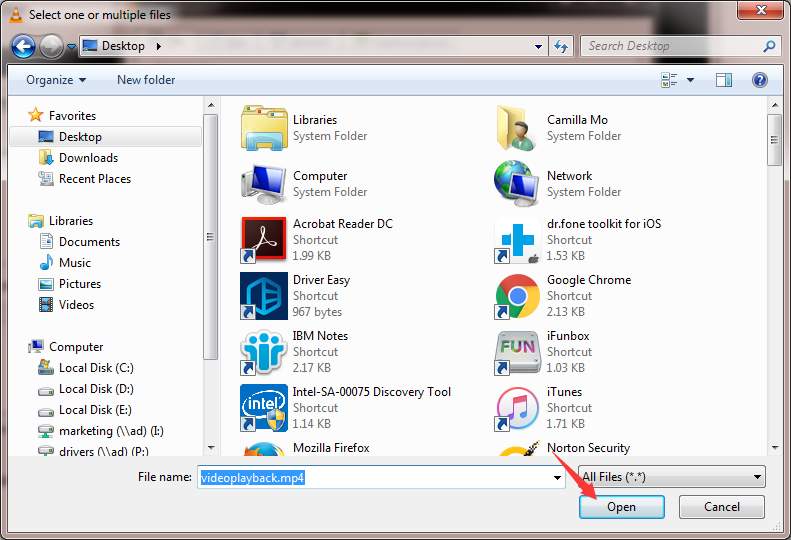
  • Browse and select the YouTube video file that you have downloaded and click Open
select file VLC
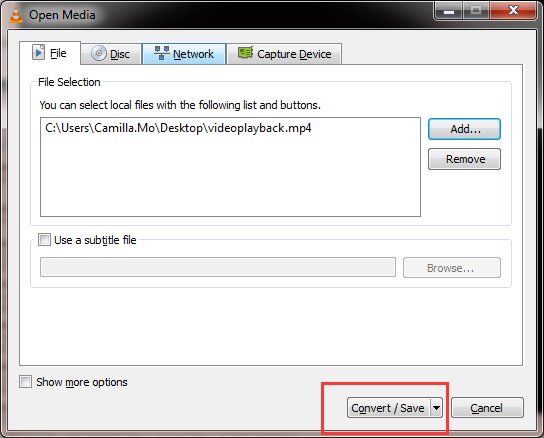
  • Click Convert/Save button
convert-save VLC
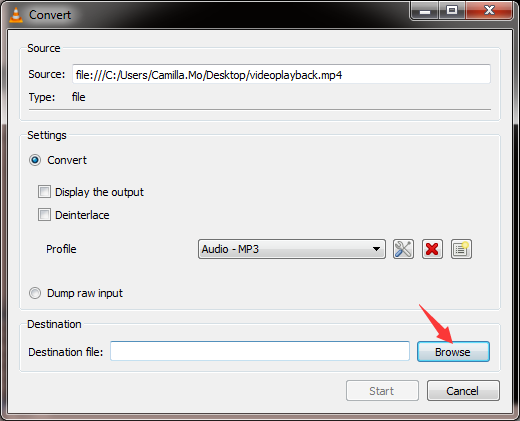
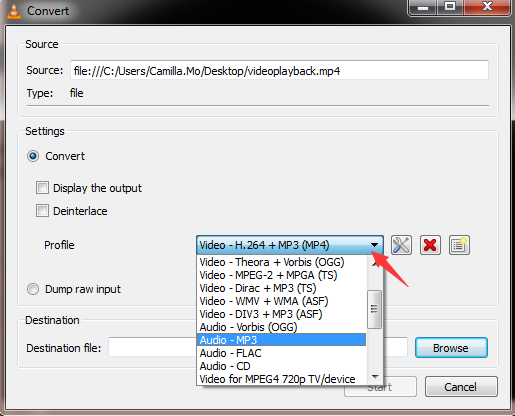
  • Select the audio profile you want. We have selected MP3
audio profile VLC
  • Click Browse to select the destination folder for the converted audio file
browse destination folder
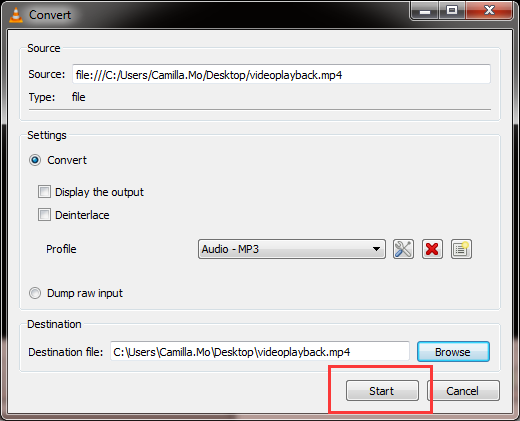
  • Click Start to initiate the conversion
start convert VLC
  • The file conversion starts and audio will be extracted and saved as an audio file in the destination folder

Filed Under: PC Fix Tips Tagged With: extract audio

  • « Previous Page
  • 1
  • …
  • 170
  • 171
  • 172
  • 173
  • 174
  • …
  • 189
  • Next Page »


  • Recent Posts
  • Popular Posts
        

Read More Posts


Read More Posts

Drivers.com Sites

  • Software Drivers
  • Drivers Ed

About Us

  • Advertise
  • About Drivers
  • Drivers Support
  • Drivers.com Privacy Policy
  • Disclaimer
  • Software Drivers
  • Mac Fixes and Tips
  • PC Fix Tips
  • Security/ Backup
  • Tablets & Smartphones
  • Tech News

© Copyright 2026 PDE Publications Ltd. End User License Agreement (EULA)